Sw4 > About > About (All Contents)
StudioWorks
StudioWorks version 4 is an exciting new release of StudioWorks.
Writing the StudioWorks version 4 release took close to two man years. (In addition to several man years invested in the earlier versions of StudioWorks.)
Omnis Studio version 4 provided some great new features which could be utilized in StudioWorks version 4.
One example is the addition of a $userinfo property which was added to every class and object in Omnis Studio. StudioWorks version 4 stores meta-data for each schema class column in a row variable which is then stored in the $userinfo property of the schema class column.
Many new time saving developer tools have been added to make StudioWorks version 4 a truly rapid application development framework.Features
The following is an overview of the features in StudioWorks. This is not an all inclusive list of the features in StudioWorks.SQL Meta-Data
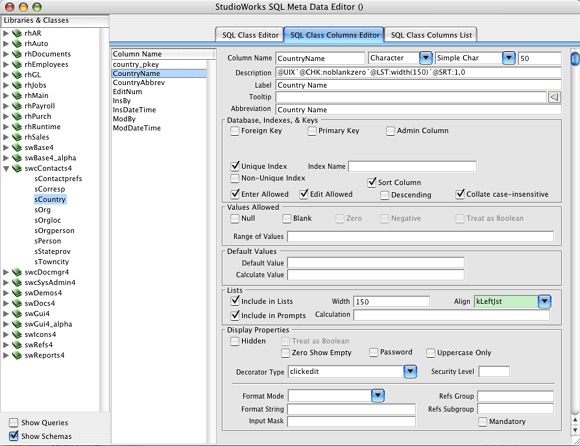
The schema classes in Omnis are used to map list and row variables in your application to the SQL database. Each schema class is mapped to a database table and the schema class columns are mapped to database table's columns.
The Omnis schema classes keeps track of the column name, datatype, whether on not the column is a primary key column, and whether or not null values are allowed. However, the Omnis schema classes are not able to keep track of whether or not the column is indexed, if it is a foriegn key and if so what table and column the foreign key references, and other column constraints.
The allows you to store addition information (meta-data) about each schema class column. The meta-data is kept in a row variable which is stored in the $userinfo of each schema class column.
Database Administrator
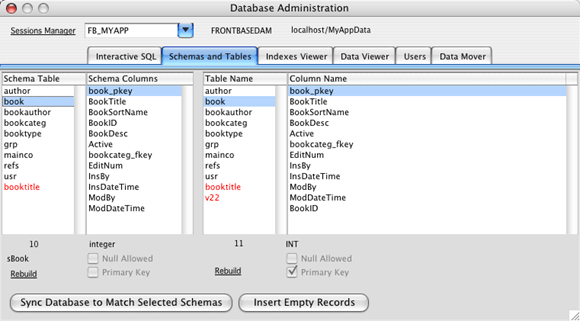
Setting up and keeping your database in sync with your Studio application can be a lot work. The Database Administrator tool makes it easy. Using the SQL meta-data the Database Administrator can intelligently add tables, add columns, alter column datatypes, add indexes, add primary and foreign keys, set constraints, and collations.
Sign In Window
StudioWorks provides you with a prebuilt Sign-In (Logon) window.
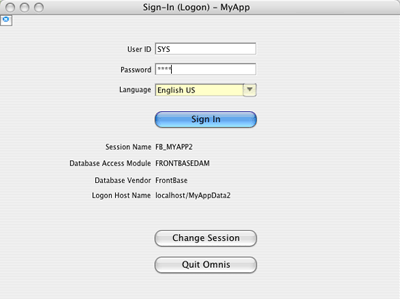
The code that is included with the Sign-In window supports using the DBMS users security as well as the list of application users which you store a table in the database. The application users table is where you would store the user's formal name, group memberships, user security settings, email address, etc.
The Sign-In window defaults to the last session. Users can change session settings.Sessions Manager
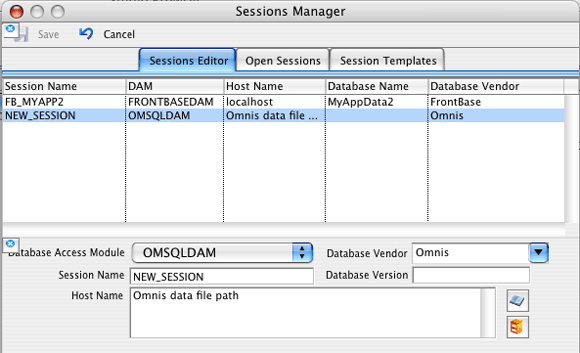
Getting the session settings correct for different DBMS back ends can be difficult for developers, let alone end users. The StudioWorks Session Manager assists both developers and end users.
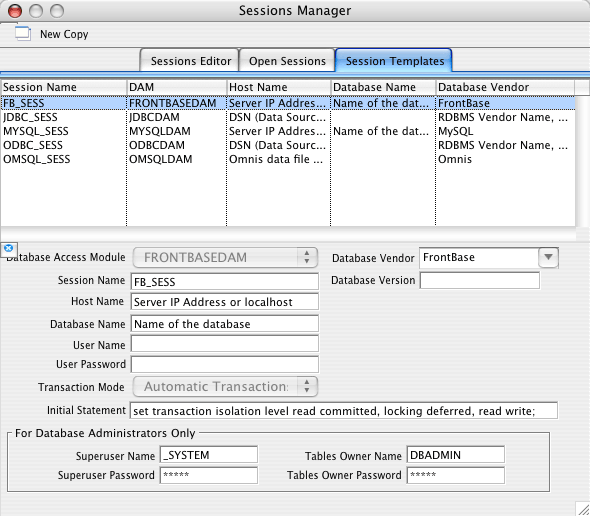
Templates are provided for each DAM with text explaining what information to fill in which field. If the Omnis DAM is select the fields which don't apply are hidden and the host name field is resized accordingly.
Concretizer
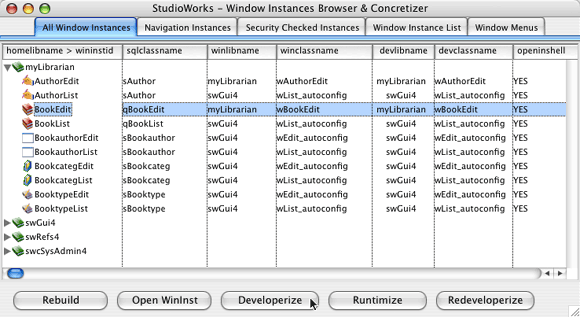
StudioWorks reduces development and maintenance time by generating window instances on the fly based on the SQL meta-data. Lists, entry files, labels, and tooltips are added to windows the instance they are opened.
The disadvantage of generating window instances on the fly is that window instantiation time suffers. There is a performance hit which the user experiences. To overcome this the creates 'concrete window classes' for each of the window instances. Prior to releasing a runtime version you 'runtimize' the window instances. The runtimized window classes are put in a separate library which is then released with the development libraries. If a runtimized class is available it will be used.
Error Handler
Object-oriented programming places code in visual and non-visual classes. Visual classes are windows, menus, toolbars, reports, and remote forms. Non-visual classes are table classe, object classes, and task classes. By making a clear separation between visual and non-visual classes your classes can be much more reuseable. Non-visual classes used by a window class can also be used by a remote form, or even a web page that communicaes with a remote task. Non-visual classes can not have prompts, okay messages, working messages, or error messages. The dilema we run into is what to do inside a non-visual class method when it hits an error. How can it easily communicate the error back to the visual class that called the method in the non-visual class. The call quite often will have been passed through several different methods.
One solution is to develop a large series of error codes and return the appropriate error code back to sender, however developing and remembering a table of error codes is a lot of work to create and maintain. And how do pass an error code back to a method which is expecting a list or a result value?
The solution to all of this in StudioWorks is the error handler object. The error handler sits on the sidelines waiting for any method to log an error. The first parameter sent the log message is a reference to the method where the error occurred. Additionally the error message text, optional details, and an optional error code are sent by the method where the error occurred. The method where the error occured return false or null as may be appropriate to its sender. The error handler immediately writes the error to a log file and stores the error in a list. When the visual object where the request originated receives a returned false or null value it sends a message to the error handler asking it for the last error which was logged. The visual object then prompts the user with the error or makes an appropriate decision based on the error code.
By making a clear distinction between visual and non-visual classes and using the StudioWorks error handler you are able to easily develop non-visual classes which can be used by different visual classes.Icons Browser
Finding the icon you need in the Omnis icons can be tedious and time consuming. Keeping track of icons you create or trying to share icons among different libraries is a hassle. Remembering the icon by its number isn't much fun.
The solves all of the above.
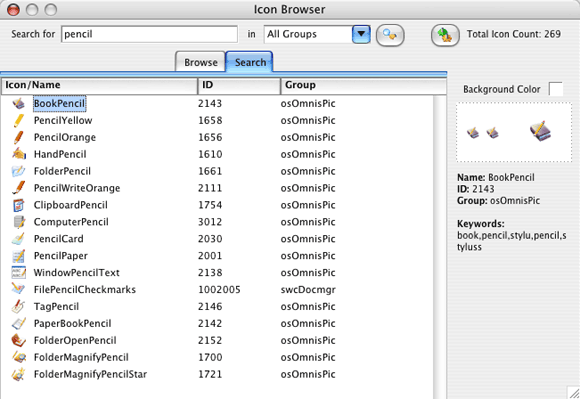
The icons are stored in a single library. You assign a name and number to each icon. You can also assign search words and synonyms in a search list. When you need to find an icon, you open the Icons Browser, enter a search word, and hit return. The Icons Browser displays a list of icons which march or are related to your search word.
An icons object in the StudioWorks icons library can be instantiated by any of your application's libraries. You can ask the icons object to return to you the iconid of any named icon.
Do oIcon.$retIconID('BookPencil') Returns IconID ;; The iconid 2143 will be returned.
The StudioWorks icons library makes it easy for StudioWorks members to add icons and share icons.Preferences
Most applications need to store various user preferences on the local client computer. It make for a nicer user experience if your application remembers the last user ID, the last session settings, the last language, etc. when the user reopens your application.
The StudioWorks preferences object provides you with this functionality. You simply add the preferences you wish to store on the local client computer to the preferences schema list definition. StudioWorks adds the appropriate getter and setter methods to the preferences object. When you close your application StudioWorks looks for a local preferences Omnis data file, and if necessary creates it, and then saves the preference values to the file. When you reopen your application StudioWorks loads the preferences from the local Omnis data file into the preferences object where they can easily be access by the your application code.
The local preferences data file is stored away from your application to that reinstalling the application or updating it won't wipe out the user's preferences.Prompts
The built in OK, Yes/No, No/Yes, Prompt for input prompts which come with Omnis Studio are a bit behind the times. With a 255 character limit your messages are often truncated. If you want to prompt the user with list, radio buttons, check boxes, mutliple inputs... you have to create your own prompt windows.
StudioWorks version 4 has flexible prompt window which supports unlimited length text message, an option for including additonal message details in small text, list prompts, any mix of radio buttons, check boxes, and multiple inputs in a single prompt. Often used prompts such as Delete Record? or Save Changes? are already built for you and designed to look good on multiple platforms.
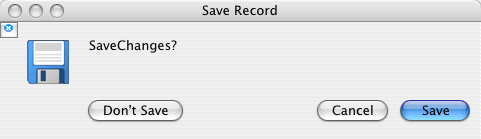
The above prompt was opened with the following line of code:
Do prmpt.$promptSave('Save Changes?) Returns ButtonPressedReferences Module
Often times in application development you need a simple lookup with optional or mandatory values which the user can enter in a field. (e.g. Mr, Ms, Mrs, Dr, Lord, Duke,...) Hard coding these into your application is not a a good idea. Creating a table in your database for each of these is overkill.
Another scenario is that you might need a counter to keep track of the last purchase order, last invoice number, last customer ID, or last primary key assigned in each table.
The References module is the solution for these and many more situations.
You simply declare a unique group/subgroup combination of values (e.g. PO/PONum), a datatype (integer), and a reference type (counter). When you need the next PO number you simply an appropriate message to the references object:
Do refs.$retNextNum('PO','PONum') Returns NextPO
or for a lookup list of name titles
Do refs.$retLookupList('NameTitles','UK') Returns UKNameTitlesList
There's plenty more than you can do with the references library. Store user preferences for reports, user defined businesss rules, soft coded SQL query text for reports,... the list goes on and on.Report Builder
Making end user reports can be a time consuming job. Adding fields to a report class, positioning, sizing, and setting the field properties, adding report titles and column headings... use up your valuable time doing rather low level work. Time better spent elsewhere.
The report builder object is able to generate reports on the fly for you. The StudioWorks Report Builder creates a report class and based the SQL meta-data of the schema or query class used to fetch the report records it adds the fields, labels, and titles to the report class and then prints the report. The developer can further customize the report class after it has been generated by the report builder.
The column heading labels use the same text as the headed list heading which is all sources from the meta-data.Security
Most applications require some form of security. Control over which users can access which windows and what reports. Which users can view, edit, insert, or delete records in which tables. If the DBMS supports grant and revoke privileges keeping your application's users in sync with the database privileges can be a lot work.
Administering security on a user by user basis can be time consuming and require constant updating. Being able to put users into groups and then administernig security on a group by group basis is simpler and more practical.
The StudioWorks Security Manager helps out with all of the above. Users can be added to groups. Both users and groups can be assigned schema class, window instance, and report instance privileges. The schema class privileges can be synchronized with the database. Users who are members of multiple groups are given the highest level of authority for each schema, window, and report for the summary of all the groups they are in.
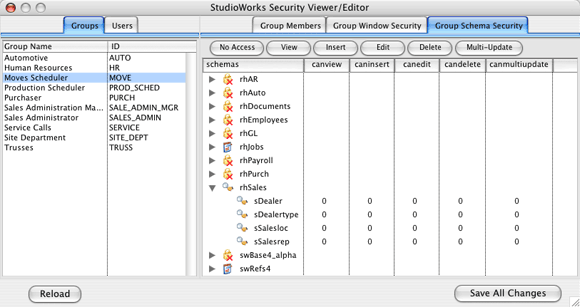
The Security Manager window provides you with simple user interface and can be instantiated as a subwindow in one of your own window classes.

Report instance security and DBMS synchronization is not yet implemented as of 2005-04-20.
String Tables
If now or at some point in time you wish to sell your application in another county, or even different region of one country, you'll need to be translate the labels, tooltips, column headings, menus, and window titles throughout your application. This can be a huge job.
StudioWorks utilizes OMST's string tables for the labels, tooltips, column headings, menus, and wnidow titles. For the first language you develop the text is stored in the SQL meta-data.
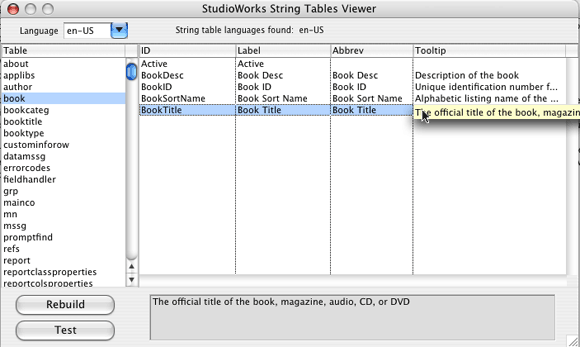
When it comes time to translate your application to another language you simply export all of the string table IDs and the current language text to a tab delimited file. The translator simply needs to add a column for each additional language and enter the translated text in that column. The file with the additional columns of translated text is added to the startupsettings folder and loaded by StudioWorks during startup.
End users can localize your StudioWorks application by changing labels and tooltips to suit their business. One business refers to 'clients', another calls them 'customers'. Localized labels and tooltips are stored directly in the customer's database and loaded during startup.Quick Start Tutorial
This section covers the steps to follow for getting started with writing a new application using StudioWorks. This quick start tutorial assumes that you have already installed Omnis Studio v4.x and are familiar with creating libraries, classes, and writing notation in Omnis Studio.
If you are not familiar with Omnis Studio read the PDFs that come with Omnis Studio and go through the StudioTips Basics Tutorial.
If are not familiar with SQL (Sequential Query Language) read some books on SQL to learn the basics of SQL.
The StudioWorks framework will jump start writing new applications in Omnis Studio, but you need to know the basics. (Omnis Studio, writing notation, SQL)
Print the StudioTips and StudioWorks . Read them. Keep them handy near your desk. Learning, understanding, and using the StudioWorks naming and coding conventions will make it much easier to follow the code in StudioWorks.
It is highly recommended that you print this tutorial from the on-line version before attemping to do it. You can check off the steps and add your own notes to your printed copy as go through the tutorial.Setting File And Library Names
The first step is to set up the files and libraries for your new application.
- Download and unzip the lastest StartNewApp zip file from the StudioWorks FTP server.
- Decide on a 2 or 3 letter lower case acronym for your company name which you will use as a prefix for your library names. e.g. Vencor Software uses the 2 letter acronym vs for prefixing library names.
The company prefix az will be used in this quick start guide. You can substitute your own company 2 or 3 letter acronym whenever you see az in this quick start tutorial or use az for the tutorial. - Decide on a short name for your application.
The short app name Drivers will be used in this quick start guide. You can substitute your own short app name whenever you see Drivers in this quick start tutorial or use the app name Drivers. - Rename the unzipped StartNewApp folder to Drivers. The Drivers folder is referred to as the APP folder. The entire application is enclosed inside the APP folder.
- Inside the Drivers folder, rename open_myApp to open_Drivers
- Inside the APP/libraries folder, rename myAppMain to azDriversMain
- Inside the APP/libraries/modules folder, rename myAppModule to azDrivers
- Inside the APP/libraries/modules folder, rename mySysAdmin to azSysAdmin
- Inside the APP/libraries/modules folder, delete all of the other libraries. They are just demo modules.
- Inside the APP/data folder, rename myAppData to DriversData
- We have renamed the files, but we also need to change the $defaultname property of each library before we open the Drivers application.
- Open your developer version of Omnis Studio.
- Under the menu select and navigate to the azDriversMain library but do not click the button. Select the file but don't open it up yet.
- Hold down the Ctrl/Cmnd key and then click the button. This opens the library without running the Startup_Task
- > select the myAppMain library > > tab. Set the $defaultname property to azDriversMain
With multiple library applications it is important that the library name remain consistent. If you don't set the $defaultname property, the library name will change if the user changes the file name. Not a good thing!
- > select the myAppMain library > click
- The Startup_Task in each module doesn't do anything so we can open those modules normally.
- Under the menu select and navigate to the azDrivers module and click the button.
- > select the myAppModule library > > tab. Set the $defaultname property to azDrivers
- > select the myAppModule library > click
- Under the menu select and navigate to the azSysAdmin module and click the button.
- > select the mySysAdmin library > > tab. Set the $defaultname property to azSysAdmin
- > select the mySysAdmin library > click
Opening the Drivers App
To help you get started with StudioWorks the starter app comes with a prepared Omnis data file which has some tables already created and records inserted.
- Open the open_Driver library. This opens the azDriversMain library, which in turn opens all the libraries located in the APP/libraries/modules folder and the libraries at the first level in the APP/studioworks folder. The StudioWorks framework libraries are located inside the studioworks folder.
- All going well you will get to the window.
- Enter user name: SYS and password: pass. Click the button.
- All going well the main menu will be installed and the main window will be opened.
Feel free to click on the various nodes in the main window treelist to view lists, edit records, insert new records, etc. - menu > > . This opens the StudioWorks window.
The is command central for StudioWorks developers.
Use the shortcut key combination Shift+Ctrl/Cmnd+Z to open the .
- Select the tab > tab
- Expand azDriversMain node if it isn't already expanded.
- Select the sMn_stb child node. (Click it twice of the list doesn't refresh)
- Change the description for the AppName column from My App to Drivers. StudioWorks will now translate AppName to Drivers where ever AppName is used as a string table ID.
- Tab out of the label field. The main menu title should change from to .
If you wish to change an ID, click the yellow edit pencil in the ID column heading. This enables the ID fields in the grid. Click the pencil again to disable the ID column.
Adding a Table
The StudioWorks starter app comes with a set of tables and window classes which links contacts to towns/cities, and town/cities to states/provinces and countries.
For our app we will add a table to store autos which are linked to auto types.
We'll start with the parent table, Autotype.
Create the schema class
- > tab > right-click on the azDrivers node of the treelist > select
- Enter the name of the new schema, sAutotype. StudioWorks creates the sAutotype schema for you.
- Select the sAutotype node in the treelist, and click the tab.
StudioWorks created the new schema for you with various default values and colulmns which you can now modify. The , , and are properties of the sAutotype schema class. The rest of the fields in the window are meta-data. StudioWorks store the meta-data in the oModuleData object class of each library.The power of StudioWorks lies in the meta-data. The fields in the meta-data editor have tooltips which give more information about the field. If you are unsure about a certain meta-data field hover your mouse over the field and read the tooltip.
- Change the from Autotype to Auto Type. Tab to the next field.
Notice that they automatically changed from Autotypes to Auto Types. StudioWorks tries to set the plural value for you automatically.
The label singular is used for the window title when you are editing a record of that table. The label plural is used for the window title when you are looking at a list of records of that table. - Click the checkbox so that it is checked. This tells StudioWorks to fetch all of the active autotype records whenever you view them in a list window.
- Click the tab.
- Right-click on the column names list and select
- Enter the column name AutoTypeName.

You must be very careful to use the correct case for schema class and column names. Omnis Studio is case-sensitive with class names and column names. Naming the schema class sAutotype and then referring to it as sAutoType in another place will not work. Your code will fail if you name a schema column AutoTypeName, but then refer to it as AuotypeName in a calculation.
- Drag the column to the 2nd row of the columns list if it isn't already the 2nd row.
- Set the character length field to 20 characters.
- Set the to Auto Type Name. Set the to Auto Type.
StudioWorks will default to use the label value for the abbreviation. Abbreviations are used for headed list column headings, report column headings, and pushbuttons.
- Set the checkbox to checked.
- Uncheck and in the group box.
- Check , , and in the group box.
- Set the checkbox to checked.
Entry fields in the meta-data editor with a blue background are default values. If you edit a default value the background will change to white, indicating a non-default value. To revert to a default value, clear the entry field and tab out of the field.
Create the table in the database
- Click the tab in the . The window is where you can sync your database tables to match your application's schemas. It also lets you view data, update primary keys, and a number of other database related functions.
- Click the tab.
- Select autotype in the list.
- Click the button. This creates the new table in the database with the appropriate indexes. An information window will be opened that tells you the SQL script that was executed, actions taking, and if applicable and warnings or errors that were reported during the sync operation. Review the information and close the window.
Adding a Window
Every window instance which you open in your StudioWorks application must first be declared. Each module declares its own window instances.
Each window instance must have a unique wininstid. StudioWorks lets you set properties for each window instance.
The tab of the is where we can view and declare window instances.
- Click the tab in the .
- Expand the azDrivers node in the treelist.
- Note the AutotypeEdit and AutotypeList nodes in the treelist. StudioWorks automatically declares an edit and a list window instance for each schema class that you create.
- Click the AutotypeList node and look at the window instance properties. The fields in the upper portion of the window are display-only because this is a default window instance.
- Make sure the toolbarvisible and searchbarvisible checkboxes are checked for the AutotypeList window instance.
Testing the Window
We are now ready to test opening the AutotypesList window instance.
Omnis Studio seems to cache the list of database tables when working with the Omnis data file. After you add some new tables you might need to and reopen the application to force Omnis Studio to rebuild the database tables list. This only applies to the Omnis data file. If in the next few steps or later in the tutorial that you get some SQL errors after you've added a new table to the Omnis data file, try quitting Omnis and reopening the app.
- With the AutotypeList node selected in the treelist, click the button at the bottom of the window.
- Click the button in the toolbar. The AutotypeEdit autoconfig window instance should appear.
- Enter the Truck. Click the button or press the key.
- Click the button in the toolbar.
- Enter the Car. Click the button.
- Click the button in the toolbar.
- Enter the Bus. Click the button.
Mapping Icons
In StudioWorks you can map an iconid to a wininstid or a basetable. Mapping an iconid to a basetable is more efficient because multiple window instances that use to the same basetable will immediately be mapped to the same iconid.
For window instances that do not have a basetable (e.g. container windows), or window instances that you want to map to a different iconid, you can map an iconid to the wininstid.
- Click the tab in the .
- Click the button and take a look at the catalogue of StudioWorks icons available to you. The StudioWorks is a collection of icons in the swIcons4 library. Each iconid is mapped to an icon group and an icon name.
- Enter car in the search field and click the search button.
- Right-click on the PaperCar icon and select .
- Close the StudioWorks window.
- Select the azDrivers library in the droplist.
- Right-click on the icons list and select
- Enter Autotype in the following prompt for input window. Autotype will be added to the icons list.
- Set the field to vs.PaperCar (You can paste this in from the clipboard). When you tab out of the field, the Autotype icon in the icons list should change to the PaperCar icon.
- Click the tab in the . The AutotypeEdit and AutotypeList window instances should now be mapped to the $iconid of the vs.PaperCar icon name.
- Go back to the and select the azDriversMain library in the droplist.
- Change the to vs.Truck and tab out of the field.
- Close and reopen the . The root node of the navigation treelist should have changed from a cube icon to a truck icon.
When you add an icon node to the treelist, you are really adding a new row to the sIcons schema class of the parent node library. The is just an interface for editing the sIcons schema classes. The advantage of using the is that you immediately see a represention of the icon which you assigned, and the cached lists affected by your changes are immediately updated. (icons master list, windows master list, navigation menus list)
Adding a Window to the Navigation List
The is used to add/remove window instances to/from the main window's navigation treelist.
Let's add the window instance to the navigation treelist.
- Click the tab in the .
- Click the tab.
- Expand the Drivers node in the treelist.
- Right-click the Drivers node and select Add WinInstID...
- Select the azDrivers > AutotypeList node in the prompt window and click the button.
- All going well the AutotypeList window instance will be added as a child node to the Drivers root node.
- You can reorder the navigation list by dragging and dropping node(s) in the treelist.
- Open the main window (Ctrl/Cmnd+M). Expand the root node. All going well the window instance will be appear as a child node.
- Click on the node. The AutotypeList window instance will appear in a subwindow to the right of the navigation treelist.
Adding a Child Table
The steps for creating the Auto table are pretty much the same as the steps for creating the Autotype table.
Create the schema class
- > tab > azDrivers > right-click .
- Name the new schema, sAuto.
- Select the tab.
- The and the values should already be set for you. If not, set them to Auto and Autos.
- Set the checkbox to checked.
If the Auto table was going to contain hundreds of records you would not check fetchall.
- tab > right-click on the columns list > select
- Enter the name: AutoName
- Set the character length to 50.
- Drag the AutoName column to the 2nd row in the second row in the columns list.
- Set the to Auto Name if it isn't already set for you. Leave the abbreviation as is.
- Set the checkbox to checked.
- Uncheck and .
- Check , , , and .
- Add another column Autotype_fkey.
- Drag the Autotype_fkey column to the 3rd row in the columns list.
- Set the data type to Integer, and the subtype to Long Int
This is the foreign key column which is used to link a child Auto record to its parent Autotype record. - Set the checkbox to checked. Based on the column name StudioWorks will find the autotype table and set it as the referenced table, and then find the primary key column in the autotype table and set it to the referenced column name.
- Set the checkbox to unchecked if it checked.
If cascade delete is checked, child records are automatically deleted when the parent record is deleted. You want to be very careful with cascade deletes!
- Set the , and checkboxes to unchecked in the values allowed group. This enforces every child record to be linked to a parent record. Allowing null or zero values in the foreign key makes the child/parent link optional.
- Set the checkbox to checked if it is unchecked.
Create the table in the database
- > tab > tab.
- Select Auto in the list.
- Click the button. This creates the new table in the database with the appropriate indexes.
Creating Query Classes
We need to create query classes which joins the child Auto records to their parent Autotype records.
Create the list view query class
- > tab.
- Expand the azDrivers node in the treelist on the left side of the window.
- Right-click on the azDrivers node and select .
- Name the new query, qAutoList
- Expand the azDriver node in the treelist on the right side of the window.
- Select the sAuto schema class node.
- Drag the columns: auto_pkey and AutoName onto the qAutoList query class.
- Select the sAutotype schema class node.
- Drag the column: AutoTypeName onto the qAutoList query class.
Based on the foreign keys meta-data the StudioWorks will make its best guess at calculating the $extraquerytext to join the query class tables as you add or remove query class columns. If the $extraquerytext is not being calculated click the button below the schemas treelist and then click the button to recalculate the $extraquerytext.
Always check, and if needed, correct the $extraquerytext when you have finished changing the columns. You are ultimately responsible for the final $extraquerytext. - The in should read as follows:
WHERE auto.autotype_fkey = autotype.autotype_pkey
The Omnis data file is picky about the order of the foreign key and primary key columns. To help you remember the order think about alphabetic order... fkey comes before pkey.
Create the edit view query class
- Right-click on the azDrivers node in the treelist on the left side and select .
- Name the new query, qAutoEdit
- Expand the azDriver node in the treelist on the right side of the window.
- Drag and drop the sAuto schema class node on the list. The column name value in the query columns list will be empty. By leaving the column name empty Omnis Studio will automatically include all of the columns from sAuto schema class in the query class.
- Select the sAutotype schema class node.
- Drag the column: AutoTypeName onto the qAutoList query class.
- Make sure the $extraquerytext reads as follows:
WHERE auto.autotype_fkey = autotype.autotype_pkey
Adding the Child Window
Map an icon to the Auto table adding it to the icons list.
- Click the tab in the .
- Select the azDrivers library in the droplist.
- Right-click on the icons list and select
- Enter Auto in the prompt window.
- Enter vs.Car in the field. When you tab out of the field, the Auto icon should display a car.
Add the window to the navigation list.
- > tab > tab.
- Expand the Drivers node in the treelist.
- Right-click the Drivers node and select Add WinInstID...
- Select the azDrivers > AutoList node in the prompt window and click the button.
- All going well the AutoList window instance will be added as a child node to the Drivers root node.
- You can drag the AutoList node to the position you want it to appear in the navigation list.
We are now ready to test opening the AutoList window instance.
- > menu > select . should now appear in the main window navigation treelist as a child of the node.
- Click the node. The AutosList autoconfig window instance should appear in the main window navigation treelist. If the main window was open you will need to close and reopen it.
- Click the button in the toolbar. The AutoEdit autoconfig window instance should appear.
- Enter the Ford F150.
- Tab to the field. The red border on the field indicates that it is a lookup type-ahead entry field.
- Type a ? character in the field. StudioWorks displays a list of the possible auto types to select from.
- Hit the down and up arrow keys. StudioWorks scrolls the selected line in the droplist.
- Hit the backspace key and type the character T. StudioWorks displays a list of the auto types which begin with the letter T.
The Omnis data file is case-sensitive, so you must type upper case T for this example. For other databases the lookups are case-insensitive.
- Click the droplist button to the right of the field. StudioWorks displays a list of the possible auto types to select from.
- Click the Truck auto type in the droplist. StudioWorks closes the droplist and enters Truck in the entry field.
- Tab out of the field.
On evAfter StudioWorks sets the Autotype_fkey column in the qAutoEdit list to the Autotype_pkey of the selected auto type record.
- Click the button.
- Click the button in the toolbar.
- Enter the Jaguar and the Car.
- Click the button.
Linking to Another Parent Table
Try the following assignment on your own.
- Add a foreign key column to the sAuto schema to link it to the sContact schema.
- Set the meta-data.
You will need to set the allowed and allowed values to checked so that linking auto records to contacts records will be optional. - Sync the sAuto table to the database.
The contact_fkey column in the Auto table will be empty for the existing records in the Auto table. This will break the joins for those records. To fix this we will need to add a zero primary key record to the contact table and set the contact_fkey to zero for all the columns in the auto table as follows: - > tab > tab > select contact
- Click the button. This checks for an empty record and if not found inserts an empty record with the primary key set to zero.
- Select the tab and enter the following SQL statement:
UPDATE auto SET contact_fkey = 0 WHERE contact_fkey IS NULL - Click the button.
- Click the tab and select the auto table. Scroll across to the far right column to check the values in the contact_fkey column.
- Using modify the qAutoList and qAutoEdit query classes to include the ContactSortName column from sContact.
Be sure the $extraquerytext text joins the Auto table to the Contact table.
- If you are using the Omnis data file you may need to quit Omnis and reopen your application before proceeding.
- Select the node in the main window navigation treelist.
- Edit an existing auto record and link it to a contact.
- Insert a new auto record linked to an autotype and a contact.
The labels can be changed to in the AutoList and AutoEdit window instances by changing the name in the class meta-data of the qAutoList and qAutoEdit query classes. The quick start tutorial doesn't cover how to do this, but it is good know that you can create different labels for different query classes with the meta-data.
Default Reports
The StudioWorks framework auto-creates a report when you click the button in the list view toolbar. The report includes all of the columns and records data displayed in the list.
After you print a report you will find an X_ prefixed report class in the same library as the list query class. The report class name is based on the WinInstID of the list view window instance. If you remove the X_ prefix from the report class, the StudioWorks framework will continue to use the report class as the default report for that WinInstID. You can then open the default report class, reposition fields, and make as many modifications as you like. Your changes will be evident the next time you click the button in the list view toolbar.
See the StudioTips > StudioWorks group > tab for information on creating custom reports.Exporting Data
If you click the button in a list view window the StudioWorks framework exports the columns and records data displayed in the list. The records are exported to a tab delimited text file. The column headings are included at the top of the file.Adding Menus
You can add menus to any window instance. The menus appear in the toolbar.
To add a menu to the AutoList window instance:
- > tab > tab.
- Expand the azDrivers library node.
- Right-click on the AutoList node and select
- Enter ExportAutoTables as the menulineid in the prompt.
All going well a Special menu child node will be added to the Autos node with the menu line, Export Auto Tables, added as a child node of the Special menu.When you add a menu line or change the , StudioWorks automatically adds the menulineid the sMn_stb schema class in that library and updates the string tables. You can further edit the string table text in the .
StudioWorks adds a recipient method with the same name as the menulineid to the observer object class specified for the menu line. If the menuid is Reports, then a recipient method is also added to the oPrintReport object in the same library.
You can click the edit pencil next to the menuclassname to go to the specified menu class. You can click the edit pencil next to the observer objectclassname to go to th observer object method that is called by this menu item. - Click the Export Auto Tables node if it isn't already selected. The default values for the menu line are displayed in the fields to the right of the treelist. You can change the menu line's properties by editing these fields.
- Close and reopen the and select the node.
- Click the menu in the far right side of the toolbar and select .
All going well you will end up at the breakpoint of the $ExportAutoTable method of the oSpecialMenuObserver object. You would write your code in this method to fetch all the records from the auto table and export them to a file.
To add a menu to the AutoList window instance:
- > tab > tab.
- Expand the azDrivers library node.
- Right-click on the AutoList node and select
- Enter AutosReportSortByType as the menulineid in the prompt.
All going well a Reports menu child node will be added to the Autos node, with the menu line as a child node of the Reports menu.The StudioWorks framework will add the object classes oReportsMenuObserver and oPrintReport to a module if they don't exist when the first report menu item has been declared.
The oReportsMenuObserver is classified as a visual object class. If you need to prompt the user to enter/select criteria before printing the report, do the prompts from this visual menu observer object.
The oPrintReport object is classified as a non-visual object which means you should never prompt the user or open any error prompt windows in the oPrintReport object class methods.
By splitting apart the visual code which prompts the user, from the non-visual print report code, you will be able to reuse the non-visual oPrintReport code when you add a web interface to your StudioWorks app. Trust me, it is worth doing. Clearly separating visual class code from non-visual make for cleaner reuseable code. - Close and reopen the and select the node.
- Click the menu in the right side of the toolbar and select .
All going well you will end up at the breakpoint of the $AutosReportSortByType method of oReportsMenuObserver. You would write your code to prompt the user for the auto types they wish to include in the report and then pass this via parameters to the non-visual $AutosReportSortByType method of oPrintReport object.
For prompting the user, use the oPromptModeless object which is instantiated by the task variable modelessprmpt. For more information see StudioTips > StudioWorks group > tab.
For reports that do not require any user prompts you can remove the breakpoint and simply forward the message from the oReportsMenuObserver object to the oPrintReport object.
You can associate an icon with any menu line by mapping an icon to the menulineid in the .
Customizing a Window
The objective of the StudioWorks framework is to allow quickly move from database design to a basic application that allows you (and your client) to insert and link records, view lists and print simple reports.
If you are converting an existing application you can import data from the old application and then play around with viewing and massaging the imported data in the new application.
Once you get through the database design and generating the basic application you will be into the phase of creating custom windows with added bells and whistles to make data entry and modification easier for the users.
To create a concrete window class from an autoconfig window class:
- > tab > tab
- Select the AutoEdit node.
- Click the button.
The StudioWorks framework creates a wAutoEdit window class in the azDrivers module. In StudioWorks we call this a developerized window class. In object-oriented programming terms it is a concrete window class. - Click the button. This opens the wAutoEdit window class in the IDE.
- Rearrange the fields on the window and add a pushbutton object from the .
- Close the wAutoEdit window class.
- Click the button to open an instance of the wAutoEdit window class.
Your changes to the wAutoEdit window class should be evident in the edit window instance.
Using normal Omnis Studio code you can customize your window class by adding field event methods, window objects, etc. to your concrete window class.
The following sample code is from the $event method of the ContactFormalName entry field of the wContactEdit window class.
On evBefore
If len($cobj.$contents)=0
If iList.isHousehold
Calculate SortName as iList.ContactSortName
If pos(',',SortName)
Calculate FirstName as trim(mid(SortName,pos(',',SortName)+1))
Calculate LastName as trim(mid(SortName,1,pos(',',SortName)-1))
Calculate [$cobj.$dataname] as con(FirstName,' ',LastName)
Else
Calculate [$cobj.$dataname] as iList.ContactSortName
End If
Else
Calculate [$cobj.$dataname] as iList.ContactSortName
End If
Do $cobj.$redraw()
End If
Quit event handler (Pass to next handler)
The code copies the ContactSortName to the ContactFormalName if the ContactFormalName is empty. For households the last name and first name are flipped from the ContactSortName to the ContactFormalName.
It is important to end your $event method code with Quit event handler (Pass to next handler) so that the StudioWorks framework's field handler can properly decorate the field on evBefore and evAfter.
Summary
Hopefully this quick start tutorial has given you a sense of how the StudioWorks framework can assist you with rapid application development.
We have really only scratched the surface in this tutorial. It is extremely difficult to write a tutorial that satisfies the wants and needs of all developers. Some developers like to have incredible detail, others get bored with too much detail.
The real learning happens when you write your own application and have to deliver it to a client.
Don't try to get too fancy too soon. Follow the pattern of the quick start tutorial by focusing on the database design, meta-data, and auto-generated window instances. Don't get side tracked into building custom window classes too early on. Get some real data into the database and generate some reports before tackling custom window classes.
The farther you can get with using meta-data and auto-generated windows the better off you are.
As you start adding custom features and enhancement to your StudioWorks app you will need to search the StudioWorks documentation, look at the methods and code inside the classes, and ask questions on the StudioWorks members list.
The real learning is about to begin. Omnis Studio, StudioWorks, and SQL are a powerful combination - but you'll need to roll up your sleeves and be very persistent in order to learn how to harness the power.
The StudioWorks members are a great community of developers, but they can't write your application for you (at least not for free). You can ask the questions, but you have to be persistent with the learning.
There may be days you question your decision to invest in StudioWorks, but trust me, there are several man years of code included in the framework and many more years of experience that have been invested into learning Omnis Studio and object-oriented programming techniques. There are tools and features included in the StudioWorks framework which are the combined efforts of several StudioWorks devlopers. You would spend years writing (and debugging) these tools and features on your own.
Working together we all win!
Happy coding,
Doug KuyvenhovenVencor Software
What Next?
The following is a recommended list of things to do as you move forward with developing your new StudioWorks application.
- If you haven't already done so, print the StudioTips and StudioWorks . Read them. Keep them handy near your desk. Learning, understanding, and using the StudioWorks naming and coding conventions will make it much easier to follow the code in StudioWorks.
- If you are new to SQL or don't have formal database design training order a copy of by Micheal Hernandez from amazon.com. Read the book. I wish I read this book before writing my first app. Much of the thinking behind the came from reading this book.
- If you are new to SQL order a copy of by Martin Gruber from amazon.com. I recommend this as a reference book for figuring out SQL scripts. You can do amazing things with SQL. With a little bit of SQL knowledge you can eliminate tons of list processing code in your application, and improve performance for compiling reports, etc. Spend time investing in learning advanced SQL, it is worth it.
- Learn to use Omnis Studio. To use StudioWorks you need to be familiar with Omnis Studio. If you aren't familiar with using Omnis Studio, you will be lost if when you try to write code in StudioWorks. Take the time to read the Omnis Studio PDFs and go through the tutorials and exercises they provide you with.
- Read through StudioTips to increase your knowledge of Omnis Studio.
- Do all of the StudioTips Tutorials. The tutorials help you understand StudioWorks.
- Learn Omnis Studio notation. Omnis Studio notation is powerful and StudioWorks uses Omnis Studio notation extensively. You can accomplish almost anything in Omnis Studio using notation. The notation becomes very logical once you begin to understand the syntax. There is no quick start tutorial to learning Omnis Studio notation. You can learn a lot by taking the time to study the comments and notation in the StudioWorks code.
- Learn to use the along with the to see the methods and properties. These two tools are the heart of where I figure out how to write Omnis Studio notation.
- Learn to use the . The shows the class methods you can call in an instance of class. Sending messages between instances of classes is a big part of Object-Oriented Programming. The reveals to you the messages you can send.
- Learn Object-Oriented Programming. Order a copy of by Scott Ambler from amazon.com, and read the book. Learning Object-Oriented Programming is a process that takes years. I'm still learning. The StudioWorks framework comes with loads of prewritten, well commented, reuseable, Object-Oriented Programming code. This gives you the advantage of live examples which you can learn from.
- Order a copy of by Steve McConnell from amazon.com and read the book. This is one of the best books on writing good code. Loads of great advice. Much of the StudioWorks naming conventions are based on the recommendations in this book.
- Attend the StudioWorks training camps when they are held. There is nothing like in-class training. In a few days you will advance months in your application development.
- Attend Omnis conferences when they are held.
The above list might seem daunting. If it was easy, anybody could write custom software solutions. Once you gain the above knowledge and experience you can use Omnis Studio and StudioWorks to create powerful, flexible, and maintainable custom applications in an incredibly short period of time.
The next tutorial, , takes you through adding custom features and code to the meta-data based auto-generated app that you wrote in the .Customizing Your App
This tutorial takes you through adding custom features and code to the meta-data based auto-generated app that you wrote in the . If you haven't completed the quick start tutorial, you will need to do that first.Ping Buttons
Under the you will see the menu item . By selecting this menu item you toggle the menu checkmark. With this menu item checked a tiny pushbutton (White X in a blue circle) appears in the top left corner of each subwindow.
If you click on the button a ping message tells you information about the subwindow.
If you shift+click on the button you will end up at a breakpoint inside the subwindow. This feature is very helpful when you are debugging and customizing windows.
I use the shift+click on the blue ping button technique for:
- Looking at ivar values such as: iList, iSQLClassName, iWinInstID
- Adding a red breakpoint to the $doCmnd class methods so that I can step through the code when I click one of the toolbar buttons.
- Adding or modifying a window class method.
- Adding or modifying an $event method of an entry field.
Debug OK Messages
If a developer version of Omnis Studio is being used and an error is logged, the error handler opens a debug OK message. The OK message allows the user to break into the code at the error handler. From there, using the toolbar menu you can go back up the method stack to investigate the method which logged the error, and any previous methods currently in the method stack.
Being able to break into the method stack when an error is logged is extremely useful for solving bugs in your code.
Click the Run Demo button in the window to try out the debug OK message.
The debug OK message prompt is not opened for the following errors: check data, data, minor, and user errors.Programmer Test Method
Each main library has its own mProgrammer menu class which is instantiated by the main menu as a cascading menu by the name . AppName is replaced with its string table translation.
This method is helpful to you for experimenting and testing code which you write in StudioWorks. If I have a chunk of code that doesn't work and I want to experiment with variations of the code, I'll often go the the to try out different things. If I have a batch of records I need to fix in the database, I'll often use the to write and run the code.
- Select the main menu > >
- This takes you to a Breakpoint command followed by a Quit method command.
- Below the Quit method you can write any code you like. The code in this method can access any of the task variable object methods so long as you are in the method stack. (i.e. You haven't cleared the method task after coming into the Programmer Test Method.)
- Enter the following code below the Quit method.
Do stb.$getText('Mn','AppName',#S1) Return FlagOK - Assuming you are still in the method stack, double-click on the line of code you just entered.
- Click the IDE toolbar button. You should have stepped into the $getText method of the oStringTable object class.
- Click the button of the IDE toolbar. You should be back to the mProgrammer method.
- Hover over the #S1 variable in your line of code. The value should be the name of the current app.
Method Calls or Messages?
One of the things that was confusing to me when I got into reading the object-oriented programming books was this thing about sending messages.
In Omnis I was used to the the term method call. If I was explaining code to someone I would say that MethodA does a method call to MethodB even if MethodB was in another class.
Instead of using the words making a method call to another class, the object-oriented programming world uses the word sending a message, which once you get your head adjusted to it, it really is a better word picture of what the code is doing.
So, when we talk to each other about our code (or if we're talking to ourselves), let's talk about class instances sending messages to each other rather than using the term of making method calls.
You can still use the term method call when MethodA and MethodB are in the same class.
So how does this word picture help the developer? Let's use a the real world which all of use can easily relate to.
- In this world there is a class called Human
- Doug is an instance of the class Human.
- Andy is another instance of the class Human.
- The instance Doug sends an $email message to the instance Andy. Doug is the sender. Andy is the target.
- In order for Andy to receive the $email message, Andy needs to have an $email recipient method.
- The $email message may contain parameters: pFrom, pTo, pReplyTo, bBody, which must map correctly to the $email recipient method's parameters.
Do you see how this relates to classes and public methods in Omnis Studio? Let's use a StudioWorks framework example to tell a similar story.
- In StudioWorks there is a class called oStringTable
- The stb startup task variable is an instance of the class oStringTable.
- is an instance of the class mProgrammer
- The instance sends a $retText message to the instance stb and includes the parameters ('Mn','AppName') with the message.
- The stb instance receives the $retText message with the enclosed parameters, processes the message, and returns the value, Drivers, to the sender.
Once you get the picture of instances sending messages to each other, a lot of things gain clarity in Omnis Studio.
When a user clicks on a line in a headed list:
- Omnis Studio sends an $event message to the headed list object instance.
In this special case of event handling instead sending parameters to the $event method, Omnis Studio sets the task scope variables pEventCode and pRow so that any instance within the task can access the event parameters. - If the headed list object has an $event recipient method it can receive and act on the message.
- The $event method of the headed list object instance can then pass the message to the $control method of the window class.
- If the window class has a $control method it can receive the message and process it.
When you open a library, Omnis Studio looks for a task class named Startup_Task. If found Omnis Studio opens an instance of the Startup_Task class and names the instance the same name as the library name. Omnis Studio then sends the task instance a $construct message. If the $construct recipient method exists, the code in the method can open instances of menu classes, toolbar classes, and window classes. All of these instances that are opened are contained within the startup task instance.
Hopefully the above note help you to see more clearly the picture of class instances sending messages to each other. The StudioWorks framework depends heavily on the concept of sending messages between source and target class instances, so it will be good if you think and talk in these terms.Interface Manager
One of the keys to using the StudioWorks framework (and Omnis Studio ) is learning to use the . I wrote code using Omnis Studio for about 2 years without using the . Today, I'd be lost without the .
The shows you the public interface to a class, that is, all the class methods which begin with the $ character.
Well built object-oriented programs have a good clean public interface. You write your code using the public interface. The Omnis Studio IDE works very well with the .
If you aren't familar with the and how to use it to write code, let's go through some exercises.
For these exercises you will be writing code in the > . The instructions below assume that you will write the code below the Quit method in the $event method of the Programmer Test Method menu line of the mProgrammer class method.
Get and set the $:AppName property in the oConstants object class instance.
- In the method, type the word Do and tab to the line.
- In the pane, click the tab, and find the task variable cn.
- Right-click on cn > select .
- Scroll down the list and find the $:AppName method.
- Drag the $:AppName method from the into the field of your Do command.
- Press tab and enter #S1 in the return field.
Do not use # hash variables for your real app code.
- > > double-click your line of code and click the button in the IDE toolbar.
- Hover your mouse over the #S1 variable in your line of code. Is the value Drivers or whatever you named your app?
- Start a new Do command line.
- Drag the $:AppName.$assign method from the into the field. Omnis Studio very kindly includes the parameters in parenthesis for us when we drag in the method from the .
- Replace pAppName with 'Crazy Drivers' including the single quotes.
- Double-click your line of code and click the button in the IDE toolbar.
- Now double-click the first Do command and that line of code. The value returned to #S1 should now be Crazy Drivers.
Your finished code should look like this:
Do cn.$:AppName() Returns #S1
Do cn.$:AppName.$assign('Crazy Drivers')
Now we'll use the to look at the table class methods. List and row variables do not know which table class they are supposed to point to until after you bind them to a table class. In StudioWorks you bind a list or row variable by sending a $retDefinedList to the lsts instance of the oSQLList object class.
- Enter a Do command.
- Right-click the task variable lsts > select .
- Drag the $retDefinedList method into the field of your Do command.
- Replace the pSQLClassName parameter with 'sCountry' including the single quotes.
- Remove the other parameters, they are optional.
- Enter #L1 in the field.
- > . Double-click your line of code and click the button in the IDE toolbar.
- Right-click the #L1 variable > select This opens the variable window which should display to you an empty list with the column names. Close the variable window.
- Enter another Do command in the next line.
- Right-click #L1 in your method code > select .
The list or row variable is only available after the list or row has been bound to a table class while you are stepping through the code. If you were to clear the method stack and right-click on the list variable the menu line does not appear in the context menu.
- Drag the $:BaseTable method into the field of your new Do command.
- Enter #S1 in the field.
- Double-click your line of code and click the button in the IDE toolbar.
- Hover the mouse of the #S1 variable, that value should be Country.
- Enter another Do command in the next line.
- Right-click #L1 in your method code > select .
- Select the $getAllRecords method in the .
- Click the tab in the bottom part of the . Note the method description.
If I've done my job, you should see a short description about what the method does and what it returns. Well written classes with good public methods should be like a black box. You should never need to look inside the box to see what the method does. The tells you the method name, the parameters, the method description, and the return value you can expect. - Drag the $getAllRecords method into the field of your Do command.
- Enter #F in the field.
Do not use # hash variables for your real app code.
- Double-click your line of code and click the button in the IDE toolbar.
- Right-click #L1 in your Do command > select
All going well the variable window will show a list of country records that were fetched from the database.
Your finished code should look like this:
Do lsts.$retDefinedList('sCountry') Returns #L1
Do #L1.$:BaseTable Returns #S1
Do #L1.$getAllRecords() Returns #F
The is an important tool for you to use when writing code in Omnis Studio. Documenting all of the classes and methods in the StudioWorks framework would take longer than writing the code... and would end up being a repetition of the information you can find yourself by using the .
From the method editor you can look at the of the class you are in using the IDE toolbar button.
From the you can look at the of any class by right-clicking on the class and selecting .
Take some time and study the public interface of the Startup_Task task variables. These are the key object classes of the StudioWorks framework. Before you spend time writing a custom method, look at the object classes in the StudioWorks core libraries. There are object classes for exporting and importing data, encrypting and decrypting files, opening the client's web browser to a specific URL, preparing an email in the client's email program, etc. If you are unsure, ask a question on the StudioWorks list. Other StudioWorks members might know where to look. One of the benefits of the StudioWorks community is that we can create reuseable object classes which we can share, because we are using a common framework.
If you know the task variable name and have an idea of the public method name you don't have to use the .
Try the following:
- Set your > > tab > $notationhelptimer to 50 milliseconds.
- In the method editor type Do
- Press the key to go to the field.
- Type the characters err. The task variable errhndler should show up in the notation helper.
- Press the Tab key and type the characters $pr. The method $promptonceLastError should show up in the notation helper.
- Press the Tab key.
- Enter the opening and closing parenthesis () to finish the calculation.
Adding a Toolbar Button
To add a toolbar button to the contacts list window:
- > > Shift+click the blue ping button.
- Find the method in the class methods.
- Right+click the method and select .
- Uncomment the method lines.
- Add ,HelloWorld to the end of the toolbar buttons string being returned by the Quit method.
Quit method 'Edit,New,NewCopy,Delete,SPACER,Find,Print,Export,HelloWorld' - Right+Click the class methods > select .
- Name the new method $HelloWorld and put a breakpoint in the method.
- Close the IDE window.
- Close and reopen the main window and select the node.
The HelloWorld button should appear in the toolbar, but you will notice that the text is not translated, it is not enabled, and does not have an icon. To solve these problems:
- Add HelloWorld to the sMn_stb schema class in the module. Enter Hello World in the description.
- Add HelloWorld to the sIcons schema class in the module. Enter 1653 in the description.
- > . (This also rebuilds the icons list)
- > > Shift+click the blue ping button.
- Find the method in the class methods, override the method, and add the following code to the method:
Do inherited Returns List
Do List.$add('HelloWorld')
Quit method List - Close and reopen the main window and select the node. All going well the button will have the correct text, icon, and be enabled.
- Click the icon. All going well you will end up at the breakpoint in the $HelloWorld method.
Removing a Toolbar Button
There are two ways to remove a toolbar button.
- Override the $:ToolbarCmndsCSV method and remove the button from the CSV string being returned by the method.
- Send a $removeCmnd message to the window instance.
Writing Methods
How you write your code is up to you. The following are a list of guidelines which I follow when writing code. These guidelines have evolved over the years.
- Always return something. Either FlagOK (true or false) or a return value.
- Only exit at the end of the method. (This guideline was added in mid 2005. Code written by me prior to mid 2005 has lots of early exit points.)
- If a method is returning a value calculate the value to a local variable and return the variable. If an error occurs in the method, set the variable to #NULL. The sender can check the return value with the isnull() function.
- Preset the return local variable to the negative condition in the init value in the variables pane. FlagOK to kFalse. Return value to #NULL.
- Always test the return flag or value from a method before proceeding further in the method. Sample code as follows:
; Test FlagOK
Do List.$getAllRecords() Returns FlagOK
If FlagOK
; Continue
End If
Quit method FlagOK; Test return list. Lists and rows you can not test with isnull()
Do lsts.$retDefinedList('sContact') Returns List
If List.$colcount=0
Calculate FlagOK as kFalse
Else
; Continue
End If
Quit method FlagOK; Test return string
Do fn.$retCSVStringFromList(List) Returns String
If isnull(String)
Calculate FlagOK as kFalse
Else
; Continue
End If
Quit method FlagOK - The method where an error occurs must immediately log the error to the error handler. Always declare and set both error message variables, Mssg and Dtls, even if you set Dtls to empty.
- Only public methods of visual classes prompt the user with errors. (windows, toolbars, menus, menu obsever objects classes) Wait till the end of the method before prompting the user.
; Pretend this is a public method of a window class.
Do lsts.$retDefinedList('sContact') Returns List
If List.$colcount=0
Calculate FlagOK as kFalse
Else
Do List.$getAllRecords() Returns FlagOK
If FlagOK
Do List.$smartlist.$assign(kTrue)
Do List.$sendall($ref.Active.$assign(kTrue))
Do List.$doworkBatch() Returns FlagOK
End If
End If
; Wait till the end of the method. Test the flag. Prompt the last error if the flag is false.
If not(FlagOK)
Do errhndlr.$promptonceLastError()
End If
You can avoid a lot of $promptonceLastError message calls by structuring your code so that the public methods of your visual classes call lots of private or protected methods which do the real work. The non-public methods only have to worry about returning the flag or value since the public visual class methods are responsible for taking care of the $promptonceLastError. - Only public methods of visual classes issue redraws. Following this technique makes it easy for non-public methods and non-visual class methods... they never have to think about redrawing the window, that is the responsibility of the visual class public methods.
In your Omnis Studio > tab set the $notationhelpertimer property to 50 milliseconds. The notation helper will come up a lot faster and save you loads of keystrokes and typing errors.
Error Handling
If you want to write code that is easy to maintain you must be diligent about writing good error handling into your code.
- Anticipate where errors might happen.
- Log every error to the error handler.
- Write clearly understandable error message text. (The Mssg and Dtls variables)
The error handler takes care of reporting the library/class/method which reported the error. You simply need to report additional helpful error message and details information.
- Check the return flag or value from every method which you call and bail out if the flag or value is communicating an error.
- End every visual class public methods with an if error test which sends a $promptonceLastError message to the error handler if an error was detected by the visual class public method code.
The StudioWorks error handler has specific log error methods which make it easier for you to log certain types of errors. Study the different $log...Error methods in the oErrorHandler object class to become familiar with them. By using the correct method you can save yourself some time, and your user will get an error message with with the appropriate icon and error message information.
In some cases the error is not a program error. For example the user enters an incorrect password. A non-visual class method can send a $logMinorError message to the error handler and return false to the sender. The visual class method then sends a $promptonceLastError message to the error handler and the user is prompted with a non-threatening error message.
Click the button in the window to see a demonstration.
Do not use OK message commands in your non-visual class methods. If you ever try to run your StudioWorks app as web server app the OK message commands will halt your application on the web server preventing it from responding to any further requests. Someone will have to go to the server and click the OK message to allow it to continue. Not a good thing.
Overriding a Method
When overriding a superclass method in StudioWorks, to avoid duplication, you should normally first Do inherited and then add your subclass specific method code.
; Run the superclass code
Do inherited Returns FlagOK
If FlagOK
; Do the subclass additional code.
End If
Using the 4GL Do inherited command you can get away with not declaring the parameters in the subclass, but if you put a breakpoint on the Do inherited and step up into the superclass method the parameters in the superclass method will be empty. For the superclass code to work while stepping through a Do inherited, the correct parameters must also be declared in the subclass method. If you need any of the parameters in the subclass method, you will need to declare the parameters in the subclass. Sometimes is it easier to copy the entire superclass method, which also copies the parameters to the subclass, and then delete the code from the sublclass method and enter Do inherited at the top of the subclass method. See the steps below for the proper way to copy a superclass method to a subclass.
Running the superclass method isn't always possible. In some cases you will have to copy the superclass method to the subclass and then modify the copied method in the subclass.
Use the following steps to copy a superclass method to the subclass.
- Select the superclass method from the subclass. The superclass method will be in blue text.
- Double-click anywhere on the superclass code. This takes you up to the superclass method.
- Right-click on the superclass method > select . This copies the entire method to the clipboard.
- Close the superclass methods IDE window.
- Right-Click on the superclass method in the subclass > select .
- Right-Click on the overridden superclass method in the subclass > select . This copies the entire method from the clipboard to the subclass.
Calling a Superclass Private Method
You may run into a situation where there is a private in an StudioWorks superclass which you want to call from your subclass.Rather than copying the private method to your subclass you can add a protected method in the superclass which calls the private superclass method and then post a request to the StudioWorks list to add the protected method the superclass in the StudioWorks framework.This way you can immediately using the superclass private method and the next release will work without modification as long as the superclass method you requested is added to the framework.Here's an example.- You subclass oStartupTaskDefaultMethods to your main library.
- You want to add to the setDefaultsAndPrefs method, but it is a private method called from the $constructMethod method.
- Find all occurrences of Do method setDefaultsAndPrefs in oStartupTaskDefaultMethods and change them to Do $cinst.$_setDefaultsAndPrefs2. Add a $_setDefaultsAndPrefs method to the superclass which has the following code:
Do method setDefaultsAndPrefs Return FlagOK
Quit Method FlagOK - Override the method in your subclass and enter the following code:
Do inherited Return FlagOK
If FlagOK
; Do the additional stuff you wanted to do
End if
Quit method FlagOK - Send a request to the StudioWorks members list to add $_setDefaultsAndPrefs to oStartTaskDefaultMethods for the next release.When the next release comes out you don't need to change any code.If I decide to rename or refactor the private method in the superclass your code won't get busted. If I add or fix code in the superclass private method, your subclass will use it. If I decide to move the private method code to the protected method and delete the private method nothing is broken.
Background - Private methods give me much more flexibility because they are inside the box where I can still play with them. As soon as a method name has a $ character prefix, I can't mess with the name, the purpose, the parameters, etc. If you are coding from my end, you soon realize how restrictive that is... especially in the early stage of developing an object when you need to refactor the methods and code a few times as it progresses and gains clarity over the course of several releases. -- Doug K.
Prompting the User
Only prompt the user from public visual class methods.
In the context of the StudioWorks framework visual classes are:
- Window classes
- Menu classes
- Toolbar classes
- Menu observer object classes (oReportsMenuObserver, oSpecialReportsMenuObserver)
- Startup_Task $construct and $destruct methods.
All other classes should be considered to be non-visual classes and therefore should never prompt the user.
In the context of the StudioWorks framework public methods are:
- Methods which begin with the $ character, excluding those which begin with $_ character.
You have several choices for prompting the user:
- Omnis Studio 4GL commands: OK, Yes/No, No/Yes, Prompt for input These are modal prompts (they halt code execution), and they have a 255 character limit.
- StudioWorks oPrompts object methods which you access via the prmpts task variable. These are modal prompts which use one font size for the message text and a small font size for the additional details text. The StudioWorks prompts do not have a limit on the number of characters. The StudioWorks prompts do string table translations on any text strings that are in the format stbname.stbid.
- StudioWorks oModelessPrompts object methods which you access via the modelessprmpt task variable. These are modeless prompts which use one font size for the message text and a small font size for the additional details text. The StudioWorks prompts do not have a limit on the number of characters. The StudioWorks prompts do string table translations on any text strings that are in the format stbname.stbid.
The StudioWorks modeless prompts let you build custom prompts or input prompts which can be a combination of radio buttons, checkboxes, etc. See StudioWorks > Prompts documentation for more information.
Database and SQL
If flag trueThe StudioWorks framework uses the table class tBase for all selects, fetches, inserts, updates, and deletes with the database.
The StudioWorks framework makes extensive use of the Omnis Studio $smartlist functions. When you set a list to be a smartlist, Omnis Studio makes a hidden history list. The history list keeps track of lines added, lines changed, and lines deleted from the original list at the time is was set to be a smartlist. The smartlist eliminates all the code you would have to write to keep track of which lines in a list need to be inserted into the database, which lines need to update records in the database, and which lines need to delete records in the database. You simply issue a $dowork and Omnis Studio does the database work for you. (StudioWorks uses a modified version of $dowork which it has named $doworkBatch)
Without the StudioWorks framework you would need to write at least the following code to update a batch of contact records in the database.
Calculate HostName as 'PathToTheOmnisDataFile'
Calculate UserName as 'TheUserName'
Calculate Password as 'ThePassword'
Calculate SessionName as 'TheSessionName'
Do SessionObj.$logon(HostName,UserName,Password,SessionName) Returns FlagOK
If not(FlagOK)
; Log the $logon error here.
Else
Do List.$definefromsqlclass('myAppModule.sContacts')
Calculate List.$sessionobject as SessionObj
Do List.$select() Returns FlagOK
If not(FlagOK)
; Log the SQL error here.
Else
Do List.$fetch(kFetchAll) Returns FetchStatus
If FetchStatus=kFetchError
; Log the SQL error here.
Calculate FlagOK as kFalse
Else
Do List.$smartlist.$assign(kTrue)
For List.$line from 1 to List.$linecount step 1
Calculate List.ColName as 'SomeValue'
Calculate List.ModBy as UserName
Calculate List.ModDateTime as #D
Calculate List.EditNum as List.EditNum+1
End For
Do List.$dowork() Returns FlagOK
End If
End If
End If
Quit method FlagOKWith the StudioWorks framework the following code accomplishes the same thing.
; Ask the oSQLLists object to return a defined list bound to the correct session object.
; If there is an error oSQLLists will log the error for you.
Do lsts.$retDefinedList('sContact') Returns List
If List.$colcount
; Ask the tBase table class to select and get all the records.
; If there is an error tBase will log the error for you.
Do List.$getAllRecords() Returns FlagOK
If FlagOK
Do List.$smartlist.$assign(kTrue)
For List.$line from 1 to List.$linecount step 1
Calculate List.ColName as 'SomeValue'
; Setting the admin columns (EditNum, InsBy, InsDateTime, ModBy, ModDateTime) is handled by tBase.
End For
; A custom dowork method in tBase, $doworkBatch, updates all the admin columns for you.
; If there is an error tBase will log the error for you.
Do List.$doworkBatch() Returns FlagOK
End If
End If
Quit method FlagOKYou can go a long ways with just the above snip of code. The code breaks down to 5 steps:
- Define the SQL list variable. Always to this by sending a $retDefinedList message to the oSQLLists object.
Do lsts.$retDefinedList('SchemaOrQueryClassName') Return List - Fetch the record(s) you want update. Always use one of the $get... methods of the tBase table class.
Do List.$getWhere(WhereRowOrWhereText) Return FlagOK - Set the data list variable to be a smartlist.
Do List.$smartlist.$assign(kTrue) - Make your changes to the smarlist.
- To add lines use Do List.$addNewLine()
- To update lines make sure the line you want to update is the current line, and use Calculate List.ColName as Value
- To delete lines use Do List.$remove(LineNum) or Do List.$remove(kListDeleteSelected) or Do List.$remove(kListKeepSelected)
- When you are ready to update the database issue a $doworkBatch
Do List.$doworkBatch() Return FlagOK
SubWindows
Every window and subwindow that you instantiate in StudioWorks must have a unique window instance ID. We refer to the unique window instance as the WinInstID.
The WinInstID, CountryList, would be a headed list window used for displaying a list of Countries in the Country table.
The WinInstID, CountryEdit would be a window with entry fields used for editing new or existing Country table records.
Default WinInstIDs are automatically generated by StudioWorks for every server table based schema class in each module. The WinInstIDs use the naming convention TablenameList and TablenameEdit, where Tablename is the cap() value of the server table name in the database.
You can declare your own custom WinInstIDs in the $addCustomWinInstIDs method oWindowList in each module.
Information about each WinInstID is gathered from the oWindowsList object in each module. The information is stored in the oWindows object where it can be accessed through the task variable wn. To look at the WinInstID information you would issue:
Do wn.$retWinListRow('CountryList') Return Row
Virtually every WinInstID is instantiated as a subwindow inside of a parent shell window.
The is a subclass of wShell with a navigation treelist subwindow added to it.
The wShell window class is designed so that it can instantiate an infinite number of subwindows. The wShell window class keeps track of the subwindows it instantiates in its own subwindows list and subwindows stack.
When you click a node in the navigation treelist a message is sent from the treelist subwindow to the main window shell asking it to prepare and open a specific WinInstID. The main window checks to see if the WinInstID has already been instantiated. If not, it adds a subwindow field, and based on the information in the windows list, it sets the $classname property of the new subwindow field. This immediately instantiates the window class inside the subwindow field. The subwindow is brought to the front by hiding the previous subwindow and making the new subwindow visible.
Each subwindow in StudioWorks is designed to be self-contained. It can have its own title, toolbar, and pushbuttons. The subwindow has very little dependence on the shell window which instantiates it. For example, the CountryList subwindow constructs its own headed list, toolbar, and search bar. When a user presses on the toolbar a $new message is sent to the subwindow. The subwindow finds out from the meta-data that the WinInstID, CountryEdit, is used for creating new records and it sends a message to its shell asking the shell to prepare a CountryEdit WinInstID. The shell prepares the WinInstID as a subwindow and returns a reference to the $new method which then sends a $newRecord message to CountryEdit. CountryList also attaches itself as an observer to CountryEdit asking to be notified if the database is changed. CountryEdit is self-contained, so it knows what to do.
By making each subwindow as independent as possible, we can more easily use a window class in different situations. If you shift+click on a node in the navigation treelist the same subwindow will be instantiated in a separate shell; where you can click the button and see the very same behavior.Container Windows
The next level in using subwindows is to combine several subwindows inside a container window. Instead of instantiating just a ContactsList window, you might want to have the ContactList subwindow in the top half of the window and the ContactEdit subwindow in the bottom half of the window. Clicking on a contact in the list subwindow triggers displaying the contact details in the edit subwindow. A window which instantiates more than one subwindow is called a container window.
The window is a container window. It has a tab pane interface with each tab being a separate WinInstID.
The StudioWorks framework ships with a number of container window superclasses and templates which you can copy and play around with. These container windows have not been extensively developed or documented so you have to be prepared to do some investigative learning.
The container window attempts to take typical window layouts and use generic code to reduce the amount of code you have to write in order to make them work. If you double-click on the subwindow field, you will find a $:InitialWinInstID property method. Enter the WinInstID you want that subwindow to intially be instantiated as.
Good luck. Feel free to create you own custom container windows. The container windows gets into the realm of your domain because this is where things get very application and developer specific.
From the object-oriented point of view, the shell window sends messages to the container window. The container window is fully responsible for its subwindows. A subwindow should not communicate directly to another subwindow, rather it should send the message to its container, and the container passes the message to the other subwindow.
For example, in the contacts list/edit container window we talked about at the beginning, when the user clicks on a contact in the list, the container window should be sent a message notifying it of this event. The container then sends an $editRecord message to the edit subwindow. Try to avoid having subwindows talk directly to each other. Like a family, the parents usually know best because they see the bigger picture, so it's best to work through the parents.Writing Reports
See StudioWorks > Reports documentation. Let Doug know if you need more documentation or examples.Version 2014-01-10
This is a minor release with various bug fixes and minor enhancements.- - Updates have been done so that if you wish, the SecurityInfoRow can be broken out into separate tables. This way you could use the same login and preferences no matter what framework you are using to access your application.
- - I have added the ability to use Database Encryption (if your database supports it) for login passwords. I have done this using Postgres with the pg_crypto extension.
- - Added objects to access FileMaker and MaxDB databases.
- Quit Omnis Studio.
- Backup your application!
- Replace the studioworks folder.
- Open your application and test.
- If you hit any snags, email me a zip of your application with instructions on when and where you are running into problems.
- Backup your Application AND your Database
- Copy the schemas from swBase4/Security/Copy to SysAdmin to the SysAdmin module of your application
- Sync the schemas with your metadata by opening the Programmer Workbench to the SQL Meta-Data tab and click on each of the new schemas
- Sync the schemas with your database in the Database Admin tab of Programmer Workbench
- From the Application Menu, go into the Programmer Test Method
- Write a method call to swBase4.oConvertSecurityInfoRow.$ConvertSecurityInfoRow
- Once it is done running, test it out to make sure the preferences and login information is correct.
- Do the steps to take advantage of the Security Info Row updates
- Backup your Application AND your Database
- Find out how your database does encryption
- In your database's oDBSessionMethods_ object, override the $checkEncryptionModule, $checkEncryptedPassword and $setUserPassword methods
- For examples from PostgreSQL, check out the methods in oDBSessionMethods_POSTGRES
- In $checkEncryptionModule, write a test for the encryption module, or a SQL Query that returns true only if the database encryption is available to be used for your database.
- In $checkEncryptedPassword, write a check to compare the encrypted password with the entered string, as well as a straight comparison of the two encrypted strings
- In $setUserPassword, write the code to update / set the encrypted user password
- From the application Menu, to into the Programmer Test Method
- Write a method call to swBase4.oConvertSecurityInfoRow.$convertToDBEncryption
This method assumes the passwords are stored in the database in plain text
- Test to make sure it all works. Each library and the modifications in the release are listed below. The modifications are compiled from the @MOD tag comments found in the methods of the classes in the library.
- - Updates have been done so that if you wish, the SecurityInfoRow can be broken out into separate tables. This way you could use the same login and preferences no matter what framework you are using to access your application.
- - I have added the ability to use Database Encryption (if your database supports it) for login passwords. I have done this using Postgres with the pg_crypto extension.
- - Added objects to access FileMaker and MaxDB databases.
- - This version has the Security Schemas and Windows correctly loaded and saved to the separate tables from the Security Window.
- Quit Omnis Studio.
- Backup your application!
- Replace the studioworks folder.
- Open your application and test.
- If you hit any snags, email me a zip of your application with instructions on when and where you are running into problems.
- Backup your Application AND your Database
- Copy the schemas from swBase4/Security/Copy to SysAdmin to the SysAdmin module of your application
- Sync the schemas with your metadata by opening the Programmer Workbench to the SQL Meta-Data tab and click on each of the new schemas
- Sync the schemas with your database in the Database Admin tab of Programmer Workbench
- From the Application Menu, go into the Programmer Test Method
- Write a method call to swBase4.oConvertSecurityInfoRow.$ConvertSecurityInfoRow
- Once it is done running, test it out to make sure the preferences and login information is correct.
- Do the steps to take advantage of the Security Info Row updates
- Backup your Application AND your Database
- Find out how your database does encryption
- In your database's oDBSessionMethods_ object, override the $checkEncryptionModule, $checkEncryptedPassword and $setUserPassword methods
- For examples from PostgreSQL, check out the methods in oDBSessionMethods_POSTGRES
- In $checkEncryptionModule, write a test for the encryption module, or a SQL Query that returns true only if the database encryption is available to be used for your database.
- In $checkEncryptedPassword, write a check to compare the encrypted password with the entered string, as well as a straight comparison of the two encrypted strings
- In $setUserPassword, write the code to update / set the encrypted user password
- From the application Menu, to into the Programmer Test Method
- Write a method call to swBase4.oConvertSecurityInfoRow.$convertToDBEncryption
This method assumes the passwords are stored in the database in plain text
- Test to make sure it all works. Each library and the modifications in the release are listed below. The modifications are compiled from the @MOD tag comments found in the methods of the classes in the library.
- - Updates have been done to use more of the meta data and to use it more effectively.
- - Some further updates have been done to ameliorate the memory leak caused by lists.
- Quit Omnis Studio.
- Backup your application!
- Replace the studioworks folder.
- Open your application and test.
- If you hit any snags, email me a zip of your application with instructions on when and where you are running into problems.
- - Updated syncing of indices to update changed indices rather than cause an error.
- - Updated StudioWorks to delete table class object references when defined lists are no longer in use.
- - Updated RetLocalIPAddress to take the current session as a parameter.
- - Moved some vars out of the oTableMethods object and into the tBase table class so not all lists defined from the same sql class are required to have the same BatchSize, etc.
- - Updated this method to take advantage of more of the MetaData so constraints don't give so many problems.
- Quit Omnis Studio.
- Backup your application!
- Replace the studioworks folder.
- Open your application and test.
- If you hit any snags, email me a zip of your application with instructions on when and where you are running into problems.
- - Updated syncing of indices to update changed indices rather than cause an error.
- - Updated StudioWorks to delete table class object references when defined lists are no longer in use. This applies only to swBase4, swGui4, swIcons4, swRefs4 and swReports4. I will do swWeb4 once these have been tested sufficiently.
- - Updated RetLocalIPAddress to take the current session as a parameter.
- - Moved some vars out of the oTableMethods object and into the tBase table class so not all lists defined from the same sql class are required to have the same BatchSize, etc.
- Quit Omnis Studio.
- Backup your application!
- Replace the studioworks folder.
- Open your application and test.
- If you hit any snags, email me a zip of your application with instructions on when and where you are running into problems.
- - Updated the SQL Server DB methods.
- - Updated the Custom Info Metadata it should work better now.
- - Creation of Signin and Search pages should be properly encoded in OS 5+ now.
- - Session IDs should now be encrypted by default and some checks are in place during user logon to prevent sql injection attacks. Toolbars now use the oSecurity methods to determine which buttons are included.
- - Reports, Nav Menu and Lookup Option Lists now use the current metadata scheme for display lines.
- Quit Omnis Studio.
- Backup your application!
- Replace the studioworks folder.
- Open your application and test.
- If you hit any snags, email me a zip of your application with instructions on when and where you are running into problems.
- - Adding Developer custom info to the class and columns metadata should now be working properly
- Quit Omnis Studio.
- Backup your application!
- Replace the studioworks folder.
- Open your application and test.
- If you hit any snags, email me a zip of your application with instructions on when and where you are running into problems.
- - Now working correctly for removing the value from the field and clicking in the combo list to add the value to the field.
- - Updated so totals are calculated and shown in the prompt.
- - Updated so composite primary key records can now be deleted. Check is if all primary keys are non-zero.
- - Created a method in oFunctions $retLocalIP which reliably gets the local IP address by creating a connection to the computer and port in the SessionRow of db1sess and checking the IP from that.
- - Programmer Ping Buttons now utilizes the local preference to turn them off.
- Quit Omnis Studio.
- Backup your application!
- Replace the studioworks folder.
- Open your application and test.
- If you hit any snags, email me a zip of your application with instructions on when and where you are running into problems.
- - Allows expanding / contracting nodes without opening the associated window.
- - Developers now have more control over deleting files and folders.
- - This release should be fully updated and compatible with unicode and Omnis Studio 5.x
- Quit Omnis Studio.
- Backup your application!
- Install Omnis Studio 5.x.
- Replace the studioworks folder.
- Open your application and test.
- If you hit any snags, email me a zip of your application with instructions on when and where you are running into problems.
- - Allows expanding / contracting nodes without opening the associated window.
- - Developers now have more control over deleting files and folders.
- Quit Omnis Studio.
- Backup your application!
- Replace the studioworks folder.
- Open your application and test.
- If you hit any snags, email me a zip of your application with instructions on when and where you are running into problems.
- - Default window instances can now be removed by unchecking has default window instances in the schema metadata editor.
- - New Record Copy now doesn't overwrite copied values with defaults. It will still evaluate default values of [refscounters] and update those columns as well as primary keys and admin columns.
- - Contains lookups can now be done with a start lookup char of 1. The default start lookup character has been changed to 2. Contains lookups with a start character of 1 may not work on all database backends.
- - Searchbar columns lists are no longer sorted in alphabetical order. They are listed in the order they appear in the SQL class being used.
- Quit Omnis Studio.
- Backup your application!
- Replace the studioworks folder.
- Open your application and test.
- If you hit any snags, email me a zip of your application with instructions on when and where you are running into problems.
- - Check to see if an admin column in a query is already specified for each admin column present before assigning vars. This results in the first instance of the admin column being chosen for each query rather than the last one.
- - For queries with custom string tables, default the stbname for each column to the stbname from the query class rather than that of the schema class.
- - Added a case for view if edit is in the list as 'view' isn't enabled if the user doesn't have edit abilities.
- - Allow the toolbar to be visible if it only has Menus on it, same as wBase_Toolbar_Titlebar_abstract.
- - Let the user change tabs, prompt to save if closing modified tabs this is changed from not allowing the user to change tabs.
- - Adding and Deleting Languages now written and tested.
- Quit Omnis Studio.
- Backup your application!
- Replace the studioworks folder.
- Open your application and test.
- If you hit any snags, email me a zip of your application with instructions on when and where you are running into problems.
- - Each time the user clicks the button, the lookup list scroll to the end to give visual feedback to the user that more records have been fetched.
- - Enhanced duplicate query prompt and methods to allow the user to select a different target library for the duplicate query.
- - Now using the isnumber() function. This also solves the localization problem with countries that you , comma for the decimal character.
- - Added an enhancement to oFormatPhoneNumber to set a default prefix. This allows user to just enter the last 4 digits of a North American phone number with the area code and prefix automatically being added.
- - Fixed some VCS related bugs that were causing false error messages.
- - Changes made for longer labels getting cut off. There is still a problem with Mac OS X calculating the text width in OS 4, that has been fixed in OS 5.
- - Fixed a small bug that was causing incorrect positioning of pushbuttons in wPushbuttons.
- - Fixed a small bug with the $removeButton code.
- - Changed $readfile to $readcharacter(kUniTypeAuto,String) in several location. oOpenLibraries needs to be recopied from swBase4 to your application's main library. (See update notes below)
- Changed from $decrypt to $decryptchar for Omnis 5 blowfish object.
- Fixed encrypt/decrypt security code using bintohex() and binfromhex() functions.
- Added a second SMTPSend attempt if the first attempt fails. Some ISPs automatically reject the first attempt to reduce spam.
- Quit Omnis Studio.
- Backup your application!
- Replace the studioworks folder.
- Open your application.
- Copy the oOpenLibraries object from swBase4/Tools to your main library. (Required for Omnis Studio 5.0)
- If you hit any snags, email me a zip of your application with instructions on when and where you are running into problems.
- - Fixed the problem with event handling that surface with Omnis Studio 4.3.1.4 and the wrong button name being returned.
- - Added iDefinedLists ivar and code which caches defined lists for runtime versions only, and only for the current session.
- - Changed so that a total of zero will display the zero character in the totals.
- Quit Omnis Studio.
- Backup your application!
- Replace the studioworks folder.
- Open your application and test it.
- If you hit any snags, email me a zip of your application with instructions on when and where you are running into problems.
- - Caching the current userkey value in the tBase/oTableClassMethods objects give problems if you want to temporarily switch the current user without doing a full signin. The table class methods have been modified to fetch the current $:UserKey from oSecurity when needed. The $UserKey.$assign method has been deprecated in tBase and oTableClassMethods_abstract. There is virtually zero performance impact.
- Quit Omnis Studio.
- Backup your application!
- Replace the studioworks folder.
- Open your application and test it.
- If you hit any snags, email me a zip of your application with instructions on when and where you are running into problems.
- - Fixed a problem with the main list query class using column aliases on lookup columns, and another problem with using foreign views for lookups on foreign keys. Enhancement added to allow the developer to add a $:LookupOrderBy property method to the lookup entry field to control the ORDER BY clause used when fetching lookup records. Bug fixed where returning from adding a new lookup record could wipe out another lookup if the first field in the window was also a lookup field.
- - The oSecurity object sign-in speed gets rather slow as you increase the number of users and groups. Loading and reloading the full list of users takes quite a bit of time. Since the full list of users is not normally needed by runtime users oSecurity was modified to only load the users list if $:UsersList is called. All other methods work with the current user or just load the specified user. Making this change required adding methods to the oSecurity_DBAccessor_abstract class. To work with this release the oSecurity_DBAccessor object in your SysAdmin module must be subclassed from swBase4. See the update instructions at the end of this section for more details. If you have any custom oSecurity methods that include iUsersList, you will need to modify those methods to first check and if necessary load iUsersList.
- - In the process of testing the $iconlib library property I deleted the #ICONS class from swBase4 in the last release. This caused the window to lose all of its multistate icons. The original #ICONS class has been restored to swBase4 in this release.
- - If you changed a date field to a timestamp field the DB Admin tool didn't notice the change and wouldn't alter the column. This has been corrected in this release. Other DAMS might experience the same problem.
- - Discovered that after setting a session to manual transactions you need to issue a $begin for $rollback to actually work. To simplify things for StudioWorks developers the $begin has been added to the $transactionmode.$assign method of the oDBSession object class. If the parameter you send to $transactionmode.$assign is kSessionTransManual a $begin will automatically be issued for you.
- - The default pingtimeout session row property has been changed from 5 to 0 (zero). This means that the database will only be pinged if you change the default value. If you don't change anything the ping won't happen. The database ping was causing more an more headaches for developers.
- - In the last release the $maxcachedclasses was increased from 200 to 2000 in hopes of seeing improved performance. I was experiencing increased crashed and decided to reduce it back to 200. I'm not certain this was the cause but didn't want to risk it for other StudioWorks developers. Feel free to experiement with different $maxcachedclasses settings.
- - Added documentation on a strategy for returning a PromptFlag from methods which prompt the user for input and give the user an opportunity to cancel the process. The prompt flag has values of 0=Error, 1=Continue, 2=Stop.
- Quit Omnis Studio.
- Backup your application!
- Replace the studioworks folder.
- Open your SysAdmin module.
a) Rename oSecurity_DBAccessor to X_oSecurity_DBAccessor.
b) Copy oSecurity_DBAccessor from mySysAdmin to your SysAdmin module.
c) Rename oMainCo_DBAccessor to X_oMainCo_DBAccessor.
d) Copy oMainCo_DBAccessor from mySysAdmin to your SysAdmin module.
If you have any custom or modified methods in the above X_ classes, review those methods and copy them to the new classes. - Open your application and test it.
- If you hit any snags, email me a zip of your application with instructions on when and where you are running into problems.
- - Changing group security for a user while the user was signed in was being overwritten when the user signed out- fixed. Changing accessallowed in the tab was not being saved - fixed.
- - The field properties list was missing kCheckbox fields, so decorator types was not being set for checkbox fields - fixed.
- - The previous release saved all of the navigation menu list line to the main library. This was done to simplify sorting of the nav menu lines and reduce the number of oModuleData objects that had to be checked out of the VCS. However, it was discovered that several developers dynamically loaded different modules for different clients. The 2008-11-24 release reverts to saving the navigation menu list line to their respective modules and dynamically building the list during startup.
- - A change was made in 2008-11-17 which mapped lookup column names to the main list based on matching column names if a schemaname+schemacolname match could be found. This change caused problems for one or more developers so it was rolled back in the 2008-11-24 release. The lookup field handler will only update main list columns that are mapped to the same schema+column as the lookup list.
- - Discovered that the field properties list was being built twice when a non-runtimized window as being instantiated. oConcretizer built and stored in the field properties list in the window instance $userinfo property but the oFieldHandlerController $initialize method was not using it and rebuilding the field properties list a second time. There should be a slight performance improvement with this release when instaniating non-runtimized windows.
- - To allow developers to override a lookup field a ---NO_LOOKUP--- entry was added to the lookupsqlclassname droplist in the query columns tab. When set to ---NO_LOOKUP--- StudioWorks will not attempt to do any lookups on the field. The developer will be responsible for setting the foreign and other related fields.
- - Modifications have been made to improve the positioning of the lookup droplist for the new style Mac OS X tab panes and to account for border widths on various window objects.
- - abbrev column values were not being calculated from the meta-data.
- - Save the navigation menu list line to the main library only to simplify saving and sorting.
- - If a schemaname+schemacolname match can't be found between the main list and the lookup list, check for a matching column name, if found map the matching column names for lookup list updates to the main list.
- Quit Omnis Studio.
- Backup your application!
- Replace the 'studioworks' folder.
- Open you application and test it.
- If you hit any snags, email me a zip of your application with instructions on when and where you are running into problems.
- - Prior to this release cached lists were stored in the app_prefs.df1 file. In this release, the cached lists are stored in oModuleData object classes. An oModuleData object class is automatically created by StudioWorks in each library. The rows of each cached belonging to that library are stored in the oModuleData object class of the library. There are numerous advantages to making this change. (No more app_prefs.df1 file, each module stands completely on its own and when released includes its own portions of the various cached lists, smaller file sizes.)
- - The oWindowsList object classes are obsolete with this release. When you open your existing StudioWorks app for the first time, the information from each oWindowsList object will be rebuilt, and then stored in the oModuleData object of the library. From that point on you can only add/edit/delete window instances using the . Once the conversion has been done you can delete the oWindowsList objects.
- - The oMenusList object classes are obsolete with this release. When you open your existing StudioWorks app for the first time, the information from each oMenusList object will be rebuilt, and then stored in the oModuleData object of the library. From that point on you can only add/edit/delete nav menu lines and window menu lines using the . Once the conversion has been done you can delete the oMenusList objects.
- - The oReportsList object classes are obsolete with this release. When you open your existing StudioWorks app for the first time, the information from each oReportsList object will be rebuilt, and then stored in the oModuleData object of the library. From that point on you can only add/edit/delete report instances using the Programmer Workbench. A new tab has been added for Report Instances. Once the conversion has been done you can delete the oReportsList objects.
- - In a bold move, the window and menu items have been disabled and the oRebuildCachedLists object class has been removed. (X_ prefixed). This forces the vendor (Doug K.) to find and fix any places where the cached lists are not being updated through the . Please read the section for more information on how the new cached lists structure works. It is important that you understand what is happening the scenes in order to solve any problems you run into with cached lists and meta-data.
- - A special Programmer_Task class with a millisecond counter has been added to the StudioWorks framework. The timeout counter is accessed via the . You can use this special class for testing and improving performance. See for more information.
- - A special oFieldPropertiesTool object class has been added which simplified saving and restoring properties of window fields. You can send this object a $save_[PropertyName] message from the $destruct method of a field, and a $restore_[PropertyName] message in the $construct method. The object takes care of saving the property value and later restoring the property value. The properties are saved to the user's profile, so the last $width or $height of the field is restored to what the user last changed it to. See for more information.
- - A demo has been added to . This demo shows how you can allow user to defined the labels for various 'user defined' fields in a table. You give the user an interface which allows them to change the label text for the field and update the cached string table list. When the label is translated the text specified by the user is used. If the field is used in a headed list or a report, the user defined label text will be use in those places as well. Any runtimized windows that have the label on it will need to be re-runtimized... or you will need special custom code to always set those labels at the time of instantiation.
- Quit Omnis Studio.
- Backup your application!
- If you have not updated to version 2008-04-30 (OmniCamp) release first follow those update steps and notes. Then continue with these.
- Open you application and test it.
- If you hit any snags, email me a zip of your application with instructions on when and where you are running into problems.
- - All of the demo libraries have been combined into a single library named myAppDemos. The classes for each demo has been put in a separate folder within the library. All of the demos show up in the navigation list under a group.
New demos which have been added: , , - - The field handlings and decorating classes have been completely restructured and rewritten. The new field handlers make it much easier for developers to customized and control field handling and decoration. See for more information.
- - The oLogon series classes have been replaced by an oDBSession series of classes. The new oDBSession classes remove dependency on the session name and can work with $sessions or $sessionpools. (There appears to be an Omnis Studio bug that currently messes up how I am using $sessionpools - hopefully that will be cleared up in the future.)
The oDBSessions structure is designed to make it simple for StudioWorks apps to work with multiple databases simultaneously.
The sessionname property is as an ID for the session as stored in the oSessionManager saved sessions. The sessionname is not important for the name of the actual session which is opened with the database. The oDBSession object appends a numbered suffix to the sessionname when it opens a session with the database.
The database sessions change cascades to the Database Admin classes, Table Classes, Error Handler, and oRefs.
Database session documentation has been added under the StudioWorks > section. - - All of the tBase methods have been moved to oTableClassMethods_DBMSVENDOR classes. tBase is now a bridge object which instantiates the correct oTableClassMethods object for the current session's DAM and then forwards any messages to the instaniated methods object class. This makes it very easy to override and modify a table class method for a specific DBMS.
tBase first check your main library for an oTableClassMethods_DBMSVENDOR object, making it possible for you subclass any of the oTableClassMethod_DBMSVENOR objects to your main library and override or enhance the StudioWorks object's table class methods. - - All primary keys related code has been moved to a set of oPrimaryKeys series objects. This way the same primary keys code can be shared by oTableClassMethods and oDBAdmin. A subclass of oPrimaryKeys_abstract has been created for each DBMS vendor. The oPrimaryKeys_abstract superclass code defaults to creating and using a pkey table for primary key counters. Subclasses override the superclass oPrimaryKeys_abstract methods if the DBMS is used for providing primary keys.
Both oTableClassMethods and oDBAdmin first check your main library for an oPrimaryKeys_DBMSVENDOR object, making it possible for you subclass any of the oPrimaryKeys_DBMSVENDOR objects to your main library and override or enhance the StudioWorks object's methods. - - All check data code has been moved out to an oCheckData class. oCheckData can be subclassed to the same library as your schema class and named oCheckData_tablename. $check_ColName or $check_BusinessRule methods can be added to the subclass. Any $check_ prefixed method will be called by the $checkCurrRow superclass method. By moving all check data related code to a separate set of objects custom check data code can be shared by table classes, window classes, and objects classes.
A $checkColumn(pColName) method has been added to tBase. This allows you to immediately run a check on a single column on evAfter in a field $event method. See for more information.
The $checkData method in tBase has been renamed to $checkCurrRow for better clarity on what the method does.
The $checkCurrRow method of a tBase instance bound to a query class will now call custom oCheckData_tablename $check_ prefixed methods of the base table... a problem that we couldn't solve in previous StudioWorks releases. - - All of the database users related methods have been moved to a separate set of oDBAdminUsers series of classes. This greatly simplifies the oDBAdmin series classes allowing them to focus on create/alter/sync operations on database tables.
- - This new series of oDBAdminUser series classes contains all of the database users related methods. Database users are different than App users. App users are in the users we add to the usr table. Database users are in the DBMS. (e.g. root, _system, dbadmin) Databases which support users have GRANT/REVOKE privileges on tables. To the best of my knowledge all StudioWorks developers are logging on to their databases as the tables owner user, so the oDBAdminUsers series of object is not pressing. FrontBase is the only database users code that I've written to date. The code needs to be tested.
- - Completely overhauled and tested with OmnisSQL, MySQL, PostgreSQL, FrontBase. You can point to a new database and click , or in this window. No need to first sync the database in the window. Code has been added to remove the selected from the list of s preventing you from accidentally selecting the same session as the source and target.
- - SQL history has been added. Each time you successfully execute a SQL statement it is added to the end of the list. If you click an item in the history list it is loaded into the SQL text field where you can edit it. Double-clicking on an item loads and immediately executes it. The history list is saved to your local_prefs.df1 file.
- - All of the primary key related methods have been removed from the oRefs object. All primary key related methods are now part of the oPrimaryKeys series of objects. The refs table is no longer used to store primary key counters.
- - The oRefs object no longer opens a second session to the main database. When the oRefs object is initialized it stores a object reference to the specified oDBSession object reference instance. (By default db1sess is passed in.) oRefs methods which increment counters check the session $transactionmode and if kSessionTransManual it temporarily opens a manual transactions session with the database, increments the counter, and closes the temporary session. This ensures that counters won't be rolled back - something that would be a real headache in multi-user environments.
- - To make it easier to work with different databases (MySQL in particular) the table names in StartNewApp and in StudioWorks core modules (Errorlog, AppPrefs, LocalPrefs, Webappstat) have been changed to lower case in names. The primary key and foreign key column names have also all been switched to lower case. (Country_pkey becomes country_pkey, Stateprov_fkey becomes stateprov_fkey). This change should not break existing apps. StudioWorks developers are free to continue to use mixed case table names and mixed case pkey and fkey column names.
- - I got tired of requiring StudioWorks developers to copy the oPaths object class to their main library everytime a new method, enhancement, or fix is made to the oPaths object. Several changes to oPaths were made in this release for the unicode version of Omnis Studio. With this release I've reworked the main library methods to make it possible to subclass oPaths_studioworks from swBase4 to your main library. See the update notes for more information.
- - The string tables structure has been overhauled and improved. The big thing is that the base language is named metadata. As the name indicates is all of the metadata that you have entered in your application, including the _stb schema classes. The metadata in the StudioWorks core libraries in in en-us, but you are free to enter the metadata in your modules in the language of your choice. (fr, it, etc.) Your metadata will then be a mix of en-us and the language you choose to use for the metadata for your modules. You then create stringtables_*.txt files for any languages you want to support (stringtables_fr.txt, stringtables_en-gb.txt). One file for each language. The stringtable_*.txt file only needs to contain the rows where the language text is different than the metadata text. If the metadata in your modules is in French you would only need to provide the French language text for the metadata in the sw core libraries. The stringtables_*.txt files will normally have the metadata langauge columns included in them, but only the language specified in the file name suffix will be loaded if the string tables are reloaded.
You can allow customers to edit the string tables text for any language by giving them access to the window. Any changes they make to the string tables text for any language are automatically saved to their database (Special rows in the refs table, one record for each modified language). Only the changed values are saved to the customer's database. When the string tables are rebuilt the changed values for each language stored in the database are loaded last, overwriting any values found loaded from stringtables_*.txt files. The metadata values are never overwritten, they are simply used if the current language value for an stbname.stbid is empty. - Quit Omnis Studio.
- Backup your application!
- Follow the instructions in the next section.
- Follow the instructions in the next section.
- If you have stringtables.txt files in your startupitems folder... rename them adding the correct _*.txt language suffix.
- Toss your app_prefs.df1 file in your modules folder to force all cached lists to be rebuilt.
- Open you application and test it.
- If you hit any snags, email me a zip of your application with instructions on when and where you are running into problems.
- After you have made a backup of your existing application, replace your old StudioWorks core libraries with the new StudioWorks core libraries.
- Open your existing application's main library without opening the startup task. (Hold down the Ctrl/Cmnd key when you open the library.)
- Rename the oPaths object in your main library to oPaths_YYYYMMDD
- Open the myAppMain library of the new StudioWorks release.
- Drag the oPaths object from myAppMain to your main library. The new oPaths object is subclassed from oPaths_studioworks in swBase4.
- Copy an custom methods added to your old oPaths object to the new oPaths object. Review any modifications you made to the old oPaths object class and add them to the new oPaths object if necessary. Hopefully you won't need to override and modify any of the superclass methods.
- Drag the oOpenLibraries object from myAppMain to your main library. The oOpenLibraries specializes in opening your App's modules and the StudioWorks core libraries.
- Drag the oDBSession object from myAppMain to your main library.
- Rename the Startup_Task in your main library to Startup_Task_YYYYMMDD
- Drag the Startup_Task from myAppMain to your main library.
- If you have modified the Startup_Task in your main library, copy and modified methods in your original Startup_Task to the Startup_Task you copied from myAppMain. The key changes made in the new Startup_Task are:
- Addition of the db1sess tvar.
- $construct method calls oOpenLibraries object to open the App and StudioWorks libraries.
- The $openAppLibraries and $openSWLibraries and openLibrariesInFolder methods have been removed from the main library Startup_Task.
- The _closeLibrariesInFolder method has been renamed to closeLibrariesInFolder.
- $signInOKContinue method defaults to calling the setErrorHandlerDatabaseSession method.
- The setErrorHandlerDatabaseSession method has been modified to send a $setDatabaseSession(db1sess) message to the error handler.
- Open the swGui4.lbs library of the new release.
- Copy the Startup_Task from swGui4 to each of your modules, replacing the existing Startup_Task in each module, so that the db1sess tvar will be visible to the code in all of your modules. (This assumes your modules are not actually using their Startup_Task class.)
- Delete the app_prefs.df1 file in your modules folder. This will force the lists to be rebuilt when you open your app.
- If you have any stringtables.txt files you will need to add the language ID suffixs to the file name. (e.g. stringtables_fr.txt) If you have more than one language in the same file you will need to copy the file and add the appropriate language ID suffix to each file name.
- Close all your libraries.
- Cross your fingers and open your updated app. All going well it will open without any problems.
- If you have runtimized your windows you might have to re-runtimize.
- You may need to resync your database. Be sure to backup your database before doing so.
- If you run into snags and can't resolve them, zip your app email it to me.
- If you have not already done so, open your existing application's main library without opening the startup task. (Hold down the Ctrl/Cmnd key when you open the library.)
- Open all of the modules of your main library and open the swBase4 and swGui4 libraries.
- Close the swBase4, swGui4, myAppMain libraries.
- Open the Omnis Studio window (Ctrl/Cmnd+F) and do the following:
- Select all libraries in the tab. This should be a list of just your application's libraries.
- Find logn.$:SessionRow - Replace with db1sess.$:SessionRow
- Find logn.$:DAMName - Replace with db1sess.$damname
- Find logn.$:DBMSVendor - Replace with db1sess.$:DBMSVendor
- Find logn.$initialize - Replace with db1sess.$initialize
- Find logn.$:SessionInfo - Replace with db1sess.$:SessionInfo
- Find logn.$:TablesList - Replace with db1sess.$tables
- Find logn.$retDBTablesList - Replace with db1sess.$tables
- Find logn.$refreshSession - Replace with db1sess.$reconnectSession
- Find logn.$log - Replace with db1sess.$log (This takes care of $logon and $logoff)
Any db1sess.$logon method calls with parameters no longer need the parameters. The oDBSession object uses the initialize session row information for the username, userpassword, etc. If your logn.$logon call was being used to open a tablesowner session with the database, you will need to replace logn.$logon with db1sess.$logon_tablesowner. - Find logn.$:DBSetPrimaryKey - Each of these calls need to be removed. This new version of StudioWorks does not use this property to decide whether or not the database is used to set the primary key. That decision is made by the oPrimaryKey series of classes based on the DBMS vendor.
- Find logn.$:SessionObj - Each of these calls need to be modified.
If the session object is being fetched in order to then get a $newstatement object from the session object, you should elimate that step completely and get the statement object directly from db1sess using Do db1sess.$getStatementObject(StmntObj) Return FlagOK Returning FlagOK rather than StmntObj make it much easier to immediatetly trap a bad statement object in your code. The $getStatementObject method checks the session state to make sure the client is still connected and the database is still up and running. It will attempt to $reconnectSession if the connection has been lost or logged off for some reason thereby reducing errors caused by lost sessions.
If the session object is being fetched in order to set the $transactionmode and issue $commit/$rollback you should elimate that step completely and send the $transactionmode, $transactionmode.$assign, $commit, $rollback messages directly to db1sess.
If you really do need the session object of the db1sess session then you need to Do db1sess.$getSessionObject(SessObj) Return FlagOK. The $getSessionObject method passes the session object to the sender via a field reference parameter, thereby allowing it to return true or false to the sender for easier error checking. The $getSessionObject checks the $state and will attempt to $reconnectSession if the connection has been lost or logged off for some reason thereby reducing errors caused by lost sessions. - Find logn.$ - Each of these calls need to be checked to see what call is being made.
- Find $ctask.db1sess - Replace with db1sess
- Review any changes you made to your main library Startup_Task_YYYYMMDD startup task and copy them over to the Startup_Task.
- All going well you should be able to open the Startup_Task of your main library and sign-in to your StudioWorks app.
- - Various fixes and enhancements to the oEmail and oWebBrowser objects. oEmail now supports sending HTML content in emails. Attachments should be working. A new $:PingTimeout property which if set to zero oEmail will not attempt to ping the mail server. (Thanks to Mike Matthews and Andy Hilton for their work on these fixes and enhancements!)
- - Two methods added to the main library Startup_Task for better compatibility with AutoUpdater. ($closeApp & closeLibrariesInFolder). Copy these methods to your main library Startup_Task if you are using or planning to use AutoUpdater.
- > - Fixed a code change in the last release which was causing some toolbars to not appear.
- Quit Omnis Studio.
- Backup your application!
- Replace your old studioworks folder and contents with the new studioworks folder included with this release.
- Open your StudioWorks app.
- If you are using AutoUpdater or planning to, then copy the $closeApp & closeLibrariesInFolder methods from the myAppMain library's Startup_Task to your main library Startup_Task
- - Various bugs discovered and fixed as we went live with PostgreSQL with our main app (Venor)
- - Added some new property methods and flexibility for setting the parent folder name for some of the special StudioWorks folders.
- Quit Omnis Studio.
- Backup your application!
- Replace your old studioworks folder and contents with the new studioworks folder included with this release.
- Open your StudioWorks app.
- Rename the oPaths object class in your library to X_oPaths.
- Copy the oPaths object from swBase4/Tools to your main library.
- If you had any added methods or code changes to X_oPaths, copy them to the new oPaths object in your main library.
- - A new programmer tool for editing the sIcons schema classes which map icons to local icon names which you declare. The tool displays the icon you specify so what you see is what you get. The applicable cached lists are immediately updated.
- - A new programmer tool for editing the _stb schema classes (sMn_stb, sWn_stb, etc.) The tool provides you with fields for label, abbrev, and tooltip. Changes and additions are immediately updated to the applicable cached lists.
- - A new programmer tool for adding window instances to the navigation menus list. This tool does away with writing code in the oMenusList objects for adding window instances to the navigation menus list.
- - A new programmer tool for adding menus and menu lines to window instances. This tool does away with writing code in the oMenusList objects for adding menu lines to the window instances menus list. An added feature is that you can now map icons to window menu lines.
- - When you modify the SQL meta-data the oSQLLists master list is immediately updated. No need to rebuild SQL lists! (Except for setting the foreign key scores.)
A minor enhancement to the - If you use the RefdTableName_fkey naming convention for your foreign key columns, the editor will automatically find and set the reference table name and the referenced column name when you click the foreign key checkbox. - - A number of cached list viewers have been added to allow you to view each cached list in its current state. The cached list is refetched each time you select the applicable tab within the . This can be very helpful for seeing the properties and values is in each cached list.
- - For those of you who remember the old query builder window in early versions of StudioTips, this release reintroduces !
allows you to drag and drop columns from schema classes to build a query class. Based on the meta-data, automatically calculates the $extraquerytext WHERE clause to join the tables as you build the query! You don't even need the foreign key columns in the query for this to work.
has a few addition features which you can't do in Omnis Studio. - Drag and drop multiple non-contiguous columns to reorder the query columns.
- Select and delete multiple columns.
- QuickStart Tutorial - The tutorial has been reviewed and updated to make use of the new programmer tools added to the . Interesting to note: The developer does not need to write a single line of code in the updated .
- Lookup List Return & Enter Keys - Modified the code so that if the lookup droplist is showing and the user presses the enter or return key the event is absorbed by the lookup field and not allowed to issued a default save. Pressing the escape keys does allow a full cancel.
- Rebuild Cached Lists - Refactored and cleaned up the methods in the oRebuildCachedLists object. The mProgrammer menu items and wRebuildModules buttons which called oRebuildCachedLists were also reviewed and updated. Rebuilding lists and reloading string tables should be more reliable and in some cases faster with this new release. Do a in your main library and modules for oRebuidCachedLists and review any of your methods which called this object.
- PostgreSQL - Omnis Studio version 4.3 adds a PGSQLDAM for connecting to PostgreSQL databases. The appropriate objects have been added to StudioWorks to work with PostgreSQL. Basic testing has been done. Consider this a beta test release. Another developer at EurOmnis 2007 spoke highly of PostgreSQL choosing it over MySQL. I intend to do performance comparisons between PostgreSQL and MySQL.
- DB Admin Sessions - Major overhaul of the DB Admin objects and window classes to eliminate holding multiple DBA sessions open while using the DB Admin objects and tools. The DB Admin objects and windows only open a session when a process is running. The DBA session is immediately closed when the operation is completed.
- DB Set Primary Key - The code related to deciding whether the RDBMS is used for the primary key counters or the oRefs object is used has been removed. If the RDBMS is can properly handle primary key counters, then it will be used, otherwise the oRefs object will be used. This eliminates all of the confusion over when and where the dbsetprimarykey property is set, and eliminates the potential critical problems that my have occurred. The oDBAdmin series objects have been modified to automatically set the primary key counters whenever $syncDatabaseToSchemas or $copyData is called. This makes it so much easier for developers... if you add a table, the primary key counter is immediately set up. If you import data using $copyData the primary key counter is automatically set higher than the maximum primary key value in each table.
- Prompt Color - Added the wPromptColor window class with accompanying $promptColor methods to the oPrompts and oPromptModeless objects.
- Sign-In Window - A session selector droplist has been added to the wSignIn window class to make it easier to switch between saved sessions. The and Quit Omnis buttons and the session information has been removed from the window for a cleaner simpler look. If you have copied wSignIn to your main library you will not be affected by this change.
- $stacklimit - I hit the $stacklimit on some complex container windows so the default minimum for StudioWorks has been raised from 14 to 25.
- Quit Omnis Studio.
- Backup your application!
- Replace your old studioworks folder and contents with the new studioworks folder included with this release.
- Delete the app_prefs.df1 file inside your libraries/modules/ folder. This will force a rebuild of your cached lists.
- Open your StudioWorks app.
- Open the window, select the tab, select all of the tables, and click the button to make sure that your primary key counters are setup and have the correct last primary key value.
- Test your app.
- > select your main library.
- Select the mCommands class in your main library rename it to X_mCommands and do the following steps.
- click > >
- Select mCommands and click the button. This puts a subclass of swGui4.mCommands in your main library.
- Copy any custom changes from X_mCommands to the subclassed mCommands menu class in your main library.
- Window Instances List Editor - The code you previously had to write in the oWindowsList objects to declare each window instance for each module is now handled by the . When you open your existing StudioWorks app with this new version your code-based window instances list will be merged into the meta-data window instances list. From that point on, updates or changes are to be made in the rather than the oWindowsList objects.
- Searchbar Visible Property A window instances list property, searchbarvisible, has been added which allows you to show/hide the searchbar in wList_autoconfig based window instances. You no longer have to developerize the window instance and override the $:SearchbarClassName method to make it appear. If you have the $:SearchbarClassName method overridden in a concrete class, the window instances list searchbarvisible property will be ignored.
- Toolbar Properties A number of window instances list properties have been added which allows you to control the toolbar for each window instance using the editor.
- toolbarvisible - Controls whether or not the toolbar is visible for the window instance.
- toolbarposn - Controls where the toolbar appears (top, left, right, bottom)
- cmndslist - A list all of the enabled commands for a window instance, whether or not they appear in the toolbar, and the factors that affect when they are active or inactive. This moves the code and logic for $:ToolbarCmndsCSV and $_retActiveCmnds to the . You can now control and change the toolbar commands, active commands, and enabled commands via the editor! Existing code in developerized window classes will be respected. With this change the importance of the $:CmndFactorsRow is reduced.
- Navigation Menus List Editor - The code you previously had to write in the $addNavigationMenuLines method of oMenusList objects to declare each navigation menu line for each module is now handled by the . When you open your existing StudioWorks app with this new version your code-based navigation menu lines list will be merged into the editor list. From that point on, updates or changes are to be made in the which is located on a tab of the .
- Window Instances List Properties used by swWeb4 Module - The web app module has been updated to use window instances list properties for deciding what window instances to include in the navigation list, and what toolbar buttons to add to each ultrathin html window instance. (This is actually what drove adding the to the StudioWorks framework.)
- Tables Data Viewer and Editor - New window classes wTablesDataViewer and wTablesDataEditor have been added to the custom window in swGui4. These window classes let you browse all of the schema class based tables in your database, view all of the columns, and data, delete records, and edit any data except the primary key. See StudioWorks > Menus > Navigation List Editor for more information.
- Windows List Objects Removed From swGui4 & swRefs4 - The oWindowsList objects in swGui4 & swRefs4 have been removed. It was agreed with the StudioWorks developers that sw... libraries should not declare window instances, that is the responsibility of the developer's application libraries. See the $addCustomWinInstIDs method of the oWindowsList objects in myAppMain and mySysAdmin. Copy and paste the applicable code to your application's matching libraries.
- Error Handler - Method Stack - To assist with debugging a methodstack column has been added to the errors list and the Errorlog database table. A button has been added to the user error prompt. The debug info and the method stack is displayed when the user clicks the button. The debug info and method stack info have been added to the print report and email bug report options.
- Stacklimit Increased - The minimum $stacklimit setting has been increased from 14 to 19 as we've been hitting the stack limit on occassion, especially with autosignin.
- Quit Omnis Studio.
- Backup your application!
- Open your existing application.
- Go to the oWindowList object of your main library. Makes sure the $addCustomWinInstIDs method includes the following code.
; Add custom window instances to the master list.
; $_addCustomWinInstID(pWinInstID,prWinClass,pSQLClassName_opt,pIconID_opt,pbOpeninShell_opt,pWinType,pSecurityCheckRequired) Returns FlagOK
; Add the main window. If a 'wMainWindow' window class in the main libary, it will be used rather than the default in swGui4.
Do fn.$findClass('wMainWindow') Returns rWin
If rWin
Do $cinst.$_addCustomWinInstID('MainWindow',rWin,'','',bOpenInShell,'',bSecurityCheckRequired) Returns FlagOK
If FlagOK
; Add the about window. If a 'wAbout' window class in the main libary, it will be used rather than the default in swGui4.
Do fn.$findClass('wAbout') Returns rWin
If rWin
Do $cinst.$_addCustomWinInstID('About',rWin,'','',bOpenInShell,'',bSecurityCheckRequired) Returns FlagOK
If FlagOK
; Add the SignIn window. If a 'wSignIn' window class in the main libary, it will be used rather than the default in swGui4.
Do fn.$findClass('wSignIn') Returns rWin
If rWin
Do $cinst.$_addCustomWinInstID('SignIn',rWin,'','',bOpenInShell,'',bSecurityCheckRequired) Returns FlagOK
End If
End If
End If
End If
End If
Quit method FlagOK - Go to the oWindowList object of your SysAdmin library.
- Open the mySysAdmin library included with the latest release. Copy the 3 private methods, addDatabaseTablesWinInstIDs, addErrorLogWinInstIDs & addRefsWinInstIDs from the mySysAdmin.oWindowsList object to your application's SysAdmin library's oWindowsList object.
- Modify the $addCustomWinInstIDs method of your SysAdmin's oWindowsList object to include the following code.
; Add Refs window instances.
Do method addRefsWinInstIDs Returns FlagOK
If FlagOK
; Add Errors log window instances.
Do method addErrorLogWinInstIDs Returns FlagOK
If FlagOK
; Add Database tables viewer/editor window instances.
Do method addDatabaseTablesWinInstIDs Returns FlagOK
End If
End If - Modify the $addNavigationMenuLines method of your SysAdmin's oMenuList object to include the following code.
; Add the ErrorlogListView wininst to the nav list if the error handler uses the database for the errors log.
If errhndlr.$:LogErrorsDestination.$cando
If errhndlr.$:LogErrorsDestination='database'
Do $cinst.$_addNavigationMenuLine(GroupID,SubgroupID,'ErrorlogListView')
End If
End If - Rebuild your windows list.
- Quit Omnis Studio.
- Replace your old studioworks folder and contents with the new studioworks folder included with this release.
- Open your StudioWorks app.
- Test your app.
- Close the main window.
- Open the and browse the .
- Make some changes to the meta-data of an autoconfig based window instance. e.g. Check or uncheck the searchbarvisible or toolbarvisible property.
- Click the button in the toolbar. The cached windows list is dynamically updated so there is no need to rebuild the windows list.
- Open the main window and check to see if the changes are reflected in the window instance you modified.
- If you have created a web app module, you will need to use the set the webacess property to weballowed for any window instances you want to appear in the navigation list of the web app main window.
- Replace the rtDispatcher remote task class in your web module with the rtDispatcher remote task from swWeb4 and then set the correct $:MainLibName property return value for your application.
- Copy the studioworks/html_copy_to_js/sw folder to the js folder on your web server. There have been a few minor modifications to the JavaScript files.
- Platform Specific Paths - Code which figures out platform specific paths have been added to the oPaths object. Methods have been added to oPaths for returning the path to the user's home directory, documents folder, preferences folder, etc. StudioWorks preferences and logs are now stored in the platform specific user preferences files location, outside of the Omnis executible folder. This means that preferences and logs will be retained when upgrading to a new version of Omnis Studio. To implement this you must copy oPaths from the new release to your main library.
- Omnis Startup - StudioWorks will now also look for the studioworks folder in an Omnis Startup folder which you can create in your Applications folder (Mac) or Programs Folder (Win). StudioWorks will look for the studioworks folder in the following order: APP, OMNIS, Omnis Startup. The Omnis Startup folder is part of an auto-Omnis-startup utility that is available as a free download from studiotips.net. To implement this you must copy oPaths from the new release to your main library.
- Error Handler Log Errors To Database - An enhancement has been added to the error handler so that it can log errors to an Errorlog table in the main database. The StudioWorks default remains to write the errors to a log file on the local client computer. Changing your app so that it logs errors to the database is very simple to do. A big benefit is that the system administrator can view the history all of the errors from all of the users. See for more information and how to implement logging errors to the database.
- Find/Search Droplist for FetchAll SQL Classes - An enhancment, thanks to Andy Hilton, has been added to the search bar and the find prompt. If the user selects the is (=) option in the operators list on a fetchall SQL class, the search bar or find prompt will automatically build a list of all the records so the user can select a specific record in a droplist field rather than guess at the exact spelling.
- Custom Meta-Data - A custominforow has been added to the class and columns meta-data. A tab has been added to the subwindows. Custom info row accessor methods have been added to oSQLLists. All of this adds up to giving StudioWorks developers the ability to easily add their own custom meta-data within the StudioWorks framework! See for more information.
- Ping Database Server - A column, pingdbserver, has been added to the sessions row to control whether or not a TCPPing is issued by the $pingDatabase method of oLogon. Some database servers are setup to ignore TCPPing, so you might not want to ping the databaser server. You can control set the column value to false by adding pingdatabase = FALSE ; to the logon group in your startupsettings.txt file.
- Navigation Treelist - Modifications have been made to the navigation treelist so that the user can not tab into the treelist from a subwindow. The navigation treelist is disabled and only accepts mouse clicks by trapping On evMouseDown.
A show/hide nav list button has been added to the main window allowing the user to toggle the nav list, giving more room for the current subwindow. You can override this enhancement by creating a subclass of wMainWindow in your main library and overriding the $:ShowHideNavListVisible property method and returning kFalse.
Changed the border to kBorderChisel and the $dragborder property to kTrue for the nav list container so that the user can adjust the nav list width. Added code to $destruct and $construct to save and restore the nav list width for the current user. - Default OK and Cancel Commands - You can set default commands to be excecuted when an evOK or evCancel is received by the shell window. If the user presses the key an evOK event happens (except in a multi-line entry field or a headed list field). If the user presses an evCancel event happens. The edit window defaults have been set so that is the evOK default and is evCancel default. You can override these defaults. For more information see
- Load Saved Session - You can now specify the name of a saved session in the startupsettings.txt file. The saved session will be loaded by StudioWorks on startup. The tables owner name and password can be stored in the saved session rather than the tableownerlogon.txt file. Both options are available. For more information see
- Quit Omnis Studio.
- Backup your application.
- Replace your old studioworks folder and contents with the new studioworks folder included with this release.
- Reopen your StudioWorks app.
- Copy oPaths from swBase4 to your main library.
- Close and reopen your StudioWorks app.
- Test your app.
- If you wish to log errors to the main database you will need to make a small addition to your main library Startup_Task. See for details.
- Prepare New Database - The code that handles automatically synchronizing the data base with the StudioWorks app if there are no tables in the database when you sign-in has been reviewed, retested, and debugged. Testing has been done with MySQL, FrontBase, and the Omnis data file. Testing has been done with and without the NewData.df1 file in the APP/startupitems/ folder.
- Create New StudioWorks App - Documentation has been added for how to create a new StudioWorks app from scratch. See
- SQLServer - The SQLSERVER related objects and code have been updated using the code provided by Andy Hilton. The big change is adding the IDENT code added for setting primary keys. The tBase methods which insert records into the database have been moved to the oTableMethods object class so that those methods could be modified in the oTableMethod_SQLSERVER subclass. (Better code structure.) Existing code is not affected by this change.
- Web App Subfolder - The swWeb4.lbs libary and related html... folders and files have been moved to a webapp subfolder inside of the studioworks folder. This keeps things simpler for StudioWorks developers who are not doing web apps. The web app documentation has been updated with instructions for moving the files and folders when developing a web app.
- Method Checker - Went through all of the StudioWorks libraries using the Omnis Studio Method Checker looking for and fixing code errors. Went through the StudioWorks libraries with StudioWorks Code Tools deleting unused variables and checking unused parameters. Added placeholders for valid unused parameters or deleted invalid unused parameter. Note: A mass code cleanup like this could result in a few bugs showing up in this version. Not everything can be tested.
- Blowfish Encryption - Fixed a bug in the oEncryptDecrypt object which affected non-Mac platforms. You may need to recreate your tables owner logon file, and your autosignin file if applicable, in order to work with this release.
- Calling a Superclass Private Method - Added documentation on the recommended process for doing this.
- Quit Omnis Studio.
- Backup your application.
- Replace your old studioworks folder and contents with the new studioworks folder included with this release.
- Reopen your StudioWorks app.
- Test your app.
- SQL Master List Size Reduced - The cached list for the oSQLLists master list was getting bloated because we were storing pre-defined lists for each schema and query class in the master list. (The defined lists created using the $definesfromqlclass method.) This was becoming a problem for mega-apps as the cached list was growing to over 20MB. Elimating the definedlist column from the master list reduced the cached list size to 25% of its original size. This change greatly speeds up loading of cached lists during startup for runtime users.
- Multiple Monitors - Support has been added for remembering the last window size and location on multiple monitors on Mac OS X computers.
- MySQL - Minor changes to the preferences objects for working with MySQL databases.
- Programmer Workbench - A window has been added which combines all of the popular programmer windows in a single shell window that uses a tab pane interface. has been added to the programmer menu with the shortcut key combination Ctrl/Cmnd+Shift+Z. All of the programmer windows now support restoring the window size and location for multiple monitors.
- Programmer Toolbar - A programmer toolbar has been added. It can be installed/removed by checking/unchecking the menu item on the . The last setting is stored in the local preferences.
- Lookup Droplist Column Headings - Column headings will now appear for any lookup droplist that has two or more columns.
- Web Stats - Object classes oWebMonitor and oWebStatsEmailTimer have been added to swWeb4. These object can be used to perform non-visual web monitoring. A record is inserted into the Webappstat table for each web app request. Daily, weekly, monthly, and yearly web stats summary can be generated and automatically emailed to a specified user by the oWebStatsEmailTimer object. See the StudioWorks > documentation for instructions on how to set up web monitoring.
- Paths Object - Important bug fixes have been made to the oPaths object class. It now supports storing your studioworks folder in a common Omnis Startup folder that can be located inside your Applications or Program Files folder. Methods have been added which return the path to the user's home directory, user's desktop directory, and user's documents directory. Be sure to copy oPaths from swBase4 to your main library (see instructions below)
- Quit Omnis Studio.
- Backup your application.
- Replace your old studioworks folder and contents with the new studioworks folder included with this release.
- Delete the app_prefs.df1 in your APP/libraries/modules/ folder.
- Reopen your StudioWorks app and rebuild cached lists.
- Rename oPaths in your main library to X_oPaths_20070525
- Copy oPaths from swBase4 to your main library.
- Quit OMSt and reopen your StudioWorks app.
- Test your app.
- Security Windows - Added horizontal scroll bar to the complex grids.
- Multiple Monitors - Modified the code which checks the size and fit of the window to handle multiple monitors on the Mac. The code isn't perfect yet because sys(104) doesn't tell us about displays to the left of the main monitor.
- MySQL DBAdmin - Couple of SQL text corrections so that using the DBAdmin tool with MySQL should be smoother now.
- No Primary Key Error - Previous to this version if you created a schema class that did not have a primary key an error would be reported when you did a runtime build. In the last release the sWebappstat table which was added to swWeb4. It does not have a primary key. This caused an error to be reported when you did a runtime build. In this version, not having a primary key in a schema class is no longer and error. Remembering to include a primary key where needed is the responsibility of the developer.
- Return Next Primary Key - Modifed the $retNextPrimaryKey method in oRefs so that if the primary key table record doesn't yet exist, a select MAX() will be used to find the maximum pkey value and then set the last primary key value to the MAX() value.
- pExtaSQL - This parameter in tBase has been changed to allow you to send text or a row variable. The row variable lets you use bind variables in your extra SQL.
- Backup your application.
- Replace your old studioworks folder and contents with the new studioworks folder included with this release.
- Reopen your StudioWorks app and test it.
- Field Handler Lookup Type Ahead - Remove the button option from the lookup record not found prompt. It is not necessary to have the select option, since the user can select a record from the lookup drop list. This change eliminates the problem of the the prompted select list getting all the records when there is a huge number of lookup records and the prompt window not have a button.
- Redeveloperize Window - The original code would replace any fields that were the wrong object type. Removed this aggressive code from the concretizer object.
- Web App Monitor - A non-visual web app monitor object has been added to the swWeb4 library. This enhancement replaces the previous visual web monitoring which only kept the stats in memory. The non-visual web app monitor tracks activity by adding records to a Webappstat table in the database. The non-visual web app monitor include a feature which automatically sends a summary of the web app stats by email to the specified administrator. (Works great! I've been getting a web stat emails from each of my web apps every morning.) See for more info and setup instructions.
- RDBMS Server Timestamp - The tBase table class and the FrontBase and MySQL oTableMethods objects have been modified to set the InsDateTime and ModDateTime to the RDBMS server's timestamp value. This eliminates the possibility of incorrect timestamp values coming from client computers or clients in different time zones when using FrontBase or MySQL. If other StudioWorks developers know the timestamp functions for other RDBMSs, please test them at your end and then let me know what they are. They can be added for the next release.
- Backup your application.
- Replace your old studioworks folder and contents with the new studioworks folder included with this release.
- If you had a working web app you will need to add the task variable webmon to your remote task variable and retest your web app functions. Contact me if you have any problems.
- Field Handler Lookup Type Ahead - What started out as adding the feature to filter out inactive records from the lookup droplist turned into an overhaul of the oFieldHandlerLookupTypeAhead object class and the wLookupList window class.
If there is an active admin column type included in the lookup list SQL class the active=0 records will be filtered out of the lookup droplist and an button will appear in the lookup list footer. Clicking the button unfilters the list, revealing any inactive records. This makes the active admin column type more useful. Old discontinued lookup records can be set to active=0 and by default they will not show up in the lookup droplists.
Event handling and user interface has been cleaned up for the lookup type ahead field handling and the lookup combo button.
The lookup list buttons now use string tables, so they support multiple languages.
A myLookupDemo library has been added to the StartNewApp libraries. A demo and information has been provided on Refs lookups, normal lookupus, and inactive lookup records. - Lookup Edit Button - An edit lookup button is now automatically placed next to the lookup combo button in any autoconfig edit windows and new developerized windows. Clicking the edit lookup button opens the lookup records in a tab pane edit mode subwindow.
- MySQL Synchronize - Synchronize is now working for foreign keys with MySQL.
- Calendar Button - The prompt for input window now automatically adds a calendar picker button next to any date fields.
- Admin Column Types Documenation - Documentation about meta-data and the various admin column types has been added under the section of the StudioWorks documentation. A tip on toggling the active status for multiple selected records in a headed list is included with the documentation.
- Default Context Menu - This is the context menu that appears when you right-click on a kEntry or kMultilineEntry field. I noticed that the $disabledefaultcontextmenu property was being set to kTrue for autoconfig and developerized windows. The code that was doing this has been removed. A new item has been added which will set $disabledefaultcontextmenu to kFalse in all of your application's libraries. You should run this method after you backup your libraries.
- Search Bar - This search bar which can be made to appear in headed list window has been improved with respect to how it remembers the search value entered by the user. If a user enters a search value, the search value text will not be changed if they change to a different search column of the same datatype, or if they change the operator. If they switch to a search column that is a different datatype (e.g. from a character column to a number column) the last number search value will be recalled. If they then switch to a search column that is a character datatype, the previously entered search value for a character column will be used. The stored search values are isolated to each instance of the search bar.
- Backup your application.
- Replace your old studioworks folder and contents with the new studioworks folder included with this release.
- Security Module Overhaul Major overhaul of the security module code and GUI. Moved from using an integer value to indicate view, edit, insert, delete schema class permissions to individual canview, canedit, caninsert, candelelete columns thereby providing greater flexibility for setting permissions. Now a user can be given insert permission, but denied edit permission. Enhancements have been made to the window GUI and all of the text is now string table based thereby supporting multiple langauges.
- Security Timeout Feature This new security feature opens a timeout window after a period of user inactivity. The number of minutes of inactivity is set by the system administrator. The user must enter their password in the timeout window to continue using the StudioWorks application. The number of minutes is a default value which can be overridden for specific users. Implementation of the security timeout feature is optional. See for more details.
- Security Sign-off Feature This new security feature opens the timeout window at a specified time of day (e.g. 5:00 pm) if there is no activity and then begins a 5 minute countdown to quitting Omnis Studio. The user can cancel the countdown and enter their password to continue using the StudioWorks application. Implementation of the security sign-off feature is optional. See for more details.
- Security New Password Feature This new security feature keeps track of the last time the user's password was changed. After signing in, if the specified number of days since the password was last changed is exceeded (e.g. 180 days); the user is prompted through a series of pages which generates a new password based on a password sentence. The password sentence is designed to make it easier for the user to remember their password. See for more details.
- Object Reference Task Variables The security timeout feature required the use of the newer object reference type variables in the main library startup task. The use of object reference task variables also works better for remote tasks in the web app module.
The code was modified in oStartupTaskVarsTool, oStartupTaskDefaultMethods, and oRemoteTaskMethods classes to automate conversion of the kObject type task variables to kObjectRef type variables. However, there is a little bit of code in your main library Startup_Task which you will need to modify manually. See the topic in this section for instructions on the code changes you will need to make. - Foreign Key Scores The code for calculating foreign key scores was looping indefinitely for certain complex foreign key relationships. The foreign key scoring code was rewritten by Josh and appears to be working correctly and quicker.
- Change Language Cleanup Work has been done on the code that runs when you switch languages so that the main menu immediately reflects the newly selected language.
- Backup your application.
- Replace your old studioworks folder and contents with the new studioworks folder included with this release.
- Modify your main library Startup_Task as per the instructions given in this section under .
- If you wish to implement the Security Timeout & New Password features follow the instructions given in this section under .
- Rename your main library Startup_Task to X_Startup_Task.
- Copy the Startup_Task from the myAppMain library of the StartNewApp demo to your main library.
- Delete the $initializeErrorHandler method if it exists.
- Delete the $openModuleLibraries method if it exists.
- Select the $openSWLibraries method from the Startup_Task class of the myAppMain library of the StartNewApp demo and copy it to the clipboard. Select the $openSWLibraries method in your main library's Startup_Task and paste the method from the clipboard to replace it with the new one.
- Select the $openAppLibraries method from the Startup_Task class of the myAppMain library of the StartNewApp demo and copy it to the clipboard. Paste this as a new method into your main library's Startup_Task.
- Modify the $construct method from the Working message command to the Close working message command to read as follows:
; Open a working message.
Calculate workingmssg as con(kCr,'Starting up application')
Working message /-1072741743,-1072741739;50;0;0 {[workingmssg]}
; The main libary startup task has two important jobs to complete before doing anything else.
; 1. Open the application's libraries. (Any libraries located inside the 'libraries' folder and subfolders)
; 2. Open the studioworks folder libraries.
; The application can not function without the SW libraries open.
; 1. Open the application's libraries.
Do $cinst.$openAppLibraries() Returns FlagOK
If FlagOK
; 2. Open the SW libraries.
Do $cinst.$openSWLibraries() Returns FlagOK
If FlagOK
; Now that the SW libraries are open we can proceed with the default construct method.
; Forward the call to $constructMethod (so that the $construct method code can be subclassed from swBase)
Do ioStartupTaskDefaultMethods.$constructMethod(bRebuildLists) Returns FlagOK ;; @MOD:2
End If
End If
Close working message
Initializing the error handler will be handled by the oStartupTaskDefaultMethods.$constructMethod rather than the main library Startup_Task. - Replace your old SysAdmin library with a copy of the mySysAdmin library from the StartNewApp demo app.
- Rename the file to the name of your old SysAdmin file.
- Open the library and set the $defaultname and $name properties of the library to your old SysAdmin library name.
- In the sMn_stb schema class change mySysAdmin to your old SysAdmin library name.
- If you have not modified the wUsrEdit window in your StudioWorks application's SysAdmin library, then simply copy the wUsrEdit window from the mySysAdmin demo library to your SysAdmin library. If you have runtimized your windows you will need to delete your existing runtimized window and runtimize again.
- If you have modified the wUsrEdit window in your StudioWorks application's SysAdmin library you will need to either add your fields and code modifications to a copy of wUsrEdit window from the mySysAdmin demo library, or copy the added fields and changes from the wUsrEdit window in the mySysAdmin demo library, to your wUsrEdit window. The changes to wUsrEdit are as follows:
- Password entry field and button deleted.
- button, promptretNewPasswordmethod, and changePassword method added.
- Modified methods: $construct, $save, $_constructDefineVars, $_setMode.
- Copy the oSysPrefs, sSysPrefs_listdef, wSysPrefs classes from the mySysAdmin demo library to your SysAdmin library.
- Rebuild string tables.
- Modify the $signinOKContinue method of your main library Startup_Task to read as follows:
; Redirect to the startup task default methods object.
Do redirect ioStartupTaskDefaultMethods Returns FlagOK
If FlagOK
Do method checkPasswordExpired Returns FlagOK
If FlagOK
Do method initializestartTimeoutTimer Returns FlagOK
End If
End If
If not(FlagOK)
Do errhndlr.$promptonceLastError()
End If
Quit method FlagOK - Copy the checkPasswordExpired method from the myAppMain library of the StartNewApp demo to your main library Startup_Task.
- Copy the initializestartTimeoutTimer method from the myAppMain library of the StartNewApp demo to your main library Startup_Task.
- It was very difficult (impossible?) to keep a stable object class instance in the earlier versions of Omnis Studio. Without warning you could end up with 2 instances and your carefully crafted code would go south.
- . It was a signicant step for many developers to move from Omnis Class procedural code to Omnis Studio object-oriented programming. Adding window controller objects to the mix made it even more difficult.
- . The window class had to be instantiated first and then it had to instantiate its Window Controller Object. A cleaner approach would have been to instantiate the Window Controller Object and let it then instantiate the window class, but due to instabiilty of object class instances it had to be done in the reverse order.
- - Omnis Studio has introduced a new data type, Object Reference, which solves the instability problems we had with the Object data type.
The new Object Reference datatype can instantiate an object class on its own. No need to live inside another instance. Therefore a window controller object can be instantiated and it can then instantiate and construct its window instance. The only trick with the Object Reference datatypes is that the developer must delete the instance when they are finished with them or they will continue to live in memory until you quit Omnis Studio. (However they could be situations where this could be used to our advantage.) - - Moving all but the basic event handling and field decoration code to Window Controller Object methods would simplify and greatly reduce the window class code. With clearly defined Window Controller Object vs. window class responsibilities we could reuse window controller object code for remote forms and ultrathin client web apps.
- - The current superclass/subclass window class structure in swGui4 is getting a bit unweildy. By the time you get 4 levels down in the superclass/subclass struture there are a lot of superclass methods, not all of which are useful to your particular window instance. The fact that they are not listed in alphabetic order doesn't help the situation. It can be quite a job debugging methods which call up 4 levels of Do inherited. The goal with introducing Window Controller Objects would be to flatten the class structure. The window controller object can contain just the methods required for a particular window instance and can call other helper object methods as needed.
- The Window Controller Object never prompts the user on its own. The Window Controller Object can have $prompt... methods, but these can only be called by window class methods.
- The Window Controller Object never calls the error handler $promptonceLastError method. The window controller object just has to return the flag or return value.
- - if asked to prompt the user via a $prompt... method, always use the modeless prompts so that the same code could be used for a web app. The $prompt..._continue method would be a window controller object method, not a window class method.
- - $event and $control methods would not be found in the Window Controller Object.
- - None of the window controller object methods could directly use Omnis Studio event parameters. All parameters must be passed from the window class to the Window Controller Object.
- - The window class methods are responsible for $redraw. Never include $redraw in the Window Controller Object code.
- - All event handling is the responsibility of the window class.
- - Decorating fields is the responsibilty of the window class.
- - setting the field properties is the responsiblity of the window class.
- - save and restore window size for each user is the responsiblity of the window class.
- - save and restore list column widths, treelist widths, etc. is the responsiblity of the window class.
- - the decision to prompt the user for input is the responsiblity of the window class. The window class can delegate this by calling a $prompt... method in the Window Controller Object, but the decision to prompt is alway made by the window class. The sequence of code that follows the prompt which we delegate to the Window Controller Object would be the responsibility of the Window Controller Object. Problem - What if the window needs to be redrawn to show the new information? Can the Window Controller Object tell the window to redraw? This may have to be an exception to the no $redraw rule.
- Error Prompt - If an error is logged by the Window Controller Object, the window class is reponsible to send a $promptonceLastError to the error handler.
- - the window class is responsible for redrawing itself or specific objects.
- Is the Window Controller Object instantiated first, and then does it instantiate the window class?
- Or is the window class instantiated first and does it then instantiate its Window Controller Object?
This release and all future StudioWorks releases require Omnis Studio 5.x or greater.
swBase4
oCheckData_base/checkData_metadata (2013-04-23 Josh L. as per Andy H.)
If the column name doesn't get translated by the stb table, try translating it with the servertablenameoCodeTools/$_exportModsFormatting (2013-05-17 Josh L.)
Added a method to format application modifications so it can be overridden without having to override the whole export method.oCodeTools/$exportMods (2013-05-17 Josh L.)
Added a method to export application modifications like is done in studio tips.oConvertSecurityInfoRow/#ABOUT (2014-01-03 Josh L.)
Transfered this object to swBase4/Tools to be used by StudioWorks developers in updating their databases to security info tables if they so wish.oDBAdminMethods_FILEMAKER/$#About (2013-04-23 Josh L.)
Added this object for the FileMaker vendor.oDBAdminMethods_FRONTBASE/$dropIndex (2013-04-23 Josh L.)
Changed the local var TableName to parameter pTableName, removed local var TableNameoDBAdminMethods_MAXDB/$#About (2013-04-22 Josh L.)
Created this object to interface with the MaxDB vendor of databases.oDBAdminMethods_POSTGRESQL/$_syncIndexes (2013-08-23 Josh L.)
Get the tablename directly from the database so there is no possible room for error. PGSQL DAM is being touchy about capitalization now.oDBAdminMethods_POSTGRESQL/$_syncNulls (2013-08-23 Josh L.)
Get the tablename directly from the database so there is no possible room for error. PGSQL DAM is being touchy about capitalization now.oDBAdminMethods_POSTGRESQL/$_syncTableAndColumns (2013-08-22 Josh L.)
Get the tablename directly from the database so there is no possible room for error. PGSQL DAM is being touchy about capitalization now.oDBAdminMethods_abstract/$_doesTableExist (2013-08-22 Josh L.)
Calculate the TableName parameter as the tablename from the database, otherwise in postgres, it won't be found properlyoDBAdminMethods_abstract/$retDatabaseTableName (2013-08-22 Josh L.)
This method was added to get the exact database table name because the PGSQL DAM is being touchy about capitalization.oDBAdminSQLText_FILEMAKER/$#About (2013-04-23 Josh L.)
Created this object for FileMaker vendor.oDBAdminSQLText_MAXDB/$#About (2013-04-23 Josh L.)
Created this object for MaxDB vendor.oDBSession/$checkEncryptedPassword (2013-12-12 Josh L.)
Added this method so admins can use database encryption for user passwords and check them.oDBSession/$checkEncryptionModule (2013-12-12 Josh L.)
Added this method so admins can check whether a database encryption module is installed.oDBSession/$setUserPassword (2013-12-16 Josh L.)
Added this method to set the password info if the database uses encryption.oDBSessionMethods_JDBCDAM/$_prepareForLogon (2013-04-18 Josh L.)
Overrode this method to assign the jdbc driver to the session object.oDBSessionMethods_PGSQLDAM/$checkEncryptedPassword (2013-12-12 Josh L.)
Created this method to be used when doing one way password encryption in the database.oDBSessionMethods_PGSQLDAM/$setUserPassword (2013-12-16 Josh L.)
Added this method to set the password info if the database uses encryption.oDBSessionMethods_base/$checkEncryptedPassword (2013-12-12 Josh L.)
Created this method as a stub for anyone who wants to use the database to do password encryption rather than Omnis. For an example, look at the POSTGRES methods object. I have written the sql query to test for matching passwords using pg_crypto there.oDBSessionMethods_base/$checkEncryptionModule (2013-12-12 Josh L.)
This method is a stub for anyone using database encryption to test for the encryption module their database supports. For an example, look at the POSTGRES methods object. I have written the sql query to test for pg_crypto.oDBSessionMethods_base/$initialize (2013-04-18 Josh L.)
replaced the last two method calls with $_prepareForLogon as it does the same things as the other two method calls, but can be overridden for DAMS needing extras to be done.oDBSessionMethods_base/$setUserPassword (2013-12-16 Josh L.)
Added this method to set the password info if the database uses encryption.oEncryptDecrypt/$decryptList (2013-09-03 Josh L.)
Remove the added characters, so the string is returned the same way it was given to the encryption method.oEncryptDecrypt/$decryptString (2013-09-03 Josh L.)
Remove the added characters, so the string is returned the same way it was given to the encryption method.oEncryptDecrypt/$encryptList (2013-09-03 Josh L.)
engineer the string to be the correct length for proper encryption / decryptionoEncryptDecrypt/$encryptString (2013-09-03 Josh L.)
engineer the string to be the correct length for proper encryption / decryptionoFunctions/$retLocalIPAddress (2013-04-18 Josh L.)
Created cases for FileMaker & MaxDB.oListTools/#ABOUT (2013-12-13 Josh L.)
Added this object to swBase so I can use it with the oSecurity updates and not have to worry about long queries.oSecurity/$:UserCustomInfoRow (2013-12-17 Josh L.)
Update the method so the Custom Info Row can be retrieved from the database if the information is in its own table. If you have columns in the CustomInfoRow that are SQL keywords, you will have to override this method and calculate the row columns to be the same as those in the sCustomInfRow_listdef schema to work without changing the columns to match the database through the whole system.oSecurity/$:UserTimeoutMinutes (2013-12-16 Josh L.)
Updated to allow for the SecurityInfoRow to be extracted and put in its own table.oSecurity/$:UserTimeoutSignOffTime (2013-12-16 Josh L.)
Updated to allow for the SecurityInfoRow to be extracted and put in its own table.oSecurity/$_initialize_defineLists (2013-12-17 Josh L.)
Define the empty password and security rows differently if they are stored in their own tables in the database. Changed FlagOK to a meaningful calculation so I didn't have to calculate it numerous times.oSecurity/$_retSchemasSecurityList (2013-12-17 Josh L.)
Update to grab the security schemas list from a table in the database. The list is then calculated into the original listdef list to be used by Omnis.oSecurity/$_retSecurityInfoRow_group (2013-09-16 Josh L.)
Properly destruct the security info row so it cannot be destructed again.oSecurity/$_retSecurityInfoRow_group (2013-12-17 Josh L.)
Removed the Securityinforow.$clear because it is not necessary. Allow the securityinforow to be retrieved from a table in the database.oSecurity/$_retSecurityInfoRow_user (2013-12-17 Josh L.)
Removed the Securityinforow.$clear because it is not necessary. Allow the securityinforow to be retrieved from a table in the database.oSecurity/$_retWindowsSecurityList (2013-12-17 Josh L.)
Update to grab the security windows list from a table in the database. The list is then calculated into the original listdef list to be used by Omnis.oSecurity/$_signin_checkUserIDandPassword (2013-12-17 Josh L.)
Allow the database to store the password in a separate table so it can be accessed by other frameworks. Also allow for the database to use encryption.oSecurity/$addDefaultSysAdminUser (2013-12-12 Josh L.)
Create a new row for the Password and the Security info for the new user and commit them to the database.oSecurity/$checkCurrUserPassword (2013-12-12 Josh L.)
Replaced this method with $checkUserPassword, so I only have one place to edit checking of passwords. The old method functionality was preserved in $checkUserPasswordoSecurity/$checkPasswordHasExpired (2013-12-16 Josh L.)
Update this method to use $checkUserPassword to check for the temp_ passwords. WARNING: This method only checks for temp_abc, temp_123 because with database encryption, you have to specify a whole password to check against the hash in the database.oSecurity/$checkUserPassword (2013-12-12 Josh L.)
Added this method to check any user's password in the database. This method is being used by the signin methods in conjunction with database encryption.oSecurity/$checkUserPassword (2013-12-16 Josh L.)
Updated this method so the password info can be stored in its own table in the database for easier access from other frameworks. There is also a section allowing for database encryption rather than just Omnis encrypted strings.oSecurity/$getUserPrefs (2013-12-13 Josh L.)
Get the preferences from the database tables rather than the security info row.oSecurity/$getUserPrefs (2013-12-13 Josh L.)
Destruct and construct the lists passed in so the references are correct once they've been calculated.oSecurity/$quickSignIn (2013-12-16 Josh L.)
changed Do method to DooSecurity/$quickSignIn (2013-12-16 Josh L.)
$checkUserPassword should check the password in all cases and return whether it matches.oSecurity/$retGroupUsersList (2013-12-16 Josh L.)
Added error checking to retrieving the users list.oSecurity/$retGroupUsersList (2013-12-16 Josh L.)
Allow storing the information in the database in its own table.oSecurity/$retUserPasswordInfoRow (2013-12-16 Josh L.)
Allow for getting the password info row from the database if it is stored in its own table.oSecurity/$retUserSchemasList (2013-12-16 Josh L.)
Added the case where the securityinforow is stored in a separate table in the database.oSecurity/$retUserSchemasList (2013-12-18 Josh L.)
Changed the parameter from GroupsList.securityinforow to GroupSecurityInfoRow and calculated it above.oSecurity/$retUserWindowsList (2013-12-16 Josh L.)
Added the case where the securityinforow is stored in a separate table in the database.oSecurity/$retUserWindowsList (2013-12-18 Josh L.)
Changed the parameter from GroupsList.securityinforow to GroupSecurityInfoRow and calculated it above.oSecurity/$saveCustomInfoRow (2013-12-16 Josh L.)
Allow the custom info row to be stored in its own table in the database.oSecurity/$saveUserPasswordInfoRow (2013-12-16 Josh L.)
Allow the password to be stored in a separate table from the security info in the database. Assign all info to the password row and save it, then set the password because they may be using database encryption.oSecurity/$saveUserPasswordInfoRow (2014-01-03 Josh L.)
PasswordInfoRow was changed to a list (so I could reuse the same variable), so the row has to be added and assigned.oSecurity/$saveUserPrefs (2013-12-17 Josh L.)
Updated this method to allow the administrator to use separate database tables for the preferences.oSecurity/$saveUserSchemaSecurity (2013-12-17 Josh L.)
modified this method to be able to use a separate database table for the security schemas list.oSecurity/$saveUserWindowSecurity (2013-12-17 Josh L.)
Lets the security window list be stored in its own table in the database so other frameworks can access it.oSecurity_DBAccessor_abstract/$:GroupsList (2013-12-18 Josh L.)
Only assign the SecurityInfoRow from the column in the users list if we are not using separate database tables for the security information.oSecurity_DBAccessor_abstract/$:UsersList (2013-12-18 Josh L.)
Only assign the SecurityInfoRow from the column in the users list if we are not using separate database tables for the security information.oSecurity_DBAccessor_abstract/$updateUser (2013-12-17 Josh L.)
Removed the references to StmntObj because it is no longer being used.oSessionsManager/$retVendorsList (2013-04-18 Josh L.)
Added the FileMaker & MaxDB vendors.oTableClassMethods_base/$_fixSQLText_InsDateTime (2013-04-08 Josh L. as per Doug K.)
Check to make sure iDateTimeNowSQLText has a value as in $_fixSQLText_ModDateTimewProgrammerCachedLists/$destruct (2013-11-25 Josh L.)
The window properties table doesn't automatically convert from binary to integer properly, it has to be done manually in Omnis. This only affects if the Security Info Row has been expanded into several tables, which is why I test for the windowproperties table in the database.wProgrammerCachedLists/constructTabpane (2013-11-25 Josh L.)
The window properties table doesn't automatically convert from binary to integer properly, it has to be done manually in Omnis. This only affects if the Security Info Row has been expanded into several tables, which is why I test for the windowproperties table in the database.wProgrammerWorkbench/$destruct (2013-11-25 Josh L.)
The window properties table doesn't automatically convert from binary to integer properly, it has to be done manually in Omnis. This only affects if the Security Info Row has been expanded into several tables, which is why I test for the windowproperties table in the database.wProgrammerWorkbench/constructTabpane (2013-11-25 Josh L.)
The window properties table doesn't automatically convert from binary to integer properly, it has to be done manually in Omnis. This only affects if the Security Info Row has been expanded into several tables, which is why I test for the windowproperties table in the database.wSQLMetaDataQueryColsEditor_View/$construct (2013-11-25 Josh L.)
The window properties table doesn't automatically convert from binary to integer properly, it has to be done manually in Omnis. This only affects if the Security Info Row has been expanded into several tables, which is why I test for the windowproperties table in the database.wSQLMetaDataQueryColsEditor_View/$destruct (2013-11-25 Josh L.)
The window properties table doesn't automatically convert from binary to integer properly, it has to be done manually in Omnis. This only affects if the Security Info Row has been expanded into several tables, which is why I test for the windowproperties table in the database.wSQLMetaDataSchemaColsEditor_View/$#About (2013-04-23 Josh L.)
Changed the $edgefloat property for the ListCalculation FieldwSQLMetaDataSchemaColsEditor_View/$construct (2013-11-25 Josh L.)
The window properties table doesn't automatically convert from binary to integer properly, it has to be done manually in Omnis. This only affects if the Security Info Row has been expanded into several tables, which is why I test for the windowproperties table in the database.wSQLMetaDataSchemaColsEditor_View/$destruct (2013-11-25 Josh L.)
wSessionEdit/$#About (2013-04-18 Josh L.)
The window properties table doesn't automatically convert from binary to integer properly, it has to be done manually in Omnis. This only affects if the Security Info Row has been expanded into several tables, which is why I test for the windowproperties table in the database.
Added a field for jdbc driver nameswDocs4
No modificationsswGui4
oConcretizer/retFieldHandlersFactoryRef (2013-07-16 Josh L. as per Will A.)
Calculated the parameter before calling the method so it is set properly.oFieldHandlerController/retFieldHandlersFactoryRef (2013-07-16 Josh L.)
Calculate the parameter before calling the method so it gets set properly.oFieldPropertiesTool/restoreProperty (2013-12-09 Josh L.)
Removed the calculate Value as line, as it isn't being used. Convert the number properties to binary before saving them so they can be converted on the way back. In this way, they will be returned as legible numbers instead of crazy ones. It seems that numbers don't translate well in binary between Omnis and PostgreSQL.oFieldPropertiesTool/restoreVariableValue (2013-12-09 Josh L.)
Convert the number properties to binary before saving them so they can be converted on the way back. In this way, they will be returned as legible numbers instead of crazy ones. It seems that numbers don't translate well in binary between Omnis and PostgreSQL.oFieldPropertiesTool/retCustomWinPropertyValue (2013-12-09 Josh L.)
Convert the number properties to binary before saving them so they can be converted on the way back. In this way, they will be returned as legible numbers instead of crazy ones. It seems that numbers don't translate well in binary between Omnis and PostgreSQL.oFieldPropertiesTool/saveProperty (2013-12-09 Josh L.)
Removed the calculate Value as line, as it isn't being used. Convert the number properties to binary before saving them so they can be converted on the way back. In this way, they will be returned as legible numbers instead of crazy ones. It seems that numbers don't translate well in binary between Omnis and PostgreSQL.oFieldPropertiesTool/saveVariableValue (2013-12-09 Josh L.)
Convert the number properties to binary before saving them so they can be converted on the way back. In this way, they will be returned as legible numbers instead of crazy ones. It seems that numbers don't translate well in binary between Omnis and PostgreSQL.wBase_ToolbarTitlebar_abstract/$_constructEnabledCmndsCSV (2013-04-23 Josh L. as per Tom M.)
Changed 'edit' to 'Edit' as all values in the EnabledCmndsCSV are capped.wList_autoconfig/$control (2013-04-23 Josh L.)
added a case for if 'Edit' command isn't being used, then double-click can still be used to view records.wMainWindow/$construct (2013-11-25 Josh L.)
The window properties table doesn't automatically convert from binary to integer properly, it has to be done manually in Omnis. This only affects if the Security Info Row has been expanded into several tables, which is why I test for the windowproperties table in the database.wMainWindow/$destruct (2013-11-25 Josh L.)
The window properties table doesn't automatically convert from binary to integer properly, it has to be done manually in Omnis. This only affects if the Security Info Row has been expanded into several tables, which is why I test for the windowproperties table in the database.wShell/$event (2013-09-25 Josh L.)
Added evRestored, evMaximized and evMinimized to trigger $eventResize so that the window and toolbars will properly resize when the window's size changes.wWindowInstancesShell/$destruct (2013-11-25 Josh L.)
wWindowInstancesShell/constructTabPane (2013-11-25 Josh L.)
The window properties table doesn't automatically convert from binary to integer properly, it has to be done manually in Omnis. This only affects if the Security Info Row has been expanded into several tables, which is why I test for the windowproperties table in the database.
The window properties table doesn't automatically convert from binary to integer properly, it has to be done manually in Omnis. This only affects if the Security Info Row has been expanded into several tables, which is why I test for the windowproperties table in the database.swIcons4
No modificationsswRefs4
No modificationsswReports4
No modificationsswWeb4
oHTMLTools/$convertRowToHTMLEditTable (2013-04-08 Josh L.)
for a designation of NO_LOOKUP, just use an entry column with the normal display decorator.Version 2014-01-10_1
This is a minor release with various bug fixes and minor enhancements.This release and all future StudioWorks releases require Omnis Studio 5.x or greater.
swBase4
oCheckData_base/checkData_metadata (2013-04-23 Josh L. as per Andy H.)
If the column name doesn't get translated by the stb table, try translating it with the servertablenameoCodeTools/$_exportModsFormatting (2013-05-17 Josh L.)
Added a method to format application modifications so it can be overridden without having to override the whole export method.oCodeTools/$exportMods (2013-05-17 Josh L.)
Added a method to export application modifications like is done in studio tips.oConvertSecurityInfoRow/#ABOUT (2014-01-03 Josh L.)
Transfered this object to swBase4/Tools to be used by StudioWorks developers in updating their databases to security info tables if they so wish.oDBAdminMethods_FILEMAKER/$#About (2013-04-23 Josh L.)
Added this object for the FileMaker vendor.oDBAdminMethods_FRONTBASE/$dropIndex (2013-04-23 Josh L.)
Changed the local var TableName to parameter pTableName, removed local var TableNameoDBAdminMethods_MAXDB/$#About (2013-04-22 Josh L.)
Created this object to interface with the MaxDB vendor of databases.oDBAdminMethods_POSTGRESQL/$_syncIndexes (2013-08-23 Josh L.)
Get the tablename directly from the database so there is no possible room for error. PGSQL DAM is being touchy about capitalization now.oDBAdminMethods_POSTGRESQL/$_syncNulls (2013-08-23 Josh L.)
Get the tablename directly from the database so there is no possible room for error. PGSQL DAM is being touchy about capitalization now.oDBAdminMethods_POSTGRESQL/$_syncTableAndColumns (2013-08-22 Josh L.)
Get the tablename directly from the database so there is no possible room for error. PGSQL DAM is being touchy about capitalization now.oDBAdminMethods_abstract/$_doesTableExist (2013-08-22 Josh L.)
Calculate the TableName parameter as the tablename from the database, otherwise in postgres, it won't be found properlyoDBAdminMethods_abstract/$retDatabaseTableName (2013-08-22 Josh L.)
This method was added to get the exact database table name because the PGSQL DAM is being touchy about capitalization.oDBAdminSQLText_FILEMAKER/$#About (2013-04-23 Josh L.)
Created this object for FileMaker vendor.oDBAdminSQLText_MAXDB/$#About (2013-04-23 Josh L.)
Created this object for MaxDB vendor.oDBSession/$checkEncryptedPassword (2013-12-12 Josh L.)
Added this method so admins can use database encryption for user passwords and check them.oDBSession/$checkEncryptionModule (2013-12-12 Josh L.)
Added this method so admins can check whether a database encryption module is installed.oDBSession/$setUserPassword (2013-12-16 Josh L.)
Added this method to set the password info if the database uses encryption.oDBSessionMethods_JDBCDAM/$_prepareForLogon (2013-04-18 Josh L.)
Overrode this method to assign the jdbc driver to the session object.oDBSessionMethods_PGSQLDAM/$checkEncryptedPassword (2013-12-12 Josh L.)
Created this method to be used when doing one way password encryption in the database.oDBSessionMethods_PGSQLDAM/$setUserPassword (2013-12-16 Josh L.)
Added this method to set the password info if the database uses encryption.oDBSessionMethods_base/$checkEncryptedPassword (2013-12-12 Josh L.)
Created this method as a stub for anyone who wants to use the database to do password encryption rather than Omnis. For an example, look at the POSTGRES methods object. I have written the sql query to test for matching passwords using pg_crypto there.oDBSessionMethods_base/$checkEncryptionModule (2013-12-12 Josh L.)
This method is a stub for anyone using database encryption to test for the encryption module their database supports. For an example, look at the POSTGRES methods object. I have written the sql query to test for pg_crypto.oDBSessionMethods_base/$initialize (2013-04-18 Josh L.)
replaced the last two method calls with $_prepareForLogon as it does the same things as the other two method calls, but can be overridden for DAMS needing extras to be done.oDBSessionMethods_base/$setUserPassword (2013-12-16 Josh L.)
Added this method to set the password info if the database uses encryption.oEncryptDecrypt/$decryptList (2013-09-03 Josh L.)
Remove the added characters, so the string is returned the same way it was given to the encryption method.oEncryptDecrypt/$decryptString (2013-09-03 Josh L.)
Remove the added characters, so the string is returned the same way it was given to the encryption method.oEncryptDecrypt/$encryptList (2013-09-03 Josh L.)
engineer the string to be the correct length for proper encryption / decryptionoEncryptDecrypt/$encryptString (2013-09-03 Josh L.)
engineer the string to be the correct length for proper encryption / decryptionoFunctions/$retLocalIPAddress (2013-04-18 Josh L.)
Created cases for FileMaker & MaxDB.oListTools/#ABOUT (2013-12-13 Josh L.)
Added this object to swBase so I can use it with the oSecurity updates and not have to worry about long queries.oSecurity/$:UserCustomInfoRow (2013-12-17 Josh L.)
Update the method so the Custom Info Row can be retrieved from the database if the information is in its own table. If you have columns in the CustomInfoRow that are SQL keywords, you will have to override this method and calculate the row columns to be the same as those in the sCustomInfRow_listdef schema to work without changing the columns to match the database through the whole system.oSecurity/$:UserTimeoutMinutes (2013-12-16 Josh L.)
Updated to allow for the SecurityInfoRow to be extracted and put in its own table.oSecurity/$:UserTimeoutSignOffTime (2013-12-16 Josh L.)
Updated to allow for the SecurityInfoRow to be extracted and put in its own table.oSecurity/$_initialize_defineLists (2013-12-17 Josh L.)
Define the empty password and security rows differently if they are stored in their own tables in the database. Changed FlagOK to a meaningful calculation so I didn't have to calculate it numerous times.oSecurity/$_retSchemasSecurityList (2013-12-17 Josh L.)
Update to grab the security schemas list from a table in the database. The list is then calculated into the original listdef list to be used by Omnis.oSecurity/$_retSecurityInfoRow_group (2013-09-16 Josh L.)
Properly destruct the security info row so it cannot be destructed again.oSecurity/$_retSecurityInfoRow_group (2013-12-17 Josh L.)
Removed the Securityinforow.$clear because it is not necessary. Allow the securityinforow to be retrieved from a table in the database.oSecurity/$_retSecurityInfoRow_user (2013-12-17 Josh L.)
Removed the Securityinforow.$clear because it is not necessary. Allow the securityinforow to be retrieved from a table in the database.oSecurity/$_retWindowsSecurityList (2013-12-17 Josh L.)
Update to grab the security windows list from a table in the database. The list is then calculated into the original listdef list to be used by Omnis.oSecurity/$_signin_checkUserIDandPassword (2013-12-17 Josh L.)
Allow the database to store the password in a separate table so it can be accessed by other frameworks. Also allow for the database to use encryption.oSecurity/$addDefaultSysAdminUser (2013-12-12 Josh L.)
Create a new row for the Password and the Security info for the new user and commit them to the database.oSecurity/$checkCurrUserPassword (2013-12-12 Josh L.)
Replaced this method with $checkUserPassword, so I only have one place to edit checking of passwords. The old method functionality was preserved in $checkUserPasswordoSecurity/$checkPasswordHasExpired (2013-12-16 Josh L.)
Update this method to use $checkUserPassword to check for the temp_ passwords. WARNING: This method only checks for temp_abc, temp_123 because with database encryption, you have to specify a whole password to check against the hash in the database.oSecurity/$checkUserPassword (2013-12-12 Josh L.)
Added this method to check any user's password in the database. This method is being used by the signin methods in conjunction with database encryption.oSecurity/$checkUserPassword (2013-12-16 Josh L.)
Updated this method so the password info can be stored in its own table in the database for easier access from other frameworks. There is also a section allowing for database encryption rather than just Omnis encrypted strings.oSecurity/$getUserPrefs (2013-12-13 Josh L.)
Get the preferences from the database tables rather than the security info row.oSecurity/$getUserPrefs (2013-12-13 Josh L.)
Destruct and construct the lists passed in so the references are correct once they've been calculated.oSecurity/$quickSignIn (2013-12-16 Josh L.)
changed Do method to DooSecurity/$quickSignIn (2013-12-16 Josh L.)
$checkUserPassword should check the password in all cases and return whether it matches.oSecurity/$retGroupSchemasList (2014-01-10 Josh L.)
Changed GroupsList.securityinforow to get the groups securityinforow and use it to get the Schemas listoSecurity/$retGroupUsersList (2013-12-16 Josh L.)
Added error checking to retrieving the users list.oSecurity/$retGroupUsersList (2013-12-16 Josh L.)
Allow storing the information in the database in its own table.oSecurity/$retUserPasswordInfoRow (2013-12-16 Josh L.)
Allow for getting the password info row from the database if it is stored in its own table.oSecurity/$retUserSchemasList (2013-12-16 Josh L.)
Added the case where the securityinforow is stored in a separate table in the database.oSecurity/$retUserSchemasList (2013-12-18 Josh L.)
Changed the parameter from GroupsList.securityinforow to GroupSecurityInfoRow and calculated it above.oSecurity/$retUserWindowsList (2013-12-16 Josh L.)
Added the case where the securityinforow is stored in a separate table in the database.oSecurity/$retUserWindowsList (2013-12-18 Josh L.)
Changed the parameter from GroupsList.securityinforow to GroupSecurityInfoRow and calculated it above.oSecurity/$saveCustomInfoRow (2013-12-16 Josh L.)
Allow the custom info row to be stored in its own table in the database.oSecurity/$saveGroupWindowSecurity (2014-01-10 Josh L.)
Lets the security window list be stored in its own table in the database so other frameworks can access it.oSecurity/$saveUserPasswordInfoRow (2013-12-16 Josh L.)
Allow the password to be stored in a separate table from the security info in the database. Assign all info to the password row and save it, then set the password because they may be using database encryption.oSecurity/$saveUserPasswordInfoRow (2014-01-03 Josh L.)
PasswordInfoRow was changed to a list (so I could reuse the same variable), so the row has to be added and assigned.oSecurity/$saveUserPrefs (2013-12-17 Josh L.)
Updated this method to allow the administrator to use separate database tables for the preferences.oSecurity/$saveUserSchemaSecurity (2013-12-17 Josh L.)
modified this method to be able to use a separate database table for the security schemas list.oSecurity/$saveUserSchemaSecurity (2014-01-10 Josh L.)
The new SecuritySchemasList has a different definition than the old one, so the assignments must be totally divided.oSecurity/$saveUserWindowSecurity (2013-12-17 Josh L.)
Lets the security window list be stored in its own table in the database so other frameworks can access it.oSecurity/$saveUserWindowSecurity (2014-01-10 Josh L.)
updated the method so the column names are correct for the list definition.oSecurity_DBAccessor_abstract/$:GroupsList (2013-12-18 Josh L.)
Only assign the SecurityInfoRow from the column in the users list if we are not using separate database tables for the security information.oSecurity_DBAccessor_abstract/$:UsersList (2013-12-18 Josh L.)
Only assign the SecurityInfoRow from the column in the users list if we are not using separate database tables for the security information.oSecurity_DBAccessor_abstract/$updateUser (2013-12-17 Josh L.)
Removed the references to StmntObj because it is no longer being used.oSessionsManager/$retVendorsList (2013-04-18 Josh L.)
Added the FileMaker & MaxDB vendors.oTableClassMethods_base/$_fixSQLText_InsDateTime (2013-04-08 Josh L. as per Doug K.)
Check to make sure iDateTimeNowSQLText has a value as in $_fixSQLText_ModDateTimewProgrammerCachedLists/$destruct (2013-11-25 Josh L.)
The window properties table doesn't automatically convert from binary to integer properly, it has to be done manually in Omnis. This only affects if the Security Info Row has been expanded into several tables, which is why I test for the windowproperties table in the database.wProgrammerCachedLists/constructTabpane (2013-11-25 Josh L.)
The window properties table doesn't automatically convert from binary to integer properly, it has to be done manually in Omnis. This only affects if the Security Info Row has been expanded into several tables, which is why I test for the windowproperties table in the database.wProgrammerWorkbench/$destruct (2013-11-25 Josh L.)
The window properties table doesn't automatically convert from binary to integer properly, it has to be done manually in Omnis. This only affects if the Security Info Row has been expanded into several tables, which is why I test for the windowproperties table in the database.wProgrammerWorkbench/constructTabpane (2013-11-25 Josh L.)
The window properties table doesn't automatically convert from binary to integer properly, it has to be done manually in Omnis. This only affects if the Security Info Row has been expanded into several tables, which is why I test for the windowproperties table in the database.wSQLMetaDataQueryColsEditor_View/$construct (2013-11-25 Josh L.)
The window properties table doesn't automatically convert from binary to integer properly, it has to be done manually in Omnis. This only affects if the Security Info Row has been expanded into several tables, which is why I test for the windowproperties table in the database.wSQLMetaDataQueryColsEditor_View/$destruct (2013-11-25 Josh L.)
The window properties table doesn't automatically convert from binary to integer properly, it has to be done manually in Omnis. This only affects if the Security Info Row has been expanded into several tables, which is why I test for the windowproperties table in the database.wSQLMetaDataSchemaColsEditor_View/$#About (2013-04-23 Josh L.)
Changed the $edgefloat property for the ListCalculation FieldwSQLMetaDataSchemaColsEditor_View/$construct (2013-11-25 Josh L.)
The window properties table doesn't automatically convert from binary to integer properly, it has to be done manually in Omnis. This only affects if the Security Info Row has been expanded into several tables, which is why I test for the windowproperties table in the database.wSQLMetaDataSchemaColsEditor_View/$destruct (2013-11-25 Josh L.)
wSessionEdit/$#About (2013-04-18 Josh L.)
The window properties table doesn't automatically convert from binary to integer properly, it has to be done manually in Omnis. This only affects if the Security Info Row has been expanded into several tables, which is why I test for the windowproperties table in the database.
Added a field for jdbc driver nameswDocs4
No modificationsswGui4
oConcretizer/retFieldHandlersFactoryRef (2013-07-16 Josh L. as per Will A.)
Calculated the parameter before calling the method so it is set properly.oFieldHandlerController/retFieldHandlersFactoryRef (2013-07-16 Josh L.)
Calculate the parameter before calling the method so it gets set properly.oFieldPropertiesTool/restoreProperty (2013-12-09 Josh L.)
Removed the calculate Value as line, as it isn't being used. Convert the number properties to binary before saving them so they can be converted on the way back. In this way, they will be returned as legible numbers instead of crazy ones. It seems that numbers don't translate well in binary between Omnis and PostgreSQL.oFieldPropertiesTool/restoreVariableValue (2013-12-09 Josh L.)
Convert the number properties to binary before saving them so they can be converted on the way back. In this way, they will be returned as legible numbers instead of crazy ones. It seems that numbers don't translate well in binary between Omnis and PostgreSQL.oFieldPropertiesTool/retCustomWinPropertyValue (2013-12-09 Josh L.)
Convert the number properties to binary before saving them so they can be converted on the way back. In this way, they will be returned as legible numbers instead of crazy ones. It seems that numbers don't translate well in binary between Omnis and PostgreSQL.oFieldPropertiesTool/saveProperty (2013-12-09 Josh L.)
Removed the calculate Value as line, as it isn't being used. Convert the number properties to binary before saving them so they can be converted on the way back. In this way, they will be returned as legible numbers instead of crazy ones. It seems that numbers don't translate well in binary between Omnis and PostgreSQL.oFieldPropertiesTool/saveVariableValue (2013-12-09 Josh L.)
Convert the number properties to binary before saving them so they can be converted on the way back. In this way, they will be returned as legible numbers instead of crazy ones. It seems that numbers don't translate well in binary between Omnis and PostgreSQL.wBase_ToolbarTitlebar_abstract/$_constructEnabledCmndsCSV (2013-04-23 Josh L. as per Tom M.)
Changed 'edit' to 'Edit' as all values in the EnabledCmndsCSV are capped.wList_autoconfig/$control (2013-04-23 Josh L.)
added a case for if 'Edit' command isn't being used, then double-click can still be used to view records.wMainWindow/$construct (2013-11-25 Josh L.)
The window properties table doesn't automatically convert from binary to integer properly, it has to be done manually in Omnis. This only affects if the Security Info Row has been expanded into several tables, which is why I test for the windowproperties table in the database.wMainWindow/$destruct (2013-11-25 Josh L.)
The window properties table doesn't automatically convert from binary to integer properly, it has to be done manually in Omnis. This only affects if the Security Info Row has been expanded into several tables, which is why I test for the windowproperties table in the database.wShell/$event (2013-09-25 Josh L.)
Added evRestored, evMaximized and evMinimized to trigger $eventResize so that the window and toolbars will properly resize when the window's size changes.wWindowInstancesShell/$destruct (2013-11-25 Josh L.)
wWindowInstancesShell/constructTabPane (2013-11-25 Josh L.)
The window properties table doesn't automatically convert from binary to integer properly, it has to be done manually in Omnis. This only affects if the Security Info Row has been expanded into several tables, which is why I test for the windowproperties table in the database.
The window properties table doesn't automatically convert from binary to integer properly, it has to be done manually in Omnis. This only affects if the Security Info Row has been expanded into several tables, which is why I test for the windowproperties table in the database.swIcons4
No modificationsswRefs4
No modificationsswReports4
No modificationsswWeb4
oHTMLTools/$convertRowToHTMLEditTable (2013-04-08 Josh L.)
for a designation of NO_LOOKUP, just use an entry column with the normal display decorator.Version 2013-01-31
This is a minor release with various bug fixes and minor enhancements.
Release 2012-02-29 basically fixes the Memory Leak caused by lists in Omnis Studio. It is recommended that that update be applied and tested before this one.
To update to this new release:
Each library and the modifications in the release are listed below. The modifications are compiled from the @MOD tag comments found in the methods of the classes in the library.
This release and all future StudioWorks releases require Omnis Studio 5.x or greater
swBase4
oErrorHandler/_writeToDatabase (2012-05-15 Josh L.)
Added this chunk of code to try getting the current date time from the database to use as the insdatetime value for the error rows.oExportImportData/$importReturnList (2012-05-24 Josh L. as per Andy H.)
Pass in the delimiter character to the method call that has been updated as per Andy Hilton to allow the delimiter to be specified.oFunctions/$retDBMSVendorFromDAMName (2012-05-15 Josh L.)
Created this method as a translator between the DAMName (used in session methods objects) and the DBMS Vendor (used in oTableClassMethods objects).oFunctions/$retListFromTextString (2012-05-24 Josh L. as per Andy H.)
Enhancement to use any passed in character as a delimiter. Also ignores delimiters inside quoted text.oMetaDataQueryCol_Model/syncColumnsForSQLClass_full (2012-05-24 Josh L. as per Andy H.)
When exiting the while loop, check the flag to determine whether to continue.oMetaDataSchemaCol_Model/$initialize (2012-04-03 Josh L. as per Birger R.)
Removed the duplicated 'Do method retDefinedDataList Returns iDataList' method call.oObservers/$notify (2012-04-18 Josh L.)
Added error handling so that they will get reported by the originating method.oSecurity_DBAccessor_abstract/$updateUser (2012-03-22 Josh L. as per Doug K.)
Changed the Tablename Usr to usr.wSQLMetaDataSchemaClassEditor_View/$construct (2012-08-08 Josh L as per Will A.)
wSQLMetaDataSchemaColsEditor_View/$event (2012-04-03 Josh L. as per Doug K.)
Add a Data Observer to the window so that changes are realized. I also removed the extra 'r' from the object name.
Added the lines to assign the metadatafkeychangedmoddatetime so that the Query Builder works properly recalculating the extra query text.swDocs4
No modificationsswGui4
oConcretizer/addLookupFieldEditButton (2012-03-28 Josh L.)
Added to get rid of the black background on auto-generated buttons.oFieldHandlerLookupTypeAhead/setMainListValues (2012-06-20 Josh L.)
Introduce FlagOK for error handling and passing the errors out of the called methods.oFieldHandlerPropertiesList/setLookupProperties (2012-05-28 Josh L.)
Changed pfFieldPropsList.lookupcolname to pfFieldPropsList.lookupmaincolname because sometimes the lookupcolname is not set.oMenus/$installMainMenu (2013-01-16 Josh L. as per Will A.)
Redraw the menus after removing one so the correct menus show up.oPrompts/$promptHeadedList (2012-10-25 Josh L.)
Destruct and Construct the iList because it is being calculated from an parameter and is an instance variable. Do the same for the parameter in the reverse calculation.oPrompts/$promptHeadedList_NoSort (2012-10-25 Josh L.)
Destruct and Construct the iList because it is being calculated from an parameter and is an instance variable. Do the same for the parameter in the reverse calculation.oWindowInstancesListEditor_Controller/$openWinInstClassMethods (2012-04-18 Josh L.)
Allow the developer to Alt / Option Click Open Window Instance and open to the first overriden class method.oWindowMenus_Model/$recalcLanguageText (2012-03-21 Josh L. as per Will A.)
Added Return FlagOK to the method calls and the If not(FlagOK) break ... blocks.oWindowMenus_Model/$recalcLanguageText (2012-03-21 Josh L. as per Will A.)
Added an End If line so even if the optional vars aren't passed in, an attempt to translate is still made.wBase_abstract/$updateActiveCmnds (2012-10-25 Josh L.)
destruct the active cmnds list before returning it as this method can be called numerous times during the life of an instance.wComplexGrid_abstract/$fetchNextBatch (2012-05-16 Josh L.)
Changed Do irMoreButton.$enabled.$assign(kFalse) to Do irMoreButton.$enabled.$assign(kTrue) as there are still more records to fetch.wContainer_TabEdit_abstract/$newRecordCopy (2012-06-20 Josh L.)
Changed the name of the method to $newRecordCopy from $newCopyRecord to match up with the method call from wList_autoconfigwContainer_abstract/$updateActiveCmnds (2012-10-25 Josh L.)
Destruct the active cmnds list before defining it as this method can be called numerous times in the life of an instance.wEdit_abstract/$control (2012-06-20 Josh L.)
Report the errors, then drop the event.wEdit_abstract/$displayLookupFieldDropList (2012-07-23 Josh L.)
Changed the pfLookupField.$enabled to pfLookupfield.$fieldstyle<>'swField_displayonly' so lookup fields with the click decorator will display the droplistwHeadedList_autoconfig/$event (2012-08-08 Josh L.)
Added error checking for the events already in this method.wHeadedList_autoconfig/$event (2012-08-08 Josh L. as per Andy H.)
Added event handling for changing the display order.wHeadedList_autoconfig/resizeTotals (2012-08-08 Josh L. as per Andy H.)
Added code to get the displayed column list from the list object as it may not be the same as the defined list since users can reorder them.wHeadedList_autoconfig/resizeTotals (2012-08-08 Josh L. as per Andy H.)
Added a block of code to calculate the sizes list based on the order of the columns in the displayed list if the users can reorder the columns.wHeadedList_autoconfig/saveUserPropertiesList (2012-08-08 Josh L. as per Andy H.)
Save the current column display order in the window properties.wHeadedList_autoconfig/setListProperties (2012-08-08 Josh L. as per Andy H.)
Allow users to reorder the columns in a displayed list.wList_autoconfig/$control (2012-04-18 Josh L.)
Added error handler code for this method to prompt any errors related to the handled events.wShell_Lookup/$destruct (2013-01-15 Josh L.)
Execute the inherited methodwToolbar/$setActiveCmnds (2012-10-25 Josh L.)
Destruct the active cmnds list before recalculating it.wWindowInstancesListEditor_View/$event (2012-04-18 Josh L.)
wWindowInstancesListEditor_View/openWindowCurrWinInstClassMethods (2012-04-18 Josh L.)
Allow the developer to Alt / Option Click Open Window Instance and open to the first overriden class method.
Allow the developer to Alt / Option Click Open Window Instance and open to the first overriden class method.swIcons4
No modificationsswRefs4
No modificationsswReports4
oReports/saveReportPropertiesRow (2012-05-11 Josh L.)
rReport_abstract/$_findaddalignObj (2012-04-18 Josh L.)
The Refs Row is getting saved multiple times because $setDefaults sets the primary key for the row, and Refs doesn't find a row to update.
The Fieldstyle property is not being transfered over in the calculation from the Template.swWeb4
oDeleteTempHTMLFilesTimer/deleteOutdatedTempFiles (2012-05-24 Josh L. as per Andy H.)
Modified Date Time should be in the past, not the future.oHTMLDataBroker/$retSearchCriteriaStringRecords (2012-10-16 Josh L.)
is a way to deal with column names of the type <tablename>.<columnname> by removing the tablename part.oHTMLDateStringParse/_calcDateVarFromParseRowVar4Cols (2012-12-13 Josh L.)
Added this method to calculate the date from timestampsoHTMLDateStringParse/calcDateVarFromParseRowVar (2012-12-13 Josh L.)
Allow this method to parse out timestamps.oHTMLTools/$_retDefinedListFromXMLString (2012-10-15 Josh L.)
Added a protected access method for the private methods so they can be accessed in inherited versions of this object.oHTMLTools/$_retEnclosedFilesList (2012-10-15 Josh L.)
Added a protected access method for the private methods so they can be accessed in inherited versions of this object.oHTMLTools/$_retEntryFieldHTML (2012-10-15 Josh L.)
Added a protected access method for the private methods so they can be accessed in inherited versions of this object.oHTMLTools/$_retLookupSelectListHTML (2012-10-15 Josh L.)
Added a protected access method for the private methods so they can be accessed in inherited versions of this object.oHTMLTools/$_retPropertiesList (2012-10-15 Josh L.)
Added a protected access method for the private methods so they can be accessed in inherited versions of this object.oHTMLTools/$_retRefsLookupSelectListHTML (2012-10-15 Josh L.)
Added a protected access method for the private methods so they can be accessed in inherited versions of this object.oHTMLTools/$retSpecialMenuHTML (2012-11-12 Josh L.)
Added this method to enable special menu items.oHTMLTools/retLookupSelectListHTML (2012-08-15 Josh L.)
Use the colslist lookupsqlclassname rather than trying to find the "default" one for the base schema.oHTMLTools/retLookupSelectListHTML (2012-10-17 Josh L.)
oList_autoconfig/$_retListAutoConfig (2012-11-12 Josh L.)
use the decorator type to determine whether it is supposed to be display only. Also use the display only parameter (otherwise it isn't display only) because the entry field code doesn't check the decorator type and only goes by the parameter.
Added code to create a special menu if there is one in the metadata.Version 2012-02-29
This is a minor release with various bug fixes and minor enhancements.
This release implements a solution to the Omnis Studio memory leak, please test thoroughly with your application before releasing it as an update.
To update to this new release:
Each library and the modifications in the release are listed below. The modifications are compiled from the @MOD tag comments found in the methods of the classes in the library.
This release and all future StudioWorks releases require Omnis Studio 5.x or greater
swBase4
mContext/$destruct (2011-11-22 Josh L.)
Delete defined list / row vars because Omnis doesn't delete relevant references.mProgrammer/$_closeandreopenMainWindow (2011-11-22 Josh L.)
Destroy defined list / row vars because Omnis doesn't delete relevant references.mProgrammer/$destruct (2012-01-27 Josh L.)
Destroy object vars because Omnis doesn't run $destruct automatically when they are destroyed.oAppPrefs/$_init_loadPrefs (2011-11-17 Josh L.)
Destruct all list / row vars referencing oTableMethods so the reference will get destroyed when no lists are using it.oAppPrefs/$destruct (2012-01-27 Josh L.)
Destroy object vars because Omnis doesn't run $destruct automatically when they are destroyed.oAppPrefs/addSchemaClassColumnsToPrefsRow (2011-11-17 Josh L.)
Destruct all list / row vars referencing oTableMethods so the reference will get destroyed when no lists are using it.oCachedListsUpdater/$getSQLClassColsQuickList (2011-11-18 Josh L.)
Destruct all list / row vars referencing oTableMethods because Omnis doesn't do it properly automatically.oCachedListsUpdater/$getSQLClassColsQuickList (2011-11-18 Josh L.)
Increment the TableClass Refs count so the oTableMethods reference isn't destroyed before all referencing lists.oCachedListsUpdater/$getWinInstIDRow (2011-11-18 Josh L.)
Row gets returned from the method and the reference stays with the value in the calling method.oCachedListsUpdater/$setStringTablesTextTooltipAbbrev (2011-11-18 Josh L.)
Destroy all list / row vars referencing oTableMethods object ref because omnis doesn't totally destroy them for us.oCachedListsUpdater/rebuildMainWindowsNavLists (2011-11-18 Josh L.)
Destruct all list / row vars referencing oTableMethods because Omnis doesn't do it properly automatically.oCachedListsUpdater/recalcMainMenusText (2011-11-18 Josh L.)
Destruct all list / row vars referencing oTableMethods because Omnis doesn't do it properly automatically.oCheckData_base/$checkCurrRow (2011-11-18 Josh L.)
Increment the TableClass Ref count for all lists defined from a sql class.oCheckData_base/$destruct (2011-11-18 Josh L.)
Destruct all list / row vars referencing oTableMethods because Omnis doesn't do it properly automatically.oCheckData_base/checkData_metadata (2011-11-18 Josh L.)
Destruct all list / row vars referencing oTableMethods because Omnis doesn't do it properly automatically.oCheckData_base/checkData_uniqueindex (2011-11-18 Josh L.)
Destruct all list / row vars referencing oTableMethods because Omnis doesn't do it properly automatically.oCheckData_base/checkData_uniqueindex (2011-11-18 Josh L.)
Increment the TableClass Ref count so the TableClass Ref isn't destroyed before all referencing lists.oCheckData_base/checkData_uniqueindex (2012-01-27 Josh L.)
Destroy object vars because Omnis doesn't run $destruct automatically when they are destroyed.oCheckData_base/retMethodsList (2011-11-18 Josh L.)
Methods list is returned from the methodoCodeTools/$addPropertyMethodsToObjectClass (2011-11-21 Josh L.)
Destroy all list / row vars defined from a sql class because omnis doesn't correctly delete the references.oCodeTools/$addPropertyMethodsToObjectClass (2011-11-21 Josh L.)
Construct all list / row vars calculated from another list / row so the references don't get deleted prematurely.oCodeTools/$clearWinClassesUserInfo (2011-11-21 Josh L.)
Destroy all lists defined from a sql class manually because Omnis doesn't properly dispose of the references.oCodeTools/$destruct (2011-11-21 Josh L.)
Destruct any lists defined from a sql class as Omnis doesn't properly deal with references.oCodeTools/$findOrphans (2011-11-21 Josh L.)
Destruct any list / row vars defined from a sql class as Omnis doesn't properly deal with referencesoCodeTools/$find_Domethod$Methods (2011-11-21 Josh L.)
Destroy all list / row vars defined from a sql class because omnis doesn't properly dispose of the references.oCodeTools/$find_Domethod$Methods (2011-11-21 Josh L.)
Construct all list / row vars calculated from another list / row to make sure no references are prematurely deleted.oCodeTools/$findreplace_Domethod$Method_to_Do$cinst$Method (2011-11-21 Josh L.)
Destroy all list / row vars defined from a sql class because omnis doesn't dispose of the references properlyoCodeTools/$findreplace_Domethod$Method_to_Do$cinst$Method (2011-11-21 Josh L.)
Construct all list / row vars calculated from another list / row so the references aren't deleted prematurelyoCodeTools/$isVarUsedInMethod (2011-11-21 Josh L.)
Destroy all list vars defined from a sql class because Omnis doesn't properly dispose of the references.oCodeTools/$retClassesList (2011-11-21 Josh L.)
Destruct any list / row vars defined from a sql class as Omnis doesn't properly deal with referencesoCodeTools/$retContainedObjs (2011-11-21 Josh L.)
Destroy all list / row vars defined from a sql class because omnis doesn't properly dispose of the references.oCodeTools/$retMethodsList (2011-11-21 Josh L.)
Destroy all list / row vars defined from a sql class because Omnis doesn't deal with the references properlyoCodeTools/$retUnusedLocalVarsList (2011-11-21 Josh L.)
Destroy all list / row vars defined from a sql class as Omnis doesn't deal with the references properlyoCodeTools/$retUnusedLocalVarsList (2011-11-21 Josh L.)
Construct all list / row vars calculated from another list / row so the references don't get deleted prematurelyoCodeTools/$setClassesToExternal (2011-11-21 Josh L.)
Destruct any lists defined from a sql class as Omnis doesn't properly deal with references.oCodeTools/$setEntryFieldsToAllowDefaultContextMenu (2011-11-21 Josh L.)
Destroy all list / row vars defined from a sql class as Omnis doesn't properly dispose of the references.oCodeTools/$sortClassMethods (2011-11-21 Josh L.)
Destroy all list / row vars defined from a sql class as Omnis doesn't dispose of references properlyoCodeTools/$sortSchemas_mn_icons_stb_wn (2011-11-21 Josh L.)
Destroy all list / row vars defined from a sql class as Omnis doesn't deal with the references properly.oCodeTools/$sortSchemas_mn_icons_stb_wn (2011-11-21 Josh L.)
Construct all list / row vars calculated from another list / row so the references don't get deleted prematurely.oCodeTools/$sortSchemas_mn_icons_stb_wn (2011-11-21 Josh L.)
Added a Quit Method kTrue to conform to our coding standards.oCodeTools/addPropertyMethods (2011-11-21 Josh L.)
Changed ColsList.colname to ColName as ColsList isn't used anywhere else in the method.oConstants/$:AppLibsList (2011-11-21 Josh L.)
Destroy all list / row vars defined from a sql class because omnis doesn't dispose of the references properly.oConstants/$:AppLibsList (2011-11-21 Josh L.)
Construct all list / row vars calculated from another list / row so the references aren't deleted prematurely.oConstants/$:AppLibsList (2012-01-27 Josh L.)
Destroy object vars because Omnis doesn't run $destruct automatically when they are destroyed.oConstants/$:AppVersion (2011-11-21 Josh L.)
destroy all list / row vars defined from a sql class because omnis doesn't deal with the references properly.oConstants/$:FindClassLibsSearchString (2011-11-21 Josh L.)
destroy all list / row vars defined from a sql class because omnis doesn't dispose of the references properly.oConstants/$_init_syncPropertyMethods (2011-11-21 Josh L.)
Destroy all list / row vars defined from a sql class because omnis doesn't dispose of the references properly.oConstants/$destruct (2011-11-21 Josh L.)
Destroy all list / row vars defined from a sql class because omnis doesn't handle the references properly.oConstants/$destruct (2012-01-27 Josh L.)
Destroy object vars because Omnis doesn't run $destruct automatically when they are destroyed.oConstants/$initialize (2011-11-21 Josh L.)
destruct all list / row vars defined from a sql class because omnis doesn't dispose of the references properly.oCreateLibrary/$addVersionsObjectsToAppLibs (2011-11-22 Josh L.)
Destroy all list / row vars defined from a sql class because Omnis doesn't dispose of the references properly.oCreateLibrary/$createNewModule (2011-11-22 Josh L.)
Destroy all list / row vars defined from a sql class because Omnis doesn't dispose of the references properly.oCreateLibrary/$createWebModule (2011-11-22 Josh L.)
Destruct all list / row vars defined from a sql class because omnis doesn't dispose of the references properlyoCreateLibrary/$destruct (2011-11-22 Josh L.)
Destroy all list / row vars defined from a sql class because omnis doesn't dispose of the references properly.oCreateLibrary/$renameLibrary (2011-11-22 Josh L.)
Destroy all list / row vars defined from a sql class because Omnis doesn't dispose of the references properly.oCreateLibrary/createSubLibClasses (2011-11-22 Josh L.)
Destroy all list / row vars defined from a sql class because Omnis doesn't dispose of the references properly.oCreateLibrary/createWebModuleClasses_standalone (2011-11-22 Josh L.)
Destruct all list / row vars because omnis doesn't automatically dispose of the references.oCreateLibrary/createWebModuleClasses_subclasses (2011-11-22 Josh L.)
Destroy all list / row vars defined from a sql class because Omnis doesn't destroy the references properly.oCreateTablesOwnerLogonFile/$createTablesOwnerLogonFile (2011-11-22 Josh L.)
Construct all list / row vars calculated from another list / row so the TableMethods reference isn't deleted prematurely.oCreateTablesOwnerLogonFile/$createTablesOwnerLogonFile (2012-01-27 Josh L.)
Destroy object vars because Omnis doesn't run $destruct automatically when they are destroyed.oCreateTablesOwnerLogonFile/$destruct (2011-11-22 Josh L.)
Destroy all list / row vars defined from a sql class because Omnis doesn't do it completely.oDBAdmin/$:TablesOwnerSessionRow (2011-11-22 Josh L.)
Destroy all list / row vars defined from a sql class because Omnis doesn't deal with the references satisfactorily.oDBAdmin/$destruct (2012-01-27 Josh L.)
Destroy object vars because Omnis doesn't run $destruct automatically when they are destroyed.oDBAdmin/$retConstraintsList (2011-11-22 Josh L.)
Destroy all list / row vars defined from a sql class because Omnis doesn't delete all associated references.oDBAdmin/$retDAMColsList (2011-11-22 Josh L.)
Destroy all list / row vars defined from sql class because Omnis doesn't do it properly.oDBAdmin/$retDAMIndexesList (2011-11-22 Josh L.)
Destroy all list / row vars defined from a sql class because Omnis doesn't totally destroy all references.oDBAdmin/$retDAMTablesAndViewsList (2011-11-22 Josh L.)
Destory all list / row vars defined from a sql class because Omnis doesn't dispose of the references properly.oDBAdmin/$retForeignKeysList (2011-11-22 Josh L.)
Destroy all list / row vars defined from a sql class because Omnis doesn't delete all associated references.oDBAdmin/$retPrimaryKeysList (2011-11-22 Josh L.)
Destroy all list / row vars defined from a sql class because Omnis doesn't delete all associated references.oDBAdminMethods_FRONTBASE/$_syncTableAndColumns (2011-11-22 Josh L.)
Destroy all list / row vars defined from a sql class because Omnis doesn't delete all relevant references.oDBAdminMethods_FRONTBASE/$_syncTableAndColumns (2012-01-27 Josh L.)
Destroy object vars because Omnis doesn't run $destruct automatically when they are destroyed.oDBAdminMethods_FRONTBASE/$destruct (2011-11-22 Josh L.)
Destroy all list / row vars defined from a sql class because Omnis doesn't delete all associated references.oDBAdminMethods_FRONTBASE/$dropIndex (2011-11-22 Josh L.)
Destroy all list / row vars defined from a sql class because Omnis doesn't delete all associated references.oDBAdminMethods_FRONTBASE/$dropIndex (2012-01-27 Josh L.)
Destroy object vars because Omnis doesn't run $destruct automatically when they are destroyed.oDBAdminMethods_FRONTBASE/$retConstraintsList (2011-11-22 Josh L.)
Destroy all list / row vars defined from a sql class because Omnis doesn't delete all associated references.oDBAdminMethods_FRONTBASE/$retConstraintsList (2011-11-22 Josh L.)
Construct all list / row vars calculated from another list / row so the associated references aren't deleted prematurely.oDBAdminMethods_FRONTBASE/$retDAMIndexesList (2011-11-22 Josh L.)
Destroy all list / row vars defined from a sql class because Omnis doesn't delete all relevant references.oDBAdminMethods_FRONTBASE/$retDAMIndexesList (2012-01-27 Josh L.)
Destroy object vars because Omnis doesn't run $destruct automatically when they are destroyed.oDBAdminMethods_FRONTBASE/$retForeignKeysList (2011-11-22 Josh L.)
Destroy all list / row vars defined from a sql class because Omnis doesn't delete all associated references.oDBAdminMethods_FRONTBASE/$retForeignKeysList (2011-11-22 Josh L.)
Construct all list / row vars calculated from another list / row so the associated references aren't deleted prematurely.oDBAdminMethods_FRONTBASE/$syncDatabaseTablesToSchemas (2011-11-22 Josh L.)
Destroy all list / row vars defined from a sql class because Omnis doesn't delete all associated references.oDBAdminMethods_FRONTBASE/$syncDatabaseTablesToSchemas (2011-11-22 Josh L.)
Construct all list / row vars calculated as another list / row so the associated references aren't deleted prematurely.oDBAdminMethods_FRONTBASE/$syncDatabaseTablesToSchemas (2012-01-27 Josh L.)
Destroy object vars because Omnis doesn't run $destruct automatically when they are destroyed.oDBAdminMethods_FRONTBASE/__retListFromExtractSchemaText (2011-11-22 Josh L.)
Destroy all list / row vars defined from a sql class because Omnis doesn't delete all associated references.oDBAdminMethods_FRONTBASE/__retListFromExtractTableSectionText (2011-11-22 Josh L.)
Destroy all list / row vars defined from a sql class because Omnis doesn't delete all applicable references.oDBAdminMethods_FRONTBASE/__retListFromExtractTableText (2011-11-22 Josh L.)
Destroy all list / row vars defined from a sql class because Omnis doesn't delete all associated references.oDBAdminMethods_FRONTBASE/_retExtractSchema (2012-01-27 Josh L.)
Destroy object vars because Omnis doesn't run $destruct automatically when they are destroyed.oDBAdminMethods_FRONTBASE/_retExtractTable (2012-01-27 Josh L.)
Destroy object vars because Omnis doesn't run $destruct automatically when they are destroyed.oDBAdminMethods_FRONTBASE/_retExtractTableList (2011-11-22 Josh L.)
Destroy all list / row vars defined from a sql class because Omnis doesn't delete all relevant references properly.oDBAdminMethods_FRONTBASE/_retPropertiesListFromString (2011-11-22 Josh L.)
Destroy all list / row vars defined from a sql class because Omnis doesn't delete all relevant references.oDBAdminMethods_FRONTBASE/doesCaseInsensitiveCollationExist (2011-11-22 Josh L.)
Destroy all defined list / row vars because Omnis doesn't delete all relevant references.oDBAdminMethods_FRONTBASE/retCollationsList (2011-11-22 Josh L.)
Destroy all list / row vars defined from a sql class because Omnis doesn't delete all associated references.oDBAdminMethods_FRONTBASE/retCollationsList (2011-11-22 Josh L.)
Construct all list / row vars calculated from another list / row so the associated references aren't prematurely deleted.oDBAdminMethods_FRONTBASE/retExtractSchemaList (2011-11-22 Josh L.)
Destroy all defined list / row vars because Omnis doesn't delete all relevant references.oDBAdminMethods_FRONTBASE/retExtractTableList_Check (2011-11-22 Josh L.)
Destroy all defined list / row vars because Omnis doesn't delete all relevent references.oDBAdminMethods_FRONTBASE/retExtractTableList_Columns (2011-11-22 Josh L.)
Destroy defined list / row vars because Omnis doesn't delete relevant references.oDBAdminMethods_FRONTBASE/retExtractTableList_ForeignKeys (2011-11-22 Josh L.)
Destroy defined list / row vars because Omnis doesn't delete relevant references.oDBAdminMethods_FRONTBASE/retExtractTableList_Indexes (2011-11-22 Josh L.)
Destroy defined list / row vars because Omnis doesn't delete dangling references.oDBAdminMethods_FRONTBASE/retExtractTableList_PrimaryKey (2011-11-22 Josh L.)
Destroy defined list / row vars because Omnis doesn't delete dangling references.oDBAdminMethods_FRONTBASE/setTransactionIsolationLevel_alter (2012-01-27 Josh L.)
Destroy object vars because Omnis doesn't run $destruct automatically when they are destroyed.oDBAdminMethods_FRONTBASE/setTransactionIsolationLevel_create (2012-01-27 Josh L.)
Destroy object vars because Omnis doesn't run $destruct automatically when they are destroyed.oDBAdminMethods_FRONTBASE/syncCollations (2011-11-22 Josh L.)
Destroy all list / row vars defined from a sql class because Omnis doesn't delete all associated references.oDBAdminMethods_FRONTBASE/syncCollations (2011-11-22 Josh L.)
Construct all list / row vars calculated from another list / row so the associated references are not deleted prematurely.oDBAdminMethods_FRONTBASE/syncCollations (2012-01-27 Josh L.)
Destroy object vars because Omnis doesn't run $destruct automatically when they are destroyed.oDBAdminMethods_MYSQL/$_syncIndexes (2011-09-14 Josh L.)
Added the ChangedIndexList variable and setup functionality to update changed indexes rather than causing an error when they are added again with the same name.oDBAdminMethods_MYSQL/$_syncIndexes (2011-09-14 Josh L.)
Took the ExtraDAMIndexesList processing outside of the AddIndexesList processing block so that the warnings appear even if there are no additional indices added.oDBAdminMethods_MYSQL/$_syncIndexes (2011-11-22 Josh L.)
Destroy defined list / row vars because Omnis doesn't delete relevant references.oDBAdminMethods_MYSQL/$_syncIndexes (2011-11-22 Josh L.)
Construct calculated list / row vars so relevant references aren't prematurely pruned.oDBAdminMethods_MYSQL/$_syncIndexes (2012-01-27 Josh L.)
Destroy object vars because Omnis doesn't run $destruct automatically when they are destroyed.oDBAdminMethods_MYSQL/$_syncTableAndColumns_getAddAlterColsLists (2011-11-22 Josh L.)
Destroy defined list / row vars because Omnis doesn't delete relevant references.oDBAdminMethods_MYSQL/$_syncTableAndColumns_getAddAlterColsLists (2011-11-22 Josh L.)
Construct calculated list / row vars so relevant references aren't prematurely pruned.oDBAdminMethods_MYSQL/$renameColumn (2012-01-27 Josh L.)
Destroy object vars because Omnis doesn't run $destruct automatically when they are destroyed.oDBAdminMethods_MYSQL/$retConstraintsList (2011-11-22 Josh L.)
Construct calculated list / row vars so relevant references aren't pruned prematurely.oDBAdminMethods_MYSQL/$retForeignKeysList (2011-11-22 Josh L.)
Construct calculated list / row vars so relevant references aren't prematurely pruned.oDBAdminMethods_MYSQL/getCreateTableStatement (2011-11-22 Josh L.)
Destroy defined list / row vars because Omnis doesn't delete relevant references.oDBAdminMethods_MYSQL/getCreateTableStatement (2012-01-27 Josh L.)
Destroy object vars because Omnis doesn't run $destruct automatically when they are destroyed.oDBAdminMethods_MYSQL/setAutoIncrementPKeyToZero (2011-11-22 Josh L.)
Destroy defined list / row vars because Omnis doesn't delete relevant references.oDBAdminMethods_MYSQL/setAutoIncrementPKeyToZero (2012-01-27 Josh L.)
Destroy object vars because Omnis doesn't run $destruct automatically when they are destroyed.oDBAdminMethods_OMNIS/$renameColumn (2011-11-23 Josh L.)
Destroy defined list / row vars because Omnis doesn't delete relevant references.oDBAdminMethods_OMNIS/$syncDatabaseTablesToSchemas (2011-11-23 Josh L.)
Destroy defined list / row vars because Omnis doesn't delete relevant references.oDBAdminMethods_OMNIS/$syncDatabaseTablesToSchemas (2011-11-23 Josh L.)
Construct calculated list / row vars so relevant references aren't prematurely pruned.oDBAdminMethods_OMNIS/__retFileIndexesToRemove (2011-11-23 Josh L.)
Construct calculated list / row vars so relevant references aren't prematurely pruned.oDBAdminMethods_OMNIS/_addSchemaColsToFileClass (2011-11-23 Josh L.)
Destroy defined list / row vars because Omnis doesn't delete relevant references.oDBAdminMethods_OMNIS/_addSchemaIndexesToFileClass (2011-11-23 Josh L.)
Destroy defined list / row vars because Omnis doesn't delete relevant references.oDBAdminMethods_OMNIS/_alterFileClassColsToMatchSchemaClassCols (2011-11-23 Josh L.)
Destroy defined list / row vars because Omnis doesn't delete relevant references.oDBAdminMethods_OMNIS/_alterFileClassIndexesToMatchSchemaClassIndexes (2011-11-23 Josh L.)
Destroy defined list / row vars because Omnis doesn't delete relevant references.oDBAdminMethods_OMNIS/openDataFile (2011-11-23 Josh L.)
Destroy defined list / row vars because Omnis doesn't delete relevant references.oDBAdminMethods_OMNIS/renameTable (2011-11-23 Josh L.)
Destroy defined list / row vars because Omnis doesn't delete relevant references.oDBAdminMethods_OMNIS/syncOmnisDatafileToSchemas (2011-11-23 Josh L.)
Destroy defined list / row vars because Omnis doesn't delete relevant references.oDBAdminMethods_OMNIS/syncOmnisDatafileToSchemas (2011-11-23 Josh L.)
Construct calculated list / row vars so relevant references aren't prematurely pruned.oDBAdminMethods_POSTGRESQL/$_syncNulls (2011-11-23 Josh L.)
Destroy defined list / row vars because Omnis doesn't delete relevant references.oDBAdminMethods_POSTGRESQL/$_syncNulls (2012-01-27 Josh L.)
Destroy object vars because Omnis doesn't run $destruct automatically when they are destroyed.oDBAdminMethods_POSTGRESQL/$retForeignKeysList (2011-11-23 Josh L.)
Destroy defined list / row vars because Omnis doesn't delete relevant references.oDBAdminMethods_POSTGRESQL/$retForeignKeysList (2011-11-23 Josh L.)
Construct calculated list / row vars so relevant references aren't prematurely pruned.oDBAdminMethods_POSTGRESQL/$retForeignKeysList (2012-01-27 Josh L.)
StmntObj is not actually used in this method, so don't get it. Simply commented out the lines. And removed the var.oDBAdminMethods_POSTGRESQL/retAllConstraintsForTable (2011-11-23 Josh L.)
Destroy defined list / row vars because Omnis doesn't delete relevant references.oDBAdminMethods_POSTGRESQL/retAllConstraintsForTable (2011-11-23 Josh L.)
Construct calculated list / row vars so relevant references aren't pruned precipitously.oDBAdminMethods_POSTGRESQL/retAllConstraintsForTable (2012-01-27 Josh L.)
Destroy object vars because Omnis doesn't run $destruct automatically when they are destroyed.oDBAdminMethods_POSTGRESQL/retDAMTablesAndViewsListHelper (2011-11-23 Josh L.)
Destruct TablesList before calculating it as #NULL so all relevant references are deleted.oDBAdminMethods_POSTGRESQL/retDAMTablesAndViewsListHelper (2012-01-27 Josh L.)
Destroy object vars because Omnis doesn't run $destruct automatically when they are destroyed.oDBAdminMethods_POSTGRESQL/retTableOID (2011-11-23 Josh L.)
Destroy defined list / row vars because Omnis doesn't delete relevant references.oDBAdminMethods_POSTGRESQL/retTableOID (2012-01-27 Josh L.)
Destroy object vars because Omnis doesn't run $destruct automatically when they are destroyed.oDBAdminMethods_SQLSERVER/$_copyTableData (2011-11-23 Josh L.)
Destroy defined list / row vars because Omnis doesn't delete relevant references.oDBAdminMethods_SQLSERVER/$_copyTableData (2012-01-27 Josh L.)
Destroy object vars because Omnis doesn't run $destruct automatically when they are destroyed.oDBAdminMethods_SQLSERVER/$_retFKeysList (2012-01-27 Josh L.)
Destroy object vars because Omnis doesn't run $destruct automatically when they are destroyed.oDBAdminMethods_SQLSERVER/$_setTransactionIsolationLevel_alter (2012-01-27 Josh L.)
Destroy object vars because Omnis doesn't run $destruct automatically when they are destroyed.oDBAdminMethods_SQLSERVER/$_setTransactionIsolationLevel_create (2012-01-27 Josh L.)
Destroy object vars because Omnis doesn't run $destruct automatically when they are destroyed.oDBAdminMethods_SQLSERVER/$_syncNulls (2011-11-23 Josh L.)
Destroy defined list / row vars because Omnis doesn't delete relevant references.oDBAdminMethods_SQLSERVER/$_syncNulls (2012-01-27 Josh L.)
Destroy object vars because Omnis doesn't run $destruct automatically when they are destroyed.oDBAdminMethods_SQLSERVER/$_syncTableAndColumns_getAddAlterColsLists (2011-08-19 Josh L. as per Andy H.)
Changed from &pos('INT',low(SQLDataType)) to &pos('INT',upp(SQLDataType))oDBAdminMethods_SQLSERVER/$_syncTableAndColumns_getAddAlterColsLists (2011-11-23 Josh L.)
Destroy defined list / row vars because Omnis doesn't delete relevant references.oDBAdminMethods_SQLSERVER/$_syncTableAndColumns_getAddAlterColsLists (2011-11-23 Josh L.)
Construct calculated list / row vars so relevant references aren't prematurely pruned.oDBAdminMethods_SQLSERVER/$dropIndex (2011-11-23 Josh L.)
Destroy defined list / row vars because Omnis doesn't delete relevant references.oDBAdminMethods_SQLSERVER/$dropIndex (2012-01-27 Josh L.)
Destroy object vars because Omnis doesn't run $destruct automatically when they are destroyed.oDBAdminMethods_SQLSERVER/$renameColumn (2012-01-27 Josh L.)
Destroy object vars because Omnis doesn't run $destruct automatically when they are destroyed.oDBAdminMethods_SQLSERVER/$retConstraintsList (2011-11-23 Josh L.)
Construct calculated list / row vars so relevant references aren't deleted prematurely.oDBAdminMethods_SQLSERVER/$retConstraintsList (2012-01-27 Josh L.)
Destroy object vars because Omnis doesn't run $destruct automatically when they are destroyed.oDBAdminMethods_SQLSERVER/$retForeignKeysList (2011-11-23 Josh L.)
Destroy defined list / row vars because Omnis doesn't delete relevant references.oDBAdminMethods_SQLSERVER/$retForeignKeysList (2011-11-23 Josh L.)
Construct calculated list / row vars so relevant references aren't prematurely pruned.oDBAdminMethods_abstract/$:TablesOwnerSessionRow (2011-11-22 Josh L.)
This is basically a calculated list because a copy is going to the method that called this method. Construct calculated list / row vars so relevant references aren't pruned precipitously.oDBAdminMethods_abstract/$_copyTableData (2011-11-22 Josh L.)
Destroy defined list / row vars because Omnis doesn't delete relevant references.oDBAdminMethods_abstract/$_copyTableData (2012-01-27 Josh L.)
Destroy object vars because Omnis doesn't run $destruct automatically when they are destroyed.oDBAdminMethods_abstract/$_retSchemaColsList (2011-11-22 Josh L.)
Destroy defined list / row vars because Omnis doesn't delete relevant references.oDBAdminMethods_abstract/$_retSchemaForeignKeysList (2011-11-22 Josh L.)
Destroy defined list / row vars because Omnis doesn't delete relevant references.oDBAdminMethods_abstract/$_retSchemaForeignKeysList (2011-11-22 Josh L.)
Construct list / row vars calculated from another list / row so the relevant references aren't deleted prematurely.oDBAdminMethods_abstract/$_retSchemaIndexesList (2011-11-22 Josh L.)
Destroy defined list / row vars because Omnis doesn't delete relevant references.oDBAdminMethods_abstract/$_retSchemaIndexesList (2011-11-22 Josh L.)
Construct calculated list / row vars so relevant references aren't prematurely deleted.oDBAdminMethods_abstract/$_sortSchemasByForeignKeyScore (2011-11-22 Josh L.)
Destroy defined list / row vars because Omnis doesn't delete relevant references.oDBAdminMethods_abstract/$_syncConstraints (2011-11-22 Josh L.)
Destroy defined list / row vars because Omnis doesn't delete relevant references.oDBAdminMethods_abstract/$_syncConstraints_notblank (2011-11-22 Josh L.)
Destoy defined list / row vars because Omnis doesn't delete relevant references.oDBAdminMethods_abstract/$_syncConstraints_notblank (2012-01-27 Josh L.)
Destroy object vars because Omnis doesn't run $destruct automatically when they are destroyed.oDBAdminMethods_abstract/$_syncConstraints_notnegative (2011-11-22 Josh L.)
Destroy defined list / row vars because Omnis doesn't delete relevant references.oDBAdminMethods_abstract/$_syncConstraints_notnegative (2011-11-22 Josh L.)
Construct calculated list / row vars so the relevant references aren't deleted before the lists are destroyed.oDBAdminMethods_abstract/$_syncConstraints_notnegative (2012-01-27 Josh L.)
Destroy object vars because Omnis doesn't run $destruct automatically when they are destroyed.oDBAdminMethods_abstract/$_syncConstraints_notzero (2011-11-22 Josh L.)
Destroy defined list / row vars because Omnis doesn't delete relevant references.oDBAdminMethods_abstract/$_syncConstraints_notzero (2011-11-22 Josh L.)
Construct calculated list / row vars so relevant references aren't deleted deleteriously.oDBAdminMethods_abstract/$_syncConstraints_notzero (2012-01-27 Josh L.)
Destroy object vars because Omnis doesn't run $destruct automatically when they are destroyed.oDBAdminMethods_abstract/$_syncConstraints_rangevalues (2011-11-22 Josh L.)
Destroy defined list / row vars because Omnis doesn't delete relevant references.oDBAdminMethods_abstract/$_syncConstraints_rangevalues (2011-11-22 Josh L.)
Construct calculated list / row vars so relevant references aren't deleted precipitously.oDBAdminMethods_abstract/$_syncConstraints_rangevalues (2012-01-27 Josh L.)
Destroy object vars because Omnis doesn't run $destruct automatically when they are destroyed.oDBAdminMethods_abstract/$_syncConstraints_treatasboolean (2011-11-22 Josh L.)
Destroy defined list / row vars because Omnis doesn't delete relevant references.oDBAdminMethods_abstract/$_syncConstraints_treatasboolean (2011-11-22 Josh L.)
Construct calculated list /row vars so relevant references aren't pruned precipitously.oDBAdminMethods_abstract/$_syncConstraints_treatasboolean (2012-01-27 Josh L.)
Destroy object vars because Omnis doesn't run $destruct automatically when they are destroyed.oDBAdminMethods_abstract/$_syncForeignKeys (2011-11-22 Josh L.)
Destroy defined list / row vars because Omnis doesn't delete relevant references.oDBAdminMethods_abstract/$_syncForeignKeys (2011-11-22 Josh L.)
Construct calculated list / row vars so relevant references aren't pruned precipitously.oDBAdminMethods_abstract/$_syncForeignKeys (2012-01-27 Josh L.)
Destroy object vars because Omnis doesn't run $destruct automatically when they are destroyed.oDBAdminMethods_abstract/$_syncIndexes (2011-09-14 Josh L.)
Added the ChangedIndexList variable and setup functionality to update changed indexes rather than causing an error when they are added again with the same name.oDBAdminMethods_abstract/$_syncIndexes (2011-09-14 Josh L.)
Took the ExtraDAMIndexesList processing outside of the AddIndexesList processing block so that the warnings appear even if there are no additional indices added.oDBAdminMethods_abstract/$_syncIndexes (2011-10-25 Josh L.)
Use the DBIndexesList to find the correct name in the DB for the index we are about to drop.oDBAdminMethods_abstract/$_syncIndexes (2011-11-22 Josh L.)
Destroy defined list / row vars because Omnis doesn't delete relevant references.oDBAdminMethods_abstract/$_syncIndexes (2011-11-22 Josh L.)
Construct calculated list / row vars so relevant references aren't precipitously pruned.oDBAdminMethods_abstract/$_syncIndexes (2012-01-27 Josh L.)
Destroy object vars because Omnis doesn't run $destruct automatically when they are destroyed.oDBAdminMethods_abstract/$_syncIndexes_2011-10-25 (2011-09-14 Josh L.)
Added the ChangedIndexList variable and setup functionality to update changed indexes rather than causing an error when they are added again with the same name.oDBAdminMethods_abstract/$_syncIndexes_2011-10-25 (2011-09-14 Josh L.)
Took the ExtraDAMIndexesList processing outside of the AddIndexesList processing block so that the warnings appear even if there are no additional indices added.oDBAdminMethods_abstract/$_syncNulls (2011-11-22 Josh L.)
Destroy defined list / row vars because Omnis doesn't delete relevant references.oDBAdminMethods_abstract/$_syncNulls (2012-01-27 Josh L.)
Destroy object vars because Omnis doesn't run $destruct automatically when they are destroyed.oDBAdminMethods_abstract/$_syncPrimaryKeys (2011-11-22 Josh L.)
Destroy defined list / row vars because Omnis doesn't delete relevant references.oDBAdminMethods_abstract/$_syncPrimaryKeys (2011-11-22 Josh L.)
Construct calculated list / row vars so relevant references aren't precipitously pruned.oDBAdminMethods_abstract/$_syncPrimaryKeys (2012-01-27 Josh L.)
Destroy object vars because Omnis doesn't run $destruct automatically when they are destroyed.oDBAdminMethods_abstract/$_syncTableAndColumns (2011-11-22 Josh L.)
Destroy defined list / row vars because Omnis doesn't delete relevant references.oDBAdminMethods_abstract/$_syncTableAndColumns (2012-01-27 Josh L.)
Destroy object vars because Omnis doesn't run $destruct automatically when they are destroyed.oDBAdminMethods_abstract/$_syncTableAndColumns_createTable (2012-01-27 Josh L.)
Destroy object vars because Omnis doesn't run $destruct automatically when they are destroyed.oDBAdminMethods_abstract/$_syncTableAndColumns_getAddAlterColsLists (2011-10-19 Josh L.)
Added the check for Number Precision as per Andy H and Mike M.oDBAdminMethods_abstract/$_syncTableAndColumns_getAddAlterColsLists (2011-10-25 Josh L.)
Added a check for the various timestamp date subtype.oDBAdminMethods_abstract/$_syncTableAndColumns_getAddAlterColsLists (2011-11-22 Josh L.)
Destroy defined list / row vars because Omnis doesn't delete relevant references.oDBAdminMethods_abstract/$_syncTableAndColumns_getAddAlterColsLists (2011-11-22 Josh L.)
Construct calculated list / row vars so relevant references aren't prematurely pruned.oDBAdminMethods_abstract/$_syncView (2011-11-22 Josh L.)
Destroy defined list / row vars because Omnis doesn't delete relevant references.oDBAdminMethods_abstract/$_syncView (2012-01-27 Josh L.)
Destroy object vars because Omnis doesn't run $destruct automatically when they are destroyed.oDBAdminMethods_abstract/$_updateNullValuesToNonNull (2011-11-22 Josh L.)
Destroy defined list / row vars because Omnis doesn't delete relevant references.oDBAdminMethods_abstract/$_updateNullValuesToNonNull (2012-01-27 Josh L.)
Destroy object vars because Omnis doesn't run $destruct automatically when they are destroyed.oDBAdminMethods_abstract/$auditSchemaForReservedWords (2011-11-22 Josh L.)
Destroy defined list / row vars because Omnis doesn't delete relevant references.oDBAdminMethods_abstract/$copyData (2011-11-22 Josh L.)
Destroy defined list / row vars because Omnis doesn't delete relevant references.oDBAdminMethods_abstract/$copyData (2011-11-22 Josh L.)
Construct calculated list / row vars so relevant references aren't pruned precipitously.oDBAdminMethods_abstract/$copyData (2012-01-27 Josh L.)
Destroy object vars because Omnis doesn't run $destruct automatically when they are destroyed.oDBAdminMethods_abstract/$destruct (2011-11-22 Josh L.)
Destroy defined list / row vars because Omnis doesn't delete relevant references.oDBAdminMethods_abstract/$destruct (2012-01-27 Josh L.)
Destroy object vars because Omnis doesn't run $destruct automatically when they are destroyed.oDBAdminMethods_abstract/$dropColumn (2012-01-27 Josh L.)
Destroy object vars because Omnis doesn't run $destruct automatically when they are destroyed.oDBAdminMethods_abstract/$dropConstraint (2012-01-27 Josh L.)
Destroy object vars because Omnis doesn't run $destruct automatically when they are destroyed.oDBAdminMethods_abstract/$dropIndex (2011-11-22 Josh L.)
Destroy defined list / row vars because Omnis doesn't delete relevant references.oDBAdminMethods_abstract/$dropIndex (2012-01-27 Josh L.)
Destroy object vars because Omnis doesn't run $destruct automatically when they are destroyed.oDBAdminMethods_abstract/$dropTable (2012-01-27 Josh L.)
Destroy object vars because Omnis doesn't run $destruct automatically when they are destroyed.oDBAdminMethods_abstract/$dropTablesAndViews (2011-11-22 Josh L.)
Destroy defined list / row vars because Omnis doesn't delete relevant references.oDBAdminMethods_abstract/$dropTablesAndViews (2011-11-22 Josh L.)
Construct calculated list / row vars so relevant references aren't precipitously pruned.oDBAdminMethods_abstract/$dropTablesAndViews (2012-01-27 Josh L.)
Destroy object vars because Omnis doesn't run $destruct automatically when they are destroyed.oDBAdminMethods_abstract/$dropView (2012-01-27 Josh L.)
Destroy object vars because Omnis doesn't run $destruct automatically when they are destroyed.oDBAdminMethods_abstract/$initialize (2011-11-22 Josh L.)
Construct calculated list / row vars so relevant references aren't pruned precipitously.oDBAdminMethods_abstract/$insertEmptyRecords (2011-11-22 Josh L.)
Destroy defined list / row vars because Omnis doesn't delete relevant references.oDBAdminMethods_abstract/$insertEmptyRecords (2011-11-22 Josh L.)
Construct calculated list / row vars so relevant references aren't precipitously pruned.oDBAdminMethods_abstract/$openSession_TablesOwner (2011-11-22 Josh L.)
Delete defined list / row vars because Omnis doesn't delete relevant references.oDBAdminMethods_abstract/$openSession_TablesOwner (2011-11-22 Josh L.)
Construct calculated list / row vars so relevant references aren't precipitously pruned.oDBAdminMethods_abstract/$renameColumn (2011-11-22 Josh L.)
Destroy defined list / row vars because Omnis doesn't delete relevant references.oDBAdminMethods_abstract/$renameColumn (2012-01-27 Josh L.)
Destroy object vars because Omnis doesn't run $destruct automatically when they are destroyed.oDBAdminMethods_abstract/$renameTable (2012-01-27 Josh L.)
Destroy object vars because Omnis doesn't run $destruct automatically when they are destroyed.oDBAdminMethods_abstract/$renameView (2012-01-27 Josh L.)
Destroy object vars because Omnis doesn't run $destruct automatically when they are destroyed.oDBAdminMethods_abstract/$retConstraintsList (2011-11-22 Josh L.)
Destroy defined list / row vars because Omnis doesn't delete relevant references.oDBAdminMethods_abstract/$retConstraintsList (2011-11-22 Josh L.)
Construct calculated List / row vars so relevant references aren't precipitously pruned.oDBAdminMethods_abstract/$retDAMColsList (2011-11-22 Josh L.)
Don't destroy TablesList because it's returned from this method.oDBAdminMethods_abstract/$retDAMIndexesList (2011-11-22 Josh L.)
Don't destroy IndexesList because it's returned from this method.oDBAdminMethods_abstract/$retDAMIndexesList (2012-01-27 Josh L.)
Destroy object vars because Omnis doesn't run $destruct automatically when they are destroyed.oDBAdminMethods_abstract/$retDAMTablesAndViewsList (2011-11-22 Josh L.)
Don't destroy TablesList because it's returned from this method.oDBAdminMethods_abstract/$retForeignKeysList (2011-11-22 Josh L.)
Don't destroy FKeysList because it is returned from this method.oDBAdminMethods_abstract/$retForeignKeysList (2011-11-22 Josh L.)
Construct calculated list / row vars so relevant references aren't precipitously pruned.oDBAdminMethods_abstract/$retMaxPrimaryKey (2012-01-27 Josh L.)
Destroy object vars because Omnis doesn't run $destruct automatically when they are destroyed.oDBAdminMethods_abstract/$retNextPrimaryKey (2012-01-27 Josh L.)
Destroy object vars because Omnis doesn't run $destruct automatically when they are destroyed.oDBAdminMethods_abstract/$retPrimaryKeysList (2011-11-22 Josh L.)
Destroy defined list / row vars because Omnis doesn't delete relevant references.oDBAdminMethods_abstract/$retPrimaryKeysList (2011-11-22 Josh L.)
Construct calculated list / row vars so relevant references aren't precipitously pruned.oDBAdminMethods_abstract/$retRecordsCount (2012-01-27 Josh L.)
Destroy object vars because Omnis doesn't run $destruct automatically when they are destroyed.oDBAdminMethods_abstract/$setPrimaryKeyCounterValue (2012-01-27 Josh L.)
Destroy object vars because Omnis doesn't run $destruct automatically when they are destroyed.oDBAdminMethods_abstract/$syncDatabaseTablesToSchemas (2011-11-22 Josh L.)
Destroy defined list / row vars because Omnis doesn't delete relevant references.oDBAdminMethods_abstract/$syncDatabaseTablesToSchemas (2011-11-22 Josh L.)
Construct calculated list / row vars so relevant references aren't prematurely pruned.oDBAdminSQLReservedWords/$:SQLReservedWordsList (2011-11-23 Josh L.)
Construct cSQLReservedWordsList because we're basically making a copy and returning the copy.oDBAdminSQLReservedWords/$:SQLReservedWordsList (2011-11-23 Josh L.)
Destroy defined lists as omnis doesn't delete relevant references.oDBAdminSQLText_MYSQL/$retSQL_CreateTable (2011-11-25 Josh L.)
Destroy defined list / row vars because Omnis doesn't delete relevant references.oDBAdminSQLText_SQLSERVER/$retSQL_CreateTable (2011-11-25 Josh L.)
Destroy defined list / row vars because Omnis doesn't delete relevant references.oDBAdminSQLText_SQLSERVER/$retSQL_SQLDataType (2011-08-19 Josh L. as per Andy H.)
added a case for binary data types.oDBAdminSQLText_SQLSERVER/$retSQL_SQLDataType (2011-11-25 Josh L.)
Destroy defined list / row vars because Omnis doesn't delete relevant references.oDBAdminSQLText_SQLSERVER/$retSQL_SQLDataType (2012-01-27 Josh L.)
Destroy object vars because Omnis doesn't run $destruct automatically when they are destroyed.oDBAdminSQLText_abstract/$destruct (2012-01-27 Josh L.)
Destroy object vars because Omnis doesn't run $destruct automatically when they are destroyed.oDBAdminSQLText_abstract/$retSQL_CreateTable (2011-11-25 Josh L.)
Destroy defined list / row vars because Omnis doesn't delete relevant references.oDBAdminSQLText_abstract/$retSQL_SQLDataType (2011-11-25 Josh L.)
Destroy defined list / row vars because Omnis doesn't delete relevant references.oDBAdminUsers/$destruct (2012-01-27 Josh L.)
Destroy object vars because Omnis doesn't run $destruct automatically when they are destroyed.oDBAdminUsers_FRONTBASE/$createUser (2012-01-27 Josh L.)
Destroy object vars because Omnis doesn't run $destruct automatically when they are destroyed.oDBAdminUsers_FRONTBASE/$dropUser (2012-01-27 Josh L.)
Destroy object vars because Omnis doesn't run $destruct automatically when they are destroyed.oDBAdminUsers_FRONTBASE/$grantAllPrivilegesToUser (2012-01-27 Josh L.)
Destroy object vars because Omnis doesn't run $destruct automatically when they are destroyed.oDBAdminUsers_FRONTBASE/$retUsersList (2012-01-27 Josh L.)
Destroy object vars because Omnis doesn't run $destruct automatically when they are destroyed.oDBAdminUsers_FRONTBASE/$setUserPassword (2012-01-27 Josh L.)
Destroy object vars because Omnis doesn't run $destruct automatically when they are destroyed.oDBAdminUsers_SQLSERVER/$createUser (2012-01-27 Josh L.)
Destroy object vars because Omnis doesn't run $destruct automatically when they are destroyed.oDBAdminUsers_SQLSERVER/$grantAllPrivilegesToUser (2012-01-27 Josh L.)
Destroy object vars because Omnis doesn't run $destruct automatically when they are destroyed.oDBAdminUsers_SQLSERVER/$retUsersList (2011-11-25 Josh L.)
Destroy defined list / row vars because Omnis doesn't delete relevant references.oDBAdminUsers_SQLSERVER/$retUsersList (2012-01-27 Josh L.)
Destroy object vars because Omnis doesn't run $destruct automatically when they are destroyed.oDBAdminUsers_SQLSERVER/$setUserPassword (2012-01-27 Josh L.)
Destroy object vars because Omnis doesn't run $destruct automatically when they are destroyed.oDBAdminUsers_SQLSERVER/$syncDatabaseUsersToAppUsers (2012-01-27 Josh L.)
Destroy object vars because Omnis doesn't run $destruct automatically when they are destroyed.oDBAdminUsers_abstract/$destruct (2011-11-25 Josh L.)
Destroy defined list / row vars because Omnis doesn't delete relevant references.oDBAdminUsers_abstract/$destruct (2012-01-27 Josh L.)
Destroy object vars because Omnis doesn't run $destruct automatically when they are destroyed.oDBAdminUsers_abstract/$initialize (2011-11-25 Josh L.)
Construct calculated list / row vars so relevant references aren't prematurely pruned.oDBAdminUsers_abstract/$openSession_Superuser (2011-11-25 Josh L.)
Destroy defined list / row vars because Omnis doesn't delete relevant references.oDBAdminUsers_abstract/$openSession_Superuser (2011-11-25 Josh L.)
Construct calculated list / row vars so relevant references aren't prematurely pruned.oDBAdminUsers_abstract/$openSession_TablesOwner (2011-11-25 Josh L.)
Destroy defined list / row vars because Omnis doesn't delete relevant references.oDBAdminUsers_abstract/$openSession_TablesOwner (2011-11-25 Josh L.)
Construct calculated list / row vars so relevant references aren't prematurely pruned.oDBAdminUsers_abstract/$retDAMTablesAndViewsList (2012-01-27 Josh L.)
Destroy object vars because Omnis doesn't run $destruct automatically when they are destroyed.oDBAdminUsers_abstract/$retUsersList (2011-11-25 Josh L.)
Construct calculated list / row vars so relevant references aren't prematurely pruned.oDBAdminUsers_abstract/$syncDatabaseUsersToAppUsers (2011-11-25 Josh L.)
Destroy defined list / row vars because Omnis doesn't delete relevant references.oDBAdminUsers_abstract/$syncDatabaseUsersToAppUsers (2011-11-25 Josh L.)
Construct calculated list / row vars so relevant references aren't prematurely pruned.oDBSessionMethods_MYSQLDAM/$_prepareForLogon (2011-11-17 Josh L.)
Set the MYSQLDAM session object $blobsize to 16777216 (16 MB) which is the MEDIUMBLOB maximum size for MySQL.oDBSessionMethods_PGSQLDAM/$tables (2011-11-25 Josh L.)
Destroy defined list / row vars because Omnis doesn't delete relevant references.oDBSessionMethods_PGSQLDAM/$tables (2011-12-08 Josh L.)
Changed Calculate FlagOK as not(isnull(ListVar)) to Calculate FlagOK as ListVar.$colcount()oDBSessionMethods_PGSQLDAM/$tables (2012-01-27 Josh L.)
Destroy object vars because Omnis doesn't run $destruct automatically when they are destroyed.oDBSessionMethods_PGSQLDAM/retDAMTablesAndViewsListHelper (2011-11-25 Josh L.)
Destroy defined list / row vars because Omnis doesn't delete relevant references.oDBSessionMethods_PGSQLDAM/retDAMTablesAndViewsListHelper (2012-01-27 Josh L.)
Destroy object vars because Omnis doesn't run $destruct automatically when they are destroyed.oDBSessionMethods_SQLSERVER/$tables (2012-01-27 Josh L.)
Destroy object vars because Omnis doesn't run $destruct automatically when they are destroyed.oDBSessionMethods_base/$:SessionInfo (2011-11-25 Josh L.)
Destroy defined list / row vars because Omnis doesn't delete relevant references.oDBSessionMethods_base/$:SessionRow (2011-11-25 Josh L.)
By returning an instance variable, you are essentially creating a copy of it, therefore, increase the reference count for the row.oDBSessionMethods_base/$_logon (2011-11-18 Josh L.)
added SessionRow parameter to $retLocalIPAddress to check the connection to the correct DB.oDBSessionMethods_base/$columns (2011-11-25 Josh L.)
Destroy defined list / row vars because Omnis doesn't delete relevant references.oDBSessionMethods_base/$columns (2012-01-27 Josh L.)
Destroy object vars because Omnis doesn't run $destruct automatically when they are destroyed.oDBSessionMethods_base/$destruct (2011-11-25 Josh L.)
Destroy defined list / row vars because Omnis doesn't delete relevant references.oDBSessionMethods_base/$initialize (2011-11-25 Josh L.)
Construct calculated list / row vars so relevant references aren't prematurely pruned.oDBSessionMethods_base/$reconnectSession_IPAddrChanged (2011-11-18 Josh L.)
Added SessionRow parameter to retLocalIPAddress to test the connection to the current db.oDBSessionMethods_base/$reconnectSession_IPAddrChanged (2011-11-25 Josh L.)
Destroy defined list / row vars because Omnis doesn't delete relevant references.oDBSessionMethods_base/$reconnectSession_IPAddrChanged (2011-11-25 Josh L.)
Construct calculated list / row vars so relevant references aren't prematurely pruned.oDBSessionMethods_base/$reconnectSession_IPAddrChanged (2012-01-27 Josh L.)
Destroy object vars because Omnis doesn't run $destruct automatically when they are destroyed.oDBSessionMethods_base/$state (2011-11-18 Josh L.)
Added SessionRow parameter to $retLocalIPAddress to check the connection to the correct db.oDBSessionMethods_base/$tables (2012-01-27 Josh L.)
Destroy object vars because Omnis doesn't run $destruct automatically when they are destroyed.oDBSessionMethods_base/executeInitialStatement (2012-01-27 Josh L.)
Destroy object vars because Omnis doesn't run $destruct automatically when they are destroyed.oEmail/$addFileToEnclosuresList (2011-11-25 Josh L.)
Construct calculated list / row vars so relevant references aren't prematurely pruned.oEmail/$destruct (2011-11-25 Josh L.)
Destroy defined list / row vars because Omnis doesn't delete relevant references.oEmail/$fetchPOP3Mail (2011-11-25 Josh L.)
Destroy defined list / row vars because Omnis doesn't delete relevant references.oEmail/$fetchPOP3Mail (2012-02-21 Josh L. as per Mike M.)
Added the ibSecure and ibVerify vars to the POP3Recv call.oEmail/$prepareEmail (2012-01-27 Josh L.)
Destroy object vars because Omnis doesn't run $destruct automatically when they are destroyed.oEmail/$retEmptyEnclosuresList (2011-11-25 Josh L.)
Returning an instance variable from a method is the same as calculating it to another var, so construct the list.oEmail/$sendEmail (2011-11-25 Josh L.)
Destroy defined list / row vars because Omnis doesn't delete relevant references.oEmail/convertEnclosuresToMIMEList (2011-11-25 Josh L.)
Destroy defined list / row vars because Omnis doesn't delete relevant references.oEmail/convertEnclosuresToMIMEList (2011-11-25 Josh L.)
Construct calculated list / row vars so relevant references aren't prematurely pruned.oEmail/convertEnclosuresToMIMEList (2012-01-27 Josh L.)
Destroy object vars because Omnis doesn't run $destruct automatically when they are destroyed.oEmail/convertListToCSV (2011-11-25 Josh L.)
Destroy defined list / row vars because Omnis doesn't delete relevant references.oEmail/convertListToCSV (2011-11-25 Josh L.)
Construct calculated list / row vars so relevant references aren't prematurely pruned.oEmail/defineMIMEList (2011-11-25 Josh L.)
Destroy defined list / row vars because Omnis doesn't delete relevant references.oEmail/defineMIMEList (2011-11-25 Josh L.)
Construct calculated list / row vars so relevant references aren't prematurely pruned.oEncryptDecrypt/$decryptList (2012-01-27 Josh L.)
Destroy object vars because Omnis doesn't run $destruct automatically when they are destroyed.oEncryptDecrypt/$decryptString (2012-01-27 Josh L.)
Destroy object vars because Omnis doesn't run $destruct automatically when they are destroyed.oEncryptDecrypt/$encryptList (2011-11-25 Josh L.)
Destroy defined list / row vars because Omnis doesn't delete relevant references.oEncryptDecrypt/$encryptList (2011-11-25 Josh L.)
Construct calculated list / row vars so relevant references aren't prematurely pruned.oEncryptDecrypt/$encryptList (2012-01-27 Josh L.)
Destroy object vars because Omnis doesn't run $destruct automatically when they are destroyed.oEncryptDecrypt/$encryptRow (2011-11-25 Josh L.)
Destroy defined list / row vars because Omnis doesn't delete relevant references.oEncryptDecrypt/$encryptString (2012-01-27 Josh L.)
Destroy object vars because Omnis doesn't run $destruct automatically when they are destroyed.oEncryptDecrypt/retDefinedList (2011-11-25 Josh L.)
Destroy defined list / row vars because Omnis doesn't delete relevant references.oErrorHandler/$:LogEntriesList (2011-11-25 Josh L.)
Returning an instance variable list from a method is essentially copying the var into the calling method, therefore, we construct it.oErrorHandler/$destruct (2011-11-25 Josh L.)
Destroy defined list / row vars because Omnis doesn't delete relevant references.oErrorHandler/$destruct (2012-01-27 Josh L.)
Destroy object vars because Omnis doesn't run $destruct automatically when they are destroyed.oErrorHandler/$getonceLastError (2011-11-25 Josh L.)
Destroy defined list / row vars because Omnis doesn't delete relevant references.oErrorHandler/$getonceLastError (2011-11-25 Josh L.)
Construct calculated list / row vars so relevant references aren't prematurely pruned.oErrorHandler/$logSQLError (2012-02-21 Josh L. as per Andrew Pavey.)
When prompting the error for developers also copy it to the clipboard.oErrorHandler/$promptonceLastError (2011-11-25 Josh L.)
Destroy defined list / row vars because Omnis doesn't delete relevant references.oErrorHandler/$setDatabaseSession (2011-11-25 Josh L.)
Destroy defined list / row vars because Omnis doesn't delete relevant references.oErrorHandler/$setDatabaseSession (2011-11-25 Josh L.)
Construct calculated list / row vars so relevant references won't be prematurely prunedoErrorHandler/$setDatabaseSession (2012-01-27 Josh L.)
Destroy object vars because Omnis doesn't run $destruct automatically when they are destroyed.oErrorHandler/_openDatabaseErrorLogViewer (2011-11-25 Josh L.)
Destroy defined list / row vars because Omnis doesn't delete relevant references.oErrorHandler/checkcreateErrorlogTable (2011-11-25 Josh L.)
Destroy defined list / row vars because Omnis doesn't delete relevant references.oErrorHandler/checkcreateErrorlogTable (2012-01-27 Josh L.)
Destroy object vars because Omnis doesn't run $destruct automatically when they are destroyed.oErrorHandler/defineErrorHandlerList (2011-12-15 Josh L.)
Destruct instance list / row vars before recalculation.oErrorHandler/defineErrorHandlerList (2011-12-15 Josh L.)
Construct calculated list / row vars so relevant references aren't prematurely pruned.oErrorHandler/retMethodStackInfo (2011-11-25 Josh L.)
Destroy defined list / row vars because Omnis doesn't delete relevant references.oEventsObservers/$destruct (2011-11-25 Josh L.)
Destroy defined list / row vars because Omnis doesn't delete relevant references.oEventsObservers/$detach (2011-11-25 Josh L.)
Destroy defined list / row vars because Omnis doesn't delete relevant references.oExportImportData/$exportList (2011-11-25 Josh L.)
Destroy defined list / row vars because Omnis doesn't delete relevant references.oExportImportData/$importList (2011-11-25 Josh L.)
Construct calculated list / row vars so relevant references aren't prematurely pruned.oExportImportData/$importReturnList (2012-01-27 Josh L.)
Destroy object vars because Omnis doesn't run $destruct automatically when they are destroyed.oExportImportData/$retExportFormatsList (2011-11-25 Josh L.)
Destroy defined list / row vars because Omnis doesn't delete relevant references.oExportImportData/$retExportFormatsList (2011-11-25 Josh L.)
Construct calculated list / row vars so relevant references aren't prematurely deleted.oFunctions/$deleteEnclosedFiles (2011-11-25 Josh L.)
Destroy defined list / row vars because Omnis doesn't delete relevant references.oFunctions/$deleteEnclosedFilesAndFolders (2011-11-25 Josh L.)
Destroy defined list / row vars because Omnis doesn't delete relevant references.oFunctions/$deleteEnclosedFolders (2011-11-25 Josh L.)
Destroy defined list / row vars because Omnis doesn't delete relevant references.oFunctions/$destruct (2011-11-25 Josh L.)
Destroy defined list / row vars because Omnis doesn't delete relevant references.oFunctions/$dragdropmoveLinesInList (2011-11-25 Josh L.)
Destroy defined list / row vars because Omnis doesn't delete relevant references.oFunctions/$dragdropmoveLinesInList (2011-11-25 Josh L.)
Construct calculated list / row vars so relevant references aren't prematurely pruned.oFunctions/$isMethod (2011-11-25 Josh L.)
Destroy defined list / row vars because Omnis doesn't delete relevant references.oFunctions/$retCSVStringOfColNames (2011-11-25 Josh L.)
Destroy defined list / row vars because Omnis doesn't delete relevant references.oFunctions/$retLocalIPAddress (2011-11-18 Josh L.)
Added parameter pSessionRow and test to get IP Address from connecting to that session first.oFunctions/$retLocalIPAddress (2011-11-25 Josh L.)
Destroy defined list / row vars because Omnis doesn't delete relevant references.oFunctions/$retLocalIPAddress (2011-12-08 Josh L.)
Changed Sessionrow.damname to DAMName in accordance with previous changes in the method.oFunctions/getFieldTopLeftPosn_kComplexGrid (2011-11-25 Josh L.)
Destroy defined list / row vars because Omnis doesn't delete relevant references.oFunctions/retContainedObjs (2011-11-25 Josh L.)
Destroy defined list / row vars because Omnis doesn't delete relevant references.oFunctions/retContainedObjs (2011-11-25 Josh L.)
Construct calculate list / row vars so relevant references aren't prematurely pruned.oFunctions/retEnclosedFilesList (2011-11-25 Josh L.)
Destroy defined list / row vars because Omnis doesn't delete relevant references.oFunctions/retEnclosedFilesList (2011-11-25 Josh L.)
Construct calculated list / row vars so relevant references aren't prematurely pruned.oFunctions/retEnclosedFoldersList (2011-11-25 Josh L.)
Destroy defined list / row vars because Omnis doesn't delete relevant references.oFunctions/retEnclosedFoldersList (2011-11-25 Josh L.)
Construct calculated list / row vars so relevant references aren't prematurely pruned.oIcons/$destruct (2012-01-27 Josh L.)
Destroy object vars because Omnis doesn't run $destruct automatically when they are destroyed.oIcons/$retIconID (2011-11-25 Josh L.)
Destroy defined list / row vars because Omnis doesn't delete relevant references.oIconsListEditor_Controller/$destruct (2012-01-27 Josh L.)
Destroy object vars because Omnis doesn't run $destruct automatically when they are destroyed.oIconsListEditor_Model/$destruct (2011-11-25 Josh L.)
Destroy defined list / row vars because Omnis doesn't delete relevant references.oIconsListEditor_Model/$destruct (2012-01-27 Josh L.)
Destroy object vars because Omnis doesn't run $destruct automatically when they are destroyed.oIconsList_Model/$deleteIcon (2011-11-25 Josh L.)
Destroy defined list / row vars because Omnis doesn't delete relevant references.oIconsList_Model/$destruct (2011-11-25 Josh L.)
Destroy defined list / row vars because Omnis doesn't delete relevant references.oIconsList_Model/$destruct (2012-01-27 Josh L.)
Destroy object vars because Omnis doesn't run $destruct automatically when they are destroyed.oIconsList_Model/$loadData (2011-11-25 Josh L.)
Destroy defined list / row vars because Omnis doesn't delete relevant references.oIconsList_Model/$loadData (2011-11-25 Josh L.)
Construct calculated list / row vars so relevant references aren't prematurely pruned.oIconsList_Model/$syncIconsListToSchemaClasses (2011-11-25 Josh L.)
Destroy defined list / row vars because Omnis doesn't delete relevant references.oIconsList_Model/getIconsListFromSchemaClasses (2011-11-25 Josh L.)
Destroy defined list / row vars because Omnis doesn't delete relevant references.oIconsList_Model/getIconsListFromSchemaClasses (2011-11-25 Josh L.)
Construct calculated list / row vars so relevant references aren't prematurely pruned.oIconsList_Model/loadCachedList (2011-11-25 Josh L.)
Destroy defined list / row vars because Omnis doesn't delete relevant references.oIconsList_Model/loadCachedList (2011-11-25 Josh L.)
Construct calculated list / row vars so relevant references aren't prematurely pruned.oIconsList_Model/retIconsList (2011-11-25 Josh L.)
Destroy defined list / row vars because Omnis doesn't delete relevant references.oIconsList_Model/saveChangedData (2011-11-25 Josh L.)
Destroy defined list / row vars because Omnis doesn't delete relevant references.oIconsList_Model/saveChangedData (2011-11-25 Josh L.)
Construct calculated list / row vars so relevant references aren't pruned precipitously.oIconsList_Model/sortIconsList (2011-11-25 Josh L.)
Destroy defined list / row vars because Omnis doesn't delete relevant references.oIconsList_Model/sortIconsList (2011-11-25 Josh L.)
Construct calculated list / row vars so relevant references aren't prematurely pruned.oIconsList_Model/sortSchemaClassCols (2011-11-25 Josh L.)
Destroy defined list / row vars because Omnis doesn't delete relevant references.oLogon_adapter_to_db1sess/$:SessionName (2011-11-25 Josh L.)
Destroy defined list / row vars because Omnis doesn't delete relevant references.oLogon_adapter_to_db1sess/$:TablesOwnerLogon (2011-11-25 Josh L.)
Destroy defined list / row vars because Omnis doesn't delete relevant references.oMVCControllerMethods/$destruct (2012-01-27 Josh L.)
Destroy object vars because Omnis doesn't run $destruct automatically when they are destroyed.oMVCFieldDecorator/$destruct (2011-11-29 Josh L.)
Destroy defined list / row vars cause Omnis doesn't delete relevant references.oMVCModelTools/$syncModelMethodsToDataRowColumns (2012-01-27 Josh L.)
Destroy object vars because Omnis doesn't run $destruct automatically when they are destroyed.oMVC_Controller_abstract/$destruct (2012-01-27 Josh L.)
Destroy object vars because Omnis doesn't run $destruct automatically when they are destroyed.oMVC_Controls_abstract/$:controlslist (2011-11-29 Josh L.)
Construct the Controls list because a copy is created in the calling method.oMVC_Controls_abstract/$destruct (2011-11-29 Josh L.)
Destroy defined list / row vars cause Omnis doesn't delete relevant references.oMVC_Model_abstract/$destruct (2011-11-29 Josh L.)
Destroy defined list / row vars cause Omnis doesn't delete relevant references.oMVC_Model_abstract/$destruct (2012-01-27 Josh L.)
Destroy object vars because Omnis doesn't run $destruct automatically when they are destroyed.oMainco_DBAccessor_abstract/$:MainCompaniesList (2011-11-25 Josh L.)
Construct calculated list / row vars so relevant references aren't prematurely pruned.oMainco_DBAccessor_abstract/$destruct (2011-11-25 Josh L.)
Destroy defined list / row vars because Omnis doesn't delete relevant references.oMainco_DBAccessor_abstract/$initialize (2011-11-25 Josh L.)
Construct calculated list / row vars so relevant references aren't prematurely pruned.oMetaDataDefaultProperties/$getQueryClassDefaultsRow (2011-11-25 Josh L.)
Destroy defined list / row vars because Omnis doesn't delete relevant references.oMetaDataDefaultProperties/$getQueryClassDefaultsRow (2011-11-25 Josh L.)
Construct calculated list / row vars so relevant references aren't pruned prematurely.oMetaDataDefaultProperties/$getQueryClassDefaultsRow (2012-01-27 Josh L.)
Destroy object vars because Omnis doesn't run $destruct automatically when they are destroyed.oMetaDataDefaultProperties/$getQueryColsDefaultsRow (2011-11-25 Josh L.)
Destroy defined list / row vars because Omnis doesn't delete relevant references.oMetaDataDefaultProperties/$getQueryColsDefaultsRow (2011-11-25 Josh L.)
Construct calculated list / row vars so relevant references aren't pruned prematurely.oMetaDataDefaultProperties/$getQueryColsDefaultsRow (2012-01-27 Josh L.)
Destroy object vars because Omnis doesn't run $destruct automatically when they are destroyed.oMetaDataDefaultProperties/$getSchemaClassDefaultsRow (2011-11-25 Josh L.)
Destroy defined list / row vars because Omnis doesn't delete relevant references.oMetaDataDefaultProperties/$getSchemaClassDefaultsRow (2011-11-25 Josh L.)
Construct calculated list / row vars so relevant references aren't prematurely pruned.oMetaDataDefaultProperties/$getSchemaClassDefaultsRow (2012-01-27 Josh L.)
Destroy object vars because Omnis doesn't run $destruct automatically when they are destroyed.oMetaDataDefaultProperties/$getSchemaColsDefaultsRow (2011-11-25 Josh L.)
Destroy defined list / row vars because Omnis doesn't delete relevant references.oMetaDataDefaultProperties/$getSchemaColsDefaultsRow (2011-11-25 Josh L.)
Construct calculated list / row vars so relevant references aren't prematurely pruned.oMetaDataDefaultProperties/$getSchemaColsDefaultsRow (2012-01-27 Josh L.)
Destroy object vars because Omnis doesn't run $destruct automatically when they are destroyed.oMetaDataDefaultProperties/getQueryColMetaDataRows (2011-11-25 Josh L.)
Destroy defined list / row vars because Omnis doesn't delete relevant references.oMetaDataDefaultProperties/getQueryColMetaDataRows (2011-11-25 Josh L.)
Construct calculated list / row vars so relevant references aren't prematurely pruned.oMetaDataDefaultProperties/retDefaultLookupSQLClassName (2011-11-25 Josh L.)
Destroy defined list / row vars because Omnis doesn't delete relevant references.oMetaDataDefaultProperties/retQueryClassBaseSchemaClassRef (2011-11-25 Josh L.)
Destroy defined list / row vars because Omnis doesn't delete relevant references.oMetaDataFindAndReplace/$destruct (2011-11-25 Josh L.)
Destroy defined list / row vars because Omnis doesn't delete relevant references.oMetaDataFindAndReplace/$replaceMetaData (2011-11-25 Josh L.)
Destroy defined list / row vars because Omnis doesn't delete relevant references.oMetaDataFindAndReplace/$replaceMetaData (2011-11-25 Josh L.)
Construct calculated list / row vars so relevant references aren't prematurely pruned.oMetaDataFindAndReplace/$searchMetaData (2011-11-25 Josh L.)
Destroy defined list / row vars because Omnis doesn't delete relevant references.oMetaDataFindAndReplace/$searchMetaData (2011-11-25 Josh L.)
Construct calculated list / row vars so relevant references aren't prematurely pruned.oMetaDataFindAndReplace/searchClassMetaData (2011-11-25 Josh L.)
Destroy defined list / row vars because Omnis doesn't delete relevant references.oMetaDataFindAndReplace/searchColsMetaData (2011-11-25 Josh L.)
Destroy defined list / row vars because Omnis doesn't delete relevant references.oMetaDataFindAndReplace/searchColsMetaData (2011-11-25 Josh L.)
Construct calculated list / row vars so relevant references aren't prematurely pruned.oMetaDataQueryClass_Model/$:simplesqlclasseslist (2011-11-25 Josh L.)
Construct calculated list / row vars so relevant references aren't prematurely pruned.oMetaDataQueryClass_Model/$destruct (2011-11-25 Josh L.)
Destroy defined list / row vars because Omnis doesn't delete relevant references.oMetaDataQueryClass_Model/$destruct (2012-01-27 Josh L.)
Destroy object vars because Omnis doesn't run $destruct automatically when they are destroyed.oMetaDataQueryClass_Model/$duplicateSQLClass (2011-11-25 Josh L.)
Destroy defined list / row vars because Omnis doesn't delete relevant references.oMetaDataQueryClass_Model/$duplicateSQLClass (2011-11-25 Josh L.)
Construct calculated list / row vars so relevant references aren't prematurely pruned.oMetaDataQueryClass_Model/$loadData (2011-11-25 Josh L.)
Destroy defined list / row vars because Omnis doesn't delete relevant references.oMetaDataQueryClass_Model/$loadData (2011-11-25 Josh L.)
Construct calculated list / row vars so relevant references aren't pruned prematurely.oMetaDataQueryClass_Model/$syncMetaDataWithQueryClass (2011-11-25 Josh L.)
Destroy defined list / row vars because Omnis doesn't delete relevant references.oMetaDataQueryClass_Model/$syncMetaDataWithQueryClass (2011-11-25 Josh L.)
Construct calculated list / row vars so relevant references aren't prematurely pruned.oMetaDataQueryClass_Model/$syncMetaDataWithQueryClasses (2011-11-28 Josh L.)
Destroy defined list / row vars because Omnis doesn't delete relevant references.oMetaDataQueryClass_Model/$syncMetaDataWithQueryClasses (2011-11-28 Josh L.)
Construct calculated list / row vars so relevant references aren't prematurely pruned.oMetaDataQueryClass_Model/canmodifyModuleDataForSelectedDataListLines (2011-11-28 Josh L.)
Destroy defined list / row vars because Omnis doesn't delete relevant references.oMetaDataQueryClass_Model/canmodifySQLClassesForSelectedDataListLines (2011-11-28 Josh L.)
Destroy defined list / row vars because Omnis doesn't delete relevant references.oMetaDataQueryClass_Model/getQueryClassesDataListFromOldVersionMetaData (2011-11-28 Josh L.)
Destroy defined list / row vars because Omnis doesn't delete relevant references.oMetaDataQueryClass_Model/getQueryClassesDataListFromOldVersionMetaData (2011-11-28 Josh L.)
Construct calculated list / row vars so relevant references aren't prematurely pruned.oMetaDataQueryClass_Model/getQueryClassesDataListFromOldVersionMetaData (2012-01-27 Josh L.)
Destroy object vars because Omnis doesn't run $destruct automatically when they are destroyed.oMetaDataQueryClass_Model/loadModuleData (2011-11-28 Josh L.)
Destroy defined list / row vars because Omnis doesn't delete relevant references.oMetaDataQueryClass_Model/saveChangedData (2011-11-28 Josh L.)
Destroy defined list / row vars because Omnis doesn't delete relevant references.oMetaDataQueryClass_Model/saveChangedData (2011-11-28 Josh L.)
Construct calculated list / row vars so relevant references aren't prematurely pruned.oMetaDataQueryClass_Model/saveModuleData (2011-11-28 Josh L.)
Destroy defined list / row vars because Omnis doesn't delete relevant references.oMetaDataQueryCol_Model/$:columnslist (2011-11-28 Josh L.)
Construct calculated list / row vars so relevant references aren't prematurely pruned.oMetaDataQueryCol_Model/$:lookupsqlclasseslist (2011-11-28 Josh L.)
Destroy defined list / row vars because Omnis doesn't delete relevant references.oMetaDataQueryCol_Model/$:schemacolsubtypedisplayname (2011-11-28 Josh L.)
Changed to calculate into a character var, so I can destruct the list and still return a correct value. Destroy defined list / row vars because Omnis doesn't delete relevant references.oMetaDataQueryCol_Model/$:schemacoltypedisplayname (2011-11-28 Josh L.)
Calculate the return var to a character so the list can be destroyed. Destroy defined list / row vars because Omnis doesn't delete relevant references.oMetaDataQueryCol_Model/$destruct (2011-11-28 Josh L.)
Destroy defined list / row vars because Omnis doesn't delete relevant references.oMetaDataQueryCol_Model/$destruct (2012-01-27 Josh L.)
Destroy object vars because Omnis doesn't run $destruct automatically when they are destroyed.oMetaDataQueryCol_Model/$duplicateSQLClass (2011-11-28 Josh L.)
Destroy defined list / row vars because Omnis doesn't delete relevant references.oMetaDataQueryCol_Model/$loadData (2011-11-28 Josh L.)
Destroy defined list / row vars because Omnis doesn't delete relevant references.oMetaDataQueryCol_Model/$loadData (2011-11-28 Josh L.)
Construct calculated list / row vars so relevant references aren't prematurely pruned.oMetaDataQueryCol_Model/$moveRow (2011-11-28 Josh L.)
Destroy defined list / row vars because Omnis doesn't delete relevant references.oMetaDataQueryCol_Model/$rebuildData (2011-11-28 Josh L.)
Destroy defined list / row vars because Omnis doesn't delete relevant references.oMetaDataQueryCol_Model/$retColsList (2011-11-28 Josh L.)
Construct calculated list / row vars so relevant references aren't prematurely pruned.oMetaDataQueryCol_Model/$syncMetaData_removeDeletedClassesCols (2011-11-28 Josh L.)
Destroy defined list / row vars because Omnis doesn't delete relevant references.oMetaDataQueryCol_Model/$syncMetaData_removeDeletedClassesCols (2011-11-28 Josh L.)
Construct calculated list / row vars so relevant references aren't prematurely prunedoMetaDataQueryCol_Model/$updateQueryCols_addschemacolname (2011-11-28 Josh L.)
Destroy defined list / row vars because Omnis doesn't delete relevant references.oMetaDataQueryCol_Model/$updateQueryCols_deleteschemacolname (2011-11-28 Josh L.)
Destroy defined list / row vars because Omnis doesn't delete relevant references.oMetaDataQueryCol_Model/$updateQueryCols_deleteschemaname (2011-11-28 Josh L.)
Destroy defined list / row vars because Omnis doesn't delete relevant references.oMetaDataQueryCol_Model/$updateQueryCols_deleteschemaname (2011-11-28 Josh L.)
Construct calculated list / row vars so relevant references aren't prematurely pruned.oMetaDataQueryCol_Model/$updateQueryCols_moveschemacolname (2011-11-28 Josh L.)
Destroy defined list / row vars because Omnis doesn't delete relevant references.oMetaDataQueryCol_Model/canmodifyModuleDataForSelectedDataListLines (2011-11-28 Josh L.)
Destroy defined list / row vars because Omnis doesn't delete relevant references.oMetaDataQueryCol_Model/canmodifySQLClassesForSelectedDataListLines (2011-11-28 Josh L.)
Destroy defined list / row vars because Omnis doesn't delete relevant references.oMetaDataQueryCol_Model/checkfixCurrDataRowAndSetDefaultsRow (2011-11-28 Josh L.)
Destroy defined list / row vars because Omnis doesn't delete relevant references.oMetaDataQueryCol_Model/getColsListAndLibsListAndClassesListForSelectedLines (2011-11-28 Josh L.)
Destroy defined list / row vars because Omnis doesn't delete relevant references.oMetaDataQueryCol_Model/getColsListAndLibsListAndClassesListForSelectedLines (2011-11-28 Josh L.)
Construct calculated list / row vars so relevant references aren't prematurely pruned.oMetaDataQueryCol_Model/getQueryColsDataListFromOldVersionMetaData (2011-11-28 Josh L.)
Destroy defined list / row vars because Omnis doesn't delete relevant references.oMetaDataQueryCol_Model/getQueryColsDataListFromOldVersionMetaData (2011-11-28 Josh L.)
Construct calculated list / row vars so relevant references aren't prematurely pruned.oMetaDataQueryCol_Model/getQueryColsDataListFromOldVersionMetaData (2012-01-27 Josh L.)
Destroy object vars because Omnis doesn't run $destruct automatically when they are destroyed.oMetaDataQueryCol_Model/loadModuleData (2011-11-28 Josh L.)
Destroy defined list / row vars because Omnis doesn't delete relevant references.oMetaDataQueryCol_Model/saveChangedData (2011-11-28 Josh L.)
Destroy defined list / row vars because Omnis doesn't delete relevant references.oMetaDataQueryCol_Model/saveChangedData (2011-11-28 Josh L.)
Construct calculated list / row vars so relevant references aren't prematurely pruned.oMetaDataQueryCol_Model/saveModuleData (2011-11-28 Josh L.)
Destroy defined list / row vars because Omnis doesn't delete relevant references.oMetaDataQueryCol_Model/syncColumnsForSQLClass_full (2011-11-28 Josh L.)
Destroy defined list / row vars because Omnis doesn't delete relevant references.oMetaDataQueryCol_Model/syncColumnsForSQLClass_revert (2011-11-28 Josh L.)
Destroy defined list / row vars because Omnis doesn't delete relevant references.oMetaDataQueryCol_Model/updateQueryColRowFromSchemaColsRow (2011-11-28 Josh L.)
Destroy defined list / row vars because Omnis doesn't delete relevant references.oMetaDataQueryCol_Model/updateQueryCols_schemacolname_listcolname (2011-11-28 Josh L.)
Destroy defined list / row vars because Omnis doesn't delete relevant references.oMetaDataQueryCol_Model/updateQueryCols_schemacolorder (2011-11-28 Josh L.)
Destroy defined list / row vars because Omnis doesn't delete relevant references.oMetaDataQueryCol_Model/updateQueryCols_schemacolorder (2011-11-28 Josh L.)
Construct calculated list / row vars so relevant references aren't prematurely pruned.oMetaDataQueryCol_Model/updateQueryCols_schemaname (2011-11-28 Josh L.)
Destroy defined list / row vars because Omnis doesn't delete relevant references.oMetaDataSchemaClass_Model/$:lookupsqlclasseslist (2011-11-28 Josh L.)
Destroy defined list / row vars because Omnis doesn't delete relevant references.oMetaDataSchemaClass_Model/$:simplesqlclasseslist (2011-11-28 Josh L.)
Construct calculated list / row vars so relevant references aren't prematurely pruned.oMetaDataSchemaClass_Model/$:viewslist (2011-11-28 Josh L.)
Construct calculated list / row vars so relevant references aren't prematurely pruned.oMetaDataSchemaClass_Model/$destruct (2011-11-28 Josh L.)
Destroy defined list / row vars because Omnis doesn't delete relevant references.oMetaDataSchemaClass_Model/$destruct (2012-01-27 Josh L.)
Destroy object vars because Omnis doesn't run $destruct automatically when they are destroyed.oMetaDataSchemaClass_Model/$duplicateSQLClass (2011-11-28 Josh L.)
Destroy defined list / row vars because Omnis doesn't delete relevant references.oMetaDataSchemaClass_Model/$duplicateSQLClass (2011-11-28 Josh L.)
Construct calculated list / row vars so relevant references aren't prematurely pruned.oMetaDataSchemaClass_Model/$getPrimaryKeyColNames (2011-11-28 Josh L.)
Destroy defined list / row vars because Omnis doesn't delete relevant references.oMetaDataSchemaClass_Model/$loadData (2011-11-28 Josh L.)
Construct calculated list / row vars so relevant references aren't prematurely pruned.oMetaDataSchemaClass_Model/$rebuildData (2011-11-28 Josh L.)
Destroy defined list / row vars because Omnis doesn't delete relevant references.oMetaDataSchemaClass_Model/$syncMetaDataWithSchemaClass (2011-11-28 Josh L.)
Destroy defined list / row vars because Omnis doesn't delete relevant references.oMetaDataSchemaClass_Model/$syncMetaDataWithSchemaClasses (2011-11-28 Josh L.)
Destroy defined list / row vars because Omnis doesn't delete relevant references.oMetaDataSchemaClass_Model/$syncMetaDataWithSchemaClasses (2011-11-28 Josh L.)
Construct calculated list / row vars so relevant references aren't prematurely pruned.oMetaDataSchemaClass_Model/canmodifyModuleDataForSelectedDataListLines (2011-11-28 Josh L.)
Destroy defined list / row vars because Omnis doesn't delete relevant references.oMetaDataSchemaClass_Model/canmodifySQLClassesForSelectedDataListLines (2011-11-28 Josh L.)
Destroy defined list / row vars because Omnis doesn't delete relevant references.oMetaDataSchemaClass_Model/getSchemaClassesDataListFromOldVersionMetaData (2011-11-28 Josh L.)
Destroy defined list / row vars because Omnis doesn't delete relevant references.oMetaDataSchemaClass_Model/getSchemaClassesDataListFromOldVersionMetaData (2011-11-28 Josh L.)
Construct calculated list / row vars so relevant references aren't prematurely pruned.oMetaDataSchemaClass_Model/getSchemaClassesDataListFromOldVersionMetaData (2012-01-27 Josh L.)
Destroy object vars because Omnis doesn't run $destruct automatically when they are destroyed.oMetaDataSchemaClass_Model/loadModuleData (2011-11-28 Josh L.)
Destroy defined list / row vars because Omnis doesn't delete relevant references.oMetaDataSchemaClass_Model/saveChangedData (2011-11-28 Josh L.)
Destroy defined list / row vars because Omnis doesn't delete relevant references.oMetaDataSchemaClass_Model/saveChangedData (2011-11-28 Josh L.)
Construct calculated list / row vars so relevant references aren't prematurely pruned.oMetaDataSchemaClass_Model/saveModuleData (2011-11-28 Josh L.)
Destroy defined list / row vars because Omnis doesn't delete relevant references.oMetaDataSchemaClass_Model/update_fetchall (2011-11-28 Josh L.)
Destroy defined list / row vars because Omnis doesn't delete relevant references.oMetaDataSchemaClass_Model/update_hasdefaultwininsts (2011-11-28 Josh L.)
Destroy defined list / row vars because Omnis doesn't delete relevant references.oMetaDataSchemaCol_Model/$:columnslist (2011-11-28 Josh L.)
Construct calculated list / row vars so relevant references aren't prematurely pruned.oMetaDataSchemaCol_Model/$:foreignkeytableslist (2011-11-28 Josh L.)
Destroy defined list / row vars because Omnis doesn't delete relevant references.oMetaDataSchemaCol_Model/$:foreignviewslist (2011-11-28 Josh L.)
Destroy defined list / row vars because Omnis doesn't delete relevant references.oMetaDataSchemaCol_Model/$:refdtablename.$assign (2011-11-28 Josh L.)
Destroy defined list / row vars because Omnis doesn't delete relevant references.oMetaDataSchemaCol_Model/$:simplecolumnslist (2011-11-28 Josh L.)
Returning an instance var from a method is the same as calculating the calling method var as the returned var. Construct calculated list / row vars so relevant references aren't prematurely pruned.oMetaDataSchemaCol_Model/$destruct (2011-11-28 Josh L.)
Destroy defined list / row vars because Omnis doesn't delete relevant references.oMetaDataSchemaCol_Model/$destruct (2012-01-27 Josh L.)
Destroy object vars because Omnis doesn't run $destruct automatically when they are destroyed.oMetaDataSchemaCol_Model/$duplicateColumn (2011-11-28 Josh L.)
Destroy defined list / row vars because Omnis doesn't delete relevant references.oMetaDataSchemaCol_Model/$duplicateColumn (2011-11-28 Josh L.)
Construct calculated list / row vars so relevant references aren't prematurely pruned.oMetaDataSchemaCol_Model/$initialize (2011-11-28 Josh L.)
Construct calculated list / row vars so relevant references aren't prematurely pruned.oMetaDataSchemaCol_Model/$moveColumn (2011-11-28 Josh L.)
Destroy defined list / row vars because Omnis doesn't delete relevant references.oMetaDataSchemaCol_Model/$newColumn (2011-11-28 Josh L.)
Destroy defined list / row vars because Omnis doesn't delete relevant references.oMetaDataSchemaCol_Model/$rebuildData (2011-11-28 Josh L.)
Destroy defined list / row vars because Omnis doesn't delete relevant references.oMetaDataSchemaCol_Model/$retColsList (2011-11-28 Josh L.)
Construct calculated list / row vars so relevant references aren't prematurely pruned.oMetaDataSchemaCol_Model/$syncMetaData_removeDeletedClassesCols (2011-11-28 Josh L.)
Destroy defined list / row vars because Omnis doesn't delete relevant references.oMetaDataSchemaCol_Model/$syncMetaData_removeDeletedClassesCols (2011-11-28 Josh L.)
Construct calculated list / row vars so relevant references aren't pruned prematurely.oMetaDataSchemaCol_Model/$updateSchemaCols_duplicatecolsmetadata (2011-11-28 Josh L.)
Destroy defined list / row vars because Omnis doesn't delete relevant references.oMetaDataSchemaCol_Model/$updateSchemaCols_removecolsmetadata (2011-11-28 Josh L.)
Destroy defined list / row vars because Omnis doesn't delete relevant references.oMetaDataSchemaCol_Model/$updateSchemaCols_removecolsmetadata (2011-11-28 Josh L.)
Construct calculated list / row vars so relevant references aren't pruned prematurely.oMetaDataSchemaCol_Model/canmodifyModuleDataForSelectedDataListLines (2011-11-28 Josh L.)
Destroy defined list / row vars because Omnis doesn't delete relevant references.oMetaDataSchemaCol_Model/canmodifySQLClassesForSelectedDataListLines (2011-11-28 Josh L.)
Destroy defined list / row vars because Omnis doesn't delete relevant references.oMetaDataSchemaCol_Model/getSchemaColsDataListFromOldVersionMetaData (2011-11-28 Josh L.)
Destroy defined list / row vars because Omnis doesn't delete relevant references.oMetaDataSchemaCol_Model/getSchemaColsDataListFromOldVersionMetaData (2011-11-28 Josh L.)
Construct calculated list / row vars so relevant references aren't prematurely pruned.oMetaDataSchemaCol_Model/getSchemaColsDataListFromOldVersionMetaData (2012-01-27 Josh L.)
Destroy object vars because Omnis doesn't run $destruct automatically when they are destroyed.oMetaDataSchemaCol_Model/loadModuleData (2011-11-28 Josh L.)
Destroy defined list / row vars because Omnis doesn't delete relevant references.oMetaDataSchemaCol_Model/loadModuleData (2011-11-28 Josh L.)
Construct calculated list / row vars so relevant references aren't prematurely pruned.oMetaDataSchemaCol_Model/retSimpleColsList (2011-11-28 Josh L.)
Construct calculated list / row vars so relevant references aren't prematurely pruned.oMetaDataSchemaCol_Model/retSimpleColsList (2011-12-15 Josh L.)
Destruct List here so we don't do a double construct on List during this method.oMetaDataSchemaCol_Model/saveChangedData (2011-11-28 Josh L.)
Destroy defined list / row vars because Omnis doesn't delete relevant references.oMetaDataSchemaCol_Model/saveChangedData (2011-11-28 Josh L.)
Construct calculated list / row vars so relevant references aren't prematurely pruned.oMetaDataSchemaCol_Model/saveModuleData (2011-11-28 Josh L.)
Destroy defined list / row vars because Omnis doesn't delete relevant references.oMetaDataSchemaCol_Model/syncColumnsForSQLClass_full (2011-11-28 Josh L.)
Destroy defined list / row vars because Omnis doesn't delete relevant references.oMetaDataSchemaCol_Model/update_foreignkey (2011-11-28 Josh L.)
Destroy defined list / row vars because Omnis doesn't delete relevant references.oMetaDataSchemaCol_Model/update_foreignkey (2011-11-28 Josh L.)
Construct calculated list / row vars so relevant references aren't prematurely pruned.oMetaDataTool_OldVersionMetaData/$destruct (2011-11-28 Josh L.)
Destroy defined list / row vars because Omnis doesn't delete relevant references.oMetaDataTool_OldVersionMetaData/$retSQLClassColsList (2011-11-28 Josh L.)
Destroy defined list / row vars because Omnis doesn't delete relevant references.oMetaDataTool_OldVersionMetaData/$retSQLClassColsList (2011-11-28 Josh L.)
Construct calculated list / row vars so relevant references aren't prematurely pruned.oMetaDataTool_OldVersionMetaData/$saveQueryClassMetaDataRow (2011-11-28 Josh L.)
Destroy defined list / row vars because Omnis doesn't delete relevant references.oMetaDataTool_OldVersionMetaData/$saveQueryClassMetaDataRow (2011-11-28 Josh L.)
Construct calculated list / row vars so relevant references aren't prematurely pruned.oMetaDataTool_OldVersionMetaData/$saveQueryColMetaDataRow (2011-11-28 Josh L.)
Destroy defined list / row vars because Omnis doesn't delete relevant references.oMetaDataTool_OldVersionMetaData/$saveQueryColMetaDataRow (2011-11-28 Josh L.)
Construct calculated list / row vars so relevant references aren't prematurely pruned.oMetaDataTool_OldVersionMetaData/$saveSchemaClassMetaDataRow (2011-11-28 Josh L.)
Destroy defined list / row vars because Omnis doesn't delete relevant references.oMetaDataTool_OldVersionMetaData/$saveSchemaClassMetaDataRow (2011-11-28 Josh L.)
Construct calculated list / row vars so relevant references aren't prematurely pruned.oMetaDataTool_OldVersionMetaData/$saveSchemaColMetaDataRow (2011-11-28 Josh L.)
Destroy defined list / row vars because Omnis doesn't delete relevant references.oMetaDataTool_OldVersionMetaData/$saveSchemaColMetaDataRow (2011-11-28 Josh L.)
Construct calculated list / row vars so relevant references aren't prematurely pruned.oMetaDataTool_OldVersionMetaData/buildColSubTypesList (2011-11-28 Josh L.)
Destroy defined list / row vars because Omnis doesn't delete relevant references.oMetaDataTool_OldVersionMetaData/buildColSubTypesList (2011-11-28 Josh L.)
Construct calculated list / row vars so relevant references aren't prematurely pruned.oMetaDataTool_OldVersionMetaData/buildColTypesList (2011-11-28 Josh L.)
Destroy defined list / row vars because Omnis doesn't delete relevant references.oMetaDataTool_OldVersionMetaData/buildColTypesList (2011-11-28 Josh L.)
Construct calculated list / row vars so relevant references aren't prematurely pruned.oMetaDataTool_OldVersionMetaData/defineSimpleSQLColsList (2011-11-28 Josh L.)
Destroy defined list / row vars because Omnis doesn't delete relevant references.oMetaDataTool_OldVersionMetaData/defineSimpleSQLColsList (2011-11-28 Josh L.)
Construct calculated list / row vars so relevant references aren't prematurely pruned.oMetaDataTool_OldVersionMetaData/getQueryClassMetaDataRows (2011-11-28 Josh L.)
Destroy defined list / row vars because Omnis doesn't delete relevant references.oMetaDataTool_OldVersionMetaData/getQueryClassMetaDataRows (2011-11-28 Josh L.)
Construct calculated list / row vars so relevant references aren't prematurely pruned.oMetaDataTool_OldVersionMetaData/getQueryColMetaDataRows (2011-11-28 Josh L.)
Destroy defined list / row vars because Omnis doesn't delete relevant references.oMetaDataTool_OldVersionMetaData/getQueryColMetaDataRows (2011-11-28 Josh L.)
Construct calculated list / row vars so relevant references aren't prematurely pruned.oMetaDataTool_OldVersionMetaData/getSchemaClassMetaDataRows (2011-11-28 Josh L.)
Destroy defined list / row vars because Omnis doesn't delete relevant references.oMetaDataTool_OldVersionMetaData/getSchemaClassMetaDataRows (2011-11-28 Josh L.)
Construct calculated list / row vars so relevant references aren't prematurely pruned.oMetaDataTool_OldVersionMetaData/getSchemaColMetaDataRows (2011-11-28 Josh L.)
Destroy defined list / row vars because Omnis doesn't delete relevant references.oMetaDataTool_OldVersionMetaData/getSchemaColMetaDataRows (2011-11-28 Josh L.)
Construct calculated list / row vars so relevant references aren't prematurely pruned.oMetaDataTool_OldVersionMetaData/retCustomInfoRowFromUserInfoRow (2011-11-28 Josh L.)
Construct calculated list / row vars so relevant referances aren't prematurely pruned.oMetaDataTool_OldVersionMetaData/retQueryClassMetaDataRow (2011-11-28 Josh L.)
Destroy defined list / row vars because Omnis doesn't delete relevant references.oMetaDataTool_OldVersionMetaData/retQueryClassMetaDataRow (2011-11-28 Josh L.)
Construct calculated list / row vars so relevant references aren't prematurely pruned.oMetaDataTool_OldVersionMetaData/retQueryClassSimpleColsList (2011-11-28 Josh L.)
Destroy defined list / row vars because Omnis doesn't delete relevant references.oMetaDataTool_OldVersionMetaData/retQueryClassSimpleColsList (2011-11-28 Josh L.)
Construct calculated list / row vars so relevant references aren't prematurely pruned.oMetaDataTool_OldVersionMetaData/retQueryClassSimpleColsList (2011-12-15 Josh L.)
Removed the line Calculate TempList as cSimpleSQLColsList as it isn't used before TempList is recalculated.oMetaDataTool_OldVersionMetaData/retQueryClassStbname (2011-11-28 Josh L.)
Destroy defined list / row vars because Omnis doesn't delete relevant references.oMetaDataTool_OldVersionMetaData/retQueryColMetaDataRow (2011-11-28 Josh L.)
Destroy defined list / row vars because Omnis doesn't delete relevant references.oMetaDataTool_OldVersionMetaData/retQueryColMetaDataRow (2011-11-28 Josh L.)
Construct calculated list / row vars so relevant references aren't prematurely deleted.oMetaDataTool_OldVersionMetaData/retSchemaClassMetaDataRow (2011-11-28 Josh L.)
Destroy defined list / row vars because Omnis doesn't delete relevant references.oMetaDataTool_OldVersionMetaData/retSchemaClassMetaDataRow (2011-11-28 Josh L.)
Construct calculated list / row vars so relevant references aren't prematurely pruned.oMetaDataTool_OldVersionMetaData/retSchemaClassSimpleColsList (2011-11-28 Josh L.)
Construct calculated list / row vars so relevant references aren't prematurely pruned.oMetaDataTool_OldVersionMetaData/retSchemaClassStbname (2011-11-28 Josh L.)
Destroy defined list / row vars because Omnis doesn't delete relevant references.oMetaDataTool_OldVersionMetaData/retSchemaColMetaDataRow (2011-11-28 Josh L.)
Destroy defined list / row vars because Omnis doesn't delete relevant references.oMetaDataTool_OldVersionMetaData/retSchemaColMetaDataRow (2011-11-28 Josh L.)
Construct calculated list / row vars so relevant references aren't prematurely pruned.oMetaDataTools/$destruct (2011-11-28 Josh L.)
Destroy defined list / row vars because Omnis doesn't delete relevant references.oMetaDataTools/$destruct (2012-01-27 Josh L.)
Destroy object vars because Omnis doesn't run $destruct automatically when they are destroyed.oMetaDataTools/$retAdminColTypesList (2011-11-28 Josh L.)
Destroy defined list / row vars because Omnis doesn't delete relevant references.oMetaDataTools/$retAdminColTypesList (2011-11-28 Josh L.)
Construct calculated List / row vars so relevant references aren't prematurely prunedoMetaDataTools/$retColSubTypesList (2011-11-28 Josh L.)
Construct calculated list / row vars so relevant references aren't prematurely pruned.oMetaDataTools/$retColTypesList (2011-11-28 Josh L.)
Construct calculated list / row vars so relevant references aren't prematurely pruned.oMetaDataTools/$retDecoratorTypesList (2011-11-28 Josh L.)
Destroy defined list / row vars because Omnis doesn't delete relevant references.oMetaDataTools/$retDecoratorTypesList (2011-11-28 Josh L.)
Construct calculated list / row vars so relevant references aren't prematurely pruned.oMetaDataTools/$retSQLClassCustomInfoRow (2011-11-28 Josh L.)
Destroy defined list / row vars because Omnis doesn't delete relevant references.oMetaDataTools/$retSQLColCustomInfoRow (2011-11-28 Josh L.)
Destroy defined list / row vars because Omnis doesn't delete relevant references.oMetaDataTools/$saveSQLClassCustomInfoRow (2011-11-28 Josh L.)
Destroy defined list / row vars because Omnis doesn't delete relevant references.oMetaDataTools/$saveSQLColCustomInfoRow (2011-11-28 Josh L.)
Destroy defined list / row vars because Omnis doesn't delete relevant references.oMetaDataTools/buildColSubTypesList (2011-11-28 Josh L.)
Destroy defined list / row vars because Omnis doesn't delete relevant references.oMetaDataTools/buildColSubTypesList (2011-11-28 Josh L.)
Construct calculated list / row vars so relevant references aren't prematurely pruned.oMetaDataTools/buildColTypesList (2011-11-28 Josh L.)
Destroy defined list / row vars because Omnis doesn't delete relevant references.oMetaDataTools/buildColTypesList (2011-11-28 Josh L.)
Construct calculated list / row vars so relevant references aren't prematurely pruned.oMetaDataTools/defineSimpleSQLColsList (2011-11-28 Josh L.)
Destroy defined list / row vars because Omnis doesn't delete relevant references.oMetaDataTools/defineSimpleSQLColsList (2011-11-28 Josh L.)
Construct calculated list / row vars so relevant references aren't prematurely pruned.oMetaDataTools/retQueryClassSimpleColsList (2011-11-28 Josh L.)
Destroy defined list / row vars because Omnis doesn't delete relevant references.oMetaDataTools/retQueryClassSimpleColsList (2011-11-28 Josh L.)
Construct calculated list / row vars so relevant references aren't prematurely pruned.oMetaDataTools/retQueryClassSimpleColsList (2011-12-15 Josh L.)
Removed the line Calculate TempList as cSimpleSQLColsList because it's recalculated before being used.oMetaDataTools/retSchemaClassSimpleColsList (2011-11-28 Josh L.)
Construct calculated list / row vars so relevant references aren't prematurely pruned.oModuleDataTool/$getAppPrefsRow (2011-11-29 Josh L.)
Destroy defined list / row vars cause Omnis doesn't delete relevant references.oModuleDataTool/$getAppPrefsRow (2011-11-29 Josh L.)
Construct calculated list / row vars so relevant references aren't prematurely pruned.oModuleDataTool/$getIconsList (2011-11-29 Josh L.)
Destroy defined list / row vars cause Omnis doesn't delete relevant references.oModuleDataTool/$getIconsList (2011-11-29 Josh L.)
Construct calculated list / row vars so relevant references aren't prematurely pruned.oModuleDataTool/$getNavMenuGroupsList (2011-11-28 Josh L.)
Construct calculated list / row vars so relevant references aren't prematurely pruned.oModuleDataTool/$getNavMenuGroupsList (2011-11-29 Josh L.)
Destroy defined list / row vars cause Omnis doesn't delete relevant references.oModuleDataTool/$getNavMenuList (2011-11-29 Josh L.)
Destroy defined list / row vars cause Omnis doesn't delete relevant references. Construct calculated list / row vars so relevant references aren't prematurely pruned.oModuleDataTool/$getNavMenuSubGroupsList (2011-11-29 Josh L.)
Destroy defined list / row vars cause Omnis doesn't delete relevant references.oModuleDataTool/$getNavMenuSubGroupsList (2011-11-29 Josh L.)
Construct calculated list / row vars so relevant references aren't prematurely pruned.oModuleDataTool/$getReportInstsList (2011-11-29 Josh L.)
Destroy defined list / row vars cause Omnis doesn't delete relevant references.oModuleDataTool/$getReportInstsList (2011-11-29 Josh L.)
Construct calculated list / row vars so relevant references aren't prematurely pruned.oModuleDataTool/$getStringTablesList (2011-11-29 Josh L.)
Destroy defined list / row vars cause Omnis doesn't delete relevant references.oModuleDataTool/$getStringTablesList (2011-11-29 Josh L.)
Construct calculated list / row vars so relevant references aren't prematurely pruned.oModuleDataTool/$getWinInstsList (2011-11-29 Josh L.)
Destroy defined list / row vars cause Omnis doesn't delete relevant references.oModuleDataTool/$getWinInstsList (2011-11-29 Josh L.)
Construct calculated list / row vars so relevant references aren't prematurely pruned.oModuleDataTool/$getWinMenusList (2011-11-29 Josh L.)
Destroy defined list / row vars cause Omnis doesn't delete relevant references.oModuleDataTool/$getWinMenusList (2011-11-29 Josh L.)
Construct calculated list / row vars so relevant references aren't prematurely pruned.oModuleDataTool/$saveIconsList (2011-11-29 Josh L.)
Destroy defined list / row vars cause Omnis doesn't delete relevant references.oModuleDataTool/$saveIconsList (2011-11-29 Josh L.)
Construct calculated list / row vars so relevant references aren't prematurely pruned.oModuleDataTool/$saveNavMenuList (2011-11-29 Josh L.)
Destroy defined list / row vars cause Omnis doesn't delete relevant references.oModuleDataTool/$saveNavMenuList (2011-11-29 Josh L.)
Construct calculated list / row vars so relevant references aren't prematurely pruned.oModuleDataTool/$saveReportInstsList (2011-11-29 Josh L.)
Destroy defined list / row vars cause Omnis doesn't delete relevant references.oModuleDataTool/$saveReportInstsList (2011-11-29 Josh L.)
Construct calculated list / row vars so relevant references aren't prematurely pruned.oModuleDataTool/$saveSQLQueriesList (2011-11-29 Josh L.)
Destroy defined list / row vars cause Omnis doesn't delete relevant references.oModuleDataTool/$saveSQLQueriesList (2011-11-29 Josh L.)
Construct calculated list / row vars so relevant references aren't prematurely pruned.oModuleDataTool/$saveSQLQueryColsList (2011-11-29 Josh L.)
Destroy defined list / row vars cause Omnis doesn't delete relevant references.oModuleDataTool/$saveSQLQueryColsList (2011-11-29 Josh L.)
Construct calculated list / row vars so relevant references aren't prematurely pruned.oModuleDataTool/$saveSQLSchemaColsList (2011-11-29 Josh L.)
Destroy defined list / row vars cause Omnis doesn't delete relevant references.oModuleDataTool/$saveSQLSchemaColsList (2011-11-29 Josh L.)
Construct calculated list / row vars so relevant references aren't prematurely pruned.oModuleDataTool/$saveSQLSchemasList (2011-11-29 Josh L.)
Destroy defined list / row vars cause Omnis doesn't delete relevant references.oModuleDataTool/$saveSQLSchemasList (2011-11-29 Josh L.)
Construct calculated list / row vars so relevant references aren't prematurely pruned.oModuleDataTool/$saveStringTablesList (2011-11-29 Josh L.)
Destroy defined list / row vars cause Omnis doesn't delete relevant references.oModuleDataTool/$saveStringTablesList (2011-11-29 Josh L.)
Construct calculated list / row vars so relevant references aren't prematurely pruned.oModuleDataTool/$saveWinInstsList (2011-11-29 Josh L.)
Destroy defined list / row vars cause Omnis doesn't delete relevant references.oModuleDataTool/$saveWinInstsList (2011-11-29 Josh L.)
Construct calculated list / row vars so relevant references aren't prematurely pruned.oModuleDataTool/$saveWinMenusList (2011-11-29 Josh L.)
Destroy defined list / row vars cause Omnis doesn't delete relevant references.oModuleDataTool/$saveWinMenusList (2011-11-29 Josh L.)
Construct calculated list / row vars so relevant references aren't prematurely pruned.oModuleDataTool/getList (2011-11-29 Josh L.)
Destroy defined list / row vars cause Omnis doesn't delete relevant references.oModuleDataTool/getList (2011-11-29 Josh L.)
Construct calculated list / row vars so relevant references aren't prematurely pruned.oModuleDataTool/getSQLMetaDataList (2011-11-29 Josh L.)
Destroy defined list / row vars cause Omnis doesn't delete relevant references.oModuleDataTool/getSQLMetaDataList (2011-11-29 Josh L.)
Construct calculated list / row vars so relevant references aren't prematurely pruned.oModuleDataTool/saveList (2011-11-29 Josh L.)
Destroy defined list / row vars cause Omnis doesn't delete relevant references.oObservers/$destruct (2011-11-29 Josh L.)
Destroy defined list / row vars cause Omnis doesn't delete relevant references.oObservers_events/$destruct (2011-11-29 Josh L.)
Destroy defined list / row vars cause Omnis doesn't delete relevant references.oOpenLibraries/$destruct (2012-01-27 Josh L.)
Destroy object vars because Omnis doesn't run $destruct automatically when they are destroyed.oOpenLibraries/$openDB2SessLibrary (2011-11-29 Josh L.)
Destroy defined list / row vars cause Omnis doesn't delete relevant references.oOpenLibraries/openLibrariesInFolder (2011-11-29 Josh L.)
Destroy defined list / row vars cause Omnis doesn't delete relevant references.oOpenLibraries/retEnclosedFolderPath (2011-11-29 Josh L.)
Destroy defined list / row vars cause Omnis doesn't delete relevant references.oOpenLibraries/retPathOmnisStartupFolder (2011-11-29 Josh L.)
Destroy defined list / row vars cause Omnis doesn't delete relevant references.oOpenLibraries/retPathStudioWorksFolder (2011-11-29 Josh L.)
Destroy defined list / row vars cause Omnis doesn't delete relevant references.oOpenLibraries/retPathStudioWorksFolder (2012-01-27 Josh L.)
Destroy object vars because Omnis doesn't run $destruct automatically when they are destroyed.oOpenURL/$openURL (2011-11-02 Josh L. as per Mike M.)
Added the =0 to the ftp and sftp part of the if statement.oPaths_StudioWorks/$:HTMLFilesList (2011-11-29 Josh L.)
Destroy defined list / row vars cause Omnis doesn't delete relevant references.oPaths_StudioWorks/$:HTMLFilesList (2011-11-29 Josh L.)
Construct calculated list / row vars so relevant references aren't prematurely pruned.oPaths_StudioWorks/$:PathLocalDataFile (2011-11-29 Josh L.)
Destroy defined list / row vars cause Omnis doesn't delete relevant references.oPaths_StudioWorks/$:PathOmnisStartupFolder (2011-11-29 Josh L.)
Destroy defined list / row vars cause Omnis doesn't delete relevant references.oPaths_StudioWorks/$:PathStudioWorksFolder (2011-11-29 Josh L.)
Destroy defined list / row vars cause Omnis doesn't delete relevant references.oPaths_StudioWorks/$:PathStudioWorksFolder (2012-01-27 Josh L.)
Destroy object vars because Omnis doesn't run $destruct automatically when they are destroyed.oPaths_StudioWorks/$_retEnclosedFolderPath (2011-11-29 Josh L.)
Destroy defined list / row vars cause Omnis doesn't delete relevant references.oPaths_StudioWorks/$destruct (2011-11-29 Josh L.)
Destroy defined list / row vars cause Omnis doesn't delete relevant references.oPaths_StudioWorks/$destruct (2012-01-27 Josh L.)
Destroy object vars because Omnis doesn't run $destruct automatically when they are destroyed.oPaths_StudioWorks/$initialize (2011-11-29 Josh L.)
Destroy defined list / row vars cause Omnis doesn't delete relevant references.oPaths_StudioWorks/$retStartupItemsFilePropertiesList (2012-01-27 Josh L.)
Destroy object vars because Omnis doesn't run $destruct automatically when they are destroyed.oPaths_StudioWorks/$retStringTablesImportList (2012-01-27 Josh L.)
Destroy object vars because Omnis doesn't run $destruct automatically when they are destroyed.oPaths_StudioWorks/$test (2011-11-29 Josh L.)
Destroy defined list / row vars cause Omnis doesn't delete relevant references.oPaths_StudioWorks/retEnclosedFilesList (2011-11-29 Josh L.)
Destroy defined list / row vars cause Omnis doesn't delete relevant references.oPaths_StudioWorks/retEnclosedFilesList (2011-11-29 Josh L.)
Construct calculated list / row vars so relevant references aren't prematurely pruned.oPrefs_abstract/$_init_loadPrefs (2011-11-29 Josh L.)
Destroy defined list / row vars cause Omnis doesn't delete relevant references.oPrefs_abstract/$_init_loadPrefs (2012-01-27 Josh L.)
Destroy object vars because Omnis doesn't run $destruct automatically when they are destroyed.oPrefs_abstract/$_init_preparePrefsTable (2011-11-29 Josh L.)
Destroy defined list / row vars cause Omnis doesn't delete relevant references.oPrefs_abstract/$_init_preparePrefsTable (2012-01-27 Josh L.)
Destroy object vars because Omnis doesn't run $destruct automatically when they are destroyed.oPrefs_abstract/$_init_syncPropertyMethods (2011-11-29 Josh L.)
Destroy defined list / row vars cause Omnis doesn't delete relevant references.oPrefs_abstract/$_preparePrefsOmnisDataFile (2012-01-27 Josh L.)
Destroy object vars because Omnis doesn't run $destruct automatically when they are destroyed.oPrefs_abstract/$_retSQLText_CreateTable (2012-01-27 Josh L.)
Destroy object vars because Omnis doesn't run $destruct automatically when they are destroyed.oPrefs_abstract/$destruct (2011-11-29 Josh L.)
Destroy defined list / row vars cause Omnis doesn't delete relevant references.oPrefs_abstract/$destruct (2012-01-27 Josh L.)
Destroy object vars because Omnis doesn't run $destruct automatically when they are destroyed.oPrefs_abstract/$initialize (2011-11-29 Josh L.)
Destroy defined list / row vars cause Omnis doesn't delete relevant references.oPrefs_abstract/$initialize (2011-11-29 Josh L.)
Construct calculated list / row vars so relevant references aren't prematurely pruned.oPrefs_abstract/$savePrefs (2012-01-27 Josh L.)
Destroy object vars because Omnis doesn't run $destruct automatically when they are destroyed.oPrepareNewDatabase/$destruct (2011-11-29 Josh L.)
Destroy defined list / row vars cause Omnis doesn't delete relevant references.oPrepareNewDatabase/$destruct (2012-01-27 Josh L.)
Destroy object vars because Omnis doesn't run $destruct automatically when they are destroyed.oPrepareNewDatabase/$prepareNewDatabase (2011-11-29 Josh L.)
Destroy defined list / row vars cause Omnis doesn't delete relevant references.oPrepareNewDatabase/insertEmptyRecords (2011-11-29 Josh L.)
Destroy defined list / row vars cause Omnis doesn't delete relevant references.oPrepareNewDatabase/insertNewDataFileRecords (2011-11-29 Josh L.)
Destroy defined list / row vars cause Omnis doesn't delete relevant references.oPrepareNewDatabase/insertNewDataFileRecords (2012-01-27 Josh L.)
Destroy object vars because Omnis doesn't run $destruct automatically when they are destroyed.oPrepareNewDatabase/syncDatabaseWithApp (2011-11-29 Josh L.)
Destroy defined list / row vars cause Omnis doesn't delete relevant references.oPrepareNewDatabase/syncDatabaseWithApp (2012-02-16 Josh L.)
Added parameter pbSkipAllConstraints and pass it on to the called method in the correct place.oPrimaryKeys/$destruct (2012-01-27 Josh L.)
Destroy object vars because Omnis doesn't run $destruct automatically when they are destroyed.oPrimaryKeys_SQLSERVER/$getNextPrimaryKey (2011-11-29 Josh L.)
Destroy defined list / row vars cause Omnis doesn't delete relevant references.oPrimaryKeys_SQLSERVER/$setIdentityInsert (2011-11-29 Josh L.)
Destroy defined list / row vars cause Omnis doesn't delete relevant references.oPrimaryKeys_SQLSERVER/$setPrimaryKeyCounter (2011-08-19 Josh L. as per Andy H.)
Wrote the method according to email from Andy H.oPrimaryKeys_SQLSERVER/$setPrimaryKeyCounter (2011-11-29 Josh L.)
Destroy defined list / row vars cause Omnis doesn't delete relevant references.oPrimaryKeys_abstract/$_checksetCounterValueParameter (2011-11-29 Josh L.)
Destroy defined list / row vars cause Omnis doesn't delete relevant references.oPrimaryKeys_abstract/$getMaxPrimaryKeyValue (2011-11-29 Josh L.)
Destroy defined list / row vars cause Omnis doesn't delete relevant references.oPrimaryKeys_abstract/$getNextPrimaryKey (2011-11-29 Josh L.)
Destroy defined list / row vars cause Omnis doesn't delete relevant references.oPrimaryKeys_abstract/$setPrimaryKeyCounter (2011-11-29 Josh L.)
Destroy defined list / row vars cause Omnis doesn't delete relevant references.oPrimaryKeys_abstract/checkcreateTable_pkey (2011-11-29 Josh L.)
Destroy defined list / row vars cause Omnis doesn't delete relevant references.oPrimaryKeys_abstract/getNextPrimaryKey_updateonly (2011-11-29 Josh L.)
Destroy defined list / row vars cause Omnis doesn't delete relevant references.oProgrammerWorkbenchTools/$retRebuildCachedListsObjRef (2011-11-29 Josh L.)
Destroy defined list / row vars cause Omnis doesn't delete relevant references.oProgrammer_TreelistTool/$addTreelistChildNodes_Queries (2011-11-29 Josh L.)
Destroy defined list / row vars cause Omnis doesn't delete relevant references.oProgrammer_TreelistTool/$addTreelistChildNodes_QueriesAndSchemas (2011-11-29 Josh L.)
Destroy defined list / row vars cause Omnis doesn't delete relevant references.oProgrammer_TreelistTool/$addTreelistChildNodes_Schemas (2011-11-29 Josh L.)
Destroy defined list / row vars cause Omnis doesn't delete relevant references.oProgrammer_TreelistTool/$buildTreelistRootNodes_AppLibsList (2011-11-29 Josh L.)
Destroy defined list / row vars cause Omnis doesn't delete relevant references.oPropertiesObject_abstract/$destruct (2011-11-29 Josh L.)
Destroy defined list / row vars cause Omnis doesn't delete relevant references.oRebuildCachedLists/$_reloadStringTables (2011-11-29 Josh L.)
Destroy defined list / row vars cause Omnis doesn't delete relevant references.oRebuildCachedLists/$destruct (2012-01-27 Josh L.)
Destroy object vars because Omnis doesn't run $destruct automatically when they are destroyed.oRebuildCachedLists/$moveAdminColsToEndofSQLClasses (2011-11-29 Josh L.)
Destroy defined list / row vars cause Omnis doesn't delete relevant references.oRebuildCachedLists/$reloadStringTables (2011-11-29 Josh L.)
Removed the extra End If line.oRebuildCachedLists/$retCachedListsSizes (2011-11-29 Josh L.)
Destroy defined list / row vars cause Omnis doesn't delete relevant references.oRebuildCachedLists/$saveSharedAppPrefs (2011-11-29 Josh L.)
Destroy defined list / row vars cause Omnis doesn't delete relevant references.oRebuildCachedLists/$sortSchemaClassCols_Wn_Mn_Icons (2011-11-29 Josh L.)
Destroy defined list / row vars cause Omnis doesn't delete relevant references.oRebuildCachedLists/$sortSchemaClassCols_Wn_Mn_Icons (2011-11-29 Josh L.)
Construct calculated list / row vars so relevant references aren't prematurely pruned.oRebuildCachedLists/$sortSchemaClassCols_stb (2011-11-29 Josh L.)
Destroy defined list / row vars cause Omnis doesn't delete relevant references.oRebuildCachedLists/$sortSchemaClassCols_stb (2011-11-29 Josh L.)
Construct calculated list / row vars so relevant references aren't prematurely pruned.oRebuildCachedLists/getTablesOwnerLogonInfo (2011-11-29 Josh L.)
Destroy defined list / row vars cause Omnis doesn't delete relevant references.oRebuildCachedLists/getTablesOwnerLogonInfo (2012-01-27 Josh L.)
Destroy object vars because Omnis doesn't run $destruct automatically when they are destroyed.oRebuildCachedLists/initializeSharedAppPrefs (2011-11-29 Josh L.)
Destroy defined list / row vars cause Omnis doesn't delete relevant references.oRebuildCachedLists/moveAdminCols (2011-11-29 Josh L.)
Destroy defined list / row vars cause Omnis doesn't delete relevant references.oRebuildCachedLists/rebuildSQLLists_runtime (2011-11-29 Josh L.)
Destroy defined list / row vars cause Omnis doesn't delete relevant references.oRebuildCachedLists/rebuildStringTablesMetaData (2011-11-29 Josh L.)
Destroy defined list / row vars cause Omnis doesn't delete relevant references.oRebuildCachedLists/recalcMainMenuText (2011-11-29 Josh L.)
Destroy defined list / row vars cause Omnis doesn't delete relevant references.oRebuildCachedLists/runtimizeWindows (2011-11-29 Josh L.)
Destroy defined list / row vars cause Omnis doesn't delete relevant references.oRebuildCachedLists/saveIconsList (2011-11-29 Josh L.)
Destroy defined list / row vars cause Omnis doesn't delete relevant references.oRebuildCachedLists/saveMenusLists (2011-11-29 Josh L.)
Destroy defined list / row vars cause Omnis doesn't delete relevant references.oRebuildCachedLists/saveReportsList (2011-11-29 Josh L.)
Destroy defined list / row vars cause Omnis doesn't delete relevant references.oRebuildCachedLists/saveWindowsList (2011-11-29 Josh L.)
Destroy defined list / row vars cause Omnis doesn't delete relevant references.oSQLChildRecords/$deleteCascadeDeleteChildRecords (2011-11-30 Josh L.)
Destroy defined list / row vars cause Omnis doesn't delete relevant references.oSQLChildRecords/$deleteCascadeDeleteChildRecords (2012-01-27 Josh L.)
Destroy object vars because Omnis doesn't run $destruct automatically when they are destroyed.oSQLChildRecords/$destruct (2011-11-30 Josh L.)
Destroy defined list / row vars cause Omnis doesn't delete relevant references.oSQLChildRecords/$doesRestrictedDeleteChildRecordExist (2011-11-30 Josh L.)
Destroy defined list / row vars cause Omnis doesn't delete relevant references.oSQLChildRecords/$doesRestrictedDeleteChildRecordExist (2012-01-27 Josh L.)
Destroy object vars because Omnis doesn't run $destruct automatically when they are destroyed.oSQLChildRecords/$retChildRecordsList (2011-11-30 Josh L.)
Destroy defined list / row vars cause Omnis doesn't delete relevant references.oSQLChildRecords/_addFetchedRecordsToChildRecordsList (2011-11-30 Josh L.)
Destroy defined list / row vars cause Omnis doesn't delete relevant references.oSQLChildRecords/_addFetchedRecordsToChildRecordsList (2011-11-30 Josh L.)
Construct calculated list / row vars so relevant references aren't prematurely pruned.oSQLChildRecords/retChildRecordsListFromFKeysList (2011-11-30 Josh L.)
Destroy defined list / row vars cause Omnis doesn't delete relevant references.oSQLLists/$:DatabaseQueriesSchemasViewsList (2011-11-30 Josh L.)
Destroy defined list / row vars cause Omnis doesn't delete relevant references.oSQLLists/$:DefinedLists (2011-12-02 Josh L.)
Created this method to test deleting oTableClassMethods Object References.oSQLLists/$destruct (2011-11-30 Josh L.)
Destroy defined list / row vars cause Omnis doesn't delete relevant references.oSQLLists/$destruct (2012-01-27 Josh L.)
Destroy object vars because Omnis doesn't run $destruct automatically when they are destroyed.oSQLLists/$makeWhereRowFromList (2011-11-30 Josh L.)
Destroy defined list / row vars cause Omnis doesn't delete relevant references.oSQLLists/$removeListFromDefinedLists (2011-12-02 Josh L.)
Created this method to be able to properly destruct lists when they are no longer used.oSQLLists/$retDefinedList (2011-11-30 Josh L.)
Destroy defined list / row vars cause Omnis doesn't delete relevant references.oSQLLists/$retDefinedList (2011-12-14 Josh L.)
Construct calculated list / row vars so relevant references aren't prematurely pruned.oSQLLists/$retDefinedList (2011-12-14 Josh L.)
Reverse this mod before releasing or checking into the VCS. For testing RT List creation in Dev version.oSQLLists/$retSQLClassCustomInfoRow (2012-02-21 Josh L.)
Copied the code from $retSQLColCustomInfoRow and modified it for the class models.oSQLLists/$retSQLColCustomInfoRow (2011-11-30 Josh L.)
Destroy defined list / row vars cause Omnis doesn't delete relevant references.oSQLLists/$retSQLListsRow (2011-11-30 Josh L.)
Destroy defined list / row vars cause Omnis doesn't delete relevant references.oSQLLists/$retSQLListsRow (2011-11-30 Josh L.)
Construct calculated list / row vars so relevant references aren't prematurely pruned.oSQLLists/getPrimaryKeyColNamesForCurrLine (2011-11-30 Josh L.)
Destroy defined list / row vars cause Omnis doesn't delete relevant references.oSQLLists/loadMasterList (2011-11-30 Josh L.)
Destroy defined list / row vars cause Omnis doesn't delete relevant references.oSQLLists_ForeignKeys/$:ForeignKeyColsList (2011-11-30 Josh L.)
Construct instance return lists / rows so relevant references aren't prematurely pruned.oSQLLists_ForeignKeys/$:ForeignKeyScoresList (2011-11-30 Josh L.)
Construct calculated list / row vars so relevant references aren't prematurely pruned.oSQLLists_ForeignKeys/$destruct (2011-11-30 Josh L.)
Destroy defined list / row vars cause Omnis doesn't delete relevant references.oSQLLists_ForeignKeys/buildForeignKeyColsList (2011-11-30 Josh L.)
Destroy defined list / row vars cause Omnis doesn't delete relevant references.oSQLLists_ForeignKeys/buildForeignKeyColsList (2011-11-30 Josh L.)
Construct calculated list / row vars so relevant references aren't prematurely pruned.oSQLLists_ForeignKeys/calcForeignKeyScoresList (2011-11-30 Josh L.)
Destroy defined list / row vars cause Omnis doesn't delete relevant references.oSQLLists_ForeignKeys/calcForeignKeyScoresList (2011-11-30 Josh L.)
Construct calculated list / row vars so relevant references aren't prematurely pruned.oSQLLists_ForeignKeys/calcForeignKeyScoresList (2011-12-15 Josh L.)
Added this comment so I would know that the Reference Count doesn't change inside that method. in fact, the ReferenceCount may be decremented inside the method, which doesn't matter because. it also is undefined inside the method, so any further destructs have no effect.oSQLLists_ForeignKeys/retSchemasForeignKeyScoresList (2011-11-30 Josh L.)
Destroy defined list / row vars cause Omnis doesn't delete relevant references.oSQLLists_ForeignKeys/setSchemaForeignKeyScore (2011-11-30 Josh L.)
Destroy defined list / row vars cause Omnis doesn't delete relevant references.oSQLLists_ForeignKeys/setSchemaForeignKeyScore (2011-11-30 Josh L.)
Construct calculated list / row vars so relevant references aren't prematurely pruned.oSQLTextJoinTables/$destruct (2011-11-30 Josh L.)
Destroy defined list / row vars cause Omnis doesn't delete relevant references.oSQLTextJoinTables/$retJoinTablesText (2011-11-30 Josh L.)
Destroy defined list / row vars cause Omnis doesn't delete relevant references.oSQLTextJoinTables/$retJoinTablesText (2011-11-30 Josh L.)
Construct calculated list / row vars so relevant references aren't prematurely pruned.oSQLTextJoinTables/isColNameUnique (2011-11-30 Josh L.)
Destroy defined list / row vars cause Omnis doesn't delete relevant references.oSQLTextJoinTables/isColNameUnique (2011-11-30 Josh L.)
Construct calculated list / row vars so relevant references aren't prematurely pruned.oSQLTextJoinTables/retBaseTable (2011-11-30 Josh L.)
Destroy defined list / row vars cause Omnis doesn't delete relevant references.oSQLTextJoinTables/retFromTableJoinText (2011-11-30 Josh L.)
Construct calculated list / row vars so relevant references aren't prematurely pruned.oSQLTextJoinTables/retQueryTablesList (2011-11-30 Josh L.)
Destroy defined list / row vars cause Omnis doesn't delete relevant references.oSQLTextJoinTables/retQueryTablesList (2011-11-30 Josh L.)
Construct calculated list / row vars so relevant references aren't prematurely pruned.oSecurity/$:NavigationList.$assign (2011-11-29 Josh L.)
Construct calculated list / row vars so relevant references aren't prematurely pruned.oSecurity/$:SchemasList.$assign (2011-11-29 Josh L.)
Construct calculated list / row vars so relevant references aren't prematurely pruned.oSecurity/$:UserCustomInfoRow (2011-11-29 Josh L.)
Destroy defined list / row vars cause Omnis doesn't delete relevant references.oSecurity/$:UserCustomInfoRow (2011-12-09 Josh L.)
Construct calculated list / row vars so relevant references aren't prematurely pruned.oSecurity/$:UserCustomInfoRow (2012-02-09 Josh L.)
Use lsts.$retDefinedList and $assignrow to get the CustomInfoRow data instead of calculating the rows.oSecurity/$:WindowsList.$assign (2011-11-29 Josh L.)
Construct calculated list / row vars so relevant references aren't prematurely pruned.oSecurity/$_retSchemasSecurityList (2011-11-29 Josh L.)
Destroy defined list / row vars cause Omnis doesn't delete relevant references.oSecurity/$_retSchemasSecurityList (2011-11-29 Josh L.)
Construct calculated list / row vars so relevant references aren't prematurely pruned.oSecurity/$_retSecurityInfoRow_group (2011-11-29 Josh L.)
Destroy defined list / row vars cause Omnis doesn't delete relevant references.oSecurity/$_retSecurityInfoRow_group (2011-11-29 Josh L.)
Construct calculated list / row vars so relevant references aren't prematurely pruned.oSecurity/$_retSecurityInfoRow_user (2011-11-29 Josh L.)
Destroy defined list / row vars cause Omnis doesn't delete relevant references.oSecurity/$_retSecurityInfoRow_user (2011-11-29 Josh L.)
Construct calculated list / row vars so relevant references aren't prematurely pruned.oSecurity/$_retWindowsSecurityList (2011-11-29 Josh L.)
Construct calculated list / row vars so relevant references aren't prematurely pruned.oSecurity/$_signin_checkUserIDandPassword (2011-11-29 Josh L.)
Destroy defined list / row vars cause Omnis doesn't delete relevant references.oSecurity/$_signin_checkUserIDandPassword (2011-11-29 Josh L.)
Construct calculated list / row vars so relevant references aren't prematurely pruned.oSecurity/$addDefaultSysAdminUser (2011-11-29 Josh L.)
Destroy defined list / row vars cause Omnis doesn't delete relevant references.oSecurity/$addDefaultSysAdminUser (2011-11-29 Josh L.)
Construct calculated list / row vars so relevant references aren't prematurely pruned.oSecurity/$addDefaultSysAdminUser (2012-02-16 Josh L.)
Get the password row, and the security info row. Populate the password row. Assign it to the security row. Get the user we just inserted from the db. Calculate the List's security row and save the changes to the database. The usual security methods for this assume you are already logged in as a user.oSecurity/$addUserToGroups (2011-11-29 Josh L.)
Destroy defined list / row vars cause Omnis doesn't delete relevant references.oSecurity/$checkPasswordHasExpired (2011-11-29 Josh L.)
Destroy defined list / row vars cause Omnis doesn't delete relevant references.oSecurity/$destruct (2011-11-29 Josh L.)
Destroy defined list / row vars cause Omnis doesn't delete relevant references.oSecurity/$destruct (2012-01-27 Josh L.)
Destroy object vars because Omnis doesn't run $destruct automatically when they are destroyed.oSecurity/$getUserKey (2011-11-29 Josh L.)
Destroy defined list / row vars cause Omnis doesn't delete relevant references.oSecurity/$getUserPassword (2011-11-29 Josh L.)
Destroy defined list / row vars cause Omnis doesn't delete relevant references.oSecurity/$getUserPassword (2011-11-29 Josh L.)
Removed the extra End If line.oSecurity/$getUserPrefs (2011-11-29 Josh L.)
Destroy defined list / row vars cause Omnis doesn't delete relevant references.oSecurity/$isMemberOfGroup (2011-11-29 Josh L.)
Destroy defined list / row vars cause Omnis doesn't delete relevant references.oSecurity/$quickSignIn (2011-11-29 Josh L.)
Destroy defined list / row vars cause Omnis doesn't delete relevant references.oSecurity/$quickSignIn (2011-11-29 Josh L.)
Construct calculated list / row vars so relevant references aren't prematurely pruned.oSecurity/$removeUsersFromGroup (2011-11-29 Josh L.)
Destroy defined list / row vars cause Omnis doesn't delete relevant references.oSecurity/$retGroupSchemasList (2011-11-29 Josh L.)
Destroy defined list / row vars cause Omnis doesn't delete relevant references.oSecurity/$retGroupSchemasList (2011-11-29 Josh L.)
Construct calculated list / row vars so relevant references aren't prematurely pruned.oSecurity/$retGroupUsersList (2011-11-29 Josh L.)
Destroy defined list / row vars cause Omnis doesn't delete relevant references.oSecurity/$retGroupWindowsList (2011-11-29 Josh L.)
Destroy defined list / row vars cause Omnis doesn't delete relevant references.oSecurity/$retGroupWindowsList (2011-11-29 Josh L.)
Construct calculated list / row vars so relevant references aren't prematurely pruned.oSecurity/$retUserGroupsList (2011-11-29 Josh L.)
Destroy defined list / row vars cause Omnis doesn't delete relevant references.oSecurity/$retUserPasswordInfoRow (2011-11-29 Josh L.)
Destroy defined list / row vars cause Omnis doesn't delete relevant references.oSecurity/$retUserPasswordInfoRow (2011-11-29 Josh L.)
Construct calculated list / row vars so relevant references aren't prematurely pruned.oSecurity/$retUserSchemasList (2011-11-29 Josh L.)
Destroy defined list / row vars cause Omnis doesn't delete relevant references.oSecurity/$retUserSchemasList (2011-11-29 Josh L.)
Construct calculated list / row vars so relevant references aren't prematurely pruned.oSecurity/$retUserWindowsList (2011-11-29 Josh L.)
Destroy defined list / row vars cause Omnis doesn't delete relevant references.oSecurity/$retUserWindowsList (2011-11-29 Josh L.)
Construct calculated list / row vars so relevant references aren't prematurely pruned.oSecurity/$saveCustomInfoRow (2011-11-29 Josh L.)
Destroy defined list / row vars cause Omnis doesn't delete relevant references.oSecurity/$saveGroupSchemaSecurity (2011-11-29 Josh L.)
Destroy defined list / row vars cause Omnis doesn't delete relevant references.oSecurity/$saveGroupSchemaSecurity (2011-11-29 Josh L.)
Construct calculated list / row vars so relevant references aren't prematurely pruned.oSecurity/$saveGroupWindowSecurity (2011-11-29 Josh L.)
Destroy defined list / row vars cause Omnis doesn't delete relevant references.oSecurity/$saveGroupWindowSecurity (2011-11-29 Josh L.)
Construct calculated list / row vars so relevant references aren't prematurely pruned.oSecurity/$saveUserPasswordInfoRow (2011-11-29 Josh L.)
Destroy defined list / row vars cause Omnis doesn't delete relevant references.oSecurity/$saveUserPasswordInfoRow (2011-11-29 Josh L.)
Construct calculated list / row vars so relevant references aren't prematurely pruned.oSecurity/$saveUserPasswordInfoRow (2012-01-27 Josh L.)
Destroy object vars because Omnis doesn't run $destruct automatically when they are destroyed.oSecurity/$saveUserPrefs (2011-11-30 Josh L.)
Destroy defined list / row vars cause Omnis doesn't delete relevant references.oSecurity/$saveUserSchemaSecurity (2011-11-30 Josh L.)
Destroy defined list / row vars cause Omnis doesn't delete relevant references.oSecurity/$saveUserSchemaSecurity (2011-11-30 Josh L.)
Construct calculated list / row vars so relevant references aren't prematurely pruned.oSecurity/$saveUserWindowSecurity (2011-11-30 Josh L.)
Destroy defined list / row vars cause Omnis doesn't delete relevant references.oSecurity/$saveUserWindowSecurity (2011-11-30 Josh L.)
Construct calculated list / row vars so relevant references aren't prematurely pruned.oSecurity/$signin (2011-11-30 Josh L.)
Destroy defined list / row vars cause Omnis doesn't delete relevant references.oSecurityWindowMethods/$retLibrariesList (2011-11-30 Josh L.)
Destroy defined list / row vars cause Omnis doesn't delete relevant references.oSecurity_DBAccessor_abstract/$:GroupsList (2011-11-30 Josh L.)
Destroy defined list / row vars cause Omnis doesn't delete relevant references.oSecurity_DBAccessor_abstract/$:GroupsList (2011-11-30 Josh L.)
Construct calculated list / row vars so relevant references aren't prematurely pruned.oSecurity_DBAccessor_abstract/$:UsersList (2011-11-30 Josh L.)
Destroy defined list / row vars cause Omnis doesn't delete relevant references.oSecurity_DBAccessor_abstract/$:UsersList (2011-11-30 Josh L.)
Construct calculated list / row vars so relevant references aren't prematurely pruned.oSecurity_DBAccessor_abstract/$_retDBUserRow (2011-11-30 Josh L.)
Construct calculated list / row vars so relevant references aren't prematurely pruned.oSecurity_DBAccessor_abstract/$_retSecurityUserRowFromDBUserRow (2011-11-30 Josh L.)
Destroy defined list / row vars cause Omnis doesn't delete relevant references.oSecurity_DBAccessor_abstract/$_retSecurityUserRowFromDBUserRow (2011-11-30 Josh L.)
Construct calculated list / row vars so relevant references aren't prematurely pruned.oSecurity_DBAccessor_abstract/$destruct (2011-11-30 Josh L.)
Destroy defined list / row vars cause Omnis doesn't delete relevant references.oSecurity_DBAccessor_abstract/$initialize (2011-11-30 Josh L.)
Construct calculated list / row vars so relevant references aren't prematurely pruned.oSecurity_DBAccessor_abstract/$retSecurityUserRow_pUserID (2011-11-30 Josh L.)
Destroy defined list / row vars cause Omnis doesn't delete relevant references.oSecurity_DBAccessor_abstract/$retSecurityUserRow_pUserKey (2011-11-30 Josh L.)
Destroy defined list / row vars cause Omnis doesn't delete relevant references.oSecurity_DBAccessor_abstract/$updateGroup (2011-11-30 Josh L.)
Destroy defined list / row vars cause Omnis doesn't delete relevant references.oSecurity_DBAccessor_abstract/$updateGroup (2012-01-27 Josh L.)
Destroy object vars because Omnis doesn't run $destruct automatically when they are destroyed.oSecurity_DBAccessor_abstract/$updateUser (2011-12-02 Josh L.)
Destruct defined lists / rows so relevant references are definitely deleted.oSecurity_DBAccessor_abstract/$updateUser (2012-01-27 Josh L.)
Destroy object vars because Omnis doesn't run $destruct automatically when they are destroyed.oSessionsManager/$retSavedSessionsList (2011-11-30 Josh L.)
Destroy defined list / row vars cause Omnis doesn't delete relevant references.oSessionsManager/$retSessionInfo (2011-11-30 Josh L.)
Destroy defined list / row vars cause Omnis doesn't delete relevant references.oSessionsManager/$retSessionInfo (2011-11-30 Josh L.)
Construct calculated list / row vars so relevant references aren't prematurely pruned.oSessionsManager/$retSessionTemplatesList (2011-11-30 Josh L.)
Destroy defined list / row vars cause Omnis doesn't delete relevant references.oSessionsManager/$saveSessionRow (2011-11-30 Josh L.)
Destroy defined list / row vars cause Omnis doesn't delete relevant references.oSessionsManager/$saveSessionsList (2011-11-30 Josh L.)
Destroy defined list / row vars cause Omnis doesn't delete relevant references.oStartupSettingsFile/$destruct (2011-11-30 Josh L.)
Destroy defined list / row vars cause Omnis doesn't delete relevant references.oStartupSettingsFile/loadStartupItemsFilePropertiesList (2011-11-30 Josh L.)
Destroy defined list / row vars cause Omnis doesn't delete relevant references.oStartupSettingsFile/loadStartupItemsFilePropertiesList (2011-11-30 Josh L.)
Construct calculated list / row vars so relevant references aren't prematurely pruned.oStartupSettingsFile/loadStartupItemsFilePropertiesList (2012-01-27 Josh L.)
Destroy object vars because Omnis doesn't run $destruct automatically when they are destroyed.oStartupTaskDefaultMethods/$closeTaskWindowsAndMenus (2011-11-30 Josh L.)
Destroy defined list / row vars cause Omnis doesn't delete relevant references.oStartupTaskDefaultMethods/$destruct (2012-01-27 Josh L.)
Destroy object vars because Omnis doesn't run $destruct automatically when they are destroyed.oStartupTaskDefaultMethods/$signIn (2011-11-30 Josh L.)
Destroy defined list / row vars cause Omnis doesn't delete relevant references.oStartupTaskDefaultMethods/_closeLibrariesInFolder (2011-11-30 Josh L.)
Destroy defined list / row vars cause Omnis doesn't delete relevant references.oStartupTaskDefaultMethods/_openLibrariesInFolder (2011-11-30 Josh L.)
Destroy defined list / row vars cause Omnis doesn't delete relevant references.oStartupTaskDefaultMethods/autoSignIn (2011-11-30 Josh L.)
Destroy defined list / row vars cause Omnis doesn't delete relevant references.oStartupTaskVarsTool/$constructTaskVars (2011-11-30 Josh L.)
Destroy defined list / row vars cause Omnis doesn't delete relevant references.oStartupTaskVarsTool/$destruct (2012-01-27 Josh L.)
Destroy object vars because Omnis doesn't run $destruct automatically when they are destroyed.oStartupTaskVarsTool/$destructTaskVars (2011-11-30 Josh L.)
Destroy defined list / row vars cause Omnis doesn't delete relevant references.oStartupTaskVarsTool/$initialize_cn (2011-11-30 Josh L.)
Destroy defined list / row vars cause Omnis doesn't delete relevant references.oStartupTaskVarsTool/$initialize_db1sess (2011-11-30 Josh L.)
Destroy defined list / row vars cause Omnis doesn't delete relevant references.oStartupTaskVarsTool/$initialize_last_selected (2011-11-30 Josh L.)
Destroy defined list / row vars cause Omnis doesn't delete relevant references.oStartupTaskVarsTool/$initialize_local_prefs (2011-11-30 Josh L.)
Destroy defined list / row vars cause Omnis doesn't delete relevant references.oStartupTaskVarsTool/$initialize_local_prefs (2012-01-27 Josh L.)
Destroy object vars because Omnis doesn't run $destruct automatically when they are destroyed.oStartupTaskVarsTool/$initialize_pths (2011-11-30 Josh L.)
Destroy defined list / row vars cause Omnis doesn't delete relevant references.oStartupTaskVarsTool/$initialize_secur (2011-11-30 Josh L.)
Destroy defined list / row vars cause Omnis doesn't delete relevant references.oStartupTaskVarsTool/$initialize_stb (2011-11-30 Josh L.)
Destroy defined list / row vars cause Omnis doesn't delete relevant references.oStartupTaskVarsTool/$initialize_wn (2011-11-30 Josh L.)
Destroy defined list / row vars cause Omnis doesn't delete relevant references.oStartupTaskVarsTool/$saveTaskVarPropertiesOnSignOut (2011-11-30 Josh L.)
Destroy defined list / row vars cause Omnis doesn't delete relevant references.oStartupTaskVarsTool/$setTaskVarPropertiesAfterSignIn (2011-11-30 Josh L.)
Destroy defined list / row vars cause Omnis doesn't delete relevant references.oStartupTaskVarsTool/getTablesOwnerLogonInfo (2011-11-30 Josh L.)
Destroy defined list / row vars cause Omnis doesn't delete relevant references.oStartupTaskVarsTool/getTablesOwnerLogonInfo (2012-01-27 Josh L.)
Destroy object vars because Omnis doesn't run $destruct automatically when they are destroyed.oStartupTaskVarsTool/initializeStartupSettingsFileVar (2011-11-30 Josh L.)
Destroy defined list / row vars cause Omnis doesn't delete relevant references.oStartupTaskVarsTool/loadAutoSignInFile (2011-11-30 Josh L.)
Destroy defined list / row vars cause Omnis doesn't delete relevant references.oStartupTaskVarsTool/loadAutoSignInFile (2012-01-27 Josh L.)
Destroy object vars because Omnis doesn't run $destruct automatically when they are destroyed.oStartupTaskVarsTool/loadLastSession (2011-11-30 Josh L.)
Destroy defined list / row vars cause Omnis doesn't delete relevant references.oStartupTaskVarsTool/loadLastSession (2011-11-30 Josh L.)
Construct calculated list / row vars so relevant references aren't prematurely pruned.oStartupTaskVarsTool/loadLastSession (2012-01-27 Josh L.)
Destroy object vars because Omnis doesn't run $destruct automatically when they are destroyed.oStartupTaskVarsTool/retStartupSessionRow (2011-11-30 Josh L.)
Construct calculated list / row vars so relevant references aren't prematurely pruned.oStartupTaskVarsTool/retStartupSessionRow (2011-11-30 Josh L.)
Destroy defined list / row vars cause Omnis doesn't delete relevant references.oStartupTaskVarsTool/retStartupSessionRow (2012-01-27 Josh L.)
Destroy object vars because Omnis doesn't run $destruct automatically when they are destroyed.oStringTables/$:LanguagesList (2011-11-30 Josh L.)
Destroy defined list / row vars cause Omnis doesn't delete relevant references.oStringTables/$:LanguagesList_Database (2011-11-30 Josh L.)
Destroy defined list / row vars cause Omnis doesn't delete relevant references.oStringTables/$:LanguagesList_TextFiles (2011-11-30 Josh L.)
Destroy defined list / row vars cause Omnis doesn't delete relevant references.oStringTables/$:StringTablesMasterList (2011-11-30 Josh L.)
Construct MasterList because returning an instance variable is making a copy of it in the calling method.oStringTables/$destruct (2011-11-30 Josh L.)
Destroy defined list / row vars cause Omnis doesn't delete relevant references.oStringTables/$destruct (2012-01-27 Josh L.)
Destroy object vars because Omnis doesn't run $destruct automatically when they are destroyed.oStringTables/$initialize (2011-11-30 Josh L.)
Construct calculated list / row vars so relevant references aren't prematurely pruned.oStringTables/$rebuildStringTables (2011-11-30 Josh L.)
Destroy defined list / row vars cause Omnis doesn't delete relevant references.oStringTables/$rebuildStringTables (2012-01-27 Josh L.)
Destroy object vars because Omnis doesn't run $destruct automatically when they are destroyed.oStringTables/$removeLanguage (2011-11-30 Josh L.)
Destroy defined list / row vars cause Omnis doesn't delete relevant references.oStringTables/$retStringTablesListFromMetaData (2011-11-30 Josh L.)
Destroy defined list / row vars cause Omnis doesn't delete relevant references.oStringTables/$retStringTablesListFromMetaData (2011-11-30 Josh L.)
Construct calculated list / row vars so relevant references aren't prematurely pruned.oStringTables/$retStringTablesListFromTextFile (2011-11-30 Josh L.)
Destroy defined list / row vars cause Omnis doesn't delete relevant references.oStringTables/$retStringTablesListFromTextFile (2011-11-30 Josh L.)
Construct calculated list / row vars so relevant references aren't prematurely pruned.oStringTables/$saveStringTablesListToDatabase (2011-11-30 Josh L.)
Destroy defined list / row vars cause Omnis doesn't delete relevant references.oStringTables/$saveStringTablesListToDatabase (2011-11-30 Josh L.)
Construct calculated list / row vars so relevant references aren't prematurely pruned.oStringTables/loadCachedList (2011-11-30 Josh L.)
Destroy defined list / row vars cause Omnis doesn't delete relevant references.oStringTables/loadStringTablesFromDatabase (2011-11-30 Josh L.)
Destroy defined list / row vars cause Omnis doesn't delete relevant references.oStringTables/loadStringTablesFromMetaData (2011-11-30 Josh L.)
Destroy defined list / row vars cause Omnis doesn't delete relevant references.oStringTables/loadStringTablesFromMetaData (2011-11-30 Josh L.)
Construct calculated list / row vars so relevant references aren't prematurely pruned.oStringTables/loadStringTablesFromTextFiles (2011-11-30 Josh L.)
Destroy defined list / row vars cause Omnis doesn't delete relevant references.oStringTables/saveChangedData (2011-11-30 Josh L.)
Destroy defined list / row vars cause Omnis doesn't delete relevant references.oStringTables/saveChangedData (2011-11-30 Josh L.)
Construct calculated list / row vars so relevant references aren't prematurely pruned.oStringTablesEditor_Ctrls/$:addLanguagespromptlist (2011-11-30 Josh L.)
Destroy defined list / row vars cause Omnis doesn't delete relevant references.oStringTablesEditor_Model/$:tableslist (2011-11-30 Josh L.)
Construct iTablesList because a copy is made in the calling method.oStringTablesEditor_Model/$addLanguage (2011-11-30 Josh L.)
Destroy defined list / row vars cause Omnis doesn't delete relevant references.oStringTablesEditor_Model/$deleteLanguage (2011-11-30 Josh L.)
Destroy defined list / row vars cause Omnis doesn't delete relevant references.oStringTablesEditor_Model/$deleteLanguage (2011-11-30 Josh L.)
Construct calculated list / row vars so relevant references aren't prematurely pruned.oStringTablesEditor_Model/$destruct (2011-11-30 Josh L.)
Destroy defined list / row vars cause Omnis doesn't delete relevant references.oStringTablesEditor_Model/$destruct (2012-01-27 Josh L.)
Destroy object vars because Omnis doesn't run $destruct automatically when they are destroyed.oStringTablesEditor_Model/$exportStringTables (2011-11-30 Josh L.)
Destroy defined list / row vars cause Omnis doesn't delete relevant references.oStringTablesEditor_Model/$exportStringTables (2012-01-27 Josh L.)
Destroy object vars because Omnis doesn't run $destruct automatically when they are destroyed.oStringTablesEditor_Model/$saveChangedData (2011-11-30 Josh L.)
Destroy defined list / row vars cause Omnis doesn't delete relevant references.oStringTablesEditor_Model/$saveChangedData (2011-11-30 Josh L.)
Construct calculated list / row vars so relevant references aren't prematurely pruned.oStringTablesEditor_Model/exportSelectedTables (2011-11-30 Josh L.)
Destroy defined list / row vars cause Omnis doesn't delete relevant references.oStringTablesEditor_Model/exportSelectedTables (2011-11-30 Josh L.)
Construct calculated list / row vars so relevant references aren't prematurely prunedoStringTablesEditor_Model/exportSelectedTables (2012-01-27 Josh L.)
Destroy object vars because Omnis doesn't run $destruct automatically when they are destroyed.oStringTablesEditor_Model/importAndConvertStringTableFiles (2011-11-30 Josh L.)
Destroy defined list / row vars cause Omnis doesn't delete relevant references.oStringTablesEditor_Model/importAndConvertStringTableFiles (2012-01-27 Josh L.)
Destroy object vars because Omnis doesn't run $destruct automatically when they are destroyed.oStringTablesSchemasEditor_Model/$destruct (2012-01-27 Josh L.)
Destroy object vars because Omnis doesn't run $destruct automatically when they are destroyed.oStringTablesSchemasEditor_Model/$sortSchemaCols (2011-11-30 Josh L.)
Destroy defined list / row vars cause Omnis doesn't delete relevant references.oStringTablesTools/$destruct (2011-11-30 Josh L.)
Destroy defined list / row vars cause Omnis doesn't delete relevant references.oStringTables_Database/$destruct (2011-11-30 Josh L.)
Destroy defined list / row vars cause Omnis doesn't delete relevant references.oStringTables_Database/$destruct (2012-01-27 Josh L.)
Destroy object vars because Omnis doesn't run $destruct automatically when they are destroyed.oStringTables_Database/$retAllStringTablesListsFromDatabase (2011-11-30 Josh L.)
Destroy defined list / row vars cause Omnis doesn't delete relevant references.oStringTables_Database/$saveStringTablesListToDatabase (2011-11-30 Josh L.)
Destroy defined list / row vars cause Omnis doesn't delete relevant references.oStringTables_Database/$saveStringTablesListToDatabase (2011-11-30 Josh L.)
Construct calculated list / row vars so relevant references aren't prematurely pruned.oStringTables_Database/loadStringTablesFromDatabase (2011-11-30 Josh L.)
Destroy defined list / row vars cause Omnis doesn't delete relevant references.oStringTables_Database/retDatabaseStringTablesList (2011-11-30 Josh L.)
Destroy defined list / row vars cause Omnis doesn't delete relevant references.oStringTables_Database/retStringTablesListFromDatabase (2011-11-30 Josh L.)
Destroy defined list / row vars cause Omnis doesn't delete relevant references.oStringTables_MetaData/$destruct (2012-01-27 Josh L.)
Destroy object vars because Omnis doesn't run $destruct automatically when they are destroyed.oStringTables_MetaData/getSchemasLists (2011-11-30 Josh L.)
Destroy defined list / row vars cause Omnis doesn't delete relevant references.oStringTables_MetaData/getSchemasLists (2011-11-30 Josh L.)
Construct calculated list / row vars so relevant references aren't prematurely pruned.oStringTables_MetaData/retStringTablesFromMetaData (2011-11-30 Josh L.)
Destroy defined list / row vars cause Omnis doesn't delete relevant references.oStringTables_MetaData/retStringTablesListFromSchema_servertablename (2011-11-30 Josh L.)
Destroy defined list / row vars cause Omnis doesn't delete relevant references.oStringTables_TextFiles/$destruct (2012-01-27 Josh L.)
Destroy object vars because Omnis doesn't run $destruct automatically when they are destroyed.oStringTables_TextFiles/$retAllStringTablesListsFromTextFiles (2011-11-30 Josh L.)
Destroy defined list / row vars cause Omnis doesn't delete relevant references.oStringTables_TextFiles/$retStringTablesListFromTextFile (2011-11-30 Josh L.)
Destroy defined list / row vars cause Omnis doesn't delete relevant references.oStringTables_TextFiles/retListofTextFilesStringTablesLanguageIDs (2011-11-30 Josh L.)
Destroy defined list / row vars cause Omnis doesn't delete relevant references.oStringTables_TextFiles/retStringTablesListFromTextFile (2011-11-30 Josh L.)
Destroy defined list / row vars cause Omnis doesn't delete relevant references.oTableClassMethods_MYSQL/$setPrimaryKey (2011-12-01 Josh L.)
Changed oPrimaryKeys to oPrimaryKeysObjRefoTableClassMethods_MYSQL/$setPrimaryKey (2012-01-27 Josh L.)
Destroy object vars because Omnis doesn't run $destruct automatically when they are destroyed.oTableClassMethods_POSTGRESQL/$:SQLText_DateTimeNow (2012-02-28 Josh L. as per Andy H.)
Changed Quit method 'timenow()' to Quit method 'now()' because timenow doesn't work on older versions of PostgreSQL. Sometime, we maybe should move towards CURRENT_TIMESTAMP which is the SQL Standards way of getting the current server time.oTableClassMethods_SQLSERVER/$doinsertsBatch (2011-12-01 Josh L.)
Changed oPrimaryKeys to oPrimaryKeysObjRefoTableClassMethods_SQLSERVER/$insertEmptyRecord (2011-12-01 Josh L.)
Changed oPrimaryKeys to oPrimaryKeysObjRefoTableClassMethods_SQLSERVER/$insertEmptyRecord (2011-12-01 Josh L.)
Destroy defined list / row vars cause Omnis doesn't delete relevant references.oTableClassMethods_SQLSERVER/$insertEmptyRecord (2011-12-01 Josh L.)
Construct calculated list / row vars so relevant references aren't prematurely pruned.oTableClassMethods_SQLSERVER/$insertRow (2011-12-01 Josh L.)
Changed oPrimaryKeys to oPrimaryKeysObjRefoTableClassMethods_base/$#About (2011-11-10 Josh L.)
Changed ioCheckData, ioPrimaryKeys, ioSQLChildRecords to object refs and modified their names appropriately.oTableClassMethods_base/$:FetchAllWhereRow (2011-12-01 Josh L.)
Destroy defined list / row vars cause Omnis doesn't delete relevant references.oTableClassMethods_base/$:ReferenceCount (2011-11-14 Josh L.)
Created this method to keep track of the number of lists this instance is referenced by.oTableClassMethods_base/$:ReferenceCount.$assign (2011-11-14 Josh L.)
Created this method to keep track of the number of references to this instance.oTableClassMethods_base/$_fixSQLText_InsDateTime (2012-02-27 Josh L. as per Andy H.)
Removed the first parameter pfrTableClassInst because it wasn't being used,and wasn't accounted for in the parameters passed in.oTableClassMethods_base/$deleteRow (2011-12-01 Josh L.)
Destroy defined list / row vars cause Omnis doesn't delete relevant references.oTableClassMethods_base/$deleteRow (2012-01-27 Josh L.)
Destroy object vars because Omnis doesn't run $destruct automatically when they are destroyed.oTableClassMethods_base/$destruct (2011-11-10 Josh L.)
Created a $destruct method because Omnis Studio doesn't auto destroy table classes which keeps this object and it's object references alive.oTableClassMethods_base/$destruct (2011-11-14 Josh L.)
iInstanceCount keeps track of the number of lists referencing this object. Decrease the count every time a list is destroyed. Until there is only one reference left, then destroy the references.oTableClassMethods_base/$destruct (2011-11-16 Josh L.)
reverse MOD:2oTableClassMethods_base/$dodeletesBatch (2011-12-01 Josh L.)
Destroy defined list / row vars cause Omnis doesn't delete relevant references.oTableClassMethods_base/$dodeletesBatch (2012-01-27 Josh L.)
Destroy object vars because Omnis doesn't run $destruct automatically when they are destroyed.oTableClassMethods_base/$doinsertsBatch (2012-01-27 Josh L.)
Destroy object vars because Omnis doesn't run $destruct automatically when they are destroyed.oTableClassMethods_base/$doupdatesBatch (2011-12-01 Josh L.)
Destroy defined list / row vars cause Omnis doesn't delete relevant references.oTableClassMethods_base/$executeinto (2011-12-01 Josh L.)
Destroy defined list / row vars cause Omnis doesn't delete relevant references.oTableClassMethods_base/$executeinto (2011-12-01 Josh L.)
Construct calculated list / row vars so relevant references aren't prematurely pruned.oTableClassMethods_base/$executeinto (2012-01-27 Josh L.)
Destroy object vars because Omnis doesn't run $destruct automatically when they are destroyed.oTableClassMethods_base/$fetchBatch (2011-11-11 Josh L.)
Changed the variable iBatchSize to reference the table class $:BatchSize method. Because we've found that sometimes oTableClassMethodsObject Refs are shared between lists.oTableClassMethods_base/$fetchBatch (2011-11-11 Josh L.)
Changed FetchBatchCount to be tracked by tBase so each list has its own value.oTableClassMethods_base/$getPrimaryKeyRecord (2011-12-01 Josh L.)
Destroy defined list / row vars cause Omnis doesn't delete relevant references.oTableClassMethods_base/$getPrimaryKeyRecord (2011-12-01 Josh L.)
Construct calculated list / row vars so relevant references aren't prematurely pruned.oTableClassMethods_base/$initialize (2011-11-10 Josh L.)
Initialize the ioCheckDataObjRef, ioPrimaryKeysObjRef, ioSQLChildRecordsObjRef vars as object references instead of objects.oTableClassMethods_base/$initialize (2011-11-14 Josh L.)
Every time a new list is initialized, calculate the InstanceCount to 1 to recognise there is only one list referencing this instance of the TableMethods Object.oTableClassMethods_base/$initialize (2011-12-01 Josh L.)
Construct calculated list / row vars so relevant references aren't prematurely pruned.oTableClassMethods_base/$initialize (2011-12-12 Josh L.)
Use the base check data class if there is no other option.oTableClassMethods_base/$insertEmptyRecord (2011-12-01 Josh L.)
Destroy defined list / row vars cause Omnis doesn't delete relevant references.oTableClassMethods_base/$insertEmptyRecord (2011-12-01 Josh L.)
Construct calculated list / row vars so relevant references aren't prematurely pruned.oTableClassMethods_base/$insertEmptyRecord (2012-01-27 Josh L.)
Destroy object vars because Omnis doesn't run $destruct automatically when they are destroyed.oTableClassMethods_base/$insertEmptyRecord (2012-02-14 Josh L.)
Set any non-null columns to blank if allowed, otherwise set it to the '-' dash character.oTableClassMethods_base/$insertEmptyRecord (2012-02-15 Josh L.)
Don't include foreign key fields in these NULL defaults fields. They should be set correctly earlier, or the metadata is incorrect for the table.oTableClassMethods_base/$insertEmptyRecord (2012-02-25 Josh L.)
Set any numeric columns to 0 if allowed, otherwise to -1 if allowed, otherwise to 1.oTableClassMethods_base/$retPromptColsText (2011-12-01 Josh L.)
Destroy defined list / row vars cause Omnis doesn't delete relevant references.oTableClassMethods_base/$retPromptColsText (2011-12-01 Josh L.)
Construct calculated list / row vars so relevant references aren't prematurely pruned.oTableClassMethods_base/$selectOperatorRecords (2011-12-01 Josh L.)
Destroy defined list / row vars cause Omnis doesn't delete relevant references.oTableClassMethods_base/$selectOperatorRecords (2011-12-01 Josh L.)
Construct calculated list / row vars so relevant references aren't prematurely pruned.oTableClassMethods_base/$selectWhere (2011-11-11 Josh L.)
Changed LastSelectDistinct, LastSelectedSQLText and FetchBatchCount to tBase so it is unique for each list.oTableClassMethods_base/retryFetchBatch (2011-11-11 Josh L.)
Changed iBatchSize to irListRow.$:BatchSize so each list is tracked independentlyoTableClassMethods_base/retryFetchBatch (2011-11-11 Josh L.)
Changed LastSelectedSQLText and LastSelected to come from tBase so each list has its own values.oTableClassMethods_base/retryFetchBatch (2011-11-11 Josh L.)
Changed FetchBatchCount to come from tBase so each list has its own values.oTimerObservers/$destruct (2012-01-27 Josh L.)
Destroy object vars because Omnis doesn't run $destruct automatically when they are destroyed.oTimers/$destruct (2012-01-27 Josh L.)
Destroy object vars because Omnis doesn't run $destruct automatically when they are destroyed.oVersions_abstract/$destruct (2011-12-01 Josh L.)
Destroy defined list / row vars cause Omnis doesn't delete relevant references.oVersions_abstract/$retModsList (2011-12-01 Josh L.)
Destroy defined list / row vars cause Omnis doesn't delete relevant references.oVersions_abstract/$setReleaseVersionToLastModDate (2011-10-24 Josh L.)
Created this method by copying $setReleasePropertyMethods and using the Mods List to come up with the latest mod date.oVersions_abstract/$setReleaseVersionToLastModDate (2011-12-01 Josh L.)
Destroy defined list / row vars cause Omnis doesn't delete relevant references.rErrorMessages/$destruct (2011-12-01 Josh L.)
Destroy defined list / row vars cause Omnis doesn't delete relevant references.tBase/$#About (2011-11-10 Josh L.)
Changed ioTableMethods to an Object Reference from an Object and renamed it accordinglytBase/$:BatchSize (2011-11-11 Josh L.)
Added iBatchSize to the instance variables and rewrote this method accordingly.tBase/$:BatchSize.$assign (2011-11-11 Josh L.)
Rewrote this method to use the iBatchSize instance variable instead of calling the TableMethodsObject method.tBase/$:FetchBatchCount (2011-11-11 Josh L.)
Created this method to return the Fetch Batch Count for the list and to ensure no 2 lists shared the same variable.tBase/$:FetchBatchCount.$assign (2011-11-11 Josh L.)
Created this method to be able to assign a Fetch Batch Count value. It should only be reset (to 0) and incremented.tBase/$:LastSelectDistinct (2011-11-11 Josh L.)
Created the variable and method to ensure it isn't shared between lists.tBase/$:LastSelectDistinct.$assign (2011-11-11 Josh L.)
Created this method to ensure ibLastSelectDistinct is only being modified by one list.tBase/$:LastSelectSQLText (2011-11-11 Josh L.)
Created this method to ensure iLastSelectSQLText isn't shared between list vars.tBase/$:LastSelectSQLText.$assign (2011-11-11 Josh L.)
Created this method to ensure the variable is not shared between list vars.tBase/$:SQLClassName (2011-12-15 Josh L.)
Created this method to reliably return the sql class name without the library name in front.tBase/$_setTableClassExtraBindRowRef (2011-11-11 Josh L.)
Changed the variable iExraBindRow to iExtraBindRowtBase/$construct (2011-11-16 Josh L.)
Created this method to track the TableClass References to a TableMethods Object.tBase/$construct (2011-12-14 Josh L.)
Debug ok messages to help debug in RT version.tBase/$destruct (2011-11-10 Josh L.)
Added this method to test destruction of List VarstBase/$destruct (2011-11-14 Josh L.)
Run the $destruct method unless the InstanceCount = 1 which means this list is the only one referencing the TableMethodsObject. Then we can destroy the reference because no other lists are using it.tBase/$destruct (2011-11-16 Josh L.)
Decrement the ReferenceCount directly instead of calling $destruct. I don't want to get into the habit of using methods for something different than what they're meant for.tBase/$destruct (2011-12-02 Josh L.)
Remove any defined list from the list of defined lists before destroying the object reference.tBase/$destruct (2011-12-14 Josh L.)
Added debug ok messages to help debug problems in RT version.tBase/$incrementTableClassRefCount (2011-11-14 Josh L.)
Created this method to keep track of the number of lists referencing a single table methods object.tBase/$initialize (2011-11-10 Josh L.)
Changed rClass.$new() to rClass.$newref() because ioTableMethodsObjRef is now an object reference.tBase/$initialize (2011-12-14 Josh L.)
Debug OK messages to help debug in RT version.tBase/$prepForDestruction (2011-11-10 Josh L.)
Added this method to test destruction of List VarstBase/$prepForDestruction (2011-11-14 Josh L.)
Run the $destruct method unless the InstanceCount = 1 which means this list is the only one referencing the TableMethodsObject. Then we can destroy the reference because no other lists are using it.tBase/$prepForDestruction (2011-11-16 Josh L.)
Decrement the ReferenceCount directly instead of calling $destruct. I don't want to get into the habit of using methods for something different than what they're meant for.wAppLibsList/$destruct (2011-11-11 Josh L.)
Overrode the method and added code to properly destroy the iList.wAppLibsList/$setVersionInfo (2012-01-27 Josh L.)
Destroy object vars because Omnis doesn't run $destruct automatically when they are destroyed.wAppLibsList/buildAppLibsList (2011-11-11 Josh L.)
Added the Quit Method FlagOK as it was missing.wCodeTools/$#About (2011-11-11 Josh L.)
Deleted unnecessary variables iClassesList, iIconClassRow_plural, irTree_libs, irTree_methodchecker, MethodTextwCodeTools/$destruct (2011-11-11 Josh L.)
Overrode the $destruct method and added code to properly destruct iLibsListwCodeTools/$destruct (2012-01-27 Josh L.)
Destroy object vars because Omnis doesn't run $destruct automatically when they are destroyed.wCodeTools/addPingMethod (2011-11-14 Josh L.)
Destruct any List / Row defined from sql class manually to free the table methods object references from memory manually.wCodeTools/addPingMethodToClasses (2011-11-14 Josh L.)
Destruct any list / row variables defined from a sql class manually as Omnis doesn't automatically take care of all references.wCodeTools_FindReplaceDoMethod/$buildTreelist (2011-11-14 Josh L.)
Destruct any list / row vars defined from a sql class as Omnis doesn't destroy all references used.wCodeTools_FindReplaceDoMethod/$buildTreelist (2011-11-18 Josh L.)
Increment the table class ref count so the table methods object reference isn't deleted before all referencing lists are destroyedwCodeTools_FindReplaceDoMethod/$destruct (2011-11-14 Josh L.)
Destruct any list / row vars defined from a sql class as Omnis doesn't destroy all references used.wCodeTools_FindReplaceDoMethod/$destruct (2012-01-27 Josh L.)
Destroy object vars because Omnis doesn't run $destruct automatically when they are destroyed.wCodeTools_FindReplaceDoMethod/$retSelectedLibsList (2011-11-14 Josh L.)
Destruct any list / row vars defined from a sql class as Omnis doesn't destroy all references used.wCodeTools_FindReplaceDoMethod/buildTreelist_libs (2011-11-14 Josh L.)
Destruct any list / row vars defined from a sql class as Omnis doesn't destroy all references used.wCodeTools_FindReplaceDoMethod/buildTreelist_libs (2011-11-18 Josh L.)
Increment the table class ref count so the otable methods reference isn't deleted before all referencing lists are destructedwCodeTools_FindReplaceDoMethod/findDomethod$Methods (2011-11-14 Josh L.)
Destruct any list / row vars defined from a sql class as Omnis doesn't destroy all references used.wCodeTools_FindReplaceDoMethod/findDomethod$Methods (2011-11-18 Josh L.)
Increment the TableClass ref count so the TableMethods object reference isn't destroyed before all referencing lists.wCodeTools_FindReplaceDoMethod/retSelectedLibsList (2011-11-14 Josh L.)
LibsList doesn't have to be destructed, as the object references will be passed to the calling method's variable.wCodeTools_UsedVars/$buildTreelist (2011-11-14 Josh L.)
Destruct any list / row vars defined from a sql class as Omnis doesn't destroy all references used.wCodeTools_UsedVars/$buildTreelist (2011-11-14 Josh L.)
Destruct any list / row vars defined from a sql class as Omnis doesn't destroy all references used.wCodeTools_UsedVars/$buildTreelist (2011-11-14 Josh L.)
Created a return value of ktrue for this method.wCodeTools_UsedVars/$buildTreelist (2011-11-18 Josh L.)
increment the table class ref count so the table methods object ref doesn't get deleted before all referencing lists are destroyed.wCodeTools_UsedVars/$destruct (2011-11-14 Josh L.)
Overrode this method Destruct any list / row vars defined from a sql class as Omnis doesn't destroy all references used.wCodeTools_UsedVars/$destruct (2012-01-27 Josh L.)
Destroy object vars because Omnis doesn't run $destruct automatically when they are destroyed.wCodeTools_UsedVars/addPingMethod (2011-11-14 Josh L.)
Destruct any list / row vars defined from a sql class as Omnis doesn't destroy all references used.wCodeTools_UsedVars/buildTreelist_classes (2011-11-14 Josh L.)
Destruct any list / row vars defined from a sql class as Omnis doesn't destroy all references used.wCodeTools_UsedVars/buildTreelist_classes (2011-11-18 Josh L.)
increment the table class ref count so the table methods object reference isn't deleted before all referencing lists are destroyedwCodeTools_UsedVars/buildTreelist_libs (2011-11-14 Josh L.)
Destruct any list / row vars defined from a sql class as Omnis doesn't destroy all references used.wCodeTools_UsedVars/buildTreelist_libs (2011-11-18 Josh L.)
Increment the table class ref count so the table methods object reference isn't deleted before all referencing lists are destroyedwCodeTools_UsedVars/retUnusedLocalVarsList (2011-11-14 Josh L.)
Destruct any list / row vars defined from a sql class as Omnis doesn't destroy all references used.wCodeTools_UsedVars/retUnusedLocalVarsList (2011-11-18 Josh L.)
Increment the table class ref count so the table methods object reference isn't deleted before all referencing lists are destroyed.wConsole/$destruct (2011-11-14 Josh L.)
Destruct any list / row vars defined from a sql class as Omnis doesn't destroy all references used.wConsole/$event (2011-11-14 Josh L.)
Destruct any list / row vars defined from a sql class as Omnis doesn't destroy all references used.wConsole/$formatText (2011-11-14 Josh L.)
Destruct any list / row vars defined from a sql class as Omnis doesn't destroy all references used.wConsole/$getPossibleCompletions (2011-11-14 Josh L.)
AttrList is returned from the method with its references.wDBAdmin/$destruct (2011-11-14 Josh L.)
Destruct any list / row vars defined from a sql class as Omnis doesn't destroy all references used.wDBAdmin/$destruct (2012-01-27 Josh L.)
Destroy object vars because Omnis doesn't run $destruct automatically when they are destroyed.wDBAdmin/$event (2011-11-14 Josh L.)
Destruct any list / row vars defined from a sql class as Omnis doesn't destroy all references used.wDBAdmin/constructSessionPicker (2011-11-14 Josh L.)
Destruct any list / row vars defined from a sql class as Omnis doesn't destroy all references used.wDBAdmin/constructSessionPicker (2011-11-18 Josh L.)
Increment the table class ref count so the table methods object reference doesn't get deleted before all referencing lists are destroyedwDBAdmin/constructTabpane (2011-11-14 Josh L.)
Destruct any list / row vars defined from a sql class as Omnis doesn't destroy all references used.wDBAdminConstraints/$destruct (2011-11-14 Josh L.)
Destroy the references associated with the Constraints and Table Lists when this object is destroyed.wDBAdminConstraints/$destruct (2012-01-27 Josh L.)
Destroy object vars because Omnis doesn't run $destruct automatically when they are destroyed.wDBAdminConstraints/$setCurrSession (2011-11-14 Josh L.)
Destruct any list / row vars defined from a sql class as Omnis doesn't destroy all references used.wDBAdminConstraints/$setCurrSession (2011-11-14 Josh L.)
Increment the Table Class Ref Count, because SessionRow uses the same TableMethodsObject reference as pSessionRow. And we don't want the Reference to be destroyed when we destruct the SessionRow var.wDBAdminDataMover/$changeCurrSessionSource (2011-11-14 Josh L.)
Destruct any list / row vars defined from a sql class as Omnis doesn't destroy all references used.wDBAdminDataMover/$changeCurrSessionSource (2011-11-21 Josh L.)
Construct any list / row vars calculated from another list / row var.wDBAdminDataMover/$changeCurrSessionSource (2012-01-27 Josh L.)
Destroy object vars because Omnis doesn't run $destruct automatically when they are destroyed.wDBAdminDataMover/$deleteRecordsSelectedTables (2011-11-14 Josh L.)
Destruct any list / row vars defined from a sql class as Omnis doesn't destroy all references used.wDBAdminDataMover/$deleteRecordsSelectedTables (2011-11-21 Josh L.)
Construct all list / row vars calculated from another list / row.wDBAdminDataMover/$destruct (2011-11-14 Josh L.)
Destruct any list / row vars defined from a sql class as Omnis doesn't destroy all references used.wDBAdminDataMover/$destruct (2012-01-27 Josh L.)
Destroy object vars because Omnis doesn't run $destruct automatically when they are destroyed.wDBAdminDataMover/$dropSelectedTables (2011-11-14 Josh L.)
Destruct any list / row vars defined from a sql class as Omnis doesn't destroy all references used.wDBAdminDataMover/$dropSelectedTables (2011-11-21 Josh L.)
Construct all list / row vars calculated from another list / row var.wDBAdminDataMover/checkToFromDifferentDatabases (2011-11-14 Josh L.)
Destruct any list / row vars defined from a sql class as Omnis doesn't destroy all references used.wDBAdminDataMover/checkToFromDifferentDatabases (2011-11-14 Josh L.)
Increment the Table Class References count because the calculated lists use the same Table Methods instance as the instance vars.wDBAdminDataMover/copyData (2011-11-14 Josh L.)
Destruct any list / row vars defined from a sql class as Omnis doesn't destroy all references used.wDBAdminDataMover/loadTablesSourceList (2011-11-14 Josh L.)
Destruct any list / row vars defined from a sql class as Omnis doesn't destroy all references used.wDBAdminDataMover/loadTablesSourceList (2011-11-21 Josh L.)
Construct any list / row vars calculated from another list / row var.wDBAdminDataMover/loadTablesTargetList (2011-11-14 Josh L.)
Destruct any list / row vars defined from a sql class as Omnis doesn't destroy all references used.wDBAdminDataMover/loadTablesTargetList (2011-11-21 Josh L.)
Construct any list / row vars calculated as another list / row var so the TableMethods object reference isn't destroyed before all referencing lists.wDBAdminDataMover/retSchemasListForSelectedSourceTables (2011-11-14 Josh L.)
Destruct any list / row vars defined from a sql class as Omnis doesn't destroy all references used.wDBAdminDataMover/retSchemasListForSelectedSourceTables (2011-11-14 Josh L.)
Increment the Table Class Reference Count so the Reference doesn't get destroyed before the variable is no longer used.wDBAdminDataMover/selectSourceTablesMatchingSelectedTargetTables (2011-11-14 Josh L.)
Destruct any list / row vars defined from a sql class as Omnis doesn't destroy all references used.wDBAdminDataMover/selectSourceTablesMatchingSelectedTargetTables (2011-11-21 Josh L.)
Construct any list / row vars calculated from another list / row var.wDBAdminDataMover/selectSourceTablesNotInTargetList (2011-11-14 Josh L.)
Destruct any list / row vars defined from a sql class as Omnis doesn't destroy all references used.wDBAdminDataMover/selectSourceTablesNotInTargetList (2011-11-21 Josh L.)
Construct any list / row vars calculated from another list / row var.wDBAdminDataMover/selectTargetTablesMatchingSelectedSourceTables (2011-11-14 Josh L.)
Destruct any list / row vars defined from a sql class as Omnis doesn't destroy all references used.wDBAdminDataMover/selectTargetTablesMatchingSelectedSourceTables (2011-11-21 Josh L.)
Construct any list / row vars calculated from another list / row var.wDBAdminDataMover/syncTables (2011-11-14 Josh L.)
Destruct any list / row vars defined from a sql class as Omnis doesn't destroy all references used.wDBAdminDataViewer/$destruct (2011-11-14 Josh L.)
Destruct any list / row vars defined from a sql class as Omnis doesn't destroy all references used.wDBAdminDataViewer/$destruct (2012-01-27 Josh L.)
Destroy object vars because Omnis doesn't run $destruct automatically when they are destroyed.wDBAdminDataViewer/$setCurrSession (2011-11-14 Josh L.)
Destruct any list / row vars defined from a sql class as Omnis doesn't destroy all references used.wDBAdminDataViewer/$setCurrSession (2011-11-21 Josh L.)
Construct all list / row vars calculated from another list / row.wDBAdminIndexes/$destruct (2011-11-14 Josh L.)
Destruct any list / row vars defined from a sql class as Omnis doesn't destroy all references used.wDBAdminIndexes/$destruct (2012-01-27 Josh L.)
Destroy object vars because Omnis doesn't run $destruct automatically when they are destroyed.wDBAdminIndexes/$setCurrSession (2011-11-15 Josh L.)
Destroy any lists defined from a sql class as Omnis doesn't take care of all the references for us.wDBAdminIndexes/$setCurrSession (2011-11-21 Josh L.)
Destruct any list / row vars calculated from another list / row.wDBAdminInteractiveSQL/$destruct (2011-11-15 Josh L.)
Destroy any lists defined from a sql class as Omnis doesn't take care of all the references for us.wDBAdminInteractiveSQL/$destruct (2012-01-27 Josh L.)
Destroy object vars because Omnis doesn't run $destruct automatically when they are destroyed.wDBAdminInteractiveSQL/addExecutedSQLtoHistoryList (2011-11-15 Josh L.)
Destroy any lists defined from a sql class as Omnis doesn't take care of all the references for us.wDBAdminInteractiveSQL/addExecutedSQLtoHistoryList (2011-11-21 Josh L.)
Construct any list / row vars calculated from another list / row so the oTableMethods reference isn't deleted prematurely.wDBAdminInteractiveSQL/event_evDrop (2011-11-15 Josh L.)
Destroy any lists defined from a sql class as Omnis doesn't take care of all the references for us.wDBAdminInteractiveSQL/loadHistoryList (2011-11-15 Josh L.)
Destroy any lists defined from a sql class as Omnis doesn't take care of all the references for us.wDBAdminInteractiveSQL/saveHistoryList (2011-11-15 Josh L.)
Destroy any lists defined from a sql class as Omnis doesn't take care of all the references for us.wDBAdminInteractiveSQL/saveHistoryList (2011-11-21 Josh L.)
Construct all list / row vars calculated from another list row, so we don't delete the oTableMethods reference prematurely.wDBAdminPrimaryKeys/$destruct (2011-11-15 Josh L.)
Destroy any lists defined from a sql class as Omnis doesn't take care of all the references for us.wDBAdminPrimaryKeys/$destruct (2012-01-27 Josh L.)
Destroy object vars because Omnis doesn't run $destruct automatically when they are destroyed.wDBAdminPrimaryKeys/$setCurrSession (2011-11-15 Josh L.)
Destroy any lists defined from a sql class as Omnis doesn't take care of all the references for us.wDBAdminPrimaryKeys/$setCurrSession (2011-11-21 Josh L.)
Construct all list / row vars calculated from another list / row.wDBAdminSQLReservedWords/$destruct (2011-11-15 Josh L.)
Destroy any lists defined from a sql class as Omnis doesn't take care of all the references for us.wDBAdminSQLReservedWords/$destruct (2012-01-27 Josh L.)
Destroy object vars because Omnis doesn't run $destruct automatically when they are destroyed.wDBAdminSchemas/$:ColsList (2011-11-15 Josh L.)
Rewrote this method to better reflect what is going on.wDBAdminSchemas/$:SchemasList (2011-11-15 Josh L.)
Rewrote this method to be more obvious about what's happening.wDBAdminSchemas/$destruct (2011-11-15 Josh L.)
Destroy any lists defined from a sql class as Omnis doesn't take care of all the references for us.wDBAdminSchemas/$destruct (2012-01-27 Josh L.)
Destroy object vars because Omnis doesn't run $destruct automatically when they are destroyed.wDBAdminSchemas/sortByFKeyScore (2011-11-15 Josh L.)
Destroy any lists defined from a sql class as Omnis doesn't take care of all the references for us.wDBAdminSyncDatabaseToSchemas/$destruct (2012-01-27 Josh L.)
Destroy object vars because Omnis doesn't run $destruct automatically when they are destroyed.wDBAdminSyncDatabaseToSchemas/$event (2011-11-15 Josh L.)
Destroy any lists defined from a sql class as Omnis doesn't take care of all the references for us.wDBAdminSyncDatabaseToSchemas/$setCurrSession (2011-11-15 Josh L.)
Destroy any lists defined from a sql class as Omnis doesn't take care of all the references for us.wDBAdminSyncDatabaseToSchemas/$setCurrSession (2011-11-21 Josh L.)
Construct any list / row vars calculated from another list / row so we don't destroy the oTableMethods object reference prematurely.wDBAdminSyncDatabaseToSchemas/insertEmptyRecordsForSelectedSchemas (2011-11-15 Josh L.)
Destroy any lists defined from a sql class as Omnis doesn't take care of all the references for us.wDBAdminSyncDatabaseToSchemas/rebuildTablesList (2011-11-15 Josh L.)
Destroy any lists defined from a sql class as Omnis doesn't take care of all the references for us.wDBAdminSyncDatabaseToSchemas/syncDatabaseToSelectedSchemas (2011-11-15 Josh L.)
Destroy any lists defined from a sql class as Omnis doesn't take care of all the references for us.wDBAdminSyncUsers/$destruct (2011-11-15 Josh L.)
Destroy any lists defined from a sql class as Omnis doesn't take care of all the references for us.wDBAdminSyncUsers/$destruct (2012-01-27 Josh L.)
Destroy object vars because Omnis doesn't run $destruct automatically when they are destroyed.wDBAdminSyncUsers/$grantPrivilegesToSelectedUsersForAllTables (2011-11-15 Josh L.)
Destroy any lists defined from a sql class as Omnis doesn't take care of all the references for us.wDBAdminSyncUsers/$grantPrivilegesToSelectedUsersForAllTables (2011-11-21 Josh L.)
Construct any list / row vars calculated from another list / row so the oTableMethods reference isn't deleted prematurely.wDBAdminSyncUsers/addSelectedAppUsersToDatabaseUsers (2011-11-15 Josh L.)
Destroy any lists defined from a sql class as Omnis doesn't take care of all the references for us.wDBAdminSyncUsers/addSelectedAppUsersToDatabaseUsers (2011-11-15 Josh L.)
Increment the TableClassRefs count so the TableMethods object isn't destroyed before all lists are destroyed.wDBAdminSyncUsers/createTablesOwnerLogonFile (2012-01-27 Josh L.)
Destroy object vars because Omnis doesn't run $destruct automatically when they are destroyed.wDBAdminSyncUsers/grantPrivilegesToSelectedAppUsersForSelectedTables (2011-11-15 Josh L.)
Destroy any lists defined from a sql class as Omnis doesn't take care of all the references for us.wDBAdminSyncUsers/grantPrivilegesToSelectedAppUsersForSelectedTables (2011-11-15 Josh L.)
Increment the TableClass Refs Counter so the TableMethodsObject doesn't get destroyed before all lists are destroyed.wDBAdminSyncUsers/grantPrivilegesToSelectedDatabaseUsersForSelectedTables (2011-11-15 Josh L.)
Destroy any lists defined from a sql class as Omnis doesn't take care of all the references for us.wDBAdminSyncUsers/grantPrivilegesToSelectedDatabaseUsersForSelectedTables (2011-11-15 Josh L.)
Increment the TableClass Ref Count so the TableMethods object isn't destroyed before all referencing lists.wDBAdminSyncUsers/setDefaultSchemaForSelectedAppUsers (2011-11-15 Josh L.)
Destroy any lists defined from a sql class as Omnis doesn't take care of all the references for us.wDBAdminSyncUsers/setDefaultSchemaForSelectedAppUsers (2011-11-15 Josh L.)
Increment the TableClass Ref Count so the TableMethods object isn't destroyed before all referencing lists.wDBAdminSyncUsers/setDefaultSchemaForSelectedDBUsers (2011-11-15 Josh L.)
Destroy any lists defined from a sql class as Omnis doesn't take care of all the references for us.wDBAdminSyncUsers/setDefaultSchemaForSelectedDBUsers (2011-11-15 Josh L.)
Increment the TableClass Refs Count so the TableMethods object isn't destroyed before all referencing lists.wDBAdminTables/$createFileClassesFromDataSlots (2011-11-15 Josh L.)
Destroy any lists defined from a sql class as Omnis doesn't take care of all the references for us.wDBAdminTables/$createFileClassesFromDataSlots (2011-11-21 Josh L.)
Construct any list / row vars calculated from another list / row so the oTableMethods reference isn't deleted prematurely.wDBAdminTables/$destruct (2011-11-15 Josh L.)
Destroy any lists defined from a sql class as Omnis doesn't take care of all the references for us.wDBAdminTables/$destruct (2012-01-27 Josh L.)
Destroy object vars because Omnis doesn't run $destruct automatically when they are destroyed.wDBAdminTables/$dropTables (2011-11-15 Josh L.)
Destroy any lists defined from a sql class as Omnis doesn't take care of all the references for us.wDBAdminTables/$dropTables (2011-11-21 Josh L.)
construct any list / row vars calculated from another list / row so the oTableMethods reference isn't deleted prematurely.wDBAdminTables/$setCurrSession (2011-11-15 Josh L.)
Destroy any lists defined from a sql class as Omnis doesn't take care of all the references for us.wDBAdminTables/$setCurrSession (2011-11-21 Josh L.)
Construct any list / row vars calculated from another list / row so the oTableMethods reference isn't deleted prematurely.wDBAdminTables/buildTablesList (2011-11-15 Josh L.)
Destroy any lists defined from a sql class as Omnis doesn't take care of all the references for us.wDBAdminTables/buildTablesList (2011-12-15 Josh L.)
Construct calculated list / row vars so relevant references aren't prematurely pruned.wDBAdmin_abstract/$setCurrSession (2011-11-15 Josh L.)
Destroy any lists defined from a sql class as Omnis doesn't take care of all the references for us.wDBAdmin_abstract/$setCurrSession (2011-11-18 Josh L.)
increment the table class ref count so the table methods object reference doesn't get deleted before all referencing lists are destroyedwErrorPrompt/$construct (2011-11-15 Josh L.)
construct all list / row vars calculated from another list / row so the TableMethods reference isn't deleted prematurely.wErrorPrompt/$destruct (2011-11-15 Josh L.)
Destroy any lists defined from a sql class as Omnis doesn't take care of all the references for us.wErrorPrompt/emailErrorMessage (2012-01-27 Josh L.)
Destroy object vars because Omnis doesn't run $destruct automatically when they are destroyed.wIconsListBrowser/$destruct (2011-11-15 Josh L.)
Destroy any lists defined from a sql class as Omnis doesn't take care of all the references for us.wIconsListEditor_View/$buildTreelist (2011-11-15 Josh L.)
Destroy any lists defined from a sql class as Omnis doesn't take care of all the references for us.wIconsListEditor_View/$buildTreelist (2011-11-21 Josh L.)
construct all list / row vars calculated from another list / row so the oTableMethods reference isn't deleted prematurely.wIconsListEditor_View/$destruct (2011-11-15 Josh L.)
Destroy any lists defined from a sql class as Omnis doesn't take care of all the references for us.wIconsListEditor_View/$destruct (2012-01-27 Josh L.)
Destroy object vars because Omnis doesn't run $destruct automatically when they are destroyed.wIconsListShell/$destruct (2012-01-27 Josh L.)
Destroy object vars because Omnis doesn't run $destruct automatically when they are destroyed.wIconsListShell/constructTabPane (2011-11-15 Josh L.)
Destroy any lists defined from a sql class as Omnis doesn't take care of all the references for us.wKonstants/$destruct (2011-11-14 Josh L.)
Destruct any list / row vars defined from a sql class as Omnis doesn't destroy all references used.wLogFileViewer/loadLogFileContents (2012-01-27 Josh L.)
Destroy object vars because Omnis doesn't run $destruct automatically when they are destroyed.wMVCToolbar/$refreshControls (2011-11-15 Josh L.)
Destroy any lists defined from a sql class as Omnis doesn't take care of all the references for us.wMVC_View_abstract/$destruct (2011-11-15 Josh L.)
Destroy any lists defined from a sql class as Omnis doesn't take care of all the references for us.wMVC_View_abstract/$destruct (2012-01-27 Josh L.)
Destroy object vars because Omnis doesn't run $destruct automatically when they are destroyed.wProgrammerCachedLists/$destruct (2012-01-27 Josh L.)
Destroy object vars because Omnis doesn't run $destruct automatically when they are destroyed.wProgrammerCachedLists/constructTabpane (2011-11-14 Josh L.)
Destruct any list / row vars defined from a sql class as Omnis doesn't destroy all references used.wProgrammerWorkbench/$destruct (2011-11-14 Josh L.)
Destruct any list / row vars defined from a sql class as Omnis doesn't destroy all references used.wProgrammerWorkbench/$destruct (2012-01-27 Josh L.)
Destroy object vars because Omnis doesn't run $destruct automatically when they are destroyed.wProgrammerWorkbench/constructTabpane (2011-11-14 Josh L.)
Destruct any list / row vars defined from a sql class as Omnis doesn't destroy all references used.wProgrammerWorkbench/constructTabpane (2011-11-21 Josh L.)
Construct all list / row vars calculated from another list / row so the TableMethods reference isn't deleted prematurely.wProgrammer_TimeLog/$destruct (2012-01-27 Josh L.)
Destroy object vars because Omnis doesn't run $destruct automatically when they are destroyed.wProgrammer_TimeLog/buildTreelist (2011-11-15 Josh L.)
Destroy any lists defined from a sql class as Omnis doesn't take care of all the references for us.wProgrammer_TimeLog/buildTreelist (2011-11-21 Josh L.)
Construct all list / row vars calculated from another list / row so the TableMethods reference isn't deleted prematurely.wPromptQueriesTreelist/$destruct (2011-11-15 Josh L.)
Destroy any lists defined from a sql class as Omnis doesn't take care of all the references for us.wPromptQueriesTreelist/addChildNodes (2011-11-15 Josh L.)
Destroy any lists defined from a sql class as Omnis doesn't take care of all the references for us.wPromptQueriesTreelist/buildTreelist (2011-11-15 Josh L.)
Destroy any lists defined from a sql class as Omnis doesn't take care of all the references for us.wPromptQueriesTreelist/buildTreelist (2011-11-15 Josh L.)
Increment the TableClass Refs Count so the TableMethods object doesn't get destroyed before all referencing lists.wRebuildLists/$_closeandreopenMainWindow (2011-11-14 Josh L.)
Destruct any list / row vars defined from a sql class as Omnis doesn't destroy all references used.wRebuildLists/$destruct (2011-11-14 Josh L.)
Destruct any list / row vars defined from a sql class as Omnis doesn't destroy all references used.wRebuildLists/$destruct (2011-11-14 Josh L.)
Increment the table class reference count for a list calculated as a defined list so the references don't get destroyed before all lists are destroyed.wRebuildLists/$destruct (2012-01-27 Josh L.)
Destroy object vars because Omnis doesn't run $destruct automatically when they are destroyed.wRebuildLists/closeMainWindow (2011-11-14 Josh L.)
Destruct any list / row vars defined from a sql class as Omnis doesn't destroy all references used.wRebuildLists/moveAdminColsToEndofSQLClasses (2011-11-14 Josh L.)
Destruct any list / row vars defined from a sql class as Omnis doesn't destroy all references used.wRebuildLists/rebuildAllLists (2011-11-14 Josh L.)
Destruct any list / row vars defined from a sql class as Omnis doesn't destroy all references used.wRebuildLists/rebuildRuntimeLists (2011-11-14 Josh L.)
Destruct any list / row vars defined from a sql class as Omnis doesn't destroy all references used.wRebuildLists/rebuildRuntimeWindowsAndAllLists (2011-11-14 Josh L.)
Destruct any list / row vars defined from a sql class as Omnis doesn't destroy all references used.wRebuildLists/rebuildSQLLists (2011-11-14 Josh L.)
Destruct any list / row vars defined from a sql class as Omnis doesn't destroy all references used.wRebuildLists/rebuildWindowsMenusIcons (2011-11-14 Josh L.)
Destruct any list / row vars defined from a sql class as Omnis doesn't destroy all references used.wRebuildLists/reloadStringTables (2011-11-14 Josh L.)
Destruct any list / row vars defined from a sql class as Omnis doesn't destroy all references used.wRebuildLists/retSelectedAppLibsList (2011-11-14 Josh L.)
Destruct any list / row vars defined from a sql class as Omnis doesn't destroy all references used.wRebuildLists/retSelectedAppLibsList (2011-11-14 Josh L.)
Increment the Table Class Reference because the list is a copy referencing the same Table Class Methods instance.wRebuildLists/sortSchemas_Wn_Mn_Icons (2011-11-14 Josh L.)
Destruct any list / row vars defined from a sql class as Omnis doesn't destroy all references used.wRebuildLists/sortSchemas_stb (2011-11-14 Josh L.)
Destruct any list / row vars defined from a sql class as Omnis doesn't destroy all references used.wSQLListsBrowser/$destruct (2011-11-16 Josh L.)
Destroy all lists with an otablemethods object reference as omnis won't realease the memory automatically.wSQLListsBrowser/$destruct (2012-01-27 Josh L.)
Destroy object vars because Omnis doesn't run $destruct automatically when they are destroyed.wSQLListsBrowser/buildClassPropertiesList (2011-11-16 Josh L.)
Destroy all lists with an otablemethods object reference as omnis won't realease the memory automatically.wSQLListsBrowser/buildClassPropertiesList (2011-11-21 Josh L.)
Construct all list / row vars calculated from another list / row so the oTableMethods reference doesn't get deleted prematurely.wSQLListsBrowser/buildColPropertiesList (2011-11-16 Josh L.)
Destroy all lists with an otablemethods object reference as omnis won't realease the memory automatically.wSQLListsBrowser/buildColPropertiesList (2011-11-21 Josh L.)
Construct all list / row vars calculated as another list / row so the oTableMethods reference isn't destroyed prematurely.wSQLMetaDataEditorCustomInfoRow_abstract/$notifyDataObserver (2011-11-16 Josh L.)
This line never gets calledwSQLMetaDataEditorCustomInfoRow_abstract/$setCustomInfoRowRef (2011-11-16 Josh L.)
this line never gets called.wSQLMetaDataEditorShell/$destruct (2011-11-16 Josh L.)
Destroy all lists with an otablemethods object reference as omnis won't realease the memory automatically.wSQLMetaDataEditorShell/$destruct (2012-01-27 Josh L.)
Destroy object vars because Omnis doesn't run $destruct automatically when they are destroyed.wSQLMetaDataEditorShell/$duplicateClass (2011-11-16 Josh L.)
Put an End If line in to finish the block as it was missing.wSQLMetaDataEditorShell/$duplicateClass (2011-11-16 Josh L.)
Destroy all lists with an otablemethods object reference as omnis won't realease the memory automatically.wSQLMetaDataEditorShell/$duplicateClass_continue (2011-11-16 Josh L.)
Destroy all lists with an otablemethods object reference as omnis won't realease the memory automatically.wSQLMetaDataEditorShell/$duplicateClass_continue (2011-11-21 Josh L.)
construct all list / row vars calculated from another list / row so the TableMethods reference isn't deleted prematurelywSQLMetaDataEditorShell/constructTabPane (2011-11-16 Josh L.)
Took the return value off ioTabPaneControler.$addTabToTabsList as the returned value is ktrue at the end of the method.wSQLMetaDataFindAndReplace/$destruct (2012-01-27 Josh L.)
Destroy object vars because Omnis doesn't run $destruct automatically when they are destroyed.wSQLMetaDataFindAndReplace/$event (2011-11-16 Josh L.)
Destroy all lists with an otablemethods object reference as omnis won't realease the memory automatically.wSQLMetaDataFindAndReplace/replaceSelected (2011-11-16 Josh L.)
Destroy all lists with an otablemethods object reference as omnis won't realease the memory automatically.wSQLMetaDataFindAndReplace/searchMetaData (2011-11-16 Josh L.)
Destroy all lists with an otablemethods object reference as omnis won't realease the memory automatically.wSQLMetaDataFindAndReplace/searchMetaData (2011-11-21 Josh L.)
Construct all list / row vars calculated from another list / row so the TableMethods reference isn't deleted prematurely.wSQLMetaDataQueryClassEditor_View/$destruct (2011-11-16 Josh L.)
Destroy all lists with an otablemethods object reference as omnis won't realease the memory automatically.wSQLMetaDataQueryClassEditor_View/$destruct (2012-01-27 Josh L.)
Destroy object vars because Omnis doesn't run $destruct automatically when they are destroyed.wSQLMetaDataQueryClassEditor_View/$event (2011-11-16 Josh L.)
Destroy all lists with an otablemethods object reference as omnis won't realease the memory automatically.wSQLMetaDataQueryClassEditor_View/$event (2011-11-21 Josh L.)
construct any list / row vars calculated as another list / row so the TableMethods reference isn't deleted prematurely.wSQLMetaDataQueryClassEditor_View/promptprocessRecalcExtraQueryText (2012-01-27 Josh L.)
Destroy object vars because Omnis doesn't run $destruct automatically when they are destroyed.wSQLMetaDataQueryColsEditor_View/$destruct (2011-11-16 Josh L.)
Destroy all lists with an otablemethods object reference as omnis won't realease the memory automatically.wSQLMetaDataQueryColsEditor_View/$destruct (2012-01-27 Josh L.)
Destroy object vars because Omnis doesn't run $destruct automatically when they are destroyed.wSQLMetaDataQueryColsEditor_View/DefineCustomInfoRow (2011-11-16 Josh L.)
Destroy all lists with an otablemethods object reference as omnis won't realease the memory automatically.wSQLMetaDataQueryColsEditor_View/DefineCustomInfoRow (2011-11-21 Josh L.)
construct any list / row vars calculated from another list / row so the oTableMethods reference isn't deleted prematurelywSQLMetaDataSchemaClassEditor_View/$destruct (2011-11-16 Josh L.)
Destroy all lists with an otablemethods object reference as omnis won't realease the memory automatically.wSQLMetaDataSchemaClassEditor_View/$destruct (2012-01-27 Josh L.)
Destroy object vars because Omnis doesn't run $destruct automatically when they are destroyed.wSQLMetaDataSchemaClassEditor_View/$event (2011-11-16 Josh L.)
Destroy all lists with an otablemethods object reference as omnis won't realease the memory automatically.wSQLMetaDataSchemaClassEditor_View/$event (2011-11-21 Josh L.)
construct all list / row vars calculated from another list / row so the TableMethods reference isn't deleted prematurely.wSQLMetaDataSchemaColsEditor_View/$destruct (2011-11-16 Josh L.)
Destroy all lists with an otablemethods object reference as omnis won't realease the memory automatically.wSQLMetaDataSchemaColsEditor_View/$destruct (2012-01-27 Josh L.)
Destroy object vars because Omnis doesn't run $destruct automatically when they are destroyed.wSQLMetaDataSchemaColsEditor_View/DefineCustomInfoRow (2011-11-16 Josh L.)
Destroy all lists with an otablemethods object reference as omnis won't realease the memory automatically.wSQLMetaDataSchemaColsEditor_View/DefineCustomInfoRow (2011-11-21 Josh L.)
Construct any list / row vars calculated from another list / row so the oTableMethods reference isn't deleted prematurely.wSQLQueryBuilder/$deleteSelectedColumns (2011-11-16 Josh L.)
Destroy any lists defined from a sql class as Omnis doesn't take care of all the references for us.wSQLQueryBuilder/$deleteSelectedColumns (2011-11-21 Josh L.)
Construct any list / row vars calculated from another list / row so the TableMethods reference isn't prematurely deleted.wSQLQueryBuilder/$destruct (2011-11-16 Josh L.)
Destroy any lists defined from a sql class as Omnis doesn't take care of all the references for us.wSQLQueryBuilder/$destruct (2012-01-27 Josh L.)
Destroy object vars because Omnis doesn't run $destruct automatically when they are destroyed.wSQLQueryBuilder/$duplicateClass (2011-11-16 Josh L.)
Destroy any lists defined from a sql class as Omnis doesn't take care of all the references for us.wSQLQueryBuilder/$duplicateClass_continue (2011-11-16 Josh L.)
Destroy any lists defined from a sql class as Omnis doesn't take care of all the references for us.wSQLQueryBuilder/$duplicateClass_continue (2011-11-16 Josh L.)
Increment the TableClass Ref count so the TableMethods object reference isn't deleted before all referencing lists.wSQLQueryBuilder/calcExtraQueryText (2012-01-27 Josh L.)
Destroy object vars because Omnis doesn't run $destruct automatically when they are destroyed.wSQLQueryBuilder/eventDrop (2011-11-16 Josh L.)
Destroy any lists defined from a sql class as Omnis doesn't take care of all the references for us.wSQLQueryBuilder/eventDrop (2011-11-21 Josh L.)
Construct any list / row var calculated from another list / row so the TableMethods reference isn't prematurely deleted.wSecurity/$destruct (2011-11-16 Josh L.)
Destroy any lists defined from a sql class as Omnis doesn't take care of all the references for us.wSecurity/changeUser (2011-11-16 Josh L.)
Destroy any lists defined from a sql class as Omnis doesn't take care of all the references for us.wSecurityNewPassword/$destruct (2011-11-16 Josh L.)
Destroy any lists defined from a sql class as Omnis doesn't take care of all the references for us.wSecurityTimeoutSignIn/$_timerCountdown (2011-11-16 Josh L.)
Destroy any lists defined from a sql class as Omnis doesn't take care of all the references for us.wSecurityTimeoutSignIn/$_timerQuitOmnis (2011-11-16 Josh L.)
Destroy any lists defined from a sql class as Omnis doesn't take care of all the references for us.wSecurityTimeoutSignIn/$destruct (2012-01-27 Josh L.)
Destroy object vars because Omnis doesn't run $destruct automatically when they are destroyed.wSecurityTimeoutSignIn/$setWindowSizeAndLocation (2011-11-16 Josh L.)
Destroy any lists defined from a sql class as Omnis doesn't take care of all the references for us.wSecurity_GroupSchemas/$destruct (2011-11-16 Josh L.)
Destroy any lists defined from a sql class as Omnis doesn't take care of all the references for us.wSecurity_GroupSchemas/$destruct (2012-01-27 Josh L.)
Destroy object vars because Omnis doesn't run $destruct automatically when they are destroyed.wSecurity_GroupWindows/$destruct (2011-11-16 Josh L.)
Destroy any lists defined from a sql class as Omnis doesn't take care of all the references for us.wSecurity_GroupWindows/$destruct (2012-01-27 Josh L.)
Destroy object vars because Omnis doesn't run $destruct automatically when they are destroyed.wSecurity_GroupsList/$destruct (2011-11-16 Josh L.)
Destroy any lists defined from a sql class as Omnis doesn't take care of all the references for us.wSecurity_GroupsList/removeUsers (2011-11-16 Josh L.)
Destroy any lists defined from a sql class as Omnis doesn't take care of all the references for us.wSecurity_GroupsList/removeUsers (2011-11-16 Josh L.)
Increment the TableClass Ref count so the TableMethods object isn't destroyed before all referencing lists.wSecurity_UserSchemas/$destruct (2011-11-16 Josh L.)
Destroy any lists defined from a sql class as Omnis doesn't take care of all the references for us.wSecurity_UserSchemas/$destruct (2012-01-27 Josh L.)
Destroy object vars because Omnis doesn't run $destruct automatically when they are destroyed.wSecurity_UserWindows/$destruct (2011-11-16 Josh L.)
Destroy any lists defined from a sql class as Omnis doesn't take care of all the references for us.wSecurity_UserWindows/$destruct (2012-01-27 Josh L.)
Destroy object vars because Omnis doesn't run $destruct automatically when they are destroyed.wSecurity_UsersList/$destruct (2011-11-16 Josh L.)
Destroy any lists defined from a sql class as Omnis doesn't take care of all the references for us.wSecurity_UsersList/addToGroups (2011-11-16 Josh L.)
Destroy any lists defined from a sql class as Omnis doesn't take care of all the references for us.wSecurity_UsersList/removeUserFromSelectedGroups (2011-11-16 Josh L.)
Destroy any lists defined from a sql class as Omnis doesn't take care of all the references for us.wSecurity_UsersList/removeUserFromSelectedGroups (2011-11-16 Josh L.)
Increment the TableClass Ref count so the TableMethods reference isn't deleted before all referencing lists are destroyed.wSessionEdit/$destruct (2011-11-16 Josh L.)
Destroy any lists defined from a sql class as Omnis doesn't take care of all the references for us.wSessionEdit/$destruct (2012-01-27 Josh L.)
Destroy object vars because Omnis doesn't run $destruct automatically when they are destroyed.wSessionEdit/createTablesOwnerLogonFile (2011-11-16 Josh L.)
Commented out the line as SessionRow is never used in this method.wSessionEdit/createTablesOwnerLogonFile (2012-01-27 Josh L.)
Destroy object vars because Omnis doesn't run $destruct automatically when they are destroyed.wSessionEdit/setDisplay (2011-12-15 Josh L.)
Destroy defined list / row vars because Omnis doesn't delete relevant references.wSessionEdit/setDisplay (2011-12-15 Josh L.)
Construct calculated list / row vars so relevant references aren't prematurely pruned.wSessionList/$destruct (2012-01-27 Josh L.)
Destroy object vars because Omnis doesn't run $destruct automatically when they are destroyed.wSessionPicker_abstract/$destruct (2011-11-16 Josh L.)
Destroy any lists defined from a sql class as Omnis doesn't take care of all the references for us.wSessionPicker_abstract/$destruct (2012-01-27 Josh L.)
Destroy object vars because Omnis doesn't run $destruct automatically when they are destroyed.wSessionsManager/$:CmndFactorsRow (2011-11-16 Josh L.)
Destroy all lists with an otablemethods object reference as omnis won't realease the memory automatically.wSessionsManager/$_retActiveCmndsList (2011-11-16 Josh L.)
Destroy all lists with an otablemethods object reference as omnis won't realease the memory automatically.wSessionsManager/$destruct (2011-11-16 Josh L.)
Destroy all lists with an otablemethods object reference as omnis won't realease the memory automatically.wSessionsManager/$destruct (2012-01-27 Josh L.)
Destroy object vars because Omnis doesn't run $destruct automatically when they are destroyed.wSessionsManager/$updateActiveCmnds (2011-11-16 Josh L.)
Destroy all lists with an otablemethods object reference as omnis won't realease the memory automatically.wSessionsManager/newCopy (2011-11-16 Josh L.)
Destroy all lists with an otablemethods object reference as omnis won't realease the memory automatically.wSessionsManager/newCopy (2011-11-21 Josh L.)
construct any list / row var calculated from another list / row so the TableMethods reference isn't deleted prematurely.wSessionsManager/newSession (2011-11-16 Josh L.)
Destroy all lists with an otablemethods object reference as omnis won't realease the memory automatically.wSessionsManager/testSession (2011-11-16 Josh L.)
Destroy all lists with an otablemethods object reference as omnis won't realease the memory automatically.wSessionsManager/testSession (2011-11-21 Josh L.)
Construct all list / row vars calculated as another list / row so the TableMethods reference isn't deleted prematurelywStringTablesEditor_View/$addLanguage_PromptCallBack (2011-11-16 Josh L.)
Destroy all lists with an otablemethods object reference as omnis won't realease the memory automatically.wStringTablesEditor_View/$addLanguage_PromptCallBack (2011-11-21 Josh L.)
construct all list / row vars calculated from another list / row so the oTableMethods reference isn't deleted prematurelywStringTablesEditor_View/$destruct (2011-11-16 Josh L.)
Destroy all lists with an otablemethods object reference as omnis won't realease the memory automatically.wStringTablesEditor_View/$destruct (2012-01-27 Josh L.)
Destroy object vars because Omnis doesn't run $destruct automatically when they are destroyed.wStringTablesEditor_View/initializeFieldDecorator (2011-11-16 Josh L.)
Destroy all lists with an otablemethods object reference as omnis won't realease the memory automatically.wStringTablesEditor_View/initializeFieldDecorator (2011-11-21 Josh L.)
Construct all list / row vars calculated from another list / row so the oTableMethods reference isn't prematurely deleted.wStringTablesEditor_View/promptAddLanguageAndProcess (2011-11-16 Josh L.)
Destroy all lists with an otablemethods object reference as omnis won't realease the memory automatically.wStringTablesMasterList/$destruct (2011-11-17 Josh L.)
Destroy all lists with an otablemethods object reference as omnis won't realease the memory automatically.wStringTablesSchemasEditor_View/$addChildNodes (2011-11-17 Josh L.)
Destroy all lists with an otablemethods object reference as omnis won't realease the memory automatically.wStringTablesSchemasEditor_View/$destruct (2011-11-17 Josh L.)
Destroy all lists with an otablemethods object reference as omnis won't realease the memory automatically.wStringTablesSchemasEditor_View/$destruct (2012-01-27 Josh L.)
Destroy object vars because Omnis doesn't run $destruct automatically when they are destroyed.wStringTablesShell/$destruct (2012-01-27 Josh L.)
Destroy object vars because Omnis doesn't run $destruct automatically when they are destroyed.wStringTablesShell/constructTabPane (2011-11-17 Josh L.)
Destroy all lists with an otablemethods object reference as omnis won't realease the memory automatically.wToolbar/$destruct (2011-11-14 Josh L.)
Destruct any list / row vars defined from a sql class as Omnis doesn't destroy all references used.wToolbar/$destruct (2012-01-27 Josh L.)
Destroy object vars because Omnis doesn't run $destruct automatically when they are destroyed.wToolbar/$setActiveCmnds (2011-11-14 Josh L.)
wToolbar/$setActiveCmnds (2011-11-21 Josh L.)
Destruct any list / row vars defined from a sql class as Omnis doesn't destroy all references used.
Construct all list / row vars calculated from another list / row so the TableMethods reference isn't deleted prematurelyswDocs4
No modificationsswGui4
mCommands/$destruct (2011-12-01 Josh L.)
Destroy defined list / row vars cause Omnis doesn't delete relevant references.mCommands/$setIcons (2011-12-01 Josh L.)
Destroy defined list / row vars cause Omnis doesn't delete relevant references.mContext/$destruct (2011-12-01 Josh L.)
Destroy defined list / row vars cause Omnis doesn't delete relevant references.mMainMenu/$_addProgrammerMenus (2011-12-01 Josh L.)
Destroy defined list / row vars cause Omnis doesn't delete relevant references.mMainMenu/$_addProgrammerMenus (2011-12-01 Josh L.)
Added a return value to this method of kTrue.mMainMenu/$destruct (2012-01-30 Josh L.)
Destroy object vars because Omnis doesn't run $destruct automatically when they are destroyed.mMenu/$control (2012-01-30 Josh L.)
Destroy object vars because Omnis doesn't run $destruct automatically when they are destroyed.mMenu/$destruct (2011-12-01 Josh L.)
Destroy defined list / row vars cause Omnis doesn't delete relevant references.mMenu/$destruct (2012-01-30 Josh L.)
Destroy object vars because Omnis doesn't run $destruct automatically when they are destroyed.mMenu/$initialize (2011-12-01 Josh L.)
Destroy defined list / row vars cause Omnis doesn't delete relevant references.mMenu/$initialize (2011-12-01 Josh L.)
Construct calculated list / row vars so relevant references aren't prematurely pruned.mReports/$control (2012-01-30 Josh L.)
Destroy object vars because Omnis doesn't run $destruct automatically when they are destroyed.oAnimator/$destruct (2011-12-01 Josh L.)
Destroy defined list / row vars cause Omnis doesn't delete relevant references.oAnimator/$doAnimation (2011-12-01 Josh L.)
Destroy defined list / row vars cause Omnis doesn't delete relevant references.oConcretizer/$addFieldsAndLabels (2011-12-01 Josh L.)
Destroy defined list / row vars cause Omnis doesn't delete relevant references.oConcretizer/$createDeveloperWinClass (2011-12-01 Josh L.)
Destroy defined list / row vars cause Omnis doesn't delete relevant references.oConcretizer/$createRuntimeWinClass (2011-12-01 Josh L.)
Destroy defined list / row vars cause Omnis doesn't delete relevant references.oConcretizer/$destruct (2011-12-01 Josh L.)
Destroy defined list / row vars cause Omnis doesn't delete relevant references.oConcretizer/$destruct (2012-01-30 Josh L.)
Destroy object vars because Omnis doesn't run $destruct automatically when they are destroyed.oConcretizer/$initialize (2011-12-01 Josh L.)
Destroy defined list / row vars cause Omnis doesn't delete relevant references.oConcretizer/$runtimizeMenuInst (2011-12-01 Josh L.)
Destroy defined list / row vars cause Omnis doesn't delete relevant references.oConcretizer/$runtimizeReportInst (2011-12-01 Josh L.)
Destroy defined list / row vars cause Omnis doesn't delete relevant references.oConcretizer/$runtimizeReportInst (2011-12-01 Josh L.)
Construct calculated list / row vars so relevant references aren't prematurely pruned.oConcretizer/$updateDeveloperWinClass (2011-12-01 Josh L.)
Destroy defined list / row vars cause Omnis doesn't delete relevant references.oConcretizer/_createRuntimeToolbar (2011-12-01 Josh L.)
Destroy defined list / row vars cause Omnis doesn't delete relevant references.oConcretizer/_retToolbarCmndsCSV (2011-12-01 Josh L.)
Destroy defined list / row vars cause Omnis doesn't delete relevant references.oConcretizer/retContainedObjs (2011-12-01 Josh L.)
Destroy defined list / row vars cause Omnis doesn't delete relevant references.oConcretizer/retContainedObjs (2011-12-01 Josh L.)
Construct calculated list / row vars so relevant references aren't prematurely pruned.oConcretizer/retFieldPropertiesList (2011-12-01 Josh L.)
Destroy defined list / row vars cause Omnis doesn't delete relevant references.oConcretizer/setRuntimeFieldsAndFieldPropertiesList (2011-12-01 Josh L.)
Destroy defined list / row vars cause Omnis doesn't delete relevant references.oConcretizer/setTextAndTooltipProperties (2011-12-01 Josh L.)
Destroy defined list / row vars cause Omnis doesn't delete relevant references.oContactInfoFunctions/$convertFormalNameToSortName (2011-12-01 Josh L.)
Destroy defined list / row vars cause Omnis doesn't delete relevant references.oFieldHandler/$destruct (2012-01-30 Josh L.)
Destroy object vars because Omnis doesn't run $destruct automatically when they are destroyed.oFieldHandlerController/$:FieldPropertiesList (2011-12-01 Josh L.)
Construct iFieldsList because a copy is made in the calling method.oFieldHandlerController/$destruct (2011-12-01 Josh L.)
Destroy defined list / row vars cause Omnis doesn't delete relevant references.oFieldHandlerController/$destruct (2012-01-30 Josh L.)
Destroy object vars because Omnis doesn't run $destruct automatically when they are destroyed.oFieldHandlerController/$initialize (2011-12-01 Josh L.)
Destroy defined list / row vars cause Omnis doesn't delete relevant references.oFieldHandlerController/$initialize (2011-12-01 Josh L.)
Construct calculated list / row vars so relevant references aren't prematurely pruned.oFieldHandlerController/convertPrevVersionFieldPropertiesList (2011-12-01 Josh L.)
Destroy defined list / row vars cause Omnis doesn't delete relevant references.oFieldHandlerGenerateProperties/$@TEST_retSimpleFieldPropertiesList (2011-12-01 Josh L.)
Destroy defined list / row vars cause Omnis doesn't delete relevant references.oFieldHandlerGenerateProperties/$@TEST_retSimpleFieldPropertiesList (2011-12-01 Josh L.)
Construct calculated and returned instance list / row vars so relevant references aren't prematurely pruned.oFieldHandlerGenerateProperties/$buildFieldHandlerProperties (2011-12-01 Josh L.)
Destroy defined list / row vars cause Omnis doesn't delete relevant references.oFieldHandlerGenerateProperties/$buildFieldHandlerProperties (2011-12-01 Josh L.)
Construct calculated list / row vars so relevant references aren't prematurely pruned.oFieldHandlerGenerateProperties/$destruct (2011-12-01 Josh L.)
Destroy defined list / row vars cause Omnis doesn't delete relevant references.oFieldHandlerGenerateProperties/buildDecoratorProperties (2011-12-01 Josh L.)
Destroy defined list / row vars cause Omnis doesn't delete relevant references.oFieldHandlerGenerateProperties/buildLookupProperties (2011-12-01 Josh L.)
Destroy defined list / row vars cause Omnis doesn't delete relevant references.oFieldHandlerLookupTypeAhead/$control (2011-12-01 Josh L.)
Construct calculated list / row vars so relevant references aren't prematurely pruned.oFieldHandlerLookupTypeAhead/$destruct (2011-12-01 Josh L.)
Destroy defined list / row vars cause Omnis doesn't delete relevant references.oFieldHandlerLookupTypeAhead/$fetchMore (2011-12-15 Josh L.)
Destroy iLookup List before recalculating it from iMasterList.oFieldHandlerLookupTypeAhead/$fetchMore (2011-12-15 Josh L.)
Construct calculated list / row vars so relevant references aren't prematurely pruned.oFieldHandlerLookupTypeAhead/$promptSelectLookupRecord (2011-12-15 Josh L.)
Destroy instance list / row vars before recalculating them.oFieldHandlerLookupTypeAhead/$promptSelectLookupRecord (2011-12-15 Josh L.)
Construct calculated list / row vars so relevant references aren't prematurely pruned.oFieldHandlerLookupTypeAhead/$showLookupList (2011-12-01 Josh L.)
Construct calculated list / row vars so relevant references aren't prematurely pruned.oFieldHandlerLookupTypeAhead/$showLookupList (2011-12-15 Josh L.)
Destroy instance list / row vars before recalculating them.oFieldHandlerLookupTypeAhead/event_evAfter (2011-12-16 Josh L.)
Destroy defined list / row vars before recalculation.oFieldHandlerLookupTypeAhead/event_evAfter (2011-12-16 Josh L.)
Construct calculated list / row vars so relevant references aren't prematurely pruned.oFieldHandlerLookupTypeAhead/initialize (2011-12-14 Josh L.)
Destroy defined list / row vars because Omnis doesn't delete relevant references. The instance lists here, are either redefined or undefined just after destruction.oFieldHandlerLookupTypeAhead/promptNewRecord (2011-12-01 Josh L.)
Destroy defined list / row vars cause Omnis doesn't delete relevant references.oFieldHandlerLookupTypeAhead/selectfetchMasterListRecords (2011-12-14 Josh L.)
Destroy defined list / row vars because Omnis doesn't delete relevant references. iMasterList should be destroyed before being redefined.oFieldHandlerLookupTypeAhead/setMainListValues (2011-12-01 Josh L.)
Destroy defined list / row vars cause Omnis doesn't delete relevant references.oFieldHandlerLookupTypeAhead/updateLookupList (2011-12-15 Josh L.)
Destroy instance list / row vars before recalculation.oFieldHandlerLookupTypeAhead/updateLookupList (2011-12-15 Josh L.)
Construct calculated list / row vars so relevant references aren't prematurely pruned.oFieldHandlerPropertiesList/$construct (2011-12-01 Josh L.)
Destroy defined list / row vars cause Omnis doesn't delete relevant references.oFieldHandlerPropertiesList/$retFieldPropertiesList (2011-12-01 Josh L.)
Destroy defined list / row vars cause Omnis doesn't delete relevant references.oFieldHandlerPropertiesList/$retFieldPropertiesList (2011-12-01 Josh L.)
Construct calculated list / row vars so relevant references aren't prematurely pruned.oFieldHandlerPropertiesList/buildLookupSetColsList (2011-12-01 Josh L.)
added a return value of kTrue to this method.oFieldHandlerPropertiesList/buildLookupSetColsList (2011-12-01 Josh L.)
Destroy defined list / row vars cause Omnis doesn't delete relevant references.oFieldHandlerPropertiesList/retContainedObjs (2011-12-01 Josh L.)
Construct calculated list / row vars so relevant references aren't prematurely pruned.oFieldHandlerPropertiesList/setLookupProperties (2011-12-01 Josh L.)
Destroy defined list / row vars cause Omnis doesn't delete relevant references.oFieldHandler_abstract/$destruct (2011-12-01 Josh L.)
Destroy defined list / row vars cause Omnis doesn't delete relevant references.oFieldHandler_abstract/$destruct (2012-01-30 Josh L.)
Destroy object vars because Omnis doesn't run $destruct automatically when they are destroyed.oLastSelected/$destruct (2012-01-30 Josh L.)
Destroy object vars because Omnis doesn't run $destruct automatically when they are destroyed.oLastSelectedLookup/$destruct (2011-12-01 Josh L.)
Destroy defined list / row vars because Omnis doesn't delete relevant references.oLastSelectedSearchCriteria/$destruct (2011-12-01 Josh L.)
Destroy defined list / row vars because Omnis doesn't delete relevant references.oLastSelectedSearchCriteria/$setCriteriaList (2011-12-01 Josh L.)
Destroy defined list / row vars because Omnis doesn't delete relevant references.oMenus/$getNavMenuLists (2011-12-01 Josh L.)
Destroy defined list / row vars because Omnis doesn't delete relevant references.oMenus/$getNavMenuLists (2011-12-01 Josh L.)
Construct calculated list / row vars so relevant references aren't prematurely pruned.oMenus/$retNavMenuGroupsList (2011-12-01 Josh L.)
Destroy defined list / row vars because Omnis doesn't delete relevant references.oMenus/$retNavMenuSubGroupsList (2011-12-01 Josh L.)
Destroy defined list / row vars because Omnis doesn't delete relevant references.oMenus/$retWindowMenusList (2011-12-01 Josh L.)
Destroy defined list / row vars because Omnis doesn't delete relevant references.oMenus/retGroupsListFromNavMenuList (2011-12-01 Josh L.)
Destroy defined list / row vars because Omnis doesn't delete relevant references.oMenus/retGroupsListFromNavMenuList (2011-12-01 Josh L.)
Construct calculated list / row vars so relevant references aren't prematurely prunedoMenus/retNavMenusLinesList (2011-12-01 Josh L.)
Destroy defined list / row vars because Omnis doesn't delete relevant references.oMenus/retSubGroupsListFromNavMenuList (2011-12-01 Josh L.)
Destroy defined list / row vars because Omnis doesn't delete relevant references.oMenus/retSubGroupsListFromNavMenuList (2011-12-01 Josh L.)
Construct calculated list / row vars so relevant references aren't prematurely pruned.oMenusList_abstract/retObjectClassRef (2012-01-30 Josh L.)
Destroy object vars because Omnis doesn't run $destruct automatically when they are destroyed.oNavigationMenuEditor_Controller/$destruct (2011-12-01 Josh L.)
Destroy defined list / row vars because Omnis doesn't delete relevant references.oNavigationMenuEditor_Controller/$destruct (2012-01-30 Josh L.)
Destroy object vars because Omnis doesn't run $destruct automatically when they are destroyed.oNavigationMenu_Model/$deleteGroup (2011-12-01 Josh L.)
Destroy defined list / row vars because Omnis doesn't delete relevant references.oNavigationMenu_Model/$deleteGroup (2011-12-01 Josh L.)
Construct calculated list / row vars so relevant references aren't prematurely pruned.oNavigationMenu_Model/$deleteSubGroup (2011-12-01 Josh L.)
Destroy defined list / row vars because Omnis doesn't delete relevant references.oNavigationMenu_Model/$deleteSubGroup (2011-12-01 Josh L.)
Construct calculated list / row vars so relevant references aren't prematurely pruned.oNavigationMenu_Model/$destruct (2011-12-01 Josh L.)
Destroy defined list / row vars because Omnis doesn't delete relevant references.oNavigationMenu_Model/$destruct (2012-01-30 Josh L.)
Destroy object vars because Omnis doesn't run $destruct automatically when they are destroyed.oNavigationMenu_Model/$loadData (2011-12-01 Josh L.)
Construct calculated list / row vars so relevant references aren't prematurely pruned.oNavigationMenu_Model/$moveMenuLineAfter (2011-12-01 Josh L.)
Destroy defined list / row vars because Omnis doesn't delete relevant references.oNavigationMenu_Model/$moveMenuLineAfter (2011-12-01 Josh L.)
Construct calculated list / row vars so relevant references aren't prematurely pruned.oNavigationMenu_Model/$newMenuLine (2011-12-01 Josh L.)
Destroy defined list / row vars because Omnis doesn't delete relevant references.oNavigationMenu_Model/$retGroupWinInstsList (2011-12-01 Josh L.)
Construct calculated list / row vars so relevant references aren't prematurely pruned.oNavigationMenu_Model/$retGroupsList (2011-12-01 Josh L.)
Construct iGroupsList because a copy is going to the calling method.oNavigationMenu_Model/$retSubGroupWinInstsList (2011-12-01 Josh L.)
Construct calculated list / row vars so relevant references aren't prematurely pruned.oNavigationMenu_Model/$retSubgroupsList (2011-12-01 Josh L.)
Construct calculated list / row vars so relevant references aren't prematurely pruned.oNavigationMenu_Model/getGroupsList (2011-12-01 Josh L.)
Destroy defined list / row vars because Omnis doesn't delete relevant references.oNavigationMenu_Model/getGroupsList (2011-12-01 Josh L.)
Construct calculated list / row vars so relevant references aren't prematurely pruned.oNavigationMenu_Model/getGroupsList (2011-12-16 Josh L.)
Removed the line Calculate TempList as GroupsList because it isn't used before being recalculated.oNavigationMenu_Model/getNavMenuList (2011-12-01 Josh L.)
Destroy defined list / row vars because Omnis doesn't delete relevant references.oNavigationMenu_Model/getNavMenuList (2011-12-01 Josh L.)
Construct calculated list / row vars so relevant references aren't prematurely pruned.oNavigationMenu_Model/getSubGroupsList (2011-12-01 Josh L.)
Destroy defined list / row vars because Omnis doesn't delete relevant references.oNavigationMenu_Model/getSubGroupsList (2011-12-01 Josh L.)
Construct calculated list / row vars so relevant references aren't prematurely pruned.oNavigationMenu_Model/getSubGroupsList (2011-12-16 Josh L.)
Removed the line Calculate TempList as SubGroupsList because TempList wasn't used before being recalculated.oNavigationMenu_Model/loadCachedLists (2011-12-01 Josh L.)
Destroy defined list / row vars because Omnis doesn't delete relevant references.oNavigationMenu_Model/recalcHomeLibNames (2011-12-01 Josh L.)
Destroy defined list / row vars because Omnis doesn't delete relevant references.oNavigationMenu_Model/recalcLanguageText_wininsttext (2011-12-01 Josh L.)
Destroy defined list / row vars because Omnis doesn't delete relevant references.oNavigationMenu_Model/retNavMenuListFromOldVersionMenusListObjects (2011-12-01 Josh L.)
Destroy defined list / row vars because Omnis doesn't delete relevant references.oNavigationMenu_Model/retNavMenuListFromOldVersionMenusListObjects (2012-01-30 Josh L.)
Destroy object vars because Omnis doesn't run $destruct automatically when they are destroyed.oNavigationMenu_Model/saveChangedData (2011-12-01 Josh L.)
Destroy defined list / row vars because Omnis doesn't delete relevant references.oNavigationMenu_Model/saveChangedData (2011-12-01 Josh L.)
Construct calculated list / row vars so relevant references aren't prematurely prunedoNavigationMenu_Model/setNavMenuListText (2011-12-01 Josh L.)
Destroy defined list / row vars because Omnis doesn't delete relevant references.oPromptFindOperators/_buildList_kBoolean (2011-12-01 Josh L.)
Destroy defined list / row vars because Omnis doesn't delete relevant references.oPromptFindOperators/_buildList_kBoolean (2011-12-01 Josh L.)
Construct calculated list / row vars so relevant references aren't prematurely pruned.oPromptFindOperators/_buildList_kCharacter (2011-12-01 Josh L.)
Destroy defined list / row vars because Omnis doesn't delete relevant references.oPromptFindOperators/_buildList_kCharacter (2011-12-01 Josh L.)
Construct calculated list / row vars so relevant references aren't prematurely pruned.oPromptFindOperators/_buildList_kDate (2011-12-01 Josh L.)
Destroy defined list / row vars because Omnis doesn't delete relevant references.oPromptFindOperators/_buildList_kDate (2011-12-01 Josh L.)
Construct calculated list / row vars so relevant references aren't prematurely pruned.oPromptFindOperators/_buildList_kNumber (2011-12-01 Josh L.)
Destroy defined list / row vars because Omnis doesn't delete relevant references.oPromptFindOperators/_buildList_kNumber (2011-12-01 Josh L.)
Construct calculated list / row vars so relevant references aren't prematurely pruned.oPromptFindOperators/buildOperatorLists (2011-12-01 Josh L.)
Destroy defined list / row vars because Omnis doesn't delete relevant references.oPromptFindOperators/buildOperatorLists (2011-12-01 Josh L.)
Construct calculated list / row vars so relevant references aren't prematurely pruned.oPromptModeless/$destruct (2011-12-01 Josh L.)
Destroy defined list / row vars because Omnis doesn't delete relevant references.oPromptModeless/$promptContinue (2011-12-01 Josh L.)
Destroy defined list / row vars because Omnis doesn't delete relevant references.oPromptModeless/$promptDelete (2011-12-01 Josh L.)
Destroy defined list / row vars because Omnis doesn't delete relevant references.oPromptModeless/$promptInputVars (2011-12-01 Josh L.)
Destroy defined list / row vars because Omnis doesn't delete relevant references.oPromptModeless/$promptNoYes (2011-12-01 Josh L.)
Destroy defined list / row vars because Omnis doesn't delete relevant references.oPromptModeless/$promptOK (2011-12-01 Josh L.)
Destroy defined list / row vars because Omnis doesn't delete relevant references.oPromptModeless/$promptSave (2011-12-01 Josh L.)
Destroy defined list / row vars because Omnis doesn't delete relevant references.oPromptModeless/$promptYesNo (2011-12-01 Josh L.)
Destroy defined list / row vars because Omnis doesn't delete relevant references.oPromptModeless/$retParamsRow_promptContinue (2011-12-01 Josh L.)
Destroy defined list / row vars because Omnis doesn't delete relevant references.oPromptModeless/$retParamsRow_promptCustomButtons (2011-12-01 Josh L.)
Destroy defined list / row vars because Omnis doesn't delete relevant references.oPromptModeless/$retParamsRow_promptDelete (2011-12-01 Josh L.)
Destroy defined list / row vars because Omnis doesn't delete relevant references.oPromptModeless/$retParamsRow_promptNoYes (2011-12-01 Josh L.)
Destroy defined list / row vars because Omnis doesn't delete relevant references.oPromptModeless/$retParamsRow_promptSave (2011-12-01 Josh L.)
Destroy defined list / row vars because Omnis doesn't delete relevant references.oPromptModeless/$retParamsRow_promptYesNo (2011-12-01 Josh L.)
Destroy defined list / row vars because Omnis doesn't delete relevant references.oPrompts/$_prompt_constructHeadedList_NoSort (2012-02-21 Josh L.)
Created because a non-sorting headed list prompt was requested.oPrompts/$destruct (2011-12-01 Josh L.)
Destroy defined list / row vars because Omnis doesn't delete relevant references.oPrompts/$openSubWinPrompt (2011-12-01 Josh L.)
Destroy defined list / row vars because Omnis doesn't delete relevant references.oPrompts/$promptHeadedList_NoSort (2012-02-21 Josh L.)
Created because a non-sorting Headed List Prompt was requested.oPrompts/$promptInputVars (2011-12-01 Josh L.)
Destroy defined list / row vars because Omnis doesn't delete relevant references.oPrompts/$promptInputVars (2011-12-01 Josh L.)
Construct calculated list / row vars so relevant references aren't prematurely prunedoReportsMenuObserver_abstract/$destruct (2012-01-30 Josh L.)
Destroy object vars because Omnis doesn't run $destruct automatically when they are destroyed.oReportsMenuObserver_abstract/$modifyReportProperties (2011-12-02 Josh L.)
Destroy defined list / row vars because Omnis doesn't delete relevant references.oScreenCoordinates/$:ScreenCoordinatesRow (2011-12-02 Josh L.)
Construct iScreenCoordinatesRow because a copy is created in the calling method.oScreenCoordinates/$destruct (2011-12-02 Josh L.)
Destroy defined list / row vars because Omnis doesn't delete relevant references.oScreenCoordinates/retScreenToolbarHeight (2011-12-02 Josh L.)
Destroy defined list / row vars because Omnis doesn't delete relevant references.oTabPaneController/$#About (2012-02-01 Josh L.)
Removed the ioTabPaneController object. Bad things happen when you have an instance of yourself inside you.oTabPaneController/$:TabsList (2011-12-02 Josh L.)
Construct iTabsList because a copy is created in the calling method.oTabPaneController/$constructTabPane (2011-12-02 Josh L.)
Construct calculated list / row vars so relevant references aren't prematurely pruned.oTabPaneController/$destruct (2011-12-02 Josh L.)
Destroy defined list / row vars because Omnis doesn't delete relevant references.oTabPaneController/addsetSubWinField (2011-12-02 Josh L.)
Destroy defined list / row vars because Omnis doesn't delete relevant references.oTabPaneController/addsetSubWinField (2011-12-02 Josh L.)
Construct calculated list / row vars so relevant references aren't prematurely pruned.oTabPaneController/constructTabPane (2011-12-02 Josh L.)
Destroy defined list / row vars because Omnis doesn't delete relevant references.oTabPaneController/constructTabPane (2011-12-02 Josh L.)
Construct calculated list / row vars so relevant references aren't prematurely pruned.oWindowInstancesListEditor_Controller/$connectView (2011-12-02 Josh L.)
Destroy defined list / row vars because Omnis doesn't delete relevant references.oWindowInstancesListEditor_Controller/$deleteRuntimizedWinInst (2011-12-02 Josh L.)
Destroy defined list / row vars because Omnis doesn't delete relevant references.oWindowInstancesListEditor_Controller/$destruct (2011-12-02 Josh L.)
Destroy defined list / row vars because Omnis doesn't delete relevant references.oWindowInstancesListEditor_Controller/$destruct (2012-01-30 Josh L.)
Destroy object vars because Omnis doesn't run $destruct automatically when they are destroyed.oWindowInstancesListEditor_Controller/$modifyWinInst (2011-12-02 Josh L.)
Destroy defined list / row vars because Omnis doesn't delete relevant references.oWindowInstancesListEditor_Controller/$openWinInst (2011-12-02 Josh L.)
Destroy defined list / row vars because Omnis doesn't delete relevant references.oWindowInstances_Model/$:hascustomcmnds (2011-12-02 Josh L.)
Destroy defined list / row vars because Omnis doesn't delete relevant references.oWindowInstances_Model/$:hascustomcmnds (2011-12-02 Josh L.)
Construct calculated list / row vars so relevant references aren't prematurely pruned.oWindowInstances_Model/$:hascustomcmnds.$assign (2011-12-02 Josh L.)
Destroy defined list / row vars because Omnis doesn't delete relevant references.oWindowInstances_Model/$:sqlclassname.$assign (2011-12-02 Josh L.)
Destroy defined list / row vars because Omnis doesn't delete relevant references.oWindowInstances_Model/$destruct (2011-12-02 Josh L.)
Destroy defined list / row vars because Omnis doesn't delete relevant references.oWindowInstances_Model/$destruct (2012-01-30 Josh L.)
Destroy object vars because Omnis doesn't run $destruct automatically when they are destroyed.oWindowInstances_Model/$duplicateWinInstID (2011-12-02 Josh L.)
Destroy defined list / row vars because Omnis doesn't delete relevant references.oWindowInstances_Model/$duplicateWinInstID (2011-12-02 Josh L.)
Construct calculated list / row vars so relevant references aren't prematurely pruned.oWindowInstances_Model/$loadData (2011-12-02 Josh L.)
Destroy defined list / row vars because Omnis doesn't delete relevant references.oWindowInstances_Model/$rebuildData (2011-12-02 Josh L.)
Destroy defined list / row vars because Omnis doesn't delete relevant references.oWindowInstances_Model/$recalcIcons (2011-12-02 Josh L.)
Destroy defined list / row vars because Omnis doesn't delete relevant references.oWindowInstances_Model/$recalcIcons (2011-12-02 Josh L.)
Construct calculated list / row vars so relevant references aren't prematurely pruned.oWindowInstances_Model/$retWinInstProperty (2011-12-02 Josh L.)
Construct calculated list / row vars so relevant references aren't prematurely pruned.oWindowInstances_Model/$retWinInstRow (2011-12-02 Josh L.)
Construct calculated list / row vars so relevant references aren't prematurely pruned.oWindowInstances_Model/$retWinInstsList (2011-12-02 Josh L.)
Destroy defined list / row vars because Omnis doesn't delete relevant references.oWindowInstances_Model/$retWinInstsList (2011-12-02 Josh L.)
Construct calculated list / row vars so relevant references aren't prematurely pruned.oWindowInstances_Model/$setandsaveCustomCmndsList (2011-12-02 Josh L.)
Destroy defined list / row vars because Omnis doesn't delete relevant references.oWindowInstances_Model/$setandsaveCustomCmndsList (2011-12-02 Josh L.)
Construct calculated list / row vars so relevant references aren't prematurely pruned.oWindowInstances_Model/loadCachedList (2011-12-02 Josh L.)
Destroy defined list / row vars because Omnis doesn't delete relevant references.oWindowInstances_Model/saveChangedData (2011-12-02 Josh L.)
Destroy defined list / row vars because Omnis doesn't delete relevant references.oWindowInstances_Model/saveChangedData (2011-12-02 Josh L.)
Destroy defined list / row vars because Omnis doesn't delete relevant references.oWindowInstances_Model_CmndsList/$:availabledefaultcmndslist (2011-12-02 Josh L.)
Destroy defined list / row vars because Omnis doesn't delete relevant references.oWindowInstances_Model_CmndsList/$:availabledefaultcmndslist (2011-12-02 Josh L.)
Construct calculated list / row vars so relevant references aren't prematurely pruned.oWindowInstances_Model_CmndsList/$destruct (2011-12-02 Josh L.)
Destroy defined list / row vars because Omnis doesn't delete relevant references.oWindowInstances_Model_CmndsList/$destruct (2012-01-30 Josh L.)
Destroy object vars because Omnis doesn't run $destruct automatically when they are destroyed.oWindowInstances_Model_CmndsList/$moveRowDown (2011-12-02 Josh L.)
Destroy defined list / row vars because Omnis doesn't delete relevant references.oWindowInstances_Model_CmndsList/$moveRowDown (2011-12-02 Josh L.)
Construct calculated list / row vars so relevant references aren't prematurely pruned.oWindowInstances_Model_CmndsList/$moveRowUp (2011-12-02 Josh L.)
Destroy defined list / row vars because Omnis doesn't delete relevant references.oWindowInstances_Model_CmndsList/$moveRowUp (2011-12-02 Josh L.)
Construct calculated list / row vars so relevant references aren't prematurely pruned.oWindowInstances_Model_ContainedWinInstsList/$destruct (2011-12-02 Josh L.)
Destroy defined list / row vars because Omnis doesn't delete relevant references.oWindowInstances_Model_ContainedWinInstsList/$destruct (2012-01-30 Josh L.)
Destroy object vars because Omnis doesn't run $destruct automatically when they are destroyed.oWindowInstances_Model_ContainedWinInstsList/$moveRowDown (2011-12-02 Josh L.)
Destroy defined list / row vars because Omnis doesn't delete relevant references.oWindowInstances_Model_ContainedWinInstsList/$moveRowDown (2011-12-02 Josh L.)
Construct calculated list / row vars so relevant references aren't prematurely pruned.oWindowInstances_Model_ContainedWinInstsList/$moveRowUp (2011-12-02 Josh L.)
Destroy defined list / row vars because Omnis doesn't delete relevant references.oWindowInstances_Model_ContainedWinInstsList/$moveRowUp (2011-12-02 Josh L.)
Construct calculated list / row vars so relevant references aren't prematurely pruned.oWindowInstances_Tool/$destruct (2012-01-30 Josh L.)
Destroy object vars because Omnis doesn't run $destruct automatically when they are destroyed.oWindowInstances_Tool/$getDefaultWinInstID (2011-12-02 Josh L.)
Destroy defined list / row vars because Omnis doesn't delete relevant references.oWindowInstances_Tool/$getDefaultWinInstID (2011-12-02 Josh L.)
Construct calculated list / row vars so relevant references aren't prematurely prunedoWindowInstances_Tool/$getWinInstsList (2011-12-02 Josh L.)
Construct calculated lists / rows so relevant references aren't prematurely pruned.oWindowInstances_Tool/$getWinInstsList (2011-12-02 Josh L.)
Destroy defined list / row vars because Omnis doesn't delete relevant references.oWindowInstances_Tool/$retDefaultToolbarCmndsCSV (2011-12-02 Josh L.)
Destroy defined list / row vars because Omnis doesn't delete relevant references.oWindowInstances_Tool/$saveWinInstsList (2011-12-02 Josh L.)
Destroy defined list / row vars because Omnis doesn't delete relevant references.oWindowInstances_Tool/$saveWinInstsList (2011-12-02 Josh L.)
Construct calculated list / row vars so relevant references aren't prematurely pruned.oWindowInstances_Tool/retDefaultWinInstIDsForSchemasInLib (2011-12-02 Josh L.)
Destroy defined list / row vars because Omnis doesn't delete relevant references.oWindowInstances_Tool/retDefaultWinInsts (2011-12-02 Josh L.)
Destroy defined list / row vars because Omnis doesn't delete relevant references.oWindowInstances_Tool/retSQLClassesList (2011-12-02 Josh L.)
Destroy defined list / row vars because Omnis doesn't delete relevant references.oWindowInstances_Tool/retSQLClassesList (2011-12-02 Josh L.)
Construct calculated list / row vars so relevant references aren't prematurely pruned.oWindowInstances_Tool/retSavedWinInsts (2011-12-02 Josh L.)
Destroy defined list / row vars because Omnis doesn't delete relevant references.oWindowInstances_Tool/retSavedWinInsts (2012-01-30 Josh L.)
Destroy object vars because Omnis doesn't run $destruct automatically when they are destroyed.oWindowMenusListEditor_Controller/$destruct (2011-12-02 Josh L.)
Destroy defined list / row vars because Omnis doesn't delete relevant references.oWindowMenusListEditor_Model/$:libslist (2011-12-02 Josh L.)
Destroy defined list / row vars because Omnis doesn't delete relevant references.oWindowMenusListEditor_Model/$:wininsthomelibname (2011-12-02 Josh L.)
Destroy defined list / row vars because Omnis doesn't delete relevant references.oWindowMenusListEditor_Model/$addMenu (2011-12-02 Josh L.)
Destroy defined list / row vars because Omnis doesn't delete relevant references.oWindowMenusListEditor_Model/$addMenu (2011-12-02 Josh L.)
Construct calculated list / row vars so relevant references aren't prematurely pruned.oWindowMenusListEditor_Model/$deleteMenu (2011-12-02 Josh L.)
Destroy defined list / row vars because Omnis doesn't delete relevant references.oWindowMenusListEditor_Model/$deleteMenuLine (2011-12-02 Josh L.)
Destroy defined list / row vars because Omnis doesn't delete relevant references.oWindowMenusListEditor_Model/$deleteMenuLine (2011-12-02 Josh L.)
Construct calculated list / row vars so relevant references aren't prematurely pruned.oWindowMenusListEditor_Model/$moveMenuLine (2011-12-02 Josh L.)
Destroy defined list / row vars because Omnis doesn't delete relevant references.oWindowMenusListEditor_Model/$moveMenuLine (2011-12-02 Josh L.)
Construct calculated list / row vars so relevant references aren't prematurely pruned.oWindowMenusListEditor_Model/addDefaultWindowMenuLineToDataList (2011-12-02 Josh L.)
Destroy defined list / row vars because Omnis doesn't delete relevant references.oWindowMenusListEditor_Model/addMenu (2011-12-02 Josh L.)
Destroy defined list / row vars because Omnis doesn't delete relevant references.oWindowMenusListEditor_Model/addMenu (2011-12-02 Josh L.)
Construct calculated list / row vars so relevant references aren't prematurely pruned.oWindowMenusListEditor_Model/addMenuLine (2011-12-02 Josh L.)
Destroy defined list / row vars because Omnis doesn't delete relevant references.oWindowMenusListEditor_Model/addMenuLine (2011-12-02 Josh L.)
Construct calculated list / row vars so relevant references aren't prematurely pruned.oWindowMenusListEditor_Model/renumberMenuLines (2011-12-02 Josh L.)
Destroy defined list / row vars because Omnis doesn't delete relevant references.oWindowMenusListEditor_Model/renumberMenuLines (2011-12-02 Josh L.)
Construct calculated list / row vars so relevant references aren't prematurely pruned.oWindowMenus_Model/$:libslist (2011-12-02 Josh L.)
Destroy defined list / row vars because Omnis doesn't delete relevant references.oWindowMenus_Model/$:wininsthomelibname (2011-12-02 Josh L.)
Destroy defined list / row vars because Omnis doesn't delete relevant references.oWindowMenus_Model/$addMenu (2011-12-02 Josh L.)
Destroy defined list / row vars because Omnis doesn't delete relevant references.oWindowMenus_Model/$deleteMenuLine (2011-12-02 Josh L.)
Destroy defined list / row vars because Omnis doesn't delete relevant references.oWindowMenus_Model/$destruct (2011-12-02 Josh L.)
Destroy defined list / row vars because Omnis doesn't delete relevant references.oWindowMenus_Model/$destruct (2012-01-30 Josh L.)
Destroy object vars because Omnis doesn't run $destruct automatically when they are destroyed.oWindowMenus_Model/$moveMenuLine (2011-12-02 Josh L.)
Destroy defined list / row vars because Omnis doesn't delete relevant references.oWindowMenus_Model/$moveMenuLine (2011-12-02 Josh L.)
Construct calculated list / row vars so relevant references aren't prematurely pruned.oWindowMenus_Model/$retWinMenuLinesList (2011-12-02 Josh L.)
Destroy defined list / row vars because Omnis doesn't delete relevant references.oWindowMenus_Model/_checkaddObserverMethod (2011-12-02 Josh L.)
Destroy defined list / row vars because Omnis doesn't delete relevant references.oWindowMenus_Model/_checkaddObserverMethod_ReportsMenu (2011-12-02 Josh L.)
Destroy defined list / row vars because Omnis doesn't delete relevant references.oWindowMenus_Model/addMenuLine (2011-12-02 Josh L.)
Destroy defined list / row vars because Omnis doesn't delete relevant references.oWindowMenus_Model/addMenuLine (2011-12-02 Josh L.)
Construct calculated list / row vars so relevant references aren't prematurely pruned.oWindowMenus_Model/loadCachedList (2011-12-02 Josh L.)
Destroy defined list / row vars because Omnis doesn't delete relevant references.oWindowMenus_Model/renumberMenuLines (2011-12-02 Josh L.)
Destroy defined list / row vars because Omnis doesn't delete relevant references.oWindowMenus_Model/renumberMenuLines (2011-12-02 Josh L.)
Construct calculated list / row vars so relevant references aren't prematurely pruned.oWindowMenus_Model/retObjectClassRef (2012-01-30 Josh L.)
Destroy object vars because Omnis doesn't run $destruct automatically when they are destroyed.oWindowMenus_Model/retWinMenuLinesListForLibName_oldversion (2011-12-02 Josh L.)
Destroy defined list / row vars because Omnis doesn't delete relevant references.oWindowMenus_Model/retWinMenuLinesListForLibName_oldversion (2011-12-02 Josh L.)
Construct calculated list / row vars so relevant references aren't prematurely pruned.oWindowMenus_Model/retWinMenuLinesListForLibName_oldversion (2012-01-30 Josh L.)
Destroy object vars because Omnis doesn't run $destruct automatically when they are destroyed.oWindowMenus_Model/saveChangedData (2011-12-02 Josh L.)
Construct calculated list / row vars so relevant references aren't prematurely pruned.oWindows/$destruct (2012-01-30 Josh L.)
Destroy object vars because Omnis doesn't run $destruct automatically when they are destroyed.oWindows/$openWindow (2011-12-02 Josh L.)
Destroy defined list / row vars because Omnis doesn't delete relevant references.oWindows/$prepareSubWin (2011-12-02 Josh L.)
Destroy defined list / row vars because Omnis doesn't delete relevant references.oWindows/$retWinClassRef (2011-12-02 Josh L.)
Destroy defined list / row vars because Omnis doesn't delete relevant references.oWindowsProperties/$destruct (2011-12-02 Josh L.)
Destroy defined list / row vars because Omnis doesn't delete relevant references.oWindowsProperties/$retCustomWinProperty (2011-12-02 Josh L.)
Destroy defined list / row vars because Omnis doesn't delete relevant references.oWindowsProperties/$retCustomWinProperty (2011-12-02 Josh L.)
Changed Quit Method EmptyList to Calculate Property as EmptyList. Changed Quit Method #NULL to Calculated Property as #NULL. Changed Quit Method PropertyList.Property to Quit Method Property. Added Calculated Property as PropertyList.Property before Quit Method line. Changed the structure of the method to have only one exit point.oWindowsProperties/$retListPropertiesList (2011-12-02 Josh L.)
Destroy defined list / row vars because Omnis doesn't delete relevant references.oWindowsProperties/$retListPropertiesList (2011-12-02 Josh L.)
Changed Quit Method EmptyList to Calculated PropertyList as EmptyList. Also changed the structure to have only one exit point.oWindowsProperties/$setCustomWinProperty (2011-12-02 Josh L.)
Destroy defined list / row vars because Omnis doesn't delete relevant references.wAbout/showLibsList (2011-12-05 Josh L.)
Destroy defined list / row vars because Omnis doesn't delete relevant references.wBase_ToolbarTitlebar_abstract/$_constructMenus (2011-12-05 Josh L.)
Destroy defined list / row vars because Omnis doesn't delete relevant references.wBase_abstract/$:DataList (2012-01-31 Josh L.)
Construct instance list / row vars returned from a method because the calling method creates a copy.wBase_abstract/$_retActiveCmndsList_winslist (2011-12-05 Josh L.)
Destroy defined list / row vars because Omnis doesn't delete relevant references.wBase_abstract/$_setScrollbars (2011-12-05 Josh L.)
Destroy defined list / row vars because Omnis doesn't delete relevant references.wBase_abstract/$destruct (2011-12-05 Josh L.)
Destroy defined list / row vars because Omnis doesn't delete relevant references.wBase_abstract/$destruct (2012-01-30 Josh L.)
Destroy object vars because Omnis doesn't run $destruct automatically when they are destroyed.wComplexGrid_abstract/$destruct (2011-12-05 Josh L.)
Destroy defined list / row vars because Omnis doesn't delete relevant references.wComplexGrid_abstract/$destruct (2012-01-30 Josh L.)
Destroy object vars because Omnis doesn't run $destruct automatically when they are destroyed.wComplexGrid_abstract/$eventClose (2011-12-05 Josh L.)
Destroy defined list / row vars because Omnis doesn't delete relevant references.wComplexGrid_abstract/$fetchRecords (2011-12-05 Josh L.)
Destroy defined list / row vars because Omnis doesn't delete relevant references.wComplexGrid_abstract/$fetchRecords (2011-12-05 Josh L.)
Construct calculated list / row vars so relevant references aren't prematurely pruned.wComplexGrid_abstract/$listChildRecords (2011-12-05 Josh L.)
Destroy defined list / row vars because Omnis doesn't delete relevant references.wComplexGrid_abstract/$listChildRecords (2011-12-05 Josh L.)
Construct calculated list / row vars so relevant references aren't prematurely pruned.wComplexGrid_abstract/$save (2011-12-05 Josh L.)
Destroy defined list / row vars because Omnis doesn't delete relevant references.wComplexGrid_abstract/$save (2011-12-05 Josh L.)
Construct calculated list / row vars so relevant references aren't prematurely pruned.wComplexGrid_abstract/$updateList (2011-12-05 Josh L.)
Destroy defined list / row vars because Omnis doesn't delete relevant references.wContainer_Edit_Edit_abstract/$_retActiveCmndsList (2011-12-05 Josh L.)
Destroy defined list / row vars because Omnis doesn't delete relevant references.wContainer_Edit_Edit_abstract/$_retActiveCmndsList (2011-12-05 Josh L.)
Construct calculated list / row vars so relevant references aren't prematurely prunedwContainer_ListChildren_Edit_abstract/$setChildKey (2011-12-05 Josh L.)
Destroy defined list / row vars because Omnis doesn't delete relevant references.wContainer_List_ListChildren_abstract/$_setParentRecordsList (2011-12-05 Josh L.)
Destroy defined list / row vars because Omnis doesn't delete relevant references.wContainer_List_ListChildren_abstract/$_setParentRecordsList (2011-12-05 Josh L.)
Construct calculated list / row vars so relevant references aren't prematurely pruned.wContainer_TabListSpecific_abstract/$_setParentRecordsList (2011-12-05 Josh L.)
Destroy defined list / row vars because Omnis doesn't delete relevant references.wContainer_TabListSpecific_abstract/$_setParentRecordsList (2011-12-05 Josh L.)
Construct calculated list / row vars so relevant references aren't prematurely pruned.wContainer_TabList_abstract/$_setParentRecordsList (2011-12-05 Josh L.)
Destroy defined list / row vars because Omnis doesn't delete relevant references.wContainer_TabList_abstract/$_setParentRecordsList (2011-12-05 Josh L.)
Construct calculated list / row vars so relevant references aren't prematurely pruned.wContainer_Tab_abstract/$setupWindow (2011-12-05 Josh L.)
Destroy defined list / row vars because Omnis doesn't delete relevant references.wContainer_abstract/$_constructMenus (2011-12-05 Josh L.)
Destroy defined list / row vars because Omnis doesn't delete relevant references.wContainer_abstract/$_retActiveCmndsList_winslist (2011-12-05 Josh L.)
Destroy defined list / row vars because Omnis doesn't delete relevant references.wContainer_abstract/$_retActiveCmndsList_winslist (2011-12-05 Josh L.)
Construct calculated list / row vars so relevant references aren't prematurely pruned.wContainer_abstract/$_setScrollbars (2011-12-05 Josh L.)
Destroy defined list / row vars because Omnis doesn't delete relevant references.wContainer_abstract/$destruct (2011-12-05 Josh L.)
Destroy defined list / row vars because Omnis doesn't delete relevant references.wContainer_abstract/$destruct (2012-01-30 Josh L.)
Destroy object vars because Omnis doesn't run $destruct automatically when they are destroyed.wContainer_abstract/$setupWindow (2011-12-05 Josh L.)
Destroy defined list / row vars because Omnis doesn't delete relevant references.wDatabaseTablesEditor/$:SQLClassName.$assign (2011-12-05 Josh L.)
Destroy defined list / row vars because Omnis doesn't delete relevant references.wDatabaseTablesEditor/modifyFieldPropertiesList (2011-12-05 Josh L.)
Destroy defined list / row vars because Omnis doesn't delete relevant references.wDatabaseTablesEditor/modifyFieldPropertiesList (2011-12-05 Josh L.)
Construct calculated list / row vars so relevant references aren't prematurely pruned.wDatabaseTablesViewer/$_constructDefineVars (2011-12-05 Josh L.)
Destroy defined list / row vars because Omnis doesn't delete relevant references.wDatabaseTablesViewer/$destruct (2011-12-05 Josh L.)
Destroy defined list / row vars because Omnis doesn't delete relevant references.wDatabaseTablesViewer/$edit (2011-12-05 Josh L.)
Destroy defined list / row vars because Omnis doesn't delete relevant references.wDatabaseTablesViewer/$edit (2011-12-05 Josh L.)
Construct calculated list / row vars so relevant references aren't prematurely pruned.wEditList_abstract/$_constructFetchAll (2011-12-05 Josh L.)
Destroy defined list / row vars because Omnis doesn't delete relevant references.wEditList_abstract/$_retActiveCmndsList (2011-12-05 Josh L.)
Destroy defined list / row vars because Omnis doesn't delete relevant references.wEditList_abstract/$_retActiveCmndsList (2011-12-05 Josh L.)
Construct calculated list / row vars so relevant references aren't prematurely pruned.wEditList_abstract/$delete (2011-12-05 Josh L.)
Changed the Quit Method kFalse lines to Calculate FlagOK as kFalse and setup an if statement after the switch block to execute if FlagOK.wEditList_abstract/$delete (2011-12-05 Josh L.)
Destroy defined list / row vars because Omnis doesn't delete relevant references.wEditList_abstract/$destruct (2011-12-05 Josh L.)
Destroy defined list / row vars because Omnis doesn't delete relevant references.wEditList_abstract/$destruct (2012-01-30 Josh L.)
Destroy object vars because Omnis doesn't run $destruct automatically when they are destroyed.wEditList_abstract/$editLookupFieldRecord (2011-12-05 Josh L.)
Destroy defined list / row vars because Omnis doesn't delete relevant references.wEditList_abstract/$eventClose (2011-12-06 Josh L.)
Destroy defined list / row vars because Omnis doesn't delete relevant references.wEditList_abstract/$listChildRecords (2011-12-06 Josh L.)
Destroy defined list / row vars because Omnis doesn't delete relevant references.wEditList_abstract/$newRecordCopy (2011-12-06 Josh L.)
Destroy defined list / row vars because Omnis doesn't delete relevant references.wEditList_abstract/$newRecordCopy (2012-02-08 Josh L.)
Changed iList.$sqlclassname to iList.$:SQLClassName so the lsts object can find the list in its cached lists when it comes time to remove it.wEditList_abstract/$setForeignKey (2011-12-06 Josh L.)
Destroy defined list / row vars because Omnis doesn't delete relevant references.wEdit_abstract/$#About wEdit_abstract (2012-01-25 Josh L.)
Removed iLookupCopyList var and $destruct methodwEdit_abstract/$_retActiveCmndsList (2011-12-05 Josh L.)
Destroy defined list / row vars because Omnis doesn't delete relevant references.wEdit_abstract/$_retActiveCmndsList (2011-12-05 Josh L.)
Construct calculated list / row vars so relevant references aren't prematurely pruned.wEdit_abstract/$destruct (2012-01-30 Josh L.)
Destroy object vars because Omnis doesn't run $destruct automatically when they are destroyed.wEdit_abstract/$editLookupFieldRecord (2011-12-05 Josh L.)
Destroy defined list / row vars because Omnis doesn't delete relevant references.wEdit_abstract/$editRecord (2011-12-05 Josh L.)
Destroy defined list / row vars because Omnis doesn't delete relevant references.wEdit_abstract/$eventClose (2011-12-05 Josh L.)
Destroy defined list / row vars because Omnis doesn't delete relevant references.wEdit_abstract/$newRecordCopy (2011-12-05 Josh L.)
Destroy defined list / row vars because Omnis doesn't delete relevant references.wEdit_abstract/$newRecordCopy (2011-12-14 Josh L.)
Changed iList.$sqlclassname to iList.$:SQLClassName so it can be found in the Defined Lists again.wEdit_abstract/$setForeignKey (2011-12-05 Josh L.)
Destroy defined list / row vars because Omnis doesn't delete relevant references.wEdit_abstract/$updateLookup (2011-12-05 Josh L.)
Destroy defined list / row vars because Omnis doesn't delete relevant references.wErrorlogEdit/$editRecord (2011-12-06 Josh L.)
Destroy defined list / row vars because Omnis doesn't delete relevant references.wErrorlogEdit/$viewRecord (2011-12-06 Josh L.)
Construct calculated list / row vars so relevant references aren't prematurely pruned.wErrorlogList/$deleteAll (2012-01-30 Josh L.)
Destroy object vars because Omnis doesn't run $destruct automatically when they are destroyed.wErrorlogListView/$control (2011-12-06 Josh L.)
Destroy defined list / row vars because Omnis doesn't delete relevant references.wErrorlogListView/$setupWindow (2011-12-06 Josh L.)
Destroy defined list / row vars because Omnis doesn't delete relevant references.wErrorlogListView/$subwinCmnd (2011-12-06 Josh L.)
Destroy defined list / row vars because Omnis doesn't delete relevant references.wFieldHandlerNoteEditView/$destruct (2012-01-30 Josh L.)
Destroy object vars because Omnis doesn't run $destruct automatically when they are destroyed.wGenerateFieldstyles/$destruct (2011-12-06 Josh L.)
Destroy defined list / row vars because Omnis doesn't delete relevant references.wGenerateFieldstyles/$generateFieldStyles (2011-12-06 Josh L.)
Destroy defined list / row vars because Omnis doesn't delete relevant references.wGenerateFieldstyles/$generateFieldStyles (2011-12-06 Josh L.)
Construct calculated list / row vars so relevant references aren't prematurely pruned.wHeadedListSimple_autoconfig/$:ListUserPropertiesRow.$assign (2011-12-06 Josh L.)
Destroy defined list / row vars because Omnis doesn't delete relevant references.wHeadedListSimple_autoconfig/$destruct (2011-12-06 Josh L.)
Destroy defined list / row vars because Omnis doesn't delete relevant references.wHeadedListSimple_autoconfig/$destruct (2012-01-30 Josh L.)
Destroy object vars because Omnis doesn't run $destruct automatically when they are destroyed.wHeadedList_autoconfig/$:ColsList (2011-12-06 Josh L.)
Construct iColsList because a copy is created in the calling method.wHeadedList_autoconfig/$_sortList (2011-12-06 Josh L.)
Destroy defined list / row vars because Omnis doesn't delete relevant references.wHeadedList_autoconfig/$_sortList (2011-12-06 Josh L.)
Construct calculated list / row vars so relevant references aren't prematurely pruned.wHeadedList_autoconfig/$construct (2012-02-21 Josh L.)
Commented out the $cinst.$constructListObj() because it was causing errors for headed list prompts with totaled columns.wHeadedList_autoconfig/$destruct (2011-12-06 Josh L.)
Destroy defined list / row vars because Omnis doesn't delete relevant references.wHeadedList_autoconfig/$destruct (2012-01-30 Josh L.)
Destroy object vars because Omnis doesn't run $destruct automatically when they are destroyed.wHeadedList_autoconfig/buildListObjFromMetaData (2011-10-12 Josh L. as per Mike M.)
Took out an End If which was not allowing the loop to function.wHeadedList_autoconfig/resizeTotals (2011-12-06 Josh L.)
Destroy defined list / row vars because Omnis doesn't delete relevant references.wHeadedList_autoconfig/saveUserPropertiesList (2011-12-06 Josh L.)
Destroy defined list / row vars because Omnis doesn't delete relevant references.wHeadedList_autoconfig/setListProperties (2011-12-06 Josh L.)
Destroy defined list / row vars because Omnis doesn't delete relevant references.wList_abstract/$:ParentDataList (2011-12-06 Josh L.)
Construct iParentList because a copy is created in the calling method.wList_abstract/$_constructFetchAll (2011-12-06 Josh L.)
Destroy defined list / row vars because Omnis doesn't delete relevant references.wList_abstract/$destruct (2011-12-06 Josh L.)
Destroy defined list / row vars because Omnis doesn't delete relevant references.wList_abstract/$eventClose (2011-12-06 Josh L.)
Replaced If not($cinst.$:Modified) Quit Method ktrue with an if $cinst.$:Modified ... Else Calculate FlagOK as kTruewList_abstract/$eventClose (2011-12-06 Josh L.)
Replaced Quit Method kFalse with Calculate FlagOK as kFalse. Also added Calculate FlagOK as kTrue to other cases. I also put an if FlagOK block around the if SaveChanges block to keep the code execution the same.wList_abstract/$eventClose (2011-12-06 Josh L.)
Commented out this line because ColsList isn't intialized anywhere in this method.wList_abstract/$fetchRecords (2011-12-06 Josh L.)
Destroy defined list / row vars because Omnis doesn't delete relevant references.wList_abstract/$fetchRecords (2011-12-06 Josh L.)
Construct calculated list / row vars so relevant references aren't prematurely pruned.wList_abstract/$listChildRecords (2011-12-06 Josh L.)
Destroy defined list / row vars because Omnis doesn't delete relevant references.wList_abstract/$listChildRecords (2011-12-06 Josh L.)
Construct calculated list / row vars so relevant references aren't prematurely pruned.wList_abstract/$listChildRecords (2012-01-25 Josh L.)
Destroy iParentDataList before recalculating it so the current definition is decremented.wList_abstract/$updateList (2011-12-06 Josh L.)
Destroy defined list / row vars because Omnis doesn't delete relevant references.wList_autoconfig/$_retActiveCmndsList (2011-12-06 Josh L.)
Destroy defined list / row vars because Omnis doesn't delete relevant references.wList_autoconfig/$_retActiveCmndsList (2011-12-06 Josh L.)
Construct calculated list / row vars so relevant references aren't prematurely pruned.wList_autoconfig/$delete (2011-12-06 Josh L.)
Destroy defined list / row vars because Omnis doesn't delete relevant references.wList_autoconfig/$delete (2011-12-06 Josh L.)
Changed the method to have only one exit point. The original method is $delete_2011-12-06 below.wList_autoconfig/$destruct (2012-01-30 Josh L.)
Destroy object vars because Omnis doesn't run $destruct automatically when they are destroyed.wList_autoconfig/$edit (2011-12-06 Josh L.)
Replaced the negative check If iList.$line=0|iList.$linecount=0|not(iList.[iList.$line].$selected()) with the positive check If iList.$line>0|iList.$linecount>0|iList.[iList.$line].$selected()wList_autoconfig/$edit (2011-12-06 Josh L.)
Replaced the negative check If iList.[PKColName]=0 with If iList.[PKColName]>0.wList_autoconfig/$edit (2011-12-06 Josh L.)
Destruct defined list / row vars because Omnis doesn't delete relevant references.wList_autoconfig/$edit (2011-12-06 Josh L.)
Construct calculated list / row vars so relevant references aren't prematurely pruned.wList_autoconfig/$event_evOpenContextMenu (2011-12-06 Josh L.)
Destruct defined list / row vars because Omnis doesn't delete relevant references.wList_autoconfig/$export (2011-12-06 Josh L.)
Destruct defined list / row vars because Omnis doesn't delete relevant references.wList_autoconfig/$export (2012-01-30 Josh L.)
Destroy object vars because Omnis doesn't run $destruct automatically when they are destroyed.wList_autoconfig/$newCopy (2011-12-06 Josh L.)
Destruct defined list / row vars because Omnis doesn't delete relevant references.wList_autoconfig/$newCopy (2011-12-06 Josh L.)
Construct calculated list / row vars so relevant references aren't prematurely pruned.wList_autoconfig/$print (2011-12-06 Josh L.)
Destruct defined list / row vars because Omnis doesn't delete relevant references.wList_autoconfig/$print (2011-12-06 Josh L.)
Construct calculated list / row vars so relevant references aren't prematurely pruned.wList_autoconfig/$view (2011-12-06 Josh L.)
Destruct defined list / row vars because Omnis doesn't delete relevant references.wList_autoconfig/$view (2011-12-06 Josh L.)
Construct calculated list / row vars so relevant references aren't prematurely pruned.wLookupList/$destruct (2011-12-06 Josh L.)
Destruct defined list / row vars because Omnis doesn't delete relevant references.wLookupList/$destruct (2012-01-31 Josh L.)
Destroy object vars because Omnis doesn't run $destruct automatically when they are destroyed.wLookupList/$set (2011-12-06 Josh L.)
Construct calculated list / row vars so relevant references aren't prematurely pruned.wLookupList/$set (2011-12-15 Josh L.)
Destruct iList before recalculating it so we are sure the references will be deleted.wLookupList/setPosition (2012-02-21 Josh L. as per Andy H.)
Replaced the 15 (magic number) with FontHeight so if the font height changes, the calculation is consistent.wLookupList/setPosition (2012-02-21 Josh L. as per Andy H.)
Added an instance variable iMaxListHeight and set it to 200 initially. Then replaced the 200 in the calcs with iMaxListHeight so it's easy to change.wLookupList/setPosition (2012-02-21 Josh L. as per Andy H.)
Try to find out the left position of the subwindow we are in, or 0 in the current subwindow.wLookupList/setPosition (2012-02-21 Josh L. as per Andy H.)
Use AvailableWidth-swLeft as the AvailableWidth in these calculationswLookupList/setPosition (2012-02-21 Josh L. as per Andy H.)
Reduce all columns by a percentage so the lookup list will fit in the allotted space.wLookupList/setSize (2011-12-06 Josh L.)
Construct calculated list / row vars so relevant references aren't prematurely pruned.wLookupList/setSize (2011-12-06 Josh L.)
Destruct defined list / row vars because Omnis doesn't delete relevant references.wNav_ButtonsTreelist/$FavoritesEvent (2011-12-06 Josh L.)
Destruct defined list / row vars because Omnis doesn't delete relevant references.wNav_ButtonsTreelist/$constructButtons (2011-12-06 Josh L.)
Destruct defined list / row vars because Omnis doesn't delete relevant references.wNav_ButtonsTreelist/$destruct (2011-12-06 Josh L.)
Destruct defined list / row vars because Omnis doesn't delete relevant references.wNav_ButtonsTreelist/$rebuildTreelist (2011-12-06 Josh L.)
Destruct defined list / row vars because Omnis doesn't delete relevant references.wNav_ButtonsTreelist/$removeNode (2011-12-06 Josh L.)
Destruct defined list / row vars because Omnis doesn't delete relevant references.wNav_ButtonsTreelist/$restoreTreelistState (2011-12-06 Josh L.)
Destruct defined list / row vars because Omnis doesn't delete relevant references.wNav_ButtonsTreelist/$saveFavorites (2011-12-06 Josh L.)
Destruct defined list / row vars because Omnis doesn't delete relevant references.wNav_Treelist/$addFavoritesFolder (2011-12-06 Josh L.)
Destroy defined list / row vars because Omnis doesn't delete relevant references.wNav_Treelist/$constructTreelist (2011-12-06 Josh L.)
Destroy defined list / row vars because Omnis doesn't delete relevant references.wNav_Treelist/$destruct (2011-12-06 Josh L.)
Destruct defined list / row vars because Omnis doesn't delete relevant references.wNav_Treelist/$restoreTreelistState (2011-12-06 Josh L.)
Destroy defined list / row vars because Omnis doesn't delete relevant references.wNav_Treelist/$saveTreelist (2011-12-06 Josh L.)
Destruct defined list / row vars because Omnis doesn't delete relevant references.wNav_Treelist/$setNodeWinInstID (2011-12-06 Josh L.)
Destroy defined list / row vars because Omnis doesn't delete relevant references.wNavigationListBrowser/$destruct (2011-12-06 Josh L.)
Destroy defined list / row vars because Omnis doesn't delete relevant references.wNavigationListEditor/$addGroup (2011-12-06 Josh L.)
Destroy defined list / row vars because Omnis doesn't delete relevant references.wNavigationListEditor/$addGroup (2011-12-06 Josh L.)
Construct calculated list / row vars so relevant references aren't prematurely pruned.wNavigationListEditor/$addSubGroup (2011-12-06 Josh L.)
Destroy defined list / row vars because Omnis doesn't delete relevant references.wNavigationListEditor/$addSubGroup (2011-12-06 Josh L.)
Construct calculated list / row vars so relevant references aren't prematurely pruned.wNavigationListEditor/$addWinInstIDs_continue (2011-12-06 Josh L.)
Destroy defined list / row vars because Omnis doesn't delete relevant references.wNavigationListEditor/$addWinInstIDs_continue (2011-12-06 Josh L.)
Construct calculated list / row vars so relevant references aren't prematurely pruned.wNavigationListEditor/$changeHomeLibName (2011-12-06 Josh L.)
Destroy defined list / row vars because Omnis doesn't delete relevant references.wNavigationListEditor/$changeWinInstID_continue (2011-12-06 Josh L.)
Construct calculated list / row vars so relevant references aren't prematurely pruned.wNavigationListEditor/$changeWinInstID_continue (2011-12-06 Josh L.)
Destroy defined list / row vars because Omnis doesn't delete relevant references.wNavigationListEditor/$deleteSelectedNodes (2011-12-06 Josh L.)
Destroy defined list / row vars because Omnis doesn't delete relevant references.wNavigationListEditor/$destruct (2011-12-06 Josh L.)
Destroy defined list / row vars because Omnis doesn't delete relevant references.wNavigationListEditor/$toggleOpenStandAlone (2011-12-06 Josh L.)
Destroy defined list / row vars because Omnis doesn't delete relevant references.wNavigationListEditor/addChildNodes (2011-12-06 Josh L.)
Destroy defined list / row vars because Omnis doesn't delete relevant references.wNavigationListEditor/addChildNodes_groups (2011-12-06 Josh L.)
Destroy defined list / row vars because Omnis doesn't delete relevant references.wNavigationListEditor/addChildNodes_groups (2011-12-06 Josh L.)
Construct calculated list / row vars so relevant references aren't prematurely pruned.wNavigationListEditor/addChildNodes_subgroups (2011-12-06 Josh L.)
Destroy defined list / row vars because Omnis doesn't delete relevant references.wNavigationListEditor/addChildNodes_subgroups (2011-12-06 Josh L.)
Construct calculated list / row vars so relevant references aren't prematurely pruned.wNavigationListEditor/addChildNodes_wininstids (2011-12-06 Josh L.)
Destroy defined list / row vars because Omnis doesn't delete relevant references.wNavigationListEditor/addChildNodes_wininstids (2011-12-06 Josh L.)
Construct calculated list / row vars so relevant references aren't prematurely pruned.wNavigationListEditor/buildTreelist (2011-12-06 Josh L.)
Destroy defined list / row vars because Omnis doesn't delete relevant references.wNavigationListEditor/deleteSelectedNodes (2011-12-06 Josh L.)
Destroy defined list / row vars because Omnis doesn't delete relevant references.wNavigationListEditor/event_evClick (2011-12-06 Josh L.)
Destroy defined list / row vars because Omnis doesn't delete relevant references.wNavigationListEditor/event_evClick (2011-12-06 Josh L.)
Construct calculated list / row vars so relevant references aren't prematurely pruned.wNavigationListEditor/event_evDrop (2011-12-06 Josh L.)
Destroy defined list / row vars because Omnis doesn't delete relevant references.wNavigationListEditor/event_evDrop (2011-12-06 Josh L.)
Construct calculated list / row vars so relevant references aren't prematurely pruned.wNavigationListEditor/event_evOpenContextMenu (2011-12-06 Josh L.)
Destroy defined list / row vars because Omnis doesn't delete relevant references.wNavigationListEditor/newMenuLine (2011-12-06 Josh L.)
Destroy defined list / row vars because Omnis doesn't delete relevant references.wNavigationListEditor/newMenuLine (2011-12-06 Josh L.)
Construct calculated list / row vars so relevant references aren't prematurely pruned.wNavigationListEditor/retWinInstsList (2011-12-06 Josh L.)
Construct calculated list / row vars so relevant references aren't prematurely pruned.wNavigationListEditor/saveNavList (2011-12-06 Josh L.)
Destroy defined list / row vars because Omnis doesn't delete relevant references.wNavigationListEditor/saveNavList (2011-12-06 Josh L.)
Construct calculated list / row vars so relevant references aren't prematurely pruned.wNavigationListEditor/updateCurrNodeRowData (2011-12-06 Josh L.)
Destroy defined list / row vars because Omnis doesn't delete relevant references.wNavigationListEditor/updateCurrNodeRowData (2011-12-06 Josh L.)
Construct calculated list / row vars so relevant references aren't prematurely pruned.wNavigationMenuEditor_View/$addWinInstIDs_continue (2011-12-06 Josh L.)
Destroy defined list / row vars because Omnis doesn't delete relevant references.wNavigationMenuEditor_View/$addWinInstIDs_continue (2011-12-06 Josh L.)
Construct calculated list / row vars so relevant references aren't prematurely pruned.wNavigationMenuEditor_View/$buildTreelist (2011-12-06 Josh L.)
Destroy defined list / row vars because Omnis doesn't delete relevant references.wNavigationMenuEditor_View/$deleteSelectedNodes (2011-12-06 Josh L.)
Destroy defined list / row vars because Omnis doesn't delete relevant references.wNavigationMenuEditor_View/$destruct (2011-12-06 Josh L.)
Destroy defined list / row vars because Omnis doesn't delete relevant references.wNavigationMenuEditor_View/$destruct (2012-01-31 Josh L.)
Destroy object vars because Omnis doesn't run $destruct automatically when they are destroyed.wNavigationMenuEditor_View/addChildNodes_level2 (2011-12-06 Josh L.)
Destroy defined list / row vars because Omnis doesn't delete relevant references.wNavigationMenuEditor_View/addChildNodes_level2 (2011-12-06 Josh L.)
Construct calculated list / row vars so relevant references aren't prematurely pruned.wNavigationMenuEditor_View/addChildNodes_level3 (2011-12-06 Josh L.)
Destroy defined list / row vars because Omnis doesn't delete relevant references.wNavigationMenuEditor_View/addChildNodes_level3 (2011-12-06 Josh L.)
Construct calculated list / row vars so relevant references aren't prematurely pruned.wNavigationMenuEditor_View/event_evDrop (2011-12-06 Josh L.)
Destroy defined list / row vars because Omnis doesn't delete relevant references.wNavigationMenuEditor_View/event_evOpenContextMenu (2011-12-06 Josh L.)
Destroy defined list / row vars because Omnis doesn't delete relevant references.wPromptColor/$destruct (2012-01-31 Josh L.)
Destroy object vars because Omnis doesn't run $destruct automatically when they are destroyed.wPromptColor/setWindowLocation (2011-12-06 Josh L.)
Destroy defined list / row vars because Omnis doesn't delete relevant references.wPromptDateCalendar/$destruct (2012-01-31 Josh L.)
Destroy object vars because Omnis doesn't run $destruct automatically when they are destroyed.wPromptDateCalendar/setWindowLocation (2011-12-06 Josh L.)
Destroy defined list / row vars because Omnis doesn't delete relevant references.wPromptFindMultiCriteria/$destruct (2011-12-06 Josh L.)
Destroy defined list / row vars because Omnis doesn't delete relevant references.wPromptFindMultiCriteria/$destruct (2012-01-31 Josh L.)
Destroy object vars because Omnis doesn't run $destruct automatically when they are destroyed.wPromptFindMultiCriteria/$initialize (2011-12-14 Josh L.)
Construct calculated list / row vars so relevant references aren't prematurely pruned.wPromptFindMultiCriteria/$search (2011-12-06 Josh L.)
Destroy defined list / row vars because Omnis doesn't delete relevant references.wPromptFindMultiCriteria/$search (2011-12-06 Josh L.)
Construct calculated list / row vars so relevant references aren't prematurely pruned.wPromptFindMultiCriteria/buildSavedSearchesMenu (2011-12-06 Josh L.)
Destroy defined list / row vars because Omnis doesn't delete relevant references.wPromptFindMultiCriteria/closeSelf (2011-12-06 Josh L.)
Destroy defined list / row vars because Omnis doesn't delete relevant references.wPromptFindMultiCriteria/closeSelf (2011-12-06 Josh L.)
Added a Quit Method kTruewPromptFindMultiCriteria/deleteAllSearches (2011-12-06 Josh L.)
Destroy defined list / row vars because Omnis doesn't delete relevant references.wPromptFindMultiCriteria/loadSavedSearchCriteria (2011-12-06 Josh L.)
Destroy defined list / row vars because Omnis doesn't delete relevant references.wPromptFindMultiCriteria/renameSelectedSearch (2011-12-06 Josh L.)
Destroy defined list / row vars because Omnis doesn't delete relevant references.wPromptFindMultiCriteria/saveSelectedSearch (2011-12-06 Josh L.)
Destroy defined list / row vars because Omnis doesn't delete relevant references.wPromptFindMultiCriteria/saveSelectedSearch (2011-12-06 Josh L.)
Construct calculated list / row vars so relevant references aren't prematurely pruned.wPromptFindMultiCriteria/updateSavedSearchMenu (2011-12-06 Josh L.)
Destroy defined list / row vars because Omnis doesn't delete relevant references.wPromptFindMultiCriteria/updateSavedSearchMenu (2011-12-06 Josh L.)
Construct calculated list / row vars so relevant references aren't prematurely prunedwPromptFindMultiCriteria_subwin/$destruct (2011-12-07 Josh L.)
Destroy defined list / row vars because Omnis doesn't delete relevant references.wPromptFindMultiCriteria_subwin/setEntryField (2011-12-07 Josh L.)
Destroy defined list / row vars because Omnis doesn't delete relevant references.wPromptInput/$:PreferredHeight (2011-12-07 Josh L.)
Added line to calculated height from the list and returned height so I could destroy the list before the method ends.wPromptInput/$:PreferredHeight (2011-12-07 Josh L.)
Destroy defined list / row vars because Omnis doesn't delete relevant references.wPromptInput/$:PreferredWidth (2011-12-07 Josh L.)
Added a line to calculate the width from the list and returned width so I could destroy the list before the end of the method.wPromptInput/$:PreferredWidth (2011-12-07 Josh L.)
Destroy defined list / row vars because Omnis doesn't delete relevant references.wPromptModelessShell/$construct (2011-12-07 Josh L.)
Construct calculated list / row vars so relevant references aren't prematurely pruned.wPromptModelessShell/$destruct (2011-12-07 Josh L.)
Destroy defined list / row vars because Omnis doesn't delete relevant references.wPromptModelessShell/$event_ButtonPressed (2011-12-07 Josh L.)
Destroy defined list / row vars because Omnis doesn't delete relevant references.wPromptModelessShell/setButtons (2011-12-07 Josh L.)
Destroy defined list / row vars because Omnis doesn't delete relevant references.wPromptModelessShell/setWindowSizeAndLocation (2011-12-07 Josh L.)
Destroy defined list / row vars because Omnis doesn't delete relevant references.wPromptModelessSubWin/$:DataList (2011-12-07 Josh L.)
Destroy defined list / row vars because Omnis doesn't delete relevant references.wPromptModelessSubWin/$:DataList (2011-12-07 Josh L.)
Construct calculated list / row vars so relevant references aren't prematurely pruned.wPromptModelessSubWin/$:PreferredHeight (2011-12-07 Josh L.)
Destroy defined list / row vars because Omnis doesn't delete relevant references.wPromptModelessSubWin/$:PreferredHeight (2011-12-07 Josh L.)
Added a line to calculated the height from the list and return the height so I can destroy the list.wPromptModelessSubWin/$:PreferredWidth (2011-12-07 Josh L.)
Destroy defined list / row vars because Omnis doesn't delete relevant references.wPromptModelessSubWin/$:PreferredWidth (2011-12-07 Josh L.)
added a line to calculate the width from the list and return the width so I can destroy the list.wPromptModelessSubWin/$control (2011-12-07 Josh L.)
Destroy defined list / row vars because Omnis doesn't delete relevant references.wPromptModelessSubWin/$control (2011-12-07 Josh L.)
Construct calculated list / row vars so relevant references aren't prematurely pruned.wPromptModelessSubWin/$destruct (2011-12-07 Josh L.)
Destroy defined list / row vars because Omnis doesn't delete relevant references.wPromptModelessSubWin/$destruct (2012-01-31 Josh L.)
Destroy object vars because Omnis doesn't run $destruct automatically when they are destroyed.wPromptModelessSubWin/$initialize (2011-12-07 Josh L.)
Construct calculated list / row vars so relevant references aren't prematurely pruned.wPromptModelessSubWin/_addField_kCheckBoxList (2011-12-07 Josh L.)
Destroy defined list / row vars because Omnis doesn't delete relevant references.wPromptModelessSubWin/_addField_kDroplist (2011-12-07 Josh L.)
Destroy defined list / row vars because Omnis doesn't delete relevant references.wPromptModelessSubWin/_addField_kHeadedListBox (2011-12-07 Josh L.)
Destroy defined list / row vars because Omnis doesn't delete relevant references.wPromptModelessSubWin/addFieldsAndLabels (2011-12-07 Josh L.)
Destroy defined list / row vars because Omnis doesn't delete relevant references.wPromptShell/$_setWindowSizeAndLocation (2011-12-07 Josh L.)
Destroy defined list / row vars because Omnis doesn't delete relevant references.wPromptShell/$destruct (2011-12-07 Josh L.)
Destroy defined list / row vars because Omnis doesn't delete relevant references.wPromptShell/$setButtons (2011-12-07 Josh L.)
Destroy defined list / row vars because Omnis doesn't delete relevant references.wPromptWinInstsTreelist/$destruct (2011-12-07 Josh L.)
Destroy defined list / row vars because Omnis doesn't delete relevant references.wPromptWinInstsTreelist/$retSelectedWinInsts (2011-12-07 Josh L.)
Destroy defined list / row vars because Omnis doesn't delete relevant references.wPromptWinInstsTreelist/buildTreelist (2011-12-07 Josh L.)
Destroy defined list / row vars because Omnis doesn't delete relevant references.wPromptWinInstsTreelist/buildTreelist (2011-12-07 Josh L.)
Construct calculated list / row vars so relevant references aren't prematurely pruned.wPromptWinInstsTreelist/loadMetaData (2011-12-07 Josh L.)
Destroy defined list / row vars because Omnis doesn't delete relevant references.wPromptWinInstsTreelist/loadMetaData (2011-12-07 Josh L.)
Construct calculated list / row vars so relevant references aren't prematurely pruned.wPromptWinInstsTreelist/notifyObservers (2011-12-07 Josh L.)
Destroy defined list / row vars because Omnis doesn't delete relevant references.wPushbuttons/$destruct (2011-12-07 Josh L.)
Destroy defined list / row vars because Omnis doesn't delete relevant references.wPushbuttons/$destruct (2012-01-31 Josh L.)
Destroy object vars because Omnis doesn't run $destruct automatically when they are destroyed.wSearchbar_abstract/$destruct (2011-12-07 Josh L.)
Destroy defined list / row vars because Omnis doesn't delete relevant references.wSearchbar_abstract/$find (2011-12-07 Josh L.)
Destroy defined list / row vars because Omnis doesn't delete relevant references.wSearchbar_abstract/$initialize (2011-12-07 Josh L.)
Construct calculated list / row vars so relevant references aren't prematurely pruned.wSearchbar_abstract/$setEntryField (2011-12-07 Josh L.)
Destroy defined list / row vars because Omnis doesn't delete relevant references.wSearchbar_abstract/loadLastCriteria (2011-12-07 Josh L.)
Destroy defined list / row vars because Omnis doesn't delete relevant references.wSearchbar_abstract/saveLastCriteria (2011-12-07 Josh L.)
Destroy defined list / row vars because Omnis doesn't delete relevant references.wShell/$_constructDefineVars (2012-02-24 Josh L.)
Destroy instance list / row vars before recalculating them.wShell/$_constructDefineVars (2012-02-24 Josh L.)
Construct calculated list / row vars so relevant references aren't prematurely pruned.wShell/$destruct (2011-12-07 Josh L.)
Destroy defined list / row vars because Omnis doesn't delete relevant references.wShell_Lookup/$destruct (2012-01-31 Josh L.)
Destroy object vars because Omnis doesn't run $destruct automatically when they are destroyed.wSignIn_abstract/$construct (2011-12-07 Josh L.)
Construct calculated list / row vars so relevant references aren't prematurely pruned.wSignIn_abstract/$destruct (2011-12-07 Josh L.)
Destroy defined list / row vars because Omnis doesn't delete relevant references.wSignIn_abstract/$destruct (2012-01-31 Josh L.)
Destroy object vars because Omnis doesn't run $destruct automatically when they are destroyed.wSignIn_abstract/$event_evClick_SessionsDropList (2011-12-07 Josh L.)
Construct calculated list / row vars so relevant references aren't prematurely pruned.wSignIn_abstract/$signIn (2011-12-07 Josh L.)
Destroy defined list / row vars because Omnis doesn't delete relevant references.wSignIn_abstract/$signIn (2012-01-31 Josh L.)
Destroy object vars because Omnis doesn't run $destruct automatically when they are destroyed.wSignIn_abstract/insertDefaultMainCo (2011-12-07 Josh L.)
Destroy defined list / row vars because Omnis doesn't delete relevant references.wSignIn_abstract/insertDefaultMainCo (2011-12-07 Josh L.)
Construct calculated list / row vars so relevant references aren't prematurely pruned.wSignIn_abstract/insertDefaultSysAdminUser (2011-12-07 Josh L.)
Destroy defined list / row vars because Omnis doesn't delete relevant references.wSignIn_abstract/insertDefaultSysAdminUser (2011-12-07 Josh L.)
Construct calculated list / row vars so relevant references aren't prematurely pruned.wSignIn_abstract/saveSessionsList (2011-12-07 Josh L.)
Destroy defined list / row vars because Omnis doesn't delete relevant references.wSignIn_abstract/saveSessionsList (2011-12-07 Josh L.)
Construct calculated list / row vars so relevant references aren't prematurely pruned.wToolbar/$destruct (2011-12-07 Josh L.)
Destroy defined list / row vars because Omnis doesn't delete relevant references.wToolbar/$destruct (2012-01-31 Josh L.)
Destroy object vars because Omnis doesn't run $destruct automatically when they are destroyed.wToolbar/$setActiveCmnds (2011-12-07 Josh L.)
Destroy defined list / row vars because Omnis doesn't delete relevant references.wToolbar/$setActiveCmnds (2011-12-07 Josh L.)
Construct calculated list / row vars so relevant references aren't prematurely prunedwToolbarGenerator/template_$construct (2011-12-07 Josh L.)
Destroy defined list / row vars because Omnis doesn't delete relevant references.wTotals/$destruct (2011-12-07 Josh L.)
Destroy defined list / row vars because Omnis doesn't delete relevant references.wWindowInstancesListBrowser/$destruct (2011-12-07 Josh L.)
Destroy defined list / row vars because Omnis doesn't delete relevant references.wWindowInstancesListEditor/$changeSelectedWebAccess (2011-12-07 Josh L.)
Destroy defined list / row vars because Omnis doesn't delete relevant references.wWindowInstancesListEditor/$changeSelectedWebAccess_continue (2011-12-07 Josh L.)
Destroy defined list / row vars because Omnis doesn't delete relevant references.wWindowInstancesListEditor/$deleteSelectedWinInstIDs (2011-12-07 Josh L.)
Destroy defined list / row vars because Omnis doesn't delete relevant references.wWindowInstancesListEditor/$destruct (2011-12-07 Josh L.)
Destroy defined list / row vars because Omnis doesn't delete relevant references.wWindowInstancesListEditor/$duplicateWinInstID (2011-12-07 Josh L.)
Destroy defined list / row vars because Omnis doesn't delete relevant references.wWindowInstancesListEditor/$duplicateWinInstID (2011-12-07 Josh L.)
Construct calculated list / row vars so relevant references aren't prematurely pruned.wWindowInstancesListEditor/$enabledisableFields (2011-12-07 Josh L.)
Destroy defined list / row vars because Omnis doesn't delete relevant references.wWindowInstancesListEditor/$event (2011-12-07 Josh L.)
Destroy defined list / row vars because Omnis doesn't delete relevant references.wWindowInstancesListEditor/$event (2011-12-07 Josh L.)
Construct calculated list / row vars so relevant references aren't prematurely pruned.wWindowInstancesListEditor/$openWindow (2011-12-07 Josh L.)
Destroy defined list / row vars because Omnis doesn't delete relevant references.wWindowInstancesListEditor/$retSelectedWinInsts (2011-12-07 Josh L.)
Destroy defined list / row vars because Omnis doesn't delete relevant references.wWindowInstancesListEditor/$retSelectedWinInsts (2011-12-07 Josh L)
Construct calculated list / row vars so relevant references aren't prematurely pruned.wWindowInstancesListEditor/buildCmndsList_currline (2011-12-07 Josh L.)
Destroy defined list / row vars because Omnis doesn't delete relevant references.wWindowInstancesListEditor/buildCmndsList_currline (2011-12-07 Josh L.)
Construct calculated list / row vars so relevant references aren't prematurely pruned.wWindowInstancesListEditor/buildTreelist (2011-12-07 Josh L.)
Destroy defined list / row vars because Omnis doesn't delete relevant references.wWindowInstancesListEditor/buildTreelist (2011-12-07 Josh L.)
Construct calculated list / row vars so relevant references aren't prematurely pruned.wWindowInstancesListEditor/defineEmptyCmndsList (2011-12-07 Josh L.)
Destroy defined list / row vars because Omnis doesn't delete relevant references.wWindowInstancesListEditor/defineEmptyCmndsList (2011-12-07 Josh L.)
Construct calculated list / row vars so relevant references aren't prematurely pruned.wWindowInstancesListEditor/deleteSelectedNodes (2011-12-07 Josh L.)
Destroy defined list / row vars because Omnis doesn't delete relevant references.wWindowInstancesListEditor/developerizeSelectedWinInstIDs (2011-12-07 Josh L.)
Destroy defined list / row vars because Omnis doesn't delete relevant references.wWindowInstancesListEditor/event_evClick (2011-12-07 Josh L.)
Destroy defined list / row vars because Omnis doesn't delete relevant references.wWindowInstancesListEditor/event_evClick_kPushbutton (2011-12-07 Josh L.)
Destroy defined list / row vars because Omnis doesn't delete relevant references.wWindowInstancesListEditor/event_evClick_kPushbutton (2011-12-07 Josh L.)
Construct calculated list / row vars so relevant references aren't prematurely pruned.wWindowInstancesListEditor/event_evOpenContextMenu (2011-12-07 Josh L.)
Destroy defined list / row vars because Omnis doesn't delete relevant references.wWindowInstancesListEditor/loadWinInstsList (2011-12-07 Josh L.)
Destroy defined list / row vars because Omnis doesn't delete relevant references.wWindowInstancesListEditor/loadWinInstsList (2011-12-07 Josh L.)
Construct calculated list / row vars so relevant references aren't prematurely pruned.wWindowInstancesListEditor/modifySelectedWinInstClass (2011-12-07 Josh L.)
Destroy defined list / row vars because Omnis doesn't delete relevant references.wWindowInstancesListEditor/rebuildTreelistSelectedWinInstIDs (2011-12-07 Josh L.)
Destroy defined list / row vars because Omnis doesn't delete relevant references.wWindowInstancesListEditor/runtimizeSelectedWinInstIDs (2011-12-07 Josh L.)
Destroy defined list / row vars because Omnis doesn't delete relevant references.wWindowInstancesListEditor/saveWinInstsList (2011-12-07 Josh L.)
Destroy defined list / row vars because Omnis doesn't delete relevant references.wWindowInstancesListEditor/saveWinInstsList (2011-12-07 Josh L.)
Construct calculated list / row vars so relevant references aren't prematurely pruned.wWindowInstancesListEditor/setDefaultEnabledCmnds (2011-12-07 Josh L.)
Destroy defined list / row vars because Omnis doesn't delete relevant references.wWindowInstancesListEditor/setDefaultEnabledCmnds (2011-12-07 Josh L.)
Construct calculated list / row vars so relevant references aren't prematurely pruned.wWindowInstancesListEditor/setEditFields (2011-12-07 Josh L.)
Destroy defined list / row vars because Omnis doesn't delete relevant references.wWindowInstancesListEditor/setEditFields (2011-12-07 Josh L.)
Construct calculated list / row vars so relevant references aren't prematurely pruned.wWindowInstancesListEditor_View/$changeSelectedWebAccess (2011-12-07 Josh L.)
Destroy defined list / row vars because Omnis doesn't delete relevant references.wWindowInstancesListEditor_View/$changeSelectedWebAccess_continue (2011-12-07 Josh L.)
Destroy defined list / row vars because Omnis doesn't delete relevant references.wWindowInstancesListEditor_View/$destruct (2011-12-07 Josh L.)
Destroy defined list / row vars because Omnis doesn't delete relevant references.wWindowInstancesListEditor_View/$destruct (2012-01-31 Josh L.)
Destroy object vars because Omnis doesn't run $destruct automatically when they are destroyed.wWindowInstancesListEditor_View/$enabledisableFields (2011-12-07 Josh L.)
Destroy defined list / row vars because Omnis doesn't delete relevant references.wWindowInstancesListEditor_View/$event (2011-12-07 Josh L.)
Destroy defined list / row vars because Omnis doesn't delete relevant references.wWindowInstancesListEditor_View/$event (2011-12-07 Josh L.)
Added a Quit Event Handler line.wWindowInstancesListEditor_View/$notifications_cmndslistview_valuemodified (2011-12-07 Josh L.)
Destroy defined list / row vars because Omnis doesn't delete relevant references.wWindowInstancesListEditor_View/$notifications_containedwininstslistview_valuemodified (2011-12-07 Josh L.)
Destroy defined list / row vars because Omnis doesn't delete relevant references.wWindowInstancesListEditor_View/$notifications_containedwininstslistview_valuemodified (2011-12-07 Josh L.)
Took out the lone End If line.wWindowInstancesListEditor_View/addChildNodes (2011-12-07 Josh L.)
Destroy defined list / row vars because Omnis doesn't delete relevant references.wWindowInstancesListEditor_View/buildTreelist (2011-12-07 Josh L.)
Destroy defined list / row vars because Omnis doesn't delete relevant references.wWindowInstancesListEditor_View/deleteSelectedRuntimizedWinInstIDs (2011-12-07 Josh L.)
Destroy defined list / row vars because Omnis doesn't delete relevant references.wWindowInstancesListEditor_View/developerizeSelectedWinInstIDs (2011-12-07 Josh L.)
Destroy defined list / row vars because Omnis doesn't delete relevant references.wWindowInstancesListEditor_View/doesDeveloperizedWinClassExist (2011-12-07 Josh L.)
Destroy defined list / row vars because Omnis doesn't delete relevant references.wWindowInstancesListEditor_View/event_evOpenContextMenu (2011-12-07 Josh L.)
Destroy defined list / row vars because Omnis doesn't delete relevant references.wWindowInstancesListEditor_View/initializeFieldDecorator (2011-12-16 Josh L.)
Destroy defined list / row vars before recalculation.wWindowInstancesListEditor_View/initializeFieldDecorator (2011-12-16 Josh L.)
Construct calculated list / row vars so relevant references aren't prematurely pruned.wWindowInstancesListEditor_View/runtimizeSelectedWinInstIDs (2011-12-07 Josh L.)
Destroy defined list / row vars because Omnis doesn't delete relevant references.wWindowInstancesListEditor_View_CmndsList/$destruct (2011-12-08 Josh L.)
Destroy defined list / row vars because Omnis doesn't delete relevant references.wWindowInstancesListEditor_View_CmndsList/$destruct (2012-01-31 Josh L.)
Destroy object vars because Omnis doesn't run $destruct automatically when they are destroyed.wWindowInstancesListEditor_View_ContainedWinInstsList/$addWinInstID_continue (2011-12-08 Josh L.)
Destroy defined list / row vars because Omnis doesn't delete relevant references.wWindowInstancesListEditor_View_ContainedWinInstsList/$addWinInstID_continue (2011-12-08 Josh L.)
Construct calculated list / row vars so relevant references aren't prematurely pruned.wWindowInstancesListEditor_View_ContainedWinInstsList/$changeWinInstID_continue (2011-12-08 Josh L.)
Destroy defined list / row vars because Omnis doesn't delete relevant references.wWindowInstancesListEditor_View_ContainedWinInstsList/$changeWinInstID_continue (2011-12-08 Josh L.)
Construct calculated list / row vars so relevant references aren't prematurely pruned.wWindowInstancesListEditor_View_ContainedWinInstsList/$destruct (2011-12-08 Josh L.)
Destroy defined list / row vars because Omnis doesn't delete relevant references.wWindowInstancesListEditor_View_ContainedWinInstsList/$destruct (2012-01-31 Josh L.)
Destroy object vars because Omnis doesn't run $destruct automatically when they are destroyed.wWindowInstancesShell/constructTabPane (2011-12-08 Josh L.)
Destroy defined list / row vars because Omnis doesn't delete relevant references.wWindowMenusListBrowser/$destruct (2011-12-08 Josh L.)
Destroy defined list / row vars because Omnis doesn't delete relevant references.wWindowMenusListEditor_View/$buildTreelist (2011-12-08 Josh L.)
Destroy defined list / row vars because Omnis doesn't delete relevant references.wWindowMenusListEditor_View/$destruct (2011-12-08 Josh L.)
Destroy defined list / row vars because Omnis doesn't delete relevant references.wWindowMenusListEditor_View/$destruct (2012-01-31 Josh L.)
Destroy object vars because Omnis doesn't run $destruct automatically when they are destroyed.wWindowMenusListEditor_View/$loadData (2011-12-08 Josh L.)
Destroy defined list / row vars because Omnis doesn't delete relevant references.wWindowMenusListEditor_View/addChildNodes_L2_wininstids (2011-12-08 Josh L.)
Destroy defined list / row vars because Omnis doesn't delete relevant references.wWindowMenusListEditor_View/addChildNodes_L3_menuids (2011-12-08 Josh L.)
Destroy defined list / row vars because Omnis doesn't delete relevant references.wWindowMenusListEditor_View/addChildNodes_L4_menulineids (2011-12-08 Josh L.)
Destroy defined list / row vars because Omnis doesn't delete relevant references.wWindowMenusListEditor_View/deleteSelectedMenuLines (2011-12-08 Josh L.)
Destroy defined list / row vars because Omnis doesn't delete relevant references.wWindowMenusListEditor_View/event_evOpenContextMenu (2011-12-08 Josh L.)
Destroy defined list / row vars because Omnis doesn't delete relevant references.wWindowMenusListEditor_View/initializeFieldDecorator (2011-12-16 Josh L.)
wWindowMenusListEditor_View/initializeFieldDecorator (2011-12-16 Josh L.)
Destroy defined list / row vars before recalculation.
Construct calculated list / row vars so relevant references aren't prematurely pruned.swIcons4
oIcons/$destruct (2011-12-08 Josh L.)
Destroy defined list / row vars because Omnis doesn't delete relevant references.oIcons/$retOmnisClassIcons_plural (2011-12-08 Josh L.)
Changed the If statement from If iOmnisIcons_plural.$colcount>0 to If iOmnisIcons_plural.$colcount=0 Then I removed the Quit Method iOmnisIcons_plural, moved the End If to the end of the method and return iOmnisIcons_pluraloIcons/$retOmnisClassIcons_plural (2011-12-08 Josh L.)
Destroy defined list / row vars because Omnis doesn't delete relevant references.oIcons/$retOmnisClassIcons_plural (2011-12-08 Josh L.)
Construct calculated list / row vars so relevant references aren't prematurely pruned. Also construct the returned instance var list because a copy is created for the calling method.oIcons/$retOmnisClassIcons_singular (2011-12-08 Josh L.)
Changed the If statement from If iOmnisIcons_singular.$colcount>0 to If iOmnisIcons_singular.$colcount=0 then I deleted the Quit Method line inside the If statement. I also moved the End If to the end of the method. Finally I return iOmnisIcons_singular instead of Row.oIcons/$retOmnisClassIcons_singular (2011-12-08 Josh L.)
Destroy defined list / row vars because Omnis doesn't delete relevant references.oIcons/$retOmnisClassIcons_singular (2011-12-08 Josh L.)
Construct calculated list / row vars so relevant references aren't prematurely pruned. I also construct the returned instance var list because a copy is created in the calling method.oIcons/constructIconsLists (2011-12-08 Josh L.)
Destroy defined list / row vars because Omnis doesn't delete relevant references.wIconBrowser/$construct (2011-12-08 Josh L.)
Return FlagOK from this method.wIconBrowser/$construct (2011-12-08 Josh L.)
Destroy defined list / row vars because Omnis doesn't delete relevant references.wIconBrowser/$copyIconFullNameToClipboard (2011-12-08 Josh L.)
Destroy defined list / row vars because Omnis doesn't delete relevant references.wIconBrowser/$copyIconFullNameToClipboard (2011-12-08 Josh L.)
Construct calculated list / row vars so relevant references aren't prematurely pruned.wIconBrowser/$destruct (2011-12-08 Josh L.)
Destroy defined list / row vars because Omnis doesn't delete relevant references.wIconBrowser/$rebuildIconLists (2011-12-08 Josh L.)
Destroy defined list / row vars because Omnis doesn't delete relevant references.wIconBrowser/$rebuildIconLists (2011-12-08 Josh L.)
Construct calculated list / row vars so relevant references aren't prematurely pruned.wIconBrowser/$rebuildIconLists (2011-12-08 Josh L.)
Return FlagOK from this method.wIconBrowser/$search (2011-12-08 Josh L.)
Destroy defined list / row vars because Omnis doesn't delete relevant references.wIconBrowser/$search (2011-12-08 Josh L.)
Construct calculated list / row vars so relevant references aren't prematurely pruned.wIconBrowser/$search (2011-12-08 Josh L.)
Return kTrue from this method.wIconBrowser/buildSearchGroupsList (2011-12-08 Josh L.)
Destroy defined list / row vars because Omnis doesn't delete relevant references.wIconBrowser/constructDefineVars (2011-12-16 Josh L.)
Destroy defined list / row vars before recalculation.wIconBrowser/constructDefineVars (2011-12-16 Josh L.)
Construct calculated list / row vars so relevant references aren't prematurely pruned.wIconBrowser/constructDefineVars (2011-12-16 Josh L.)
Added Quit Method kTrue line.wIconBrowser/event_evClick (2011-12-08 Josh L.)
Destroy defined list / row vars because Omnis doesn't delete relevant references.wIconBrowser/event_evClick (2011-12-08 Josh L.)
Construct calculated list / row vars so relevant references aren't prematurely pruned.wIconBrowser/event_evClick (2011-12-08 Josh L.)
Changed Quit Method to Quit Event HandlerwIconBrowser/event_evTreeExpand (2011-12-08 Josh L.)
Destroy defined list / row vars because Omnis doesn't delete relevant references.wIconBrowser/event_evTreeExpand (2011-12-08 Josh L.)
wIconBrowser/event_evTreeExpand (2011-12-08 Josh L.)
Construct calculated list / row vars so relevant references aren't prematurely pruned.
Changed Quit Method to Quit Event Handler.swRefs4
oModulePrefs_abstract/$_init_loadPrefs (2011-12-08 Josh L.)
Destroy defined list / row vars because Omnis doesn't delete relevant references.oModulePrefs_abstract/$_init_loadPrefs (2011-12-08 Josh L.)
Construct calculated list / row vars so relevant references aren't prematurely pruned.oModulePrefs_abstract/$_init_syncPropertyMethods (2011-12-08 Josh L.)
Destroy defined list / row vars because Omnis doesn't delete relevant references.oModulePrefs_abstract/$destruct (2011-12-08 Josh L.)
Destroy defined list / row vars because Omnis doesn't delete relevant references.oModulePrefs_abstract/$savePrefs (2011-12-08 Josh L.)
Destroy defined list / row vars because Omnis doesn't delete relevant references.oModulePrefs_abstract/$savePrefs (2011-12-08 Josh L.)
Construct calculated list / row vars so relevant references aren't prematurely pruned.oRefs/$addRefsLookupListRecords (2011-12-08 Josh L.)
Destroy defined list / row vars because Omnis doesn't delete relevant references.oRefs/$addRefsLookupListRecords (2012-01-31 Josh L.)
Destroy object vars because Omnis doesn't run $destruct automatically when they are destroyed.oRefs/$deleteStringTablesList (2012-01-31 Josh L.)
Destroy object vars because Omnis doesn't run $destruct automatically when they are destroyed.oRefs/$destruct (2011-12-08 Josh L.)
Destroy defined list / row vars because Omnis doesn't delete relevant references.oRefs/$destruct (2012-01-31 Josh L.)
Destroy object vars because Omnis doesn't run $destruct automatically when they are destroyed.oRefs/$initialize (2011-12-08 Josh L.)
Construct calculated list / row vars so relevant references aren't prematurely pruned.oRefs/$retCurrCounterNum (2011-12-08 Josh L.)
Destroy defined list / row vars because Omnis doesn't delete relevant references.oRefs/$retList (2011-12-08 Josh L.)
Construct calculated list / row vars so relevant references aren't prematurely pruned.oRefs/$retListOfDatabaseStringTableLanguages (2011-12-08 Josh L.)
Destroy defined list / row vars because Omnis doesn't delete relevant references.oRefs/$retListOfDatabaseStringTableLanguages (2012-01-31 Josh L.)
Destroy object vars because Omnis doesn't run $destruct automatically when they are destroyed.oRefs/$retLookupList (2011-12-08 Josh L.)
Destroy defined list / row vars because Omnis doesn't delete relevant references.oRefs/$retLookupList (2011-12-08 Josh L.)
Construct calculated list / row vars so relevant references aren't prematurely pruned.oRefs/$retNextCounterNum (2011-12-08 Josh L.)
Destroy defined list / row vars because Omnis doesn't delete relevant references.oRefs/$retNextCounterNum (2011-12-08 Josh L.)
Construct calculated list / row vars so relevant references aren't prematurely pruned.oRefs/$retNextCounterNum (2012-01-31 Josh L.)
Destroy object vars because Omnis doesn't run $destruct automatically when they are destroyed.oRefs/$retStringTablesList (2011-12-08 Josh L.)
Destroy defined list / row vars because Omnis doesn't delete relevant references.oRefs/$retStringTablesList (2011-12-08 Josh L.)
Construct calculated list / row vars so relevant references aren't prematurely pruned.oRefs/$retSysPrefsList (2011-12-08 Josh L.)
Construct calculated list / row vars so relevant references aren't prematurely pruned.oRefs/$retSysPrefsList (2011-12-08 Josh L.)
Destroy defined list / row vars because Omnis doesn't delete relevant references.oRefs/$saveRefsRecord (2011-12-08 Josh L.)
Destroy defined list / row vars because Omnis doesn't delete relevant references.oRefs/$saveRefsRecord (2011-12-08 Josh L.)
Construct calculated list / row vars so relevant references aren't prematurely pruned.oRefs/$saveRefsRecord (2012-01-31 Josh L.)
Destroy object vars because Omnis doesn't run $destruct automatically when they are destroyed.oRefs/$saveStringTablesList (2011-12-08 Josh L.)
Destroy defined list / row vars because Omnis doesn't delete relevant references.oRefs/$saveStringTablesList (2011-12-08 Josh L.)
Construct calculated list / row vars so relevant references aren't prematurely pruned.oRefs/$setCounterNum (2011-12-08 Josh L.)
Destroy defined list / row vars because Omnis doesn't delete relevant references.oRefs/$setCounterNum (2011-12-08 Josh L.)
Construct calculated list / row vars so relevant references aren't prematurely pruned.oRefs/$setCounterNum (2012-01-31 Josh L.)
Destroy object vars because Omnis doesn't run $destruct automatically when they are destroyed.oRefs/getCurrCounterNumRow (2012-02-06 Josh L.)
Construct calculated list / row vars so relevant references aren't prematurely pruned.oRefs/getCurrCounterNumRow (2012-02-06 Josh L.)
Destruct defined list / row vars before redefining them so the relevant references are deleted.oRefs/openTempDBSession (2011-12-08 Josh L.)
Destroy defined list / row vars because Omnis doesn't delete relevant references.oRefs/retMaxColValue (2012-01-31 Josh L.)
Destroy object vars because Omnis doesn't run $destruct automatically when they are destroyed.wRefsEdit/$destruct (2011-12-08 Josh L.)
Destroy defined list / row vars because Omnis doesn't delete relevant references.wRefsLookupEdit/$destruct (2011-12-08 Josh L.)
Destroy defined list / row vars because Omnis doesn't delete relevant references.wRefsLookupList/$buildGroupsList (2011-12-08 Josh L.)
Destroy defined list / row vars because Omnis doesn't delete relevant references.wRefsLookupList/$buildGroupsList (2011-12-08 Josh L.)
Construct calculated list / row vars so relevant references aren't prematurely pruned.wRefsLookupList/$delete (2011-12-08 Josh L.)
Destroy defined list / row vars because Omnis doesn't delete relevant references.wRefsLookupList/$delete (2011-12-08 Josh L.)
Construct calculated list / row vars so relevant references aren't prematurely pruned.wRefsLookupList/$destruct (2011-12-08 Josh L.)
Destroy defined list / row vars because Omnis doesn't delete relevant references.wRefsLookupList/$destruct (2012-01-31 Josh L.)
Destroy object vars because Omnis doesn't run $destruct automatically when they are destroyed.wRefsLookupList/$edit (2011-12-08 Josh L.)
Destroy defined list / row vars because Omnis doesn't delete relevant references.wRefsLookupList/$edit (2011-12-08 Josh L.)
Construct calculated list / row vars so relevant references aren't prematurely pruned.wRefsLookupList/$event_evOpenContextMenu (2011-12-08 Josh L.)
Destroy defined list / row vars because Omnis doesn't delete relevant references.wRefsLookupList/$newCopy (2011-12-08 Josh L.)
Destroy defined list / row vars because Omnis doesn't delete relevant references.wRefsLookupList/$newCopy (2011-12-08 Josh L.)
Construct calculated list / row vars so relevant references aren't prematurely pruned.wRefsLookupList/$view (2011-12-08 Josh L.)
Destroy defined list / row vars because Omnis doesn't delete relevant references.wRefsLookupList/$view (2011-12-08 Josh L.)
Construct calculated list / row vars so relevant references aren't prematurely pruned.wRefsLookupList/buildLookupsListForCurrGroup (2011-12-08 Josh L.)
wRefsLookupList/buildLookupsListForCurrGroup (2011-12-08 Josh L.)
Destroy defined list / row vars because Omnis doesn't delete relevant references.
Construct calculated list / row vars so relevant references aren't prematurely pruned.swReports4
oPrintReport_abstract/$_getReportRecords (2011-12-08 Josh L.)
Destroy defined list / row vars because Omnis doesn't delete relevant references.oPrintReport_abstract/$_getReportRecords (2011-12-08 Josh L.)
Construct calculated list / row vars so relevant references aren't prematurely pruned.oPrintReport_abstract/$_getReportRecordsAndPrintReport (2011-12-08 Josh L.)
Destroy defined list / row vars because Omnis doesn't delete relevant references.oPrintReport_abstract/$modifyReportProperties (2011-12-08 Josh L.)
Destroy defined list / row vars because Omnis doesn't delete relevant references.oReportBuilder/$createReportClass (2011-12-08 Josh L.)
Destroy defined list / row vars because Omnis doesn't delete relevant references.oReportBuilder/$destruct (2011-12-08 Josh L.)
Destroy defined list / row vars because Omnis doesn't delete relevant references.oReportBuilder/$destruct (2012-01-31 Josh L.)
Destroy object vars because Omnis doesn't run $destruct automatically when they are destroyed.oReportBuilder/addFieldsAndLabels (2011-12-08 Josh L.)
Destroy defined list / row vars because Omnis doesn't delete relevant references.oReportInstsListEditor_Controller/$destruct (2012-01-31 Josh L.)
Destroy object vars because Omnis doesn't run $destruct automatically when they are destroyed.oReportInstsList_Model/$:DataList (2011-12-08 Josh L.)
Construct iDataList cause a copy is created in the calling method.oReportInstsList_Model/$destruct (2011-12-08 Josh L.)
Destroy defined list / row vars because Omnis doesn't delete relevant references.oReportInstsList_Model/$destruct (2012-01-31 Josh L.)
Destroy object vars because Omnis doesn't run $destruct automatically when they are destroyed.oReportInstsList_Model/$duplicateReport (2011-12-08 Josh L.)
Destroy defined list / row vars because Omnis doesn't delete relevant references.oReportInstsList_Model/$duplicateReport (2011-12-08 Josh L.)
Construct calculated list / row vars so relevant references aren't prematurely pruned.oReportInstsList_Model/$loadData (2011-12-08 Josh L.)
Construct calculated list / row vars so relevant references aren't prematurely pruned.oReportInstsList_Model/$newReport (2011-12-08 Josh L.)
Construct calculated list / row vars so relevant references aren't prematurely pruned.oReportInstsList_Model/$retReportInstsList (2011-12-08 Josh L.)
Construct calculated list / row vars so relevant references aren't prematurely pruned.oReportInstsList_Model/loadModuleData (2011-12-08 Josh L.)
Destroy defined list / row vars because Omnis doesn't delete relevant references.oReportInstsList_Model/retReportsListForLibName_oReportsList (2012-01-31 Josh L.)
Destroy object vars because Omnis doesn't run $destruct automatically when they are destroyed.oReportInstsList_Model/saveChangedData (2011-12-08 Josh L.)
Destroy defined list / row vars because Omnis doesn't delete relevant references.oReportInstsList_Model/saveChangedData (2011-12-08 Josh L.)
Construct calculated list / row vars so relevant references aren't prematurely pruned.oReportInstsList_Model/saveModuleData (2011-12-08 Josh L.)
Destroy defined list / row vars because Omnis doesn't delete relevant references.oReportProperties/$destruct (2011-12-08 Josh L.)
Destroy defined list / row vars because Omnis doesn't delete relevant references.oReportProperties/$retColsPropertiesList (2011-12-08 Josh L.)
Destroy defined list / row vars because Omnis doesn't delete relevant references.oReportProperties/$retColsPropertiesList (2011-12-08 Josh L.)
Construct calculated list / row vars so relevant references aren't prematurely pruned.oReportProperties/$retColsPropertiesRow (2011-12-08 Josh L.)
Destroy defined list / row vars because Omnis doesn't delete relevant references.oReportProperties/$retColsPropertiesRow (2011-12-08 Josh L.)
Construct calculated list / row vars so relevant references aren't prematurely pruned.oReportProperties/$retDefaultReportPropertiesRow (2011-12-08 Josh L.)
Construct calculated list / row vars so relevant references aren't prematurely pruned.oReports/$_printReportList (2011-12-08 Josh L.)
Destroy defined list / row vars because Omnis doesn't delete relevant references.oReports/$destruct (2012-01-31 Josh L.)
Destroy object vars because Omnis doesn't run $destruct automatically when they are destroyed.oReports/$editReportProperties (2011-12-08 Josh L.)
Destroy defined list / row vars because Omnis doesn't delete relevant references.oReports/retReportPropertiesRow (2011-12-08 Josh L.)
Destroy defined list / row vars because Omnis doesn't delete relevant references.oReports/saveReportPropertiesRow (2011-12-08 Josh L.)
Destroy defined list / row vars because Omnis doesn't delete relevant references.oReportsList_abstract/$destruct (2011-12-08 Josh L.)
Destroy defined list / row vars because Omnis doesn't delete relevant references.oReportsList_abstract/$initialize (2011-12-08 Josh L.)
Construct calculated list / row vars so relevant references aren't prematurely pruned.rReport_abstract/$_positionObjects (2011-12-08 Josh L.)
Destroy defined list / row vars because Omnis doesn't delete relevant references.rReport_abstract/$construct (2011-12-08 Josh L.)
Construct calculated list / row vars so relevant references aren't prematurely pruned.rReport_abstract/$destruct (2011-12-08 Josh L.)
Destroy defined list / row vars because Omnis doesn't delete relevant references.rReport_abstract/$setLogo (2011-12-09 Josh L.)
Added a case for 0 height and width which means the picture format was not recognised.wPromptPrintReport/$construct (2011-12-08 Josh L.)
Construct calculated list / row vars so relevant references aren't prematurely pruned.wPromptPrintReport/$destruct (2011-12-08 Josh L.)
Destroy defined list / row vars because Omnis doesn't delete relevant references.wPromptPrintReport/$event (2011-12-08 Josh L.)
Destroy defined list / row vars because Omnis doesn't delete relevant references.wPromptPrintReport/saveReportSettings (2011-12-08 Josh L.)
Destroy defined list / row vars because Omnis doesn't delete relevant references.wPromptPrintReport/switchToReportSettingsPage (2011-12-08 Josh L.)
Destroy defined list / row vars because Omnis doesn't delete relevant references.wReportInstsListEditor_View/$addChildNodes (2011-12-08 Josh L.)
Destroy defined list / row vars because Omnis doesn't delete relevant references.wReportInstsListEditor_View/$buildTreelist (2011-12-08 Josh L.)
Destroy defined list / row vars because Omnis doesn't delete relevant references.wReportInstsListEditor_View/$deleteSelectedReportInstIDs (2011-12-08 Josh L.)
Destroy defined list / row vars because Omnis doesn't delete relevant references.wReportInstsListEditor_View/$destruct (2011-12-08 Josh L.)
Destroy defined list / row vars because Omnis doesn't delete relevant references.wReportInstsListEditor_View/$destruct (2012-01-31 Josh L.)
Destroy object vars because Omnis doesn't run $destruct automatically when they are destroyed.wReportInstsListEditor_View/event_evOpenContextMenu (2011-12-08 Josh L.)
Destroy defined list / row vars because Omnis doesn't delete relevant references.wReportProperties/$construct (2011-12-08 Josh L.)
Construct calculated list / row vars so relevant references aren't prematurely pruned.wReportProperties/$construct (2011-12-08 Josh L.)
Added a Quit Method line.wReportProperties/$destruct (2011-12-08 Josh L.)
Destroy defined list / row vars because Omnis doesn't delete relevant references.wReportProperties/$destruct (2011-12-08 Josh L.)
Added a Quit Method line.wReportProperties/_setTextAndTooltipProperties (2011-12-08 Josh L.)
wReportProperties/setText (2011-12-08 Josh L.)
Destroy defined list / row vars because Omnis doesn't delete relevant references.
Destroy defined list / row vars because Omnis doesn't delete relevant references.swWeb4
mProgrammer/$destruct (2012-02-10 Josh L.)
Destruct list / row and object vars because Omnis doesn't delete relevant references.oCreateWebPage/$createSearchPage (2012-02-10 Josh L.)
Destruct list / row vars because Omnis doesn't delete relevant references.oCreateWebPage/$createSearchPage (2012-02-10 Josh L.)
Destruct object vars because Omnis doesn't do it automatically.oCreateWebPage/$createSignInPage (2012-02-10 Josh L.)
Destruct object vars because Omnis doesn't do it automatically.oDeleteTempHTMLFilesTimer/deleteOutdatedTempFiles (2012-02-10 Josh L.)
Destruct list / row vars because Omnis doesn't delete relevant references.oEdit_autoconfig/$_cancelandclose (2011-08-30 Josh L.)
Using $libs.[pfParamsRow.OmnisLibrary] instead of $clib as the swLibraries shouldn't have application level objects in them.oEdit_autoconfig/$_cancelandclose (2012-02-10 Josh L.)
Destruct list / row vars because Omnis doesn't delete relevant references.oEdit_autoconfig/$_editSelectedRecord (2012-02-10 Josh L.)
Destruct list / row vars because Omnis doesn't delete relevant references.oEdit_autoconfig/$_newCopy (2012-02-10 Josh L.)
Destruct list / row vars because Omnis doesn't delete relevant references.oEdit_autoconfig/$_newRecord (2012-02-10 Josh L.)
Destruct list / row vars because Omnis doesn't delete relevant references.oEdit_autoconfig/$_retWinInstID (2012-02-10 Josh L.)
Destruct list / row vars because Omnis doesn't delete relevant references.oEdit_autoconfig/$_saveandclose (2011-08-30 Josh L.)
Using $libs.[pfParamsRow.OmnisLibrary] instead of $clib as the swLibraries shouldn't have application level objects in them.oEdit_autoconfig/$_saveandclose (2012-02-10 Josh L.)
Destruct list / row vars because Omnis doesn't delete relevant references.oEdit_autoconfig/$_saveandnew (2012-02-10 Josh L.)
Destruct list / row vars because Omnis doesn't delete relevant references.oEdit_autoconfig/$_saveandnewcopy (2011-08-30 Josh L.)
Using $libs.[pfParamsRow.OmnisLibrary] instead of $clib as the swLibraries shouldn't have application level objects in them.oEdit_autoconfig/$_saveandnewcopy (2012-02-10 Josh L.)
Destruct list / row vars because Omnis doesn't delete relevant references.oHTMLDataBroker/$_copyParamsValuesToRowCols (2012-02-10 Josh L.)
Destruct list / row vars because Omnis doesn't delete relevant references.oHTMLDataBroker/$deletePKeysListRecords (2012-02-10 Josh L.)
Construct calculated list / row vars so relevant references aren't prematurely pruned.oHTMLDataBroker/$deletePKeysListRecords (2012-02-10 Josh L.)
Destruct list / row vars because Omnis doesn't delete relevant references.oHTMLDataBroker/$destruct (2012-02-10 Josh L.)
Destruct object vars because Omnis doesn't do it automatically.oHTMLDataBroker/$insertRecord (2012-02-10 Josh L.)
Destruct list / row vars because Omnis doesn't delete relevant references.oHTMLDataBroker/$retPKeysListRecords (2012-02-10 Josh L.)
Construct calculated list / row vars so relevant references aren't prematurely pruned.oHTMLDataBroker/$retPKeysListRecords (2012-02-10 Josh L.)
Commented out the line because we don't need to calculate the list again as we haven't done anything with it yet.oHTMLDataBroker/$retPKeysListRecords (2012-02-10 Josh L.)
Destruct list / row vars because Omnis doesn't delete relevant references.oHTMLDataBroker/$retSearchCriteriaStringRecords (2012-02-10 Josh L.)
Destruct list / row vars because Omnis doesn't delete relevant references.oHTMLDataBroker/$updateRecord (2012-02-10 Josh L.)
Construct calculated list / row vars so relevant references aren't prematurely pruned.oHTMLDataBroker/$updateRecord (2012-02-10 Josh L.)
Destruct list / row vars because Omnis doesn't delete relevant references.oHTMLDateStringParse/$convertDateStringToDataVar (2012-02-10 Josh L.)
Destruct list / row vars because Omnis doesn't delete relevant references.oHTMLDateStringParse/parseDateStringIntoParseRowVar (2012-02-10 Josh L.)
Destruct list / row vars because Omnis doesn't delete relevant references.oHTMLDateStringParse/parseDateStringIntoParseRowVar (2012-02-10 Josh L.)
Construct calculated list / row vars so relevant references aren't prematurely pruned.oHTMLPrompt/$destruct (2012-02-10 Josh L.)
Destruct list / row vars because Omnis doesn't delete relevant references.oHTMLPrompt/$promptContinue (2012-02-10 Josh L.)
Destruct list / row vars because Omnis doesn't delete relevant references.oHTMLPrompt/$promptDelete (2012-02-10 Josh L.)
Destruct list / row vars because Omnis doesn't delete relevant references.oHTMLPrompt/$promptNoYes (2012-02-10 Josh L.)
Destruct list / row vars because Omnis doesn't delete relevant references.oHTMLPrompt/$promptOK (2012-02-10 Josh L.)
Destruct list / row vars because Omnis doesn't delete relevant references.oHTMLPrompt/$promptSave (2012-02-10 Josh L.)
Destruct list / row vars because Omnis doesn't delete relevant references.oHTMLPrompt/$promptYesNo (2012-02-10 Josh L.)
Destruct list / row vars because Omnis doesn't delete relevant references.oHTMLPrompt/$retEmptyPromptParamsRow (2012-02-10 Josh L.)
Construct calculated list / row vars so relevant references aren't prematurely pruned.oHTMLPrompt/$retParamsRow_promptContinue (2012-02-10 Josh L.)
Destruct list / row vars because Omnis doesn't delete relevant references.oHTMLPrompt/$retParamsRow_promptCustomButtons (2012-02-10 Josh L.)
Destruct list / row vars because Omnis doesn't delete relevant references.oHTMLPrompt/$retParamsRow_promptDelete (2012-02-10 Josh L.)
Destruct list / row vars because Omnis doesn't delete relevant references.oHTMLPrompt/$retParamsRow_promptNoYes (2012-02-10 Josh L.)
Destruct list / row vars because Omnis doesn't delete relevant references.oHTMLPrompt/$retParamsRow_promptSave (2012-02-10 Josh L.)
Destruct list / row vars because Omnis doesn't delete relevant references.oHTMLPrompt/$retParamsRow_promptYesNo (2012-02-10 Josh L.)
Destruct list / row vars because Omnis doesn't delete relevant references.oHTMLPromptShell/$destruct (2012-02-10 Josh L.)
Destruct list / row vars because Omnis doesn't delete relevant references.oHTMLPromptShell/$retPromptHTML (2012-02-10 Josh L.)
Destruct list / row vars because Omnis doesn't delete relevant references.oHTMLPromptShell/$retPromptHTML (2012-02-10 Josh L.)
Construct calculated list / row vars so relevant references aren't prematurely pruned.oHTMLPromptShell/_addField_kCheckBoxList (2012-02-10 Josh L.)
Destruct list / row vars because Omnis doesn't delete relevant references.oHTMLPromptShell/_addField_kDroplist (2012-02-10 Josh L.)
Destruct list / row vars because Omnis doesn't delete relevant references.oHTMLPromptShell/_addField_kHeadedListBox (2012-02-10 Josh L.)
Destruct list / row vars because Omnis doesn't delete relevant references.oHTMLPromptShell/_retSelectListHTML (2012-02-10 Josh L.)
Destruct list / row vars because Omnis doesn't delete relevant references.oHTMLPromptShell/retInputHTML (2012-02-10 Josh L.)
Destruct list / row vars because Omnis doesn't delete relevant references.oHTMLPromptShell/setButtons (2012-02-10 Josh L.)
Destruct list / row vars because Omnis doesn't delete relevant references.oHTMLPromptShell/setInputFieldsAndLabels (2012-02-10 Josh L.)
Destruct list / row vars because Omnis doesn't delete relevant references.oHTMLReports/$printDefaultReport (2012-02-10 Josh L.)
Destruct list / row vars because Omnis doesn't delete relevant references.oHTMLReports/$printReportInstID (2012-02-10 Josh L.)
Destruct list / row vars because Omnis doesn't delete relevant references.oHTMLReports/$printReportInstID (2012-02-10 Josh L.)
Destruct object vars because Omnis doesn't do it automatically.oHTMLSecurity/$destruct (2012-02-10 Josh L.)
Destruct object vars because Omnis doesn't do it automatically.oHTMLTemplates/$retFileText (2012-02-10 Josh L.)
Destruct list / row vars because Omnis doesn't delete relevant references.oHTMLTemplates/$retFileText (2012-02-10 Josh L.)
Destruct object vars because Omnis doesn't do it by default.oHTMLTools/$convertListToXML_@BETA (2012-02-10 Josh L.)
Destruct list / row vars because Omnis doesn't delete relevant references.oHTMLTools/$convertListToXML_@BETA (2012-02-10 Josh L.)
Construct calculated list / row vars so relevant references aren't prematurely pruned.oHTMLTools/$convertNavListToHTML (2012-02-10 Josh L.)
Destruct list / row vars because Omnis doesn't delete relevant references.oHTMLTools/$convertNavListToHTML (2012-02-10 Josh L.)
Construct calculated list / row vars so relevant references arne't prematurely pruned.oHTMLTools/$convertRowToHTMLEditTable (2012-02-10 Josh L.)
Construct calculated list / row vars so relevant references aren't prematurely pruned.oHTMLTools/$convertRowToHTMLEditTable (2012-02-10 Josh L.)
Destruct list / row vars because Omnis doesn't delete relevant references.oHTMLTools/$convertSQLListToHTMLTable (2012-02-10 Josh L.)
Destruct list / row vars because Omnis doesn't delete relevant references.oHTMLTools/$destruct (2012-02-10 Josh L.)
Destruct list / row vars because Omnis doesn't delete relevant references.oHTMLTools/$forwardPromptCallBackMessage (2012-02-10 Josh L.)
Destruct object vars because Omnis doesn't do it by defaultoHTMLTools/$retLastError (2012-02-10 Josh L.)
Destruct list / row vars because Omnis doesn't delete relevant references.oHTMLTools/$retReportsMenuHTML (2012-02-10 Josh L.)
Destruct list / row vars because Omnis doesn't delete relevant references.oHTMLTools/$retSearchBarHTML (2012-02-10 Josh L.)
Destruct list / row vars because Omnis doesn't delete relevant references.oHTMLTools/$retToolbarHTML (2012-02-10 Josh L.)
Construct calculated list / row vars so relevant references aren't prematurely pruned.oHTMLTools/$retToolbarHTML (2012-02-10 Josh L.)
Destruct list / row vars because Omnis doesn't delete relevant references.oHTMLTools/retDefinedListFromXMLString (2012-02-10 Josh L.)
Destruct list / row vars because Omnis doesn't delete relevant references.oHTMLTools/retEnclosedFilesList (2012-02-10 Josh L.)
Destruct list / row vars because Omnis doesn't delete relevant references.oHTMLTools/retEnclosedFilesList (2012-02-10 Josh L.)
Construct calculated list / row vars so relevant references aren't prematurely pruned.oHTMLTools/retEntryFieldHTML (2012-02-10 Josh L.)
Construct calculated list / row vars so relevant references aren't prematurely pruned.oHTMLTools/retEntryFieldHTML (2012-02-10 Josh L.)
Destruct list / row vars because Omnis doesn't delete relevant references.oHTMLTools/retLookupSelectListHTML (2012-02-10 Josh L.)
Construct calculated list / row vars so relevant references aren't prematurely pruned.oHTMLTools/retLookupSelectListHTML (2012-02-10 Josh L.)
Destruct list / row vars because Omnis doesn't delete relevant references.oHTMLTools/retRefsLookupSelectListHTML (2012-02-10 Josh L.)
Construct calculated list / row vars so relevant references aren't prematurely pruned.oHTMLTools/retRefsLookupSelectListHTML (2012-02-10 Josh L.)
Destruct list / row vars because Omnis doesn't delete relevant references.oList_autoconfig/$_deleteSelectedRecords (2012-02-10 Josh L.)
Destruct list / row vars because Omnis doesn't delete relevant references.oList_autoconfig/$_deleteSelectedRecords (2012-02-10 Josh L.)
Construct calculated list / row vars so relevant references aren't prematurely pruned.oList_autoconfig/$_editSelectedRecord (2011-08-30 Josh L.)
Using $libs.[pfParamsRow.OmnisLibrary] instead of $clib as the swLibraries shouldn't have application level objects in them.oList_autoconfig/$_exportData (2012-02-10 Josh L.)
Destruct list / row vars because Omnis doesn't delete relevant references.oList_autoconfig/$_exportData (2012-02-10 Josh L.)
Destruct objects vars because Omnis doesn't do it by default.oList_autoconfig/$_newCopy (2011-08-30 Josh L.)
Using $libs.[pfParamsRow.OmnisLibrary] instead of $clib as the swLibraries shouldn't have application level objects in them.oList_autoconfig/$_newRecord (2011-08-30 Josh L.)
Using $libs.[pfParamsRow.OmnisLibrary] instead of $clib as the swLibraries shouldn't have application level objects in them.oList_autoconfig/$_retListAutoConfig (2012-02-10 Josh L.)
Destruct list / row vars because Omnis doesn't delete relevant references.oList_autoconfig/$_retWinInstID (2012-02-10 Josh L.)
Destruct list / row vars because Omnis doesn't delete relevant references.oList_autoconfig/$_search (2012-02-10 Josh L.)
Destruct list / row vars because Omnis doesn't delete relevant references.oMainWindow/$retNavList (2012-02-10 Josh L.)
Destruct list / row vars because Omnis doesn't delete relevant references.oRemoteTaskMethods/$destruct (2012-02-10 Josh L.)
Destruct list / row vars because Omnis doesn't delete relevant references.oRemoteTaskMethods/buildTaskVarsList (2012-02-10 Josh L.)
Destruct list / row vars because Omnis doesn't delete relevant references.oRemoteTaskMethods/buildTaskVarsList (2012-02-10 Josh L.)
Construct calculated list / row vars so relevant references aren't prematurely pruned.oRemoteTaskMethods/initialize_secur (2012-02-10 Josh L.)
Destruct list / row vars because Omnis doesn't delete relevant references.oReportsMenuObserver/$_printDefaultReport (2012-02-10 Josh L.)
Destruct list / row vars because Omnis doesn't delete relevant references.oReportsMenuObserver/$_printReportInstID (2012-02-10 Josh L.)
Destruct list / row vars because Omnis doesn't delete relevant references.oReportsMenuObserver/$_printReportInstID (2012-02-10 Josh L.)
Destruct object vars because Omnis doesn't do it by default.oSearchPage/$destruct (2012-02-10 Josh L.)
Destruct object vars because Omnis doesn't do it by default.oSearchPage/$retStaticSearchPage (2012-02-10 Josh L.)
Destruct list / row vars because Omnis doesn't delete relevant references.oSearchPage/addSQLCLassToPublicSearchSQLClasses (2012-02-10 Josh L.)
Destruct list / row vars because Omnis doesn't delete relevant references.oSignIn/$destruct (2012-02-10 Josh L.)
Destruct object vars because Omnis doesn't do it by default.oTimers/$destruct (2012-02-10 Josh L.)
Destruct obejct vars because Omnis doesn't do it by default.oWebMonitor/$convertWebStatsListToText (2012-02-10 Josh L.)
Destruct list / row and object vars because Omnis doesn't delete relevant references.oWebMonitor/$destruct (2012-02-10 Josh L.)
Destruct list / row and object vars because Omnis doesn't delete relevant references.oWebMonitor/$initialize (2012-02-10 Josh L.)
Destruct list / row and object vars because Omnis doesn't delete relevant references.oWebMonitor/$retWebStatsList (2012-02-10 Josh L.)
Destruct list / row and object vars because Omnis doesn't delete relevant references.oWebMonitor/$retWebStatsList (2012-02-10 Josh L.)
Construct calculated list / row vars so relevant references aren't prematurely pruned.oWebMonitor/checkcreateWebappstatsTable (2012-02-10 Josh L.)
Destruct list / row and object vars because Omnis doesn't delete relevant references.oWebMonitor/compileStatsList (2012-02-10 Josh L.)
Destruct list / row and object vars because Omnis doesn't delete relevant references.oWebMonitor/compileStatsList (2012-02-10 Josh L.)
Construct calculated list / row vars so relevant references aren't prematurely pruned.oWebStatsEmailTimer/$sendWebStatsEmail (2012-02-10 Josh L.)
Destruct list / row and object vars because Omnis doesn't delete relevant references.oWebStatsEmailTimer/$timer (2012-02-10 Josh L.)
Destruct list / row and object vars because Omnis doesn't delete relevant references.oXMLHttpRequest_@BETA/$_retSuggestionsJSArray (2012-02-10 Josh L.)
Destruct list / row and object vars because Omnis doesn't delete relevant references.oXMLHttpRequest_@BETA/$_retUSStatesJSArray (2012-02-10 Josh L.)
rtDispatcher/$construct (2011-08-30 Josh L.)
Destruct list / row and object vars because Omnis doesn't delete relevant references.
Using $libs.[pParamsRow.OmnisLibrary] instead of $clib as the swLibraries shouldn't have application level objects in them.Version 2011-12-19
This is a minor release with various bug fixes and minor enhancements.
This release is meant as a test release only (BETA) to test the Omnis Studio memory leaks solution.
To update to this new release:
Each library and the modifications in the release are listed below. The modifications are compiled from the @MOD tag comments found in the methods of the classes in the library.
This release and all future StudioWorks releases require Omnis Studio 5.x or greater
swBase4
mContext/$destruct (2011-11-22 Josh L.)
Delete defined list / row vars because Omnis doesn't delete relevant references.mProgrammer/$_closeandreopenMainWindow (2011-11-22 Josh L.)
Destroy defined list / row vars because Omnis doesn't delete relevant references.oAppPrefs/$_init_loadPrefs (2011-11-17 Josh L.)
Destruct all list / row vars referencing oTableMethods so the reference will get destroyed when no lists are using it.oAppPrefs/addSchemaClassColumnsToPrefsRow (2011-11-17 Josh L.)
Destruct all list / row vars referencing oTableMethods so the reference will get destroyed when no lists are using it.oCachedListsUpdater/$getSQLClassColsQuickList (2011-11-18 Josh L.)
Destruct all list / row vars referencing oTableMethods because Omnis doesn't do it properly automatically.oCachedListsUpdater/$getSQLClassColsQuickList (2011-11-18 Josh L.)
Increment the TableClass Refs count so the oTableMethods reference isn't destroyed before all referencing lists.oCachedListsUpdater/$getWinInstIDRow (2011-11-18 Josh L.)
Row gets returned from the method and the reference stays with the value in the calling method.oCachedListsUpdater/$setStringTablesTextTooltipAbbrev (2011-11-18 Josh L.)
Destroy all list / row vars referencing oTableMethods object ref because omnis doesn't totally destroy them for us.oCachedListsUpdater/rebuildMainWindowsNavLists (2011-11-18 Josh L.)
Destruct all list / row vars referencing oTableMethods because Omnis doesn't do it properly automatically.oCachedListsUpdater/recalcMainMenusText (2011-11-18 Josh L.)
Destruct all list / row vars referencing oTableMethods because Omnis doesn't do it properly automatically.oCheckData_base/$checkCurrRow (2011-11-18 Josh L.)
Increment the TableClass Ref count for all lists defined from a sql class.oCheckData_base/$destruct (2011-11-18 Josh L.)
Destruct all list / row vars referencing oTableMethods because Omnis doesn't do it properly automatically.oCheckData_base/checkData_metadata (2011-11-18 Josh L.)
Destruct all list / row vars referencing oTableMethods because Omnis doesn't do it properly automatically.oCheckData_base/checkData_uniqueindex (2011-11-18 Josh L.)
Destruct all list / row vars referencing oTableMethods because Omnis doesn't do it properly automatically.oCheckData_base/checkData_uniqueindex (2011-11-18 Josh L.)
Increment the TableClass Ref count so the TableClass Ref isn't destroyed before all referencing lists.oCheckData_base/retMethodsList (2011-11-18 Josh L.)
Methods list is returned from the methodoCodeTools/$addPropertyMethodsToObjectClass (2011-11-21 Josh L.)
Destroy all list / row vars defined from a sql class because omnis doesn't correctly delete the references.oCodeTools/$addPropertyMethodsToObjectClass (2011-11-21 Josh L.)
Construct all list / row vars calculated from another list / row so the references don't get deleted prematurely.oCodeTools/$clearWinClassesUserInfo (2011-11-21 Josh L.)
Destroy all lists defined from a sql class manually because Omnis doesn't properly dispose of the references.oCodeTools/$destruct (2011-11-21 Josh L.)
Destruct any lists defined from a sql class as Omnis doesn't properly deal with references.oCodeTools/$findOrphans (2011-11-21 Josh L.)
Destruct any list / row vars defined from a sql class as Omnis doesn't properly deal with referencesoCodeTools/$find_Domethod$Methods (2011-11-21 Josh L.)
Destroy all list / row vars defined from a sql class because omnis doesn't properly dispose of the references.oCodeTools/$find_Domethod$Methods (2011-11-21 Josh L.)
Construct all list / row vars calculated from another list / row to make sure no references are prematurely deleted.oCodeTools/$findreplace_Domethod$Method_to_Do$cinst$Method (2011-11-21 Josh L.)
Destroy all list / row vars defined from a sql class because omnis doesn't dispose of the references properlyoCodeTools/$findreplace_Domethod$Method_to_Do$cinst$Method (2011-11-21 Josh L.)
Construct all list / row vars calculated from another list / row so the references aren't deleted prematurelyoCodeTools/$isVarUsedInMethod (2011-11-21 Josh L.)
Destroy all list vars defined from a sql class because Omnis doesn't properly dispose of the references.oCodeTools/$retClassesList (2011-11-21 Josh L.)
Destruct any list / row vars defined from a sql class as Omnis doesn't properly deal with referencesoCodeTools/$retContainedObjs (2011-11-21 Josh L.)
Destroy all list / row vars defined from a sql class because omnis doesn't properly dispose of the references.oCodeTools/$retMethodsList (2011-11-21 Josh L.)
Destroy all list / row vars defined from a sql class because Omnis doesn't deal with the references properlyoCodeTools/$retUnusedLocalVarsList (2011-11-21 Josh L.)
Destroy all list / row vars defined from a sql class as Omnis doesn't deal with the references properlyoCodeTools/$retUnusedLocalVarsList (2011-11-21 Josh L.)
Construct all list / row vars calculated from another list / row so the references don't get deleted prematurelyoCodeTools/$setClassesToExternal (2011-11-21 Josh L.)
Destruct any lists defined from a sql class as Omnis doesn't properly deal with references.oCodeTools/$setEntryFieldsToAllowDefaultContextMenu (2011-11-21 Josh L.)
Destroy all list / row vars defined from a sql class as Omnis doesn't properly dispose of the references.oCodeTools/$sortClassMethods (2011-11-21 Josh L.)
Destroy all list / row vars defined from a sql class as Omnis doesn't dispose of references properlyoCodeTools/$sortSchemas_mn_icons_stb_wn (2011-11-21 Josh L.)
Destroy all list / row vars defined from a sql class as Omnis doesn't deal with the references properly.oCodeTools/$sortSchemas_mn_icons_stb_wn (2011-11-21 Josh L.)
Construct all list / row vars calculated from another list / row so the references don't get deleted prematurely.oCodeTools/$sortSchemas_mn_icons_stb_wn (2011-11-21 Josh L.)
Added a Quit Method kTrue to conform to our coding standards.oCodeTools/addPropertyMethods (2011-11-21 Josh L.)
Changed ColsList.colname to ColName as ColsList isn't used anywhere else in the method.oConstants/$:AppLibsList (2011-11-21 Josh L.)
Destroy all list / row vars defined from a sql class because omnis doesn't dispose of the references properly.oConstants/$:AppLibsList (2011-11-21 Josh L.)
Construct all list / row vars calculated from another list / row so the references aren't deleted prematurely.oConstants/$:AppVersion (2011-11-21 Josh L.)
destroy all list / row vars defined from a sql class because omnis doesn't deal with the references properly.oConstants/$:FindClassLibsSearchString (2011-11-21 Josh L.)
destroy all list / row vars defined from a sql class because omnis doesn't dispose of the references properly.oConstants/$_init_syncPropertyMethods (2011-11-21 Josh L.)
Destroy all list / row vars defined from a sql class because omnis doesn't dispose of the references properly.oConstants/$destruct (2011-11-21 Josh L.)
Destroy all list / row vars defined from a sql class because omnis doesn't handle the references properly.oConstants/$initialize (2011-11-21 Josh L.)
destruct all list / row vars defined from a sql class because omnis doesn't dispose of the references properly.oCreateLibrary/$addVersionsObjectsToAppLibs (2011-11-22 Josh L.)
Destroy all list / row vars defined from a sql class because Omnis doesn't dispose of the references properly.oCreateLibrary/$createNewModule (2011-11-22 Josh L.)
Destroy all list / row vars defined from a sql class because Omnis doesn't dispose of the references properly.oCreateLibrary/$createWebModule (2011-11-22 Josh L.)
Destruct all list / row vars defined from a sql class because omnis doesn't dispose of the references properlyoCreateLibrary/$destruct (2011-11-22 Josh L.)
Destroy all list / row vars defined from a sql class because omnis doesn't dispose of the references properly.oCreateLibrary/$renameLibrary (2011-11-22 Josh L.)
Destroy all list / row vars defined from a sql class because Omnis doesn't dispose of the references properly.oCreateLibrary/createSubLibClasses (2011-11-22 Josh L.)
Destroy all list / row vars defined from a sql class because Omnis doesn't dispose of the references properly.oCreateLibrary/createWebModuleClasses_standalone (2011-11-22 Josh L.)
Destruct all list / row vars because omnis doesn't automatically dispose of the references.oCreateLibrary/createWebModuleClasses_subclasses (2011-11-22 Josh L.)
Destroy all list / row vars defined from a sql class because Omnis doesn't destroy the references properly.oCreateTablesOwnerLogonFile/$createTablesOwnerLogonFile (2011-11-22 Josh L.)
Construct all list / row vars calculated from another list / row so the TableMethods reference isn't deleted prematurely.oCreateTablesOwnerLogonFile/$destruct (2011-11-22 Josh L.)
Destroy all list / row vars defined from a sql class because Omnis doesn't do it completely.oDBAdmin/$:TablesOwnerSessionRow (2011-11-22 Josh L.)
Destroy all list / row vars defined from a sql class because Omnis doesn't deal with the references satisfactorily.oDBAdmin/$retConstraintsList (2011-11-22 Josh L.)
Destroy all list / row vars defined from a sql class because Omnis doesn't delete all associated references.oDBAdmin/$retDAMColsList (2011-11-22 Josh L.)
Destroy all list / row vars defined from sql class because Omnis doesn't do it properly.oDBAdmin/$retDAMIndexesList (2011-11-22 Josh L.)
Destroy all list / row vars defined from a sql class because Omnis doesn't totally destroy all references.oDBAdmin/$retDAMTablesAndViewsList (2011-11-22 Josh L.)
Destory all list / row vars defined from a sql class because Omnis doesn't dispose of the references properly.oDBAdmin/$retForeignKeysList (2011-11-22 Josh L.)
Destroy all list / row vars defined from a sql class because Omnis doesn't delete all associated references.oDBAdmin/$retPrimaryKeysList (2011-11-22 Josh L.)
Destroy all list / row vars defined from a sql class because Omnis doesn't delete all associated references.oDBAdminMethods_FRONTBASE/$_syncTableAndColumns (2011-11-22 Josh L.)
Destroy all list / row vars defined from a sql class because Omnis doesn't delete all relevant references.oDBAdminMethods_FRONTBASE/$destruct (2011-11-22 Josh L.)
Destroy all list / row vars defined from a sql class because Omnis doesn't delete all associated references.oDBAdminMethods_FRONTBASE/$dropIndex (2011-11-22 Josh L.)
Destroy all list / row vars defined from a sql class because Omnis doesn't delete all associated references.oDBAdminMethods_FRONTBASE/$retConstraintsList (2011-11-22 Josh L.)
Destroy all list / row vars defined from a sql class because Omnis doesn't delete all associated references.oDBAdminMethods_FRONTBASE/$retConstraintsList (2011-11-22 Josh L.)
Construct all list / row vars calculated from another list / row so the associated references aren't deleted prematurely.oDBAdminMethods_FRONTBASE/$retDAMIndexesList (2011-11-22 Josh L.)
Destroy all list / row vars defined from a sql class because Omnis doesn't delete all relevant references.oDBAdminMethods_FRONTBASE/$retForeignKeysList (2011-11-22 Josh L.)
Destroy all list / row vars defined from a sql class because Omnis doesn't delete all associated references.oDBAdminMethods_FRONTBASE/$retForeignKeysList (2011-11-22 Josh L.)
Construct all list / row vars calculated from another list / row so the associated references aren't deleted prematurely.oDBAdminMethods_FRONTBASE/$syncDatabaseTablesToSchemas (2011-11-22 Josh L.)
Destroy all list / row vars defined from a sql class because Omnis doesn't delete all associated references.oDBAdminMethods_FRONTBASE/$syncDatabaseTablesToSchemas (2011-11-22 Josh L.)
Construct all list / row vars calculated as another list / row so the associated references aren't deleted prematurely.oDBAdminMethods_FRONTBASE/__retListFromExtractSchemaText (2011-11-22 Josh L.)
Destroy all list / row vars defined from a sql class because Omnis doesn't delete all associated references.oDBAdminMethods_FRONTBASE/__retListFromExtractTableSectionText (2011-11-22 Josh L.)
Destroy all list / row vars defined from a sql class because Omnis doesn't delete all applicable references.oDBAdminMethods_FRONTBASE/__retListFromExtractTableText (2011-11-22 Josh L.)
Destroy all list / row vars defined from a sql class because Omnis doesn't delete all associated references.oDBAdminMethods_FRONTBASE/_retExtractTableList (2011-11-22 Josh L.)
Destroy all list / row vars defined from a sql class because Omnis doesn't delete all relevant references properly.oDBAdminMethods_FRONTBASE/_retPropertiesListFromString (2011-11-22 Josh L.)
Destroy all list / row vars defined from a sql class because Omnis doesn't delete all relevant references.oDBAdminMethods_FRONTBASE/doesCaseInsensitiveCollationExist (2011-11-22 Josh L.)
Destroy all defined list / row vars because Omnis doesn't delete all relevant references.oDBAdminMethods_FRONTBASE/retCollationsList (2011-11-22 Josh L.)
Destroy all list / row vars defined from a sql class because Omnis doesn't delete all associated references.oDBAdminMethods_FRONTBASE/retCollationsList (2011-11-22 Josh L.)
Construct all list / row vars calculated from another list / row so the associated references aren't prematurely deleted.oDBAdminMethods_FRONTBASE/retExtractSchemaList (2011-11-22 Josh L.)
Destroy all defined list / row vars because Omnis doesn't delete all relevant references.oDBAdminMethods_FRONTBASE/retExtractTableList_Check (2011-11-22 Josh L.)
Destroy all defined list / row vars because Omnis doesn't delete all relevent references.oDBAdminMethods_FRONTBASE/retExtractTableList_Columns (2011-11-22 Josh L.)
Destroy defined list / row vars because Omnis doesn't delete relevant references.oDBAdminMethods_FRONTBASE/retExtractTableList_ForeignKeys (2011-11-22 Josh L.)
Destroy defined list / row vars because Omnis doesn't delete relevant references.oDBAdminMethods_FRONTBASE/retExtractTableList_Indexes (2011-11-22 Josh L.)
Destroy defined list / row vars because Omnis doesn't delete dangling references.oDBAdminMethods_FRONTBASE/retExtractTableList_PrimaryKey (2011-11-22 Josh L.)
Destroy defined list / row vars because Omnis doesn't delete dangling references.oDBAdminMethods_FRONTBASE/syncCollations (2011-11-22 Josh L.)
Destroy all list / row vars defined from a sql class because Omnis doesn't delete all associated references.oDBAdminMethods_FRONTBASE/syncCollations (2011-11-22 Josh L.)
Construct all list / row vars calculated from another list / row so the associated references are not deleted prematurely.oDBAdminMethods_MYSQL/$_syncIndexes (2011-09-14 Josh L.)
Added the ChangedIndexList variable and setup functionality to update changed indexes rather than causing an error when they are added again with the same name.oDBAdminMethods_MYSQL/$_syncIndexes (2011-09-14 Josh L.)
Took the ExtraDAMIndexesList processing outside of the AddIndexesList processing block so that the warnings appear even if there are no additional indices added.oDBAdminMethods_MYSQL/$_syncIndexes (2011-11-22 Josh L.)
Destroy defined list / row vars because Omnis doesn't delete relevant references.oDBAdminMethods_MYSQL/$_syncIndexes (2011-11-22 Josh L.)
Construct calculated list / row vars so relevant references aren't prematurely pruned.oDBAdminMethods_MYSQL/$_syncTableAndColumns_getAddAlterColsLists (2011-11-22 Josh L.)
Destroy defined list / row vars because Omnis doesn't delete relevant references.oDBAdminMethods_MYSQL/$_syncTableAndColumns_getAddAlterColsLists (2011-11-22 Josh L.)
Construct calculated list / row vars so relevant references aren't prematurely pruned.oDBAdminMethods_MYSQL/$retConstraintsList (2011-11-22 Josh L.)
Construct calculated list / row vars so relevant references aren't pruned prematurely.oDBAdminMethods_MYSQL/$retForeignKeysList (2011-11-22 Josh L.)
Construct calculated list / row vars so relevant references aren't prematurely pruned.oDBAdminMethods_MYSQL/getCreateTableStatement (2011-11-22 Josh L.)
Destroy defined list / row vars because Omnis doesn't delete relevant references.oDBAdminMethods_MYSQL/setAutoIncrementPKeyToZero (2011-11-22 Josh L.)
Destroy defined list / row vars because Omnis doesn't delete relevant references.oDBAdminMethods_OMNIS/$renameColumn (2011-11-23 Josh L.)
Destroy defined list / row vars because Omnis doesn't delete relevant references.oDBAdminMethods_OMNIS/$syncDatabaseTablesToSchemas (2011-11-23 Josh L.)
Destroy defined list / row vars because Omnis doesn't delete relevant references.oDBAdminMethods_OMNIS/$syncDatabaseTablesToSchemas (2011-11-23 Josh L.)
Construct calculated list / row vars so relevant references aren't prematurely pruned.oDBAdminMethods_OMNIS/__retFileIndexesToRemove (2011-11-23 Josh L.)
Construct calculated list / row vars so relevant references aren't prematurely pruned.oDBAdminMethods_OMNIS/_addSchemaColsToFileClass (2011-11-23 Josh L.)
Destroy defined list / row vars because Omnis doesn't delete relevant references.oDBAdminMethods_OMNIS/_addSchemaIndexesToFileClass (2011-11-23 Josh L.)
Destroy defined list / row vars because Omnis doesn't delete relevant references.oDBAdminMethods_OMNIS/_alterFileClassColsToMatchSchemaClassCols (2011-11-23 Josh L.)
Destroy defined list / row vars because Omnis doesn't delete relevant references.oDBAdminMethods_OMNIS/_alterFileClassIndexesToMatchSchemaClassIndexes (2011-11-23 Josh L.)
Destroy defined list / row vars because Omnis doesn't delete relevant references.oDBAdminMethods_OMNIS/openDataFile (2011-11-23 Josh L.)
Destroy defined list / row vars because Omnis doesn't delete relevant references.oDBAdminMethods_OMNIS/renameTable (2011-11-23 Josh L.)
Destroy defined list / row vars because Omnis doesn't delete relevant references.oDBAdminMethods_OMNIS/syncOmnisDatafileToSchemas (2011-11-23 Josh L.)
Destroy defined list / row vars because Omnis doesn't delete relevant references.oDBAdminMethods_OMNIS/syncOmnisDatafileToSchemas (2011-11-23 Josh L.)
Construct calculated list / row vars so relevant references aren't prematurely pruned.oDBAdminMethods_POSTGRESQL/$_syncNulls (2011-11-23 Josh L.)
Destroy defined list / row vars because Omnis doesn't delete relevant references.oDBAdminMethods_POSTGRESQL/$retForeignKeysList (2011-11-23 Josh L.)
Destroy defined list / row vars because Omnis doesn't delete relevant references.oDBAdminMethods_POSTGRESQL/$retForeignKeysList (2011-11-23 Josh L.)
Construct calculated list / row vars so relevant references aren't prematurely pruned.oDBAdminMethods_POSTGRESQL/retAllConstraintsForTable (2011-11-23 Josh L.)
Destroy defined list / row vars because Omnis doesn't delete relevant references.oDBAdminMethods_POSTGRESQL/retAllConstraintsForTable (2011-11-23 Josh L.)
Construct calculated list / row vars so relevant references aren't pruned precipitously.oDBAdminMethods_POSTGRESQL/retDAMTablesAndViewsListHelper (2011-11-23 Josh L.)
Destruct TablesList before calculating it as #NULL so all relevant references are deleted.oDBAdminMethods_POSTGRESQL/retTableOID (2011-11-23 Josh L.)
Destroy defined list / row vars because Omnis doesn't delete relevant references.oDBAdminMethods_SQLSERVER/$_copyTableData (2011-11-23 Josh L.)
Destroy defined list / row vars because Omnis doesn't delete relevant references.oDBAdminMethods_SQLSERVER/$_syncNulls (2011-11-23 Josh L.)
Destroy defined list / row vars because Omnis doesn't delete relevant references.oDBAdminMethods_SQLSERVER/$_syncTableAndColumns_getAddAlterColsLists (2011-08-19 Josh L. as per Andy H.)
Changed from &pos('INT',low(SQLDataType)) to &pos('INT',upp(SQLDataType))oDBAdminMethods_SQLSERVER/$_syncTableAndColumns_getAddAlterColsLists (2011-11-23 Josh L.)
Destroy defined list / row vars because Omnis doesn't delete relevant references.oDBAdminMethods_SQLSERVER/$_syncTableAndColumns_getAddAlterColsLists (2011-11-23 Josh L.)
Construct calculated list / row vars so relevant references aren't prematurely pruned.oDBAdminMethods_SQLSERVER/$dropIndex (2011-11-23 Josh L.)
Destroy defined list / row vars because Omnis doesn't delete relevant references.oDBAdminMethods_SQLSERVER/$retConstraintsList (2011-11-23 Josh L.)
Construct calculated list / row vars so relevant references aren't deleted prematurely.oDBAdminMethods_SQLSERVER/$retForeignKeysList (2011-11-23 Josh L.)
Destroy defined list / row vars because Omnis doesn't delete relevant references.oDBAdminMethods_SQLSERVER/$retForeignKeysList (2011-11-23 Josh L.)
Construct calculated list / row vars so relevant references aren't prematurely pruned.oDBAdminMethods_abstract/$:TablesOwnerSessionRow (2011-11-22 Josh L.)
This is basically a calculated list because a copy is going to the method that called this method. Construct calculated list / row vars so relevant references aren't pruned precipitously.oDBAdminMethods_abstract/$_copyTableData (2011-11-22 Josh L.)
Destroy defined list / row vars because Omnis doesn't delete relevant references.oDBAdminMethods_abstract/$_retSchemaColsList (2011-11-22 Josh L.)
Destroy defined list / row vars because Omnis doesn't delete relevant references.oDBAdminMethods_abstract/$_retSchemaForeignKeysList (2011-11-22 Josh L.)
Destroy defined list / row vars because Omnis doesn't delete relevant references.oDBAdminMethods_abstract/$_retSchemaForeignKeysList (2011-11-22 Josh L.)
Construct list / row vars calculated from another list / row so the relevant references aren't deleted prematurely.oDBAdminMethods_abstract/$_retSchemaIndexesList (2011-11-22 Josh L.)
Destroy defined list / row vars because Omnis doesn't delete relevant references.oDBAdminMethods_abstract/$_retSchemaIndexesList (2011-11-22 Josh L.)
Construct calculated list / row vars so relevant references aren't prematurely deleted.oDBAdminMethods_abstract/$_sortSchemasByForeignKeyScore (2011-11-22 Josh L.)
Destroy defined list / row vars because Omnis doesn't delete relevant references.oDBAdminMethods_abstract/$_syncConstraints (2011-11-22 Josh L.)
Destroy defined list / row vars because Omnis doesn't delete relevant references.oDBAdminMethods_abstract/$_syncConstraints_notblank (2011-11-22 Josh L.)
Destoy defined list / row vars because Omnis doesn't delete relevant references.oDBAdminMethods_abstract/$_syncConstraints_notnegative (2011-11-22 Josh L.)
Destroy defined list / row vars because Omnis doesn't delete relevant references.oDBAdminMethods_abstract/$_syncConstraints_notnegative (2011-11-22 Josh L.)
Construct calculated list / row vars so the relevant references aren't deleted before the lists are destroyed.oDBAdminMethods_abstract/$_syncConstraints_notzero (2011-11-22 Josh L.)
Destroy defined list / row vars because Omnis doesn't delete relevant references.oDBAdminMethods_abstract/$_syncConstraints_notzero (2011-11-22 Josh L.)
Construct calculated list / row vars so relevant references aren't deleted deleteriously.oDBAdminMethods_abstract/$_syncConstraints_rangevalues (2011-11-22 Josh L.)
Destroy defined list / row vars because Omnis doesn't delete relevant references.oDBAdminMethods_abstract/$_syncConstraints_rangevalues (2011-11-22 Josh L.)
Construct calculated list / row vars so relevant references aren't deleted precipitously.oDBAdminMethods_abstract/$_syncConstraints_treatasboolean (2011-11-22 Josh L.)
Destroy defined list / row vars because Omnis doesn't delete relevant references.oDBAdminMethods_abstract/$_syncConstraints_treatasboolean (2011-11-22 Josh L.)
Construct calculated list /row vars so relevant references aren't pruned precipitously.oDBAdminMethods_abstract/$_syncForeignKeys (2011-11-22 Josh L.)
Destroy defined list / row vars because Omnis doesn't delete relevant references.oDBAdminMethods_abstract/$_syncForeignKeys (2011-11-22 Josh L.)
Construct calculated list / row vars so relevant references aren't pruned precipitously.oDBAdminMethods_abstract/$_syncIndexes (2011-09-14 Josh L.)
Added the ChangedIndexList variable and setup functionality to update changed indexes rather than causing an error when they are added again with the same name.oDBAdminMethods_abstract/$_syncIndexes (2011-09-14 Josh L.)
Took the ExtraDAMIndexesList processing outside of the AddIndexesList processing block so that the warnings appear even if there are no additional indices added.oDBAdminMethods_abstract/$_syncIndexes (2011-10-25 Josh L.)
Use the DBIndexesList to find the correct name in the DB for the index we are about to drop.oDBAdminMethods_abstract/$_syncIndexes (2011-11-22 Josh L.)
Destroy defined list / row vars because Omnis doesn't delete relevant references.oDBAdminMethods_abstract/$_syncIndexes (2011-11-22 Josh L.)
Construct calculated list / row vars so relevant references aren't precipitously pruned.oDBAdminMethods_abstract/$_syncIndexes_2011-10-25 (2011-09-14 Josh L.)
Added the ChangedIndexList variable and setup functionality to update changed indexes rather than causing an error when they are added again with the same name.oDBAdminMethods_abstract/$_syncIndexes_2011-10-25 (2011-09-14 Josh L.)
Took the ExtraDAMIndexesList processing outside of the AddIndexesList processing block so that the warnings appear even if there are no additional indices added.oDBAdminMethods_abstract/$_syncNulls (2011-11-22 Josh L.)
Destroy defined list / row vars because Omnis doesn't delete relevant references.oDBAdminMethods_abstract/$_syncPrimaryKeys (2011-11-22 Josh L.)
Destroy defined list / row vars because Omnis doesn't delete relevant references.oDBAdminMethods_abstract/$_syncPrimaryKeys (2011-11-22 Josh L.)
Construct calculated list / row vars so relevant references aren't precipitously pruned.oDBAdminMethods_abstract/$_syncTableAndColumns (2011-11-22 Josh L.)
Destroy defined list / row vars because Omnis doesn't delete relevant references.oDBAdminMethods_abstract/$_syncTableAndColumns_getAddAlterColsLists (2011-10-19 Josh L.)
Added the check for Number Precision as per Andy H and Mike M.oDBAdminMethods_abstract/$_syncTableAndColumns_getAddAlterColsLists (2011-10-25 Josh L.)
Added a check for the various timestamp date subtype.oDBAdminMethods_abstract/$_syncTableAndColumns_getAddAlterColsLists (2011-11-22 Josh L.)
Destroy defined list / row vars because Omnis doesn't delete relevant references.oDBAdminMethods_abstract/$_syncTableAndColumns_getAddAlterColsLists (2011-11-22 Josh L.)
Construct calculated list / row vars so relevant references aren't prematurely pruned.oDBAdminMethods_abstract/$_syncView (2011-11-22 Josh L.)
Destroy defined list / row vars because Omnis doesn't delete relevant references.oDBAdminMethods_abstract/$_updateNullValuesToNonNull (2011-11-22 Josh L.)
Destroy defined list / row vars because Omnis doesn't delete relevant references.oDBAdminMethods_abstract/$auditSchemaForReservedWords (2011-11-22 Josh L.)
Destroy defined list / row vars because Omnis doesn't delete relevant references.oDBAdminMethods_abstract/$copyData (2011-11-22 Josh L.)
Destroy defined list / row vars because Omnis doesn't delete relevant references.oDBAdminMethods_abstract/$copyData (2011-11-22 Josh L.)
Construct calculated list / row vars so relevant references aren't pruned precipitously.oDBAdminMethods_abstract/$destruct (2011-11-22 Josh L.)
Destroy defined list / row vars because Omnis doesn't delete relevant references.oDBAdminMethods_abstract/$dropIndex (2011-11-22 Josh L.)
Destroy defined list / row vars because Omnis doesn't delete relevant references.oDBAdminMethods_abstract/$dropTablesAndViews (2011-11-22 Josh L.)
Destroy defined list / row vars because Omnis doesn't delete relevant references.oDBAdminMethods_abstract/$dropTablesAndViews (2011-11-22 Josh L.)
Construct calculated list / row vars so relevant references aren't precipitously pruned.oDBAdminMethods_abstract/$initialize (2011-11-22 Josh L.)
Construct calculated list / row vars so relevant references aren't pruned precipitously.oDBAdminMethods_abstract/$insertEmptyRecords (2011-11-22 Josh L.)
Destroy defined list / row vars because Omnis doesn't delete relevant references.oDBAdminMethods_abstract/$insertEmptyRecords (2011-11-22 Josh L.)
Construct calculated list / row vars so relevant references aren't precipitously pruned.oDBAdminMethods_abstract/$openSession_TablesOwner (2011-11-22 Josh L.)
Delete defined list / row vars because Omnis doesn't delete relevant references.oDBAdminMethods_abstract/$openSession_TablesOwner (2011-11-22 Josh L.)
Construct calculated list / row vars so relevant references aren't precipitously pruned.oDBAdminMethods_abstract/$renameColumn (2011-11-22 Josh L.)
Destroy defined list / row vars because Omnis doesn't delete relevant references.oDBAdminMethods_abstract/$retConstraintsList (2011-11-22 Josh L.)
Destroy defined list / row vars because Omnis doesn't delete relevant references.oDBAdminMethods_abstract/$retConstraintsList (2011-11-22 Josh L.)
Construct calculated List / row vars so relevant references aren't precipitously pruned.oDBAdminMethods_abstract/$retDAMColsList (2011-11-22 Josh L.)
Don't destroy TablesList because it's returned from this method.oDBAdminMethods_abstract/$retDAMIndexesList (2011-11-22 Josh L.)
Don't destroy IndexesList because it's returned from this method.oDBAdminMethods_abstract/$retDAMTablesAndViewsList (2011-11-22 Josh L.)
Don't destroy TablesList because it's returned from this method.oDBAdminMethods_abstract/$retForeignKeysList (2011-11-22 Josh L.)
Don't destroy FKeysList because it is returned from this method.oDBAdminMethods_abstract/$retForeignKeysList (2011-11-22 Josh L.)
Construct calculated list / row vars so relevant references aren't precipitously pruned.oDBAdminMethods_abstract/$retPrimaryKeysList (2011-11-22 Josh L.)
Destroy defined list / row vars because Omnis doesn't delete relevant references.oDBAdminMethods_abstract/$retPrimaryKeysList (2011-11-22 Josh L.)
Construct calculated list / row vars so relevant references aren't precipitously pruned.oDBAdminMethods_abstract/$syncDatabaseTablesToSchemas (2011-11-22 Josh L.)
Destroy defined list / row vars because Omnis doesn't delete relevant references.oDBAdminMethods_abstract/$syncDatabaseTablesToSchemas (2011-11-22 Josh L.)
Construct calculated list / row vars so relevant references aren't prematurely pruned.oDBAdminSQLReservedWords/$:SQLReservedWordsList (2011-11-23 Josh L.)
Construct cSQLReservedWordsList because we're basically making a copy and returning the copy.oDBAdminSQLReservedWords/$:SQLReservedWordsList (2011-11-23 Josh L.)
Destroy defined lists as omnis doesn't delete relevant references.oDBAdminSQLText_MYSQL/$retSQL_CreateTable (2011-11-25 Josh L.)
Destroy defined list / row vars because Omnis doesn't delete relevant references.oDBAdminSQLText_SQLSERVER/$retSQL_CreateTable (2011-11-25 Josh L.)
Destroy defined list / row vars because Omnis doesn't delete relevant references.oDBAdminSQLText_SQLSERVER/$retSQL_SQLDataType (2011-08-19 Josh L. as per Andy H.)
added a case for binary data types.oDBAdminSQLText_SQLSERVER/$retSQL_SQLDataType (2011-11-25 Josh L.)
Destroy defined list / row vars because Omnis doesn't delete relevant references.oDBAdminSQLText_abstract/$retSQL_CreateTable (2011-11-25 Josh L.)
Destroy defined list / row vars because Omnis doesn't delete relevant references.oDBAdminSQLText_abstract/$retSQL_SQLDataType (2011-11-25 Josh L.)
Destroy defined list / row vars because Omnis doesn't delete relevant references.oDBAdminUsers_SQLSERVER/$retUsersList (2011-11-25 Josh L.)
Destroy defined list / row vars because Omnis doesn't delete relevant references.oDBAdminUsers_abstract/$destruct (2011-11-25 Josh L.)
Destroy defined list / row vars because Omnis doesn't delete relevant references.oDBAdminUsers_abstract/$initialize (2011-11-25 Josh L.)
Construct calculated list / row vars so relevant references aren't prematurely pruned.oDBAdminUsers_abstract/$openSession_Superuser (2011-11-25 Josh L.)
Destroy defined list / row vars because Omnis doesn't delete relevant references.oDBAdminUsers_abstract/$openSession_Superuser (2011-11-25 Josh L.)
Construct calculated list / row vars so relevant references aren't prematurely pruned.oDBAdminUsers_abstract/$openSession_TablesOwner (2011-11-25 Josh L.)
Destroy defined list / row vars because Omnis doesn't delete relevant references.oDBAdminUsers_abstract/$openSession_TablesOwner (2011-11-25 Josh L.)
Construct calculated list / row vars so relevant references aren't prematurely pruned.oDBAdminUsers_abstract/$retUsersList (2011-11-25 Josh L.)
Construct calculated list / row vars so relevant references aren't prematurely pruned.oDBAdminUsers_abstract/$syncDatabaseUsersToAppUsers (2011-11-25 Josh L.)
Destroy defined list / row vars because Omnis doesn't delete relevant references.oDBAdminUsers_abstract/$syncDatabaseUsersToAppUsers (2011-11-25 Josh L.)
Construct calculated list / row vars so relevant references aren't prematurely pruned.oDBSessionMethods_MYSQLDAM/$_prepareForLogon (2011-11-17 Josh L.)
Set the MYSQLDAM session object $blobsize to 16777216 (16 MB) which is the MEDIUMBLOB maximum size for MySQL.oDBSessionMethods_PGSQLDAM/$tables (2011-11-25 Josh L.)
Destroy defined list / row vars because Omnis doesn't delete relevant references.oDBSessionMethods_PGSQLDAM/$tables (2011-12-08 Josh L.)
Changed Calculate FlagOK as not(isnull(ListVar)) to Calculate FlagOK as ListVar.$colcount()oDBSessionMethods_PGSQLDAM/retDAMTablesAndViewsListHelper (2011-11-25 Josh L.)
Destroy defined list / row vars because Omnis doesn't delete relevant references.oDBSessionMethods_base/$:SessionInfo (2011-11-25 Josh L.)
Destroy defined list / row vars because Omnis doesn't delete relevant references.oDBSessionMethods_base/$:SessionRow (2011-11-25 Josh L.)
By returning an instance variable, you are essentially creating a copy of it, therefore, increase the reference count for the row.oDBSessionMethods_base/$_logon (2011-11-18 Josh L.)
added SessionRow parameter to $retLocalIPAddress to check the connection to the correct DB.oDBSessionMethods_base/$columns (2011-11-25 Josh L.)
Destroy defined list / row vars because Omnis doesn't delete relevant references.oDBSessionMethods_base/$destruct (2011-11-25 Josh L.)
Destroy defined list / row vars because Omnis doesn't delete relevant references.oDBSessionMethods_base/$initialize (2011-11-25 Josh L.)
Construct calculated list / row vars so relevant references aren't prematurely pruned.oDBSessionMethods_base/$reconnectSession_IPAddrChanged (2011-11-18 Josh L.)
Added SessionRow parameter to retLocalIPAddress to test the connection to the current db.oDBSessionMethods_base/$reconnectSession_IPAddrChanged (2011-11-25 Josh L.)
Destroy defined list / row vars because Omnis doesn't delete relevant references.oDBSessionMethods_base/$reconnectSession_IPAddrChanged (2011-11-25 Josh L.)
Construct calculated list / row vars so relevant references aren't prematurely pruned.oDBSessionMethods_base/$state (2011-11-18 Josh L.)
Added SessionRow parameter to $retLocalIPAddress to check the connection to the correct db.oEmail/$addFileToEnclosuresList (2011-11-25 Josh L.)
Construct calculated list / row vars so relevant references aren't prematurely pruned.oEmail/$destruct (2011-11-25 Josh L.)
Destroy defined list / row vars because Omnis doesn't delete relevant references.oEmail/$retEmptyEnclosuresList (2011-11-25 Josh L.)
Returning an instance variable from a method is the same as calculating it to another var, so construct the list.oEmail/$sendEmail (2011-11-25 Josh L.)
Destroy defined list / row vars because Omnis doesn't delete relevant references.oEmail/convertEnclosuresToMIMEList (2011-11-25 Josh L.)
Destroy defined list / row vars because Omnis doesn't delete relevant references.oEmail/convertEnclosuresToMIMEList (2011-11-25 Josh L.)
Construct calculated list / row vars so relevant references aren't prematurely pruned.oEmail/convertListToCSV (2011-11-25 Josh L.)
Destroy defined list / row vars because Omnis doesn't delete relevant references.oEmail/convertListToCSV (2011-11-25 Josh L.)
Construct calculated list / row vars so relevant references aren't prematurely pruned.oEmail/defineMIMEList (2011-11-25 Josh L.)
Destroy defined list / row vars because Omnis doesn't delete relevant references.oEmail/defineMIMEList (2011-11-25 Josh L.)
Construct calculated list / row vars so relevant references aren't prematurely pruned.oEncryptDecrypt/$encryptList (2011-11-25 Josh L.)
Destroy defined list / row vars because Omnis doesn't delete relevant references.oEncryptDecrypt/$encryptList (2011-11-25 Josh L.)
Construct calculated list / row vars so relevant references aren't prematurely pruned.oEncryptDecrypt/$encryptRow (2011-11-25 Josh L.)
Destroy defined list / row vars because Omnis doesn't delete relevant references.oEncryptDecrypt/retDefinedList (2011-11-25 Josh L.)
Destroy defined list / row vars because Omnis doesn't delete relevant references.oErrorHandler/$:LogEntriesList (2011-11-25 Josh L.)
Returning an instance variable list from a method is essentially copying the var into the calling method, therefore, we construct it.oErrorHandler/$destruct (2011-11-25 Josh L.)
Destroy defined list / row vars because Omnis doesn't delete relevant references.oErrorHandler/$getonceLastError (2011-11-25 Josh L.)
Destroy defined list / row vars because Omnis doesn't delete relevant references.oErrorHandler/$getonceLastError (2011-11-25 Josh L.)
Construct calculated list / row vars so relevant references aren't prematurely pruned.oErrorHandler/$promptonceLastError (2011-11-25 Josh L.)
Destroy defined list / row vars because Omnis doesn't delete relevant references.oErrorHandler/$setDatabaseSession (2011-11-25 Josh L.)
Destroy defined list / row vars because Omnis doesn't delete relevant references.oErrorHandler/$setDatabaseSession (2011-11-25 Josh L.)
Construct calculated list / row vars so relevant references won't be prematurely prunedoErrorHandler/_openDatabaseErrorLogViewer (2011-11-25 Josh L.)
Destroy defined list / row vars because Omnis doesn't delete relevant references.oErrorHandler/checkcreateErrorlogTable (2011-11-25 Josh L.)
Destroy defined list / row vars because Omnis doesn't delete relevant references.oErrorHandler/defineErrorHandlerList (2011-12-15 Josh L.)
Destruct instance list / row vars before recalculation.oErrorHandler/defineErrorHandlerList (2011-12-15 Josh L.)
Construct calculated list / row vars so relevant references aren't prematurely pruned.oErrorHandler/retMethodStackInfo (2011-11-25 Josh L.)
Destroy defined list / row vars because Omnis doesn't delete relevant references.oEventsObservers/$destruct (2011-11-25 Josh L.)
Destroy defined list / row vars because Omnis doesn't delete relevant references.oEventsObservers/$detach (2011-11-25 Josh L.)
Destroy defined list / row vars because Omnis doesn't delete relevant references.oExportImportData/$exportList (2011-11-25 Josh L.)
Destroy defined list / row vars because Omnis doesn't delete relevant references.oExportImportData/$importList (2011-11-25 Josh L.)
Construct calculated list / row vars so relevant references aren't prematurely pruned.oExportImportData/$retExportFormatsList (2011-11-25 Josh L.)
Destroy defined list / row vars because Omnis doesn't delete relevant references.oExportImportData/$retExportFormatsList (2011-11-25 Josh L.)
Construct calculated list / row vars so relevant references aren't prematurely deleted.oFunctions/$deleteEnclosedFiles (2011-11-25 Josh L.)
Destroy defined list / row vars because Omnis doesn't delete relevant references.oFunctions/$deleteEnclosedFilesAndFolders (2011-11-25 Josh L.)
Destroy defined list / row vars because Omnis doesn't delete relevant references.oFunctions/$deleteEnclosedFolders (2011-11-25 Josh L.)
Destroy defined list / row vars because Omnis doesn't delete relevant references.oFunctions/$destruct (2011-11-25 Josh L.)
Destroy defined list / row vars because Omnis doesn't delete relevant references.oFunctions/$dragdropmoveLinesInList (2011-11-25 Josh L.)
Destroy defined list / row vars because Omnis doesn't delete relevant references.oFunctions/$dragdropmoveLinesInList (2011-11-25 Josh L.)
Construct calculated list / row vars so relevant references aren't prematurely pruned.oFunctions/$isMethod (2011-11-25 Josh L.)
Destroy defined list / row vars because Omnis doesn't delete relevant references.oFunctions/$retCSVStringOfColNames (2011-11-25 Josh L.)
Destroy defined list / row vars because Omnis doesn't delete relevant references.oFunctions/$retLocalIPAddress (2011-11-18 Josh L.)
Added parameter pSessionRow and test to get IP Address from connecting to that session first.oFunctions/$retLocalIPAddress (2011-11-25 Josh L.)
Destroy defined list / row vars because Omnis doesn't delete relevant references.oFunctions/$retLocalIPAddress (2011-12-08 Josh L.)
Changed Sessionrow.damname to DAMName in accordance with previous changes in the method.oFunctions/getFieldTopLeftPosn_kComplexGrid (2011-11-25 Josh L.)
Destroy defined list / row vars because Omnis doesn't delete relevant references.oFunctions/retContainedObjs (2011-11-25 Josh L.)
Destroy defined list / row vars because Omnis doesn't delete relevant references.oFunctions/retContainedObjs (2011-11-25 Josh L.)
Construct calculate list / row vars so relevant references aren't prematurely pruned.oFunctions/retEnclosedFilesList (2011-11-25 Josh L.)
Destroy defined list / row vars because Omnis doesn't delete relevant references.oFunctions/retEnclosedFilesList (2011-11-25 Josh L.)
Construct calculated list / row vars so relevant references aren't prematurely pruned.oFunctions/retEnclosedFoldersList (2011-11-25 Josh L.)
Destroy defined list / row vars because Omnis doesn't delete relevant references.oFunctions/retEnclosedFoldersList (2011-11-25 Josh L.)
Construct calculated list / row vars so relevant references aren't prematurely pruned.oIcons/$retIconID (2011-11-25 Josh L.)
Destroy defined list / row vars because Omnis doesn't delete relevant references.oIconsListEditor_Model/$destruct (2011-11-25 Josh L.)
Destroy defined list / row vars because Omnis doesn't delete relevant references.oIconsList_Model/$deleteIcon (2011-11-25 Josh L.)
Destroy defined list / row vars because Omnis doesn't delete relevant references.oIconsList_Model/$destruct (2011-11-25 Josh L.)
Destroy defined list / row vars because Omnis doesn't delete relevant references.oIconsList_Model/$loadData (2011-11-25 Josh L.)
Destroy defined list / row vars because Omnis doesn't delete relevant references.oIconsList_Model/$loadData (2011-11-25 Josh L.)
Construct calculated list / row vars so relevant references aren't prematurely pruned.oIconsList_Model/$syncIconsListToSchemaClasses (2011-11-25 Josh L.)
Destroy defined list / row vars because Omnis doesn't delete relevant references.oIconsList_Model/getIconsListFromSchemaClasses (2011-11-25 Josh L.)
Destroy defined list / row vars because Omnis doesn't delete relevant references.oIconsList_Model/getIconsListFromSchemaClasses (2011-11-25 Josh L.)
Construct calculated list / row vars so relevant references aren't prematurely pruned.oIconsList_Model/loadCachedList (2011-11-25 Josh L.)
Destroy defined list / row vars because Omnis doesn't delete relevant references.oIconsList_Model/loadCachedList (2011-11-25 Josh L.)
Construct calculated list / row vars so relevant references aren't prematurely pruned.oIconsList_Model/retIconsList (2011-11-25 Josh L.)
Destroy defined list / row vars because Omnis doesn't delete relevant references.oIconsList_Model/saveChangedData (2011-11-25 Josh L.)
Destroy defined list / row vars because Omnis doesn't delete relevant references.oIconsList_Model/saveChangedData (2011-11-25 Josh L.)
Construct calculated list / row vars so relevant references aren't pruned precipitously.oIconsList_Model/sortIconsList (2011-11-25 Josh L.)
Destroy defined list / row vars because Omnis doesn't delete relevant references.oIconsList_Model/sortIconsList (2011-11-25 Josh L.)
Construct calculated list / row vars so relevant references aren't prematurely pruned.oIconsList_Model/sortSchemaClassCols (2011-11-25 Josh L.)
Destroy defined list / row vars because Omnis doesn't delete relevant references.oLogon_adapter_to_db1sess/$:SessionName (2011-11-25 Josh L.)
Destroy defined list / row vars because Omnis doesn't delete relevant references.oLogon_adapter_to_db1sess/$:TablesOwnerLogon (2011-11-25 Josh L.)
Destroy defined list / row vars because Omnis doesn't delete relevant references.oMVCFieldDecorator/$destruct (2011-11-29 Josh L.)
Destroy defined list / row vars cause Omnis doesn't delete relevant references.oMVC_Controls_abstract/$:controlslist (2011-11-29 Josh L.)
Construct the Controls list because a copy is created in the calling method.oMVC_Controls_abstract/$destruct (2011-11-29 Josh L.)
Destroy defined list / row vars cause Omnis doesn't delete relevant references.oMVC_Model_abstract/$destruct (2011-11-29 Josh L.)
Destroy defined list / row vars cause Omnis doesn't delete relevant references.oMainco_DBAccessor_abstract/$:MainCompaniesList (2011-11-25 Josh L.)
Construct calculated list / row vars so relevant references aren't prematurely pruned.oMainco_DBAccessor_abstract/$destruct (2011-11-25 Josh L.)
Destroy defined list / row vars because Omnis doesn't delete relevant references.oMainco_DBAccessor_abstract/$initialize (2011-11-25 Josh L.)
Construct calculated list / row vars so relevant references aren't prematurely pruned.oMetaDataDefaultProperties/$getQueryClassDefaultsRow (2011-11-25 Josh L.)
Destroy defined list / row vars because Omnis doesn't delete relevant references.oMetaDataDefaultProperties/$getQueryClassDefaultsRow (2011-11-25 Josh L.)
Construct calculated list / row vars so relevant references aren't pruned prematurely.oMetaDataDefaultProperties/$getQueryColsDefaultsRow (2011-11-25 Josh L.)
Destroy defined list / row vars because Omnis doesn't delete relevant references.oMetaDataDefaultProperties/$getQueryColsDefaultsRow (2011-11-25 Josh L.)
Construct calculated list / row vars so relevant references aren't pruned prematurely.oMetaDataDefaultProperties/$getSchemaClassDefaultsRow (2011-11-25 Josh L.)
Destroy defined list / row vars because Omnis doesn't delete relevant references.oMetaDataDefaultProperties/$getSchemaClassDefaultsRow (2011-11-25 Josh L.)
Construct calculated list / row vars so relevant references aren't prematurely pruned.oMetaDataDefaultProperties/$getSchemaColsDefaultsRow (2011-11-25 Josh L.)
Destroy defined list / row vars because Omnis doesn't delete relevant references.oMetaDataDefaultProperties/$getSchemaColsDefaultsRow (2011-11-25 Josh L.)
Construct calculated list / row vars so relevant references aren't prematurely pruned.oMetaDataDefaultProperties/getQueryColMetaDataRows (2011-11-25 Josh L.)
Destroy defined list / row vars because Omnis doesn't delete relevant references.oMetaDataDefaultProperties/getQueryColMetaDataRows (2011-11-25 Josh L.)
Construct calculated list / row vars so relevant references aren't prematurely pruned.oMetaDataDefaultProperties/retDefaultLookupSQLClassName (2011-11-25 Josh L.)
Destroy defined list / row vars because Omnis doesn't delete relevant references.oMetaDataDefaultProperties/retQueryClassBaseSchemaClassRef (2011-11-25 Josh L.)
Destroy defined list / row vars because Omnis doesn't delete relevant references.oMetaDataFindAndReplace/$destruct (2011-11-25 Josh L.)
Destroy defined list / row vars because Omnis doesn't delete relevant references.oMetaDataFindAndReplace/$replaceMetaData (2011-11-25 Josh L.)
Destroy defined list / row vars because Omnis doesn't delete relevant references.oMetaDataFindAndReplace/$replaceMetaData (2011-11-25 Josh L.)
Construct calculated list / row vars so relevant references aren't prematurely pruned.oMetaDataFindAndReplace/$searchMetaData (2011-11-25 Josh L.)
Destroy defined list / row vars because Omnis doesn't delete relevant references.oMetaDataFindAndReplace/$searchMetaData (2011-11-25 Josh L.)
Construct calculated list / row vars so relevant references aren't prematurely pruned.oMetaDataFindAndReplace/searchClassMetaData (2011-11-25 Josh L.)
Destroy defined list / row vars because Omnis doesn't delete relevant references.oMetaDataFindAndReplace/searchColsMetaData (2011-11-25 Josh L.)
Destroy defined list / row vars because Omnis doesn't delete relevant references.oMetaDataFindAndReplace/searchColsMetaData (2011-11-25 Josh L.)
Construct calculated list / row vars so relevant references aren't prematurely pruned.oMetaDataQueryClass_Model/$:simplesqlclasseslist (2011-11-25 Josh L.)
Construct calculated list / row vars so relevant references aren't prematurely pruned.oMetaDataQueryClass_Model/$destruct (2011-11-25 Josh L.)
Destroy defined list / row vars because Omnis doesn't delete relevant references.oMetaDataQueryClass_Model/$duplicateSQLClass (2011-11-25 Josh L.)
Destroy defined list / row vars because Omnis doesn't delete relevant references.oMetaDataQueryClass_Model/$duplicateSQLClass (2011-11-25 Josh L.)
Construct calculated list / row vars so relevant references aren't prematurely pruned.oMetaDataQueryClass_Model/$loadData (2011-11-25 Josh L.)
Destroy defined list / row vars because Omnis doesn't delete relevant references.oMetaDataQueryClass_Model/$loadData (2011-11-25 Josh L.)
Construct calculated list / row vars so relevant references aren't pruned prematurely.oMetaDataQueryClass_Model/$syncMetaDataWithQueryClass (2011-11-25 Josh L.)
Destroy defined list / row vars because Omnis doesn't delete relevant references.oMetaDataQueryClass_Model/$syncMetaDataWithQueryClass (2011-11-25 Josh L.)
Construct calculated list / row vars so relevant references aren't prematurely pruned.oMetaDataQueryClass_Model/$syncMetaDataWithQueryClasses (2011-11-28 Josh L.)
Destroy defined list / row vars because Omnis doesn't delete relevant references.oMetaDataQueryClass_Model/$syncMetaDataWithQueryClasses (2011-11-28 Josh L.)
Construct calculated list / row vars so relevant references aren't prematurely pruned.oMetaDataQueryClass_Model/canmodifyModuleDataForSelectedDataListLines (2011-11-28 Josh L.)
Destroy defined list / row vars because Omnis doesn't delete relevant references.oMetaDataQueryClass_Model/canmodifySQLClassesForSelectedDataListLines (2011-11-28 Josh L.)
Destroy defined list / row vars because Omnis doesn't delete relevant references.oMetaDataQueryClass_Model/getQueryClassesDataListFromOldVersionMetaData (2011-11-28 Josh L.)
Destroy defined list / row vars because Omnis doesn't delete relevant references.oMetaDataQueryClass_Model/getQueryClassesDataListFromOldVersionMetaData (2011-11-28 Josh L.)
Construct calculated list / row vars so relevant references aren't prematurely pruned.oMetaDataQueryClass_Model/loadModuleData (2011-11-28 Josh L.)
Destroy defined list / row vars because Omnis doesn't delete relevant references.oMetaDataQueryClass_Model/saveChangedData (2011-11-28 Josh L.)
Destroy defined list / row vars because Omnis doesn't delete relevant references.oMetaDataQueryClass_Model/saveChangedData (2011-11-28 Josh L.)
Construct calculated list / row vars so relevant references aren't prematurely pruned.oMetaDataQueryClass_Model/saveModuleData (2011-11-28 Josh L.)
Destroy defined list / row vars because Omnis doesn't delete relevant references.oMetaDataQueryCol_Model/$:columnslist (2011-11-28 Josh L.)
Construct calculated list / row vars so relevant references aren't prematurely pruned.oMetaDataQueryCol_Model/$:lookupsqlclasseslist (2011-11-28 Josh L.)
Destroy defined list / row vars because Omnis doesn't delete relevant references.oMetaDataQueryCol_Model/$:schemacolsubtypedisplayname (2011-11-28 Josh L.)
Changed to calculate into a character var, so I can destruct the list and still return a correct value. Destroy defined list / row vars because Omnis doesn't delete relevant references.oMetaDataQueryCol_Model/$:schemacoltypedisplayname (2011-11-28 Josh L.)
Calculate the return var to a character so the list can be destroyed. Destroy defined list / row vars because Omnis doesn't delete relevant references.oMetaDataQueryCol_Model/$destruct (2011-11-28 Josh L.)
Destroy defined list / row vars because Omnis doesn't delete relevant references.oMetaDataQueryCol_Model/$duplicateSQLClass (2011-11-28 Josh L.)
Destroy defined list / row vars because Omnis doesn't delete relevant references.oMetaDataQueryCol_Model/$loadData (2011-11-28 Josh L.)
Destroy defined list / row vars because Omnis doesn't delete relevant references.oMetaDataQueryCol_Model/$loadData (2011-11-28 Josh L.)
Construct calculated list / row vars so relevant references aren't prematurely pruned.oMetaDataQueryCol_Model/$moveRow (2011-11-28 Josh L.)
Destroy defined list / row vars because Omnis doesn't delete relevant references.oMetaDataQueryCol_Model/$rebuildData (2011-11-28 Josh L.)
Destroy defined list / row vars because Omnis doesn't delete relevant references.oMetaDataQueryCol_Model/$retColsList (2011-11-28 Josh L.)
Construct calculated list / row vars so relevant references aren't prematurely pruned.oMetaDataQueryCol_Model/$syncMetaData_removeDeletedClassesCols (2011-11-28 Josh L.)
Destroy defined list / row vars because Omnis doesn't delete relevant references.oMetaDataQueryCol_Model/$syncMetaData_removeDeletedClassesCols (2011-11-28 Josh L.)
Construct calculated list / row vars so relevant references aren't prematurely prunedoMetaDataQueryCol_Model/$updateQueryCols_addschemacolname (2011-11-28 Josh L.)
Destroy defined list / row vars because Omnis doesn't delete relevant references.oMetaDataQueryCol_Model/$updateQueryCols_deleteschemacolname (2011-11-28 Josh L.)
Destroy defined list / row vars because Omnis doesn't delete relevant references.oMetaDataQueryCol_Model/$updateQueryCols_deleteschemaname (2011-11-28 Josh L.)
Destroy defined list / row vars because Omnis doesn't delete relevant references.oMetaDataQueryCol_Model/$updateQueryCols_deleteschemaname (2011-11-28 Josh L.)
Construct calculated list / row vars so relevant references aren't prematurely pruned.oMetaDataQueryCol_Model/$updateQueryCols_moveschemacolname (2011-11-28 Josh L.)
Destroy defined list / row vars because Omnis doesn't delete relevant references.oMetaDataQueryCol_Model/canmodifyModuleDataForSelectedDataListLines (2011-11-28 Josh L.)
Destroy defined list / row vars because Omnis doesn't delete relevant references.oMetaDataQueryCol_Model/canmodifySQLClassesForSelectedDataListLines (2011-11-28 Josh L.)
Destroy defined list / row vars because Omnis doesn't delete relevant references.oMetaDataQueryCol_Model/checkfixCurrDataRowAndSetDefaultsRow (2011-11-28 Josh L.)
Destroy defined list / row vars because Omnis doesn't delete relevant references.oMetaDataQueryCol_Model/getColsListAndLibsListAndClassesListForSelectedLines (2011-11-28 Josh L.)
Destroy defined list / row vars because Omnis doesn't delete relevant references.oMetaDataQueryCol_Model/getColsListAndLibsListAndClassesListForSelectedLines (2011-11-28 Josh L.)
Construct calculated list / row vars so relevant references aren't prematurely pruned.oMetaDataQueryCol_Model/getQueryColsDataListFromOldVersionMetaData (2011-11-28 Josh L.)
Destroy defined list / row vars because Omnis doesn't delete relevant references.oMetaDataQueryCol_Model/getQueryColsDataListFromOldVersionMetaData (2011-11-28 Josh L.)
Construct calculated list / row vars so relevant references aren't prematurely pruned.oMetaDataQueryCol_Model/loadModuleData (2011-11-28 Josh L.)
Destroy defined list / row vars because Omnis doesn't delete relevant references.oMetaDataQueryCol_Model/saveChangedData (2011-11-28 Josh L.)
Destroy defined list / row vars because Omnis doesn't delete relevant references.oMetaDataQueryCol_Model/saveChangedData (2011-11-28 Josh L.)
Construct calculated list / row vars so relevant references aren't prematurely pruned.oMetaDataQueryCol_Model/saveModuleData (2011-11-28 Josh L.)
Destroy defined list / row vars because Omnis doesn't delete relevant references.oMetaDataQueryCol_Model/syncColumnsForSQLClass_full (2011-11-28 Josh L.)
Destroy defined list / row vars because Omnis doesn't delete relevant references.oMetaDataQueryCol_Model/syncColumnsForSQLClass_revert (2011-11-28 Josh L.)
Destroy defined list / row vars because Omnis doesn't delete relevant references.oMetaDataQueryCol_Model/updateQueryColRowFromSchemaColsRow (2011-11-28 Josh L.)
Destroy defined list / row vars because Omnis doesn't delete relevant references.oMetaDataQueryCol_Model/updateQueryCols_schemacolname_listcolname (2011-11-28 Josh L.)
Destroy defined list / row vars because Omnis doesn't delete relevant references.oMetaDataQueryCol_Model/updateQueryCols_schemacolorder (2011-11-28 Josh L.)
Destroy defined list / row vars because Omnis doesn't delete relevant references.oMetaDataQueryCol_Model/updateQueryCols_schemacolorder (2011-11-28 Josh L.)
Construct calculated list / row vars so relevant references aren't prematurely pruned.oMetaDataQueryCol_Model/updateQueryCols_schemaname (2011-11-28 Josh L.)
Destroy defined list / row vars because Omnis doesn't delete relevant references.oMetaDataSchemaClass_Model/$:lookupsqlclasseslist (2011-11-28 Josh L.)
Destroy defined list / row vars because Omnis doesn't delete relevant references.oMetaDataSchemaClass_Model/$:simplesqlclasseslist (2011-11-28 Josh L.)
Construct calculated list / row vars so relevant references aren't prematurely pruned.oMetaDataSchemaClass_Model/$:viewslist (2011-11-28 Josh L.)
Construct calculated list / row vars so relevant references aren't prematurely pruned.oMetaDataSchemaClass_Model/$destruct (2011-11-28 Josh L.)
Destroy defined list / row vars because Omnis doesn't delete relevant references.oMetaDataSchemaClass_Model/$duplicateSQLClass (2011-11-28 Josh L.)
Destroy defined list / row vars because Omnis doesn't delete relevant references.oMetaDataSchemaClass_Model/$duplicateSQLClass (2011-11-28 Josh L.)
Construct calculated list / row vars so relevant references aren't prematurely pruned.oMetaDataSchemaClass_Model/$getPrimaryKeyColNames (2011-11-28 Josh L.)
Destroy defined list / row vars because Omnis doesn't delete relevant references.oMetaDataSchemaClass_Model/$loadData (2011-11-28 Josh L.)
Construct calculated list / row vars so relevant references aren't prematurely pruned.oMetaDataSchemaClass_Model/$rebuildData (2011-11-28 Josh L.)
Destroy defined list / row vars because Omnis doesn't delete relevant references.oMetaDataSchemaClass_Model/$syncMetaDataWithSchemaClass (2011-11-28 Josh L.)
Destroy defined list / row vars because Omnis doesn't delete relevant references.oMetaDataSchemaClass_Model/$syncMetaDataWithSchemaClasses (2011-11-28 Josh L.)
Destroy defined list / row vars because Omnis doesn't delete relevant references.oMetaDataSchemaClass_Model/$syncMetaDataWithSchemaClasses (2011-11-28 Josh L.)
Construct calculated list / row vars so relevant references aren't prematurely pruned.oMetaDataSchemaClass_Model/canmodifyModuleDataForSelectedDataListLines (2011-11-28 Josh L.)
Destroy defined list / row vars because Omnis doesn't delete relevant references.oMetaDataSchemaClass_Model/canmodifySQLClassesForSelectedDataListLines (2011-11-28 Josh L.)
Destroy defined list / row vars because Omnis doesn't delete relevant references.oMetaDataSchemaClass_Model/getSchemaClassesDataListFromOldVersionMetaData (2011-11-28 Josh L.)
Destroy defined list / row vars because Omnis doesn't delete relevant references.oMetaDataSchemaClass_Model/getSchemaClassesDataListFromOldVersionMetaData (2011-11-28 Josh L.)
Construct calculated list / row vars so relevant references aren't prematurely pruned.oMetaDataSchemaClass_Model/loadModuleData (2011-11-28 Josh L.)
Destroy defined list / row vars because Omnis doesn't delete relevant references.oMetaDataSchemaClass_Model/saveChangedData (2011-11-28 Josh L.)
Destroy defined list / row vars because Omnis doesn't delete relevant references.oMetaDataSchemaClass_Model/saveChangedData (2011-11-28 Josh L.)
Construct calculated list / row vars so relevant references aren't prematurely pruned.oMetaDataSchemaClass_Model/saveModuleData (2011-11-28 Josh L.)
Destroy defined list / row vars because Omnis doesn't delete relevant references.oMetaDataSchemaClass_Model/update_fetchall (2011-11-28 Josh L.)
Destroy defined list / row vars because Omnis doesn't delete relevant references.oMetaDataSchemaClass_Model/update_hasdefaultwininsts (2011-11-28 Josh L.)
Destroy defined list / row vars because Omnis doesn't delete relevant references.oMetaDataSchemaCol_Model/$:columnslist (2011-11-28 Josh L.)
Construct calculated list / row vars so relevant references aren't prematurely pruned.oMetaDataSchemaCol_Model/$:foreignkeytableslist (2011-11-28 Josh L.)
Destroy defined list / row vars because Omnis doesn't delete relevant references.oMetaDataSchemaCol_Model/$:foreignviewslist (2011-11-28 Josh L.)
Destroy defined list / row vars because Omnis doesn't delete relevant references.oMetaDataSchemaCol_Model/$:refdtablename.$assign (2011-11-28 Josh L.)
Destroy defined list / row vars because Omnis doesn't delete relevant references.oMetaDataSchemaCol_Model/$:simplecolumnslist (2011-11-28 Josh L.)
Returning an instance var from a method is the same as calculating the calling method var as the returned var. Construct calculated list / row vars so relevant references aren't prematurely pruned.oMetaDataSchemaCol_Model/$destruct (2011-11-28 Josh L.)
Destroy defined list / row vars because Omnis doesn't delete relevant references.oMetaDataSchemaCol_Model/$duplicateColumn (2011-11-28 Josh L.)
Destroy defined list / row vars because Omnis doesn't delete relevant references.oMetaDataSchemaCol_Model/$duplicateColumn (2011-11-28 Josh L.)
Construct calculated list / row vars so relevant references aren't prematurely pruned.oMetaDataSchemaCol_Model/$initialize (2011-11-28 Josh L.)
Construct calculated list / row vars so relevant references aren't prematurely pruned.oMetaDataSchemaCol_Model/$moveColumn (2011-11-28 Josh L.)
Destroy defined list / row vars because Omnis doesn't delete relevant references.oMetaDataSchemaCol_Model/$newColumn (2011-11-28 Josh L.)
Destroy defined list / row vars because Omnis doesn't delete relevant references.oMetaDataSchemaCol_Model/$rebuildData (2011-11-28 Josh L.)
Destroy defined list / row vars because Omnis doesn't delete relevant references.oMetaDataSchemaCol_Model/$retColsList (2011-11-28 Josh L.)
Construct calculated list / row vars so relevant references aren't prematurely pruned.oMetaDataSchemaCol_Model/$syncMetaData_removeDeletedClassesCols (2011-11-28 Josh L.)
Destroy defined list / row vars because Omnis doesn't delete relevant references.oMetaDataSchemaCol_Model/$syncMetaData_removeDeletedClassesCols (2011-11-28 Josh L.)
Construct calculated list / row vars so relevant references aren't pruned prematurely.oMetaDataSchemaCol_Model/$updateSchemaCols_duplicatecolsmetadata (2011-11-28 Josh L.)
Destroy defined list / row vars because Omnis doesn't delete relevant references.oMetaDataSchemaCol_Model/$updateSchemaCols_removecolsmetadata (2011-11-28 Josh L.)
Destroy defined list / row vars because Omnis doesn't delete relevant references.oMetaDataSchemaCol_Model/$updateSchemaCols_removecolsmetadata (2011-11-28 Josh L.)
Construct calculated list / row vars so relevant references aren't pruned prematurely.oMetaDataSchemaCol_Model/canmodifyModuleDataForSelectedDataListLines (2011-11-28 Josh L.)
Destroy defined list / row vars because Omnis doesn't delete relevant references.oMetaDataSchemaCol_Model/canmodifySQLClassesForSelectedDataListLines (2011-11-28 Josh L.)
Destroy defined list / row vars because Omnis doesn't delete relevant references.oMetaDataSchemaCol_Model/getSchemaColsDataListFromOldVersionMetaData (2011-11-28 Josh L.)
Destroy defined list / row vars because Omnis doesn't delete relevant references.oMetaDataSchemaCol_Model/getSchemaColsDataListFromOldVersionMetaData (2011-11-28 Josh L.)
Construct calculated list / row vars so relevant references aren't prematurely pruned.oMetaDataSchemaCol_Model/loadModuleData (2011-11-28 Josh L.)
Destroy defined list / row vars because Omnis doesn't delete relevant references.oMetaDataSchemaCol_Model/loadModuleData (2011-11-28 Josh L.)
Construct calculated list / row vars so relevant references aren't prematurely pruned.oMetaDataSchemaCol_Model/retSimpleColsList (2011-11-28 Josh L.)
Construct calculated list / row vars so relevant references aren't prematurely pruned.oMetaDataSchemaCol_Model/retSimpleColsList (2011-12-15 Josh L.)
Destruct List here so we don't do a double construct on List during this method.oMetaDataSchemaCol_Model/saveChangedData (2011-11-28 Josh L.)
Destroy defined list / row vars because Omnis doesn't delete relevant references.oMetaDataSchemaCol_Model/saveChangedData (2011-11-28 Josh L.)
Construct calculated list / row vars so relevant references aren't prematurely pruned.oMetaDataSchemaCol_Model/saveModuleData (2011-11-28 Josh L.)
Destroy defined list / row vars because Omnis doesn't delete relevant references.oMetaDataSchemaCol_Model/syncColumnsForSQLClass_full (2011-11-28 Josh L.)
Destroy defined list / row vars because Omnis doesn't delete relevant references.oMetaDataSchemaCol_Model/update_foreignkey (2011-11-28 Josh L.)
Destroy defined list / row vars because Omnis doesn't delete relevant references.oMetaDataSchemaCol_Model/update_foreignkey (2011-11-28 Josh L.)
Construct calculated list / row vars so relevant references aren't prematurely pruned.oMetaDataTool_OldVersionMetaData/$destruct (2011-11-28 Josh L.)
Destroy defined list / row vars because Omnis doesn't delete relevant references.oMetaDataTool_OldVersionMetaData/$retSQLClassColsList (2011-11-28 Josh L.)
Destroy defined list / row vars because Omnis doesn't delete relevant references.oMetaDataTool_OldVersionMetaData/$retSQLClassColsList (2011-11-28 Josh L.)
Construct calculated list / row vars so relevant references aren't prematurely pruned.oMetaDataTool_OldVersionMetaData/$saveQueryClassMetaDataRow (2011-11-28 Josh L.)
Destroy defined list / row vars because Omnis doesn't delete relevant references.oMetaDataTool_OldVersionMetaData/$saveQueryClassMetaDataRow (2011-11-28 Josh L.)
Construct calculated list / row vars so relevant references aren't prematurely pruned.oMetaDataTool_OldVersionMetaData/$saveQueryColMetaDataRow (2011-11-28 Josh L.)
Destroy defined list / row vars because Omnis doesn't delete relevant references.oMetaDataTool_OldVersionMetaData/$saveQueryColMetaDataRow (2011-11-28 Josh L.)
Construct calculated list / row vars so relevant references aren't prematurely pruned.oMetaDataTool_OldVersionMetaData/$saveSchemaClassMetaDataRow (2011-11-28 Josh L.)
Destroy defined list / row vars because Omnis doesn't delete relevant references.oMetaDataTool_OldVersionMetaData/$saveSchemaClassMetaDataRow (2011-11-28 Josh L.)
Construct calculated list / row vars so relevant references aren't prematurely pruned.oMetaDataTool_OldVersionMetaData/$saveSchemaColMetaDataRow (2011-11-28 Josh L.)
Destroy defined list / row vars because Omnis doesn't delete relevant references.oMetaDataTool_OldVersionMetaData/$saveSchemaColMetaDataRow (2011-11-28 Josh L.)
Construct calculated list / row vars so relevant references aren't prematurely pruned.oMetaDataTool_OldVersionMetaData/buildColSubTypesList (2011-11-28 Josh L.)
Destroy defined list / row vars because Omnis doesn't delete relevant references.oMetaDataTool_OldVersionMetaData/buildColSubTypesList (2011-11-28 Josh L.)
Construct calculated list / row vars so relevant references aren't prematurely pruned.oMetaDataTool_OldVersionMetaData/buildColTypesList (2011-11-28 Josh L.)
Destroy defined list / row vars because Omnis doesn't delete relevant references.oMetaDataTool_OldVersionMetaData/buildColTypesList (2011-11-28 Josh L.)
Construct calculated list / row vars so relevant references aren't prematurely pruned.oMetaDataTool_OldVersionMetaData/defineSimpleSQLColsList (2011-11-28 Josh L.)
Destroy defined list / row vars because Omnis doesn't delete relevant references.oMetaDataTool_OldVersionMetaData/defineSimpleSQLColsList (2011-11-28 Josh L.)
Construct calculated list / row vars so relevant references aren't prematurely pruned.oMetaDataTool_OldVersionMetaData/getQueryClassMetaDataRows (2011-11-28 Josh L.)
Destroy defined list / row vars because Omnis doesn't delete relevant references.oMetaDataTool_OldVersionMetaData/getQueryClassMetaDataRows (2011-11-28 Josh L.)
Construct calculated list / row vars so relevant references aren't prematurely pruned.oMetaDataTool_OldVersionMetaData/getQueryColMetaDataRows (2011-11-28 Josh L.)
Destroy defined list / row vars because Omnis doesn't delete relevant references.oMetaDataTool_OldVersionMetaData/getQueryColMetaDataRows (2011-11-28 Josh L.)
Construct calculated list / row vars so relevant references aren't prematurely pruned.oMetaDataTool_OldVersionMetaData/getSchemaClassMetaDataRows (2011-11-28 Josh L.)
Destroy defined list / row vars because Omnis doesn't delete relevant references.oMetaDataTool_OldVersionMetaData/getSchemaClassMetaDataRows (2011-11-28 Josh L.)
Construct calculated list / row vars so relevant references aren't prematurely pruned.oMetaDataTool_OldVersionMetaData/getSchemaColMetaDataRows (2011-11-28 Josh L.)
Destroy defined list / row vars because Omnis doesn't delete relevant references.oMetaDataTool_OldVersionMetaData/getSchemaColMetaDataRows (2011-11-28 Josh L.)
Construct calculated list / row vars so relevant references aren't prematurely pruned.oMetaDataTool_OldVersionMetaData/retCustomInfoRowFromUserInfoRow (2011-11-28 Josh L.)
Construct calculated list / row vars so relevant referances aren't prematurely pruned.oMetaDataTool_OldVersionMetaData/retQueryClassMetaDataRow (2011-11-28 Josh L.)
Destroy defined list / row vars because Omnis doesn't delete relevant references.oMetaDataTool_OldVersionMetaData/retQueryClassMetaDataRow (2011-11-28 Josh L.)
Construct calculated list / row vars so relevant references aren't prematurely pruned.oMetaDataTool_OldVersionMetaData/retQueryClassSimpleColsList (2011-11-28 Josh L.)
Destroy defined list / row vars because Omnis doesn't delete relevant references.oMetaDataTool_OldVersionMetaData/retQueryClassSimpleColsList (2011-11-28 Josh L.)
Construct calculated list / row vars so relevant references aren't prematurely pruned.oMetaDataTool_OldVersionMetaData/retQueryClassSimpleColsList (2011-12-15 Josh L.)
Removed the line Calculate TempList as cSimpleSQLColsList as it isn't used before TempList is recalculated.oMetaDataTool_OldVersionMetaData/retQueryClassStbname (2011-11-28 Josh L.)
Destroy defined list / row vars because Omnis doesn't delete relevant references.oMetaDataTool_OldVersionMetaData/retQueryColMetaDataRow (2011-11-28 Josh L.)
Destroy defined list / row vars because Omnis doesn't delete relevant references.oMetaDataTool_OldVersionMetaData/retQueryColMetaDataRow (2011-11-28 Josh L.)
Construct calculated list / row vars so relevant references aren't prematurely deleted.oMetaDataTool_OldVersionMetaData/retSchemaClassMetaDataRow (2011-11-28 Josh L.)
Destroy defined list / row vars because Omnis doesn't delete relevant references.oMetaDataTool_OldVersionMetaData/retSchemaClassMetaDataRow (2011-11-28 Josh L.)
Construct calculated list / row vars so relevant references aren't prematurely pruned.oMetaDataTool_OldVersionMetaData/retSchemaClassSimpleColsList (2011-11-28 Josh L.)
Construct calculated list / row vars so relevant references aren't prematurely pruned.oMetaDataTool_OldVersionMetaData/retSchemaClassStbname (2011-11-28 Josh L.)
Destroy defined list / row vars because Omnis doesn't delete relevant references.oMetaDataTool_OldVersionMetaData/retSchemaColMetaDataRow (2011-11-28 Josh L.)
Destroy defined list / row vars because Omnis doesn't delete relevant references.oMetaDataTool_OldVersionMetaData/retSchemaColMetaDataRow (2011-11-28 Josh L.)
Construct calculated list / row vars so relevant references aren't prematurely pruned.oMetaDataTools/$destruct (2011-11-28 Josh L.)
Destroy defined list / row vars because Omnis doesn't delete relevant references.oMetaDataTools/$retAdminColTypesList (2011-11-28 Josh L.)
Destroy defined list / row vars because Omnis doesn't delete relevant references.oMetaDataTools/$retAdminColTypesList (2011-11-28 Josh L.)
Construct calculated List / row vars so relevant references aren't prematurely prunedoMetaDataTools/$retColSubTypesList (2011-11-28 Josh L.)
Construct calculated list / row vars so relevant references aren't prematurely pruned.oMetaDataTools/$retColTypesList (2011-11-28 Josh L.)
Construct calculated list / row vars so relevant references aren't prematurely pruned.oMetaDataTools/$retDecoratorTypesList (2011-11-28 Josh L.)
Destroy defined list / row vars because Omnis doesn't delete relevant references.oMetaDataTools/$retDecoratorTypesList (2011-11-28 Josh L.)
Construct calculated list / row vars so relevant references aren't prematurely pruned.oMetaDataTools/$retSQLClassCustomInfoRow (2011-11-28 Josh L.)
Destroy defined list / row vars because Omnis doesn't delete relevant references.oMetaDataTools/$retSQLColCustomInfoRow (2011-11-28 Josh L.)
Destroy defined list / row vars because Omnis doesn't delete relevant references.oMetaDataTools/$saveSQLClassCustomInfoRow (2011-11-28 Josh L.)
Destroy defined list / row vars because Omnis doesn't delete relevant references.oMetaDataTools/$saveSQLColCustomInfoRow (2011-11-28 Josh L.)
Destroy defined list / row vars because Omnis doesn't delete relevant references.oMetaDataTools/buildColSubTypesList (2011-11-28 Josh L.)
Destroy defined list / row vars because Omnis doesn't delete relevant references.oMetaDataTools/buildColSubTypesList (2011-11-28 Josh L.)
Construct calculated list / row vars so relevant references aren't prematurely pruned.oMetaDataTools/buildColTypesList (2011-11-28 Josh L.)
Destroy defined list / row vars because Omnis doesn't delete relevant references.oMetaDataTools/buildColTypesList (2011-11-28 Josh L.)
Construct calculated list / row vars so relevant references aren't prematurely pruned.oMetaDataTools/defineSimpleSQLColsList (2011-11-28 Josh L.)
Destroy defined list / row vars because Omnis doesn't delete relevant references.oMetaDataTools/defineSimpleSQLColsList (2011-11-28 Josh L.)
Construct calculated list / row vars so relevant references aren't prematurely pruned.oMetaDataTools/retQueryClassSimpleColsList (2011-11-28 Josh L.)
Destroy defined list / row vars because Omnis doesn't delete relevant references.oMetaDataTools/retQueryClassSimpleColsList (2011-11-28 Josh L.)
Construct calculated list / row vars so relevant references aren't prematurely pruned.oMetaDataTools/retQueryClassSimpleColsList (2011-12-15 Josh L.)
Removed the line Calculate TempList as cSimpleSQLColsList because it's recalculated before being used.oMetaDataTools/retSchemaClassSimpleColsList (2011-11-28 Josh L.)
Construct calculated list / row vars so relevant references aren't prematurely pruned.oModuleDataTool/$getAppPrefsRow (2011-11-29 Josh L.)
Destroy defined list / row vars cause Omnis doesn't delete relevant references.oModuleDataTool/$getAppPrefsRow (2011-11-29 Josh L.)
Construct calculated list / row vars so relevant references aren't prematurely pruned.oModuleDataTool/$getIconsList (2011-11-29 Josh L.)
Destroy defined list / row vars cause Omnis doesn't delete relevant references.oModuleDataTool/$getIconsList (2011-11-29 Josh L.)
Construct calculated list / row vars so relevant references aren't prematurely pruned.oModuleDataTool/$getNavMenuGroupsList (2011-11-28 Josh L.)
Construct calculated list / row vars so relevant references aren't prematurely pruned.oModuleDataTool/$getNavMenuGroupsList (2011-11-29 Josh L.)
Destroy defined list / row vars cause Omnis doesn't delete relevant references.oModuleDataTool/$getNavMenuList (2011-11-29 Josh L.)
Destroy defined list / row vars cause Omnis doesn't delete relevant references. Construct calculated list / row vars so relevant references aren't prematurely pruned.oModuleDataTool/$getNavMenuSubGroupsList (2011-11-29 Josh L.)
Destroy defined list / row vars cause Omnis doesn't delete relevant references.oModuleDataTool/$getNavMenuSubGroupsList (2011-11-29 Josh L.)
Construct calculated list / row vars so relevant references aren't prematurely pruned.oModuleDataTool/$getReportInstsList (2011-11-29 Josh L.)
Destroy defined list / row vars cause Omnis doesn't delete relevant references.oModuleDataTool/$getReportInstsList (2011-11-29 Josh L.)
Construct calculated list / row vars so relevant references aren't prematurely pruned.oModuleDataTool/$getStringTablesList (2011-11-29 Josh L.)
Destroy defined list / row vars cause Omnis doesn't delete relevant references.oModuleDataTool/$getStringTablesList (2011-11-29 Josh L.)
Construct calculated list / row vars so relevant references aren't prematurely pruned.oModuleDataTool/$getWinInstsList (2011-11-29 Josh L.)
Destroy defined list / row vars cause Omnis doesn't delete relevant references.oModuleDataTool/$getWinInstsList (2011-11-29 Josh L.)
Construct calculated list / row vars so relevant references aren't prematurely pruned.oModuleDataTool/$getWinMenusList (2011-11-29 Josh L.)
Destroy defined list / row vars cause Omnis doesn't delete relevant references.oModuleDataTool/$getWinMenusList (2011-11-29 Josh L.)
Construct calculated list / row vars so relevant references aren't prematurely pruned.oModuleDataTool/$saveIconsList (2011-11-29 Josh L.)
Destroy defined list / row vars cause Omnis doesn't delete relevant references.oModuleDataTool/$saveIconsList (2011-11-29 Josh L.)
Construct calculated list / row vars so relevant references aren't prematurely pruned.oModuleDataTool/$saveNavMenuList (2011-11-29 Josh L.)
Destroy defined list / row vars cause Omnis doesn't delete relevant references.oModuleDataTool/$saveNavMenuList (2011-11-29 Josh L.)
Construct calculated list / row vars so relevant references aren't prematurely pruned.oModuleDataTool/$saveReportInstsList (2011-11-29 Josh L.)
Destroy defined list / row vars cause Omnis doesn't delete relevant references.oModuleDataTool/$saveReportInstsList (2011-11-29 Josh L.)
Construct calculated list / row vars so relevant references aren't prematurely pruned.oModuleDataTool/$saveSQLQueriesList (2011-11-29 Josh L.)
Destroy defined list / row vars cause Omnis doesn't delete relevant references.oModuleDataTool/$saveSQLQueriesList (2011-11-29 Josh L.)
Construct calculated list / row vars so relevant references aren't prematurely pruned.oModuleDataTool/$saveSQLQueryColsList (2011-11-29 Josh L.)
Destroy defined list / row vars cause Omnis doesn't delete relevant references.oModuleDataTool/$saveSQLQueryColsList (2011-11-29 Josh L.)
Construct calculated list / row vars so relevant references aren't prematurely pruned.oModuleDataTool/$saveSQLSchemaColsList (2011-11-29 Josh L.)
Destroy defined list / row vars cause Omnis doesn't delete relevant references.oModuleDataTool/$saveSQLSchemaColsList (2011-11-29 Josh L.)
Construct calculated list / row vars so relevant references aren't prematurely pruned.oModuleDataTool/$saveSQLSchemasList (2011-11-29 Josh L.)
Destroy defined list / row vars cause Omnis doesn't delete relevant references.oModuleDataTool/$saveSQLSchemasList (2011-11-29 Josh L.)
Construct calculated list / row vars so relevant references aren't prematurely pruned.oModuleDataTool/$saveStringTablesList (2011-11-29 Josh L.)
Destroy defined list / row vars cause Omnis doesn't delete relevant references.oModuleDataTool/$saveStringTablesList (2011-11-29 Josh L.)
Construct calculated list / row vars so relevant references aren't prematurely pruned.oModuleDataTool/$saveWinInstsList (2011-11-29 Josh L.)
Destroy defined list / row vars cause Omnis doesn't delete relevant references.oModuleDataTool/$saveWinInstsList (2011-11-29 Josh L.)
Construct calculated list / row vars so relevant references aren't prematurely pruned.oModuleDataTool/$saveWinMenusList (2011-11-29 Josh L.)
Destroy defined list / row vars cause Omnis doesn't delete relevant references.oModuleDataTool/$saveWinMenusList (2011-11-29 Josh L.)
Construct calculated list / row vars so relevant references aren't prematurely pruned.oModuleDataTool/getList (2011-11-29 Josh L.)
Destroy defined list / row vars cause Omnis doesn't delete relevant references.oModuleDataTool/getList (2011-11-29 Josh L.)
Construct calculated list / row vars so relevant references aren't prematurely pruned.oModuleDataTool/getSQLMetaDataList (2011-11-29 Josh L.)
Destroy defined list / row vars cause Omnis doesn't delete relevant references.oModuleDataTool/getSQLMetaDataList (2011-11-29 Josh L.)
Construct calculated list / row vars so relevant references aren't prematurely pruned.oModuleDataTool/saveList (2011-11-29 Josh L.)
Destroy defined list / row vars cause Omnis doesn't delete relevant references.oObservers/$destruct (2011-11-29 Josh L.)
Destroy defined list / row vars cause Omnis doesn't delete relevant references.oObservers_events/$destruct (2011-11-29 Josh L.)
Destroy defined list / row vars cause Omnis doesn't delete relevant references.oOpenLibraries/$openDB2SessLibrary (2011-11-29 Josh L.)
Destroy defined list / row vars cause Omnis doesn't delete relevant references.oOpenLibraries/openLibrariesInFolder (2011-11-29 Josh L.)
Destroy defined list / row vars cause Omnis doesn't delete relevant references.oOpenLibraries/retEnclosedFolderPath (2011-11-29 Josh L.)
Destroy defined list / row vars cause Omnis doesn't delete relevant references.oOpenLibraries/retPathOmnisStartupFolder (2011-11-29 Josh L.)
Destroy defined list / row vars cause Omnis doesn't delete relevant references.oOpenLibraries/retPathStudioWorksFolder (2011-11-29 Josh L.)
Destroy defined list / row vars cause Omnis doesn't delete relevant references.oOpenURL/$openURL (2011-11-02 Josh L. as per Mike M.)
Added the =0 to the ftp and sftp part of the if statement.oPaths_StudioWorks/$:HTMLFilesList (2011-11-29 Josh L.)
Destroy defined list / row vars cause Omnis doesn't delete relevant references.oPaths_StudioWorks/$:HTMLFilesList (2011-11-29 Josh L.)
Construct calculated list / row vars so relevant references aren't prematurely pruned.oPaths_StudioWorks/$:PathLocalDataFile (2011-11-29 Josh L.)
Destroy defined list / row vars cause Omnis doesn't delete relevant references.oPaths_StudioWorks/$:PathOmnisStartupFolder (2011-11-29 Josh L.)
Destroy defined list / row vars cause Omnis doesn't delete relevant references.oPaths_StudioWorks/$:PathStudioWorksFolder (2011-11-29 Josh L.)
Destroy defined list / row vars cause Omnis doesn't delete relevant references.oPaths_StudioWorks/$_retEnclosedFolderPath (2011-11-29 Josh L.)
Destroy defined list / row vars cause Omnis doesn't delete relevant references.oPaths_StudioWorks/$destruct (2011-11-29 Josh L.)
Destroy defined list / row vars cause Omnis doesn't delete relevant references.oPaths_StudioWorks/$initialize (2011-11-29 Josh L.)
Destroy defined list / row vars cause Omnis doesn't delete relevant references.oPaths_StudioWorks/$test (2011-11-29 Josh L.)
Destroy defined list / row vars cause Omnis doesn't delete relevant references.oPaths_StudioWorks/retEnclosedFilesList (2011-11-29 Josh L.)
Destroy defined list / row vars cause Omnis doesn't delete relevant references.oPaths_StudioWorks/retEnclosedFilesList (2011-11-29 Josh L.)
Construct calculated list / row vars so relevant references aren't prematurely pruned.oPrefs_abstract/$_init_loadPrefs (2011-11-29 Josh L.)
Destroy defined list / row vars cause Omnis doesn't delete relevant references.oPrefs_abstract/$_init_preparePrefsTable (2011-11-29 Josh L.)
Destroy defined list / row vars cause Omnis doesn't delete relevant references.oPrefs_abstract/$_init_syncPropertyMethods (2011-11-29 Josh L.)
Destroy defined list / row vars cause Omnis doesn't delete relevant references.oPrefs_abstract/$destruct (2011-11-29 Josh L.)
Destroy defined list / row vars cause Omnis doesn't delete relevant references.oPrefs_abstract/$initialize (2011-11-29 Josh L.)
Destroy defined list / row vars cause Omnis doesn't delete relevant references.oPrefs_abstract/$initialize (2011-11-29 Josh L.)
Construct calculated list / row vars so relevant references aren't prematurely pruned.oPrepareNewDatabase/$destruct (2011-11-29 Josh L.)
Destroy defined list / row vars cause Omnis doesn't delete relevant references.oPrepareNewDatabase/$prepareNewDatabase (2011-11-29 Josh L.)
Destroy defined list / row vars cause Omnis doesn't delete relevant references.oPrepareNewDatabase/insertEmptyRecords (2011-11-29 Josh L.)
Destroy defined list / row vars cause Omnis doesn't delete relevant references.oPrepareNewDatabase/insertNewDataFileRecords (2011-11-29 Josh L.)
Destroy defined list / row vars cause Omnis doesn't delete relevant references.oPrepareNewDatabase/syncDatabaseWithApp (2011-11-29 Josh L.)
Destroy defined list / row vars cause Omnis doesn't delete relevant references.oPrimaryKeys_SQLSERVER/$getNextPrimaryKey (2011-11-29 Josh L.)
Destroy defined list / row vars cause Omnis doesn't delete relevant references.oPrimaryKeys_SQLSERVER/$setIdentityInsert (2011-11-29 Josh L.)
Destroy defined list / row vars cause Omnis doesn't delete relevant references.oPrimaryKeys_SQLSERVER/$setPrimaryKeyCounter (2011-08-19 Josh L. as per Andy H.)
Wrote the method according to email from Andy H.oPrimaryKeys_SQLSERVER/$setPrimaryKeyCounter (2011-11-29 Josh L.)
Destroy defined list / row vars cause Omnis doesn't delete relevant references.oPrimaryKeys_abstract/$_checksetCounterValueParameter (2011-11-29 Josh L.)
Destroy defined list / row vars cause Omnis doesn't delete relevant references.oPrimaryKeys_abstract/$getMaxPrimaryKeyValue (2011-11-29 Josh L.)
Destroy defined list / row vars cause Omnis doesn't delete relevant references.oPrimaryKeys_abstract/$getNextPrimaryKey (2011-11-29 Josh L.)
Destroy defined list / row vars cause Omnis doesn't delete relevant references.oPrimaryKeys_abstract/$setPrimaryKeyCounter (2011-11-29 Josh L.)
Destroy defined list / row vars cause Omnis doesn't delete relevant references.oPrimaryKeys_abstract/checkcreateTable_pkey (2011-11-29 Josh L.)
Destroy defined list / row vars cause Omnis doesn't delete relevant references.oPrimaryKeys_abstract/getNextPrimaryKey_updateonly (2011-11-29 Josh L.)
Destroy defined list / row vars cause Omnis doesn't delete relevant references.oProgrammerWorkbenchTools/$retRebuildCachedListsObjRef (2011-11-29 Josh L.)
Destroy defined list / row vars cause Omnis doesn't delete relevant references.oProgrammer_TreelistTool/$addTreelistChildNodes_Queries (2011-11-29 Josh L.)
Destroy defined list / row vars cause Omnis doesn't delete relevant references.oProgrammer_TreelistTool/$addTreelistChildNodes_QueriesAndSchemas (2011-11-29 Josh L.)
Destroy defined list / row vars cause Omnis doesn't delete relevant references.oProgrammer_TreelistTool/$addTreelistChildNodes_Schemas (2011-11-29 Josh L.)
Destroy defined list / row vars cause Omnis doesn't delete relevant references.oProgrammer_TreelistTool/$buildTreelistRootNodes_AppLibsList (2011-11-29 Josh L.)
Destroy defined list / row vars cause Omnis doesn't delete relevant references.oPropertiesObject_abstract/$destruct (2011-11-29 Josh L.)
Destroy defined list / row vars cause Omnis doesn't delete relevant references.oRebuildCachedLists/$_reloadStringTables (2011-11-29 Josh L.)
Destroy defined list / row vars cause Omnis doesn't delete relevant references.oRebuildCachedLists/$moveAdminColsToEndofSQLClasses (2011-11-29 Josh L.)
Destroy defined list / row vars cause Omnis doesn't delete relevant references.oRebuildCachedLists/$reloadStringTables (2011-11-29 Josh L.)
Removed the extra End If line.oRebuildCachedLists/$retCachedListsSizes (2011-11-29 Josh L.)
Destroy defined list / row vars cause Omnis doesn't delete relevant references.oRebuildCachedLists/$saveSharedAppPrefs (2011-11-29 Josh L.)
Destroy defined list / row vars cause Omnis doesn't delete relevant references.oRebuildCachedLists/$sortSchemaClassCols_Wn_Mn_Icons (2011-11-29 Josh L.)
Destroy defined list / row vars cause Omnis doesn't delete relevant references.oRebuildCachedLists/$sortSchemaClassCols_Wn_Mn_Icons (2011-11-29 Josh L.)
Construct calculated list / row vars so relevant references aren't prematurely pruned.oRebuildCachedLists/$sortSchemaClassCols_stb (2011-11-29 Josh L.)
Destroy defined list / row vars cause Omnis doesn't delete relevant references.oRebuildCachedLists/$sortSchemaClassCols_stb (2011-11-29 Josh L.)
Construct calculated list / row vars so relevant references aren't prematurely pruned.oRebuildCachedLists/getTablesOwnerLogonInfo (2011-11-29 Josh L.)
Destroy defined list / row vars cause Omnis doesn't delete relevant references.oRebuildCachedLists/initializeSharedAppPrefs (2011-11-29 Josh L.)
Destroy defined list / row vars cause Omnis doesn't delete relevant references.oRebuildCachedLists/moveAdminCols (2011-11-29 Josh L.)
Destroy defined list / row vars cause Omnis doesn't delete relevant references.oRebuildCachedLists/rebuildSQLLists_runtime (2011-11-29 Josh L.)
Destroy defined list / row vars cause Omnis doesn't delete relevant references.oRebuildCachedLists/rebuildStringTablesMetaData (2011-11-29 Josh L.)
Destroy defined list / row vars cause Omnis doesn't delete relevant references.oRebuildCachedLists/recalcMainMenuText (2011-11-29 Josh L.)
Destroy defined list / row vars cause Omnis doesn't delete relevant references.oRebuildCachedLists/runtimizeWindows (2011-11-29 Josh L.)
Destroy defined list / row vars cause Omnis doesn't delete relevant references.oRebuildCachedLists/saveIconsList (2011-11-29 Josh L.)
Destroy defined list / row vars cause Omnis doesn't delete relevant references.oRebuildCachedLists/saveMenusLists (2011-11-29 Josh L.)
Destroy defined list / row vars cause Omnis doesn't delete relevant references.oRebuildCachedLists/saveReportsList (2011-11-29 Josh L.)
Destroy defined list / row vars cause Omnis doesn't delete relevant references.oRebuildCachedLists/saveWindowsList (2011-11-29 Josh L.)
Destroy defined list / row vars cause Omnis doesn't delete relevant references.oSQLChildRecords/$deleteCascadeDeleteChildRecords (2011-11-30 Josh L.)
Destroy defined list / row vars cause Omnis doesn't delete relevant references.oSQLChildRecords/$destruct (2011-11-30 Josh L.)
Destroy defined list / row vars cause Omnis doesn't delete relevant references.oSQLChildRecords/$doesRestrictedDeleteChildRecordExist (2011-11-30 Josh L.)
Destroy defined list / row vars cause Omnis doesn't delete relevant references.oSQLChildRecords/$retChildRecordsList (2011-11-30 Josh L.)
Destroy defined list / row vars cause Omnis doesn't delete relevant references.oSQLChildRecords/_addFetchedRecordsToChildRecordsList (2011-11-30 Josh L.)
Destroy defined list / row vars cause Omnis doesn't delete relevant references.oSQLChildRecords/_addFetchedRecordsToChildRecordsList (2011-11-30 Josh L.)
Construct calculated list / row vars so relevant references aren't prematurely pruned.oSQLChildRecords/retChildRecordsListFromFKeysList (2011-11-30 Josh L.)
Destroy defined list / row vars cause Omnis doesn't delete relevant references.oSQLLists/$:DatabaseQueriesSchemasViewsList (2011-11-30 Josh L.)
Destroy defined list / row vars cause Omnis doesn't delete relevant references.oSQLLists/$:DefinedLists (2011-12-02 Josh L.)
Created this method to test deleting oTableClassMethods Object References.oSQLLists/$destruct (2011-11-30 Josh L.)
Destroy defined list / row vars cause Omnis doesn't delete relevant references.oSQLLists/$makeWhereRowFromList (2011-11-30 Josh L.)
Destroy defined list / row vars cause Omnis doesn't delete relevant references.oSQLLists/$removeListFromDefinedLists (2011-12-02 Josh L.)
Created this method to be able to properly destruct lists when they are no longer used.oSQLLists/$retDefinedList (2011-11-30 Josh L.)
Destroy defined list / row vars cause Omnis doesn't delete relevant references.oSQLLists/$retDefinedList (2011-12-14 Josh L.)
Construct calculated list / row vars so relevant references aren't prematurely pruned.oSQLLists/$retDefinedList (2011-12-14 Josh L.)
Reverse this mod before releasing or checking into the VCS. For testing RT List creation in Dev version.oSQLLists/$retSQLColCustomInfoRow (2011-11-30 Josh L.)
Destroy defined list / row vars cause Omnis doesn't delete relevant references.oSQLLists/$retSQLListsRow (2011-11-30 Josh L.)
Destroy defined list / row vars cause Omnis doesn't delete relevant references.oSQLLists/$retSQLListsRow (2011-11-30 Josh L.)
Construct calculated list / row vars so relevant references aren't prematurely pruned.oSQLLists/getPrimaryKeyColNamesForCurrLine (2011-11-30 Josh L.)
Destroy defined list / row vars cause Omnis doesn't delete relevant references.oSQLLists/loadMasterList (2011-11-30 Josh L.)
Destroy defined list / row vars cause Omnis doesn't delete relevant references.oSQLLists_ForeignKeys/$:ForeignKeyColsList (2011-11-30 Josh L.)
Construct instance return lists / rows so relevant references aren't prematurely pruned.oSQLLists_ForeignKeys/$:ForeignKeyScoresList (2011-11-30 Josh L.)
Construct calculated list / row vars so relevant references aren't prematurely pruned.oSQLLists_ForeignKeys/$destruct (2011-11-30 Josh L.)
Destroy defined list / row vars cause Omnis doesn't delete relevant references.oSQLLists_ForeignKeys/buildForeignKeyColsList (2011-11-30 Josh L.)
Destroy defined list / row vars cause Omnis doesn't delete relevant references.oSQLLists_ForeignKeys/buildForeignKeyColsList (2011-11-30 Josh L.)
Construct calculated list / row vars so relevant references aren't prematurely pruned.oSQLLists_ForeignKeys/calcForeignKeyScoresList (2011-11-30 Josh L.)
Destroy defined list / row vars cause Omnis doesn't delete relevant references.oSQLLists_ForeignKeys/calcForeignKeyScoresList (2011-11-30 Josh L.)
Construct calculated list / row vars so relevant references aren't prematurely pruned.oSQLLists_ForeignKeys/calcForeignKeyScoresList (2011-12-15 Josh L.)
Added this comment so I would know that the Reference Count doesn't change inside that method. in fact, the ReferenceCount may be decremented inside the method, which doesn't matter because. it also is undefined inside the method, so any further destructs have no effect.oSQLLists_ForeignKeys/retSchemasForeignKeyScoresList (2011-11-30 Josh L.)
Destroy defined list / row vars cause Omnis doesn't delete relevant references.oSQLLists_ForeignKeys/setSchemaForeignKeyScore (2011-11-30 Josh L.)
Destroy defined list / row vars cause Omnis doesn't delete relevant references.oSQLLists_ForeignKeys/setSchemaForeignKeyScore (2011-11-30 Josh L.)
Construct calculated list / row vars so relevant references aren't prematurely pruned.oSQLTextJoinTables/$destruct (2011-11-30 Josh L.)
Destroy defined list / row vars cause Omnis doesn't delete relevant references.oSQLTextJoinTables/$retJoinTablesText (2011-11-30 Josh L.)
Destroy defined list / row vars cause Omnis doesn't delete relevant references.oSQLTextJoinTables/$retJoinTablesText (2011-11-30 Josh L.)
Construct calculated list / row vars so relevant references aren't prematurely pruned.oSQLTextJoinTables/isColNameUnique (2011-11-30 Josh L.)
Destroy defined list / row vars cause Omnis doesn't delete relevant references.oSQLTextJoinTables/isColNameUnique (2011-11-30 Josh L.)
Construct calculated list / row vars so relevant references aren't prematurely pruned.oSQLTextJoinTables/retBaseTable (2011-11-30 Josh L.)
Destroy defined list / row vars cause Omnis doesn't delete relevant references.oSQLTextJoinTables/retFromTableJoinText (2011-11-30 Josh L.)
Construct calculated list / row vars so relevant references aren't prematurely pruned.oSQLTextJoinTables/retQueryTablesList (2011-11-30 Josh L.)
Destroy defined list / row vars cause Omnis doesn't delete relevant references.oSQLTextJoinTables/retQueryTablesList (2011-11-30 Josh L.)
Construct calculated list / row vars so relevant references aren't prematurely pruned.oSecurity/$:NavigationList.$assign (2011-11-29 Josh L.)
Construct calculated list / row vars so relevant references aren't prematurely pruned.oSecurity/$:SchemasList.$assign (2011-11-29 Josh L.)
Construct calculated list / row vars so relevant references aren't prematurely pruned.oSecurity/$:UserCustomInfoRow (2011-11-29 Josh L.)
Destroy defined list / row vars cause Omnis doesn't delete relevant references.oSecurity/$:UserCustomInfoRow (2011-12-09 Josh L.)
Construct calculated list / row vars so relevant references aren't prematurely pruned.oSecurity/$:WindowsList.$assign (2011-11-29 Josh L.)
Construct calculated list / row vars so relevant references aren't prematurely pruned.oSecurity/$_retSchemasSecurityList (2011-11-29 Josh L.)
Destroy defined list / row vars cause Omnis doesn't delete relevant references.oSecurity/$_retSchemasSecurityList (2011-11-29 Josh L.)
Construct calculated list / row vars so relevant references aren't prematurely pruned.oSecurity/$_retSecurityInfoRow_group (2011-11-29 Josh L.)
Destroy defined list / row vars cause Omnis doesn't delete relevant references.oSecurity/$_retSecurityInfoRow_group (2011-11-29 Josh L.)
Construct calculated list / row vars so relevant references aren't prematurely pruned.oSecurity/$_retSecurityInfoRow_user (2011-11-29 Josh L.)
Destroy defined list / row vars cause Omnis doesn't delete relevant references.oSecurity/$_retSecurityInfoRow_user (2011-11-29 Josh L.)
Construct calculated list / row vars so relevant references aren't prematurely pruned.oSecurity/$_retWindowsSecurityList (2011-11-29 Josh L.)
Construct calculated list / row vars so relevant references aren't prematurely pruned.oSecurity/$_signin_checkUserIDandPassword (2011-11-29 Josh L.)
Destroy defined list / row vars cause Omnis doesn't delete relevant references.oSecurity/$_signin_checkUserIDandPassword (2011-11-29 Josh L.)
Construct calculated list / row vars so relevant references aren't prematurely pruned.oSecurity/$addDefaultSysAdminUser (2011-11-29 Josh L.)
Destroy defined list / row vars cause Omnis doesn't delete relevant references.oSecurity/$addDefaultSysAdminUser (2011-11-29 Josh L.)
Construct calculated list / row vars so relevant references aren't prematurely pruned.oSecurity/$addUserToGroups (2011-11-29 Josh L.)
Destroy defined list / row vars cause Omnis doesn't delete relevant references.oSecurity/$checkPasswordHasExpired (2011-11-29 Josh L.)
Destroy defined list / row vars cause Omnis doesn't delete relevant references.oSecurity/$destruct (2011-11-29 Josh L.)
Destroy defined list / row vars cause Omnis doesn't delete relevant references.oSecurity/$getUserKey (2011-11-29 Josh L.)
Destroy defined list / row vars cause Omnis doesn't delete relevant references.oSecurity/$getUserPassword (2011-11-29 Josh L.)
Destroy defined list / row vars cause Omnis doesn't delete relevant references.oSecurity/$getUserPassword (2011-11-29 Josh L.)
Removed the extra End If line.oSecurity/$getUserPrefs (2011-11-29 Josh L.)
Destroy defined list / row vars cause Omnis doesn't delete relevant references.oSecurity/$isMemberOfGroup (2011-11-29 Josh L.)
Destroy defined list / row vars cause Omnis doesn't delete relevant references.oSecurity/$quickSignIn (2011-11-29 Josh L.)
Destroy defined list / row vars cause Omnis doesn't delete relevant references.oSecurity/$quickSignIn (2011-11-29 Josh L.)
Construct calculated list / row vars so relevant references aren't prematurely pruned.oSecurity/$removeUsersFromGroup (2011-11-29 Josh L.)
Destroy defined list / row vars cause Omnis doesn't delete relevant references.oSecurity/$retGroupSchemasList (2011-11-29 Josh L.)
Destroy defined list / row vars cause Omnis doesn't delete relevant references.oSecurity/$retGroupSchemasList (2011-11-29 Josh L.)
Construct calculated list / row vars so relevant references aren't prematurely pruned.oSecurity/$retGroupUsersList (2011-11-29 Josh L.)
Destroy defined list / row vars cause Omnis doesn't delete relevant references.oSecurity/$retGroupWindowsList (2011-11-29 Josh L.)
Destroy defined list / row vars cause Omnis doesn't delete relevant references.oSecurity/$retGroupWindowsList (2011-11-29 Josh L.)
Construct calculated list / row vars so relevant references aren't prematurely pruned.oSecurity/$retUserGroupsList (2011-11-29 Josh L.)
Destroy defined list / row vars cause Omnis doesn't delete relevant references.oSecurity/$retUserPasswordInfoRow (2011-11-29 Josh L.)
Destroy defined list / row vars cause Omnis doesn't delete relevant references.oSecurity/$retUserPasswordInfoRow (2011-11-29 Josh L.)
Construct calculated list / row vars so relevant references aren't prematurely pruned.oSecurity/$retUserSchemasList (2011-11-29 Josh L.)
Destroy defined list / row vars cause Omnis doesn't delete relevant references.oSecurity/$retUserSchemasList (2011-11-29 Josh L.)
Construct calculated list / row vars so relevant references aren't prematurely pruned.oSecurity/$retUserWindowsList (2011-11-29 Josh L.)
Destroy defined list / row vars cause Omnis doesn't delete relevant references.oSecurity/$retUserWindowsList (2011-11-29 Josh L.)
Construct calculated list / row vars so relevant references aren't prematurely pruned.oSecurity/$saveCustomInfoRow (2011-11-29 Josh L.)
Destroy defined list / row vars cause Omnis doesn't delete relevant references.oSecurity/$saveGroupSchemaSecurity (2011-11-29 Josh L.)
Destroy defined list / row vars cause Omnis doesn't delete relevant references.oSecurity/$saveGroupSchemaSecurity (2011-11-29 Josh L.)
Construct calculated list / row vars so relevant references aren't prematurely pruned.oSecurity/$saveGroupWindowSecurity (2011-11-29 Josh L.)
Destroy defined list / row vars cause Omnis doesn't delete relevant references.oSecurity/$saveGroupWindowSecurity (2011-11-29 Josh L.)
Construct calculated list / row vars so relevant references aren't prematurely pruned.oSecurity/$saveUserPasswordInfoRow (2011-11-29 Josh L.)
Destroy defined list / row vars cause Omnis doesn't delete relevant references.oSecurity/$saveUserPasswordInfoRow (2011-11-29 Josh L.)
Construct calculated list / row vars so relevant references aren't prematurely pruned.oSecurity/$saveUserPrefs (2011-11-30 Josh L.)
Destroy defined list / row vars cause Omnis doesn't delete relevant references.oSecurity/$saveUserSchemaSecurity (2011-11-30 Josh L.)
Destroy defined list / row vars cause Omnis doesn't delete relevant references.oSecurity/$saveUserSchemaSecurity (2011-11-30 Josh L.)
Construct calculated list / row vars so relevant references aren't prematurely pruned.oSecurity/$saveUserWindowSecurity (2011-11-30 Josh L.)
Destroy defined list / row vars cause Omnis doesn't delete relevant references.oSecurity/$saveUserWindowSecurity (2011-11-30 Josh L.)
Construct calculated list / row vars so relevant references aren't prematurely pruned.oSecurity/$signin (2011-11-30 Josh L.)
Destroy defined list / row vars cause Omnis doesn't delete relevant references.oSecurityWindowMethods/$retLibrariesList (2011-11-30 Josh L.)
Destroy defined list / row vars cause Omnis doesn't delete relevant references.oSecurity_DBAccessor_abstract/$:GroupsList (2011-11-30 Josh L.)
Destroy defined list / row vars cause Omnis doesn't delete relevant references.oSecurity_DBAccessor_abstract/$:GroupsList (2011-11-30 Josh L.)
Construct calculated list / row vars so relevant references aren't prematurely pruned.oSecurity_DBAccessor_abstract/$:UsersList (2011-11-30 Josh L.)
Destroy defined list / row vars cause Omnis doesn't delete relevant references.oSecurity_DBAccessor_abstract/$:UsersList (2011-11-30 Josh L.)
Construct calculated list / row vars so relevant references aren't prematurely pruned.oSecurity_DBAccessor_abstract/$_retDBUserRow (2011-11-30 Josh L.)
Construct calculated list / row vars so relevant references aren't prematurely pruned.oSecurity_DBAccessor_abstract/$_retSecurityUserRowFromDBUserRow (2011-11-30 Josh L.)
Destroy defined list / row vars cause Omnis doesn't delete relevant references.oSecurity_DBAccessor_abstract/$_retSecurityUserRowFromDBUserRow (2011-11-30 Josh L.)
Construct calculated list / row vars so relevant references aren't prematurely pruned.oSecurity_DBAccessor_abstract/$destruct (2011-11-30 Josh L.)
Destroy defined list / row vars cause Omnis doesn't delete relevant references.oSecurity_DBAccessor_abstract/$initialize (2011-11-30 Josh L.)
Construct calculated list / row vars so relevant references aren't prematurely pruned.oSecurity_DBAccessor_abstract/$retSecurityUserRow_pUserID (2011-11-30 Josh L.)
Destroy defined list / row vars cause Omnis doesn't delete relevant references.oSecurity_DBAccessor_abstract/$retSecurityUserRow_pUserKey (2011-11-30 Josh L.)
Destroy defined list / row vars cause Omnis doesn't delete relevant references.oSecurity_DBAccessor_abstract/$updateGroup (2011-11-30 Josh L.)
Destroy defined list / row vars cause Omnis doesn't delete relevant references.oSecurity_DBAccessor_abstract/$updateUser (2011-12-02 Josh L.)
Destruct defined lists / rows so relevant references are definitely deleted.oSessionsManager/$retSavedSessionsList (2011-11-30 Josh L.)
Destroy defined list / row vars cause Omnis doesn't delete relevant references.oSessionsManager/$retSessionInfo (2011-11-30 Josh L.)
Destroy defined list / row vars cause Omnis doesn't delete relevant references.oSessionsManager/$retSessionInfo (2011-11-30 Josh L.)
Construct calculated list / row vars so relevant references aren't prematurely pruned.oSessionsManager/$retSessionTemplatesList (2011-11-30 Josh L.)
Destroy defined list / row vars cause Omnis doesn't delete relevant references.oSessionsManager/$saveSessionRow (2011-11-30 Josh L.)
Destroy defined list / row vars cause Omnis doesn't delete relevant references.oSessionsManager/$saveSessionsList (2011-11-30 Josh L.)
Destroy defined list / row vars cause Omnis doesn't delete relevant references.oStartupSettingsFile/$destruct (2011-11-30 Josh L.)
Destroy defined list / row vars cause Omnis doesn't delete relevant references.oStartupSettingsFile/loadStartupItemsFilePropertiesList (2011-11-30 Josh L.)
Destroy defined list / row vars cause Omnis doesn't delete relevant references.oStartupSettingsFile/loadStartupItemsFilePropertiesList (2011-11-30 Josh L.)
Construct calculated list / row vars so relevant references aren't prematurely pruned.oStartupTaskDefaultMethods/$closeTaskWindowsAndMenus (2011-11-30 Josh L.)
Destroy defined list / row vars cause Omnis doesn't delete relevant references.oStartupTaskDefaultMethods/$signIn (2011-11-30 Josh L.)
Destroy defined list / row vars cause Omnis doesn't delete relevant references.oStartupTaskDefaultMethods/_closeLibrariesInFolder (2011-11-30 Josh L.)
Destroy defined list / row vars cause Omnis doesn't delete relevant references.oStartupTaskDefaultMethods/_openLibrariesInFolder (2011-11-30 Josh L.)
Destroy defined list / row vars cause Omnis doesn't delete relevant references.oStartupTaskDefaultMethods/autoSignIn (2011-11-30 Josh L.)
Destroy defined list / row vars cause Omnis doesn't delete relevant references.oStartupTaskVarsTool/$constructTaskVars (2011-11-30 Josh L.)
Destroy defined list / row vars cause Omnis doesn't delete relevant references.oStartupTaskVarsTool/$destructTaskVars (2011-11-30 Josh L.)
Destroy defined list / row vars cause Omnis doesn't delete relevant references.oStartupTaskVarsTool/$initialize_cn (2011-11-30 Josh L.)
Destroy defined list / row vars cause Omnis doesn't delete relevant references.oStartupTaskVarsTool/$initialize_db1sess (2011-11-30 Josh L.)
Destroy defined list / row vars cause Omnis doesn't delete relevant references.oStartupTaskVarsTool/$initialize_last_selected (2011-11-30 Josh L.)
Destroy defined list / row vars cause Omnis doesn't delete relevant references.oStartupTaskVarsTool/$initialize_local_prefs (2011-11-30 Josh L.)
Destroy defined list / row vars cause Omnis doesn't delete relevant references.oStartupTaskVarsTool/$initialize_pths (2011-11-30 Josh L.)
Destroy defined list / row vars cause Omnis doesn't delete relevant references.oStartupTaskVarsTool/$initialize_secur (2011-11-30 Josh L.)
Destroy defined list / row vars cause Omnis doesn't delete relevant references.oStartupTaskVarsTool/$initialize_stb (2011-11-30 Josh L.)
Destroy defined list / row vars cause Omnis doesn't delete relevant references.oStartupTaskVarsTool/$initialize_wn (2011-11-30 Josh L.)
Destroy defined list / row vars cause Omnis doesn't delete relevant references.oStartupTaskVarsTool/$saveTaskVarPropertiesOnSignOut (2011-11-30 Josh L.)
Destroy defined list / row vars cause Omnis doesn't delete relevant references.oStartupTaskVarsTool/$setTaskVarPropertiesAfterSignIn (2011-11-30 Josh L.)
Destroy defined list / row vars cause Omnis doesn't delete relevant references.oStartupTaskVarsTool/getTablesOwnerLogonInfo (2011-11-30 Josh L.)
Destroy defined list / row vars cause Omnis doesn't delete relevant references.oStartupTaskVarsTool/initializeStartupSettingsFileVar (2011-11-30 Josh L.)
Destroy defined list / row vars cause Omnis doesn't delete relevant references.oStartupTaskVarsTool/loadAutoSignInFile (2011-11-30 Josh L.)
Destroy defined list / row vars cause Omnis doesn't delete relevant references.oStartupTaskVarsTool/loadLastSession (2011-11-30 Josh L.)
Destroy defined list / row vars cause Omnis doesn't delete relevant references.oStartupTaskVarsTool/loadLastSession (2011-11-30 Josh L.)
Construct calculated list / row vars so relevant references aren't prematurely pruned.oStartupTaskVarsTool/retStartupSessionRow (2011-11-30 Josh L.)
Construct calculated list / row vars so relevant references aren't prematurely pruned.oStartupTaskVarsTool/retStartupSessionRow (2011-11-30 Josh L.)
Destroy defined list / row vars cause Omnis doesn't delete relevant references.oStringTables/$:LanguagesList (2011-11-30 Josh L.)
Destroy defined list / row vars cause Omnis doesn't delete relevant references.oStringTables/$:LanguagesList_Database (2011-11-30 Josh L.)
Destroy defined list / row vars cause Omnis doesn't delete relevant references.oStringTables/$:LanguagesList_TextFiles (2011-11-30 Josh L.)
Destroy defined list / row vars cause Omnis doesn't delete relevant references.oStringTables/$:StringTablesMasterList (2011-11-30 Josh L.)
Construct MasterList because returning an instance variable is making a copy of it in the calling method.oStringTables/$destruct (2011-11-30 Josh L.)
Destroy defined list / row vars cause Omnis doesn't delete relevant references.oStringTables/$initialize (2011-11-30 Josh L.)
Construct calculated list / row vars so relevant references aren't prematurely pruned.oStringTables/$rebuildStringTables (2011-11-30 Josh L.)
Destroy defined list / row vars cause Omnis doesn't delete relevant references.oStringTables/$removeLanguage (2011-11-30 Josh L.)
Destroy defined list / row vars cause Omnis doesn't delete relevant references.oStringTables/$retStringTablesListFromMetaData (2011-11-30 Josh L.)
Destroy defined list / row vars cause Omnis doesn't delete relevant references.oStringTables/$retStringTablesListFromMetaData (2011-11-30 Josh L.)
Construct calculated list / row vars so relevant references aren't prematurely pruned.oStringTables/$retStringTablesListFromTextFile (2011-11-30 Josh L.)
Destroy defined list / row vars cause Omnis doesn't delete relevant references.oStringTables/$retStringTablesListFromTextFile (2011-11-30 Josh L.)
Construct calculated list / row vars so relevant references aren't prematurely pruned.oStringTables/$saveStringTablesListToDatabase (2011-11-30 Josh L.)
Destroy defined list / row vars cause Omnis doesn't delete relevant references.oStringTables/$saveStringTablesListToDatabase (2011-11-30 Josh L.)
Construct calculated list / row vars so relevant references aren't prematurely pruned.oStringTables/loadCachedList (2011-11-30 Josh L.)
Destroy defined list / row vars cause Omnis doesn't delete relevant references.oStringTables/loadStringTablesFromDatabase (2011-11-30 Josh L.)
Destroy defined list / row vars cause Omnis doesn't delete relevant references.oStringTables/loadStringTablesFromMetaData (2011-11-30 Josh L.)
Destroy defined list / row vars cause Omnis doesn't delete relevant references.oStringTables/loadStringTablesFromMetaData (2011-11-30 Josh L.)
Construct calculated list / row vars so relevant references aren't prematurely pruned.oStringTables/loadStringTablesFromTextFiles (2011-11-30 Josh L.)
Destroy defined list / row vars cause Omnis doesn't delete relevant references.oStringTables/saveChangedData (2011-11-30 Josh L.)
Destroy defined list / row vars cause Omnis doesn't delete relevant references.oStringTables/saveChangedData (2011-11-30 Josh L.)
Construct calculated list / row vars so relevant references aren't prematurely pruned.oStringTablesEditor_Ctrls/$:addLanguagespromptlist (2011-11-30 Josh L.)
Destroy defined list / row vars cause Omnis doesn't delete relevant references.oStringTablesEditor_Model/$:tableslist (2011-11-30 Josh L.)
Construct iTablesList because a copy is made in the calling method.oStringTablesEditor_Model/$addLanguage (2011-11-30 Josh L.)
Destroy defined list / row vars cause Omnis doesn't delete relevant references.oStringTablesEditor_Model/$deleteLanguage (2011-11-30 Josh L.)
Destroy defined list / row vars cause Omnis doesn't delete relevant references.oStringTablesEditor_Model/$deleteLanguage (2011-11-30 Josh L.)
Construct calculated list / row vars so relevant references aren't prematurely pruned.oStringTablesEditor_Model/$destruct (2011-11-30 Josh L.)
Destroy defined list / row vars cause Omnis doesn't delete relevant references.oStringTablesEditor_Model/$exportStringTables (2011-11-30 Josh L.)
Destroy defined list / row vars cause Omnis doesn't delete relevant references.oStringTablesEditor_Model/$saveChangedData (2011-11-30 Josh L.)
Destroy defined list / row vars cause Omnis doesn't delete relevant references.oStringTablesEditor_Model/$saveChangedData (2011-11-30 Josh L.)
Construct calculated list / row vars so relevant references aren't prematurely pruned.oStringTablesEditor_Model/exportSelectedTables (2011-11-30 Josh L.)
Destroy defined list / row vars cause Omnis doesn't delete relevant references.oStringTablesEditor_Model/exportSelectedTables (2011-11-30 Josh L.)
Construct calculated list / row vars so relevant references aren't prematurely prunedoStringTablesEditor_Model/importAndConvertStringTableFiles (2011-11-30 Josh L.)
Destroy defined list / row vars cause Omnis doesn't delete relevant references.oStringTablesSchemasEditor_Model/$sortSchemaCols (2011-11-30 Josh L.)
Destroy defined list / row vars cause Omnis doesn't delete relevant references.oStringTablesTools/$destruct (2011-11-30 Josh L.)
Destroy defined list / row vars cause Omnis doesn't delete relevant references.oStringTables_Database/$destruct (2011-11-30 Josh L.)
Destroy defined list / row vars cause Omnis doesn't delete relevant references.oStringTables_Database/$retAllStringTablesListsFromDatabase (2011-11-30 Josh L.)
Destroy defined list / row vars cause Omnis doesn't delete relevant references.oStringTables_Database/$saveStringTablesListToDatabase (2011-11-30 Josh L.)
Destroy defined list / row vars cause Omnis doesn't delete relevant references.oStringTables_Database/$saveStringTablesListToDatabase (2011-11-30 Josh L.)
Construct calculated list / row vars so relevant references aren't prematurely pruned.oStringTables_Database/loadStringTablesFromDatabase (2011-11-30 Josh L.)
Destroy defined list / row vars cause Omnis doesn't delete relevant references.oStringTables_Database/retDatabaseStringTablesList (2011-11-30 Josh L.)
Destroy defined list / row vars cause Omnis doesn't delete relevant references.oStringTables_Database/retStringTablesListFromDatabase (2011-11-30 Josh L.)
Destroy defined list / row vars cause Omnis doesn't delete relevant references.oStringTables_MetaData/getSchemasLists (2011-11-30 Josh L.)
Destroy defined list / row vars cause Omnis doesn't delete relevant references.oStringTables_MetaData/getSchemasLists (2011-11-30 Josh L.)
Construct calculated list / row vars so relevant references aren't prematurely pruned.oStringTables_MetaData/retStringTablesFromMetaData (2011-11-30 Josh L.)
Destroy defined list / row vars cause Omnis doesn't delete relevant references.oStringTables_MetaData/retStringTablesListFromSchema_servertablename (2011-11-30 Josh L.)
Destroy defined list / row vars cause Omnis doesn't delete relevant references.oStringTables_TextFiles/$retAllStringTablesListsFromTextFiles (2011-11-30 Josh L.)
Destroy defined list / row vars cause Omnis doesn't delete relevant references.oStringTables_TextFiles/$retStringTablesListFromTextFile (2011-11-30 Josh L.)
Destroy defined list / row vars cause Omnis doesn't delete relevant references.oStringTables_TextFiles/retListofTextFilesStringTablesLanguageIDs (2011-11-30 Josh L.)
Destroy defined list / row vars cause Omnis doesn't delete relevant references.oStringTables_TextFiles/retStringTablesListFromTextFile (2011-11-30 Josh L.)
Destroy defined list / row vars cause Omnis doesn't delete relevant references.oTableClassMethods_MYSQL/$setPrimaryKey (2011-12-01 Josh L.)
Changed oPrimaryKeys to oPrimaryKeysObjRefoTableClassMethods_SQLSERVER/$doinsertsBatch (2011-12-01 Josh L.)
Changed oPrimaryKeys to oPrimaryKeysObjRefoTableClassMethods_SQLSERVER/$insertEmptyRecord (2011-12-01 Josh L.)
Changed oPrimaryKeys to oPrimaryKeysObjRefoTableClassMethods_SQLSERVER/$insertEmptyRecord (2011-12-01 Josh L.)
Destroy defined list / row vars cause Omnis doesn't delete relevant references.oTableClassMethods_SQLSERVER/$insertEmptyRecord (2011-12-01 Josh L.)
Construct calculated list / row vars so relevant references aren't prematurely pruned.oTableClassMethods_SQLSERVER/$insertRow (2011-12-01 Josh L.)
Changed oPrimaryKeys to oPrimaryKeysObjRefoTableClassMethods_base/$#About (2011-11-10 Josh L.)
Changed ioCheckData, ioPrimaryKeys, ioSQLChildRecords to object refs and modified their names appropriately.oTableClassMethods_base/$:FetchAllWhereRow (2011-12-01 Josh L.)
Destroy defined list / row vars cause Omnis doesn't delete relevant references.oTableClassMethods_base/$:ReferenceCount (2011-11-14 Josh L.)
Created this method to keep track of the number of lists this instance is referenced by.oTableClassMethods_base/$:ReferenceCount.$assign (2011-11-14 Josh L.)
Created this method to keep track of the number of references to this instance.oTableClassMethods_base/$deleteRow (2011-12-01 Josh L.)
Destroy defined list / row vars cause Omnis doesn't delete relevant references.oTableClassMethods_base/$destruct (2011-11-10 Josh L.)
Created a $destruct method because Omnis Studio doesn't auto destroy table classes which keeps this object and it's object references alive.oTableClassMethods_base/$destruct (2011-11-14 Josh L.)
iInstanceCount keeps track of the number of lists referencing this object. Decrease the count every time a list is destroyed. Until there is only one reference left, then destroy the references.oTableClassMethods_base/$destruct (2011-11-16 Josh L.)
reverse MOD:2oTableClassMethods_base/$dodeletesBatch (2011-12-01 Josh L.)
Destroy defined list / row vars cause Omnis doesn't delete relevant references.oTableClassMethods_base/$doupdatesBatch (2011-12-01 Josh L.)
Destroy defined list / row vars cause Omnis doesn't delete relevant references.oTableClassMethods_base/$executeinto (2011-12-01 Josh L.)
Destroy defined list / row vars cause Omnis doesn't delete relevant references.oTableClassMethods_base/$executeinto (2011-12-01 Josh L.)
Construct calculated list / row vars so relevant references aren't prematurely pruned.oTableClassMethods_base/$fetchBatch (2011-11-11 Josh L.)
Changed the variable iBatchSize to reference the table class $:BatchSize method. Because we've found that sometimes oTableClassMethodsObject Refs are shared between lists.oTableClassMethods_base/$fetchBatch (2011-11-11 Josh L.)
Changed FetchBatchCount to be tracked by tBase so each list has its own value.oTableClassMethods_base/$getPrimaryKeyRecord (2011-12-01 Josh L.)
Destroy defined list / row vars cause Omnis doesn't delete relevant references.oTableClassMethods_base/$getPrimaryKeyRecord (2011-12-01 Josh L.)
Construct calculated list / row vars so relevant references aren't prematurely pruned.oTableClassMethods_base/$initialize (2011-11-10 Josh L.)
Initialize the ioCheckDataObjRef, ioPrimaryKeysObjRef, ioSQLChildRecordsObjRef vars as object references instead of objects.oTableClassMethods_base/$initialize (2011-11-14 Josh L.)
Every time a new list is initialized, calculate the InstanceCount to 1 to recognise there is only one list referencing this instance of the TableMethods Object.oTableClassMethods_base/$initialize (2011-12-01 Josh L.)
Construct calculated list / row vars so relevant references aren't prematurely pruned.oTableClassMethods_base/$initialize (2011-12-12 Josh L.)
Use the base check data class if there is no other option.oTableClassMethods_base/$insertEmptyRecord (2011-12-01 Josh L.)
Destroy defined list / row vars cause Omnis doesn't delete relevant references.oTableClassMethods_base/$insertEmptyRecord (2011-12-01 Josh L.)
Construct calculated list / row vars so relevant references aren't prematurely pruned.oTableClassMethods_base/$retPromptColsText (2011-12-01 Josh L.)
Destroy defined list / row vars cause Omnis doesn't delete relevant references.oTableClassMethods_base/$retPromptColsText (2011-12-01 Josh L.)
Construct calculated list / row vars so relevant references aren't prematurely pruned.oTableClassMethods_base/$selectOperatorRecords (2011-12-01 Josh L.)
Destroy defined list / row vars cause Omnis doesn't delete relevant references.oTableClassMethods_base/$selectOperatorRecords (2011-12-01 Josh L.)
Construct calculated list / row vars so relevant references aren't prematurely pruned.oTableClassMethods_base/$selectWhere (2011-11-11 Josh L.)
Changed LastSelectDistinct, LastSelectedSQLText and FetchBatchCount to tBase so it is unique for each list.oTableClassMethods_base/retryFetchBatch (2011-11-11 Josh L.)
Changed iBatchSize to irListRow.$:BatchSize so each list is tracked independentlyoTableClassMethods_base/retryFetchBatch (2011-11-11 Josh L.)
Changed LastSelectedSQLText and LastSelected to come from tBase so each list has its own values.oTableClassMethods_base/retryFetchBatch (2011-11-11 Josh L.)
Changed FetchBatchCount to come from tBase so each list has its own values.oVersions_abstract/$destruct (2011-12-01 Josh L.)
Destroy defined list / row vars cause Omnis doesn't delete relevant references.oVersions_abstract/$retModsList (2011-12-01 Josh L.)
Destroy defined list / row vars cause Omnis doesn't delete relevant references.oVersions_abstract/$setReleaseVersionToLastModDate (2011-10-24 Josh L.)
Created this method by copying $setReleasePropertyMethods and using the Mods List to come up with the latest mod date.oVersions_abstract/$setReleaseVersionToLastModDate (2011-12-01 Josh L.)
Destroy defined list / row vars cause Omnis doesn't delete relevant references.rErrorMessages/$destruct (2011-12-01 Josh L.)
Destroy defined list / row vars cause Omnis doesn't delete relevant references.tBase/$#About (2011-11-10 Josh L.)
Changed ioTableMethods to an Object Reference from an Object and renamed it accordinglytBase/$:BatchSize (2011-11-11 Josh L.)
Added iBatchSize to the instance variables and rewrote this method accordingly.tBase/$:BatchSize.$assign (2011-11-11 Josh L.)
Rewrote this method to use the iBatchSize instance variable instead of calling the TableMethodsObject method.tBase/$:FetchBatchCount (2011-11-11 Josh L.)
Created this method to return the Fetch Batch Count for the list and to ensure no 2 lists shared the same variable.tBase/$:FetchBatchCount.$assign (2011-11-11 Josh L.)
Created this method to be able to assign a Fetch Batch Count value. It should only be reset (to 0) and incremented.tBase/$:LastSelectDistinct (2011-11-11 Josh L.)
Created the variable and method to ensure it isn't shared between lists.tBase/$:LastSelectDistinct.$assign (2011-11-11 Josh L.)
Created this method to ensure ibLastSelectDistinct is only being modified by one list.tBase/$:LastSelectSQLText (2011-11-11 Josh L.)
Created this method to ensure iLastSelectSQLText isn't shared between list vars.tBase/$:LastSelectSQLText.$assign (2011-11-11 Josh L.)
Created this method to ensure the variable is not shared between list vars.tBase/$:SQLClassName (2011-12-15 Josh L.)
Created this method to reliably return the sql class name without the library name in front.tBase/$_setTableClassExtraBindRowRef (2011-11-11 Josh L.)
Changed the variable iExraBindRow to iExtraBindRowtBase/$construct (2011-11-16 Josh L.)
Created this method to track the TableClass References to a TableMethods Object.tBase/$construct (2011-12-14 Josh L.)
Debug ok messages to help debug in RT version.tBase/$destruct (2011-11-10 Josh L.)
Added this method to test destruction of List VarstBase/$destruct (2011-11-14 Josh L.)
Run the $destruct method unless the InstanceCount = 1 which means this list is the only one referencing the TableMethodsObject. Then we can destroy the reference because no other lists are using it.tBase/$destruct (2011-11-16 Josh L.)
Decrement the ReferenceCount directly instead of calling $destruct. I don't want to get into the habit of using methods for something different than what they're meant for.tBase/$destruct (2011-12-02 Josh L.)
Remove any defined list from the list of defined lists before destroying the object reference.tBase/$destruct (2011-12-14 Josh L.)
Added debug ok messages to help debug problems in RT version.tBase/$incrementTableClassRefCount (2011-11-14 Josh L.)
Created this method to keep track of the number of lists referencing a single table methods object.tBase/$initialize (2011-11-10 Josh L.)
Changed rClass.$new() to rClass.$newref() because ioTableMethodsObjRef is now an object reference.tBase/$initialize (2011-12-14 Josh L.)
Debug OK messages to help debug in RT version.tBase/$prepForDestruction (2011-11-10 Josh L.)
Added this method to test destruction of List VarstBase/$prepForDestruction (2011-11-14 Josh L.)
Run the $destruct method unless the InstanceCount = 1 which means this list is the only one referencing the TableMethodsObject. Then we can destroy the reference because no other lists are using it.tBase/$prepForDestruction (2011-11-16 Josh L.)
Decrement the ReferenceCount directly instead of calling $destruct. I don't want to get into the habit of using methods for something different than what they're meant for.wAppLibsList/$destruct (2011-11-11 Josh L.)
Overrode the method and added code to properly destroy the iList.wAppLibsList/buildAppLibsList (2011-11-11 Josh L.)
Added the Quit Method FlagOK as it was missing.wCodeTools/$#About (2011-11-11 Josh L.)
Deleted unnecessary variables iClassesList, iIconClassRow_plural, irTree_libs, irTree_methodchecker, MethodTextwCodeTools/$destruct (2011-11-11 Josh L.)
Overrode the $destruct method and added code to properly destruct iLibsListwCodeTools/addPingMethod (2011-11-14 Josh L.)
Destruct any List / Row defined from sql class manually to free the table methods object references from memory manually.wCodeTools/addPingMethodToClasses (2011-11-14 Josh L.)
Destruct any list / row variables defined from a sql class manually as Omnis doesn't automatically take care of all references.wCodeTools_FindReplaceDoMethod/$buildTreelist (2011-11-14 Josh L.)
Destruct any list / row vars defined from a sql class as Omnis doesn't destroy all references used.wCodeTools_FindReplaceDoMethod/$buildTreelist (2011-11-18 Josh L.)
Increment the table class ref count so the table methods object reference isn't deleted before all referencing lists are destroyedwCodeTools_FindReplaceDoMethod/$destruct (2011-11-14 Josh L.)
Destruct any list / row vars defined from a sql class as Omnis doesn't destroy all references used.wCodeTools_FindReplaceDoMethod/$retSelectedLibsList (2011-11-14 Josh L.)
Destruct any list / row vars defined from a sql class as Omnis doesn't destroy all references used.wCodeTools_FindReplaceDoMethod/buildTreelist_libs (2011-11-14 Josh L.)
Destruct any list / row vars defined from a sql class as Omnis doesn't destroy all references used.wCodeTools_FindReplaceDoMethod/buildTreelist_libs (2011-11-18 Josh L.)
Increment the table class ref count so the otable methods reference isn't deleted before all referencing lists are destructedwCodeTools_FindReplaceDoMethod/findDomethod$Methods (2011-11-14 Josh L.)
Destruct any list / row vars defined from a sql class as Omnis doesn't destroy all references used.wCodeTools_FindReplaceDoMethod/findDomethod$Methods (2011-11-18 Josh L.)
Increment the TableClass ref count so the TableMethods object reference isn't destroyed before all referencing lists.wCodeTools_FindReplaceDoMethod/retSelectedLibsList (2011-11-14 Josh L.)
LibsList doesn't have to be destructed, as the object references will be passed to the calling method's variable.wCodeTools_UsedVars/$buildTreelist (2011-11-14 Josh L.)
Destruct any list / row vars defined from a sql class as Omnis doesn't destroy all references used.wCodeTools_UsedVars/$buildTreelist (2011-11-14 Josh L.)
Destruct any list / row vars defined from a sql class as Omnis doesn't destroy all references used.wCodeTools_UsedVars/$buildTreelist (2011-11-14 Josh L.)
Created a return value of ktrue for this method.wCodeTools_UsedVars/$buildTreelist (2011-11-18 Josh L.)
increment the table class ref count so the table methods object ref doesn't get deleted before all referencing lists are destroyed.wCodeTools_UsedVars/$destruct (2011-11-14 Josh L.)
Overrode this method Destruct any list / row vars defined from a sql class as Omnis doesn't destroy all references used.wCodeTools_UsedVars/addPingMethod (2011-11-14 Josh L.)
Destruct any list / row vars defined from a sql class as Omnis doesn't destroy all references used.wCodeTools_UsedVars/buildTreelist_classes (2011-11-14 Josh L.)
Destruct any list / row vars defined from a sql class as Omnis doesn't destroy all references used.wCodeTools_UsedVars/buildTreelist_classes (2011-11-18 Josh L.)
increment the table class ref count so the table methods object reference isn't deleted before all referencing lists are destroyedwCodeTools_UsedVars/buildTreelist_libs (2011-11-14 Josh L.)
Destruct any list / row vars defined from a sql class as Omnis doesn't destroy all references used.wCodeTools_UsedVars/buildTreelist_libs (2011-11-18 Josh L.)
Increment the table class ref count so the table methods object reference isn't deleted before all referencing lists are destroyedwCodeTools_UsedVars/retUnusedLocalVarsList (2011-11-14 Josh L.)
Destruct any list / row vars defined from a sql class as Omnis doesn't destroy all references used.wCodeTools_UsedVars/retUnusedLocalVarsList (2011-11-18 Josh L.)
Increment the table class ref count so the table methods object reference isn't deleted before all referencing lists are destroyed.wConsole/$destruct (2011-11-14 Josh L.)
Destruct any list / row vars defined from a sql class as Omnis doesn't destroy all references used.wConsole/$event (2011-11-14 Josh L.)
Destruct any list / row vars defined from a sql class as Omnis doesn't destroy all references used.wConsole/$formatText (2011-11-14 Josh L.)
Destruct any list / row vars defined from a sql class as Omnis doesn't destroy all references used.wConsole/$getPossibleCompletions (2011-11-14 Josh L.)
AttrList is returned from the method with its references.wDBAdmin/$destruct (2011-11-14 Josh L.)
Destruct any list / row vars defined from a sql class as Omnis doesn't destroy all references used.wDBAdmin/$event (2011-11-14 Josh L.)
Destruct any list / row vars defined from a sql class as Omnis doesn't destroy all references used.wDBAdmin/constructSessionPicker (2011-11-14 Josh L.)
Destruct any list / row vars defined from a sql class as Omnis doesn't destroy all references used.wDBAdmin/constructSessionPicker (2011-11-18 Josh L.)
Increment the table class ref count so the table methods object reference doesn't get deleted before all referencing lists are destroyedwDBAdmin/constructTabpane (2011-11-14 Josh L.)
Destruct any list / row vars defined from a sql class as Omnis doesn't destroy all references used.wDBAdminConstraints/$destruct (2011-11-14 Josh L.)
Destroy the references associated with the Constraints and Table Lists when this object is destroyed.wDBAdminConstraints/$setCurrSession (2011-11-14 Josh L.)
Destruct any list / row vars defined from a sql class as Omnis doesn't destroy all references used.wDBAdminConstraints/$setCurrSession (2011-11-14 Josh L.)
Increment the Table Class Ref Count, because SessionRow uses the same TableMethodsObject reference as pSessionRow. And we don't want the Reference to be destroyed when we destruct the SessionRow var.wDBAdminDataMover/$changeCurrSessionSource (2011-11-14 Josh L.)
Destruct any list / row vars defined from a sql class as Omnis doesn't destroy all references used.wDBAdminDataMover/$changeCurrSessionSource (2011-11-21 Josh L.)
Construct any list / row vars calculated from another list / row var.wDBAdminDataMover/$deleteRecordsSelectedTables (2011-11-14 Josh L.)
Destruct any list / row vars defined from a sql class as Omnis doesn't destroy all references used.wDBAdminDataMover/$deleteRecordsSelectedTables (2011-11-21 Josh L.)
Construct all list / row vars calculated from another list / row.wDBAdminDataMover/$destruct (2011-11-14 Josh L.)
Destruct any list / row vars defined from a sql class as Omnis doesn't destroy all references used.wDBAdminDataMover/$dropSelectedTables (2011-11-14 Josh L.)
Destruct any list / row vars defined from a sql class as Omnis doesn't destroy all references used.wDBAdminDataMover/$dropSelectedTables (2011-11-21 Josh L.)
Construct all list / row vars calculated from another list / row var.wDBAdminDataMover/checkToFromDifferentDatabases (2011-11-14 Josh L.)
Destruct any list / row vars defined from a sql class as Omnis doesn't destroy all references used.wDBAdminDataMover/checkToFromDifferentDatabases (2011-11-14 Josh L.)
Increment the Table Class References count because the calculated lists use the same Table Methods instance as the instance vars.wDBAdminDataMover/copyData (2011-11-14 Josh L.)
Destruct any list / row vars defined from a sql class as Omnis doesn't destroy all references used.wDBAdminDataMover/loadTablesSourceList (2011-11-14 Josh L.)
Destruct any list / row vars defined from a sql class as Omnis doesn't destroy all references used.wDBAdminDataMover/loadTablesSourceList (2011-11-21 Josh L.)
Construct any list / row vars calculated from another list / row var.wDBAdminDataMover/loadTablesTargetList (2011-11-14 Josh L.)
Destruct any list / row vars defined from a sql class as Omnis doesn't destroy all references used.wDBAdminDataMover/loadTablesTargetList (2011-11-21 Josh L.)
Construct any list / row vars calculated as another list / row var so the TableMethods object reference isn't destroyed before all referencing lists.wDBAdminDataMover/retSchemasListForSelectedSourceTables (2011-11-14 Josh L.)
Destruct any list / row vars defined from a sql class as Omnis doesn't destroy all references used.wDBAdminDataMover/retSchemasListForSelectedSourceTables (2011-11-14 Josh L.)
Increment the Table Class Reference Count so the Reference doesn't get destroyed before the variable is no longer used.wDBAdminDataMover/selectSourceTablesMatchingSelectedTargetTables (2011-11-14 Josh L.)
Destruct any list / row vars defined from a sql class as Omnis doesn't destroy all references used.wDBAdminDataMover/selectSourceTablesMatchingSelectedTargetTables (2011-11-21 Josh L.)
Construct any list / row vars calculated from another list / row var.wDBAdminDataMover/selectSourceTablesNotInTargetList (2011-11-14 Josh L.)
Destruct any list / row vars defined from a sql class as Omnis doesn't destroy all references used.wDBAdminDataMover/selectSourceTablesNotInTargetList (2011-11-21 Josh L.)
Construct any list / row vars calculated from another list / row var.wDBAdminDataMover/selectTargetTablesMatchingSelectedSourceTables (2011-11-14 Josh L.)
Destruct any list / row vars defined from a sql class as Omnis doesn't destroy all references used.wDBAdminDataMover/selectTargetTablesMatchingSelectedSourceTables (2011-11-21 Josh L.)
Construct any list / row vars calculated from another list / row var.wDBAdminDataMover/syncTables (2011-11-14 Josh L.)
Destruct any list / row vars defined from a sql class as Omnis doesn't destroy all references used.wDBAdminDataViewer/$destruct (2011-11-14 Josh L.)
Destruct any list / row vars defined from a sql class as Omnis doesn't destroy all references used.wDBAdminDataViewer/$setCurrSession (2011-11-14 Josh L.)
Destruct any list / row vars defined from a sql class as Omnis doesn't destroy all references used.wDBAdminDataViewer/$setCurrSession (2011-11-21 Josh L.)
Construct all list / row vars calculated from another list / row.wDBAdminIndexes/$destruct (2011-11-14 Josh L.)
Destruct any list / row vars defined from a sql class as Omnis doesn't destroy all references used.wDBAdminIndexes/$setCurrSession (2011-11-15 Josh L.)
Destroy any lists defined from a sql class as Omnis doesn't take care of all the references for us.wDBAdminIndexes/$setCurrSession (2011-11-21 Josh L.)
Destruct any list / row vars calculated from another list / row.wDBAdminInteractiveSQL/$destruct (2011-11-15 Josh L.)
Destroy any lists defined from a sql class as Omnis doesn't take care of all the references for us.wDBAdminInteractiveSQL/addExecutedSQLtoHistoryList (2011-11-15 Josh L.)
Destroy any lists defined from a sql class as Omnis doesn't take care of all the references for us.wDBAdminInteractiveSQL/addExecutedSQLtoHistoryList (2011-11-21 Josh L.)
Construct any list / row vars calculated from another list / row so the oTableMethods reference isn't deleted prematurely.wDBAdminInteractiveSQL/event_evDrop (2011-11-15 Josh L.)
Destroy any lists defined from a sql class as Omnis doesn't take care of all the references for us.wDBAdminInteractiveSQL/loadHistoryList (2011-11-15 Josh L.)
Destroy any lists defined from a sql class as Omnis doesn't take care of all the references for us.wDBAdminInteractiveSQL/saveHistoryList (2011-11-15 Josh L.)
Destroy any lists defined from a sql class as Omnis doesn't take care of all the references for us.wDBAdminInteractiveSQL/saveHistoryList (2011-11-21 Josh L.)
Construct all list / row vars calculated from another list row, so we don't delete the oTableMethods reference prematurely.wDBAdminPrimaryKeys/$destruct (2011-11-15 Josh L.)
Destroy any lists defined from a sql class as Omnis doesn't take care of all the references for us.wDBAdminPrimaryKeys/$setCurrSession (2011-11-15 Josh L.)
Destroy any lists defined from a sql class as Omnis doesn't take care of all the references for us.wDBAdminPrimaryKeys/$setCurrSession (2011-11-21 Josh L.)
Construct all list / row vars calculated from another list / row.wDBAdminSQLReservedWords/$destruct (2011-11-15 Josh L.)
Destroy any lists defined from a sql class as Omnis doesn't take care of all the references for us.wDBAdminSchemas/$:ColsList (2011-11-15 Josh L.)
Rewrote this method to better reflect what is going on.wDBAdminSchemas/$:SchemasList (2011-11-15 Josh L.)
Rewrote this method to be more obvious about what's happening.wDBAdminSchemas/$destruct (2011-11-15 Josh L.)
Destroy any lists defined from a sql class as Omnis doesn't take care of all the references for us.wDBAdminSchemas/sortByFKeyScore (2011-11-15 Josh L.)
Destroy any lists defined from a sql class as Omnis doesn't take care of all the references for us.wDBAdminSyncDatabaseToSchemas/$event (2011-11-15 Josh L.)
Destroy any lists defined from a sql class as Omnis doesn't take care of all the references for us.wDBAdminSyncDatabaseToSchemas/$setCurrSession (2011-11-15 Josh L.)
Destroy any lists defined from a sql class as Omnis doesn't take care of all the references for us.wDBAdminSyncDatabaseToSchemas/$setCurrSession (2011-11-21 Josh L.)
Construct any list / row vars calculated from another list / row so we don't destroy the oTableMethods object reference prematurely.wDBAdminSyncDatabaseToSchemas/insertEmptyRecordsForSelectedSchemas (2011-11-15 Josh L.)
Destroy any lists defined from a sql class as Omnis doesn't take care of all the references for us.wDBAdminSyncDatabaseToSchemas/rebuildTablesList (2011-11-15 Josh L.)
Destroy any lists defined from a sql class as Omnis doesn't take care of all the references for us.wDBAdminSyncDatabaseToSchemas/syncDatabaseToSelectedSchemas (2011-11-15 Josh L.)
Destroy any lists defined from a sql class as Omnis doesn't take care of all the references for us.wDBAdminSyncUsers/$destruct (2011-11-15 Josh L.)
Destroy any lists defined from a sql class as Omnis doesn't take care of all the references for us.wDBAdminSyncUsers/$grantPrivilegesToSelectedUsersForAllTables (2011-11-15 Josh L.)
Destroy any lists defined from a sql class as Omnis doesn't take care of all the references for us.wDBAdminSyncUsers/$grantPrivilegesToSelectedUsersForAllTables (2011-11-21 Josh L.)
Construct any list / row vars calculated from another list / row so the oTableMethods reference isn't deleted prematurely.wDBAdminSyncUsers/addSelectedAppUsersToDatabaseUsers (2011-11-15 Josh L.)
Destroy any lists defined from a sql class as Omnis doesn't take care of all the references for us.wDBAdminSyncUsers/addSelectedAppUsersToDatabaseUsers (2011-11-15 Josh L.)
Increment the TableClassRefs count so the TableMethods object isn't destroyed before all lists are destroyed.wDBAdminSyncUsers/grantPrivilegesToSelectedAppUsersForSelectedTables (2011-11-15 Josh L.)
Destroy any lists defined from a sql class as Omnis doesn't take care of all the references for us.wDBAdminSyncUsers/grantPrivilegesToSelectedAppUsersForSelectedTables (2011-11-15 Josh L.)
Increment the TableClass Refs Counter so the TableMethodsObject doesn't get destroyed before all lists are destroyed.wDBAdminSyncUsers/grantPrivilegesToSelectedDatabaseUsersForSelectedTables (2011-11-15 Josh L.)
Destroy any lists defined from a sql class as Omnis doesn't take care of all the references for us.wDBAdminSyncUsers/grantPrivilegesToSelectedDatabaseUsersForSelectedTables (2011-11-15 Josh L.)
Increment the TableClass Ref Count so the TableMethods object isn't destroyed before all referencing lists.wDBAdminSyncUsers/setDefaultSchemaForSelectedAppUsers (2011-11-15 Josh L.)
Destroy any lists defined from a sql class as Omnis doesn't take care of all the references for us.wDBAdminSyncUsers/setDefaultSchemaForSelectedAppUsers (2011-11-15 Josh L.)
Increment the TableClass Ref Count so the TableMethods object isn't destroyed before all referencing lists.wDBAdminSyncUsers/setDefaultSchemaForSelectedDBUsers (2011-11-15 Josh L.)
Destroy any lists defined from a sql class as Omnis doesn't take care of all the references for us.wDBAdminSyncUsers/setDefaultSchemaForSelectedDBUsers (2011-11-15 Josh L.)
Increment the TableClass Refs Count so the TableMethods object isn't destroyed before all referencing lists.wDBAdminTables/$createFileClassesFromDataSlots (2011-11-15 Josh L.)
Destroy any lists defined from a sql class as Omnis doesn't take care of all the references for us.wDBAdminTables/$createFileClassesFromDataSlots (2011-11-21 Josh L.)
Construct any list / row vars calculated from another list / row so the oTableMethods reference isn't deleted prematurely.wDBAdminTables/$destruct (2011-11-15 Josh L.)
Destroy any lists defined from a sql class as Omnis doesn't take care of all the references for us.wDBAdminTables/$dropTables (2011-11-15 Josh L.)
Destroy any lists defined from a sql class as Omnis doesn't take care of all the references for us.wDBAdminTables/$dropTables (2011-11-21 Josh L.)
construct any list / row vars calculated from another list / row so the oTableMethods reference isn't deleted prematurely.wDBAdminTables/$setCurrSession (2011-11-15 Josh L.)
Destroy any lists defined from a sql class as Omnis doesn't take care of all the references for us.wDBAdminTables/$setCurrSession (2011-11-21 Josh L.)
Construct any list / row vars calculated from another list / row so the oTableMethods reference isn't deleted prematurely.wDBAdminTables/buildTablesList (2011-11-15 Josh L.)
Destroy any lists defined from a sql class as Omnis doesn't take care of all the references for us.wDBAdminTables/buildTablesList (2011-12-15 Josh L.)
Construct calculated list / row vars so relevant references aren't prematurely pruned.wDBAdmin_abstract/$setCurrSession (2011-11-15 Josh L.)
Destroy any lists defined from a sql class as Omnis doesn't take care of all the references for us.wDBAdmin_abstract/$setCurrSession (2011-11-18 Josh L.)
increment the table class ref count so the table methods object reference doesn't get deleted before all referencing lists are destroyedwErrorPrompt/$construct (2011-11-15 Josh L.)
construct all list / row vars calculated from another list / row so the TableMethods reference isn't deleted prematurely.wErrorPrompt/$destruct (2011-11-15 Josh L.)
Destroy any lists defined from a sql class as Omnis doesn't take care of all the references for us.wIconsListBrowser/$destruct (2011-11-15 Josh L.)
Destroy any lists defined from a sql class as Omnis doesn't take care of all the references for us.wIconsListEditor_View/$buildTreelist (2011-11-15 Josh L.)
Destroy any lists defined from a sql class as Omnis doesn't take care of all the references for us.wIconsListEditor_View/$buildTreelist (2011-11-21 Josh L.)
construct all list / row vars calculated from another list / row so the oTableMethods reference isn't deleted prematurely.wIconsListEditor_View/$destruct (2011-11-15 Josh L.)
Destroy any lists defined from a sql class as Omnis doesn't take care of all the references for us.wIconsListShell/constructTabPane (2011-11-15 Josh L.)
Destroy any lists defined from a sql class as Omnis doesn't take care of all the references for us.wKonstants/$destruct (2011-11-14 Josh L.)
Destruct any list / row vars defined from a sql class as Omnis doesn't destroy all references used.wMVCToolbar/$refreshControls (2011-11-15 Josh L.)
Destroy any lists defined from a sql class as Omnis doesn't take care of all the references for us.wMVC_View_abstract/$destruct (2011-11-15 Josh L.)
Destroy any lists defined from a sql class as Omnis doesn't take care of all the references for us.wProgrammerCachedLists/constructTabpane (2011-11-14 Josh L.)
Destruct any list / row vars defined from a sql class as Omnis doesn't destroy all references used.wProgrammerWorkbench/$destruct (2011-11-14 Josh L.)
Destruct any list / row vars defined from a sql class as Omnis doesn't destroy all references used.wProgrammerWorkbench/constructTabpane (2011-11-14 Josh L.)
Destruct any list / row vars defined from a sql class as Omnis doesn't destroy all references used.wProgrammerWorkbench/constructTabpane (2011-11-21 Josh L.)
Construct all list / row vars calculated from another list / row so the TableMethods reference isn't deleted prematurely.wProgrammer_TimeLog/buildTreelist (2011-11-15 Josh L.)
Destroy any lists defined from a sql class as Omnis doesn't take care of all the references for us.wProgrammer_TimeLog/buildTreelist (2011-11-21 Josh L.)
Construct all list / row vars calculated from another list / row so the TableMethods reference isn't deleted prematurely.wPromptQueriesTreelist/$destruct (2011-11-15 Josh L.)
Destroy any lists defined from a sql class as Omnis doesn't take care of all the references for us.wPromptQueriesTreelist/addChildNodes (2011-11-15 Josh L.)
Destroy any lists defined from a sql class as Omnis doesn't take care of all the references for us.wPromptQueriesTreelist/buildTreelist (2011-11-15 Josh L.)
Destroy any lists defined from a sql class as Omnis doesn't take care of all the references for us.wPromptQueriesTreelist/buildTreelist (2011-11-15 Josh L.)
Increment the TableClass Refs Count so the TableMethods object doesn't get destroyed before all referencing lists.wRebuildLists/$_closeandreopenMainWindow (2011-11-14 Josh L.)
Destruct any list / row vars defined from a sql class as Omnis doesn't destroy all references used.wRebuildLists/$destruct (2011-11-14 Josh L.)
Destruct any list / row vars defined from a sql class as Omnis doesn't destroy all references used.wRebuildLists/$destruct (2011-11-14 Josh L.)
Increment the table class reference count for a list calculated as a defined list so the references don't get destroyed before all lists are destroyed.wRebuildLists/closeMainWindow (2011-11-14 Josh L.)
Destruct any list / row vars defined from a sql class as Omnis doesn't destroy all references used.wRebuildLists/moveAdminColsToEndofSQLClasses (2011-11-14 Josh L.)
Destruct any list / row vars defined from a sql class as Omnis doesn't destroy all references used.wRebuildLists/rebuildAllLists (2011-11-14 Josh L.)
Destruct any list / row vars defined from a sql class as Omnis doesn't destroy all references used.wRebuildLists/rebuildRuntimeLists (2011-11-14 Josh L.)
Destruct any list / row vars defined from a sql class as Omnis doesn't destroy all references used.wRebuildLists/rebuildRuntimeWindowsAndAllLists (2011-11-14 Josh L.)
Destruct any list / row vars defined from a sql class as Omnis doesn't destroy all references used.wRebuildLists/rebuildSQLLists (2011-11-14 Josh L.)
Destruct any list / row vars defined from a sql class as Omnis doesn't destroy all references used.wRebuildLists/rebuildWindowsMenusIcons (2011-11-14 Josh L.)
Destruct any list / row vars defined from a sql class as Omnis doesn't destroy all references used.wRebuildLists/reloadStringTables (2011-11-14 Josh L.)
Destruct any list / row vars defined from a sql class as Omnis doesn't destroy all references used.wRebuildLists/retSelectedAppLibsList (2011-11-14 Josh L.)
Destruct any list / row vars defined from a sql class as Omnis doesn't destroy all references used.wRebuildLists/retSelectedAppLibsList (2011-11-14 Josh L.)
Increment the Table Class Reference because the list is a copy referencing the same Table Class Methods instance.wRebuildLists/sortSchemas_Wn_Mn_Icons (2011-11-14 Josh L.)
Destruct any list / row vars defined from a sql class as Omnis doesn't destroy all references used.wRebuildLists/sortSchemas_stb (2011-11-14 Josh L.)
Destruct any list / row vars defined from a sql class as Omnis doesn't destroy all references used.wSQLListsBrowser/$destruct (2011-11-16 Josh L.)
Destroy all lists with an otablemethods object reference as omnis won't realease the memory automatically.wSQLListsBrowser/buildClassPropertiesList (2011-11-16 Josh L.)
Destroy all lists with an otablemethods object reference as omnis won't realease the memory automatically.wSQLListsBrowser/buildClassPropertiesList (2011-11-21 Josh L.)
Construct all list / row vars calculated from another list / row so the oTableMethods reference doesn't get deleted prematurely.wSQLListsBrowser/buildColPropertiesList (2011-11-16 Josh L.)
Destroy all lists with an otablemethods object reference as omnis won't realease the memory automatically.wSQLListsBrowser/buildColPropertiesList (2011-11-21 Josh L.)
Construct all list / row vars calculated as another list / row so the oTableMethods reference isn't destroyed prematurely.wSQLMetaDataEditorCustomInfoRow_abstract/$notifyDataObserver (2011-11-16 Josh L.)
This line never gets calledwSQLMetaDataEditorCustomInfoRow_abstract/$setCustomInfoRowRef (2011-11-16 Josh L.)
this line never gets called.wSQLMetaDataEditorShell/$destruct (2011-11-16 Josh L.)
Destroy all lists with an otablemethods object reference as omnis won't realease the memory automatically.wSQLMetaDataEditorShell/$duplicateClass (2011-11-16 Josh L.)
Put an End If line in to finish the block as it was missing.wSQLMetaDataEditorShell/$duplicateClass (2011-11-16 Josh L.)
Destroy all lists with an otablemethods object reference as omnis won't realease the memory automatically.wSQLMetaDataEditorShell/$duplicateClass_continue (2011-11-16 Josh L.)
Destroy all lists with an otablemethods object reference as omnis won't realease the memory automatically.wSQLMetaDataEditorShell/$duplicateClass_continue (2011-11-21 Josh L.)
construct all list / row vars calculated from another list / row so the TableMethods reference isn't deleted prematurelywSQLMetaDataEditorShell/constructTabPane (2011-11-16 Josh L.)
Took the return value off ioTabPaneControler.$addTabToTabsList as the returned value is ktrue at the end of the method.wSQLMetaDataFindAndReplace/$event (2011-11-16 Josh L.)
Destroy all lists with an otablemethods object reference as omnis won't realease the memory automatically.wSQLMetaDataFindAndReplace/replaceSelected (2011-11-16 Josh L.)
Destroy all lists with an otablemethods object reference as omnis won't realease the memory automatically.wSQLMetaDataFindAndReplace/searchMetaData (2011-11-16 Josh L.)
Destroy all lists with an otablemethods object reference as omnis won't realease the memory automatically.wSQLMetaDataFindAndReplace/searchMetaData (2011-11-21 Josh L.)
Construct all list / row vars calculated from another list / row so the TableMethods reference isn't deleted prematurely.wSQLMetaDataQueryClassEditor_View/$destruct (2011-11-16 Josh L.)
Destroy all lists with an otablemethods object reference as omnis won't realease the memory automatically.wSQLMetaDataQueryClassEditor_View/$event (2011-11-16 Josh L.)
Destroy all lists with an otablemethods object reference as omnis won't realease the memory automatically.wSQLMetaDataQueryClassEditor_View/$event (2011-11-21 Josh L.)
construct any list / row vars calculated as another list / row so the TableMethods reference isn't deleted prematurely.wSQLMetaDataQueryColsEditor_View/$destruct (2011-11-16 Josh L.)
Destroy all lists with an otablemethods object reference as omnis won't realease the memory automatically.wSQLMetaDataQueryColsEditor_View/DefineCustomInfoRow (2011-11-16 Josh L.)
Destroy all lists with an otablemethods object reference as omnis won't realease the memory automatically.wSQLMetaDataQueryColsEditor_View/DefineCustomInfoRow (2011-11-21 Josh L.)
construct any list / row vars calculated from another list / row so the oTableMethods reference isn't deleted prematurelywSQLMetaDataSchemaClassEditor_View/$destruct (2011-11-16 Josh L.)
Destroy all lists with an otablemethods object reference as omnis won't realease the memory automatically.wSQLMetaDataSchemaClassEditor_View/$event (2011-11-16 Josh L.)
Destroy all lists with an otablemethods object reference as omnis won't realease the memory automatically.wSQLMetaDataSchemaClassEditor_View/$event (2011-11-21 Josh L.)
construct all list / row vars calculated from another list / row so the TableMethods reference isn't deleted prematurely.wSQLMetaDataSchemaColsEditor_View/$destruct (2011-11-16 Josh L.)
Destroy all lists with an otablemethods object reference as omnis won't realease the memory automatically.wSQLMetaDataSchemaColsEditor_View/DefineCustomInfoRow (2011-11-16 Josh L.)
Destroy all lists with an otablemethods object reference as omnis won't realease the memory automatically.wSQLMetaDataSchemaColsEditor_View/DefineCustomInfoRow (2011-11-21 Josh L.)
Construct any list / row vars calculated from another list / row so the oTableMethods reference isn't deleted prematurely.wSQLQueryBuilder/$deleteSelectedColumns (2011-11-16 Josh L.)
Destroy any lists defined from a sql class as Omnis doesn't take care of all the references for us.wSQLQueryBuilder/$deleteSelectedColumns (2011-11-21 Josh L.)
Construct any list / row vars calculated from another list / row so the TableMethods reference isn't prematurely deleted.wSQLQueryBuilder/$destruct (2011-11-16 Josh L.)
Destroy any lists defined from a sql class as Omnis doesn't take care of all the references for us.wSQLQueryBuilder/$duplicateClass (2011-11-16 Josh L.)
Destroy any lists defined from a sql class as Omnis doesn't take care of all the references for us.wSQLQueryBuilder/$duplicateClass_continue (2011-11-16 Josh L.)
Destroy any lists defined from a sql class as Omnis doesn't take care of all the references for us.wSQLQueryBuilder/$duplicateClass_continue (2011-11-16 Josh L.)
Increment the TableClass Ref count so the TableMethods object reference isn't deleted before all referencing lists.wSQLQueryBuilder/eventDrop (2011-11-16 Josh L.)
Destroy any lists defined from a sql class as Omnis doesn't take care of all the references for us.wSQLQueryBuilder/eventDrop (2011-11-21 Josh L.)
Construct any list / row var calculated from another list / row so the TableMethods reference isn't prematurely deleted.wSecurity/$destruct (2011-11-16 Josh L.)
Destroy any lists defined from a sql class as Omnis doesn't take care of all the references for us.wSecurity/changeUser (2011-11-16 Josh L.)
Destroy any lists defined from a sql class as Omnis doesn't take care of all the references for us.wSecurityNewPassword/$destruct (2011-11-16 Josh L.)
Destroy any lists defined from a sql class as Omnis doesn't take care of all the references for us.wSecurityTimeoutSignIn/$_timerCountdown (2011-11-16 Josh L.)
Destroy any lists defined from a sql class as Omnis doesn't take care of all the references for us.wSecurityTimeoutSignIn/$_timerQuitOmnis (2011-11-16 Josh L.)
Destroy any lists defined from a sql class as Omnis doesn't take care of all the references for us.wSecurityTimeoutSignIn/$setWindowSizeAndLocation (2011-11-16 Josh L.)
Destroy any lists defined from a sql class as Omnis doesn't take care of all the references for us.wSecurity_GroupSchemas/$destruct (2011-11-16 Josh L.)
Destroy any lists defined from a sql class as Omnis doesn't take care of all the references for us.wSecurity_GroupWindows/$destruct (2011-11-16 Josh L.)
Destroy any lists defined from a sql class as Omnis doesn't take care of all the references for us.wSecurity_GroupsList/$destruct (2011-11-16 Josh L.)
Destroy any lists defined from a sql class as Omnis doesn't take care of all the references for us.wSecurity_GroupsList/removeUsers (2011-11-16 Josh L.)
Destroy any lists defined from a sql class as Omnis doesn't take care of all the references for us.wSecurity_GroupsList/removeUsers (2011-11-16 Josh L.)
Increment the TableClass Ref count so the TableMethods object isn't destroyed before all referencing lists.wSecurity_UserSchemas/$destruct (2011-11-16 Josh L.)
Destroy any lists defined from a sql class as Omnis doesn't take care of all the references for us.wSecurity_UserWindows/$destruct (2011-11-16 Josh L.)
Destroy any lists defined from a sql class as Omnis doesn't take care of all the references for us.wSecurity_UsersList/$destruct (2011-11-16 Josh L.)
Destroy any lists defined from a sql class as Omnis doesn't take care of all the references for us.wSecurity_UsersList/addToGroups (2011-11-16 Josh L.)
Destroy any lists defined from a sql class as Omnis doesn't take care of all the references for us.wSecurity_UsersList/removeUserFromSelectedGroups (2011-11-16 Josh L.)
Destroy any lists defined from a sql class as Omnis doesn't take care of all the references for us.wSecurity_UsersList/removeUserFromSelectedGroups (2011-11-16 Josh L.)
Increment the TableClass Ref count so the TableMethods reference isn't deleted before all referencing lists are destroyed.wSessionEdit/$destruct (2011-11-16 Josh L.)
Destroy any lists defined from a sql class as Omnis doesn't take care of all the references for us.wSessionEdit/createTablesOwnerLogonFile (2011-11-16 Josh L.)
Commented out the line as SessionRow is never used in this method.wSessionEdit/setDisplay (2011-12-15 Josh L.)
Destroy defined list / row vars because Omnis doesn't delete relevant references.wSessionEdit/setDisplay (2011-12-15 Josh L.)
Construct calculated list / row vars so relevant references aren't prematurely pruned.wSessionPicker_abstract/$destruct (2011-11-16 Josh L.)
Destroy any lists defined from a sql class as Omnis doesn't take care of all the references for us.wSessionsManager/$:CmndFactorsRow (2011-11-16 Josh L.)
Destroy all lists with an otablemethods object reference as omnis won't realease the memory automatically.wSessionsManager/$_retActiveCmndsList (2011-11-16 Josh L.)
Destroy all lists with an otablemethods object reference as omnis won't realease the memory automatically.wSessionsManager/$destruct (2011-11-16 Josh L.)
Destroy all lists with an otablemethods object reference as omnis won't realease the memory automatically.wSessionsManager/$updateActiveCmnds (2011-11-16 Josh L.)
Destroy all lists with an otablemethods object reference as omnis won't realease the memory automatically.wSessionsManager/newCopy (2011-11-16 Josh L.)
Destroy all lists with an otablemethods object reference as omnis won't realease the memory automatically.wSessionsManager/newCopy (2011-11-21 Josh L.)
construct any list / row var calculated from another list / row so the TableMethods reference isn't deleted prematurely.wSessionsManager/newSession (2011-11-16 Josh L.)
Destroy all lists with an otablemethods object reference as omnis won't realease the memory automatically.wSessionsManager/testSession (2011-11-16 Josh L.)
Destroy all lists with an otablemethods object reference as omnis won't realease the memory automatically.wSessionsManager/testSession (2011-11-21 Josh L.)
Construct all list / row vars calculated as another list / row so the TableMethods reference isn't deleted prematurelywStringTablesEditor_View/$addLanguage_PromptCallBack (2011-11-16 Josh L.)
Destroy all lists with an otablemethods object reference as omnis won't realease the memory automatically.wStringTablesEditor_View/$addLanguage_PromptCallBack (2011-11-21 Josh L.)
construct all list / row vars calculated from another list / row so the oTableMethods reference isn't deleted prematurelywStringTablesEditor_View/$destruct (2011-11-16 Josh L.)
Destroy all lists with an otablemethods object reference as omnis won't realease the memory automatically.wStringTablesEditor_View/initializeFieldDecorator (2011-11-16 Josh L.)
Destroy all lists with an otablemethods object reference as omnis won't realease the memory automatically.wStringTablesEditor_View/initializeFieldDecorator (2011-11-21 Josh L.)
Construct all list / row vars calculated from another list / row so the oTableMethods reference isn't prematurely deleted.wStringTablesEditor_View/promptAddLanguageAndProcess (2011-11-16 Josh L.)
Destroy all lists with an otablemethods object reference as omnis won't realease the memory automatically.wStringTablesMasterList/$destruct (2011-11-17 Josh L.)
Destroy all lists with an otablemethods object reference as omnis won't realease the memory automatically.wStringTablesSchemasEditor_View/$addChildNodes (2011-11-17 Josh L.)
Destroy all lists with an otablemethods object reference as omnis won't realease the memory automatically.wStringTablesSchemasEditor_View/$destruct (2011-11-17 Josh L.)
Destroy all lists with an otablemethods object reference as omnis won't realease the memory automatically.wStringTablesShell/constructTabPane (2011-11-17 Josh L.)
Destroy all lists with an otablemethods object reference as omnis won't realease the memory automatically.wToolbar/$destruct (2011-11-14 Josh L.)
Destruct any list / row vars defined from a sql class as Omnis doesn't destroy all references used.wToolbar/$setActiveCmnds (2011-11-14 Josh L.)
wToolbar/$setActiveCmnds (2011-11-21 Josh L.)
Destruct any list / row vars defined from a sql class as Omnis doesn't destroy all references used.
Construct all list / row vars calculated from another list / row so the TableMethods reference isn't deleted prematurelyswDocs4
No modificationsswGui4
mCommands/$destruct (2011-12-01 Josh L.)
Destroy defined list / row vars cause Omnis doesn't delete relevant references.mCommands/$setIcons (2011-12-01 Josh L.)
Destroy defined list / row vars cause Omnis doesn't delete relevant references.mContext/$destruct (2011-12-01 Josh L.)
Destroy defined list / row vars cause Omnis doesn't delete relevant references.mMainMenu/$_addProgrammerMenus (2011-12-01 Josh L.)
Destroy defined list / row vars cause Omnis doesn't delete relevant references.mMainMenu/$_addProgrammerMenus (2011-12-01 Josh L.)
Added a return value to this method of kTrue.mMenu/$destruct (2011-12-01 Josh L.)
Destroy defined list / row vars cause Omnis doesn't delete relevant references.mMenu/$initialize (2011-12-01 Josh L.)
Destroy defined list / row vars cause Omnis doesn't delete relevant references.mMenu/$initialize (2011-12-01 Josh L.)
Construct calculated list / row vars so relevant references aren't prematurely pruned.oAnimator/$destruct (2011-12-01 Josh L.)
Destroy defined list / row vars cause Omnis doesn't delete relevant references.oAnimator/$doAnimation (2011-12-01 Josh L.)
Destroy defined list / row vars cause Omnis doesn't delete relevant references.oConcretizer/$addFieldsAndLabels (2011-12-01 Josh L.)
Destroy defined list / row vars cause Omnis doesn't delete relevant references.oConcretizer/$createDeveloperWinClass (2011-12-01 Josh L.)
Destroy defined list / row vars cause Omnis doesn't delete relevant references.oConcretizer/$createRuntimeWinClass (2011-12-01 Josh L.)
Destroy defined list / row vars cause Omnis doesn't delete relevant references.oConcretizer/$destruct (2011-12-01 Josh L.)
Destroy defined list / row vars cause Omnis doesn't delete relevant references.oConcretizer/$initialize (2011-12-01 Josh L.)
Destroy defined list / row vars cause Omnis doesn't delete relevant references.oConcretizer/$runtimizeMenuInst (2011-12-01 Josh L.)
Destroy defined list / row vars cause Omnis doesn't delete relevant references.oConcretizer/$runtimizeReportInst (2011-12-01 Josh L.)
Destroy defined list / row vars cause Omnis doesn't delete relevant references.oConcretizer/$runtimizeReportInst (2011-12-01 Josh L.)
Construct calculated list / row vars so relevant references aren't prematurely pruned.oConcretizer/$updateDeveloperWinClass (2011-12-01 Josh L.)
Destroy defined list / row vars cause Omnis doesn't delete relevant references.oConcretizer/_createRuntimeToolbar (2011-12-01 Josh L.)
Destroy defined list / row vars cause Omnis doesn't delete relevant references.oConcretizer/_retToolbarCmndsCSV (2011-12-01 Josh L.)
Destroy defined list / row vars cause Omnis doesn't delete relevant references.oConcretizer/retContainedObjs (2011-12-01 Josh L.)
Destroy defined list / row vars cause Omnis doesn't delete relevant references.oConcretizer/retContainedObjs (2011-12-01 Josh L.)
Construct calculated list / row vars so relevant references aren't prematurely pruned.oConcretizer/retFieldPropertiesList (2011-12-01 Josh L.)
Destroy defined list / row vars cause Omnis doesn't delete relevant references.oConcretizer/setRuntimeFieldsAndFieldPropertiesList (2011-12-01 Josh L.)
Destroy defined list / row vars cause Omnis doesn't delete relevant references.oConcretizer/setTextAndTooltipProperties (2011-12-01 Josh L.)
Destroy defined list / row vars cause Omnis doesn't delete relevant references.oContactInfoFunctions/$convertFormalNameToSortName (2011-12-01 Josh L.)
Destroy defined list / row vars cause Omnis doesn't delete relevant references.oFieldHandlerController/$:FieldPropertiesList (2011-12-01 Josh L.)
Construct iFieldsList because a copy is made in the calling method.oFieldHandlerController/$destruct (2011-12-01 Josh L.)
Destroy defined list / row vars cause Omnis doesn't delete relevant references.oFieldHandlerController/$initialize (2011-12-01 Josh L.)
Destroy defined list / row vars cause Omnis doesn't delete relevant references.oFieldHandlerController/$initialize (2011-12-01 Josh L.)
Construct calculated list / row vars so relevant references aren't prematurely pruned.oFieldHandlerController/convertPrevVersionFieldPropertiesList (2011-12-01 Josh L.)
Destroy defined list / row vars cause Omnis doesn't delete relevant references.oFieldHandlerGenerateProperties/$@TEST_retSimpleFieldPropertiesList (2011-12-01 Josh L.)
Destroy defined list / row vars cause Omnis doesn't delete relevant references.oFieldHandlerGenerateProperties/$@TEST_retSimpleFieldPropertiesList (2011-12-01 Josh L.)
Construct calculated and returned instance list / row vars so relevant references aren't prematurely pruned.oFieldHandlerGenerateProperties/$buildFieldHandlerProperties (2011-12-01 Josh L.)
Destroy defined list / row vars cause Omnis doesn't delete relevant references.oFieldHandlerGenerateProperties/$buildFieldHandlerProperties (2011-12-01 Josh L.)
Construct calculated list / row vars so relevant references aren't prematurely pruned.oFieldHandlerGenerateProperties/$destruct (2011-12-01 Josh L.)
Destroy defined list / row vars cause Omnis doesn't delete relevant references.oFieldHandlerGenerateProperties/buildDecoratorProperties (2011-12-01 Josh L.)
Destroy defined list / row vars cause Omnis doesn't delete relevant references.oFieldHandlerGenerateProperties/buildLookupProperties (2011-12-01 Josh L.)
Destroy defined list / row vars cause Omnis doesn't delete relevant references.oFieldHandlerLookupTypeAhead/$control (2011-12-01 Josh L.)
Construct calculated list / row vars so relevant references aren't prematurely pruned.oFieldHandlerLookupTypeAhead/$destruct (2011-12-01 Josh L.)
Destroy defined list / row vars cause Omnis doesn't delete relevant references.oFieldHandlerLookupTypeAhead/$fetchMore (2011-12-15 Josh L.)
Destroy iLookup List before recalculating it from iMasterList.oFieldHandlerLookupTypeAhead/$fetchMore (2011-12-15 Josh L.)
Construct calculated list / row vars so relevant references aren't prematurely pruned.oFieldHandlerLookupTypeAhead/$promptSelectLookupRecord (2011-12-15 Josh L.)
Destroy instance list / row vars before recalculating them.oFieldHandlerLookupTypeAhead/$promptSelectLookupRecord (2011-12-15 Josh L.)
Construct calculated list / row vars so relevant references aren't prematurely pruned.oFieldHandlerLookupTypeAhead/$showLookupList (2011-12-01 Josh L.)
Construct calculated list / row vars so relevant references aren't prematurely pruned.oFieldHandlerLookupTypeAhead/$showLookupList (2011-12-15 Josh L.)
Destroy instance list / row vars before recalculating them.oFieldHandlerLookupTypeAhead/event_evAfter (2011-12-16 Josh L.)
Destroy defined list / row vars before recalculation.oFieldHandlerLookupTypeAhead/event_evAfter (2011-12-16 Josh L.)
Construct calculated list / row vars so relevant references aren't prematurely pruned.oFieldHandlerLookupTypeAhead/initialize (2011-12-14 Josh L.)
Destroy defined list / row vars because Omnis doesn't delete relevant references. The instance lists here, are either redefined or undefined just after destruction.oFieldHandlerLookupTypeAhead/promptNewRecord (2011-12-01 Josh L.)
Destroy defined list / row vars cause Omnis doesn't delete relevant references.oFieldHandlerLookupTypeAhead/selectfetchMasterListRecords (2011-12-14 Josh L.)
Destroy defined list / row vars because Omnis doesn't delete relevant references. iMasterList should be destroyed before being redefined.oFieldHandlerLookupTypeAhead/setMainListValues (2011-12-01 Josh L.)
Destroy defined list / row vars cause Omnis doesn't delete relevant references.oFieldHandlerLookupTypeAhead/updateLookupList (2011-12-15 Josh L.)
Destroy instance list / row vars before recalculation.oFieldHandlerLookupTypeAhead/updateLookupList (2011-12-15 Josh L.)
Construct calculated list / row vars so relevant references aren't prematurely pruned.oFieldHandlerPropertiesList/$construct (2011-12-01 Josh L.)
Destroy defined list / row vars cause Omnis doesn't delete relevant references.oFieldHandlerPropertiesList/$retFieldPropertiesList (2011-12-01 Josh L.)
Destroy defined list / row vars cause Omnis doesn't delete relevant references.oFieldHandlerPropertiesList/$retFieldPropertiesList (2011-12-01 Josh L.)
Construct calculated list / row vars so relevant references aren't prematurely pruned.oFieldHandlerPropertiesList/buildLookupSetColsList (2011-12-01 Josh L.)
added a return value of kTrue to this method.oFieldHandlerPropertiesList/buildLookupSetColsList (2011-12-01 Josh L.)
Destroy defined list / row vars cause Omnis doesn't delete relevant references.oFieldHandlerPropertiesList/retContainedObjs (2011-12-01 Josh L.)
Construct calculated list / row vars so relevant references aren't prematurely pruned.oFieldHandlerPropertiesList/setLookupProperties (2011-12-01 Josh L.)
Destroy defined list / row vars cause Omnis doesn't delete relevant references.oFieldHandler_abstract/$destruct (2011-12-01 Josh L.)
Destroy defined list / row vars cause Omnis doesn't delete relevant references.oLastSelectedLookup/$destruct (2011-12-01 Josh L.)
Destroy defined list / row vars because Omnis doesn't delete relevant references.oLastSelectedSearchCriteria/$destruct (2011-12-01 Josh L.)
Destroy defined list / row vars because Omnis doesn't delete relevant references.oLastSelectedSearchCriteria/$setCriteriaList (2011-12-01 Josh L.)
Destroy defined list / row vars because Omnis doesn't delete relevant references.oMenus/$getNavMenuLists (2011-12-01 Josh L.)
Destroy defined list / row vars because Omnis doesn't delete relevant references.oMenus/$getNavMenuLists (2011-12-01 Josh L.)
Construct calculated list / row vars so relevant references aren't prematurely pruned.oMenus/$retNavMenuGroupsList (2011-12-01 Josh L.)
Destroy defined list / row vars because Omnis doesn't delete relevant references.oMenus/$retNavMenuSubGroupsList (2011-12-01 Josh L.)
Destroy defined list / row vars because Omnis doesn't delete relevant references.oMenus/$retWindowMenusList (2011-12-01 Josh L.)
Destroy defined list / row vars because Omnis doesn't delete relevant references.oMenus/retGroupsListFromNavMenuList (2011-12-01 Josh L.)
Destroy defined list / row vars because Omnis doesn't delete relevant references.oMenus/retGroupsListFromNavMenuList (2011-12-01 Josh L.)
Construct calculated list / row vars so relevant references aren't prematurely prunedoMenus/retNavMenusLinesList (2011-12-01 Josh L.)
Destroy defined list / row vars because Omnis doesn't delete relevant references.oMenus/retSubGroupsListFromNavMenuList (2011-12-01 Josh L.)
Destroy defined list / row vars because Omnis doesn't delete relevant references.oMenus/retSubGroupsListFromNavMenuList (2011-12-01 Josh L.)
Construct calculated list / row vars so relevant references aren't prematurely pruned.oNavigationMenuEditor_Controller/$destruct (2011-12-01 Josh L.)
Destroy defined list / row vars because Omnis doesn't delete relevant references.oNavigationMenu_Model/$deleteGroup (2011-12-01 Josh L.)
Destroy defined list / row vars because Omnis doesn't delete relevant references.oNavigationMenu_Model/$deleteGroup (2011-12-01 Josh L.)
Construct calculated list / row vars so relevant references aren't prematurely pruned.oNavigationMenu_Model/$deleteSubGroup (2011-12-01 Josh L.)
Destroy defined list / row vars because Omnis doesn't delete relevant references.oNavigationMenu_Model/$deleteSubGroup (2011-12-01 Josh L.)
Construct calculated list / row vars so relevant references aren't prematurely pruned.oNavigationMenu_Model/$destruct (2011-12-01 Josh L.)
Destroy defined list / row vars because Omnis doesn't delete relevant references.oNavigationMenu_Model/$loadData (2011-12-01 Josh L.)
Construct calculated list / row vars so relevant references aren't prematurely pruned.oNavigationMenu_Model/$moveMenuLineAfter (2011-12-01 Josh L.)
Destroy defined list / row vars because Omnis doesn't delete relevant references.oNavigationMenu_Model/$moveMenuLineAfter (2011-12-01 Josh L.)
Construct calculated list / row vars so relevant references aren't prematurely pruned.oNavigationMenu_Model/$newMenuLine (2011-12-01 Josh L.)
Destroy defined list / row vars because Omnis doesn't delete relevant references.oNavigationMenu_Model/$retGroupWinInstsList (2011-12-01 Josh L.)
Construct calculated list / row vars so relevant references aren't prematurely pruned.oNavigationMenu_Model/$retGroupsList (2011-12-01 Josh L.)
Construct iGroupsList because a copy is going to the calling method.oNavigationMenu_Model/$retSubGroupWinInstsList (2011-12-01 Josh L.)
Construct calculated list / row vars so relevant references aren't prematurely pruned.oNavigationMenu_Model/$retSubgroupsList (2011-12-01 Josh L.)
Construct calculated list / row vars so relevant references aren't prematurely pruned.oNavigationMenu_Model/getGroupsList (2011-12-01 Josh L.)
Destroy defined list / row vars because Omnis doesn't delete relevant references.oNavigationMenu_Model/getGroupsList (2011-12-01 Josh L.)
Construct calculated list / row vars so relevant references aren't prematurely pruned.oNavigationMenu_Model/getGroupsList (2011-12-16 Josh L.)
Removed the line Calculate TempList as GroupsList because it isn't used before being recalculated.oNavigationMenu_Model/getNavMenuList (2011-12-01 Josh L.)
Destroy defined list / row vars because Omnis doesn't delete relevant references.oNavigationMenu_Model/getNavMenuList (2011-12-01 Josh L.)
Construct calculated list / row vars so relevant references aren't prematurely pruned.oNavigationMenu_Model/getSubGroupsList (2011-12-01 Josh L.)
Destroy defined list / row vars because Omnis doesn't delete relevant references.oNavigationMenu_Model/getSubGroupsList (2011-12-01 Josh L.)
Construct calculated list / row vars so relevant references aren't prematurely pruned.oNavigationMenu_Model/getSubGroupsList (2011-12-16 Josh L.)
Removed the line Calculate TempList as SubGroupsList because TempList wasn't used before being recalculated.oNavigationMenu_Model/loadCachedLists (2011-12-01 Josh L.)
Destroy defined list / row vars because Omnis doesn't delete relevant references.oNavigationMenu_Model/recalcHomeLibNames (2011-12-01 Josh L.)
Destroy defined list / row vars because Omnis doesn't delete relevant references.oNavigationMenu_Model/recalcLanguageText_wininsttext (2011-12-01 Josh L.)
Destroy defined list / row vars because Omnis doesn't delete relevant references.oNavigationMenu_Model/retNavMenuListFromOldVersionMenusListObjects (2011-12-01 Josh L.)
Destroy defined list / row vars because Omnis doesn't delete relevant references.oNavigationMenu_Model/saveChangedData (2011-12-01 Josh L.)
Destroy defined list / row vars because Omnis doesn't delete relevant references.oNavigationMenu_Model/saveChangedData (2011-12-01 Josh L.)
Construct calculated list / row vars so relevant references aren't prematurely prunedoNavigationMenu_Model/setNavMenuListText (2011-12-01 Josh L.)
Destroy defined list / row vars because Omnis doesn't delete relevant references.oPromptFindOperators/_buildList_kBoolean (2011-12-01 Josh L.)
Destroy defined list / row vars because Omnis doesn't delete relevant references.oPromptFindOperators/_buildList_kBoolean (2011-12-01 Josh L.)
Construct calculated list / row vars so relevant references aren't prematurely pruned.oPromptFindOperators/_buildList_kCharacter (2011-12-01 Josh L.)
Destroy defined list / row vars because Omnis doesn't delete relevant references.oPromptFindOperators/_buildList_kCharacter (2011-12-01 Josh L.)
Construct calculated list / row vars so relevant references aren't prematurely pruned.oPromptFindOperators/_buildList_kDate (2011-12-01 Josh L.)
Destroy defined list / row vars because Omnis doesn't delete relevant references.oPromptFindOperators/_buildList_kDate (2011-12-01 Josh L.)
Construct calculated list / row vars so relevant references aren't prematurely pruned.oPromptFindOperators/_buildList_kNumber (2011-12-01 Josh L.)
Destroy defined list / row vars because Omnis doesn't delete relevant references.oPromptFindOperators/_buildList_kNumber (2011-12-01 Josh L.)
Construct calculated list / row vars so relevant references aren't prematurely pruned.oPromptFindOperators/buildOperatorLists (2011-12-01 Josh L.)
Destroy defined list / row vars because Omnis doesn't delete relevant references.oPromptFindOperators/buildOperatorLists (2011-12-01 Josh L.)
Construct calculated list / row vars so relevant references aren't prematurely pruned.oPromptModeless/$destruct (2011-12-01 Josh L.)
Destroy defined list / row vars because Omnis doesn't delete relevant references.oPromptModeless/$promptContinue (2011-12-01 Josh L.)
Destroy defined list / row vars because Omnis doesn't delete relevant references.oPromptModeless/$promptDelete (2011-12-01 Josh L.)
Destroy defined list / row vars because Omnis doesn't delete relevant references.oPromptModeless/$promptInputVars (2011-12-01 Josh L.)
Destroy defined list / row vars because Omnis doesn't delete relevant references.oPromptModeless/$promptNoYes (2011-12-01 Josh L.)
Destroy defined list / row vars because Omnis doesn't delete relevant references.oPromptModeless/$promptOK (2011-12-01 Josh L.)
Destroy defined list / row vars because Omnis doesn't delete relevant references.oPromptModeless/$promptSave (2011-12-01 Josh L.)
Destroy defined list / row vars because Omnis doesn't delete relevant references.oPromptModeless/$promptYesNo (2011-12-01 Josh L.)
Destroy defined list / row vars because Omnis doesn't delete relevant references.oPromptModeless/$retParamsRow_promptContinue (2011-12-01 Josh L.)
Destroy defined list / row vars because Omnis doesn't delete relevant references.oPromptModeless/$retParamsRow_promptCustomButtons (2011-12-01 Josh L.)
Destroy defined list / row vars because Omnis doesn't delete relevant references.oPromptModeless/$retParamsRow_promptDelete (2011-12-01 Josh L.)
Destroy defined list / row vars because Omnis doesn't delete relevant references.oPromptModeless/$retParamsRow_promptNoYes (2011-12-01 Josh L.)
Destroy defined list / row vars because Omnis doesn't delete relevant references.oPromptModeless/$retParamsRow_promptSave (2011-12-01 Josh L.)
Destroy defined list / row vars because Omnis doesn't delete relevant references.oPromptModeless/$retParamsRow_promptYesNo (2011-12-01 Josh L.)
Destroy defined list / row vars because Omnis doesn't delete relevant references.oPrompts/$destruct (2011-12-01 Josh L.)
Destroy defined list / row vars because Omnis doesn't delete relevant references.oPrompts/$openSubWinPrompt (2011-12-01 Josh L.)
Destroy defined list / row vars because Omnis doesn't delete relevant references.oPrompts/$promptInputVars (2011-12-01 Josh L.)
Destroy defined list / row vars because Omnis doesn't delete relevant references.oPrompts/$promptInputVars (2011-12-01 Josh L.)
Construct calculated list / row vars so relevant references aren't prematurely prunedoReportsMenuObserver_abstract/$modifyReportProperties (2011-12-02 Josh L.)
Destroy defined list / row vars because Omnis doesn't delete relevant references.oScreenCoordinates/$:ScreenCoordinatesRow (2011-12-02 Josh L.)
Construct iScreenCoordinatesRow because a copy is created in the calling method.oScreenCoordinates/$destruct (2011-12-02 Josh L.)
Destroy defined list / row vars because Omnis doesn't delete relevant references.oScreenCoordinates/retScreenToolbarHeight (2011-12-02 Josh L.)
Destroy defined list / row vars because Omnis doesn't delete relevant references.oTabPaneController/$:TabsList (2011-12-02 Josh L.)
Construct iTabsList because a copy is created in the calling method.oTabPaneController/$constructTabPane (2011-12-02 Josh L.)
Construct calculated list / row vars so relevant references aren't prematurely pruned.oTabPaneController/$destruct (2011-12-02 Josh L.)
Destroy defined list / row vars because Omnis doesn't delete relevant references.oTabPaneController/addsetSubWinField (2011-12-02 Josh L.)
Destroy defined list / row vars because Omnis doesn't delete relevant references.oTabPaneController/addsetSubWinField (2011-12-02 Josh L.)
Construct calculated list / row vars so relevant references aren't prematurely pruned.oTabPaneController/constructTabPane (2011-12-02 Josh L.)
Destroy defined list / row vars because Omnis doesn't delete relevant references.oTabPaneController/constructTabPane (2011-12-02 Josh L.)
Construct calculated list / row vars so relevant references aren't prematurely pruned.oWindowInstancesListEditor_Controller/$connectView (2011-12-02 Josh L.)
Destroy defined list / row vars because Omnis doesn't delete relevant references.oWindowInstancesListEditor_Controller/$deleteRuntimizedWinInst (2011-12-02 Josh L.)
Destroy defined list / row vars because Omnis doesn't delete relevant references.oWindowInstancesListEditor_Controller/$destruct (2011-12-02 Josh L.)
Destroy defined list / row vars because Omnis doesn't delete relevant references.oWindowInstancesListEditor_Controller/$modifyWinInst (2011-12-02 Josh L.)
Destroy defined list / row vars because Omnis doesn't delete relevant references.oWindowInstancesListEditor_Controller/$openWinInst (2011-12-02 Josh L.)
Destroy defined list / row vars because Omnis doesn't delete relevant references.oWindowInstances_Model/$:hascustomcmnds (2011-12-02 Josh L.)
Destroy defined list / row vars because Omnis doesn't delete relevant references.oWindowInstances_Model/$:hascustomcmnds (2011-12-02 Josh L.)
Construct calculated list / row vars so relevant references aren't prematurely pruned.oWindowInstances_Model/$:hascustomcmnds.$assign (2011-12-02 Josh L.)
Destroy defined list / row vars because Omnis doesn't delete relevant references.oWindowInstances_Model/$:sqlclassname.$assign (2011-12-02 Josh L.)
Destroy defined list / row vars because Omnis doesn't delete relevant references.oWindowInstances_Model/$destruct (2011-12-02 Josh L.)
Destroy defined list / row vars because Omnis doesn't delete relevant references.oWindowInstances_Model/$duplicateWinInstID (2011-12-02 Josh L.)
Destroy defined list / row vars because Omnis doesn't delete relevant references.oWindowInstances_Model/$duplicateWinInstID (2011-12-02 Josh L.)
Construct calculated list / row vars so relevant references aren't prematurely pruned.oWindowInstances_Model/$loadData (2011-12-02 Josh L.)
Destroy defined list / row vars because Omnis doesn't delete relevant references.oWindowInstances_Model/$rebuildData (2011-12-02 Josh L.)
Destroy defined list / row vars because Omnis doesn't delete relevant references.oWindowInstances_Model/$recalcIcons (2011-12-02 Josh L.)
Destroy defined list / row vars because Omnis doesn't delete relevant references.oWindowInstances_Model/$recalcIcons (2011-12-02 Josh L.)
Construct calculated list / row vars so relevant references aren't prematurely pruned.oWindowInstances_Model/$retWinInstProperty (2011-12-02 Josh L.)
Construct calculated list / row vars so relevant references aren't prematurely pruned.oWindowInstances_Model/$retWinInstRow (2011-12-02 Josh L.)
Construct calculated list / row vars so relevant references aren't prematurely pruned.oWindowInstances_Model/$retWinInstsList (2011-12-02 Josh L.)
Destroy defined list / row vars because Omnis doesn't delete relevant references.oWindowInstances_Model/$retWinInstsList (2011-12-02 Josh L.)
Construct calculated list / row vars so relevant references aren't prematurely pruned.oWindowInstances_Model/$setandsaveCustomCmndsList (2011-12-02 Josh L.)
Destroy defined list / row vars because Omnis doesn't delete relevant references.oWindowInstances_Model/$setandsaveCustomCmndsList (2011-12-02 Josh L.)
Construct calculated list / row vars so relevant references aren't prematurely pruned.oWindowInstances_Model/loadCachedList (2011-12-02 Josh L.)
Destroy defined list / row vars because Omnis doesn't delete relevant references.oWindowInstances_Model/saveChangedData (2011-12-02 Josh L.)
Destroy defined list / row vars because Omnis doesn't delete relevant references.oWindowInstances_Model/saveChangedData (2011-12-02 Josh L.)
Destroy defined list / row vars because Omnis doesn't delete relevant references.oWindowInstances_Model_CmndsList/$:availabledefaultcmndslist (2011-12-02 Josh L.)
Destroy defined list / row vars because Omnis doesn't delete relevant references.oWindowInstances_Model_CmndsList/$:availabledefaultcmndslist (2011-12-02 Josh L.)
Construct calculated list / row vars so relevant references aren't prematurely pruned.oWindowInstances_Model_CmndsList/$destruct (2011-12-02 Josh L.)
Destroy defined list / row vars because Omnis doesn't delete relevant references.oWindowInstances_Model_CmndsList/$moveRowDown (2011-12-02 Josh L.)
Destroy defined list / row vars because Omnis doesn't delete relevant references.oWindowInstances_Model_CmndsList/$moveRowDown (2011-12-02 Josh L.)
Construct calculated list / row vars so relevant references aren't prematurely pruned.oWindowInstances_Model_CmndsList/$moveRowUp (2011-12-02 Josh L.)
Destroy defined list / row vars because Omnis doesn't delete relevant references.oWindowInstances_Model_CmndsList/$moveRowUp (2011-12-02 Josh L.)
Construct calculated list / row vars so relevant references aren't prematurely pruned.oWindowInstances_Model_ContainedWinInstsList/$destruct (2011-12-02 Josh L.)
Destroy defined list / row vars because Omnis doesn't delete relevant references.oWindowInstances_Model_ContainedWinInstsList/$moveRowDown (2011-12-02 Josh L.)
Destroy defined list / row vars because Omnis doesn't delete relevant references.oWindowInstances_Model_ContainedWinInstsList/$moveRowDown (2011-12-02 Josh L.)
Construct calculated list / row vars so relevant references aren't prematurely pruned.oWindowInstances_Model_ContainedWinInstsList/$moveRowUp (2011-12-02 Josh L.)
Destroy defined list / row vars because Omnis doesn't delete relevant references.oWindowInstances_Model_ContainedWinInstsList/$moveRowUp (2011-12-02 Josh L.)
Construct calculated list / row vars so relevant references aren't prematurely pruned.oWindowInstances_Tool/$getDefaultWinInstID (2011-12-02 Josh L.)
Destroy defined list / row vars because Omnis doesn't delete relevant references.oWindowInstances_Tool/$getDefaultWinInstID (2011-12-02 Josh L.)
Construct calculated list / row vars so relevant references aren't prematurely prunedoWindowInstances_Tool/$getWinInstsList (2011-12-02 Josh L.)
Construct calculated lists / rows so relevant references aren't prematurely pruned.oWindowInstances_Tool/$getWinInstsList (2011-12-02 Josh L.)
Destroy defined list / row vars because Omnis doesn't delete relevant references.oWindowInstances_Tool/$retDefaultToolbarCmndsCSV (2011-12-02 Josh L.)
Destroy defined list / row vars because Omnis doesn't delete relevant references.oWindowInstances_Tool/$saveWinInstsList (2011-12-02 Josh L.)
Destroy defined list / row vars because Omnis doesn't delete relevant references.oWindowInstances_Tool/$saveWinInstsList (2011-12-02 Josh L.)
Construct calculated list / row vars so relevant references aren't prematurely pruned.oWindowInstances_Tool/retDefaultWinInstIDsForSchemasInLib (2011-12-02 Josh L.)
Destroy defined list / row vars because Omnis doesn't delete relevant references.oWindowInstances_Tool/retDefaultWinInsts (2011-12-02 Josh L.)
Destroy defined list / row vars because Omnis doesn't delete relevant references.oWindowInstances_Tool/retSQLClassesList (2011-12-02 Josh L.)
Destroy defined list / row vars because Omnis doesn't delete relevant references.oWindowInstances_Tool/retSQLClassesList (2011-12-02 Josh L.)
Construct calculated list / row vars so relevant references aren't prematurely pruned.oWindowInstances_Tool/retSavedWinInsts (2011-12-02 Josh L.)
Destroy defined list / row vars because Omnis doesn't delete relevant references.oWindowMenusListEditor_Controller/$destruct (2011-12-02 Josh L.)
Destroy defined list / row vars because Omnis doesn't delete relevant references.oWindowMenusListEditor_Model/$:libslist (2011-12-02 Josh L.)
Destroy defined list / row vars because Omnis doesn't delete relevant references.oWindowMenusListEditor_Model/$:wininsthomelibname (2011-12-02 Josh L.)
Destroy defined list / row vars because Omnis doesn't delete relevant references.oWindowMenusListEditor_Model/$addMenu (2011-12-02 Josh L.)
Destroy defined list / row vars because Omnis doesn't delete relevant references.oWindowMenusListEditor_Model/$addMenu (2011-12-02 Josh L.)
Construct calculated list / row vars so relevant references aren't prematurely pruned.oWindowMenusListEditor_Model/$deleteMenu (2011-12-02 Josh L.)
Destroy defined list / row vars because Omnis doesn't delete relevant references.oWindowMenusListEditor_Model/$deleteMenuLine (2011-12-02 Josh L.)
Destroy defined list / row vars because Omnis doesn't delete relevant references.oWindowMenusListEditor_Model/$deleteMenuLine (2011-12-02 Josh L.)
Construct calculated list / row vars so relevant references aren't prematurely pruned.oWindowMenusListEditor_Model/$moveMenuLine (2011-12-02 Josh L.)
Destroy defined list / row vars because Omnis doesn't delete relevant references.oWindowMenusListEditor_Model/$moveMenuLine (2011-12-02 Josh L.)
Construct calculated list / row vars so relevant references aren't prematurely pruned.oWindowMenusListEditor_Model/addDefaultWindowMenuLineToDataList (2011-12-02 Josh L.)
Destroy defined list / row vars because Omnis doesn't delete relevant references.oWindowMenusListEditor_Model/addMenu (2011-12-02 Josh L.)
Destroy defined list / row vars because Omnis doesn't delete relevant references.oWindowMenusListEditor_Model/addMenu (2011-12-02 Josh L.)
Construct calculated list / row vars so relevant references aren't prematurely pruned.oWindowMenusListEditor_Model/addMenuLine (2011-12-02 Josh L.)
Destroy defined list / row vars because Omnis doesn't delete relevant references.oWindowMenusListEditor_Model/addMenuLine (2011-12-02 Josh L.)
Construct calculated list / row vars so relevant references aren't prematurely pruned.oWindowMenusListEditor_Model/renumberMenuLines (2011-12-02 Josh L.)
Destroy defined list / row vars because Omnis doesn't delete relevant references.oWindowMenusListEditor_Model/renumberMenuLines (2011-12-02 Josh L.)
Construct calculated list / row vars so relevant references aren't prematurely pruned.oWindowMenus_Model/$:libslist (2011-12-02 Josh L.)
Destroy defined list / row vars because Omnis doesn't delete relevant references.oWindowMenus_Model/$:wininsthomelibname (2011-12-02 Josh L.)
Destroy defined list / row vars because Omnis doesn't delete relevant references.oWindowMenus_Model/$addMenu (2011-12-02 Josh L.)
Destroy defined list / row vars because Omnis doesn't delete relevant references.oWindowMenus_Model/$deleteMenuLine (2011-12-02 Josh L.)
Destroy defined list / row vars because Omnis doesn't delete relevant references.oWindowMenus_Model/$destruct (2011-12-02 Josh L.)
Destroy defined list / row vars because Omnis doesn't delete relevant references.oWindowMenus_Model/$moveMenuLine (2011-12-02 Josh L.)
Destroy defined list / row vars because Omnis doesn't delete relevant references.oWindowMenus_Model/$moveMenuLine (2011-12-02 Josh L.)
Construct calculated list / row vars so relevant references aren't prematurely pruned.oWindowMenus_Model/$retWinMenuLinesList (2011-12-02 Josh L.)
Destroy defined list / row vars because Omnis doesn't delete relevant references.oWindowMenus_Model/_checkaddObserverMethod (2011-12-02 Josh L.)
Destroy defined list / row vars because Omnis doesn't delete relevant references.oWindowMenus_Model/_checkaddObserverMethod_ReportsMenu (2011-12-02 Josh L.)
Destroy defined list / row vars because Omnis doesn't delete relevant references.oWindowMenus_Model/addMenuLine (2011-12-02 Josh L.)
Destroy defined list / row vars because Omnis doesn't delete relevant references.oWindowMenus_Model/addMenuLine (2011-12-02 Josh L.)
Construct calculated list / row vars so relevant references aren't prematurely pruned.oWindowMenus_Model/loadCachedList (2011-12-02 Josh L.)
Destroy defined list / row vars because Omnis doesn't delete relevant references.oWindowMenus_Model/renumberMenuLines (2011-12-02 Josh L.)
Destroy defined list / row vars because Omnis doesn't delete relevant references.oWindowMenus_Model/renumberMenuLines (2011-12-02 Josh L.)
Construct calculated list / row vars so relevant references aren't prematurely pruned.oWindowMenus_Model/retWinMenuLinesListForLibName_oldversion (2011-12-02 Josh L.)
Destroy defined list / row vars because Omnis doesn't delete relevant references.oWindowMenus_Model/retWinMenuLinesListForLibName_oldversion (2011-12-02 Josh L.)
Construct calculated list / row vars so relevant references aren't prematurely pruned.oWindowMenus_Model/saveChangedData (2011-12-02 Josh L.)
Construct calculated list / row vars so relevant references aren't prematurely pruned.oWindows/$openWindow (2011-12-02 Josh L.)
Destroy defined list / row vars because Omnis doesn't delete relevant references.oWindows/$prepareSubWin (2011-12-02 Josh L.)
Destroy defined list / row vars because Omnis doesn't delete relevant references.oWindows/$retWinClassRef (2011-12-02 Josh L.)
Destroy defined list / row vars because Omnis doesn't delete relevant references.oWindowsProperties/$destruct (2011-12-02 Josh L.)
Destroy defined list / row vars because Omnis doesn't delete relevant references.oWindowsProperties/$retCustomWinProperty (2011-12-02 Josh L.)
Destroy defined list / row vars because Omnis doesn't delete relevant references.oWindowsProperties/$retCustomWinProperty (2011-12-02 Josh L.)
Changed Quit Method EmptyList to Calculate Property as EmptyList. Changed Quit Method #NULL to Calculated Property as #NULL. Changed Quit Method PropertyList.Property to Quit Method Property. Added Calculated Property as PropertyList.Property before Quit Method line. Changed the structure of the method to have only one exit point.oWindowsProperties/$retListPropertiesList (2011-12-02 Josh L.)
Destroy defined list / row vars because Omnis doesn't delete relevant references.oWindowsProperties/$retListPropertiesList (2011-12-02 Josh L.)
Changed Quit Method EmptyList to Calculated PropertyList as EmptyList. Also changed the structure to have only one exit point.oWindowsProperties/$setCustomWinProperty (2011-12-02 Josh L.)
Destroy defined list / row vars because Omnis doesn't delete relevant references.wAbout/showLibsList (2011-12-05 Josh L.)
Destroy defined list / row vars because Omnis doesn't delete relevant references.wBase_ToolbarTitlebar_abstract/$_constructMenus (2011-12-05 Josh L.)
Destroy defined list / row vars because Omnis doesn't delete relevant references.wBase_abstract/$_retActiveCmndsList_winslist (2011-12-05 Josh L.)
Destroy defined list / row vars because Omnis doesn't delete relevant references.wBase_abstract/$_setScrollbars (2011-12-05 Josh L.)
Destroy defined list / row vars because Omnis doesn't delete relevant references.wBase_abstract/$destruct (2011-12-05 Josh L.)
Destroy defined list / row vars because Omnis doesn't delete relevant references.wComplexGrid_abstract/$destruct (2011-12-05 Josh L.)
Destroy defined list / row vars because Omnis doesn't delete relevant references.wComplexGrid_abstract/$eventClose (2011-12-05 Josh L.)
Destroy defined list / row vars because Omnis doesn't delete relevant references.wComplexGrid_abstract/$fetchRecords (2011-12-05 Josh L.)
Destroy defined list / row vars because Omnis doesn't delete relevant references.wComplexGrid_abstract/$fetchRecords (2011-12-05 Josh L.)
Construct calculated list / row vars so relevant references aren't prematurely pruned.wComplexGrid_abstract/$listChildRecords (2011-12-05 Josh L.)
Destroy defined list / row vars because Omnis doesn't delete relevant references.wComplexGrid_abstract/$listChildRecords (2011-12-05 Josh L.)
Construct calculated list / row vars so relevant references aren't prematurely pruned.wComplexGrid_abstract/$save (2011-12-05 Josh L.)
Destroy defined list / row vars because Omnis doesn't delete relevant references.wComplexGrid_abstract/$save (2011-12-05 Josh L.)
Construct calculated list / row vars so relevant references aren't prematurely pruned.wComplexGrid_abstract/$updateList (2011-12-05 Josh L.)
Destroy defined list / row vars because Omnis doesn't delete relevant references.wContainer_Edit_Edit_abstract/$_retActiveCmndsList (2011-12-05 Josh L.)
Destroy defined list / row vars because Omnis doesn't delete relevant references.wContainer_Edit_Edit_abstract/$_retActiveCmndsList (2011-12-05 Josh L.)
Construct calculated list / row vars so relevant references aren't prematurely prunedwContainer_ListChildren_Edit_abstract/$setChildKey (2011-12-05 Josh L.)
Destroy defined list / row vars because Omnis doesn't delete relevant references.wContainer_List_ListChildren_abstract/$_setParentRecordsList (2011-12-05 Josh L.)
Destroy defined list / row vars because Omnis doesn't delete relevant references.wContainer_List_ListChildren_abstract/$_setParentRecordsList (2011-12-05 Josh L.)
Construct calculated list / row vars so relevant references aren't prematurely pruned.wContainer_TabListSpecific_abstract/$_setParentRecordsList (2011-12-05 Josh L.)
Destroy defined list / row vars because Omnis doesn't delete relevant references.wContainer_TabListSpecific_abstract/$_setParentRecordsList (2011-12-05 Josh L.)
Construct calculated list / row vars so relevant references aren't prematurely pruned.wContainer_TabList_abstract/$_setParentRecordsList (2011-12-05 Josh L.)
Destroy defined list / row vars because Omnis doesn't delete relevant references.wContainer_TabList_abstract/$_setParentRecordsList (2011-12-05 Josh L.)
Construct calculated list / row vars so relevant references aren't prematurely pruned.wContainer_Tab_abstract/$setupWindow (2011-12-05 Josh L.)
Destroy defined list / row vars because Omnis doesn't delete relevant references.wContainer_abstract/$_constructMenus (2011-12-05 Josh L.)
Destroy defined list / row vars because Omnis doesn't delete relevant references.wContainer_abstract/$_retActiveCmndsList_winslist (2011-12-05 Josh L.)
Destroy defined list / row vars because Omnis doesn't delete relevant references.wContainer_abstract/$_retActiveCmndsList_winslist (2011-12-05 Josh L.)
Construct calculated list / row vars so relevant references aren't prematurely pruned.wContainer_abstract/$_setScrollbars (2011-12-05 Josh L.)
Destroy defined list / row vars because Omnis doesn't delete relevant references.wContainer_abstract/$destruct (2011-12-05 Josh L.)
Destroy defined list / row vars because Omnis doesn't delete relevant references.wContainer_abstract/$setupWindow (2011-12-05 Josh L.)
Destroy defined list / row vars because Omnis doesn't delete relevant references.wDatabaseTablesEditor/$:SQLClassName.$assign (2011-12-05 Josh L.)
Destroy defined list / row vars because Omnis doesn't delete relevant references.wDatabaseTablesEditor/modifyFieldPropertiesList (2011-12-05 Josh L.)
Destroy defined list / row vars because Omnis doesn't delete relevant references.wDatabaseTablesEditor/modifyFieldPropertiesList (2011-12-05 Josh L.)
Construct calculated list / row vars so relevant references aren't prematurely pruned.wDatabaseTablesViewer/$_constructDefineVars (2011-12-05 Josh L.)
Destroy defined list / row vars because Omnis doesn't delete relevant references.wDatabaseTablesViewer/$destruct (2011-12-05 Josh L.)
Destroy defined list / row vars because Omnis doesn't delete relevant references.wDatabaseTablesViewer/$edit (2011-12-05 Josh L.)
Destroy defined list / row vars because Omnis doesn't delete relevant references.wDatabaseTablesViewer/$edit (2011-12-05 Josh L.)
Construct calculated list / row vars so relevant references aren't prematurely pruned.wEditList_abstract/$_constructFetchAll (2011-12-05 Josh L.)
Destroy defined list / row vars because Omnis doesn't delete relevant references.wEditList_abstract/$_retActiveCmndsList (2011-12-05 Josh L.)
Destroy defined list / row vars because Omnis doesn't delete relevant references.wEditList_abstract/$_retActiveCmndsList (2011-12-05 Josh L.)
Construct calculated list / row vars so relevant references aren't prematurely pruned.wEditList_abstract/$delete (2011-12-05 Josh L.)
Changed the Quit Method kFalse lines to Calculate FlagOK as kFalse and setup an if statement after the switch block to execute if FlagOK.wEditList_abstract/$delete (2011-12-05 Josh L.)
Destroy defined list / row vars because Omnis doesn't delete relevant references.wEditList_abstract/$destruct (2011-12-05 Josh L.)
Destroy defined list / row vars because Omnis doesn't delete relevant references.wEditList_abstract/$editLookupFieldRecord (2011-12-05 Josh L.)
Destroy defined list / row vars because Omnis doesn't delete relevant references.wEditList_abstract/$eventClose (2011-12-06 Josh L.)
Destroy defined list / row vars because Omnis doesn't delete relevant references.wEditList_abstract/$listChildRecords (2011-12-06 Josh L.)
Destroy defined list / row vars because Omnis doesn't delete relevant references.wEditList_abstract/$newRecordCopy (2011-12-06 Josh L.)
Destroy defined list / row vars because Omnis doesn't delete relevant references.wEditList_abstract/$setForeignKey (2011-12-06 Josh L.)
Destroy defined list / row vars because Omnis doesn't delete relevant references.wEdit_abstract/$_retActiveCmndsList (2011-12-05 Josh L.)
Destroy defined list / row vars because Omnis doesn't delete relevant references.wEdit_abstract/$_retActiveCmndsList (2011-12-05 Josh L.)
Construct calculated list / row vars so relevant references aren't prematurely pruned.wEdit_abstract/$destruct (2011-12-05 Josh L.)
Destroy defined list / row vars because Omnis doesn't delete relevant references.wEdit_abstract/$editLookupFieldRecord (2011-12-05 Josh L.)
Destroy defined list / row vars because Omnis doesn't delete relevant references.wEdit_abstract/$editRecord (2011-12-05 Josh L.)
Destroy defined list / row vars because Omnis doesn't delete relevant references.wEdit_abstract/$eventClose (2011-12-05 Josh L.)
Destroy defined list / row vars because Omnis doesn't delete relevant references.wEdit_abstract/$newRecordCopy (2011-12-05 Josh L.)
Destroy defined list / row vars because Omnis doesn't delete relevant references.wEdit_abstract/$newRecordCopy (2011-12-14 Josh L.)
Changed iList.$sqlclassname to iList.$:SQLClassName so it can be found in the Defined Lists again.wEdit_abstract/$setForeignKey (2011-12-05 Josh L.)
Destroy defined list / row vars because Omnis doesn't delete relevant references.wEdit_abstract/$updateLookup (2011-12-05 Josh L.)
Destroy defined list / row vars because Omnis doesn't delete relevant references.wErrorlogEdit/$editRecord (2011-12-06 Josh L.)
Destroy defined list / row vars because Omnis doesn't delete relevant references.wErrorlogEdit/$viewRecord (2011-12-06 Josh L.)
Construct calculated list / row vars so relevant references aren't prematurely pruned.wErrorlogListView/$control (2011-12-06 Josh L.)
Destroy defined list / row vars because Omnis doesn't delete relevant references.wErrorlogListView/$setupWindow (2011-12-06 Josh L.)
Destroy defined list / row vars because Omnis doesn't delete relevant references.wErrorlogListView/$subwinCmnd (2011-12-06 Josh L.)
Destroy defined list / row vars because Omnis doesn't delete relevant references.wGenerateFieldstyles/$destruct (2011-12-06 Josh L.)
Destroy defined list / row vars because Omnis doesn't delete relevant references.wGenerateFieldstyles/$generateFieldStyles (2011-12-06 Josh L.)
Destroy defined list / row vars because Omnis doesn't delete relevant references.wGenerateFieldstyles/$generateFieldStyles (2011-12-06 Josh L.)
Construct calculated list / row vars so relevant references aren't prematurely pruned.wHeadedListSimple_autoconfig/$:ListUserPropertiesRow.$assign (2011-12-06 Josh L.)
Destroy defined list / row vars because Omnis doesn't delete relevant references.wHeadedListSimple_autoconfig/$destruct (2011-12-06 Josh L.)
Destroy defined list / row vars because Omnis doesn't delete relevant references.wHeadedList_autoconfig/$:ColsList (2011-12-06 Josh L.)
Construct iColsList because a copy is created in the calling method.wHeadedList_autoconfig/$_sortList (2011-12-06 Josh L.)
Destroy defined list / row vars because Omnis doesn't delete relevant references.wHeadedList_autoconfig/$_sortList (2011-12-06 Josh L.)
Construct calculated list / row vars so relevant references aren't prematurely pruned.wHeadedList_autoconfig/$destruct (2011-12-06 Josh L.)
Destroy defined list / row vars because Omnis doesn't delete relevant references.wHeadedList_autoconfig/buildListObjFromMetaData (2011-10-12 Josh L. as per Mike M.)
Took out an End If which was not allowing the loop to function.wHeadedList_autoconfig/resizeTotals (2011-12-06 Josh L.)
Destroy defined list / row vars because Omnis doesn't delete relevant references.wHeadedList_autoconfig/saveUserPropertiesList (2011-12-06 Josh L.)
Destroy defined list / row vars because Omnis doesn't delete relevant references.wHeadedList_autoconfig/setListProperties (2011-12-06 Josh L.)
Destroy defined list / row vars because Omnis doesn't delete relevant references.wList_abstract/$:ParentDataList (2011-12-06 Josh L.)
Construct iParentList because a copy is created in the calling method.wList_abstract/$_constructFetchAll (2011-12-06 Josh L.)
Destroy defined list / row vars because Omnis doesn't delete relevant references.wList_abstract/$destruct (2011-12-06 Josh L.)
Destroy defined list / row vars because Omnis doesn't delete relevant references.wList_abstract/$eventClose (2011-12-06 Josh L.)
Replaced If not($cinst.$:Modified) Quit Method ktrue with an if $cinst.$:Modified ... Else Calculate FlagOK as kTruewList_abstract/$eventClose (2011-12-06 Josh L.)
Replaced Quit Method kFalse with Calculate FlagOK as kFalse. Also added Calculate FlagOK as kTrue to other cases. I also put an if FlagOK block around the if SaveChanges block to keep the code execution the same.wList_abstract/$eventClose (2011-12-06 Josh L.)
Commented out this line because ColsList isn't intialized anywhere in this method.wList_abstract/$fetchRecords (2011-12-06 Josh L.)
Destroy defined list / row vars because Omnis doesn't delete relevant references.wList_abstract/$fetchRecords (2011-12-06 Josh L.)
Construct calculated list / row vars so relevant references aren't prematurely pruned.wList_abstract/$listChildRecords (2011-12-06 Josh L.)
Destroy defined list / row vars because Omnis doesn't delete relevant references.wList_abstract/$listChildRecords (2011-12-06 Josh L.)
Construct calculated list / row vars so relevant references aren't prematurely pruned.wList_abstract/$updateList (2011-12-06 Josh L.)
Destroy defined list / row vars because Omnis doesn't delete relevant references.wList_autoconfig/$_retActiveCmndsList (2011-12-06 Josh L.)
Destroy defined list / row vars because Omnis doesn't delete relevant references.wList_autoconfig/$_retActiveCmndsList (2011-12-06 Josh L.)
Construct calculated list / row vars so relevant references aren't prematurely pruned.wList_autoconfig/$delete (2011-12-06 Josh L.)
Destroy defined list / row vars because Omnis doesn't delete relevant references.wList_autoconfig/$delete (2011-12-06 Josh L.)
Changed the method to have only one exit point. The original method is $delete_2011-12-06 below.wList_autoconfig/$edit (2011-12-06 Josh L.)
Replaced the negative check If iList.$line=0|iList.$linecount=0|not(iList.[iList.$line].$selected()) with the positive check If iList.$line>0|iList.$linecount>0|iList.[iList.$line].$selected()wList_autoconfig/$edit (2011-12-06 Josh L.)
Replaced the negative check If iList.[PKColName]=0 with If iList.[PKColName]>0.wList_autoconfig/$edit (2011-12-06 Josh L.)
Destruct defined list / row vars because Omnis doesn't delete relevant references.wList_autoconfig/$edit (2011-12-06 Josh L.)
Construct calculated list / row vars so relevant references aren't prematurely pruned.wList_autoconfig/$event_evOpenContextMenu (2011-12-06 Josh L.)
Destruct defined list / row vars because Omnis doesn't delete relevant references.wList_autoconfig/$export (2011-12-06 Josh L.)
Destruct defined list / row vars because Omnis doesn't delete relevant references.wList_autoconfig/$newCopy (2011-12-06 Josh L.)
Destruct defined list / row vars because Omnis doesn't delete relevant references.wList_autoconfig/$newCopy (2011-12-06 Josh L.)
Construct calculated list / row vars so relevant references aren't prematurely pruned.wList_autoconfig/$print (2011-12-06 Josh L.)
Destruct defined list / row vars because Omnis doesn't delete relevant references.wList_autoconfig/$print (2011-12-06 Josh L.)
Construct calculated list / row vars so relevant references aren't prematurely pruned.wList_autoconfig/$view (2011-12-06 Josh L.)
Destruct defined list / row vars because Omnis doesn't delete relevant references.wList_autoconfig/$view (2011-12-06 Josh L.)
Construct calculated list / row vars so relevant references aren't prematurely pruned.wLookupList/$destruct (2011-12-06 Josh L.)
Destruct defined list / row vars because Omnis doesn't delete relevant references.wLookupList/$set (2011-12-06 Josh L.)
Construct calculated list / row vars so relevant references aren't prematurely pruned.wLookupList/$set (2011-12-15 Josh L.)
Destruct iList before recalculating it so we are sure the references will be deleted.wLookupList/setSize (2011-12-06 Josh L.)
Construct calculated list / row vars so relevant references aren't prematurely pruned.wLookupList/setSize (2011-12-06 Josh L.)
Destruct defined list / row vars because Omnis doesn't delete relevant references.wNav_ButtonsTreelist/$FavoritesEvent (2011-12-06 Josh L.)
Destruct defined list / row vars because Omnis doesn't delete relevant references.wNav_ButtonsTreelist/$constructButtons (2011-12-06 Josh L.)
Destruct defined list / row vars because Omnis doesn't delete relevant references.wNav_ButtonsTreelist/$destruct (2011-12-06 Josh L.)
Destruct defined list / row vars because Omnis doesn't delete relevant references.wNav_ButtonsTreelist/$rebuildTreelist (2011-12-06 Josh L.)
Destruct defined list / row vars because Omnis doesn't delete relevant references.wNav_ButtonsTreelist/$removeNode (2011-12-06 Josh L.)
Destruct defined list / row vars because Omnis doesn't delete relevant references.wNav_ButtonsTreelist/$restoreTreelistState (2011-12-06 Josh L.)
Destruct defined list / row vars because Omnis doesn't delete relevant references.wNav_ButtonsTreelist/$saveFavorites (2011-12-06 Josh L.)
Destruct defined list / row vars because Omnis doesn't delete relevant references.wNav_Treelist/$addFavoritesFolder (2011-12-06 Josh L.)
Destroy defined list / row vars because Omnis doesn't delete relevant references.wNav_Treelist/$constructTreelist (2011-12-06 Josh L.)
Destroy defined list / row vars because Omnis doesn't delete relevant references.wNav_Treelist/$destruct (2011-12-06 Josh L.)
Destruct defined list / row vars because Omnis doesn't delete relevant references.wNav_Treelist/$restoreTreelistState (2011-12-06 Josh L.)
Destroy defined list / row vars because Omnis doesn't delete relevant references.wNav_Treelist/$saveTreelist (2011-12-06 Josh L.)
Destruct defined list / row vars because Omnis doesn't delete relevant references.wNav_Treelist/$setNodeWinInstID (2011-12-06 Josh L.)
Destroy defined list / row vars because Omnis doesn't delete relevant references.wNavigationListBrowser/$destruct (2011-12-06 Josh L.)
Destroy defined list / row vars because Omnis doesn't delete relevant references.wNavigationListEditor/$addGroup (2011-12-06 Josh L.)
Destroy defined list / row vars because Omnis doesn't delete relevant references.wNavigationListEditor/$addGroup (2011-12-06 Josh L.)
Construct calculated list / row vars so relevant references aren't prematurely pruned.wNavigationListEditor/$addSubGroup (2011-12-06 Josh L.)
Destroy defined list / row vars because Omnis doesn't delete relevant references.wNavigationListEditor/$addSubGroup (2011-12-06 Josh L.)
Construct calculated list / row vars so relevant references aren't prematurely pruned.wNavigationListEditor/$addWinInstIDs_continue (2011-12-06 Josh L.)
Destroy defined list / row vars because Omnis doesn't delete relevant references.wNavigationListEditor/$addWinInstIDs_continue (2011-12-06 Josh L.)
Construct calculated list / row vars so relevant references aren't prematurely pruned.wNavigationListEditor/$changeHomeLibName (2011-12-06 Josh L.)
Destroy defined list / row vars because Omnis doesn't delete relevant references.wNavigationListEditor/$changeWinInstID_continue (2011-12-06 Josh L.)
Construct calculated list / row vars so relevant references aren't prematurely pruned.wNavigationListEditor/$changeWinInstID_continue (2011-12-06 Josh L.)
Destroy defined list / row vars because Omnis doesn't delete relevant references.wNavigationListEditor/$deleteSelectedNodes (2011-12-06 Josh L.)
Destroy defined list / row vars because Omnis doesn't delete relevant references.wNavigationListEditor/$destruct (2011-12-06 Josh L.)
Destroy defined list / row vars because Omnis doesn't delete relevant references.wNavigationListEditor/$toggleOpenStandAlone (2011-12-06 Josh L.)
Destroy defined list / row vars because Omnis doesn't delete relevant references.wNavigationListEditor/addChildNodes (2011-12-06 Josh L.)
Destroy defined list / row vars because Omnis doesn't delete relevant references.wNavigationListEditor/addChildNodes_groups (2011-12-06 Josh L.)
Destroy defined list / row vars because Omnis doesn't delete relevant references.wNavigationListEditor/addChildNodes_groups (2011-12-06 Josh L.)
Construct calculated list / row vars so relevant references aren't prematurely pruned.wNavigationListEditor/addChildNodes_subgroups (2011-12-06 Josh L.)
Destroy defined list / row vars because Omnis doesn't delete relevant references.wNavigationListEditor/addChildNodes_subgroups (2011-12-06 Josh L.)
Construct calculated list / row vars so relevant references aren't prematurely pruned.wNavigationListEditor/addChildNodes_wininstids (2011-12-06 Josh L.)
Destroy defined list / row vars because Omnis doesn't delete relevant references.wNavigationListEditor/addChildNodes_wininstids (2011-12-06 Josh L.)
Construct calculated list / row vars so relevant references aren't prematurely pruned.wNavigationListEditor/buildTreelist (2011-12-06 Josh L.)
Destroy defined list / row vars because Omnis doesn't delete relevant references.wNavigationListEditor/deleteSelectedNodes (2011-12-06 Josh L.)
Destroy defined list / row vars because Omnis doesn't delete relevant references.wNavigationListEditor/event_evClick (2011-12-06 Josh L.)
Destroy defined list / row vars because Omnis doesn't delete relevant references.wNavigationListEditor/event_evClick (2011-12-06 Josh L.)
Construct calculated list / row vars so relevant references aren't prematurely pruned.wNavigationListEditor/event_evDrop (2011-12-06 Josh L.)
Destroy defined list / row vars because Omnis doesn't delete relevant references.wNavigationListEditor/event_evDrop (2011-12-06 Josh L.)
Construct calculated list / row vars so relevant references aren't prematurely pruned.wNavigationListEditor/event_evOpenContextMenu (2011-12-06 Josh L.)
Destroy defined list / row vars because Omnis doesn't delete relevant references.wNavigationListEditor/newMenuLine (2011-12-06 Josh L.)
Destroy defined list / row vars because Omnis doesn't delete relevant references.wNavigationListEditor/newMenuLine (2011-12-06 Josh L.)
Construct calculated list / row vars so relevant references aren't prematurely pruned.wNavigationListEditor/retWinInstsList (2011-12-06 Josh L.)
Construct calculated list / row vars so relevant references aren't prematurely pruned.wNavigationListEditor/saveNavList (2011-12-06 Josh L.)
Destroy defined list / row vars because Omnis doesn't delete relevant references.wNavigationListEditor/saveNavList (2011-12-06 Josh L.)
Construct calculated list / row vars so relevant references aren't prematurely pruned.wNavigationListEditor/updateCurrNodeRowData (2011-12-06 Josh L.)
Destroy defined list / row vars because Omnis doesn't delete relevant references.wNavigationListEditor/updateCurrNodeRowData (2011-12-06 Josh L.)
Construct calculated list / row vars so relevant references aren't prematurely pruned.wNavigationMenuEditor_View/$addWinInstIDs_continue (2011-12-06 Josh L.)
Destroy defined list / row vars because Omnis doesn't delete relevant references.wNavigationMenuEditor_View/$addWinInstIDs_continue (2011-12-06 Josh L.)
Construct calculated list / row vars so relevant references aren't prematurely pruned.wNavigationMenuEditor_View/$buildTreelist (2011-12-06 Josh L.)
Destroy defined list / row vars because Omnis doesn't delete relevant references.wNavigationMenuEditor_View/$deleteSelectedNodes (2011-12-06 Josh L.)
Destroy defined list / row vars because Omnis doesn't delete relevant references.wNavigationMenuEditor_View/$destruct (2011-12-06 Josh L.)
Destroy defined list / row vars because Omnis doesn't delete relevant references.wNavigationMenuEditor_View/addChildNodes_level2 (2011-12-06 Josh L.)
Destroy defined list / row vars because Omnis doesn't delete relevant references.wNavigationMenuEditor_View/addChildNodes_level2 (2011-12-06 Josh L.)
Construct calculated list / row vars so relevant references aren't prematurely pruned.wNavigationMenuEditor_View/addChildNodes_level3 (2011-12-06 Josh L.)
Destroy defined list / row vars because Omnis doesn't delete relevant references.wNavigationMenuEditor_View/addChildNodes_level3 (2011-12-06 Josh L.)
Construct calculated list / row vars so relevant references aren't prematurely pruned.wNavigationMenuEditor_View/event_evDrop (2011-12-06 Josh L.)
Destroy defined list / row vars because Omnis doesn't delete relevant references.wNavigationMenuEditor_View/event_evOpenContextMenu (2011-12-06 Josh L.)
Destroy defined list / row vars because Omnis doesn't delete relevant references.wPromptColor/setWindowLocation (2011-12-06 Josh L.)
Destroy defined list / row vars because Omnis doesn't delete relevant references.wPromptDateCalendar/setWindowLocation (2011-12-06 Josh L.)
Destroy defined list / row vars because Omnis doesn't delete relevant references.wPromptFindMultiCriteria/$destruct (2011-12-06 Josh L.)
Destroy defined list / row vars because Omnis doesn't delete relevant references.wPromptFindMultiCriteria/$initialize (2011-12-14 Josh L.)
Construct calculated list / row vars so relevant references aren't prematurely pruned.wPromptFindMultiCriteria/$search (2011-12-06 Josh L.)
Destroy defined list / row vars because Omnis doesn't delete relevant references.wPromptFindMultiCriteria/$search (2011-12-06 Josh L.)
Construct calculated list / row vars so relevant references aren't prematurely pruned.wPromptFindMultiCriteria/buildSavedSearchesMenu (2011-12-06 Josh L.)
Destroy defined list / row vars because Omnis doesn't delete relevant references.wPromptFindMultiCriteria/closeSelf (2011-12-06 Josh L.)
Destroy defined list / row vars because Omnis doesn't delete relevant references.wPromptFindMultiCriteria/closeSelf (2011-12-06 Josh L.)
Added a Quit Method kTruewPromptFindMultiCriteria/deleteAllSearches (2011-12-06 Josh L.)
Destroy defined list / row vars because Omnis doesn't delete relevant references.wPromptFindMultiCriteria/loadSavedSearchCriteria (2011-12-06 Josh L.)
Destroy defined list / row vars because Omnis doesn't delete relevant references.wPromptFindMultiCriteria/renameSelectedSearch (2011-12-06 Josh L.)
Destroy defined list / row vars because Omnis doesn't delete relevant references.wPromptFindMultiCriteria/saveSelectedSearch (2011-12-06 Josh L.)
Destroy defined list / row vars because Omnis doesn't delete relevant references.wPromptFindMultiCriteria/saveSelectedSearch (2011-12-06 Josh L.)
Construct calculated list / row vars so relevant references aren't prematurely pruned.wPromptFindMultiCriteria/updateSavedSearchMenu (2011-12-06 Josh L.)
Destroy defined list / row vars because Omnis doesn't delete relevant references.wPromptFindMultiCriteria/updateSavedSearchMenu (2011-12-06 Josh L.)
Construct calculated list / row vars so relevant references aren't prematurely prunedwPromptFindMultiCriteria_subwin/$destruct (2011-12-07 Josh L.)
Destroy defined list / row vars because Omnis doesn't delete relevant references.wPromptFindMultiCriteria_subwin/setEntryField (2011-12-07 Josh L.)
Destroy defined list / row vars because Omnis doesn't delete relevant references.wPromptInput/$:PreferredHeight (2011-12-07 Josh L.)
Added line to calculated height from the list and returned height so I could destroy the list before the method ends.wPromptInput/$:PreferredHeight (2011-12-07 Josh L.)
Destroy defined list / row vars because Omnis doesn't delete relevant references.wPromptInput/$:PreferredWidth (2011-12-07 Josh L.)
Added a line to calculate the width from the list and returned width so I could destroy the list before the end of the method.wPromptInput/$:PreferredWidth (2011-12-07 Josh L.)
Destroy defined list / row vars because Omnis doesn't delete relevant references.wPromptModelessShell/$construct (2011-12-07 Josh L.)
Construct calculated list / row vars so relevant references aren't prematurely pruned.wPromptModelessShell/$destruct (2011-12-07 Josh L.)
Destroy defined list / row vars because Omnis doesn't delete relevant references.wPromptModelessShell/$event_ButtonPressed (2011-12-07 Josh L.)
Destroy defined list / row vars because Omnis doesn't delete relevant references.wPromptModelessShell/setButtons (2011-12-07 Josh L.)
Destroy defined list / row vars because Omnis doesn't delete relevant references.wPromptModelessShell/setWindowSizeAndLocation (2011-12-07 Josh L.)
Destroy defined list / row vars because Omnis doesn't delete relevant references.wPromptModelessSubWin/$:DataList (2011-12-07 Josh L.)
Destroy defined list / row vars because Omnis doesn't delete relevant references.wPromptModelessSubWin/$:DataList (2011-12-07 Josh L.)
Construct calculated list / row vars so relevant references aren't prematurely pruned.wPromptModelessSubWin/$:PreferredHeight (2011-12-07 Josh L.)
Destroy defined list / row vars because Omnis doesn't delete relevant references.wPromptModelessSubWin/$:PreferredHeight (2011-12-07 Josh L.)
Added a line to calculated the height from the list and return the height so I can destroy the list.wPromptModelessSubWin/$:PreferredWidth (2011-12-07 Josh L.)
Destroy defined list / row vars because Omnis doesn't delete relevant references.wPromptModelessSubWin/$:PreferredWidth (2011-12-07 Josh L.)
added a line to calculate the width from the list and return the width so I can destroy the list.wPromptModelessSubWin/$control (2011-12-07 Josh L.)
Destroy defined list / row vars because Omnis doesn't delete relevant references.wPromptModelessSubWin/$control (2011-12-07 Josh L.)
Construct calculated list / row vars so relevant references aren't prematurely pruned.wPromptModelessSubWin/$destruct (2011-12-07 Josh L.)
Destroy defined list / row vars because Omnis doesn't delete relevant references.wPromptModelessSubWin/$initialize (2011-12-07 Josh L.)
Construct calculated list / row vars so relevant references aren't prematurely pruned.wPromptModelessSubWin/_addField_kCheckBoxList (2011-12-07 Josh L.)
Destroy defined list / row vars because Omnis doesn't delete relevant references.wPromptModelessSubWin/_addField_kDroplist (2011-12-07 Josh L.)
Destroy defined list / row vars because Omnis doesn't delete relevant references.wPromptModelessSubWin/_addField_kHeadedListBox (2011-12-07 Josh L.)
Destroy defined list / row vars because Omnis doesn't delete relevant references.wPromptModelessSubWin/addFieldsAndLabels (2011-12-07 Josh L.)
Destroy defined list / row vars because Omnis doesn't delete relevant references.wPromptShell/$_setWindowSizeAndLocation (2011-12-07 Josh L.)
Destroy defined list / row vars because Omnis doesn't delete relevant references.wPromptShell/$destruct (2011-12-07 Josh L.)
Destroy defined list / row vars because Omnis doesn't delete relevant references.wPromptShell/$setButtons (2011-12-07 Josh L.)
Destroy defined list / row vars because Omnis doesn't delete relevant references.wPromptWinInstsTreelist/$destruct (2011-12-07 Josh L.)
Destroy defined list / row vars because Omnis doesn't delete relevant references.wPromptWinInstsTreelist/$retSelectedWinInsts (2011-12-07 Josh L.)
Destroy defined list / row vars because Omnis doesn't delete relevant references.wPromptWinInstsTreelist/buildTreelist (2011-12-07 Josh L.)
Destroy defined list / row vars because Omnis doesn't delete relevant references.wPromptWinInstsTreelist/buildTreelist (2011-12-07 Josh L.)
Construct calculated list / row vars so relevant references aren't prematurely pruned.wPromptWinInstsTreelist/loadMetaData (2011-12-07 Josh L.)
Destroy defined list / row vars because Omnis doesn't delete relevant references.wPromptWinInstsTreelist/loadMetaData (2011-12-07 Josh L.)
Construct calculated list / row vars so relevant references aren't prematurely pruned.wPromptWinInstsTreelist/notifyObservers (2011-12-07 Josh L.)
Destroy defined list / row vars because Omnis doesn't delete relevant references.wPushbuttons/$destruct (2011-12-07 Josh L.)
Destroy defined list / row vars because Omnis doesn't delete relevant references.wSearchbar_abstract/$destruct (2011-12-07 Josh L.)
Destroy defined list / row vars because Omnis doesn't delete relevant references.wSearchbar_abstract/$find (2011-12-07 Josh L.)
Destroy defined list / row vars because Omnis doesn't delete relevant references.wSearchbar_abstract/$initialize (2011-12-07 Josh L.)
Construct calculated list / row vars so relevant references aren't prematurely pruned.wSearchbar_abstract/$setEntryField (2011-12-07 Josh L.)
Destroy defined list / row vars because Omnis doesn't delete relevant references.wSearchbar_abstract/loadLastCriteria (2011-12-07 Josh L.)
Destroy defined list / row vars because Omnis doesn't delete relevant references.wSearchbar_abstract/saveLastCriteria (2011-12-07 Josh L.)
Destroy defined list / row vars because Omnis doesn't delete relevant references.wShell/$destruct (2011-12-07 Josh L.)
Destroy defined list / row vars because Omnis doesn't delete relevant references.wSignIn_abstract/$construct (2011-12-07 Josh L.)
Construct calculated list / row vars so relevant references aren't prematurely pruned.wSignIn_abstract/$destruct (2011-12-07 Josh L.)
Destroy defined list / row vars because Omnis doesn't delete relevant references.wSignIn_abstract/$event_evClick_SessionsDropList (2011-12-07 Josh L.)
Construct calculated list / row vars so relevant references aren't prematurely pruned.wSignIn_abstract/$signIn (2011-12-07 Josh L.)
Destroy defined list / row vars because Omnis doesn't delete relevant references.wSignIn_abstract/insertDefaultMainCo (2011-12-07 Josh L.)
Destroy defined list / row vars because Omnis doesn't delete relevant references.wSignIn_abstract/insertDefaultMainCo (2011-12-07 Josh L.)
Construct calculated list / row vars so relevant references aren't prematurely pruned.wSignIn_abstract/insertDefaultSysAdminUser (2011-12-07 Josh L.)
Destroy defined list / row vars because Omnis doesn't delete relevant references.wSignIn_abstract/insertDefaultSysAdminUser (2011-12-07 Josh L.)
Construct calculated list / row vars so relevant references aren't prematurely pruned.wSignIn_abstract/saveSessionsList (2011-12-07 Josh L.)
Destroy defined list / row vars because Omnis doesn't delete relevant references.wSignIn_abstract/saveSessionsList (2011-12-07 Josh L.)
Construct calculated list / row vars so relevant references aren't prematurely pruned.wToolbar/$destruct (2011-12-07 Josh L.)
Destroy defined list / row vars because Omnis doesn't delete relevant references.wToolbar/$setActiveCmnds (2011-12-07 Josh L.)
Destroy defined list / row vars because Omnis doesn't delete relevant references.wToolbar/$setActiveCmnds (2011-12-07 Josh L.)
Construct calculated list / row vars so relevant references aren't prematurely prunedwToolbarGenerator/template_$construct (2011-12-07 Josh L.)
Destroy defined list / row vars because Omnis doesn't delete relevant references.wTotals/$destruct (2011-12-07 Josh L.)
Destroy defined list / row vars because Omnis doesn't delete relevant references.wWindowInstancesListBrowser/$destruct (2011-12-07 Josh L.)
Destroy defined list / row vars because Omnis doesn't delete relevant references.wWindowInstancesListEditor/$changeSelectedWebAccess (2011-12-07 Josh L.)
Destroy defined list / row vars because Omnis doesn't delete relevant references.wWindowInstancesListEditor/$changeSelectedWebAccess_continue (2011-12-07 Josh L.)
Destroy defined list / row vars because Omnis doesn't delete relevant references.wWindowInstancesListEditor/$deleteSelectedWinInstIDs (2011-12-07 Josh L.)
Destroy defined list / row vars because Omnis doesn't delete relevant references.wWindowInstancesListEditor/$destruct (2011-12-07 Josh L.)
Destroy defined list / row vars because Omnis doesn't delete relevant references.wWindowInstancesListEditor/$duplicateWinInstID (2011-12-07 Josh L.)
Destroy defined list / row vars because Omnis doesn't delete relevant references.wWindowInstancesListEditor/$duplicateWinInstID (2011-12-07 Josh L.)
Construct calculated list / row vars so relevant references aren't prematurely pruned.wWindowInstancesListEditor/$enabledisableFields (2011-12-07 Josh L.)
Destroy defined list / row vars because Omnis doesn't delete relevant references.wWindowInstancesListEditor/$event (2011-12-07 Josh L.)
Destroy defined list / row vars because Omnis doesn't delete relevant references.wWindowInstancesListEditor/$event (2011-12-07 Josh L.)
Construct calculated list / row vars so relevant references aren't prematurely pruned.wWindowInstancesListEditor/$openWindow (2011-12-07 Josh L.)
Destroy defined list / row vars because Omnis doesn't delete relevant references.wWindowInstancesListEditor/$retSelectedWinInsts (2011-12-07 Josh L.)
Destroy defined list / row vars because Omnis doesn't delete relevant references.wWindowInstancesListEditor/$retSelectedWinInsts (2011-12-07 Josh L)
Construct calculated list / row vars so relevant references aren't prematurely pruned.wWindowInstancesListEditor/buildCmndsList_currline (2011-12-07 Josh L.)
Destroy defined list / row vars because Omnis doesn't delete relevant references.wWindowInstancesListEditor/buildCmndsList_currline (2011-12-07 Josh L.)
Construct calculated list / row vars so relevant references aren't prematurely pruned.wWindowInstancesListEditor/buildTreelist (2011-12-07 Josh L.)
Destroy defined list / row vars because Omnis doesn't delete relevant references.wWindowInstancesListEditor/buildTreelist (2011-12-07 Josh L.)
Construct calculated list / row vars so relevant references aren't prematurely pruned.wWindowInstancesListEditor/defineEmptyCmndsList (2011-12-07 Josh L.)
Destroy defined list / row vars because Omnis doesn't delete relevant references.wWindowInstancesListEditor/defineEmptyCmndsList (2011-12-07 Josh L.)
Construct calculated list / row vars so relevant references aren't prematurely pruned.wWindowInstancesListEditor/deleteSelectedNodes (2011-12-07 Josh L.)
Destroy defined list / row vars because Omnis doesn't delete relevant references.wWindowInstancesListEditor/developerizeSelectedWinInstIDs (2011-12-07 Josh L.)
Destroy defined list / row vars because Omnis doesn't delete relevant references.wWindowInstancesListEditor/event_evClick (2011-12-07 Josh L.)
Destroy defined list / row vars because Omnis doesn't delete relevant references.wWindowInstancesListEditor/event_evClick_kPushbutton (2011-12-07 Josh L.)
Destroy defined list / row vars because Omnis doesn't delete relevant references.wWindowInstancesListEditor/event_evClick_kPushbutton (2011-12-07 Josh L.)
Construct calculated list / row vars so relevant references aren't prematurely pruned.wWindowInstancesListEditor/event_evOpenContextMenu (2011-12-07 Josh L.)
Destroy defined list / row vars because Omnis doesn't delete relevant references.wWindowInstancesListEditor/loadWinInstsList (2011-12-07 Josh L.)
Destroy defined list / row vars because Omnis doesn't delete relevant references.wWindowInstancesListEditor/loadWinInstsList (2011-12-07 Josh L.)
Construct calculated list / row vars so relevant references aren't prematurely pruned.wWindowInstancesListEditor/modifySelectedWinInstClass (2011-12-07 Josh L.)
Destroy defined list / row vars because Omnis doesn't delete relevant references.wWindowInstancesListEditor/rebuildTreelistSelectedWinInstIDs (2011-12-07 Josh L.)
Destroy defined list / row vars because Omnis doesn't delete relevant references.wWindowInstancesListEditor/runtimizeSelectedWinInstIDs (2011-12-07 Josh L.)
Destroy defined list / row vars because Omnis doesn't delete relevant references.wWindowInstancesListEditor/saveWinInstsList (2011-12-07 Josh L.)
Destroy defined list / row vars because Omnis doesn't delete relevant references.wWindowInstancesListEditor/saveWinInstsList (2011-12-07 Josh L.)
Construct calculated list / row vars so relevant references aren't prematurely pruned.wWindowInstancesListEditor/setDefaultEnabledCmnds (2011-12-07 Josh L.)
Destroy defined list / row vars because Omnis doesn't delete relevant references.wWindowInstancesListEditor/setDefaultEnabledCmnds (2011-12-07 Josh L.)
Construct calculated list / row vars so relevant references aren't prematurely pruned.wWindowInstancesListEditor/setEditFields (2011-12-07 Josh L.)
Destroy defined list / row vars because Omnis doesn't delete relevant references.wWindowInstancesListEditor/setEditFields (2011-12-07 Josh L.)
Construct calculated list / row vars so relevant references aren't prematurely pruned.wWindowInstancesListEditor_View/$changeSelectedWebAccess (2011-12-07 Josh L.)
Destroy defined list / row vars because Omnis doesn't delete relevant references.wWindowInstancesListEditor_View/$changeSelectedWebAccess_continue (2011-12-07 Josh L.)
Destroy defined list / row vars because Omnis doesn't delete relevant references.wWindowInstancesListEditor_View/$destruct (2011-12-07 Josh L.)
Destroy defined list / row vars because Omnis doesn't delete relevant references.wWindowInstancesListEditor_View/$enabledisableFields (2011-12-07 Josh L.)
Destroy defined list / row vars because Omnis doesn't delete relevant references.wWindowInstancesListEditor_View/$event (2011-12-07 Josh L.)
Destroy defined list / row vars because Omnis doesn't delete relevant references.wWindowInstancesListEditor_View/$event (2011-12-07 Josh L.)
Added a Quit Event Handler line.wWindowInstancesListEditor_View/$notifications_cmndslistview_valuemodified (2011-12-07 Josh L.)
Destroy defined list / row vars because Omnis doesn't delete relevant references.wWindowInstancesListEditor_View/$notifications_containedwininstslistview_valuemodified (2011-12-07 Josh L.)
Destroy defined list / row vars because Omnis doesn't delete relevant references.wWindowInstancesListEditor_View/$notifications_containedwininstslistview_valuemodified (2011-12-07 Josh L.)
Took out the lone End If line.wWindowInstancesListEditor_View/addChildNodes (2011-12-07 Josh L.)
Destroy defined list / row vars because Omnis doesn't delete relevant references.wWindowInstancesListEditor_View/buildTreelist (2011-12-07 Josh L.)
Destroy defined list / row vars because Omnis doesn't delete relevant references.wWindowInstancesListEditor_View/deleteSelectedRuntimizedWinInstIDs (2011-12-07 Josh L.)
Destroy defined list / row vars because Omnis doesn't delete relevant references.wWindowInstancesListEditor_View/developerizeSelectedWinInstIDs (2011-12-07 Josh L.)
Destroy defined list / row vars because Omnis doesn't delete relevant references.wWindowInstancesListEditor_View/doesDeveloperizedWinClassExist (2011-12-07 Josh L.)
Destroy defined list / row vars because Omnis doesn't delete relevant references.wWindowInstancesListEditor_View/event_evOpenContextMenu (2011-12-07 Josh L.)
Destroy defined list / row vars because Omnis doesn't delete relevant references.wWindowInstancesListEditor_View/initializeFieldDecorator (2011-12-16 Josh L.)
Destroy defined list / row vars before recalculation.wWindowInstancesListEditor_View/initializeFieldDecorator (2011-12-16 Josh L.)
Construct calculated list / row vars so relevant references aren't prematurely pruned.wWindowInstancesListEditor_View/runtimizeSelectedWinInstIDs (2011-12-07 Josh L.)
Destroy defined list / row vars because Omnis doesn't delete relevant references.wWindowInstancesListEditor_View_CmndsList/$destruct (2011-12-08 Josh L.)
Destroy defined list / row vars because Omnis doesn't delete relevant references.wWindowInstancesListEditor_View_ContainedWinInstsList/$addWinInstID_continue (2011-12-08 Josh L.)
Destroy defined list / row vars because Omnis doesn't delete relevant references.wWindowInstancesListEditor_View_ContainedWinInstsList/$addWinInstID_continue (2011-12-08 Josh L.)
Construct calculated list / row vars so relevant references aren't prematurely pruned.wWindowInstancesListEditor_View_ContainedWinInstsList/$changeWinInstID_continue (2011-12-08 Josh L.)
Destroy defined list / row vars because Omnis doesn't delete relevant references.wWindowInstancesListEditor_View_ContainedWinInstsList/$changeWinInstID_continue (2011-12-08 Josh L.)
Construct calculated list / row vars so relevant references aren't prematurely pruned.wWindowInstancesListEditor_View_ContainedWinInstsList/$destruct (2011-12-08 Josh L.)
Destroy defined list / row vars because Omnis doesn't delete relevant references.wWindowInstancesShell/constructTabPane (2011-12-08 Josh L.)
Destroy defined list / row vars because Omnis doesn't delete relevant references.wWindowMenusListBrowser/$destruct (2011-12-08 Josh L.)
Destroy defined list / row vars because Omnis doesn't delete relevant references.wWindowMenusListEditor_View/$buildTreelist (2011-12-08 Josh L.)
Destroy defined list / row vars because Omnis doesn't delete relevant references.wWindowMenusListEditor_View/$destruct (2011-12-08 Josh L.)
Destroy defined list / row vars because Omnis doesn't delete relevant references.wWindowMenusListEditor_View/$loadData (2011-12-08 Josh L.)
Destroy defined list / row vars because Omnis doesn't delete relevant references.wWindowMenusListEditor_View/addChildNodes_L2_wininstids (2011-12-08 Josh L.)
Destroy defined list / row vars because Omnis doesn't delete relevant references.wWindowMenusListEditor_View/addChildNodes_L3_menuids (2011-12-08 Josh L.)
Destroy defined list / row vars because Omnis doesn't delete relevant references.wWindowMenusListEditor_View/addChildNodes_L4_menulineids (2011-12-08 Josh L.)
Destroy defined list / row vars because Omnis doesn't delete relevant references.wWindowMenusListEditor_View/deleteSelectedMenuLines (2011-12-08 Josh L.)
Destroy defined list / row vars because Omnis doesn't delete relevant references.wWindowMenusListEditor_View/event_evOpenContextMenu (2011-12-08 Josh L.)
Destroy defined list / row vars because Omnis doesn't delete relevant references.wWindowMenusListEditor_View/initializeFieldDecorator (2011-12-16 Josh L.)
wWindowMenusListEditor_View/initializeFieldDecorator (2011-12-16 Josh L.)
Destroy defined list / row vars before recalculation.
Construct calculated list / row vars so relevant references aren't prematurely pruned.swIcons4
oIcons/$destruct (2011-12-08 Josh L.)
Destroy defined list / row vars because Omnis doesn't delete relevant references.oIcons/$retOmnisClassIcons_plural (2011-12-08 Josh L.)
Changed the If statement from If iOmnisIcons_plural.$colcount>0 to If iOmnisIcons_plural.$colcount=0 Then I removed the Quit Method iOmnisIcons_plural, moved the End If to the end of the method and return iOmnisIcons_pluraloIcons/$retOmnisClassIcons_plural (2011-12-08 Josh L.)
Destroy defined list / row vars because Omnis doesn't delete relevant references.oIcons/$retOmnisClassIcons_plural (2011-12-08 Josh L.)
Construct calculated list / row vars so relevant references aren't prematurely pruned. Also construct the returned instance var list because a copy is created for the calling method.oIcons/$retOmnisClassIcons_singular (2011-12-08 Josh L.)
Changed the If statement from If iOmnisIcons_singular.$colcount>0 to If iOmnisIcons_singular.$colcount=0 then I deleted the Quit Method line inside the If statement. I also moved the End If to the end of the method. Finally I return iOmnisIcons_singular instead of Row.oIcons/$retOmnisClassIcons_singular (2011-12-08 Josh L.)
Destroy defined list / row vars because Omnis doesn't delete relevant references.oIcons/$retOmnisClassIcons_singular (2011-12-08 Josh L.)
Construct calculated list / row vars so relevant references aren't prematurely pruned. I also construct the returned instance var list because a copy is created in the calling method.oIcons/constructIconsLists (2011-12-08 Josh L.)
Destroy defined list / row vars because Omnis doesn't delete relevant references.wIconBrowser/$construct (2011-12-08 Josh L.)
Return FlagOK from this method.wIconBrowser/$construct (2011-12-08 Josh L.)
Destroy defined list / row vars because Omnis doesn't delete relevant references.wIconBrowser/$copyIconFullNameToClipboard (2011-12-08 Josh L.)
Destroy defined list / row vars because Omnis doesn't delete relevant references.wIconBrowser/$copyIconFullNameToClipboard (2011-12-08 Josh L.)
Construct calculated list / row vars so relevant references aren't prematurely pruned.wIconBrowser/$destruct (2011-12-08 Josh L.)
Destroy defined list / row vars because Omnis doesn't delete relevant references.wIconBrowser/$rebuildIconLists (2011-12-08 Josh L.)
Destroy defined list / row vars because Omnis doesn't delete relevant references.wIconBrowser/$rebuildIconLists (2011-12-08 Josh L.)
Construct calculated list / row vars so relevant references aren't prematurely pruned.wIconBrowser/$rebuildIconLists (2011-12-08 Josh L.)
Return FlagOK from this method.wIconBrowser/$search (2011-12-08 Josh L.)
Destroy defined list / row vars because Omnis doesn't delete relevant references.wIconBrowser/$search (2011-12-08 Josh L.)
Construct calculated list / row vars so relevant references aren't prematurely pruned.wIconBrowser/$search (2011-12-08 Josh L.)
Return kTrue from this method.wIconBrowser/buildSearchGroupsList (2011-12-08 Josh L.)
Destroy defined list / row vars because Omnis doesn't delete relevant references.wIconBrowser/constructDefineVars (2011-12-16 Josh L.)
Destroy defined list / row vars before recalculation.wIconBrowser/constructDefineVars (2011-12-16 Josh L.)
Construct calculated list / row vars so relevant references aren't prematurely pruned.wIconBrowser/constructDefineVars (2011-12-16 Josh L.)
Added Quit Method kTrue line.wIconBrowser/event_evClick (2011-12-08 Josh L.)
Destroy defined list / row vars because Omnis doesn't delete relevant references.wIconBrowser/event_evClick (2011-12-08 Josh L.)
Construct calculated list / row vars so relevant references aren't prematurely pruned.wIconBrowser/event_evClick (2011-12-08 Josh L.)
Changed Quit Method to Quit Event HandlerwIconBrowser/event_evTreeExpand (2011-12-08 Josh L.)
Destroy defined list / row vars because Omnis doesn't delete relevant references.wIconBrowser/event_evTreeExpand (2011-12-08 Josh L.)
wIconBrowser/event_evTreeExpand (2011-12-08 Josh L.)
Construct calculated list / row vars so relevant references aren't prematurely pruned.
Changed Quit Method to Quit Event Handler.swRefs4
oModulePrefs_abstract/$_init_loadPrefs (2011-12-08 Josh L.)
Destroy defined list / row vars because Omnis doesn't delete relevant references.oModulePrefs_abstract/$_init_loadPrefs (2011-12-08 Josh L.)
Construct calculated list / row vars so relevant references aren't prematurely pruned.oModulePrefs_abstract/$_init_syncPropertyMethods (2011-12-08 Josh L.)
Destroy defined list / row vars because Omnis doesn't delete relevant references.oModulePrefs_abstract/$destruct (2011-12-08 Josh L.)
Destroy defined list / row vars because Omnis doesn't delete relevant references.oModulePrefs_abstract/$savePrefs (2011-12-08 Josh L.)
Destroy defined list / row vars because Omnis doesn't delete relevant references.oModulePrefs_abstract/$savePrefs (2011-12-08 Josh L.)
Construct calculated list / row vars so relevant references aren't prematurely pruned.oRefs/$addRefsLookupListRecords (2011-12-08 Josh L.)
Destroy defined list / row vars because Omnis doesn't delete relevant references.oRefs/$destruct (2011-12-08 Josh L.)
Destroy defined list / row vars because Omnis doesn't delete relevant references.oRefs/$initialize (2011-12-08 Josh L.)
Construct calculated list / row vars so relevant references aren't prematurely pruned.oRefs/$retCurrCounterNum (2011-12-08 Josh L.)
Destroy defined list / row vars because Omnis doesn't delete relevant references.oRefs/$retList (2011-12-08 Josh L.)
Construct calculated list / row vars so relevant references aren't prematurely pruned.oRefs/$retListOfDatabaseStringTableLanguages (2011-12-08 Josh L.)
Destroy defined list / row vars because Omnis doesn't delete relevant references.oRefs/$retLookupList (2011-12-08 Josh L.)
Destroy defined list / row vars because Omnis doesn't delete relevant references.oRefs/$retLookupList (2011-12-08 Josh L.)
Construct calculated list / row vars so relevant references aren't prematurely pruned.oRefs/$retNextCounterNum (2011-12-08 Josh L.)
Destroy defined list / row vars because Omnis doesn't delete relevant references.oRefs/$retNextCounterNum (2011-12-08 Josh L.)
Construct calculated list / row vars so relevant references aren't prematurely pruned.oRefs/$retStringTablesList (2011-12-08 Josh L.)
Destroy defined list / row vars because Omnis doesn't delete relevant references.oRefs/$retStringTablesList (2011-12-08 Josh L.)
Construct calculated list / row vars so relevant references aren't prematurely pruned.oRefs/$retSysPrefsList (2011-12-08 Josh L.)
Construct calculated list / row vars so relevant references aren't prematurely pruned.oRefs/$retSysPrefsList (2011-12-08 Josh L.)
Destroy defined list / row vars because Omnis doesn't delete relevant references.oRefs/$saveRefsRecord (2011-12-08 Josh L.)
Destroy defined list / row vars because Omnis doesn't delete relevant references.oRefs/$saveRefsRecord (2011-12-08 Josh L.)
Construct calculated list / row vars so relevant references aren't prematurely pruned.oRefs/$saveStringTablesList (2011-12-08 Josh L.)
Destroy defined list / row vars because Omnis doesn't delete relevant references.oRefs/$saveStringTablesList (2011-12-08 Josh L.)
Construct calculated list / row vars so relevant references aren't prematurely pruned.oRefs/$setCounterNum (2011-12-08 Josh L.)
Destroy defined list / row vars because Omnis doesn't delete relevant references.oRefs/$setCounterNum (2011-12-08 Josh L.)
Construct calculated list / row vars so relevant references aren't prematurely pruned.oRefs/openTempDBSession (2011-12-08 Josh L.)
Destroy defined list / row vars because Omnis doesn't delete relevant references.wRefsEdit/$destruct (2011-12-08 Josh L.)
Destroy defined list / row vars because Omnis doesn't delete relevant references.wRefsLookupEdit/$destruct (2011-12-08 Josh L.)
Destroy defined list / row vars because Omnis doesn't delete relevant references.wRefsLookupList/$buildGroupsList (2011-12-08 Josh L.)
Destroy defined list / row vars because Omnis doesn't delete relevant references.wRefsLookupList/$buildGroupsList (2011-12-08 Josh L.)
Construct calculated list / row vars so relevant references aren't prematurely pruned.wRefsLookupList/$delete (2011-12-08 Josh L.)
Destroy defined list / row vars because Omnis doesn't delete relevant references.wRefsLookupList/$delete (2011-12-08 Josh L.)
Construct calculated list / row vars so relevant references aren't prematurely pruned.wRefsLookupList/$destruct (2011-12-08 Josh L.)
Destroy defined list / row vars because Omnis doesn't delete relevant references.wRefsLookupList/$edit (2011-12-08 Josh L.)
Destroy defined list / row vars because Omnis doesn't delete relevant references.wRefsLookupList/$edit (2011-12-08 Josh L.)
Construct calculated list / row vars so relevant references aren't prematurely pruned.wRefsLookupList/$event_evOpenContextMenu (2011-12-08 Josh L.)
Destroy defined list / row vars because Omnis doesn't delete relevant references.wRefsLookupList/$newCopy (2011-12-08 Josh L.)
Destroy defined list / row vars because Omnis doesn't delete relevant references.wRefsLookupList/$newCopy (2011-12-08 Josh L.)
Construct calculated list / row vars so relevant references aren't prematurely pruned.wRefsLookupList/$view (2011-12-08 Josh L.)
Destroy defined list / row vars because Omnis doesn't delete relevant references.wRefsLookupList/$view (2011-12-08 Josh L.)
Construct calculated list / row vars so relevant references aren't prematurely pruned.wRefsLookupList/buildLookupsListForCurrGroup (2011-12-08 Josh L.)
wRefsLookupList/buildLookupsListForCurrGroup (2011-12-08 Josh L.)
Destroy defined list / row vars because Omnis doesn't delete relevant references.
Construct calculated list / row vars so relevant references aren't prematurely pruned.swReports4
oPrintReport_abstract/$_getReportRecords (2011-12-08 Josh L.)
Destroy defined list / row vars because Omnis doesn't delete relevant references.oPrintReport_abstract/$_getReportRecords (2011-12-08 Josh L.)
Construct calculated list / row vars so relevant references aren't prematurely pruned.oPrintReport_abstract/$_getReportRecordsAndPrintReport (2011-12-08 Josh L.)
Destroy defined list / row vars because Omnis doesn't delete relevant references.oPrintReport_abstract/$modifyReportProperties (2011-12-08 Josh L.)
Destroy defined list / row vars because Omnis doesn't delete relevant references.oReportBuilder/$createReportClass (2011-12-08 Josh L.)
Destroy defined list / row vars because Omnis doesn't delete relevant references.oReportBuilder/$destruct (2011-12-08 Josh L.)
Destroy defined list / row vars because Omnis doesn't delete relevant references.oReportBuilder/addFieldsAndLabels (2011-12-08 Josh L.)
Destroy defined list / row vars because Omnis doesn't delete relevant references.oReportInstsList_Model/$:DataList (2011-12-08 Josh L.)
Construct iDataList cause a copy is created in the calling method.oReportInstsList_Model/$destruct (2011-12-08 Josh L.)
Destroy defined list / row vars because Omnis doesn't delete relevant references.oReportInstsList_Model/$duplicateReport (2011-12-08 Josh L.)
Destroy defined list / row vars because Omnis doesn't delete relevant references.oReportInstsList_Model/$duplicateReport (2011-12-08 Josh L.)
Construct calculated list / row vars so relevant references aren't prematurely pruned.oReportInstsList_Model/$loadData (2011-12-08 Josh L.)
Construct calculated list / row vars so relevant references aren't prematurely pruned.oReportInstsList_Model/$newReport (2011-12-08 Josh L.)
Construct calculated list / row vars so relevant references aren't prematurely pruned.oReportInstsList_Model/$retReportInstsList (2011-12-08 Josh L.)
Construct calculated list / row vars so relevant references aren't prematurely pruned.oReportInstsList_Model/loadModuleData (2011-12-08 Josh L.)
Destroy defined list / row vars because Omnis doesn't delete relevant references.oReportInstsList_Model/saveChangedData (2011-12-08 Josh L.)
Destroy defined list / row vars because Omnis doesn't delete relevant references.oReportInstsList_Model/saveChangedData (2011-12-08 Josh L.)
Construct calculated list / row vars so relevant references aren't prematurely pruned.oReportInstsList_Model/saveModuleData (2011-12-08 Josh L.)
Destroy defined list / row vars because Omnis doesn't delete relevant references.oReportProperties/$destruct (2011-12-08 Josh L.)
Destroy defined list / row vars because Omnis doesn't delete relevant references.oReportProperties/$retColsPropertiesList (2011-12-08 Josh L.)
Destroy defined list / row vars because Omnis doesn't delete relevant references.oReportProperties/$retColsPropertiesList (2011-12-08 Josh L.)
Construct calculated list / row vars so relevant references aren't prematurely pruned.oReportProperties/$retColsPropertiesRow (2011-12-08 Josh L.)
Destroy defined list / row vars because Omnis doesn't delete relevant references.oReportProperties/$retColsPropertiesRow (2011-12-08 Josh L.)
Construct calculated list / row vars so relevant references aren't prematurely pruned.oReportProperties/$retDefaultReportPropertiesRow (2011-12-08 Josh L.)
Construct calculated list / row vars so relevant references aren't prematurely pruned.oReports/$_printReportList (2011-12-08 Josh L.)
Destroy defined list / row vars because Omnis doesn't delete relevant references.oReports/$editReportProperties (2011-12-08 Josh L.)
Destroy defined list / row vars because Omnis doesn't delete relevant references.oReports/retReportPropertiesRow (2011-12-08 Josh L.)
Destroy defined list / row vars because Omnis doesn't delete relevant references.oReports/saveReportPropertiesRow (2011-12-08 Josh L.)
Destroy defined list / row vars because Omnis doesn't delete relevant references.oReportsList_abstract/$destruct (2011-12-08 Josh L.)
Destroy defined list / row vars because Omnis doesn't delete relevant references.oReportsList_abstract/$initialize (2011-12-08 Josh L.)
Construct calculated list / row vars so relevant references aren't prematurely pruned.rReport_abstract/$_positionObjects (2011-12-08 Josh L.)
Destroy defined list / row vars because Omnis doesn't delete relevant references.rReport_abstract/$construct (2011-12-08 Josh L.)
Construct calculated list / row vars so relevant references aren't prematurely pruned.rReport_abstract/$destruct (2011-12-08 Josh L.)
Destroy defined list / row vars because Omnis doesn't delete relevant references.rReport_abstract/$setLogo (2011-12-09 Josh L.)
Added a case for 0 height and width which means the picture format was not recognised.wPromptPrintReport/$construct (2011-12-08 Josh L.)
Construct calculated list / row vars so relevant references aren't prematurely pruned.wPromptPrintReport/$destruct (2011-12-08 Josh L.)
Destroy defined list / row vars because Omnis doesn't delete relevant references.wPromptPrintReport/$event (2011-12-08 Josh L.)
Destroy defined list / row vars because Omnis doesn't delete relevant references.wPromptPrintReport/saveReportSettings (2011-12-08 Josh L.)
Destroy defined list / row vars because Omnis doesn't delete relevant references.wPromptPrintReport/switchToReportSettingsPage (2011-12-08 Josh L.)
Destroy defined list / row vars because Omnis doesn't delete relevant references.wReportInstsListEditor_View/$addChildNodes (2011-12-08 Josh L.)
Destroy defined list / row vars because Omnis doesn't delete relevant references.wReportInstsListEditor_View/$buildTreelist (2011-12-08 Josh L.)
Destroy defined list / row vars because Omnis doesn't delete relevant references.wReportInstsListEditor_View/$deleteSelectedReportInstIDs (2011-12-08 Josh L.)
Destroy defined list / row vars because Omnis doesn't delete relevant references.wReportInstsListEditor_View/$destruct (2011-12-08 Josh L.)
Destroy defined list / row vars because Omnis doesn't delete relevant references.wReportInstsListEditor_View/event_evOpenContextMenu (2011-12-08 Josh L.)
Destroy defined list / row vars because Omnis doesn't delete relevant references.wReportProperties/$construct (2011-12-08 Josh L.)
Construct calculated list / row vars so relevant references aren't prematurely pruned.wReportProperties/$construct (2011-12-08 Josh L.)
Added a Quit Method line.wReportProperties/$destruct (2011-12-08 Josh L.)
Destroy defined list / row vars because Omnis doesn't delete relevant references.wReportProperties/$destruct (2011-12-08 Josh L.)
Added a Quit Method line.wReportProperties/_setTextAndTooltipProperties (2011-12-08 Josh L.)
wReportProperties/setText (2011-12-08 Josh L.)
Destroy defined list / row vars because Omnis doesn't delete relevant references.
Destroy defined list / row vars because Omnis doesn't delete relevant references.swWeb4
oEdit_autoconfig/$_cancelandclose (2011-08-30 Josh L.)
Using $libs.[pfParamsRow.OmnisLibrary] instead of $clib as the swLibraries shouldn't have application level objects in them.oEdit_autoconfig/$_saveandclose (2011-08-30 Josh L.)
Using $libs.[pfParamsRow.OmnisLibrary] instead of $clib as the swLibraries shouldn't have application level objects in them.oEdit_autoconfig/$_saveandnewcopy (2011-08-30 Josh L.)
Using $libs.[pfParamsRow.OmnisLibrary] instead of $clib as the swLibraries shouldn't have application level objects in them.oList_autoconfig/$_editSelectedRecord (2011-08-30 Josh L.)
Using $libs.[pfParamsRow.OmnisLibrary] instead of $clib as the swLibraries shouldn't have application level objects in them.oList_autoconfig/$_newCopy (2011-08-30 Josh L.)
Using $libs.[pfParamsRow.OmnisLibrary] instead of $clib as the swLibraries shouldn't have application level objects in them.oList_autoconfig/$_newRecord (2011-08-30 Josh L.)
rtDispatcher/$construct (2011-08-30 Josh L.)
Using $libs.[pfParamsRow.OmnisLibrary] instead of $clib as the swLibraries shouldn't have application level objects in them.
Using $libs.[pParamsRow.OmnisLibrary] instead of $clib as the swLibraries shouldn't have application level objects in them.Version 2011-08-19
This is a minor release with various bug fixes and minor enhancements.
To update to this new release:
Each library and the modifications in the release are listed below. The modifications are compiled from the @MOD tag comments found in the methods of the classes in the library.
This release and all future StudioWorks releases require Omnis Studio 5.x or greater
swBase4
oDBAdminMethods_SQLSERVER/$_copyTableData (2011-07-20 Josh L. as per Andy H.)
Moved the prSchema parameter to 3rd instead of first.oDBAdminMethods_SQLSERVER/$_copyTableData (2011-07-20 Josh L. as per Andy H.)
Changed prSchema.$servertablename to prSchema.$nameoDBAdminMethods_SQLSERVER/$_syncTableAndColumns_getAddAlterColsLists (2011-08-19 Josh L. as per Andy H.)
Changed from &pos('INT',low(SQLDataType)) to &pos('INT',upp(SQLDataType))oDBAdminSQLText_SQLSERVER/$retSQL_SQLDataType (2011-08-19 Josh L. as per Andy H.)
added a case for binary data types.oPrimaryKeys_SQLSERVER/$setPrimaryKeyCounter (2011-08-19 Josh L. as per Andy H.)
Wrote the method according to email from Andy H.oSecurity_DBAccessor_abstract/$updateGroup (2011-07-21 Josh L.)
Removed the () after $sessionobject as that seems to interfere with OS 5.1oTableClassMethods_base/$dodeletesBatch (2011-07-21 Josh L.)
Removed () after $sessionobject as that seems to interfere with OS 5.1oTableClassMethods_base/$executeinto (2011-07-21 Josh L.)
Removed the () after $sessionobject as that seems to interfere with OS 5.1oTableClassMethods_base/$insertEmptyRecord (2011-07-21 Josh L.)
Removed the () after $sessionobject as that seems to interfere with OS 5.1wSQLMetaDataQueryClassEditor_View/$event (2011-07-12 Josh L.)
added the ability to redefine the row on the fly. Also added an error check.wSQLMetaDataQueryColsEditor_View/$event (2011-07-12 Josh L. as per Rob W.)
Modified this event, so that you don't have to go back and forth between the columns metadata and the custom info metadata each time you click on a different column.wSQLMetaDataQueryColsEditor_View/$event (2011-07-12 Josh L.)
added the ablility to change the custominforow definition on the fly and some error checking.wSQLMetaDataQueryColsEditor_View/$event (2011-07-12 Josh L.)
Put the custom info row definition code in its own method.wSQLMetaDataQueryColsEditor_View/DefineCustomInfoRow (2011-07-12 Josh L.)
added the ablility to change the custominforow definition on the fly and some error checking.wSQLMetaDataSchemaClassEditor_View/$event (2011-07-12 Josh L.)
added the ability to update the custominforow definition on the fly and included some error checkingwSQLMetaDataSchemaColsEditor_View/$event (2011-07-12 Josh L. as per Rob W.)
Modified this event, so that you don't have to go back and forth between the columns metadata and the custom info metadata each time you click on a different column.wSQLMetaDataSchemaColsEditor_View/$event (2011-07-12 Josh L.)
added the ability to redefine custominforow on the fly and some error checking.wSQLMetaDataSchemaColsEditor_View/$event (2011-07-12 Josh L.)
wSQLMetaDataSchemaColsEditor_View/DefineCustomInfoRow (2011-07-12 Josh L.)
Put the custom info row definition code in its own method.
added the ablility to change the custominforow definition on the fly and some error checking.swDocs4
No modificationsswGui4
oMenus/$retNavMenuLinesList (2011-07-21 Josh L.)
wErrorlogList/$deleteAll (2011-07-21 Josh L.)
Updated this method to include the parameter required in the method called for Web Development.
Removed the () from $sessionobject because it seems to interfere with OS 5.1swIcons4
No modificationsswRefs4
No modificationsswReports4
No modificationsswWeb4
oCreateWebPage/$createSearchPage (2011-07-15 Josh L.)
The text wasn't turning out quite right. It looked fine on the web, but notepad put lots of spaces between each character.oCreateWebPage/$createSignInPage (2011-07-15 Josh L.)
The text wasn't turning out quite right. It looked fine on the web, but notepad put lots of spaces between each character.oHTMLSecurity/$_signInSessionID (2011-08-11 Josh L.)
Check the UserID for SQL Keywords and ; before using it in a sql statement.oHTMLSecurity/$_signInUser (2011-08-11 Josh L.)
Check the UserID for SQL Keywords and ; before using it in a sql statement.oHTMLSecurity/decryptSessionID (2011-08-11 Josh L.)
Commented out the straight string conversion and use the encryption tool to unencrypt the binary version of the session id. Introduced the variable BinEncryptedSessionID and translate the EncryptedSessionID from hex to binary to decrypt.oHTMLSecurity/retEncryptedSessionID (2011-08-11 Josh L.)
Use the encrypted string instead of plain text as it's more secure.oHTMLSecurity/retEncryptedSessionID (2011-08-11 Josh L.)
Introduced the BinEncryptedSessionID variable and use bintohex to give us a string of the encrypted varoHTMLTemplates/$retFileText (2011-07-15 Josh L.)
Was getting back gibberish from the template file.oHTMLTools/$retToolbarHTML (2011-07-21 Josh L.)
Updated this method to work with the ModuleData Window Commands List rather than a csv string of command names.oHTMLTools/$retToolbarHTML (2011-08-18 Josh L.)
Added some security to the toolbar to prevent users from doing unwanted actions while on the web.oHTMLTools/retLookupSelectListHTML (2011-08-11 Josh L.)
oReportsMenuObserver/$_printReportInstID (2011-08-03 Josh L.)
Added the functionality to use the ColumnsList.lookupwhere metadata to pare down the lookup list.
Updated this method to work with the MenuLinesList and the Menus Metadata.Version 2011-07-08
This is a minor release with various bug fixes and minor enhancements.
To update to this new release:
Each library and the modifications in the release are listed below. The modifications are compiled from the @MOD tag comments found in the methods of the classes in the library.
This release and all future StudioWorks releases require Omnis Studio 5.x or greater
swBase4
oConstants/$:SMTPSecure (2011-04-05 Josh L.)
Changed from Else If len(iRow.smtpsecure) which would make it always True if it's been initialized.oConstants/$:SMTPUseAuthentication (2011-04-05 Josh L.)
Changed from Else If len(iRow.smtpuseauthentication) which would make it always False if it's been initialized.oConstants/$:SMTPVerification (2011-04-05 Josh L.)
Changed from Else If len(iRow.smtpverification) which would make it always False if it's been initialized.oDBSessionMethods_base/$state (2011-05-26 Josh L. as per Andy H.)
Added an End If to match the first If block.oEmail/$initialize (2011-04-05 Josh L.)
Moved the password assignment part before the authentication part so that if you don't specify authentication, and don't specify a user, but do specify a password, it won't all blow up in your face when you try to use it.oMetaDataQueryCol_Model/$:custominforow.$assign (2011-07-06 Josh L.)
Commented out the @DEBUG code to properly finish this method.oMetaDataSchemaClass_Model/$:custominforow (2011-07-06 Josh L.)
Added accessor methods for the custominforow property.oMetaDataSchemaClass_Model/$:custominforow.$assign (2011-07-06 Josh L.)
Added accessor methods for the custominforow property.oMetaDataSchemaCol_Model/$:custominforow.$assign (2011-07-06 Josh L.)
Commented out the @DEBUG code to properly finish this method.oMetaDataTools/$retSQLClassCustomInfoRow (2011-07-06 Josh L.)
Rewrote this method to use the oModuleData way of doing meta-dataoMetaDataTools/$retSQLColCustomInfoRow (2011-07-06 Josh L.)
Rewrote this method to use the oModuleData way of doing meta-data.oMetaDataTools/$saveSQLClassCustomInfoRow (2011-07-06 Josh L.)
Created the save method for the SQL Class Custom Info RowoMetaDataTools/$saveSQLColCustomInfoRow (2011-07-06 Josh L.)
Created the save method for the SQL Column Custom Info RowoSQLLists/$retSQLClassCustomInfoRow (2011-07-06 Josh L.)
Commented out the old code (below) to work with the new oModuleData way of doing meta-data.oSQLLists/$retSQLColCustomInfoRow (2011-07-06 Josh L.)
Rewrote this method to work with the oModuleData way of doing meta-data.oSQLMetaDataQueryColsEditor_Controller/$#About (2011-07-06 Josh L.)
Inherit the iDataList variable as the other controllers have.oSQLMetaDataSchemaColsEditor_Controller/$#About (2011-07-06 Josh L.)
Inherited the iDataList variable as the other controllers have.wDBAdminSchemas/sortByFKeyScore (2011-06-02 Josh L.)
The list definition of Instance variables should NEVER be changed.wSQLMetaDataClassEditorCustomInfoRow/$event (2011-07-05 Josh L. as per Rob W.)
Set the superclass to be the same as the source class' superclass.wSQLMetaDataColsEditorCustomInfoRow/$event (2011-07-04 Josh L.)
Put all of the fields in the window inside a scrollbox.wSQLMetaDataColsEditorCustomInfoRow/$event (2011-07-05 Josh L. as per Rob W.)
Set the superclass of the target to be the same as the superclass of the source.wSQLMetaDataQueryClassEditor_View/$construct (2011-07-04 Josh L.)
Search for the CustomInfoRow Window class using the application's search string for libraries.wSQLMetaDataQueryClassEditor_View/$event (2011-07-04 Josh L.)
Updated the event to process and redraw the change in panes.wSQLMetaDataQueryClassEditor_View/$event (2011-07-05 Josh L.)
Setup the custom info row window with the data it needs.wSQLMetaDataQueryColsEditor_View/$construct (2011-07-04 Josh L.)
Uncommented the Set Reference line.wSQLMetaDataQueryColsEditor_View/$construct (2011-07-04 Josh L.)
Search for the CustomInfoRow Window class using the application's search string for libraries.wSQLMetaDataQueryColsEditor_View/$event (2011-07-04 Josh L.)
Updated the event to process and redraw the change in panes.wSQLMetaDataQueryColsEditor_View/$event (2011-07-06 Josh L.)
Get and set the custom info row for the window.wSQLMetaDataSchemaClassEditor_View/$construct (2011-07-04 Josh L.)
Search for the CustomInfoRow Window class using the application's search string for libraries.wSQLMetaDataSchemaClassEditor_View/$event (2011-07-04 Josh L.)
Updated the event to process and redraw the change in panes.wSQLMetaDataSchemaClassEditor_View/$event (2011-07-06 Josh L.)
Get and set the custom info row for the window.wSQLMetaDataSchemaColsEditor_View/$construct (2011-07-04 Josh L.)
Uncommented the Set Reference line.wSQLMetaDataSchemaColsEditor_View/$construct (2011-07-04 Josh L.)
Search for the CustomInfoRow Window class using the application's search string for libraries.wSQLMetaDataSchemaColsEditor_View/$event (2011-07-04 Josh L.)
wSQLMetaDataSchemaColsEditor_View/$event (2011-07-06 Josh L.)
Updated the event to process and redraw the change in panes.
Get and set the Custom Info Row for the windowswDocs4
No modificationsswGui4
wBase_ToolbarTitlebar_abstract/$_constructEnabledCmndsCSV (2011-05-26 Josh L. as per Will A.)
Request to use a cando and not rely on the toolbar reference always being available.swIcons4
No modificationsswRefs4
No modificationsswReports4
No modificationsswWeb4
No modificationsVersion 2011-03-25
This is a minor release with various bug fixes and minor enhancements.
To update to this new release:
Each library and the modifications in the release are listed below. The modifications are compiled from the @MOD tag comments found in the methods of the classes in the library.
This release and all future StudioWorks releases require Omnis Studio 5.x or greater
swBase4
oConstants/$:SMTPSecure (2011-02-18 Josh L. as per Mike Matthews.)
Added a constants property method for SMTP whether or not to use security. Default true.oConstants/$:SMTPSecure.$assign (2011-02-18 Josh L. as per Mike Matthews.)
Added a constants property method for SMTP whether or not to use security. Default false.oConstants/$:SMTPVerification (2011-02-18 Josh L. as per Mike Matthews.)
Added a constants property method for SMTP whether or not to use verification. Default false.oConstants/$:SMTPVerification.$assign (2011-02-18 Josh L. as per Mike Matthews.)
Added a constants property method for SMTP whether or not to use verification. Default false.oDBSessionMethods_base/$_logon (2011-03-11 Josh L.)
Instead of using TCPGetMyAddr directly use this function as TCPGetMyAddr doesn't always return the active NIC's IPoDBSessionMethods_base/$_logon (2011-03-18 Josh L.)
Added an error checking as the method may not be able to determine the local ip address.oDBSessionMethods_base/$reconnectSession_IPAddrChanged (2011-03-11 Josh L.)
Instead of using TCPGetMyAddr directly use this function as TCPGetMyAddr doesn't always return the active NIC's IPoDBSessionMethods_base/$reconnectSession_IPAddrChanged (2011-03-18 Josh L.)
Added an error checking as the method may not be able to determine the local ip address.oDBSessionMethods_base/$state (2011-03-11 Josh L.)
Instead of using TCPGetMyAddr directly use this function as TCPGetMyAddr doesn't always return the active NIC's IPoDBSessionMethods_base/$state (2011-03-18 Josh L.)
Added an error checking as the method may not be able to determine the local ip address.oFunctions/$retLocalIPAddress (2011-03-11 Josh L.)
Added this method because TCPGetMyAddr wasn't getting the active NIC's IP address.oFunctions/$retLocalIPAddress (2011-03-15 Josh L.)
Added a general check for localhost / 127.0.0.1 as any database connection to the local computer doesn't need to register a port.oFunctions/$retLocalIPAddress (2011-03-18 Josh L.)
Added a case for the Frontbase DAM which uses 20020 as a control port. Added a case for the MS SQL Server DB which uses 1433 and 1434 by default.oFunctions/$retLocalIPAddress (2011-03-18 Josh L.)
Completely revamped this method to add error checking and allow easier modification for additional databases.oFunctions/$retLocalIPAddress (2011-03-18 Josh L.)
Added a case for the Sybase SQL Anywhere which uses 2638 by default.oFunctions/$retLocalIPAddress (2011-03-21 Josh L.)
Reworked the start of the method to try and get info from the first session in $sessions if db1sess has not been initialized yet.oFunctions/retEnclosedFilesList (2011-03-11 Josh L as per Mike M.)
Want to include all parameters passed in to this recursive call of the function.oOpenURL/$openURL (2011-02-18 Josh L.)
Added prefixes for Secure HTTP (https), FTP (ftp) and Secure FTP (sftp)oSecurity_DBAccessor_abstract/$updateUser (2011-03-15 Josh L.)
For some reason getting a statement object no longer seems to work. Used the same way it's done in $updateRow.oStartupTaskDefaultMethods/$constructMethod (2011-02-18 Josh L. as per Mike Matthews.)
Removed extra 'End If's at the end of the methodoStartupTaskVarsTool/$initialize_eml (2011-02-18 Josh L.)
Added initialization of new parameters to eml initialize method.oTableClassMethods_base/$dodeletesBatch (2011-02-18 Josh L.)
oTableClassMethods_base/$doinsertsBatch (2011-02-18 Josh L.)
OK, I messed up on the first try because a zero / null / cleared value must be checked for primary keys before deletion. This separates checking in the normal case and checking in the composite keys case; which always failed in the previous version because a comma was present in iPKColName and wouldn't map to any columns in the list. First check to see if we have a primary key in the list. Next check to see if the primary key is Zero / Null / Clear when it's NOT a composite primary key. Finally, check the composite primary keys by testing if any have a value other than Zero / Null / Clear. If ALL keys are Zero / Null / Clear don't delete the record, otherwise go ahead with deletion.
Removed the parentheses after $sessionobj because they were causing trouble for some DAMsswDocs4
No modificationsswGui4
oConcretizer/$initialize (2011-02-18 Josh L.)
Changed to get the value for showing Programmer Debug / Ping buttons from Local Prefs and Omnis Version. This prevents Programmer Debug / Ping buttons from showing in Runtime Versions and allows the preference to be used.oConcretizer/_ProgrammerDebugButton_template (2011-02-18 Josh L. as per Andy H.)
If the toolbar is not installed, an error occurs in the programmer ping buttons. Check for a toolbar before trying to ping it.oFieldHandlerLookupTypeAhead/event_evAfter (2011-02-03 Josh L.)
Took out the if iLookupList.$colcount()>0 as it wasn't allowing the columns to be cleared in the window.oFieldHandlerLookupTypeAhead/initialize (2011-02-03 Josh L.)
Define an empty iLookupList as iLookupList is used without necessarily being defined.oFieldHandlerLookupTypeAhead/initialize (2011-02-07 Josh L.)
This is to fix an issue when users click on the combo arrow and then click on the list. It takes 2 tries to get the value to change because the lookup list is getting cleared each time the cursor 'enters' the lookup field.oFieldHandlerLookupTypeAhead/initialize (2011-02-08 Josh L.)
When lookups are done on a refs entry, there is no lookupsqlclassname. Therefore the default should be the sRefsoPrompts/$_prompt_constructHeadedList (2011-02-18 Josh L. as per Andy H.)
oPrompts/$_prompt_constructHeadedList (2011-03-18 Josh L.)
Added a couple of lines so totals are calculated and shown in Headed List Prompts.
Added a cando check because if the list is not a schema / query defined list, this method fails.swIcons4
No modificationsswRefs4
No modificationsswReports4
No modificationsswWeb4
No modificationsVersion 2011-01-28
This is a minor release with various bug fixes and minor enhancements.
To update to this new release:
swBase4
oConstants/$:AppMode (2010-10-14 Josh L.)
Consolidating all sys(2) function calls so they are easy to change in the future.oConstants/$:RuntimeMode (2010-10-14 Josh L.)
Consolidating all sys(2) function calls so they are easy to change in the future.oConstants/$:RuntimeMode.$assign (2010-10-14 Josh L.)
Consolidating all sys(2) function calls so they are easy to change in the future.oConstants/$initialize (2010-10-14 Josh L.)
Consolidating all sys(2) function calls so they are easy to change in the future.oDBAdminMethods_abstract/$_syncTableAndColumns (2010-08-13 Josh L. as per Andy H.)
Added a statement object parameter to $retSQLAddColumn for SQLServer (not used otherwise)oDBAdminSQLText_SQLSERVER/$retSQL_AddColumn (2010-08-13 Josh L. as per Andy H.)
Added the pStmntObj parameteroDBAdminSQLText_SQLSERVER/$retSQL_SQLDataType (2010-08-13 Josh L. as per Andy H.)
Sometimes the DAM returns something it's not supposed to, change it based on the column datatype.oDBAdminSQLText_SQLSERVER/$retSQL_SQLDataType (2010-08-13 Josh L.)
introduced error checking as this method may produce an error that won't be caught otherwise.oDBSessionMethods_base/$#About (2010-12-10 Josh L. as per Andy H.)
Changed ckStateError_NotInitialized from 'notinitilized' to 'notinitialized'oEmail/$initialize (2011-01-06 Josh L.)
Use security. It will only be used if authentication is true.oEmail/$initialize (2011-01-06 Josh L.)
Use verification. It will only be used if security is true.oEmail/$sendEmail (2011-01-06 Josh L. as per Doug K.)
Trying to connect to the mail server before sending the email takes too much time.oEmail/$sendEmail (2011-01-06 Josh L.)
Added the Secure and Verify options to SMTPSend while using authentication.oErrorHandler/$#About (2010-08-13 Josh L. as per Andy H.)
The Error log table can now contain NULL and {} (empty string or set) in the LibraryClassMethod field and {} in the Mssg field.oErrorHandler/$initialize (2010-10-14 Josh L.)
Consolidating all sys(2) function calls so they are easy to change in the future.oFunctions/$deleteEnclosedFiles (2010-07-22 Josh L.)
Added the method $deleteEnclosedFiles to only delete files, not folders. It also has more control over the files you delete.oFunctions/$deleteEnclosedFilesAndFolders (2010-07-22 Josh L.)
Added an include hidden files parameter to the method called. This method will now remove ALL files and folders from the enclosing folder down in the directory structure.oFunctions/$deleteEnclosedFolders (2010-07-22 Josh L.)
Added the method $deleteEnclosedFolders which only deletes folders, not files and provides more control over the folders deleted. NOTE If there are still files in a folder to be deleted this method will exit with an error.oFunctions/$isOmnisDeveloper (2010-10-14 Josh L.)
Consolidating all sys(2) function calls so they are easy to change in the future.oFunctions/$retEnclosedFilesList (2010-07-22 Josh L.)
Added an include hidden files parameter to this method and the method calledoFunctions/$retEnclosedFoldersList (2010-07-22 Josh L.)
Added the $retEnclosedFoldersList method with the same parameters as $retEnclosedFilesListoFunctions/$retOmnisLicense (2010-10-14 Josh L.)
Created a method to lump all the sys(2) calls together so there is only one place to change them when omnis changes the method.oFunctions/retEnclosedFilesList (2010-07-22 Josh L.)
Can choose to include hidden files or not, depending on whether they want all files and the directory structure removed.oFunctions/retEnclosedFoldersList (2010-07-22 Josh L.)
Added the option to keep hidden folders in the list to be returned.oLocalPrefs/$:ShowProgrammerPingButtons (2010-10-14 Josh L.)
Consolidating all sys(2) function calls so they are easy to change in the future.oMetaDataSchemaClass_Model/update_hasdefaultwininsts (2010-09-29 Josh L.)
Finished and tested this method correctly on June 29, 2010oObjectClassErrorHandlerMethods/logError (2010-10-14 Josh L.)
Consolidating all sys(2) function calls so they are easy to change in the future.oPaths_StudioWorks/$:HTMLFilesList (2010-10-14 Josh L.)
Consolidating all sys(2) function calls so they are easy to change in the future.oPrepareNewDatabase/$prepareNewDatabase (2010-11-30 Josh L. as per Chuck M.)
Sync the database without constraints first, then insert default and empty records, then sync with constraints.oRebuildCachedLists/$rebuildAllCachedLists (2010-10-14 Josh L.)
Consolidating all sys(2) function calls so they are easy to change in the future.oRebuildCachedLists/$saveSharedAppPrefs (2010-10-14 Josh L.)
Consolidating all sys(2) function calls so they are easy to change in the future.oRebuildCachedLists/getTablesOwnerLogonInfo (2010-12-01 Josh L.)
Changed the $readfile to $readcharacter(kunitypeauto,... so it will work with Omnis 5.xoSQLLists/$initialize (2010-10-14 Josh L.)
Consolidating all sys(2) function calls so they are easy to change in the future.oStartupTaskDefaultMethods/$_setReportDefaults (2010-10-14 Josh L.)
Consolidating all sys(2) function calls so they are easy to change in the future.oStartupTaskDefaultMethods/$constructMethod (2010-10-14 Josh L.)
Consolidating all sys(2) function calls so they are easy to change in the future.oStartupTaskDefaultMethods/$signIn (2010-10-14 Josh L.)
Consolidating all sys(2) function calls so they are easy to change in the future.oStartupTaskDefaultMethods/openLibraries (2010-10-14 Josh L.)
Consolidating all sys(2) function calls so they are easy to change in the future.oStartupTaskVarsTool/$initializeAfterSignIn (2010-11-30 Josh L. as per Andy H.)
Replaced the call to initialize last selectedoStartupTaskVarsTool/$initializeAfterSignIn (2010-12-20 Josh L.)
Moved the $initialize_refs call here from $setTaskVarPropertiesAfterSignIn because it's used in stb.$retDatabaseStringTablesoStartupTaskVarsTool/$initialize_last_selected (2010-11-30 Josh L. as per Andy H.)
Removed the X_ prefix from this method so it can be called in $initializeAfterSignInoStartupTaskVarsTool/$initialize_local_prefs (2010-10-14 Josh L.)
Consolidating all sys(2) function calls so they are easy to change in the future.oStartupTaskVarsTool/$setTaskVarPropertiesAfterSignIn (2010-12-20 Josh L.)
Moved the $initialize_refs call to $initializeAfterSignIn as it is used in stb.$retDatabaseStringTablesoTableClassMethods_base/$dodeletesBatch (2010-09-09 Josh L.)
Composite (multiple columns used in) primary keys work for the "normal" case for me. If you are using anything other than a schema, the special case WON'T work.oTableClassMethods_base/$dodeletesBatch (2010-09-09 Josh L.)
What you're really doing is saying "Don't bother deleting rows with composite primary keys."oTableClassMethods_base/$setDefaults (2010-08-13 Josh L. as per Andy H.)
Moved the block of code below into the if statement to take advantage of the error handling earlier in the method.wDBAdminTables/$event (2010-10-14 Josh L.)
Consolidating all sys(2) function calls so they are easy to change in the future.wDBAdminTables/$event (2010-10-14 Josh L.)
Consolidating all sys(2) function calls so they are easy to change in the future.wLogFileViewer/$construct (2010-10-14 Josh L.)
wSecurityTimeoutSignIn/$construct (2010-10-14 Josh L.)
Consolidating all sys(2) function calls so they are easy to change in the future.
Consolidating all sys(2) function calls so they are easy to change in the future.swDocs4
No modificationsswGui4
mCommands/$construct (2010-10-14 Josh L.)
Consolidating all sys(2) function calls so they are easy to change in the future.mMainMenu/$construct (2010-10-14 Josh L.)
Consolidating all sys(2) function calls so they are easy to change in the future.oConcretizer/$initialize (2010-10-14 Josh L.)
Consolidating all sys(2) function calls so they are easy to change in the future.oConcretizer/setRuntimeFieldsAndFieldPropertiesList (2010-10-14 Josh L.)
Consolidating all sys(2) function calls so they are easy to change in the future.oFieldHandlerLookupTypeAhead/event_evAfter (2011-01-18 Josh L.)
When deleting a value in a lookup list, there is no list lines or values set.oMenus/$installMainMenu (2010-10-14 Josh L.)
Consolidating all sys(2) function calls so they are easy to change in the future.wBase_ToolbarTitlebar_abstract/$_constructEnabledCmndsCSV (2011-01-10 Josh L.)
Only try to replace the 'edit' command if there is an edit command present in the enabled commands csv.wEditList_abstract/$eventClose (2010-11-17 Josh L. as per Andy H.)
Changed from if iList.$linecount()=0 to if iList.$linecount()=1 because of a few lines below about the single modified record.wEdit_abstract/$newRecordCopy (2010-07-21 Josh L. as per Mike M.)
Took out the code prepending 'Copy Of' to the first text column in the schema.wHeadedList_autoconfig/buildListObjFromMetaData (2010-07-29 Josh L.)
The int value doesn't take decimal numbers into consideration eg (0.5=0) just had to take out the int() part.wList_autoconfig/$new (2010-12-20 Josh L.)
Added the parameter pbOpenNewWindow which allows the override of #SHIFTwList_autoconfig/$newCopy (2010-12-20 Josh L.)
Added the parameter pbOpenNewWindow which allows the override of #SHIFTwMainWindow/$eventClose (2010-10-14 Josh L.)
Consolidating all sys(2) function calls so they are easy to change in the future.wMainWindow_NoShowHideNavList/$eventClose (2010-10-14 Josh L.)
Consolidating all sys(2) function calls so they are easy to change in the future.wNav_Treelist/$event (2010-12-09 Josh L.)
ADded the trapping of the evTreeCollapseExpandFinished event and the instance variable ibExpandCollapseTree Changed the On evMouseDown to On evMouseUp so we can trap the expand / collapse event before the mouse event. Added in the if conditional to the mouse event so we can 'discard' the mouse up if the tree is only being expanded / collapsed. In this way users can expand / collapse the tree wihtout opening the window associated with the node clicked but can still open windows if wanted.wPromptFindMultiCriteria/$initialize (2011-01-06 Josh L.)
Commented out the sort so the search criteria is in the same order as the searchbarwPromptInput/_addFieldAtPos (2010-11-09 Josh L.)
Added an attempt to translate each individual radio button's label.wPromptInput/_addLabelWithWidth (2010-11-09 Josh L.)
Added a clause to the translation of labels to try and translate labels without a '.' character in them by prepending 'mn.' to the string.wPromptInput/addFieldsAndLabels (2010-07-21 Josh L.)
Modified the workaround for Snow Leopard which actually returns a negative value.wPromptShell/$_setScrollbars (2010-08-17 Josh L.)
Added if ... cando for the $:Preferred methods in case the subwindow doesn't have them.wPromptShell/$_setWindowSizeAndLocation (2010-08-06 Josh L.)
Modified the positioning of the prompt window to be always directly inside or overtop of the top window.wPromptShell/$_setWindowSizeAndLocation (2010-08-06 Josh L.)
Adjust the position to be on the visible portion of the screen. (using both the lower and upper bounds).wPromptShell/$_setWindowSizeAndLocation (2010-08-17 Josh L.)
wSignIn/$construct (2010-10-14 Josh L.)
Added the if ... cando so that the method won't break if the subwindow doesn't have those $:Preferred methods.
Consolidating all sys(2) function calls so they are easy to change in the future.swIcons4
No modificationsswRefs4
No modificationsswReports4
No modificationsswWeb4
oCreateWebPage/$createSignInPage (2011-01-06 Josh L. as per Doug K.)
Changed $writecharacter(,kunitype.. to $writecharacter(kunitype..oHTMLDataBroker/$_copyParamsValuesToRowCols (2010-09-15 Josh L. as per Andy H.)
Added a DateTimeVar and a clause to handle its assignation below.oHTMLDateStringParse/$convertDateStringToDataVar (2010-09-15 Josh L. as per Andy H.)
Altered the message to include a DateTimeVar so a date & time can be converted and handling it.oHTMLDateStringParse/_calcDateVarFromParseRowVar4Cols (2010-09-15 Josh L.)
Added this method for date-time conversion.oHTMLDateStringParse/calcDateVarFromParseRowVar (2010-09-15 Josh L. as per Andy H.)
Added the condition for 4 columns (date & time).oHTMLDateStringParse/calcDateVarFromParseRowVar (2010-09-15 Josh L. as per Andy H.)
oHTMLTools/$convertRowToHTMLEditTable (2010-09-15 Josh L. as per Andy H.)
Added the condition to check for the date time var and assign to a new date time parameter passed in.
Change simply looking for DisplayOnlyAlways, look for both DisplayOnly and DisplayOnlyAlways as displayonly has replaced displayonlyalways in most places.Version 2011-01-14
This is a minor release with various bug fixes and minor enhancements.
To update to this new release:
swBase4
oDBAdminMethods_abstract/$_syncTableAndColumns (2010-08-13 Josh L. as per Andy H.)
Added a statement object parameter to $retSQLAddColumn for SQLServer (not used otherwise)oDBAdminSQLText_SQLSERVER/$retSQL_AddColumn (2010-08-13 Josh L. as per Andy H.)
Added the pStmntObj parameteroDBAdminSQLText_SQLSERVER/$retSQL_SQLDataType (2010-08-13 Josh L. as per Andy H.)
Sometimes the DAM returns something it's not supposed to, change it based on the column datatype.oDBAdminSQLText_SQLSERVER/$retSQL_SQLDataType (2010-08-13 Josh L.)
introduced error checking as this method may produce an error that won't be caught otherwise.oDBSessionMethods_base/$#About (2010-12-08 Josh L.)
Class Variable ckNotInitialized change from 'notinitilized' to 'notinitialized'oErrorHandler/$#About (2010-08-13 Josh L. as per Andy H.)
The Error log table can now contain NULL and {} (empty string or set) in the LibraryClassMethod field and {} in the Mssg field.oFunctions/$deleteEnclosedFiles (2010-07-22 Josh L.)
Added the method $deleteEnclosedFiles to only delete files, not folders. It also has more control over the files you delete.oFunctions/$deleteEnclosedFilesAndFolders (2010-07-22 Josh L.)
Added an include hidden files parameter to the method called. This method will now remove ALL files and folders from the enclosing folder down in the directory structure.oFunctions/$deleteEnclosedFolders (2010-07-22 Josh L.)
Added the method $deleteEnclosedFolders which only deletes folders, not files and provides more control over the folders deleted. NOTE If there are still files in a folder to be deleted this method will exit with an error.oFunctions/$retEnclosedFilesList (2010-07-22 Josh L.)
Added an include hidden files parameter to this method and the method calledoFunctions/$retEnclosedFoldersList (2010-07-22 Josh L.)
Added the $retEnclosedFoldersList method with the same parameters as $retEnclosedFilesListoFunctions/retEnclosedFilesList (2010-07-22 Josh L.)
Can choose to include hidden files or not, depending on whether they want all files and the directory structure removed.oFunctions/retEnclosedFoldersList (2010-07-22 Josh L.)
Added the option to keep hidden folders in the list to be returned.oMetaDataSchemaClass_Model/update_hasdefaultwininsts (2010-09-29 Josh L.)
Finished and tested this method correctly on June 29, 2010oPrepareNewDatabase/$prepareNewDatabase (2010-11-30 Josh L. as per Chuck M.)
Sync the database without constraints, insert the Default Records and Empty Records then sync with constraints.oStartupTaskVarsTool/$initializeAfterSignIn (2010-11-30 Josh L. as per Andy H.)
Replaced the call to Initialize last selected.oStartupTaskVarsTool/$initializeAfterSignIn (2010-12-20 Josh L.)
Moved $initialize_refs here from $setTaskVarPropertiesAfterSignIn because it is needed to load Database String TablesoStartupTaskVarsTool/$initialize_last_selected (2010-12-01 Josh L.)
Removed the X_ prefix from this method.oStartupTaskVarsTool/$setTaskVarPropertiesAfterSignIn (2010-12-20 Josh L.)
Moved $initialize_refs to $initializeAfterSignin.oTableClassMethods_base/$dodeletesBatch (2010-09-09 Josh L.)
Composite (multiple columns used in) primary keys work for the "normal" case for me. If you are using anything other than a schema, the special case WON'T work.oTableClassMethods_base/$dodeletesBatch (2010-09-09 Josh L.)
oTableClassMethods_base/$setDefaults (2010-08-13 Josh L. as per Andy H.)
What you're really doing is saying "Don't bother deleting rows with composite primary keys."
Moved the block of code below into the if statement to take advantage of the error handling earlier in the method.swDocs4
No modificationsswGui4
wEditList_abstract/$eventClose (2010-11-17 Josh L. as per Andy H.)
Changed from if iList.$linecount()=0 to if iList.$linecount=1 because of a comment a few lines below about the single modified record.wEdit_abstract/$newRecordCopy (2010-07-21 Josh L. as per Mike M.)
Took out the code prepending 'Copy Of' to the first text column in the schema.wHeadedList_autoconfig/buildListObjFromMetaData (2010-07-29 Josh L.)
The int value doesn't take decimal numbers into consideration eg (0.5=0) just had to take out the int() part.wList_autoconfig/$new (2010-12-20 Josh L.)
Added the parameter pbOpenNewWindow to allow the override of #SHIFT.wList_autoconfig/$newCopy (2010-12-20 Josh L.)
Added variable pbOpenNewWindow to allow override of #SHIFT.wNav_Treelist/$event (2010-12-09 Josh L.)
Added the trapping of the evTreeCollapseExpandFinished event and the instance variable ibExpandCollapseTree. Changed the On evMouseDown to On evMouseUp so we can trap the expand / collapse event before the mouse event. Added in the if conditional to the mouse event so we can 'discard' the mouse up if the tree is only being expanded / collapsed. In this way users can expand / collapse the tree without opening the window associated with the node clicked, but can still open windows if wanted.wPromptFindMultiCriteria/$initialize (2011-01-06 Josh L.)
Commented out the sort so the order of the search criteria is the same as in the searchbar.wPromptInput/_addFieldAtPos (2010-11-09 Josh L.)
Added an attempt to translate each individual radio button's labelwPromptInput/_addLabelWithWidth (2010-11-09 Josh L.)
Added a clause to the translation of labels to try and translate labels without a '.' character in them by prepending 'mn.' to the string.wPromptInput/addFieldsAndLabels (2010-07-21 Josh L.)
Modified the workaround for Snow Leopard which actually returns a negative value.wPromptShell/$_setScrollbars (2010-08-17 Josh L.)
Added if ... cando for the $:Preferred methods in case the subwindow doesn't have them.wPromptShell/$_setWindowSizeAndLocation (2010-08-06 Josh L.)
Modified the positioning of the prompt window to be always directly inside or overtop of the top window.wPromptShell/$_setWindowSizeAndLocation (2010-08-06 Josh L.)
wPromptShell/$_setWindowSizeAndLocation (2010-08-17 Josh L.)
Adjust the position to be on the visible portion of the screen. (using both the lower and upper bounds).
Added the if ... cando so that the method won't break if the subwindow doesn't have those $:Preferred methods.swIcons4
No modificationsswRefs4
No modificationsswReports4
No modificationsswWeb4
oHTMLDataBroker/$_copyParamsValuesToRowCols (2010-09-15 Josh L. as per Andy H.)
Added a DateTimeVar and a clause to handle its assignation below.oHTMLDateStringParse/$convertDateStringToDataVar (2010-09-15 Josh L. as per Andy H.)
Altered the message to include a DateTimeVar so a date & time can be converted and handling it.oHTMLDateStringParse/_calcDateVarFromParseRowVar4Cols (2010-09-15 Josh L.)
Added this method for date-time conversion.oHTMLDateStringParse/calcDateVarFromParseRowVar (2010-09-15 Josh L. as per Andy H.)
Added the condition for 4 columns (date & time).oHTMLDateStringParse/calcDateVarFromParseRowVar (2010-09-15 Josh L. as per Andy H.)
oHTMLTools/$convertRowToHTMLEditTable (2010-09-15 Josh L. as per Andy H.)
Added the condition to check for the date time var and assign to a new date time parameter passed in.
Change simply looking for DisplayOnlyAlways, look for both DisplayOnly and DisplayOnlyAlways as displayonly has replaced displayonlyalways in most places.Version 2010-07-16
This is a minor release with various bug fixes and minor enhancements.
To update to this new release:
swBase4
oDBSessionMethods_base/$reconnectSession_IPAddrChanged (2010-07-14 Josh L.)
Replaced the OK Message with a logAction to the error handler so it won't pop up on the Webserver version of Omnis Studio.oMetaDataSchemaClass_Model/$:hasdefaultwininsts (2010-06-29 Josh L.)
Method added to support deleting default window instances.oMetaDataSchemaClass_Model/$:hasdefaultwininsts.$assign (2010-06-29 Josh L.)
Method added to support deleting default window instances.oMetaDataSchemaClass_Model/update_lookupstartchar (2010-07-13 Josh L.)
Let the developer choose when to use contains and at what point the lookup character starts. I also changed the default start lookup char to 2 so the defaults should work with all databases.oMetaDataSchemaClass_Model/update_lookupstartchar (2010-07-13 Josh L.)
Added an end if at the end of the block of end ifs to line up the code properly.oTableClassMethods_base/$selectCustom (2010-07-08 Josh L. as per Andy H.)
wSQLMetaDataSchemaClassEditor_View/$event (2010-06-29 Josh L.)
Added the fixsqltext_like to change like to ilike in PostgreSQL.
Checkbox added to support deleting default window instances.swDocs4
No modificationsswGui4
wEdit_abstract/$newRecordCopy (2010-07-13 Josh L.)
Moved $setDefaults to before assigning the columns to the new line. Also got the columnslist for the schema and found all columns with a default value of [refscounter] and removed them from the lists cols list. Then assigned the remaining columns from the row to the list. The code assigning foreign keys is no longer necessary.wHeadedList_autoconfig/setListProperties (2010-07-08 Josh L. as per Andy H.)
Assign the translated values to the columns list fields.wLookupList/setSize (2010-07-13 Josh L.)
Add a generic whatever has been calculated for the column name as the column name for non-translatable column names.wLookupList/setSize (2010-07-13 Josh L.)
Try to calculate the actual column name even if it's buried inside a calculationwSearchbar_abstract/$initialize (2010-07-13 Josh L.)
wWindowInstancesListEditor_View/$deleteSelectedWinInstIDs (2010-06-29 Josh L.)
don't sort by label, the list is already sorted by order of the columns in the schema/query class.
Allow default wininstids to be deleted and the schema column hasdefaultwininstids to be zeroed.swIcons4
No modificationsswRefs4
oRefs/$retLookupList (2010-07-09 Josh L. as per Andy H.)
oRefs/$saveRefsRecord (2010-07-08 Josh L.)
Add the RefsSortOrder column to the Return List so it will sort properly.
Reversed Mod 6. Mod 6 probably came about because of the way the refs row was initialized. It's somewhat confusing to have to assign the same values to the same row multiple times.swReports4
No modificationsswWeb4
No modificationsVersion 2010-05-30
This is a minor release with various bug fixes and minor enhancements.
To update to this new release:
swBase4
oConstants/$:WebAppCSSFolderURL (2009-10-26 Doug K. per Andy H.)
Change from pos('http://') to mid(...1,4) to handle http & https.oConstants/$:WebAppJavaScriptFolderURL (2009-10-26 Doug K. per Andy H.)
Change from pos('http://') to mid(...1,4) to handle http & https.oConstants/$:WebAppServerCGI (2009-10-26 Doug K. per Andy H.)
Change from pos('http://') to mid(...1,4) to handle http & https.oDBAdminMethods_abstract/$_logError (2010-05-12 Josh L.)
Commented out and removed the errhndler.$logError... as that prompts the developer in the middle of the sync.oMetaDataDefaultProperties/$getQueryColsDefaultsRow (2010-05-12 Josh L.)
Default the stbname to the stbname from the query class rather than that of the schema class. Added the pfQueryColsDataList parameter as well.oMetaDataQueryCol_Model/$loadData (2010-05-12 Josh L.)
Added the QueryClassDataList so we can default the stbname to the one from the columns Query if it is entered.oMetaDataQueryCol_Model/syncColumnsForSQLClass_full (2010-05-12 Josh L.)
Added the QueryClassDataList so we can default the stbname to the one from the columns Query if it is entered.oMetaDataQueryCol_Model/syncColumnsForSQLClass_revert (2010-05-12 Josh L.)
Added the QueryClassDataList so we can default the stbname to the one from the columns Query if it is entered.oObject_template/$ping (2009-11-03 Doug K per Birger R & Chuck M)
Modifed $ping message to be able to send $ping to various possible subwindows for use by the developer.oSecurity_DBAccessor_abstract/$_retSecurityUserRowFromDBUserRow (2010-05-11 Josh L as per Andy H.)
Added initialization for iSecurityUsersList and iSecurityInfoRow which aren't initialized when doing an initial db sync.oStringTables/$rebuildStringTables (2010-05-11 Doug K)
Added method to rebuild string table table (copied and modified from the Programmer Menu) for use by the string tables editor/model objects.oStringTablesEditor_Model/$addLanguage (2010-05-11 Doug K.)
Test and complete the $addLanguage method code.oStringTablesEditor_Model/$deleteLanguage (2010-05-11 Doug K.)
Test and complete the $deleteLanguage method code.oStringTablesEditor_Model/$exportStringTables (2010-05-11 Doug K.)
Write and test the $exportStringTables method code.oTableClassMethods_base/$:FetchAllWhereRow (2010-05-11 Josh L.)
Added the functionality to use Omnis Date manipulations in the FetchAll where text with guidance from Andy H.oTableClassMethods_base/$_initialize_SpecialCols (2010-05-12 Josh L as per Will Adkin)
Check to see if an admin column is already specified for each admin column before assigning vars. This results in the first instance of the admin column being chosen rather than the last one.wDBAdminTables/buildTablesList (2010-05-11 Josh L.)
wStringTablesSchemasEditor_View/$addChildNodes (2010-05-11 Josh L. as per Andy H.)
Add a sort for the tables list so we don't rely on the database returning them in any kind of order.
Added a sort (by schemaname) to the classes (nodes under the libraries) of the treelist.swDocs4
No modificationsswGui4
oConcretizer/addProgrammerDebugButton (2009-11-10 Doug K per Chuck M.)
Add extra $ping calls to other possible subwindow in the ProgrammerDebugButton method. Created _ProgrammerDebugButton_template method to copy the $methodtext from.oConcretizer/setTextAndTooltipProperties (2010-05-11 Josh L. as per Andy H.)
updated the string table translation to use both stbname and servertablename if they are different.oMenus/$retWindowMenusList (2009-10-22 Doug K.)
Deleted unused parameter, pMenuID.oPrompts/$promptInputVars (2010-05-11 Josh L.)
Changed the Input1 - 4 parameters to 100000000 length characters (up from 100).oWindowInstancesListEditor_Controller/$connectView (2009-10-20 Doug K.)
Modified the controller to initialize the contained window instances list subwindow.oWindowInstancesListEditor_Controller/$setandsaveContainedWinInstsList (2009-10-22 Doug K.)
Added method to set and save the containedwininstslist for container windows.oWindowInstances_Model/$:About Window Instances Model (2009-10-20 Doug K.)
Added 'containedwininstslist' properties to sWindows_listdef. This properties allow the developer to specify generic patterns for container windows. This prepares the way for extending StudioWorks to autoconfig container windows, and generate them for HTML and remote forms.oWindowInstances_Model/$:containedwininstslist (2009-10-20 Doug K.)
Added setter and getter methods for 'containedwinintslist' property.oWindowInstances_Model/$initialize (2009-10-20 Doug K.)
Modified method to instantiate and initialize the contained window instances model object.oWindowInstances_Model/$setandsaveContainedWinInstsList (2009-10-22 Doug K.)
Added method to set and save the containedwininstslist for container windows.oWindowInstances_Model/initializeContainedWinInstsListModel (2009-10-20 Doug K.)
Added method to initialize the contained window instances model object.oWindowInstances_Model/instantiateContainedWinInstsListModel (2009-10-20 Doug K.)
Added method to instantiate the contained window instances model object.oWindowInstances_Model_ContainedWinInstsList/$#About ContainedWinInstsList (2009-10-20 Doug K.)
Added new object class to model the containedwininstslist property.oWindowInstances_Tool/$retDefinedContainedWinInstsList (2009-10-20 Doug K.)
Added a method that returns a defined containedwininstslist.oWindowInstances_Tool/$retWinTypesList (2009-10-20 Doug K.)
Added wintypes: container_horzsplit, container_tabsplit, container_vertsplit These are new wintypes for describing the patterns of different generic container window instances. Also added wintype 'grid' for describing an autoconfig complex grid with list/edit capabilities.oWindowInstances_Tool/retDefinedContainedWinInstsList (2009-10-20 Doug K.)
Added a method that returns a defined containedwininstslist.wBase_ToolbarTitlebar_abstract/$_constructToolbar (2010-05-10 Josh L.)
Took out the final else calculate toolbar.$visible as kfalse because it is no longer needed.wBase_abstract/$_retActiveCmndsList_winslist (2010-04-23 Josh L.)
Added a case for view if edit is in the list as 'view' isn't enabled if the user doesn't have edit abilities.wContainer_Edit_ListChildren_abstract/$viewRecord (2010-05-10 Josh L.)
Added Quit method FlagOK so this method can actually be used without producing an errorwContainer_abstract/$_constructToolbar (2010-04-08 Josh L.)
Copied this method from wBase_Toolbar_Titlebar_abstract which works much better. The OldCode at the bottom is this window's initial method.wLookupList/setSize (2010-05-07 Josh L as per Andy H.)
Show the column headers if there are multiple columns.wPromptFindMultiCriteria/$initialize (2010-05-11 Josh L.)
Updated the string table translation to use both stbname and servertablename if they are differentwPromptInput/addFieldsAndLabels (2010-05-11 Josh L.)
Updated this method to only calculate the left part of the label for Radio button Strings.wPromptInput/addFieldsAndLabels (2010-05-11 Josh L.)
Workaround for Mac and Omnis <5 to use Arial 11pt font to calculate the size.wSearchbar_abstract/$initialize (2010-05-11 Josh L. as per Andy H.)
updated the string table translation to use both stbname and servertablename if they are different.wShell_Lookup/$event (2010-05-07 Josh L.)
Let the user change tabs, prompt to save if closing modified tabs.wWindowInstancesListEditor_View/$#About Window Instances List Editor (2009-10-20 Doug K.)
wWindowInstancesListEditor_View/$#About Window Instances List Editor (2010-05-12 Josh L.)
Added tab pane object and a second tab with a subwindow for editing the containedwininstslist.
Changed the listheight to 30 from 50.swIcons4
No modificationsswRefs4
No modificationsswReports4
oReportInstsList_Model/saveChangedData (2009-11-26 Doug K.)
Bug fix. Change $search from sqlclassname to reportinstidswWeb4
No modificationsVersion 2009-10-10
This is a minor release with various bug fixes and minor enhancements.
To update to this new release:
myAppMain
oOpenLibraries/retPathStudioWorksFolder (2009-10-03 Doug K.)
Changed FileOp.$readfile to $readcharacter(kUniTypeAuto,String). $readfile into string breaks in Omnis Studio 5.mySysAdmin
No modificationsswBase4
oEmail/$sendEmail (2009-10-06 Doug K per Mike M.)
If first SMTPSend fails, give it one more try.oEncryptDecrypt/$decryptList (2009-10-07 Doug K.)
Changed from $decrypt to $decryptchar for Omnis 5 blowfish object.oEncryptDecrypt/$decryptString (2009-10-07 Doug K.)
Changed from $decrypt to $decryptchar for Omnis 5 blowfish object.oEncryptDecrypt/$encryptList (2009-10-07 Doug K.)
Changed from $encrypt to $encryptchar for Omnis 5 blowfish object.oEncryptDecrypt/$encryptString (2009-10-07 Doug K.)
Changed from $encrypt to $encryptchar for Omnis 5 blowfish object.oExportImportData/$importReturnList (2009-10-03 Doug K.)
Changed FileOp.$readfile to $readcharacter(kUniTypeAuto,String). $readfile into string breaks in Omnis Studio 5.oFunctions/$isNumber (2009-10-01 Doug K.)
Replaced old method code with the new isnumber() function. This also solves the localization problem with German decimal separator as noted by Matthias H.oMetaDataQueryCol_Model/$updateQueryCols_addschemacolname (2009-08-27 Doug K.)
Bug fix. Set rClass in the loop.oMetaDataQueryCol_Model/$updateQueryCols_moveschemacolname (2009-08-27 Doug K.)
Bug fix. Set rClass in the loop.oOpenLibraries/retPathStudioWorksFolder (2009-10-03 Doug K.)
Changed FileOp.$readfile to $readcharacter(kUniTypeAuto,String). $readfile into string breaks in Omnis Studio 5.oPaths_StudioWorks/$:PathStudioWorksFolder (2009-10-03 Doug K.)
Changed FileOp.$readfile to $readcharacter(kUniTypeAuto,String). $readfile into string breaks in Omnis Studio 5.oPaths_StudioWorks/$retStartupItemsFilePropertiesList (2009-10-03 Doug K.)
Changed FileOp.$readfile to $readcharacter(kUniTypeAuto,String). $readfile into string breaks in Omnis Studio 5.oPrimaryKeys/$getNextPrimaryKey (2009-10-01 Doug K per Andy H.)
Added an isclear(pfRetNextKey) test if FlagOK=kTrue, just to be sure a valid pkey value is returned.oStartupSettingsFile/loadStartupItemsFilePropertiesList (2009-10-03 Doug K.)
Changed FileOp.$readfile to $readcharacter(kUniTypeAuto,String). $readfile into string breaks in Omnis Studio 5.wLogFileViewer/loadLogFileContents (2009-10-03 Doug K.)
Changed FileOp.$readfile to $readcharacter(kUniTypeAuto,String). $readfile into string breaks in Omnis Studio 5.wSQLQueryBuilder/$duplicateClass (2009-10-02 Doug K per Mike M request.)
wSQLQueryBuilder/$duplicateClass_continue (2009-10-02 Doug K per Mike M request.)
Enhanced method to allow duplicate a query to a different library.
Added method to allow duplicate a query to a different library.swDocs4
oPaths/$:PathStudioWorksFolder (2009-10-03 Doug K.)
oPaths/$retStartupItemsFilePropertiesList (2009-10-03 Doug K.)
Changed FileOp.$readfile to $readcharacter(kUniTypeAuto,String). $readfile into string breaks in Omnis Studio 5.
Changed FileOp.$readfile to $readcharacter(kUniTypeAuto,String). $readfile into string breaks in Omnis Studio 5.swGui4
oFieldHandlerLookupTypeAhead/$fetchMore (2009-10-02 Doug K.)
Send bScrollToEndofList=kTrue to setLookupListField method.oFieldHandlerLookupTypeAhead/event_evMouseDown_LookupsList (2009-10-01 Doug K per Chuck M.)
$setLookup is being called twice when the user clicks on the lookup list. To avoid the double call, set ibModified in this handler to kFalse after calling 'selectLookupListFieldLine'.oFieldHandlerLookupTypeAhead/setLookupListField (2009-08-08 Doug K.)
Added helpful OK message with debug hint if the lookup list window reference hasn't been set.oFormatPhoneNumber/$:DefaultPrefix (2009-08-29 Doug K.)
Added telphone prefix propertyoFormatPhoneNumber/$formatPhoneNumber (2009-08-29 Doug K.)
Added code to allow use of a telphone prefix.oNavigationMenu_Model/$updateIcon (2009-10-07 Doug K.)
Modified code to search for pos(low(pNewIconName) and pos(low(pOldIconName) so that it has better chance of catching wininstids that need their icon recalculated.oWindowInstancesListEditor_Controller/$loadData (2009-08-21 Josh L.)
Save any changed data before loading new data. Loading new data will not change anything in the lists, and to do this, I have to make sure all previous changes are saved.oWindowInstances_Model/$rebuildData (2009-08-21 Josh L.)
rebuilding the window instances list now only takes out the lines that are not in the rebuilt list and adds in new lines.wEdit_abstract/$control (2009-08-07 Josh L. as per Chuck M.)
Tested if the mode is view, then keypresses and mouse-clicks shouldn't set the window as modified ... mainly because they shouldn't modify the data.wList_autoconfig/$attachHeadedListEventsObserver (2009-08-28 Doug K.)
Added method to allow others to attach themselves as observers directly to the headed list events.wLookupList/$set (2009-10-02 Doug K per Chuck M)
Added parameter pbScrollToEndOfList and code to execute this. This is used when the user clicks the "More" button.wPromptInput/$:PreferredHeight (2009-08-27 Josh L.)
Add instance var to keep spacer height the same across methods and provide a single place to change it according to application.wPromptInput/_addFieldAtPos (2009-08-27 Josh L.)
Add instance var to keep spacer height the same across methods and provide a single place to change it according to application.wPromptInput/addFieldsAndLabels (2009-08-20 Josh L.)
I noticed there were some prompts with very long labels which were getting cut off. This precalculates the label width and field left so the prompt displays correctly NOTE: This only works if the template label and field have a valid font and size > 0. (On my test mac this is not the case so it uses the template label width) Added Note: Tested this in Omnis Studio 5 and the $wintextwidth function now works with Mac OS X theme fonts.wPromptInput/addFieldsAndLabels (2009-08-27 Josh L.)
Add instance var to keep spacer height the same across methods and provide a single place to change it according to application.wPushbuttons/$resize (2009-10-03 Doug K.)
Bug fix. Changed 'type' to 'objtype' to correct spacing problem.wToolbar/$#About (2009-10-01 Doug K.)
Moved IconWidth local variable to class variable and renamed as ckIconWidth.wToolbar/$#About (2009-10-01 Doug K.)
Moved iSpacerWidth instance variable to class variable and renamed as ckSpacerWidth.wToolbar/$#About (2009-10-01 Doug K.)
Created class variable ckGap=16 to replace place in code where '16' is hard coded in.wToolbar/$addButton (2009-10-06 Doug K.)
Set the icon to k16x16. In Omnis Studio 5 one of the icons was showing up as 32x32.wToolbar/$removeButton (2009-10-01 Doug K per Andy H)
wWindowInstancesListEditor_View/$event (2009-08-24 Josh L.)
Recalc iCurrWidth when removing a button.
Commented out saving the Menu Data because I don't understand why we need to save that after we rebuild the Window Data.swIcons4
No modificationsswRefs4
No modificationsswReports4
No modificationsswWeb4
oHTMLSecurity/decryptSessionID (2009-10-03 Doug K.)
Added binfromhex() function so that CGIDecode actually works.oHTMLSecurity/retEncryptedSessionID (2009-10-03 Doug K.)
oHTMLTemplates/$retFileText (2009-10-03 Doug K.)
Added bintohex() function so that CGIEncode actually works.
Changed FileOp.$readfile to $readcharacter(kUniTypeAuto,HTML). $readfile into string breaks in Omnis Studio 5.Version 2009-07-31
This is a minor release with various bug fixes. No major enhancements.
To update to this new release:
myAppMain
No modificationsmySysAdmin
No modificationsswBase4
oDBAdminMethods_FRONTBASE/$_syncTableAndColumns (2009-06-11 Doug K.)
Overrode this superclass method and added code to remove the fkey and pkey constraints from the constraints list. This change might be worthwhile pushing up to the superclass, but more extensive testing is needed.oDBAdminMethods_FRONTBASE/$syncDatabaseTablesToSchemas (2009-06-11 Doug K per Will Adkin.)
Added a few extra 'setTransactionIsolationLevel_alter' calls as it seems to be getting unset when syncing tables.oDBAdminMethods_FRONTBASE/syncCollations (2009-06-11 Doug K per Will Adkin)
Add 'StmntObj' parameter to the log error.oDBAdminMethods_abstract/$insertEmptyRecords (2009-06-09 Doug K.)
Commented out "Do Row.$:UserKey.$assign(UserID)", The "$:UserKey.$assign" method has been deprecated.oIconsList_Model/$deleteIcon (2009-06-09 Doug K.)
After the line is deleted and the next line is selected, correctly reset irSchema.oMetaDataSchemaCol_Model/update_schemacolname (2009-07-22 Doug K per Will Adkin)
Bug fix. Incorrect parameters were being sent to oQueryClassModel.$updateQueries_schemacolname so queries columns were not being update.oSQLLists/$:USERKEY.$assign (2009-06-09 Doug K.)
Deleted iUserKey from the ivars.oSQLLists/$retDefinedList (2009-06-09 Doug K.)
Added iDefinedLists ivar and code which caches defined list for runtime versions only, and only for the current session.oSQLLists/addListToDefinedLists (2009-06-09 Doug K.)
Added new method.oTableClassMethods_base/$:USERKEY.$assign (2009-06-09 Doug K.)
Deleted the iUserKey ivar.tBase/$#About (2009-05-07 Josh L.)
wIconsListEditor_View/event_evClick (2009-06-09 Doug K per Mike M)
Set all Task and Instance vars to include library prefix which didn't already have it. Necessary for subclassing ease.
Modified code to automatically prompt the user to add an iconname if the sIcons class is empty.swDocs4
No modificationsswGui4
wBase_ToolbarTitlebar_abstract/$ping (2009-06-09 Doug K per Birger R)
Added extra $ping message to various possible subwindows for use by the developer.wBase_abstract/$ping (2009-06-09 Doug K per Birger R)
Added extra $ping message to various possible subwindows for use by the developer.wComplexGrid_abstract/$ping (2009-06-09 Doug K per Birger R)
Added extra $ping message to various possible subwindows for use by the developer.wComplexGrid_template/$ping (2009-06-09 Doug K per Birger R)
Added extra $ping message to various possible subwindows for use by the developer.wContainer_Edit_Edit_abstract/$ping (2009-06-09 Doug K per Birger R)
Added extra $ping message to various possible subwindows for use by the developer.wContainer_Edit_ListChildren_abstract/$ping (2009-06-09 Doug K per Birger R)
Added extra $ping message to various possible subwindows for use by the developer.wContainer_Edit_ListChildren_abstract/$subwinCmnd (2009-06-03 Josh L.)
Added a new part to the case 'newrecordcopy' that was not previously there.wContainer_Edit_ListChildren_template/$ping (2009-06-09 Doug K per Birger R)
Added extra $ping message to various possible subwindows for use by the developer.wContainer_ListChildren_Edit_abstract/$ping (2009-06-09 Doug K per Birger R)
Added extra $ping message to various possible subwindows for use by the developer.wContainer_ListChildren_Edit_template/$ping (2009-06-09 Doug K per Birger R)
Added extra $ping message to various possible subwindows for use by the developer.wContainer_List_Edit_abstract/$ping (2009-06-09 Doug K per Birger R)
Added extra $ping message to various possible subwindows for use by the developer.wContainer_List_Edit_template/$ping (2009-06-09 Doug K per Birger R)
Added extra $ping message to various possible subwindows for use by the developer.wContainer_List_ListChildren_abstract/$ping (2009-06-09 Doug K per Birger R)
Added extra $ping message to various possible subwindows for use by the developer.wContainer_List_ListChildren_template/$ping (2009-06-09 Doug K per Birger R)
Added extra $ping message to various possible subwindows for use by the developer.wContainer_TabEdit_abstract/$ping (2009-06-09 Doug K per Birger R)
Added extra $ping message to various possible subwindows for use by the developer.wContainer_TabEdit_template/$ping (2009-06-09 Doug K per Birger R)
Added extra $ping message to various possible subwindows for use by the developer.wContainer_TabListSpecific_abstract/$ping (2009-06-09 Doug K per Birger R)
Added extra $ping message to various possible subwindows for use by the developer.wContainer_TabList_abstract/$ping (2009-06-09 Doug K per Birger R)
Added extra $ping message to various possible subwindows for use by the developer.wContainer_TabList_template/$ping (2009-06-09 Doug K per Birger R)
Added extra $ping message to various possible subwindows for use by the developer.wContainer_Tab_abstract/$ping (2009-06-09 Doug K per Birger R)
Added extra $ping message to various possible subwindows for use by the developer.wContainer_Tab_template/$ping (2009-06-09 Doug K per Birger R)
Added extra $ping message to various possible subwindows for use by the developer.wContainer_abstract/$ping (2009-06-09 Doug K per Birger R)
Added extra $ping message to various possible subwindows for use by the developer.wEditList_abstract/$newRecordCopy (2009-06-11 Doug K per Will Adkin)
Added code to make sure the foreign key values match the copy row. Removed early exits and cleaned up error handling.wEditList_abstract/$ping (2009-06-09 Doug K per Birger R)
Added extra $ping message to various possible subwindows for use by the developer.wEdit_abstract/$newRecordCopy (2009-06-11 Doug K per Will Adkin)
Added code to make sure the foreign key values match the copy row. Removed early exits and cleaned up error handling.wEdit_abstract/$ping (2009-06-09 Doug K per Birger R)
Added extra $ping message to various possible subwindows for use by the developer.wEdit_autoconfig/$ping (2009-06-09 Doug K per Birger R)
Added extra $ping message to various possible subwindows for use by the developer.wHeadedListSimple_autoconfig/$ping (2009-06-09 Doug K per Birger R)
Added extra $ping message to various possible subwindows for use by the developer.wHeadedList_autoconfig/$ping (2009-06-09 Doug K per Birger R)
Added extra $ping message to various possible subwindows for use by the developer.wListMini_autoconfig/$ping (2009-06-09 Doug K per Birger R)
Added extra $ping message to various possible subwindows for use by the developer.wList_abstract/$ping (2009-06-09 Doug K per Birger R)
Added extra $ping message to various possible subwindows for use by the developer.wList_autoconfig/$ping (2009-06-09 Doug K per Birger R)
Added extra $ping message to various possible subwindows for use by the developer.wPromptShell/$event (2009-05-07 Doug K.)
Added ibIgnoreButtonPressed to prevent QueueOK from changing the value.wPromptShell/$event_ButtonPressed (2009-05-07 Doug K.)
Further problems with button pressed getting changed. Rewrote method and added ibIgnoreButtonPressed to prevent QueueOK from changing the value.wShell/$prepareSubWin (2009-06-09 Doug K. per Birger R.)
Added parameter bInvisible=kTrue when adding subwindow field instead of setting $top to -10000 pixels.wShell_Lookup/$closeSubWin (2009-06-09 Doug K per Andy H.)
Removed animator code to speed up remote performance.wShell_Lookup/$showSubWin (2009-06-09 Doug K per Andy H.)
wTotals/addField (2009-06-09 Doug K per Mike M.)
Removed animator code to speed up remote performance.
Change $zeroshowempty from kTrue to kFalse.swIcons4
No modificationsswRefs4
No modificationsswReports4
No modificationsswWeb4
oHTMLSecurity/decryptSessionID (2009-06-11 Doug K. per Andy H.)
oHTMLSecurity/retEncryptedSessionID (2009-06-11 Doug K. per Andy H.)
Added 'CGIDecode' to solve the problem with funky encryption characters that mess up HTML.
Added 'CGIEncode' to solve the problem with funky encrytpion characters that mess up HTML.Version 2009-04-30
This is a minor release with various bug fixes. No major enhancements.
To update to this new release:
myAppMain
No modificationsmySysAdmin
No modificationsswBase4
oDBAdminMethods_POSTGRESQL/retTableOID (2009-02-05 Josh L. & Doug K.)
Select the lines which match the tablename (case insensitive) and take the last one. if there are no lines returned, log an error.oDBSessionMethods_SQLSERVER/$tables (2009-03-26 Doug K per Frank Bradley.)
Overrode the superclass method and changed 'iSessionRow.tablesownername' to 'dbo'oEmail/pingSMTPServer (2009-03-31 Doug K per Mike Matthews.)
Commented out TCPReceive as the Windows version gets hung up waiting for a reply from a disconnected socket.oErrorHandler/$logProgramError_InvalidParameter (2009-04-06 Josh L.)
The if statement was never true, so changed it to test length. Changed calculation of Dtls from con(pDtls_opt,kcr,kcr,pDtls_opt) to con(Dtls,kcr,kcr,pdtls_opt)oFunctions/$replaceallCaseInsensitive (2009-02-10 Doug K.)
Increased variables length to 1000000 characters to avoid truncating any text.oFunctions/$retListFromTextString (2009-03-26 Doug K per Mike Matthews)
Bug fix. Changed con(kCr+kLf) to con(kCr,kLf).oMetaDataSchemaClass_Model/update_extrasqltext_tableandcolname (2009-02-10 Doug K.)
Increased variables length to 1000000 characters to avoid truncating any text.oMetaDataSchemaClass_Model/update_extrasqltext_tablename (2009-02-10 Doug K.)
Increased variables length to 1000000 characters to avoid truncating any text.oMetaDataSchemaClass_Model/update_servertablename (2009-02-09 Doug K.)
Added a bunch of checks for len(OldBaseTable), len(NewBaseTable), len(pOldServerTableName), len(pNewServerTableName) so that empty values don't get updated.oMetaDataSchemaCol_Model/syncColumnsForSQLClass_full (2009-02-09 Doug K.)
Only send an $updateStringTableRow message if StbName and StbID are not empty.oSQLChildRecords/$doesRestrictedDeleteChildRecordExist (2009-02-17 Doug K.)
Log error message if flag false.oSQLLists/$:USERKEY.$assign (2009-02-11 Doug K.)
Deprecated the $:UserKey.$assign method. Cached values are a problem.oSQLLists/$retDefinedList (2009-02-11 Doug K.)
Removed the code which gets the $:UserKey from oSecurity and sets it in the defined list's table class instance.oSecurity/$:UserTimeoutMinutes (2009-04-30 Doug K per Tom Maher)
Bug fix. Added '.securityinforow.' to the calculations.oSecurity/$:UserTimeoutSignOffTime (2009-04-30 Doug K per Tom Maher)
Bug fix. Added '.securityinforow.' to the calculations.oSecurity/$quickSignIn (2009-02-13 Doug K.)
Added 'quick sign-in' method which lets you switch the current user without changing any permission. This can be useful when sharing a workstation with several users that have the same security settings. Needed to do this for a shipping/receiving workstation in a warehouse. Want to track who entered things, but not require full sign-in.oSecurity/$retGroupUsersList (2009-04-30 Doug K per bug reported by Will Adkin)
Refetch the users list every time since the groups they are included could have changed.oStartupTaskVarsTool/$reloadModuleData (2009-02-05 Doug K.)
Added method to reload the module data. This is needed if using the VCS after updating an oModuleData class which another developer has modified.oStartupTaskVarsTool/$setTaskVarPropertiesAfterSignIn (2009-02-11 Doug K.)
Removed the code which gets the $:UserKey from oSecurity and sets it in the defined list's table class instance.oStringTables/$reloadModuleData (2009-02-05 Doug K.)
Added method which just reloads the cached list from the oModuleData objects.oTableClassMethods_SQLSERVER/$doinsertsBatch (2009-02-11 Doug K.)
Get the $:UserKey from oSecurity, rather than using the cached iUserKey. Cached values are such a hassle.oTableClassMethods_SQLSERVER/$insertEmptyRecord (2009-02-11 Doug K.)
Get the $:UserKey from oSecurity, rather than using the cached iUserKey. Cached values are such a hassle.oTableClassMethods_SQLSERVER/$insertRow (2009-02-11 Doug K.)
Get the $:UserKey from oSecurity, rather than using the cached iUserKey. Cached values are such a hassle.oTableClassMethods_base/$:USERKEY.$assign (2009-02-11 Doug K.)
Deprecated the $:UserKey.$assign method. Cached values are a problem.oTableClassMethods_base/$doinsertsBatch (2009-02-11 Doug K.)
Get the $:UserKey from oSecurity, rather than using the cached iUserKey. Cached values are such a hassle.oTableClassMethods_base/$doupdatesBatch (2009-02-11 Doug K.)
Get the $:UserKey from oSecurity, rather than using the cached iUserKey. Cached values are such a hassle.oTableClassMethods_base/$insertEmptyRecord (2009-02-11 Doug K.)
Get the $:UserKey from oSecurity, rather than using the cached iUserKey. Cached values are such a hassle.oTableClassMethods_base/$insertRow (2009-02-11 Doug K.)
Get the $:UserKey from oSecurity, rather than using the cached iUserKey. Cached values are such a hassle.oTableClassMethods_base/$setDefaults (2009-02-04 Doug K.)
Send a $setDefaults message to oCheckData if it has a recipient method.oTableClassMethods_base/$updateRow (2009-02-11 Doug K.)
tBase/$:USERKEY.$assign (2009-02-11 Doug K.)
Get the $:UserKey from oSecurity, rather than using the cached iUserKey. Cached values are such a hassle.
Deprecated the $:UserKey.$assign method. Cached values are a problem.swDocs4
No modificationsswGui4
oFieldDecorator_click/$decorateField (2009-04-07 Doug K.)
Enable the default context menu in case it was disabled by 'displayonly' decorator.oFieldDecorator_displayonly/$decorateField (2009-04-07 Doug K.)
Disable the default context menu for security reasons. Omnis Studio 4.3 fault that doesn't trap evClipChangedData for the default context menu.oFieldDecorator_normal/$decorateField (2009-04-07 Doug K.)
Enable the default context menu in case it was disabled by 'displayonly' decorator.oFieldHandlerController/$event (2009-04-07 Doug K per Will Adkin)
Added pEventCode=evClipChangedData to the events being trapped. Need this for security on displayonly fields.oWindows/$reloadModuleData (2009-02-05 Doug K.)
Added method to reload the module data.wEdit_abstract/$eventClose (2009-04-07 Doug K. per Will Adkin.)
Changed "Set ibModified to kFalse" to "Do $cinst.$:Modified.$assign(kFalse)" so that the code will work if $:Modified is overridden by a developer.wHeadedListSimple_autoconfig/$attachHeadedListEventsObserver (2009-04-30 Doug K. per Will Adkin)
Added method to allow events observers to be attached to the headed list. Added this to change the prompt headed list behavior so that evDoubleClick can Queue OK.wHeadedListSimple_autoconfig/$control (2009-04-30 Doug K per Will Adkin)
Added $notify events observers to the evClick and evDoubleClick events.wHeadedListSimple_autoconfig/$detachHeadedListEventsObserver (2009-04-30 Doug K. per Will Adkin)
Added method to allow a registerd events observer to detach itself.wPromptDateCalendar/$control (2009-04-30 Doug K per Birger Ragnarson)
Added $control method for issuing 'Done' for enter or return key press.wPromptShell/$event_ButtonPressed (2009-04-28 Doug K.)
Changed Queue cancel to Queue OK to stop continuous loop in Omnis Studio 4.3.1.4 on Mac OS X. This doesn't affect ButtonPressed value.wSearchbar_abstract/$find (2009-03-26 Doug K per Andy H)
Calculate the WhereRow value column as "Value" instead of iRow.[ColName] so that if search operator is 'contains' the % character suffix won't get truncated off when a long search value is entered by the user.wShell_Lookup/$event (2009-04-28 Doug K.)
Don't let the user change tabs using the tab bar. They must either cancel or save to close lookup tabbar windows.wShell_Lookup/$showSubWin (2009-04-28 Doug K.)
wWindowInstancesListEditor_View/runtimizeSelectedWinInstIDs (2009-02-27 Josh L.)
Set ibIgnoreEvents to true while setting the current tab.
Added the @DEBUG-NOTE comments so Doug can figure out why the errors are coming up whenever a window is runtimized. Then someone tries to access metadata without oModule Data being checked out.swIcons4
No modificationsswRefs4
No modificationsswReports4
rReportFields_template/$#About (2009-04-30 Doug K per Andy H)
Made the maximum width of any field 18cms to work with A4 paper.swWeb4
No modificationsVersion 2009-01-31
These version notes cover the minor releases from 2009-01-01 to 2009-01-31
To update to this new release:
myAppMain
No modificationsmySysAdmin
oMainco_DBAccessor/$#About (2009-01-19 Doug K.)
oSecurity_DBAccessor/$#About (2009-01-19 Doug K.)
Set the $superclass to the abstract super class in swBase4 and deleted the subclass methods.
Set the $superclass to the abstract super class in swBase4 and deleted the subclass methods.swBase4
oDBAdminMethods_POSTGRESQL/$_syncTableAndColumns_getAddAlterColsLists (2009-01-19 Doug K.)
Added code to check for timestamp subtype. Change from date to timestamp was being missed for alter columns.oDBSessionMethods_base/$transactionmode.$assign (2009-01-16 Doug K.)
If the session is being set to manual transactions, automatically issue a $begin.oEmail/pingSMTPServer (2009-01-12 Doug K per Mike Matthews.)
Check for port # appended to IP address and if so, use the specified port.oFunctions/$dragdropmoveLinesInList (2009-01-19 Doug K.)
Using pDragField when removing old lines doesn't work. Use pfListVar instead.oIconsList_Model/$loadData (2009-01-02 Doug K.)
Reset the smartlist after remove and merge of icons from a schema class. Otherwise all the items are status deleted and inserted.oModuleDataTool/$canModifyData (2009-01-15 Doug K.)
Added @DEBUG message to assist with tracking down incorrect oModuleData checks.oSecurity/$:UserCustomInfoRow (2009-01-19 Doug K.)
Get the custominforow from the current user row rather than the users list.oSecurity/$_UPDATEUSERANDREBUILDLIST (2009-01-19 Doug K.)
Deprecated this method. We don't want to be rebuilding the users list in the oSecurity object. (slows performance)oSecurity/$_retSecurityInfoRow_user (2009-01-07 Doug K.)
Always reload the users list from the database in case the sysadmin changed security settings or other info.oSecurity/$_retSecurityInfoRow_user (2009-01-19 Doug K.)
Just refetch the specified user to improve performance. (Avoid reloading all the users)oSecurity/$_retSecurityInfoRow_user (2009-01-19 Doug K.)
Just update the current user if it matches. Don't bother with iUsersList.oSecurity/$addUserToGroups (2009-01-19 Doug K.)
Call $_updateUser rather than $_updateUserAndRebuildLists to improve performance.oSecurity/$getUserKey (2009-01-19 Doug K.)
Modified the method to not use the iUsersList.oSecurity/$retGroupUsersList (2009-01-19 Doug K.)
Call $:UsersList to get the list of users.oSecurity/$saveCustomInfoRow (2009-01-19 Doug K.)
Call $_updateUser rather than $_updateUserAndRebuildLists to improve performance.oSecurity/$saveUserPasswordInfoRow (2009-01-19 Doug K.)
Call $_updateUser rather than $_updateUserAndRebuildLists to improve performance.oSecurity/$saveUserPasswordInfoRow (2009-01-19 Doug K.)
Removed the use of iUsersList from the method.oSecurity/$saveUserPrefs (2009-01-19 Doug K.)
Call $_updateUser rather than $_updateUserAndRebuildLists to improve performance.oSecurity/$saveUserSchemaSecurity (2009-01-19 Doug K.)
Call $_updateUser rather than $_updateUserAndRebuildLists to improve performance.oSecurity/$saveUserWindowSecurity (2009-01-19 Doug K.)
Call $_updateUser rather than $_updateUserAndRebuildLists to improve performance.oSecurity/$signin (2009-01-19 Doug K.)
Created a new $signin method that does NOT load the iUsersList. This was done to speed up the sign-in security check. The users list is only loaded if $:UsersList is called by a public method.oSecurity_DBAccessor_abstract/$:GroupsList (2009-01-19 Doug K.)
Get the pkey column name from the table class. Use a variable for the PKeyColName.oSecurity_DBAccessor_abstract/$:UsersList (2009-01-19 Doug K.)
Get the pkey column name from the table class. Use a variable for the PKeyColName.oSecurity_DBAccessor_abstract/$_retDBUserRow (2009-01-19 Doug K.)
Added method to fetch a single user database row. Method is needed to speed up security signin.oSecurity_DBAccessor_abstract/$_retSecurityUserRowFromDBUserRow (2009-01-19 Doug K.)
Added method to convert a user database row to an StudioWorks security row. Method is used by various StudioWorks methods.oSecurity_DBAccessor_abstract/$retSecurityUserRow_pUserID (2009-01-19 Doug K.)
Added method to fetch a single user security row based on UserID. Method is needed to speed up security signin.oSecurity_DBAccessor_abstract/$retSecurityUserRow_pUserKey (2009-01-19 Doug K.)
Added method to fetch a single user security row based on UserKey. Method is needed to speed up security signin.oSessionsManager/$:DefaultSessionRow (2009-01-12 Doug K.)
Default 'pingtimeoutseconds' to zero (0).oStartupTaskDefaultMethods/$_setDefaultsAndPrefs (2009-01-19 Doug K.)
Experiencing Omnis crashes. Wondering if setting $maxcachedclasses to 2000 is causing it. Modify code to use 200.oStartupTaskVarsTool/$saveTaskVarPropertiesOnSignOut (2009-01-19 Doug K.)
Removed saving last search, last selected, last display, last window properties from local_prefs. Not necessary as they are stored in the user profile in the main database and loaded on sign-in.oStartupTaskVarsTool/retStartupSessionRow (2009-01-12 Doug K.)
If pingdbserver is zero(0) set pingtimeoutseconds to zero as well.oStringTablesSchemasEditor_Model/$:caneditClass (2009-01-02 Doug K.)
Added property method to return the value of ibCanEditClass.oTableClassMethods_base/$setDefaults (2009-01-06 Doug K.)
wStringTablesSchemasEditor_View/$refreshView (2009-01-02 Doug K.)
Only set default values for columns which are part of the base schema.
Bug fix. Setting bCanEdit was calling the wrong model methods. Supposed to call $:caneditData and $:caneditClass.swDocs4
@00 Error Handler/@41 Error Handler Coding for Prompt Methods (2009-01-22 Doug K.)
Added documentation on a technique for error handler coding with prompt methods.@50 Lookups/@25 Intercepting Lookups (2009-01-21 Doug K.)
@64 Version 2009-01-31/@00 About (2009-01-19 Doug K.)
Added documentation for $:LookupOrderBy
Started release notes for minor releases from 2009-01-01 to 2009-01-31swGui4
oFieldDecorator_click/$decorateField (2009-01-06 Doug K.)
For checkbox field, do nothing when it is set to 'click' decorator type.oFieldHandlerController/$event (2009-01-02 Doug K.)
The lookup field handler was getting called on 'displayonly' fields. Added check for type <> displayonly.oFieldHandlerLookupTypeAhead/event_evAfter (2009-01-07 Doug K.)
Clear iLookupList if the lookup field is empty when the user leaves the field.oFieldHandlerLookupTypeAhead/event_evAfter (2009-01-15 Doug K per Mike Matthews.)
If the lookup list is empty, the $line value can still sometimes be 1, so also check the $linecount.oFieldHandlerLookupTypeAhead/updateLookupList (2009-01-08 Doug K.)
If no last selected lookup line was found, then preselect the first line in the lookup list.oNavigationMenu_Model/removeDuplicateNavMenuLines (2009-01-02 Doug K.)
Modify method to remove duplicate nav menu lines from the main library rather then the module.oWindowMenus_Model/$:caneditData (2009-01-15 Doug K.)
Added parameter bLogErrorIfNot=kFalse, since this is only a check.wBase_abstract/$:Modified.$assign (2009-01-16 Josh L.)
Changed ibModified to pbModified for the check.wComplexGrid_abstract/$eventClose (2009-01-09 Doug K.)
Copied $eventClose method from wEdit_abstract to wComplexGrid as the method is needed for complex grids which allow users to 'edit'.wComplexGrid_abstract/$eventClose (2009-01-14 Doug K.)
wEdit_abstract/$eventClose (2009-01-14 Doug K.)
Set ibModified to kFalse if the user selects "Don't Save".
Set ibModified to kFalse if the user selects "Don't Save".swIcons4
No modificationsswRefs4
No modificationsswReports4
No modificationsswWeb4
No modificationsVersion 2008-12-31
These version notes cover the minor releases from 2008-10-16 to 2008-12-31
To update to this new release:
myAppMain
oOpenLibraries/openLibrariesInFolder (2008-11-03 Doug K per Andy H.)
Use the Omnis command "Open Libraries" instead of $libs.$add notation since the command has options that allow runtime to convert libraries.mySysAdmin
No modificationsswBase4
oErrorHandler/$getonceLastError (2008-11-03 Doug K.)
Return False if no error was fetched.oMetaDataQueryClass_Model/$:fetchall.$assign (2008-10-23 Josh L.)
When changing the value of fetchall to true, the fetchallwhere field wasn't being enabled.oMetaDataQueryCol_Model/$:listcolname.$assign (2008-11-11 Doug K.)
Removed 'End if' in the wrong spot.oMetaDataQueryCol_Model/$:lookupsqlclasseslist (2008-11-24 Doug K.)
Added a special line to the top of the lookupsqlclasses list named '---NO_LOOKUP---' Developers can use this if they want to prevent StudioWorks from doing lookups on a field that would normally be a lookup field.oMetaDataQueryCol_Model/$:lookupsqlclassname.$assign (2008-11-24 Doug K.)
Removed code that set the decoratortype to 'displayonly' if lookupsqlclassname was left empty.oMetaDataQueryCol_Model/$updateQueryCols_treatasboolean (2008-11-06 Doug K.)
Bug fix. Setting treatasboolean to kTrue was not setting zeroallowed to kTrue. Fixed.oMetaDataSchemaCol_Model/$:refdtablename.$assign (2008-10-24 Josh L.)
Took out the ColName parameter as it is not specified in the definition of the called method.oMetaDataSchemaCol_Model/$:refdtablename.$assign (2008-10-24 Josh L.)
Put this bit of code back in so that the refdcolnames list would be updated with colum names from the specified schema.oMetaDataSchemaCol_Model/update_foreignkey (2008-10-24 Josh L.)
Edit Allowed on Foreign Keys?? This is a big no no Doug. Users should not be able to view foreign keys and if someone needs it changed they can do it by legal means.oMetaDataSchemaCol_Model/update_foreignkey (2008-11-17 Doug K.)
Reversed the previous change. The 'enterallowed' property is the property which prevents users from directly editing the fkey field. The 'editallowed' property is enforced at the table class level. It prevents the value from ever being changed. Not something we want to enforce on fkeys. Setting 'editallowed' to kFalse makes sense for a number of the admin columns. (editnum, insby, insdatetime, modby, moddatetime)oMetaDataSchemaCol_Model/update_hidden (2008-10-27 Josh L)
If a column is hidden it can't be entered. (if this is wrong, then enterallowed should NOT be calculated as ktrue when not hidden)oMetaDataSchemaCol_Model/update_hidden (2008-10-27 Josh L.)
Primary Keys and Foreign keys should not be editable at any time. They are intrinsic to the database's integrity.oMetaDataSchemaCol_Model/update_treatasboolean (2008-11-06 Doug K.)
Bug fixes. Setting value to treatasboolean=kTrue was not setting zeroallowed to kTrue and nullallowed to kFalse. No setting it correctly.oMetaDataTool_OldVersionMetaData/$#About (2008-11-04 Doug K.)
Created this object class to contain all the methods related to the old version meta-data that was stored in the SQL classes.oMetaDataTools/$#About (2008-11-04 Doug K.)
Moved all of the methods related to the old version meta-data that was stored in the SQL classes to oMetaDataTools_OldVersion.oModuleDataTool/$canModifyData (2008-10-20 Josh L.)
Changed the initial value of the parameter pbLogErrorIfNot to ktrue because it wasn't logging any errors.oModuleDataTool/$saveNavMenuList (2008-11-24 Doug K.)
Revert the method to respect the 'homelibname' and only save nav list menu lines from the list belong to the specified pLibName.oOpenLibraries/openLibrariesInFolder (2008-11-03 Doug K per Andy H.)
Use the Omnis command "Open Libraries" instead of $libs.$add notation since the command has options that allow runtime to convert libraries.oSQLLists/$saveChangedData_commit (2008-11-05 Doug K.)
Commented out the @DEBUG breakpoints.oStartupTaskDefaultMethods/autoSignIn (2008-11-14 Doug K.)
The 'Clear method stack' is killing multiple webapps which need to automatically sign-in and startup on web servers.oTableClassMethods_base/$doworkBatch (2008-10-21 Josh L.)
The table class instance doesn't need a reference to itself to execute the method.wSQLMetaDataSchemaColsEditor_View/$event (2008-10-20 Josh L.)
Commented out the OK message. Shouldn't be in there for release.wSQLQueryBuilder/$refreshField (2008-11-17 Doug K.)
Modified the code to correctly inform the user if the query class and/or oModuleData object need to be check out of the VCS.wSQLQueryBuilder/eventDrop (2008-11-17 Doug K.)
wSQLQueryBuilder/event_evOpenContextMenu (2008-11-17 Doug K.)
Added code to the $event evDrop to check if edit is allowed. If not, prompt user with an OK message.
Added VCS check to make sure the query class and oModuleData are checked out if VCS is being used.swDocs4
@65 Version 2008-12-31/@00 About (2008-11-25 Doug K.)
Started release notes for minor releases from 2008-10-16 to 2008-12-31swGui4
oFieldHandlerController/$setMode (2008-11-04 Doug K.)
Added parameter pbForceResetFields to allow the sender to force the field handler controller to reset all the field, even if the mode didn't change.oFieldHandlerLookupTypeAhead/event_evKey_arrow (2008-11-20 Doug K.)
Use irLookupListWin instead of irWin.$wind().$:LookupListFieldRefoFieldHandlerLookupTypeAhead/initialize (2008-11-20 Doug K.)
Send a $:LookupListFieldRef.$cando message to the subwindow to see if it has its own wLookupList window instance. This was added to make it easier to correctly position the lookup list in nested subwindows.oFieldHandlerLookupTypeAhead/selectLookupListFieldLine (2008-11-20 Doug K.)
Use irLookupListWin instead of irWin.$wind().$:LookupListFieldRefoFieldHandlerLookupTypeAhead/setLookupListField (2008-11-20 Doug K.)
Commented out "Do irWin.$wind().$:LookupListFieldRef() Returns irLookupListWin" since irLookupListWin is set by the initialize method.oFieldHandlerLookupTypeAhead/updateLookupList (2008-11-20 Doug K.)
Use irLookupListWin instead of irWin.$wind().$:LookupListFieldRefoFieldHandlerPropertiesList/$#About (2008-11-24 Doug K.)
Reverted to the pre-2008-11-10 changes version. Those changes to setupLookupProperties caused problems to existing lookups.oFieldHandlerPropertiesList_20081110_BAD/$retFieldPropertiesList (2008-10-24 Josh L.)
Added kcheckbox and kradio so they would be included in the Fields list if they had a dataname in the columns list. The checkbox and radio button fields were allowing a user to change the data even in 'view' mode of the windows.oFieldHandlerPropertiesList_20081110_BAD/setLookupProperties (2008-11-11 Doug K per Josh L.)
If a direct matching schema/column can't be found between the main record field and the lookup list, then try finding a match based on the column name. This change was made to accomodate an query column alias matching a special view with a matching column. In case we need to reverse this change, the original method was copied and named 'setLookupProperties_20081110'.oNavigationMenu_Model/$initialize (2008-11-04 Doug K.)
Only search for an load data if there are lines in the data list.oNavigationMenu_Model/getGroupsList (2008-11-12 Doug K.)
Bug fix. pLibName parameter was missing.oNavigationMenu_Model/getNavMenuList (2008-11-20 Doug K - bug reported by Chuck M.)
Modified code so that apps which were partly converted during the beta process keep their nav menu lines list intact.oNavigationMenu_Model/getNavMenuList (2008-11-24 Doug K.)
Modified the code so that nav menu lines are saved to their respective library module data objects.oNavigationMenu_Model/getSubGroupsList (2008-11-12 Doug K.)
Bug fix. pLibName parameter was missing.oNavigationMenu_Model/recalcHomeLibNames (2008-11-24 Doug K.)
Added method which recalcs the homelibname to match the homelibname of the wininstid.oScreenCoordinates/$getScreenOverallHeightAndTop (2008-11-20 Doug K.)
Problems with positioning caused by the developer IDE toolbars and custom toolbars instantiated outside of window instances. Added a method to check for screen toolbars. Found it safest to use the main monitor height for height calcuations.oWindowInstances_Model/$:modified.$assign (2008-10-30 Josh L.)
Overrode this method because the moddatetime used for deciding whether a toolbar is visible or not is not being set.oWindowMenus_Model/$:caneditData (2008-10-30 Josh L.)
Overrode this method because the inherited one returns kfalse all the timeoWindowMenus_Model/$moveMenuLine (2008-11-17 Doug K (bug reported by Josh))
Sort the menu lines list before and after moving menu lines.oWindowMenus_Model/retWinMenuLinesListForLibName_oldversion (2008-11-12 Doug K.)
Set the menulinetext when fetching the old version window menu lines.wBase_ToolbarTitlebar_abstract/$_constructToolbar (2008-10-30 Josh L.)
Combined the two checks for toolbar visibility because it would never be visible if there were no commands. Toolbars need to be visible if there are menu items (special and report) for the window, even if there are no commands. The way it works now is: if the Window Module Data has been modified (moddatetime) then use the Window Module Data toolbarvisible property. Otherwise, if there are a toolbar class name and commands the toolbar is visible, if there is no toolbar class name or commands it is not visible. Also had to fix the moddatetime in the Window Instance Model to update when the data was modified.wDatabaseTablesEditor/$:SQLClassName.$assign (2008-11-04 Doug K.)
Modified the method to work with the new field handler controller.wEdit_abstract/$:LookupListFieldRef (2008-11-20 Doug K.)
Added method which finds/adds an instance of wLookupList to the edit window. This is done to make it easier to correctly position the lookup list to the lookup entry field.wHeadedList_autoconfig/$:SortClause (2008-11-04 Doug K.)
Modify method so that it add the 'ORDER BY ' prefix after the loop, and only if order by text was build in the loop.wPromptFindMultiCriteria/$event (2008-11-13 Josh L.)
On evClose, the window was being moved off screen on a Runtime version because of performance issues. It is not so much of an issue now and it was preventing Omnis from closing properly.wWindowMenusListEditor_View/$refreshField (2008-10-30 Josh L.)
wWindowMenusListEditor_View/event_evOpenContextMenu (2008-10-30 Josh L.)
Overrode the Model's $:CanEditData method to use the Current Library Name as a parameter because it was returning kfalse all the time. Sending it the CurrentLibraryName from here because I couldn't see any way to get it from the Model.
Overrode this method in the Model to accept the CurrentLibraryName as a parameter to return something other than kfalse.swIcons4
No modificationsswRefs4
No modificationsswReports4
No modificationsswWeb4
oMainWindow/$:NavMenuLineList (2008-11-12 Doug K.)
oRemoteTaskMethods/$initializePublicSearchTaskVars (2008-11-12 Doug K.)
$retNavMenusLinesList method name is deprecated. Changed to $retNavMenuLinesList.
Removed initialize 'logn' task var.Version 2008-10-15
This release moves the StudioWorks framework to directly updating the various cached lists negating the need for 'Rebuilding Lists'.
To update to this new release:
myAppMain
Startup_Task/$#About (2008-07-25 Doug K.)
Removed all the extra 'Do errhndlr.$promptOnce" code. This is only needed at the end of $construct and $destruct.Startup_Task/closeLibrariesInFolder (2008-09-04 Doug K.)
Added search and remove of hidden files and folders.oOpenLibraries/openLibrariesInFolder (2008-09-04 Doug K.)
Added search and remove of hidden files.oOpenLibraries/retEnclosedFolderPath (2008-09-04 Doug K.)
oOpenLibraries/retPathStudioWorksFolder (2008-09-04 Doug K.)
Added search and remove of hidden files.
Added search and remove of hidden files.mySysAdmin
No modificationsswBase4
Startup_Task/$construct (2008-07-08 Doug K.)
Instantiate the 'Programmer_Task' which was created for tracking code performance times.mContext/attachMenuLineObserver (2008-06-03 Doug K.)
Modified method so that it can handle object reference type observer instances.oAppPrefs/$initialize (2008-07-17 Doug K.)
Changed oAppPrefs to save the app prefs row to the oModuleData object of the main library rather than a separate app_prefs.df1 file. Removed parameters no longer needed.oCheckData_base/checkData_metadata (2008-05-21 Doug K per Jim Creak.)
Removed 'Jump to start of loop' which could cause an infinite loop.oCheckData_base/checkData_metadata (2008-07-01 Doug K.)
Set the ColTitle text to the current oStringTables translated value for the column rather than using the 'label' column.oCheckData_base/checkData_uniqueindex (2008-07-01 Doug K.)
Set the CurrLabel and Mssg text to the current oStringTables translated value for the column rather than using the 'label' column.oCheckData_base/checkData_uniqueindex (2008-07-21 Doug K. per Andy H.)
Bug fix. Deselect the columns before the loop. The method was only checking the first unique index.oCodeTools/$addPropertyMethodsToObjectClass (2008-05-28 Doug K.)
Added method to oCodeTools which adds property methods to an object for each column in a row variable.oConstants/$:AppLibsList (2008-05-26 Doug K.)
Discovered that the $:AppLibsList property is called numerouse times adding overhead. Added ivar iAppLibsList and only rebuild if empty or pRebuild=kTrue.oConstants/$:AppMode (2008-05-13 Doug K.)
Changed sys(2)=1 to mod(sys(2),2) for unicode version of Omnis Studio.oConstants/$:Platform (2008-09-14 Doug K per Andy H.)
Bug fix. Changed Sys6 lvar from number to character.oConstants/$:RuntimeMode (2008-05-13 Doug K.)
Changed sys(2)<>1 to not(mod(sys(2),2)) for unicode version of Omnis Studio.oConstants/$:RuntimeMode.$assign (2008-05-13 Doug K.)
Changed sys(2)<>1 to not(mod(sys(2),2)) for unicode version of Omnis Studio.oCreateLibrary/$createNewModule (2008-07-30 Doug K per Matthias H.)
Rebuild the $:AppLibsList so that the new module is added to the list.oCreateLibrary/$createWebModule (2008-07-30 Doug K per Matthias H.)
Rebuild the $:AppLibsList so that the new module is added to the list.oCreateLibrary/$renameLibrary (2008-07-30 Doug K.)
Added method which renames a library and its file name.oCreateLibrary/createSubLibClasses (2008-07-30 Doug K.)
Removed adding of sSchema_template, oWindowList, oMenusList, oReportsList classes to the new library. These classes are not longer needed or useful in the modules.oDBAdminMethods_abstract/$_syncConstraints_rangevalues (2008-05-29 Doug K.)
Do not include 'treatasboolean' with the 'rangevalues' meta-data search as that is set by $_syncConstraints_treatasboolean.oDBAdminMethods_abstract/$_syncConstraints_rangevalues (2008-09-12 Josh L.)
Calculate Range as SchemaColsList.rangevalues because it wasn't being calculated.oDBAdminMethods_abstract/$_syncNulls (2008-05-03 Doug K.)
Removed early exits, cleaned up error checking.oDBAdminMethods_abstract/$_syncView (2008-09-09 Doug K per Will Adkin.)
Drop and readd the view if it exists.oDBAdminMethods_abstract/$copyData (2008-05-03 Doug K. per Chuck Martin.)
Bug fix. Removed '=)' typo in the code and incorrect location of ')'oDBAdminSQLText_MYSQL/$retSQL_AddCheck_notNull (2008-05-03 Doug K.)
Added missing NOT NULL to the MySQL alter table statement syntax.oDBSessionMethods_MYSQLDAM/$_prepareForLogon (2008-07-21 Doug K per Chuck M per Thad Bogert)
Overrode the superclass method, Do inherited, then set the $blobsize to 2500000.oDBSessionMethods_MYSQLDAM/$_prepareForLogon (2008-09-16 Doug K per Chuck M.)
Set the MYSQLDAM session object $blobsize to 16777215 which is the MEDIUMBLOB maximum size for MySQL.oDBSessionMethods_MYSQLDAM/$logonOK_continue (2008-07-24 Doug K.)
Commented out special MySQL code from Matthias. Was not allowing me to change the user passwords.oDBSessionMethods_base/$_logon (2008-05-23 Doug K.)
Added setting of $emptydateisnull, $transactionmode, $charmap, and initialstatement from the session row after successful logon.oDBSessionMethods_base/executeInitialStatement (2008-05-23 Doug K.)
Added method to execute the initialstatement from the session row after successful logon.oErrorHandler/$:PromptUsingTraceLog (2008-08-30 Doug K.)
Added property method and property assign method. Setting this property to true will cause the $promptonceLastError method to send the last error to the trace log and then open the trace log. This is important for web apps to prevent halting the web app server.oErrorHandler/$OPENLOGFILEVIEWER (2008-05-01 Doug K.)
Redirect deprecated method to new $openErrorLogViewer method.oErrorHandler/$setDatabaseSession (2008-05-03 Doug K.)
Changed the sErrorlog character columns to max of 2500 characters for SQLServer compatibility.oErrorHandler/calcErrorMessageParts (2008-08-27 Doug K.)
Modfied method to handle compiling multiple unprompted errors.oErrorHandler/calcErrorMessageParts (2008-10-01 Doug K.)
Modified method to removed duplicate errors, so that the same text isn't repeated in the error message.oErrorHandler/defineErrorHandlerList (2008-08-27 Doug K.)
Define the errors list using 'sErrorLog' instead of 'sErrorHandler_listdef' Added a 'hasbeenprompted' column to the error list in memory to indicate whether or logged errors have been reported. This is added to allow multiple errors to be logged and then reported together in a single error message.oFunctions/$canModifyClass (2008-09-19 Doug K.)
Corrected the error message. It was specifying 'schema' class.oFunctions/$construct (2008-06-07 Doug K.)
Added objdatacolname column to the iTemplateObjsList.oFunctions/$isOmnisDeveloper (2008-07-23 Doug K.)
Added function which returns whether or not the current version of Omnis Studio is a developer or runtime version. The simply sys(2)=1 test does not work for the unicode version of Omnis Studio.oFunctions/$parseStringToWords (2008-09-19 Doug K.)
Change "len(RightString)>2" to "len(RightString)>1" so the loop will parse the last two characters.oFunctions/$replaceallCaseInsensitive (2008-06-19 Doug K.)
Added function which does a case-insensitive replaceall(). Useful for renamed columns in the meta-data .oFunctions/$retContainedObjs (2008-06-03 Doug K.)
Omnis bug workaround. The $dataname property of kCheckbox fields incorrectly being returned.oFunctions/$retContainedObjs (2008-06-03 Doug K.)
Move code to private method and self call retContainedObjs for container fields, so that the method can drill down recursively.oFunctions/$retContainedObjs (2008-06-07 Doug K.)
Calculate objcolname column for the field objects which have a $dataname property.oFunctions/$retNumeric (2008-06-18 Doug K.)
Added method which returns only numbers from a string. Used for the oFormatPhoneNumber object.oFunctions/$retWinInstClassRef (2008-06-07 Doug K.)
Added method which returns a reference to the class of a window or subwindow instance. The method has optional parameters which return the classname and the libname.oFunctions/retEnclosedFilesList (2008-09-04 Doug K.)
Added search and remove of hidden files and folders.oFunctions/retEnclosedFoldersList (2008-09-04 Doug K.)
Added search and remove of hidden folders.oIcons/$:IconsList (2008-07-17 Doug K.)
Return the icons list from the new icons model object.oIcons/$initialize (2008-07-15 Doug K.)
Modify the oIcons object to use the new icons model object.oIconsList_Model/$saveChangedData_manualtrans (2008-08-19 Doug K.)
Added method to allow sender to specify when to save changed data and whether or not to commit saves.oIconsList_Model/$saveChangedData_rollback (2008-08-19 Doug K.)
Added method to allow sender to rollback any changes.oIconsList_Model/$syncIconsListToSchemaClasses (2008-10-07 Doug K.)
Added method to sync the icons list to the sIcons schema classes.oIconsList_Model/loadCachedList (2008-08-20 Doug K.)
Set the icons list to be a smartlist.oIconsList_Model/saveChangedData (2008-08-19 Doug K.)
Modified method to use pbAutoCommit parameter.oLocalPrefs/$:LastLanguageID (2008-05-08 Doug K.)
Added $:LastLanguageID property methods.oLocalPrefs/$:ShowProgrammerPingButtons (2008-05-13 Doug K.)
Changed sys(2)=1 to mod(sys(2),2) for unicode version of Omnis Studio.oLogon_adapter_to_db1sess/$newstatement (2008-05-05 Doug K.)
Call db1sess.$getStatementObject rather than db1sess.$newstatementoMainco_DBAccessor_abstract/$#About (2008-06-18 Doug K.)
Added oMainco_DBAccessor_abstract and _template to swBase4 for use by the SysAdmin module. By using a subclass of oMainco_DBAccessor_abstract in the SysAdmin module, bug fixes can be made in the swBase4 object and automatically work in the SysAdmin module with new releases.oMetaDataDefaultProperties/$#About (2008-05-14 Doug K)
Created oMetaDataDefaultProperties object class. Developers can copy this object to their main library to set their own default meta-data properties.oMetaDataDefaultProperties/getSchemaDefault_WinInstIDs (2008-08-09 Doug K.)
Modified method to use the schema class name rather than the servertablename for the base text of the default wininstids.oMetaDataDefaultProperties/retDefaultLookupSQLClassName (2008-08-09 Doug K.)
Modified method to use the schema class name rather than the servertablename for finding the default query class.oMetaDataDefaultProperties/setSchemaColsDefaults_admincoltype (2008-07-31 Doug K.)
Added method to set the admincoltype defaults based on the colname.oMetaDataDefaultProperties/setSchemaColsDefaults_admincoltype (2008-08-01 Doug K per Matthias H.)
Set defaultvalue to 1 for active admincoltype.oMetaDataDefaultProperties/setSchemaColsDefaults_admincoltype (2008-08-18 Doug K. per Will Adkin)
Default admincoltype to blank to avoid null value for non-admincoltypes. Default editallowed to kTrue for most settings for more admin columns to avoid oCheckData errors.oMetaDataDefaultProperties/setSchemaColsDefaults_admincoltype (2008-09-10 Doug K.)
Bug fix. Error in the calculating the defaultvalue=1 for 'active' admintype column.oMetaDataDefaultProperties/setSchemaColsDefaults_admincoltype (2008-10-02 Doug K.)
Default 'active' admincoltype to be included in lists, prompts, and searches.oMetaDataQueryClass_Model/$#About Query Class Model (2008-06-20 Doug K.)
Created oMetaDataQueryClass_Model object. This IS the cached SQL class list for the query class meta-data.oMetaDataQueryClass_Model/$:extraquerytext.$assign (2008-09-23 Doug K.)
Added VCS sensitive code.oMetaDataQueryClass_Model/$:fetchall.$assign (2008-10-02 Doug K.)
Added VCS sensitive code.oMetaDataQueryClass_Model/$:fetchallwhere.$assign (2008-10-02 Doug K.)
Added VCS sensitive code.oMetaDataQueryClass_Model/$:sqlclassdesc.$assign (2008-09-23 Doug K.)
Added VCS sensitive code.oMetaDataQueryClass_Model/$:stbname.$assign (2008-09-23 Doug K.)
Added VCS sensitive code.oMetaDataQueryClass_Model/$:wininstidnew.$assign (2008-10-09 Doug K.)
Bug fix. Colname was set to wininstlist. Changed to wininstnew.oMetaDataQueryClass_Model/$createSQLClass (2008-07-30 Doug K.)
Added method which creates a new query class and adds it to the meta-data list.oMetaDataQueryClass_Model/$duplicateSQLClass (2008-07-30 Doug K.)
Added method which creates a new schema class and adds it to the meta-data list. The sSchema_template class is copied for the new class.oMetaDataQueryClass_Model/$loadData (2008-10-01 Doug K.)
Added code to test if we can edit meta-data, before making any changes to the meta-data.oMetaDataQueryClass_Model/$renameSQLClass (2008-07-30 Doug K.)
Added method which renames a SQL class.oMetaDataQueryClass_Model/$saveChangedData_manualtrans (2008-08-19 Doug K.)
Added method to allow sender to specify when to save changed data and whether or not to commit saves.oMetaDataQueryClass_Model/$saveChangedData_rollback (2008-08-19 Doug K.)
Added method to allow sender to rollback any changes.oMetaDataQueryClass_Model/$syncMetaDataWithQueryClass (2008-07-31 Doug K.)
Added method which syncs the meta-data list with the SQL classes in the specified library.oMetaDataQueryClass_Model/$syncMetaDataWithQueryClass (2008-08-25 Doug K.)
Bug fix. ClassName was not being calculated.oMetaDataQueryClass_Model/$syncMetaDataWithQueryClass (2008-10-01 Doug K.)
Check to make sure we can modify the meta-data before running this method.oMetaDataQueryClass_Model/$syncMetaDataWithQueryClasses (2008-09-29 Doug K.)
Added code to check for and delete any extra SQL classes from the meta-data.oMetaDataQueryClass_Model/$syncMetaDataWithQueryClasses (2008-10-01 Doug K.)
Check to make sure we can modify the meta-data before running this method.oMetaDataQueryClass_Model/saveChangedData (2008-08-19 Doug K.)
Modified the method to work with pbAutoCommit.oMetaDataQueryCol_Model/$:decoratortype.$assign (2008-09-23 Doug K.)
Added VCS sensitive code.oMetaDataQueryCol_Model/$:hidden.$assign (2008-09-23 Doug K.)
Added VCS sensitive code.oMetaDataQueryCol_Model/$:includeinlists.$assign (2008-09-23 Doug K.)
Added VCS sensitive code.oMetaDataQueryCol_Model/$:includeinprompts.$assign (2008-09-23 Doug K.)
Added VCS sensitive code.oMetaDataQueryCol_Model/$:includeinsearches.$assign (2008-09-23 Doug K.)
Added VCS sensitive code.oMetaDataQueryCol_Model/$:includeintotals.$assign (2008-09-23 Doug K.)
Added VCS sensitive code.oMetaDataQueryCol_Model/$:listalign.$assign (2008-09-23 Doug K.)
Added VCS sensitive code.oMetaDataQueryCol_Model/$:listcalculation.$assign (2008-09-23 Doug K.)
Added VCS sensitive code.oMetaDataQueryCol_Model/$:listcolname.$assign (2008-09-23 Doug K.)
Added VCS sensitive code.oMetaDataQueryCol_Model/$:listwidth.$assign (2008-09-23 Doug K.)
Added VCS sensitive code.oMetaDataQueryCol_Model/$:lookupcaninsert.$assign (2008-09-23 Doug K.)
Added VCS sensitive code.oMetaDataQueryCol_Model/$:lookupcontains.$assign (2008-09-23 Doug K.)
Added VCS sensitive code.oMetaDataQueryCol_Model/$:lookupsqlclassname.$assign (2008-09-23 Doug K.)
Added VCS sensitive code.oMetaDataQueryCol_Model/$:lookupstartchar.$assign (2008-09-23 Doug K.)
Added VCS sensitive code.oMetaDataQueryCol_Model/$:lookupwhere.$assign (2008-09-23 Doug K.)
Added VCS sensitive code.oMetaDataQueryCol_Model/$:sortcolumn.$assign (2008-09-23 Doug K.)
Added VCS sensitive code.oMetaDataQueryCol_Model/$:sortdescending.$assign (2008-09-23 Doug K.)
Added VCS sensitive code.oMetaDataQueryCol_Model/$loadData (2008-10-01 Doug K.)
Added code to test if we can edit meta-data, before making any changes to the meta-data.oMetaDataQueryCol_Model/$renameSchemaLibNameInQueryColumns (2008-07-30 Doug K.)
Added method which renames the sqlclasslibname for all of the meta-data.oMetaDataQueryCol_Model/$saveChangedData_commit (2008-08-19 Doug K.)
Added method to allow sender to specify when to save changed data and whether or not to commit saves.oMetaDataQueryCol_Model/$saveChangedData_manualtrans (2008-08-19 Doug K.)
Added method to allow sender to specify when to save changed data and whether or not to commit saves.oMetaDataQueryCol_Model/$saveChangedData_rollback (2008-08-19 Doug K.)
Added method to allow sender to rollback any changes.oMetaDataQueryCol_Model/$syncMetaDataWithQueryClass (2008-08-09 Doug K.)
Added method which syncs the meta-data list with a single SQL class.oMetaDataQueryCol_Model/$syncMetaDataWithQueryClass (2008-10-01 Doug K.)
Check if we can modify the meta-data before running the sync.oMetaDataQueryCol_Model/getQueryColsDataListFromOldVersionMetaData (2008-07-30 Doug K.)
Don't report errors if the classes list or columns list is empty. There might not be any SQL classes in the library yet.oMetaDataQueryCol_Model/saveChangedData (2008-08-19 Doug K.)
Modified the method to work with pbAutoCommit.oMetaDataQueryCol_Model/setNonEditColumnsInDataRowToCurrDefaultRowValues (2008-09-03 Doug K per Matthias H.)
Bug fix. querycolorder was being calculated as schemacolorder.oMetaDataQueryCol_Model/setNonEditColumnsInDataRowToCurrDefaultRowValues (2008-09-30 Doug K.)
Bug fix. lookupwhere was being set to empty.oMetaDataQueryCol_Model/setNonEditColumnsInDataRowToCurrDefaultRowValues (2008-10-03 Doug K per Mike M.)
Bug fix. Set lookupsqlclassname if it is empty and the default value is not empty.oMetaDataSchemaClass_Model/$#About Schema Class Model (2008-06-20 Doug K.)
Created oMetaDataSchemaClass_Model object. This IS the cached SQL class list for the schema class meta-data.oMetaDataSchemaClass_Model/$:controltable.$assign (2008-09-17 Doug K.)
Added VCS sensitive code.oMetaDataSchemaClass_Model/$:fetchall.$assign (2008-07-31 Doug K per Matthias H.)
Bug fix. The tablename was not being set in the WHERE tablename.Active=1 when $fetchall was assign to true.oMetaDataSchemaClass_Model/$:fetchall.$assign (2008-09-15 Doug K.)
Added VCS sensitive code.oMetaDataSchemaClass_Model/$:fetchallwhere.$assign (2008-09-17 Doug K.)
Added VCS sensitive code.oMetaDataSchemaClass_Model/$:labelplural.$assign (2008-09-17 Doug K.)
Added VCS sensitive code.oMetaDataSchemaClass_Model/$:labelsingular.$assign (2008-09-17 Doug K.)
Added VCS sensitive code.oMetaDataSchemaClass_Model/$:lookupcaninsert.$assign (2008-09-17 Doug K.)
Added VCS sensitive code.oMetaDataSchemaClass_Model/$:lookupcontains.$assign (2008-09-17 Doug K.)
Added VCS sensitive code.oMetaDataSchemaClass_Model/$:lookupsqlclassname.$assign (2008-09-17 Doug K.)
Added VCS sensitive code.oMetaDataSchemaClass_Model/$:lookupstartchar.$assign (2008-09-17 Doug K.)
Added VCS sensitive code.oMetaDataSchemaClass_Model/$:servertablename.$assign (2008-09-17 Doug K.)
Added VCS sensitive code.oMetaDataSchemaClass_Model/$:sqlclassname.$assign (2008-09-17 Doug K.)
Added VCS sensitive code.oMetaDataSchemaClass_Model/$:wininstidedit.$assign (2008-09-17 Doug K.)
Added VCS sensitive code.oMetaDataSchemaClass_Model/$:wininstidlist.$assign (2008-09-17 Doug K.)
Added VCS sensitive code.oMetaDataSchemaClass_Model/$:wininstidnew.$assign (2008-09-17 Doug K.)
Added VCS sensitive code.oMetaDataSchemaClass_Model/$createSQLClass (2008-07-30 Doug K.)
Added method which creates a new schema class and adds it to the meta-data list. The sSchema_template class is copied for the new class.oMetaDataSchemaClass_Model/$createSQLClass (2008-09-12 Doug K.)
Updated the method to respect VCS, and to update string tables.oMetaDataSchemaClass_Model/$deleteSQLClass (2008-07-30 Doug K.)
Added method which deletes schema class AND removes its columns from query classes.oMetaDataSchemaClass_Model/$deleteSQLClass (2008-09-12 Doug K.)
Updated the method to respect VCS and remove string table entries.oMetaDataSchemaClass_Model/$duplicateSQLClass (2008-07-30 Doug K.)
Added method which duplicates a SQL class and copies the meta-data list. The method can be used to copy a SQL class and its meta-data to a different library.oMetaDataSchemaClass_Model/$duplicateSQLClass (2008-09-11 Doug K.)
Update the string tables when the SQL class is duplicated.oMetaDataSchemaClass_Model/$loadData (2008-10-01 Doug K.)
Added code to test if we can edit meta-data, before making any changes to the meta-data.oMetaDataSchemaClass_Model/$renameSQLClass (2008-07-30 Doug K.)
Added method which renames a SQL class.oMetaDataSchemaClass_Model/$renameSQLClass (2008-09-12 Doug K.)
Added VSC sensitive code.oMetaDataSchemaClass_Model/$saveChangedData_manualtrans (2008-08-19 Doug K.)
Added method to allow sender to specify when to save changed data and whether or not to commit saves.oMetaDataSchemaClass_Model/$saveChangedData_rollback (2008-08-19 Doug K.)
Added method to allow sender to rollback any changes.oMetaDataSchemaClass_Model/$syncMetaDataWithSchemaClass (2008-07-31 Doug K.)
Added method which syncs the meta-data list with a single SQL class.oMetaDataSchemaClass_Model/$syncMetaDataWithSchemaClass (2008-10-01 Doug K.)
Check to make sure we can modify the meta-data before running this method.oMetaDataSchemaClass_Model/$syncMetaDataWithSchemaClass (2008-10-01 Doug K.)
Removed updating the string tables if the SQL class already exists in the meta-data.oMetaDataSchemaClass_Model/$syncMetaDataWithSchemaClasses (2008-07-31 Doug K.)
Added method which syncs the meta-data list with the SQL classes in the specified library.oMetaDataSchemaClass_Model/$syncMetaDataWithSchemaClasses (2008-09-29 Doug K.)
Added code to check for and delete any extra SQL classes and columns from the meta-data.oMetaDataSchemaClass_Model/$syncMetaDataWithSchemaClasses (2008-10-01 Doug K.)
Check to make sure we can modify the meta-data before running this method.oMetaDataSchemaClass_Model/loadModuleData (2008-08-09 Doug K per Chuck M.)
Remove any _template appened schema classes from the list.oMetaDataSchemaClass_Model/retSchemaClassesList (2008-08-09 Doug K per Chuck M.)
Remove any _template appended schema classes from the list.oMetaDataSchemaClass_Model/saveChangedData (2008-08-19 Doug K.)
Modified the method to work with pbAutoCommit.oMetaDataSchemaClass_Model/updateStringTables_labelplural (2008-07-24 DougK.)
Bug fix. Changed 'labelsingular' to 'labelplural' for Tblpural update.oMetaDataSchemaClass_Model/updateStringTables_labelsingular (2008-07-24 DougK.)
Bug fix. Changed 'labelsingular' to 'labelplural' for Tblpural update.oMetaDataSchemaCol_Model/$:abbrev.$assign (2008-09-19 Doug K.)
Added VCS sensitive code.oMetaDataSchemaCol_Model/$:admincoltype.$assign (2008-07-31 Doug K per Mike M.)
Added 'endby' to the switch/case for setting its default values.oMetaDataSchemaCol_Model/$:admincoltype.$assign (2008-07-31 Doug K per Mike M.)
Set 'hidden' to kTrue whenever a column is set to admin type, except for 'active' column.oMetaDataSchemaCol_Model/$:admincoltype.$assign (2008-09-19 Doug K.)
Added VCS sensitive code. Set defaultvalue=1 for admincoltype=activeoMetaDataSchemaCol_Model/$:blankallowed.$assign (2008-09-19 Doug K.)
Added VCS sensitive code.oMetaDataSchemaCol_Model/$:calculatevalue.$assign (2008-09-19 Doug K.)
Added VCS sensitive code.oMetaDataSchemaCol_Model/$:cascadedelete.$assign (2008-09-19 Doug K.)
Added VCS sensitive code.oMetaDataSchemaCol_Model/$:columnslist (2008-10-03 Doug K. per Matthias H.)
Commented out the breakpoint used for beta testing.oMetaDataSchemaCol_Model/$:decoratortype.$assign (2008-09-19 Doug K.)
Added VCS sensitive code.oMetaDataSchemaCol_Model/$:defaultvalue.$assign (2008-09-19 Doug K.)
Added VCS sensitive code.oMetaDataSchemaCol_Model/$:editallowed.$assign (2008-09-19 Doug K.)
Added VCS sensitive code.oMetaDataSchemaCol_Model/$:editallowed_canedit (2008-08-18 Doug K. per Will Adkin.)
Allow edit for foreignkey field.oMetaDataSchemaCol_Model/$:enterallowed.$assign (2008-09-19 Doug K.)
Added VCS sensitive code.oMetaDataSchemaCol_Model/$:foreignkey.$assign (2008-09-19 Doug K.)
Added VCS sensitive code. Allow enter and edit for foreign key field.oMetaDataSchemaCol_Model/$:foreignkeycolumnslist (2008-08-29 Doug K)
Do a case-insensitive search for the server table name.oMetaDataSchemaCol_Model/$:foreignkeytableslist (2008-07-25 Doug K per Matthias H.)
Remove views from the foreignkeytableslist.oMetaDataSchemaCol_Model/$:foreignview.$assign (2008-09-19 Doug K.)
Added VCS sensitive code.oMetaDataSchemaCol_Model/$:formatmode.$assign (2008-09-19 Doug K.)
Added VCS sensitive code.oMetaDataSchemaCol_Model/$:formatstring.$assign (2008-09-19 Doug K.)
Added VCS sensitive code.oMetaDataSchemaCol_Model/$:hidden.$assign (2008-09-19 Doug K.)
Added VCS sensitive code.oMetaDataSchemaCol_Model/$:includeinlists.$assign (2008-09-19 Doug K.)
Added VCS sensitive code.oMetaDataSchemaCol_Model/$:includeinprompts.$assign (2008-09-19 Doug K.)
Added VCS sensitive code.oMetaDataSchemaCol_Model/$:includeinsearches.$assign (2008-09-19 Doug K.)
Added VCS sensitive code.oMetaDataSchemaCol_Model/$:includeintotals.$assign (2008-09-19 Doug K.)
Added VCS sensitive code.oMetaDataSchemaCol_Model/$:indexname.$assign (2008-09-19 Doug K.)
Added VCS sensitive code.oMetaDataSchemaCol_Model/$:inputmask.$assign (2008-09-19 Doug K.)
Added VCS sensitive code.oMetaDataSchemaCol_Model/$:isadmincol.$assign (2008-07-31 Doug K per Mike M.)
Added 'endby' to the if/else for setting its default values.oMetaDataSchemaCol_Model/$:isadmincol.$assign (2008-07-31 Doug K per Mike M.)
Added 'endby' to the if/else for setting its default values.oMetaDataSchemaCol_Model/$:isadmincol.$assign (2008-09-19 Doug K.)
Only set the admincoltype from this method, by calling $:admincoltype.$assign from this method.oMetaDataSchemaCol_Model/$:ispassword.$assign (2008-09-19 Doug K.)
Added VCS sensitive code.oMetaDataSchemaCol_Model/$:label.$assign (2008-09-19 Doug K.)
Added VCS sensitive code.oMetaDataSchemaCol_Model/$:listalign.$assign (2008-09-19 Doug K.)
Added VCS sensitive code.oMetaDataSchemaCol_Model/$:listcalculation.$assign (2008-09-19 Doug K.)
Added VCS sensitive code.oMetaDataSchemaCol_Model/$:listwidth.$assign (2008-09-19 Doug K.)
Added VCS sensitive code.oMetaDataSchemaCol_Model/$:negativeallowed.$assign (2008-09-19 Doug K.)
Added VCS sensitive code.oMetaDataSchemaCol_Model/$:nonuniqueindex.$assign (2008-09-19 Doug K.)
Added VCS sensitive code.oMetaDataSchemaCol_Model/$:nullallowed.$assign (2008-09-19 Doug K.)
Added VCS sensitive code.oMetaDataSchemaCol_Model/$:primarykey.$assign (2008-09-19 Doug K.)
Added VCS sensitive code.oMetaDataSchemaCol_Model/$:rangevalues.$assign (2008-09-19 Doug K.)
Added VCS sensitive code.oMetaDataSchemaCol_Model/$:refdcolnames.$assign (2008-09-23 Doug K.)
Added VCS sensitive code.oMetaDataSchemaCol_Model/$:refdtablename.$assign (2008-09-23 Doug K.)
Added VCS sensitive code.oMetaDataSchemaCol_Model/$:schemacoldesc.$assign (2008-09-23 Doug K.)
Added VCS sensitive code.oMetaDataSchemaCol_Model/$:schemacolname.$assign (2008-09-23 Doug K.)
Added VCS sensitive code.oMetaDataSchemaCol_Model/$:schemacolsublen.$assign (2008-09-23 Doug K.)
Added VCS sensitive code.oMetaDataSchemaCol_Model/$:schemacolsubtype.$assign (2008-09-23 Doug K.)
Added VCS sensitive code.oMetaDataSchemaCol_Model/$:schemacoltype.$assign (2008-09-23 Doug K.)
Added VCS sensitive code.oMetaDataSchemaCol_Model/$:sortcolumn.$assign (2008-09-19 Doug K.)
Added VCS sensitive code.oMetaDataSchemaCol_Model/$:sortdescending.$assign (2008-09-19 Doug K.)
Added VCS sensitive code.oMetaDataSchemaCol_Model/$:treatasboolean.$assign (2008-09-19 Doug K.)
Added VCS sensitive code.oMetaDataSchemaCol_Model/$:uniqueindex.$assign (2008-09-19 Doug K.)
Added VCS sensitive code.oMetaDataSchemaCol_Model/$:uppercase.$assign (2008-09-19 Doug K.)
Added VCS sensitive code.oMetaDataSchemaCol_Model/$:validaterefsgroup.$assign (2008-09-19 Doug K.)
Added VCS sensitive code.oMetaDataSchemaCol_Model/$:validaterefsmandatory.$assign (2008-09-19 Doug K.)
Added VCS sensitive code.oMetaDataSchemaCol_Model/$:validaterefssubgroup.$assign (2008-09-19 Doug K.)
Added VCS sensitive code.oMetaDataSchemaCol_Model/$:zeroallowed.$assign (2008-09-19 Doug K.)
Added VCS sensitive code.oMetaDataSchemaCol_Model/$:zeroshowempty.$assign (2008-09-19 Doug K.)
Added VCS sensitive code.oMetaDataSchemaCol_Model/$deleteColumn (2008-09-10 Doug K.)
Modified method to support cascade deletes with VSC support.oMetaDataSchemaCol_Model/$loadData (2008-08-27 Doug K.)
Removed sync and save from the $loadData. Sync of column is not the responsibilty of the $loadData method.oMetaDataSchemaCol_Model/$loadData (2008-10-01 Doug K.)
Added code to test if we can edit meta-data, before making any changes to the meta-data.oMetaDataSchemaCol_Model/$newColumn (2008-09-11 Doug K.)
Added code to cascade update query classes which include the entire schema class.oMetaDataSchemaCol_Model/$saveChangedData_manualtrans (2008-08-19 Doug K.)
Added method to allow sender to specify when to save changed data and whether or not to commit saves.oMetaDataSchemaCol_Model/$saveChangedData_rollback (2008-08-19 Doug K.)
Added method to allow sender to rollback any changes.oMetaDataSchemaCol_Model/$syncMetaDataWithSchemaClass (2008-08-09 Doug K.)
Added method which syncs the meta-data list with a single SQL class.oMetaDataSchemaCol_Model/$syncMetaDataWithSchemaClass (2008-08-18 Doug K.)
Call the _full sync method rather than the basic sync method.oMetaDataSchemaCol_Model/$syncMetaDataWithSchemaClass (2008-10-01 Doug K.)
Check to make sure we can modify the meta-data before running this method.oMetaDataSchemaCol_Model/$updateSchemaCols_duplicatecolsmetadata (2008-09-11 Doug K.)
Sync columns and update the string tables when the SQL class is duplicated.oMetaDataSchemaCol_Model/checkfixDataRowValues (2008-08-27 Doug K.)
Updated/fixed the method to check and set all schema column meta-data values.oMetaDataSchemaCol_Model/saveChangedData (2008-08-19 Doug K.)
Modified the method to work with pbAutoCommit.oMetaDataSchemaCol_Model/syncColumnsForSQLClass_full (2008-09-08 Doug K.)
Update the string tables when a new column is added during the sync operation.oMetaDataTool_OldVersionMetaData/getSchemaClassMetaDataRows (2008-07-24 Doug K.)
Fixed setting lookupstartchar value. If metadata value is null or zero, set to default of 1.oModuleDataTool/$saveNavMenuList (2008-10-06 Doug K.)
Modify the method to ignore 'homelibname' and simply save the entire nav menu list to the specified pLibName. The sender is responsible to specify pLibName as $ctask.$lib().$nameoModuleDataTool/setList_homelibname (2008-07-30 Doug K.)
Bug fix. Changed pfList type from List to Field Reference.oModuleDataTool/setList_source (2008-07-30 Doug K.)
Bug fix. Changed pfList type from List to Field Reference.oObservers_events/$#About (2008-07-04 Doug K.)
Created observer object which specializes in observing field events.oOpenLibraries/openLibrariesInFolder (2008-09-04 Doug K.)
Added search and remove of hidden files.oOpenLibraries/retEnclosedFolderPath (2008-09-04 Doug K.)
Added search and remove of hidden files.oOpenLibraries/retPathStudioWorksFolder (2008-09-04 Doug K.)
Added search and remove of hidden files.oPaths_StudioWorks/$:HTMLFilesList (2008-05-13 Doug K.)
Changed If sys(2)=1 to If mod(sys(2),2) for unicode version of Omnis Studio.oPaths_StudioWorks/$:PathLocalDataFile (2008-09-04 Doug K.)
Added search and remove of hidden files.oPaths_StudioWorks/$:PathOmnisSharedFolder (2008-07-30 Doug K.)
Bug fix. The method was calling a private method that did not exist.oPaths_StudioWorks/$:PathOmnisStartupFolder (2008-09-04 Doug K.)
Added search and remove of hidden files.oPaths_StudioWorks/$:PathStudioWorksFolder (2008-09-04 Doug K.)
Added search and remove of hidden files and folders.oPaths_StudioWorks/$_retEnclosedFolderPath (2008-09-04 Doug K.)
Added search and remove of hidden files and folders.oPaths_StudioWorks/$initialize (2008-09-04 Doug K.)
Added search and remove of hidden files.oPaths_StudioWorks/retEnclosedFilesList (2008-09-04 Doug K.)
Added search and remove of hidden files and folders.oPrefs_abstract/$_init_syncPropertyMethods (2008-07-17 Doug K.)
Added "Do $cinst.$savePrefs" to $assign methods for auto-saving of assigned values.oPrepareNewDatabase/$prepareNewDatabase (2008-07-25 Doug K.)
Do a $reconnectSession after the sync operation. This is need for the Omnis data file to load the tables into the session.oPrepareNewDatabase/rebuildCachedLists (2008-05-03 Doug K.)
Rebuild SQL lists rather than rebuild all lists. Reload string tables was running into an error on reload string tables from database.oPrimaryKeys_abstract/$#About (2008-09-09 Doug K per Andy H.)
Changed the default minimum pkey value to 1 million.oPrimaryKeys_abstract/$getNextPrimaryKey (2008-07-30 Doug K.)
Bug fix. Call to private method that had been renamed.oPrimaryKeys_abstract/$setPrimaryKeyCounter (2008-09-14 Doug K per Andy H.)
Added SET EditNum = ",List.EditNum+1 for the UPDATE and a second attempt to update if the first attempt failed.oSQLChildRecords/$deleteCascadeDeleteChildRecords (2008-07-330 Doug K.)
Bug fix. Extra End if in the For loop.oSQLLists/$#About (2008-06-21 Doug K.)
Create a new oSQLLists object which uses the new schema and query class model objects. The public methods of oSQLLists remains unchanged. What goes on behind the scences has changed dramatically.oSQLLists/$#About (2008-07-23 Doug K.)
Removed the language text related methods and the iLanguageID ivar since oSQLLists no longer caches language text.oSQLLists/$makeWhereRowFromList (2008-05-22 Doug K.)
Removed the early exit.oSQLLists/$retDefinedList (2008-08-27 Doug K.)
Bug fix. pos(_listdef...)>1 rather than =1 in the Else if test.oSQLLists/$retSQLClassCustomInfoRow (2008-05-22 Doug K.)
Modified the get the 'custominforow' for the specified SQL class from the oMetaDataTools object.oSQLLists/$retSQLColCustomInfoRow (2008-05-22 Doug K.)
Modified the get the 'custominforow' for the specified SQL class from the oMetaDataTools object.oSQLLists/removeClasses_listdef (2008-07-24 Doug K.)
Added method to remove the _listdef classes from lists. Added calls to this method to all the $:Database... property methods.oSQLLists/retDefinedListForCurrLine (2008-08-15 Doug K.)
Check if there is a table class in the schema's library that matches the schema class name less the 's' prefix.oSQLLists/retDefinedListForCurrLine (2008-09-12 Doug K per Josh L)
Bug fix. Change mid(...,1) to mid(...,2)oSQLLists_ForeignKeys/$#About (2008-05-22 Doug K.)
Created oSQLLists_ForeignKeys object class and moved all of foreign keys related method and code to this specialist object.oSQLLists_ForeignKeys/$:ForeignKeyScoresList (2008-08-09 Doug K per Will Adkin.)
Bug fix. Update the method to work with the new schema class model.oSQLLists_ForeignKeys/$:ForeignKeyScoresList (2008-09-12 Doug K.)
Use the iFkeyScoreList ivar for storing the foreign key scores rather than the schema class model data list.oSQLLists_ForeignKeys/calcForeignKeyScoresList (2008-08-09 Doug K.)
Updated the method to work with the new models setup.oSQLLists_ForeignKeys/calcForeignKeyScoresList (2008-09-12 Doug K)
Updating the foreignkeyscore in the schema class model data list is a problem for the VCS and module data objects. Decided to keep the fkeyscore list in memory. The first time it is called by DBAdmin the fkey score has to be calculated.oSecurity/$getUserPassword (2008-07-24 Doug K.)
Method was returning false. Added preset FlagOK=kTrue.oSecurity/$isMemberOfGroup (2008-05-20 Josh L.)
The method $retUserGroupsList requires a User Key to find the correct groups as a parameter.oSecurity/$signIn (2008-07-23 Doug K.)
Added isnull test on the pPassword parameter to prevent a null value from passing the comparison.oSecurity/$signIn (2008-09-08 Doug K. per Mike M.)
If the user enters and incorrect ID or password, just give them a general error message "Incorrect user ID or password".oSecurity_DBAccessor_abstract/$#About (2008-06-18 Doug K.)
Added oSecurity_DBAccessor_abstract and _template to swBase4 for use by the SysAdmin module. By using a subclass of oSecurity_DBAccessor_abstract in the SysAdmin module, bug fixes can be made in the swBase object and automatically work in the SysAdmin module with new releases.oSecurity_DBAccessor_abstract/$:GroupsList (2008-07-30 Doug K.)
Added missing End if.oStartupSettingsFile/loadStartupItemsFilePropertiesList (2008-10-08 Doug K.)
If an error occurs, send it to the trace log as the error handler won't yet be initialized.oStartupTaskDefaultMethods/$constructMethod (2008-05-13 Doug K.)
Changed If sys(2)=1 to If mod(sys(2),2) for unicode version of Omnis Studio.oStartupTaskDefaultMethods/$destructMethod (2008-05-13 Doug K.)
Changed If sys(2)=1 to If mod(sys(2),2) for unicode version of Omnis Studio.oStartupTaskDefaultMethods/$initializeTaskVar (2008-06-17 Doug K.)
Added $cando test and default flag ktrue.oStartupTaskDefaultMethods/$logoffDatabase (2008-06-18 Doug K.)
Test 'db1sess' for $validref before attempting to send a $logoff message. Always return kTrue from this method.oStartupTaskDefaultMethods/$signIn (2008-05-13 Doug K.)
Changed If sys(2)=1 to If mod(sys(2),2) for unicode version of Omnis Studio.oStartupTaskDefaultMethods/$signInOKContinue (2008-07-07 Doug K.)
Add parameter bOpenMainWindow=kFalse to prevent the $intallMenus method from opening the main window.oStartupTaskDefaultMethods/_closeLibrariesInFolder (2008-09-04 Doug K.)
Added search and remove of hidden files and folders.oStartupTaskDefaultMethods/_openLibrariesInFolder (2008-05-30 Doug K.)
Commented out setting library $mouseevents to true. Testing to see the effect of not turning on mouse events for the libraries.oStartupTaskDefaultMethods/_openLibrariesInFolder (2008-09-04 Doug K.)
Added search and remove of hidden files and folders.oStartupTaskDefaultMethods/_openLibrariesInFolder (2008-10-08 Doug K.)
Send errors to the trace log since the error handler is not likely initialized at this point.oStartupTaskDefaultMethods/autoSignIn (2008-07-01 Doug K.)
Initialize the oSecurity object after logging onto the database and before attempting to $signIn to oSecurity.oStartupTaskDefaultMethods/openLibraries (2008-05-13 Doug K.)
Changed If sys(2)=1 to If mod(sys(2),2) for unicode version of Omnis Studio.oStartupTaskVarsTool/$changeLanguage (2008-05-08 Doug K.)
Changed $:LanguageColName to $:LanguageIDoStartupTaskVarsTool/$changeLanguage (2008-07-23 Doug K.)
Removed sending a $:LanguageID.$assign message to oSQLLists since it no longer stores language text. Removed sending a $:LanguageID.$assign message to oConcretizer since it no longer stores iLanguageID.oStartupTaskVarsTool/$constructTaskVars (2008-09-14 Doug K.)
Added parameter, pAdditionalTaskVarsCSV_opt, and append it to the tvars CSV string so that sender can add more tvars to be constructed.oStartupTaskVarsTool/$destructTaskVars (2008-06-18 Doug K.)
Figured out a smarter way to delete the object reference instances. Each instance is part of a task instance, so we can make a list of all the object reference instances ($listrefs), then select all the lines which belong to our task and just delete those object reference instances. ($deleteref)oStartupTaskVarsTool/$initializeBeforeSignIn (2008-06-18 Doug K.)
Moved loading of string table to the after loading oSQLLists since oSQLLists object must be initialized before string tables.oStartupTaskVarsTool/$initializeBeforeSignIn (2008-06-18 Doug K.)
Removed initializing the security object before sign-in. Logon to the database is required before we can initialize security, so that must be done by the SignIn/Logon window immediately after successful $logon.oStartupTaskVarsTool/$initialize_app_prefs (2008-06-18 Doug K.)
Store and restore the working message text.oStartupTaskVarsTool/$initialize_app_prefs (2008-07-17 Doug K.)
Modify method so that it no longer uses an app_prefs.df1 file or the main database for storing app prefs. We are now using the module data object of the main library.oStartupTaskVarsTool/$initialize_cn (2008-06-18 Doug K.)
Store and restore the working message text.oStartupTaskVarsTool/$initialize_conc (2008-05-08 Doug K.)
Changed LanguageColName to LanguageIDoStartupTaskVarsTool/$initialize_conc (2008-06-18 Doug K.)
Store and restore the working message text.oStartupTaskVarsTool/$initialize_conc (2008-07-24 Doug K.)
Remove sending pLanguageID to oConcretizer since it no longer stores the current language ID.oStartupTaskVarsTool/$initialize_db1sess (2008-06-18 Doug K.)
Store and restore the working message text.oStartupTaskVarsTool/$initialize_eml (2008-06-18 Doug K.)
Store and restore the working message text.oStartupTaskVarsTool/$initialize_errhndlr (2008-06-18 Doug K.)
Store and restore the working message text.oStartupTaskVarsTool/$initialize_fn (2008-06-18 Doug K.)
Store and restore the working message text.oStartupTaskVarsTool/$initialize_icns (2008-06-18 Doug K.)
Store and restore the working message text.oStartupTaskVarsTool/$initialize_icns (2008-07-16 Doug K.)
Eliminated the parameters no longer needed for initializing the oIcons object.oStartupTaskVarsTool/$initialize_last_selected (2008-06-18 Doug K.)
Store and restore the working message text.oStartupTaskVarsTool/$initialize_local_prefs (2008-06-18 Doug K.)
Store and restore the working message text.oStartupTaskVarsTool/$initialize_lsts (2008-05-22 Doug K.)
Added getting the cached columns list and passing it as a parameter when initializing oSQLLists.oStartupTaskVarsTool/$initialize_lsts (2008-06-18 Doug K.)
Store and restore the working message text.oStartupTaskVarsTool/$initialize_lsts (2008-07-16 Doug K.)
Eliminated the parameters no longer need for the refactored oSQLLists object.oStartupTaskVarsTool/$initialize_mn (2008-06-18 Doug K.)
Store and restore the working message text.oStartupTaskVarsTool/$initialize_mn (2008-07-16 Doug K.)
Eliminated the parameters no longer needed to send to oMenus.oStartupTaskVarsTool/$initialize_pths (2008-06-18 Doug K.)
Store and restore the working message text.oStartupTaskVarsTool/$initialize_refs (2008-06-18 Doug K.)
Store and restore the working message text.oStartupTaskVarsTool/$initialize_rprts (2008-06-18 Doug K.)
Store and restore the working message text.oStartupTaskVarsTool/$initialize_rprts (2008-07-16 Doug K.)
Eliminated the parameters no longer need to send to oReports.oStartupTaskVarsTool/$initialize_secur (2008-06-18 Doug K.)
Store and restore the working message text.oStartupTaskVarsTool/$initialize_stb (2008-05-08 Doug K.)
Changed LanguageColName to LanguageIDoStartupTaskVarsTool/$initialize_stb (2008-06-18 Doug K.)
Store and restore the working message text.oStartupTaskVarsTool/$initialize_stb (2008-07-16 Doug K.)
Change the parameters to match the new refactored oStringTables object.oStartupTaskVarsTool/$initialize_wn (2008-05-08 Doug K.)
Call stb.$:LanguageID instead of $:LanguageColName.oStartupTaskVarsTool/$initialize_wn (2008-06-18 Doug K.)
Store and restore the working message text.oStartupTaskVarsTool/$initialize_wn (2008-07-03 Doug K.)
Changed the parameters to match the refactored oWindows object which now used oWindowInstances_Model.oStartupTaskVarsTool/$saveTaskVarPropertiesOnSignOut (2008-05-08 Doug K.)
Call stb.$:LanguageID instead of $:LanguageColName.oStartupTaskVarsTool/$saveTaskVarPropertiesOnSignOut (2008-06-18 Doug K.)
Corrected setting FlagOK. If a user was not logged on it was returning false. Should have been true.oStartupTaskVarsTool/$saveTaskVarPropertiesOnSignOut (2008-07-23 Doug K.)
Added $cando tests to avoid notation errors on closing the application in case tvars aren't all constructed.oStartupTaskVarsTool/getTablesOwnerLogonInfo (2008-09-04 Doug K.)
Added search and remove of hidden files.oStartupTaskVarsTool/initializeStartupSettingsFileVar (2008-09-04 Doug K.)
Added search and remove of hidden files.oStartupTaskVarsTool/loadAutoSignInFile (2008-09-04 Doug K.)
Added search and remove of hidden files.oStartupTaskVarsTool/retStartupSessionRow (2008-05-05 Doug K.)
Set the dbmsvencdor name to 'Omnis' if the damname is OMSQLDAM.oStringTables/$#About (2008-05-30 Doug K.)
Moved the database string tables related code to oStringTables_Database. Moved the text files string tables related code to oStringTables_TextFiles Moved the meta-data string tables related code to oStringTables_MetaData Moved the string tables functions methods to oStringTablesToolsoStringTables/$:AllLanguagesList (2008-05-08 Doug K.)
Changed 'languagecolname' to 'languageid'oStringTables/$:AllLanguagesList (2008-05-20 Doug K. per Jim Creak.)
Added English (New Zealand) en-nz to the all languages list.oStringTables/$:LANGUAGECOLNAME (2008-05-02 Doug K.)
Make sure that the base language column is NOT set to 'metadata'.oStringTables/$:LANGUAGECOLNAME (2008-05-08 Doug K.)
Added new property methods for $:LanguageID. Deprecated $:LanguageColName.oStringTables/$:LanguageID (2008-05-08 Doug K.)
Added new property methods for $:LanguageID. Deprecated $:LanguageColName.oStringTables/$:LanguagesList (2008-05-02 Doug K.)
Remove the 'metadata' langauge from the language list that user get to see.oStringTables/$:LanguagesList (2008-05-08 Doug K.)
Changed 'languagecolname' to 'languageid'oStringTables/$SETTEXTTOOLTIPABBREV (2008-05-12 Doug K.)
Added parameter pLanguageID_opt (default 'metadata') to allow the sender to update specific language columns.oStringTables/$SETTEXTTOOLTIPABBREV (2008-05-26 Doug K.)
If pLanguageID_opt is not provided, default to the current iLanguageID column.oStringTables/$getTextTooltipAbbrev (2008-05-13 Doug K.)
Modified the method to use the new 'metadata' base columns. 'abbrev' was not being correctly calculated.oStringTables/$getTextTooltipAbbrev (2008-05-26 Doug K.)
Modified method to ensure that at least the stbid is returned for label and abbrev text.oStringTables/$getTextTooltipAbbrev (2008-09-30 Doug K.)
Bug fix. abbrev was not being correctly calculated for other languages. This affected headed list column headings.oStringTables/$getTextTooltipAbbrev_20080717_1 (2008-05-13 Doug K.)
Modified the method to use the new 'metadata' base columns. 'abbrev' was not being correctly calculated.oStringTables/$getTextTooltipAbbrev_20080717_1 (2008-05-26 Doug K.)
Modified method to ensure that at least the stbid is returned for label and abbrev text.oStringTables/$loadStringTables (2008-08-09 Doug K.)
Set the empty masterlist to be a smartlist so that all lines will be saved to the cached lists.oStringTables/$loadStringTables (2008-10-09 Doug K.)
Removed the code which saved changes. This is the reponsibility of the sender.oStringTables/$reloadMetaData (2008-07-23 Doug K.)
Save the entire cached list after reloading the string tables.oStringTables/$reloadStringTablesFromTextFilesAndDatabase (2008-10-09 Doug K.)
Removed the code which saved changes. This is the reponsibility of the sender.oStringTables/$removeLanguage (2008-05-08 Doug K.)
Changed 'languagecolname' to 'languageid'oStringTables/$removeLanguage (2008-07-23 Doug K.)
Save the entire cached list after removing a language.oStringTables/$removeLine (2008-07-23 Doug K.)
Save cached list if the line is found and removed.oStringTables/$removeLine (2008-09-10 Doug K.)
Added pbCheckCanUpdateOnly parameter and modified method to just check if the proposed change can be made. Removed saving the cached list. That responsibility is with the GUI classes.oStringTables/$updateStringTableRow (2008-07-23 Doug K.)
Added new (smarter) method which replaces the $setTextTooltipAbbrev method.oStringTables/$updateStringTableRow (2008-10-14 Doug K.)
Do not issue save changed data from this method. That is the responsibility of the sender. Bug fix. 'abbrev' was not being calculated.oStringTables/loadCachedList (2008-08-09 Doug K.)
Set the cached masterlist to be a smartlist to simplify saving changes to the cached list.oStringTables/loadCachedList (2008-08-09 Doug K per Josh L.)
Sort the string table list by stbname/stbid.oStringTables/loadStringTablesFromMetaData (2008-05-27 Doug K.)
Modified the method so that it can just update string tables for specified libraries. (was always updating all string tables for all libraries)oStringTables/loadStringTablesFromTextFiles (2008-05-30 Doug K.)
Moved the method code to the oStringTables_TextFiles object.oStringTables/notifyInsts_recalcLanguageText (2008-07-24 Doug K.)
Added string table method which notifies other instances which store or display language text to $recalcLanguageText Call this method from oStringTables methods which rebuild or change the language text.oStringTables/notifyInsts_recalcLanguageText (2008-07-30 Doug K.)
Modified method to include parameters pStbName and pStbID to improve performance by only recalculating text as needed.oStringTables/saveChangedData (2008-08-09 Doug K.)
Use the smartlist to simplify saving changes to the cached list.oStringTables/saveChangedData (2008-08-29 Doug K.)
Removed the "Do $cinst.$:modified". The method does not exist in this class.oStringTablesEditor_Controller/$#About___ oStringTablesEditor_Controller (2008-05-01 Doug K.)
Added string tables list editor window controller object for wStringTablesEditor_View window class.oStringTablesSchemasEditor_Model/$saveData (2008-08-09 Doug K.)
Bug fix. Store the OldStbID of the schema colname before it is changes. Don't use iOldRow var for tracking.oStringTablesTools/$#About (2008-05-30 Doug K.)
Created oStringTablesTools object and moved various string table functions from oStringTables to the tools object. This simplifies oStringTables and make the functions accessible to other objects.oStringTablesTools/$sortStringTablesList (2008-07-30 Doug K per Matthias H.)
Removed debug breakpoint in the method. Set current line to zero if current line was not set.oStringTablesTools/$sortStringTablesList (2008-08-09 Doug K.)
Remove any empty 'homelibname' rows from the string table list. (orphans)oStringTables_Database/loadStringTablesFromDatabase (2008-07-30 Doug K.)
Bug fix. Was calling private method name that didn't exist.oStringTables_MetaData/getSchemasLists (2008-08-29 Doug K.)
The _listdef schemas which have a $servertablename are to be treated as database schemas for purpose of the string tables. Remove any _template suffixed schemas from the schemas list.oStringTables_MetaData/retStringTablesListFromSchema_servertablename (2008-05-27 Doug K.)
Get the meta-data label, tooltip, abbrev, labelsingular, labelplural from the oMetaDataTools object.oStringTables_MetaData/retStringTablesListFromSchema_servertablename (2008-09-09 Doug K.)
Get the meta-data from the oSQLLists object now that is has the oModuleData meta-data.oStringTables_MetaData/retStringTablesListFromSchema_servertablename (2008-09-10 Doug K per Matthias H.)
Bug fix. hidden columns were being kept rather than deleted from the columns list. Bug fix. Only set the abbrev column value if the abbrev is different than the label.oStringTables_MetaData/retStringTablesListFromSchema_stb (2008-09-09 Doug K.)
Modified the method so that it does not attempt to use the old style meta-data buried in $userinfo.oStringTables_TextFiles/retStringTablesListFromTextFile (2008-07-22 Doug K.)
Changed $cinst.$:LanguageID to stb.$:LanguageIDoTableClassMethods_base/$:SQLText_DateTimeNow (2008-06-11 Doug K.)
Bug fix. @[#D] does not work in a SQL statement. Default return empty '' from this method.oTableClassMethods_base/$_fixSQLText_ModDateTime (2008-06-11 Doug K.)
Bug fix. Only replace ModDateTime SQL text if iDateTimeNowSQLText has a value in it.oTableClassMethods_base/$doinsertsBatch (2008-05-08 Josh L.)
Replaced irListRow.$statmentobject with a new StmntObj because the $prepare, $execute gets lost during the $setPrimaryKeyoTableClassMethods_base/$doupdatesBatch (2008-06-11 Doug K.)
Bug fix. Set the iRowOLD variable to tBase so that the row in scope of tBase. Remove extra 'Break to end of loop' so that $execute SQL error is logged.oTableClassMethods_base/$doworkBatch (2008-10-07 Doug K.)
Call the table class instance $dodeletesBatch, $doupdatesBatch,$doinsertBatch rather than $cinst so that overridden table class methods will be called.oTableClassMethods_base/$insertEmptyRecord (2008-05-03 Doug K per Chuck Martin.)
Combined all the 'not null' checks into a single loop. Added test for kDate and set to a bogus date. Check for isnull() rather than len()=0 as the latter fails on numeric fields.oVersions_abstract/$retModsList (2008-05-20 Doug K.)
Remove any '_X' or '_x' suffixed classes from the modifications list. Remove any '_X' or '_x' suffixed methods from the modifications list.wDBAdminDataMover/$deleteRecordsSelectedTables (2008-05-03 Doug K.)
Remove views from the tables list since we cannot delete records from views.wDBAdminDataMover/$dropConstraintsSelectedTables (2008-07-30 Doug K.)
Bug fix. Changed End if to End for.wDBAdminDataMover/syncTables (2008-10-02 Doug K.)
Added code to close and reopen the db1sess session if using the OMSQLDAM.wDBAdminSyncDatabaseToSchemas/syncDatabaseToSelectedSchemas (2008-10-02 Doug K.)
Added code to close and reopen the db1sess session if using the OMSQLDAM.wDBAdminTables/$dropTables (2008-07-31 Doug K.)
Bug fix. Dropping a single view would not work as it was calling $dropTable, check for view or table and call correct method.wDBAdminTables/buildTablesList (2008-07-25 Doug K per Matthias H.)
Remove the 'pkey' table from the table list if it exists so that when sync'd the lists match.wErrorPrompt/viewLogFile (2008-05-01 Doug K per Chuck Martin.)
Call the newer $openErrorLogViewer method rather than the deprecated $openLogFileViewer method.wSQLMetaDataEditorShell/$#event mods (2008-08-01 Doug K.)
Save the last mode each time a node is selected. Solved problem of list jumping back to a different node when you leave and come back to the window.wSQLMetaDataEditorShell/$notifications_windowevents (2008-07-31 Doug K per Mike M.)
Rebuild the treelist when the window comes to the top or switched to via the tab pane.wSQLMetaDataEditorShell/eventTreelist_evOpenContextMenu (2008-08-09 Doug K.)
Added context menu to allow sync for a single SQL class.wSQLMetaDataQueryClassEditor_View/$initialize (2008-07-30 Doug K.)
Added missing End if.wSQLMetaDataQueryColsEditor_View/$event (2008-09-04 Doug K.)
On evAfter set the lookupsqlclassname to the matching SQL classes list line, or if not found to the $cobj contents.wSQLMetaDataSchemaClassEditor_View/$event (2008-09-04 Doug K.)
On evAfter set the lookupsqlclassname to the matching SQL classes list line, or if not found to the $cobj contents.wSQLMetaDataSchemaColsEditor_View/$#About (2008-08-04 Doug K per Matthias H.)
Copy desc to tooltip was not working. Fixed.wSQLQueryBuilder/$#About (2008-08-26 Doug K. per Chuck M.)
Copy the extra query text to the old query text if the extra query text is modified by the developer in the window. so that the last developer edit/modify to the extra query text can be restored.wSQLQueryBuilder/$deleteClass (2008-09-29 Doug K.)
Use the oSQLLists method so that meta-data is kept in sync.wSQLQueryBuilder/$duplicateClass (2008-09-29 Doug K.)
Use the oSQLLists method so that meta-data is kept in sync.wSQLQueryBuilder/$eventWindow (2008-08-28 Doug K.)
Added code to $sync the meta-data with the currently selected query class when the window is hidden.wSQLQueryBuilder/$eventWindow (2008-10-01 Doug K.)
Added code to check if we can modify meta-data, only sync if we can.wSQLQueryBuilder/$newClass (2008-09-29 Doug K.)
Use the oSQLLists method so that meta-data is kept in sync.wSQLQueryBuilder/$renameClass (2008-09-08 Doug K.)
Bug fix. Rename class was not sending the class reference parameter.wSQLQueryBuilder/$renameClass (2008-09-29 Doug K.)
Use the oSQLLists method so that meta-data is kept in sync.wSQLQueryBuilder/event_evClick (2008-08-28 Doug K.)
Added code to $sync the meta-data withfor the current query class when the user clicks on a different query class.wSQLQueryBuilder/event_evClick (2008-10-01 Doug K.)
Added code to check if we can modify meta-data, only sync if we can.wSQLQueryBuilder/setDisplay (2008-09-08 Doug K per Chuck M.)
Modify method to just toggle the centre container $enabled property rather than $active property so that the fields can still be scrolled.wSecurity/changeUser (2008-05-07 Josh L.)
Changed the setting of the logn Session to conform with the new DB Session StructurewSecurity_GroupWindows/$save (2008-10-08 Doug K per Andy H.)
wSecurity_GroupWindows/event_evClick (2008-10-08 Doug K.)
There could be more than one window that uses the same schema class. There use the max() values for setting schema security values.
Don't downgrade schema permissions if the user removes access to to a window instance. Other instances might need those schema permissions.swDocs4
@00 Menus/@16 Navigation List Editor (2008-10-08 Doug K.)
Updated documentation on the navigation list editor.@00 Menus/@31 Reports Menus (2008-10-08 Doug K.)
Updated documentation on Reports menus.@00 Menus/@33 Special Menus (2008-10-08 Doug K.)
Updated documentation on Special menus.@00 Menus/@35 Other Menus (2008-10-08 Doug K.)
Updated documentation on Other menus.@00 Menus/@37 Shortcut Keys (2008-10-08 Doug K.)
Updated documentation for menu line shortcut keys.@00 Menus/@41 Context Menus (2008-10-08 Doug K.)
Added documentation and sample code for context menus.@00 Reports/@10 Reports Menu (2008-10-08 Doug K.)
Updated the documentation for the new Report Instances Editor tab in the Programmer Workbench.@00 String Tables/@00 About (2008-05-09 Doug K)
Updated string tables documentation.@00 Web/@10 Web Apps (2008-08-30 Doug K.)
Added 'Web App' documentation.@10 StudioWorks + JavaScript/@00 StudioWorks+JavaScript (2008-08-30 Doug K.)
Added 'SW+JavaScript' web app documentation.@20 Quick Start Tutorial/@00 About (2008-10-02 Doug K.)
Updated the QuickStart Tutorial for the 2008-10 release of StudioWorks. The tutorial is getting shortere and shorter as StudioWorks gets easier and easier. :-)@20 Startup Settings/@50 Email Settings (2008-10-08 Doug K.)
Removed the note about SMTP passwords not being implemented.@40 Main Library Startup_Task/@10 Creating a Key Object Subclass (2008-10-08 Doug K.)
Updated documentation to reflect the fact that StartNewApp now has the most of the key object classes subclassed to the main library.@50 Cached Lists and Module Data/@00 About (2008-07-21 Doug K.)
Added documentation about how cached lists work in the 2008-07-31 release.@50 Lookups/@25 Intercepting Lookups (2008-05-12 Doug K.)
Added documentation for '$setMainListValues' method to intercept the field handler setting the main list values.@50 Lookups/@25 Intercepting Lookups (2008-05-26 Doug K. per Chuck M.)
Corrected documentation. '$promptNewMethod' changed to '$promptNewLookupRecord' Corrected documentation. '$promptNewCopyLookup' changed to '$promptNew'CopyLookupRecord'@50 Performance Testing/@00 About (2008-07-21 Doug K.)
Added documentation on the new Programmer_Task which gives millisecond performance testing for StudioWorks developers.@50 Programmer Workbench/@00 About (2008-08-19 Doug K.)
Added documentation for my own reference on the structure and strategy for module data and commit/rollback behavior using smartlists.@50 Programmer Workbench/@70 Module Data (2008-08-19 Doug K.)
Added documentation for my own reference on the structure and strategy for module data and commit/rollback behavior using smartlists.@50 Programmer Workbench/@71 Cascading Updates (2008-08-19 Doug K.)
@50 Programmer Workbench/@72 Save/Commit/Rollback (2008-08-19 Doug K.)
Added documentation for my own reference on the structure and strategy for module data and commit/rollback behavior using smartlists.
Added documentation for my own reference on the structure and strategy for module data and commit/rollback behavior using smartlists.swGui4
FieldHandlersFactory_Task/$:TypesList (2008-06-04 Doug K.)
Added 'defaultvalue' decorator type. Used by programmer tools.FieldHandlersFactory_Task/constructPools (2008-06-04 Doug K.)
Flag false was being returns. Flag was not being set. Add default FlagOK as kTrue.mCommands/$construct (2008-07-24 Doug K.)
Change call to deprecated conc.$runtimizeMenu to $runtimizeMenuInstmContext/attachMenuLineObserver (2008-06-03 Doug K.)
Modified method so that it can handle object reference type observer instances.mContext/attachMenuLineObserver (2008-09-24 Josh L.)
Changed the line Calculate iObserversRow.[rCol().$name] as pfrObserver.$ref to ..$ref() so the dereference worked properlyoAnimator/$doAnimation (2008-09-08 Josh L.)
Changed from using #CT to using abs(#CT) and from using CurrTime-StartTime to using ElapsedTime = abs(CurrTime-StartTime) For those times when #CT is negative...oConcretizer/$:LANGUAGECOLNAME.$assign (2008-05-08 Doug K.)
Added new property methods for $:LanguageID. Deprecated $:LanguageColName.oConcretizer/$:LANGUAGEID.$ASSIGN (2008-05-08 Doug K.)
Added new property methods for $:LanguageID. Deprecated $:LanguageColName.oConcretizer/$:LANGUAGEID.$ASSIGN (2008-07-24 Doug K.)
Deprecated $:LanguageID.$assign from oConcretizer.oConcretizer/$addFieldsAndLabels (2008-05-02 Doug K.)
Do not add the edit pencil for 'refs' lookups.oConcretizer/$createRuntimeWinClass (2008-07-24 Doug K.)
Replace iLanguageID with stb.$:LanguageIDoConcretizer/$initialize (2008-05-13 Doug K.)
Remove early exits.oConcretizer/$initialize (2008-07-24 Doug K.)
Removed pLanguageID parameter. No longer needed by oConcretizer.oConcretizer/$runtimizeReportInst (2008-07-01 Doug K.)
Get the 'abbrev' text from oStringTables rather than the columns list.oConcretizer/$runtimizeWinInst (2008-05-13 Doug K.)
Clear the iCurr... ivars to ensure that the columns list is rebuilt to reflect meta-data changes.oConcretizer/addField (2008-07-21 Doug K.)
Switch to using the column's 'stbname.schemacolname' from the 'SQLClassName.listcolname' for $tooltip. Speeds up dynamic window instantiation.oConcretizer/addLabel (2008-07-21 Doug K.)
Switch to using the column's 'stbname.schemacolname' from the 'SQLClassName.listcolname' for label. Speeds up dynamic window instantiation.oConcretizer/createRuntimeWinClass (2008-07-24 Doug K.)
Replace iLanguageID with stb.$:LanguageIDoConcretizer/retRuntimeFolderRef (2008-07-24 Doug K.)
Replace iLanguageID with stb.$:LanguageIDoConcretizer/setTextAndTooltipProperties (2008-07-01 Doug K.)
Remove the dependency for getting string table text from the SQL columns list. Only get it from oStringTables.oFieldDecorator_defaultvalue/$decorateField (2008-06-04 Doug K.)
Added decorator object for 'defaultvalue' decoratortype. This is used by the programmer workbench tools.oFieldDecorator_displayonly/$decorateField (2008-06-04 Doug K.)
Call private method for decorating kCheckbox fields if the field type is kCheckbox.oFieldDecorator_displayonly/$decorateField (2008-06-04 Doug K.)
Only apply the effect and forecolor decorating to kEntry,kMaskedEntry,kMultilineEntry fields. Default simply enables the field.oFieldDecorator_displayonly/decorateField_kCheckbox (2008-06-04 Doug K.)
Added method for decorating kCheckbox fields.oFieldDecorator_normal/$decorateField (2008-06-04 Doug K.)
Call private method for decorating kCheckbox fields if the field type is kCheckbox.oFieldDecorator_normal/$decorateField (2008-06-04 Doug K.)
Only apply the effect and forecolor decorating to kEntry,kMaskedEntry,kMultilineEntry fields. Default simply enables the field.oFieldDecorator_normal/decorateField_kCheckbox (2008-06-04 Doug K.)
Added method for decorating kCheckbox fields.oFieldHandlerController/$INITIALIZEFIELDS (2008-05-03 Doug K.)
Change pfExtraFieldsList_opt from field reference to list data type.oFieldHandlerController/$addsetFieldDecoratorType (2008-06-04 Doug K.)
Change parameter sent the handler from 'pRowNum_opt' to 'RowNum'.oFieldHandlerController/$decorateField (2008-06-04 Doug K.)
Bug fix. Changed 'ioDecoratorsRow' to 'iDecoratorsRow'.oFieldHandlerController/$decorateField (2008-06-04 Doug K.)
Save and restore $norefresh state, in case it has been set to kTrue before running this method.oFieldHandlerController/$event (2008-05-01 Doug K.)
Added FlagOK default true and return FlagOK for proper error handling.oFieldHandlerController/$event (2008-05-12 Doug K per Chuck Martin.)
Removed OK message that was used for debug testing.oFieldHandlerController/$event (2008-09-03 Doug K.)
Fixed problem with lookup inactive not working as reported by Josh. Also discovered that field was being re-decorated every keystroke. Added code to not decorate on evKey.oFieldHandlerController/$event (2008-10-09 Doug K per Mike M)
Pass evKey events to the field handler decorator objects so that 'displayonly' will discard keystrokes that attempt to modify data.oFieldHandlerController/$retFieldHandlerType (2008-08-22 Doug K.)
Added method which returns the handlertype for the current mode for the specified field. This method was need enabling the date picker button when the date field was set to the 'click' handler type.oFieldHandlerController/$showLookupList (2008-06-04 Doug K.)
Remove line which set reference irWin to prWin of the lookup list. The ivar irWin is not used in the field controller.oFieldHandlerController/convertPrevVersionFieldPropertiesList (2008-06-04 Doug K.)
Changed irWin to irWinInst. irWin is the incorrect ivar to use.oFieldHandlerGenerateProperties/buildLookupProperties (2008-07-01 Doug K.)
Set the 'label' column text to the current oStringTables translated value for the column.oFieldHandlerLookupTypeAhead/$control (2008-08-06 Doug K per Will Adkin)
If the user hits the enter/return key discard the event queue a tab, but don't queue a return as that causes the default $saveandclose to get called.oFieldHandlerLookupTypeAhead/initialize (2008-05-12 Doug K.)
Default FlagOK as kTrue.oFieldHandlerLookupTypeAhead/initialize (2008-07-02 Doug K.)
Check if 'lookuprefs' before setting SQL class related look values.oFieldHandlerLookupTypeAhead/promptNewRecord (2008-05-26 Doug K per Chuck M.)
Added passing 'pbUseEntryFieldContents' parameter to the entry field $promptNew... methods.oFieldHandlerLookupTypeAhead/selectfetchMasterListRecords (2008-08-14 Doug K per Andy H.)
If you have just looked up a field with a refs list for entries, then the test fails. Added isnull() test to solve the problem.oFieldHandlerLookupTypeAhead/setMainListValues (2008-05-01 Doug K.)
Added $cando test for entry field $setMainListValues method, and if found let the entry field set the main list values. This can be used where you are trying to use the same lookup list for different fields in the same window.oFieldHandlerPropertiesList/$retFieldPropertiesList (2008-05-09 Doug K per bug report by Chuck Martin.)
Do not add kCombo, kDroplist, kPoplist types of fields to the field properties list. This means that the field handler will igorne these fields.oFieldHandlerPropertiesList/$retFieldPropertiesList (2008-05-09 Doug K. per bug reported by Josh.)
Remove defaulting to 'normal' any fields with a dataname that is not in the SQL defined columns list.oFieldHandlerPropertiesList/$retFieldPropertiesList (2008-07-25 Doug K.)
Set irWin to prWin at the beginning of the method so that error messages can include the window instance/class name.oFieldHandlerPropertiesList/setLookupProperties (2008-07-01 Doug K.)
Set the 'label' column text to the current oStringTables translated value for the column.oFieldHandlerPropertiesList_20081110_BAD/$retFieldPropertiesList (2008-05-09 Doug K per bug report by Chuck Martin.)
Do not add kCombo, kDroplist, kPoplist types of fields to the field properties list. This means that the field handler will igorne these fields.oFieldHandlerPropertiesList_20081110_BAD/$retFieldPropertiesList (2008-05-09 Doug K. per bug reported by Josh.)
Remove defaulting to 'normal' any fields with a dataname that is not in the SQL defined columns list.oFieldHandlerPropertiesList_20081110_BAD/$retFieldPropertiesList (2008-07-25 Doug K.)
Set irWin to prWin at the beginning of the method so that error messages can include the window instance/class name.oFieldHandlerPropertiesList_20081110_BAD/setLookupProperties (2008-07-01 Doug K.)
Set the 'label' column text to the current oStringTables translated value for the column.oFieldHandlerPropertiesList_20081110_BAD/setLookupProperties_20081110 (2008-07-01 Doug K.)
Set the 'label' column text to the current oStringTables translated value for the column.oFieldHandlerTools/$setFieldValue (2008-05-05 Doug K.)
Go up the containers from the field and send a $:Modified.$assign(kTrue) to the first container that will accept this message.oFieldHandler_notes/$_openNoteEditViewWindow (2008-10-14 Doug K per Mike M.)
Look in the $ctask.$lib rather than $clib for the 'wFieldHandlerNoteEditView' window.oFieldPropertiesTool/$#About (2008-06-11 Doug K.)
Created a handy dandy object which save and restores field properties on a user by user basis. For most fields you simply pass in the $cinst and $cfield from the $construct and $destruct methods of the field. Properties are saved to the window instances custom properties list.oFormatPhoneNumber/$#About (2008-06-18 Doug K.)
Added object class which formats an input phone number string to a specified format string.oMenus/$:LanguageID.$assign (2008-05-08 Doug K.)
Added new property methods for $:LanguageID. Deprecated $:LanguageColName.oMenus/$:NavigationMenuLinesMasterList (2008-07-10 Doug K.)
Get the nav menu lines list from the new oNavigationMenu_Model object.oMenus/$RETNAVMENUSLINESLIST (2008-07-14 Doug K.)
Deprecated the method. It should be named $retNavMenuLinesList, not $retNavMenusLinesList.oMenus/$getNavMenuLists (2008-07-14 Doug K.)
Added new method which gets the groups list, subgroups list, and nav menu lines list all at once.oMenus/$initialize (2008-07-16 Doug K.)
Eliminated the need for any parameters for this method.oMenus/$recalcIcons (2008-08-09 Doug K.)
Forward the message to the new oWindowMenus_Model object.oMenus/$recalcLanguageText (2008-07-30 Doug K.)
Modified method to include parameters pStbName and pStbID to improve performance by only recalculating text as needed.oMenus/$recalcLanguageText (2008-08-09 Doug K.)
Forward the message to the new oWindowMenus_Model object.oMenus/$retNavMenuGroupsList (2008-07-14 Doug K.)
Added code to use the groups list and groupsortorder property.oMenus/$retNavMenuLinesList (2008-07-14 Doug K.)
Moved the code to a private method which is accessed by other methods.oMenus/$retNavMenuSubGroupsList (2008-07-14 Doug K.)
Added method to return the sorted subgroups list for a specified group.oMenus/$retWindowMenuLinesList (2008-08-09 Doug K.)
Forward the message to the new oWindowMenus_Model object.oMenus/$retWindowMenusList (2008-08-29 Doug K.)
Added menulibname and menuclassname to the windows menu list being returned from this method.oMenus/$updateIcon (2008-06-16 Doug K.)
Added method to allow dynamic updating of the icons in the menu lists.oMenus/$updateIcon (2008-07-10 Doug K.)
Forward the message to the new oNavigationMenu_Model object.oMenus/$updateIcon (2008-08-09 Doug K.)
Forward the message to the new oWindowMenus_Model object.oMenus/$updateLanguageText (2008-07-14 Doug K.)
Forward the message to the new oNavigationMenu_Model object.oMenus/$updateLanguageText (2008-08-09. Doug K.)
Forward the message to the new oWindowMenus_Model object.oMenus/retNavMenusLinesList (2008-07-10 Doug K.)
Get the nav menu lines list from the new oNavigationMenu_Model object.oNavigationMenu_Model/$:wininstid.$assign (2008-09-08 Josh L.)
Changed If .. to else if ... so the case would be caught.oNavigationMenu_Model/$deleteMenuLine (2008-07-22 Doug K.)
Check the homelibname after deleting the menu line. If the new current line doesn't match, shift up one line.oNavigationMenu_Model/$loadData (2008-10-06 Doug K.)
Store the entire navigation menu list in the main library oModuleData object of the app. The groups and subgroups list are stored in the main library oModule, so it is least complicated for the VCS to store the nav list there as well.oNavigationMenu_Model/$moveSubGroupAfter (2008-08-18 Doug K.)
Use the new saveChangedSubGroupsData smartlist method.oNavigationMenu_Model/$newSubGroup (2008-08-18 Doug K.)
Use the new saveChangedSubGroupsData smartlist method.oNavigationMenu_Model/$recalcIcons (2008-08-18 Doug K.)
Use the new saveChangedGroupsData and saveChangedSubGroupsData smartlist methods.oNavigationMenu_Model/$recalcLanguageText (2008-07-30 Doug K.)
Modified method to include parameters pStbName and pStbID to improve performance by only recalculating text as needed.oNavigationMenu_Model/$recalcLanguageText (2008-08-18 Doug K.)
Use the new saveChangedData and smartlist methods. Use the new saveChangedGroupsData and saveChangedSubGroupsData smartlist methods.oNavigationMenu_Model/$saveChangedData_manualtrans (2008-08-19 Doug K.)
Added method to allow sender to specify when to save changed data and whether or not to commit saves.oNavigationMenu_Model/$saveChangedData_rollback (2008-08-19 Doug K.)
Added method to allow sender to rollback any changes.oNavigationMenu_Model/$updateLanguageText (2008-08-18 Doug K per Josh L.)
Use the smarlist saveChangedData method to avoid saving to all modules. Add parameters to groups and subgroup menus parameters to improve performance.oNavigationMenu_Model/loadCachedLists (2008-08-09 Doug K.)
Set the data list to be a smartlist to simplify saving changes.oNavigationMenu_Model/saveChangedData (2008-08-19 Doug K.)
Modified the method to include the pbAutoCommit parameter.oNavigationMenu_Model/saveChangedData (2008-10-06 Doug K.)
Modified the method to save the entire navigation menu lines list to the main library oModuleData object and clear the others.oNavigationMenu_Model/saveChangedGroupsData (2008-08-18 Doug K.)
Added method to save group data using smartlist properties.oNavigationMenu_Model/saveChangedGroupsData (2008-08-19 Doug K.)
Modified the method to include the pbAutoCommit parameter.oNavigationMenu_Model/saveChangedSubGroupsData (2008-08-18 Doug K.)
Added method to save subgroup data using smartlist properties.oNavigationMenu_Model/saveChangedSubGroupsData (2008-08-19 Doug K.)
Modified the method to include the pbAutoCommit parameter.oNavigationMenu_Model/saveChangedSubGroupsData (2008-08-28 Josh L.)
Changed iGroupsList to iSubGroupsList so the Modified flag would be set correctly for this methodoNavigationMenu_Model/setSubGroupsListText (2008-08-29 Doug K.)
Bug fix. Changed 'groupid' to 'subgroupid' and 'grouptext' to 'subgrouptext'oPrompts/$_prompt_constructHeadedList (2008-07-07 Doug K.)
Add bLogError=kFalse to the oSQLLists call to prevent error message.oReportsMenuObserver_abstract/$redirectToPrintReportObj (2008-09-05 Doug K)
Added $cinst. prefix to Do ioPrintReport so that the subclass ivar can be overridden to point to oPrintReport in the local library, making it easier for the developer to jump to those methods.oTabPaneController/$:TabsList (2008-05-17 Doug K.)
Added property methods to allow the sender to dynamically change the tab pane setup.oTabPaneController/$retSubWinRef (2008-05-08 Doug K.)
Added $retSubWinRef method to the oTabPaneController. Returns a reference to a subwindow on a tab pane.oWindowInstances_Model/$:hascustomcmnds.$assign (2008-08-22 Doug K.)
Omnis bug? For some reason I could NOT calculate cmndslist consistently without first making is #NULL.oWindowInstances_Model/$rebuildData (2008-10-06 Doug K.)
Recalc the iconid each time this method is run.oWindowInstances_Model/$saveChangedData_manualtrans (2008-08-19 Doug K.)
Added method to allow sender to specify when to save changed data and whether or not to commit saves.oWindowInstances_Model/$saveChangedData_rollback (2008-08-19 Doug K.)
Added method to allow sender to rollback any changes.oWindowInstances_Model/$setandsaveCustomCmndsList (2008-08-22 Doug K.)
Omnis bug? For some reason I could NOT calculate cmndslist consistently without first making is #NULL.oWindowInstances_Model/$setandsaveCustomCmndsList (2008-09-08 Doug K. per Chuck.)
Calculate the enabled and toolbar cmnds csv string for default cmnds.oWindowInstances_Model/$updateIcons (2008-08-09 Doug K.)
Modified method so that is only updates wininstids which match the new or old icon name.oWindowInstances_Model/loadCachedList (2008-08-09 Doug K.)
Set the datalist to be a smartlist to simplify saving changes.oWindowInstances_Model/saveChangedData (2008-08-19 Doug K.)
Modified method to use pbAutocommit parameter.oWindowInstances_Tool/$getWinInstsList (2008-07-09 Josh L.)
A while loop with $first and no $next causes an infinite loop. Fixed that.oWindowInstances_Tool/$getWinInstsList (2008-07-09 Josh L.)
A badly aligned while loop has quite indeterminate side effects. Moved the End If outside the End WhileoWindowInstances_Tool/$retDefaultCmndsList (2008-07-31 Doug K. per Mike M.)
Return one empty command in the cmndslist for 'container' and 'other' wintypes so that custom commands can be added to containers.oWindowInstances_Tool/addDefaultWinInstID (2008-08-09 Doug K.)
Modify code to use the schema name, less the first letter, rather than the servertablename as the base text for the default wininstid.oWindowInstances_Tool/addDefaultWinInstID (2008-10-02 Doug K.)
Bug fix. Set toolbarposn as 'top' (was toolbarvisible). Set searchbarvisible default kTrue for 'list' default window instances.oWindowInstances_Tool/retSchemaClassesList (2008-08-18 Doug K.)
Added search and remove _template appended schema classes.oWindowInstances_Tool_v200805/setWinTypesInList (2008-07-22 Doug K.)
Changed the deprecated 'lsts.$:MasterList' to 'lsts.$:DatabaseQueriesSchemasAndViewsList'oWindowMenus_Model/$addMenu (2008-10-02 Doug K.)
Bug fix. Added missing parameter 'MenuID'.oWindowMenus_Model/$loadData (2008-09-08 Doug K per Mike M.)
Added parameter pMenuLineOrder_opt to ensure correct menu line is loaded if duplicatesoWindowMenus_Model/$recalcLanguageText (2008-07-30 Doug K.)
Modified method to include parameters pStbName and pStbID to improve performance by only recalculating text as needed.oWindowMenus_Model/$recalcLanguageText (2008-10-02 Doug K.)
Modified the method to search and only update menulineids matching the pStbID_opt.oWindowMenus_Model/$saveChangedData_manualtrans (2008-08-19 Doug K.)
Added method to allow sender to specify when to save changed data and whether or not to commit saves.oWindowMenus_Model/$saveChangedData_rollback (2008-08-19 Doug K.)
Added method to allow sender to rollback any changes.oWindowMenus_Model/addMenuLine (2008-09-05 Doug K per Mike M.)
Corrected the parameters being passed to the checkaddMenuLineIDtoMenuObserver method.oWindowMenus_Model/checkaddMenuLineIDtoMenuObserver (2008-09-05 Doug K per Mike M.)
Corrected the parameters being passed to the _checkaddObserver... methods.oWindowMenus_Model/saveChangedData (2008-08-19 Doug K.)
Modified method to use pbAutoCommit parameter.oWindowMenus_Model/setMenuLineText (2008-10-02 Doug K.)
Bug fix. Menu line text was not being set if the string table text already existed.oWindows/$:DefaultDevWinEditRef (2008-07-04 Doug K.)
Redirect this method to the new oWindowInstances_Model object.oWindows/$:DefaultDevWinListRef (2008-07-04 Doug K.)
Redirect this method to the new oWindowInstances_Model object.oWindows/$:LANGUAGECOLNAME.$assign (2008-05-08 Doug K.)
Added new property methods for $:LanguageID. Deprecated $:LanguageColName.oWindows/$:LANGUAGEID.$assign (2008-05-08 Doug K.)
Added new property methods for $:LanguageID. Deprecated $:LanguageColName.oWindows/$:LANGUAGEID.$assign (2008-07-04 Doug K.)
Deprecated method. The windows list does not store any language text.oWindows/$:WindowsList (2008-07-04 Doug K.)
Redirect this method to the new oWindowInstances_Model object.oWindows/$openWindow (2008-07-03 Doug K.)
Updated method to use the window instances model object.oWindows/$prepareSubWin (2008-07-03 Doug K.)
Updated method to use the window instances model object.oWindows/$retWinClassRef (2008-07-03 Doug K.)
Make some calls from this method directly to the oWindowInstances_Model object.oWindows/$retWinIconID (2008-07-03 Doug K.)
Redirect the message to the oWindowInstances_Model object.oWindows/$retWinInstsModelObjRef (2008-07-03 Doug K.)
Added method to return the window instances model object reference. Needed by the window instances editor.oWindows/$retWindowsListProperty (2008-07-03 Doug K.)
Redirect the message to the oWindowInstances_Model object.oWindows/$retWindowsListRow (2008-07-03 Doug K.)
Redirect the message to the oWindowInstances_Model object.oWindows/$updateIcon (2008-06-17 Doug K.)
Added method to dynamically update the iconids in the windows list for a new or changed icon.oWindows/$updateIcon (2008-07-03 Doug K.)
Redirect the message to the oWindowInstances_Model.wBase_ToolbarTitlebar_abstract/$_constructMenus (2008-08-29 Doug K.)
Remove dependency on menuclassref being preset. Use menulibname and menuclassname to find the class.wBase_abstract/$:DataListRef (2008-07-15 Doug K per Will Adkin.)
Considered changing iList.$ref.$ref to iList.$ref but found out the key to calling this method is to include closing parenthesis. Add extra info to the method desc. "When calling this method be SURE to include closing () parenthesis. e.g. Do rWin.$:DataListRef() Returns rList"wComplexGrid_abstract/$_setMode (2008-07-17 Doug K.)
Copy superclass code 'Calculate iMode as pMode' to the subclass. Not worth stepping up to the superclass method.wComplexGrid_abstract/$_setMode (2008-07-17 Doug K.)
Send $setMode message to field handler instead of $initializeField.wComplexGrid_abstract/$construct (2008-07-07 Doug K.)
Send a $initialize message to the new oFieldHandlerController object.wComplexGrid_abstract/$control (2008-09-24 Josh L.)
Added the $cando around the $event_evOpenContextMenu call as not all parents will have this functionality.wComplexGrid_abstract/$delete (2008-05-30 Josh L.)
Was deleting records without saving other changes in edit mode. Now works correctly in both view and edit mode.wComplexGrid_abstract/$event_evOpenContextMenu (2008-05-02 Josh L.)
Added this method so that right-clicking doesn't produce an error.wComplexGrid_abstract/$viewRecord (2008-05-30 Josh L.)
changed $enableEdit to $disableEdit to make the complex grid behave like a list.wContainer_Edit_ListChildren_abstract/$editRecord (2008-05-05 Josh L.)
Added the parameter pbActuallyView to enable viewing instead of editing a record in this window.wContainer_Edit_ListChildren_abstract/$prepareSubWin (2008-09-23 Doug K per Andy H.)
Replaced 'Do inherited' with 'Do $cinst.$inherited.[$cmethod().$name]...'wContainer_Edit_ListChildren_abstract/$viewRecord (2008-05-05 Josh L.)
Added this method so view functionality can be used in this window.wContainer_List_Edit_abstract/$showSubWin (2008-07-21 Doug K per Chuck M.)
Added not(isnull(irswEdit)) test before comparing with prSubWin and checking its mode. Also set Init. Val/Calc for irswEdit, irswList, irswListParent to #NULL.wContainer_TabEdit_abstract/$viewRecord (2008-05-05 Josh L.)
Added this method so view functionality is available to this container window.wContainer_TabListSpecific_abstract/$_constructTabCaptions (2008-09-03 Doug K.)
Call oWindows.$retWinTitle to figure out the tab caption. If WinInstID is empty, name the tab caption "Tab ##".wContainer_abstract/$_constructMenus (2008-08-29 Doug K.)
Remove dependency on menuclassref being preset. Use menulibname and menuclassname to find the class.wDatabaseTablesEditor/$_setMode (2008-07-17 Doug K.)
Send $setMode message rather than $initializeFields message to the oFieldHandlerController. Added parameter bForceResetFields to get the new field handler controller to reset all the field even though the mode doesn't change.wEditList_abstract/$_setMode (2008-07-17 Doug K.)
Copy the superclass method 'Calculate iMode as pMode' rather than 'Do inherited'. Not worth the extra step.wEditList_abstract/$_setMode (2008-07-17 Doug K.)
Send a $setMode message to oFieldHandlerController rather than $initializeFields.wEditList_abstract/$construct (2008-07-17 Doug K.)
Point ivar 'ifld' to the new oFieldHandlerController and sent it an $initialize message from the $construct method.wEditList_abstract/$construct (2008-09-09 Doug K.)
Added code to load the iWinsListRow row.wEditList_abstract/$displayLookupFieldDropList (2008-09-09 Doug K.)
Added the $displayLookupFieldDropList to the wEditList_abstract method as it was missing.wEditList_abstract/$editLookupFieldRecord (2008-09-09 Doug K.)
Added the $editLookupFieldRecord to the wEditList_abstract method as it was missing.wEdit_abstract/$_fetchControlTable (2008-10-03 Doug K. per Mike Matthews.)
Bug fix. Check len(SQLClassName)>0 rather than not(isnull(SQLClassName))wEdit_abstract/$_setMode (2008-07-17 Doug K.)
Replace 'Do inherited' with the superclass code 'Calculate iMode as pMode'. No worth the extra step to go up to the superclass method.wEdit_abstract/$_setMode (2008-07-17 Doug K.)
Point ivar 'ifld' to new oFieldHandlerController' object class. Move $initialize to $construct. Instead just send $setMode to the new field handler from this method.wEdit_abstract/$close (2008-07-02 Doug K.)
Added code to make sure the lookup list subwindow field is hidden when the edit window is closed.wEdit_abstract/$construct (2008-07-17 Doug K.)
Send an $initialize message to the new oFieldHandlerController. It only need to be initialized once. In previous versions $initializeFields was repeated from the $_setMode method.wEdit_abstract/$revert (2008-07-02 Doug K.)
Added code to make sure the lookup list subwindow field is hidden when the edit window is closed.wEdit_abstract/$revert (2008-07-04 Doug K.)
Removed the code that disabled the window instance if it was in 'new' mode. I'm not sure why it was coded to disable the window.wHeadedListSimple_autoconfig/$:ListUserPropertiesRow (2008-05-08 Doug K.)
Changed 'languagecolname' to 'languageid' and stb.$:LangagueColName to $:LangaugeID.wHeadedListSimple_autoconfig/$:ListUserPropertiesRow.$assign (2008-05-08 Doug K.)
Changed 'languagecolname' to 'languageid' and stb.$:LanguageColName to $:LanguageIDwHeadedList_autoconfig/$:SQLClassName.$assign (2008-07-01 Doug K.)
Set the label, tooltip, abbrev columns text to the current language text.wHeadedList_autoconfig/buildListObjFromMetaData (2008-09-30 Doug K.)
Get the abbrev text from oStringTables. The current language text is no longer cached in the SQL meta-data.wHeadedList_autoconfig/resizeTotals (2008-07-330 Doug K.)
Bug fix. Removed extra End if from For loop.wHeadedList_autoconfig/saveUserPropertiesList (2008-05-08 Doug K.)
Changed 'languagecolname' to 'languageid' and stb.$:LanguageColName to $:LanguageIDwHeadedList_autoconfig/setListProperties (2008-07-25 Doug K. per Matthias H.)
Set ivar iText_yes for the treatasboolean column so that other languages can be used.wHeadedList_autoconfig/setListProperties (2008-09-30 Doug K.)
Call oStringTables for the text for each column heading. The current language text is no longer cached in the SQL meta-data.wList_abstract/$_constructFetchAll (2008-06-09 Doug K.)
Set iBatchSize to kFetchall if the table is a fetchall table.wList_abstract/$_retActiveCmndsList (2008-08-01 Doug K>)
Added test for iSQLClassName before sending message to oSQLLists. Avoid error message.wLookupList/setSize (2008-07-01 Doug K.)
Translate the label, tooltip, abbrev from oStringTables before setting the HeaderTextCSV.wNav_Treelist/$_event_evClick (2008-10-07 Doug K.)
Use the $ident of the node to select the $line of the iNavMenuList. Solved search problem if duplicate wininstids in the nav list.wNav_Treelist/$constructTreelist (2008-07-14 Doug K.)
Modified the method to use the new nav menu group/subgroup list supporting the sort order.wNav_Treelist/$constructTreelist (2008-10-07 Doug K.)
Set the $ident of the wininstid node to the $line of the iNavMenuList. If a wininstid is multiple times in the list, the correct one will be selected based on the line number.wPromptFindMultiCriteria/$initialize (2008-07-01 Doug K.)
Set the 'label' column text to the current oStringTables translated value for the column.wPromptFindMultiCriteria_subwin/setEntryField (2008-07-21 Doug K per Andy H)
Added 'Case' for kNumber to allow negative values in the search entry field.wPromptModelessSubWin/_addField_kHeadedListBox (2008-07-01 Doug K.)
Set the columns list label, tooltip, abbrev from oStringTables.wPromptModelessSubWin/addFieldsAndLabelsUsingConcretizer (2008-07-17 Doug K.)
Switch to $initialize followed by $setMode for the new oFieldHandlerController object.wPromptShell/$event_ButtonPressed (2008-05-05 Doug K.)
Queue cancel to close the window rather than Queue OK because the OK causes the button pressed to become the OK button.wPromptShell/$setButtons (2008-05-03 Doug K per Chuck Martin.)
Set the current line after adding a line to the buttons list. Return kTrue at the end of the method.wSearchbar_abstract/$initialize (2008-06-18 Doug K.)
If there are no 'includeinsearches' columns found, get the 'includeinlists' columns, and if still nothing get the not('hidden') columns.wSearchbar_abstract/$initialize (2008-07-01 Doug K.)
Set the 'label' column text to the current oStringTables translated value for the column.wSearchbar_abstract/$setEntryField (2008-09-30 Doug K.)
Set the checkbox field $left to match the entry field $left.wSearchbar_abstract/$setOperatorList (2008-06-18 Doug K.)
Add FlagOK variable and default to true. The iOperatorList could be empty if there are no search columns specified in the meta-data.wSignIn/$#About (2008-07-25 Doug K per Mike Matthews.)
Created wSignIn as a subclass of the new wSignIn_abstract. This window class can be copied to the developer's main library and modified.wSignIn_20071124/event_evClick (2008-05-08 Doug K.)
Changed 'languagecolname' to 'languageid' and stb.$:LanguageColName to $:LanguageIDwSignIn_20080725/$signIn (2008-06-18 Doug K.)
Add initialize security object AFTER successful logon to the database. Because security gets the users from the database we have to after logon to initialize the security object.wSignIn_abstract/$#About (2008-07-25 Doug K per Mike Matthews.)
Created wSignIn_abstract with just the signin class methods...no fields. This will allow developers to copy wSignIn from swGui4 to their main library and modify the GUI for their own app while still using the sw signin window methods.wSignIn_abstract/$event_evClick_LanguagesDropList (2008-07-25 Doug K.)
Moved private field method to public class method so it can be used by the subclass.wSignIn_abstract/$event_evClick_SessionsDropList (2008-07-25 Doug K.)
Moved private field method to public class method so it can be used by the subclass.wSignIn_abstract/$signIn (2008-06-18 Doug K.)
Add initialize security object AFTER successful logon to the database. Because security gets the users from the database we have to after logon to initialize the security object.wToolbar/$addButton (2008-06-16 Doug K.)
Set button $mouseevents property to true. (So that $mouseevents does not have to be set to kTrue in the library prefs.)wToolbar/$addMenu (2008-06-16 Doug K.)
Set button field $mouseevents property to true. (So that $mouseevents does not have to be set to kTrue in the library prefs.)wToolbar/$initializeButtons (2008-07-0-21 Doug K.)
In some cases the wToolbar subwindow starts out with a $height of 1, but then is set to a different height later. Move the vertical toolbar checking and setting code to the $resize method.wToolbar/$resize (2008-07-0-21 Doug K.)
In some cases the wToolbar subwindow starts out with a $height of 1, but then is set to a different height later. Move the vertical toolbar checking and setting code to the $resize method.wToolbar/setVertToolbarButtons (2008-09-10 Doug K per Chuck M.)
For vertical scrollbar, hide the underline line.wWindowInstancesListEditor/$openWindow (2008-05-05 Doug K.)
Check if the window is an 'edit', 'editnew', or 'new' wintype and if so send a $newRecord message to the current subwin, first test with $cando This makes it possible to directly test and edit/new window instance.wWindowInstancesListEditor_View/doesDeveloperizedWinClassExist (2008-07-21 Doug K.)
wWindowMenusListBrowser/$#About (2008-08-04 Doug K. per Chuck M.)
Added method to check if a developer class already exists. Use to prompt developer before re-developerizing a window class.
Fixed the column heading. Was 'library' s/b 'wininstid'.swIcons4
No modificationsswRefs4
oRefs/$retRefsDataTypesList (2008-09-22 Doug K per Andy H.)
Name the first column 'DataType' instead of 'RefsDataType'.oRefs/$retRefsDataTypesList (2008-10-07 Doug K.)
Add Row and Binary datatypes to the list.oRefs/$saveRefsRecord (2008-05-05 Doug K per Chuck Martin.)
Bug fix. Changed 'Calculate Row as Row' to 'Calculate Row as pfRefsRow'.oRefs/$saveRefsRecord (2008-05-16 Josh L.)
Commented out lines to assign Row as pfPrefsRow because it is done earlier and if done here will erase any defaults set.tRefs/$setRefsDisplayTextColumn (2008-10-07 Doug K.)
wRefsEdit/setRefsValueField (2008-05-03 Doug K.)
Fixed code to correctly calculate the RefsDisplayText and clean up the RefsDataType value if it is prefixed with 'Refs'
Fixed code errors and error handling.swReports4
oReportInstsList_Model/$saveChangedData_commit (2008-08-19 Doug K.)
Added method to allow sender to specify when to save changed data and whether or not to commit saves.oReportInstsList_Model/$saveChangedData_manualtrans (2008-08-19 Doug K.)
Added method to allow sender to specify when to save changed data and whether or not to commit saves.oReportInstsList_Model/$saveChangedData_rollback (2008-08-19 Doug K.)
Added method to allow sender to rollback any changes.oReportInstsList_Model/loadModuleData (2008-07-16 Doug K.)
Added method which loads the reports lists from the module data objects.oReportInstsList_Model/loadModuleData (2008-08-19 Doug K.)
Set the data list to $smartlist=kTrue.oReportInstsList_Model/saveChangedData (2008-08-19 Doug K.)
Modified the method to work with pbAutoCommit.oReports/$:LanguageID.$assign (2008-05-08 Doug K.)
oReports/$initialize (2008-07-18 Doug K.)
Deprecated $:LanguageColName. Added $:LanguageID property method.
Modified initialize to use the new report instances model object.swWeb4
oRemoteTaskMethods/initialize_mn (2008-07-16 Doug K.)
Eliminate the parameters no longer needed for sending to oMenus.oRemoteTaskMethods/initialize_rprts (2008-07-16 Doug K.)
oWebMonitor/$retWebStatsList (2008-05-05 Doug K.)
Simplified the call to initialize oReports. It no longer requires parameters.
Use 'db1sess.$getStatementObject' instead of 'db1sess.$newstatement'Version 2008-04-30
This release introduces a few significant structural changes to the framework.
Upgrading to this version of StudioWorks will require some changes to existing StudioWorks applications... but the gains should be worth the pains. If you run into difficulties upgrading you app to this version, zip the app and send it to me with an email explaining the problems you are running into.
To update to this new release:
Upgrading Existing SW Apps
This section covers upgrading your existing StudioWorks app to this new release.
I got tired of requiring StudioWorks developers to copy the oPaths object class to their main library everytime a new method, enhancement, or fix is made to the oPaths object. Several changes to oPaths were made in this release for the unicode version of Omnis Studio. With this release I've reworked the main library methods to make it possible to subclass oPaths_studioworks from swBase4 to your main library.
In previous versions we used oPaths to tell us the path to the studioworks folder, and then we would open the StudioWorks libraries. This meant that oPaths could not be subclassed from swBase4. This release introduces a self contained oOpenLibraries object who's sole purpose is to find and open the App libraries and find and open the studioworks folder libraries. As soon as swBase4 is open the main library oPaths has its superclass and is ready to use. Under the new structure any code fixes or new method I add to oPaths_studioworks in swBase4 are automatically inherited by the oPaths object in your main library. If a code change or fix is made to oOpenLibraries you will only need to replace that object, which I doubt you will ever need to customize.
Upgrading from oLogon to oDBSession
This section assumes you have already completed the previous steps in .
To upgrade your existing application code from oLogon to oDBSession:
myAppMain
Startup_Task/$#About (2008-04-14 Doug K.)
Added 'db1sess' tvar and 'db2sess' tvar to the Startup_Task.Startup_Task/$closeDemoLibraries (2008-04-18 Doug K.)
Send message to 'pths' rather than ioPaths. Delete ioPaths ivar.Startup_Task/$construct (2008-03-12 Doug K.)
Call the oOpenLibraries object method rather than the Startup_Task method to open the App and StudioWorks libraries. oOpenLibraries is a self-contained object, allowing oPaths in the main library to subclassed from swBase4 rather than copied, making updates affecting oPaths much easier in the future.Startup_Task/setErrorHandlerDatabaseSession (2008-04-02 Doug K.)
Use the DB session object reference to set the database session in the error handler, rather than the session row.oOpenLibraries/$#About (2008-03-12 Doug K.)
oOpenLibraries/$openDB2SessLibrary (2008-04-28 Doug K.)
Created a standalone 'oOpenLibraries' object class to be copied to the main library and called at the start of the $construct method of the Startup_Task. The object has 2 methods: $openAppLibraries and $openStudioWorks libraries. If an error occurs it is sent to the trace log and the trace log is opened.
Added method to open the library located inside the APP/libraries/db2sess/ foldermySysAdmin
Startup_Task/$#About (2008-04-16 Doug K.)
Removed the 'logn' tvar. Added tvar 'db1sess'.oSecurity_DBAccessor/$:GroupsList (2008-03-31 Doug K.)
Removed early exit.oSecurity_DBAccessor/$:GroupsList (2008-04-18 Doug K.)
Changed 'Grp' table name to 'grp'. Changed 'Grp_pkey' column name to 'grp_pkey'.oSecurity_DBAccessor/$:UsersList (2008-03-31 Doug K.)
Removed early exit.oSecurity_DBAccessor/$:UsersList (2008-04-18 Doug K.)
Changed 'Usr' table name to 'usr'. Changed 'Usr_pkey' column name to 'usr_pkey'.oSecurity_DBAccessor/$initialize (2008-03-31 Doug K.)
Do not define the users and groups lists until they are requested.oSecurity_DBAccessor/$updateGroup (2008-03-31 Doug K.)
Send $retDefinedList message to oSQLLists to define the DBUsersList rather than copying from iDBUsersList as it might not be defined.oSecurity_DBAccessor/$updateGroup (2008-04-18 Doug K.)
Changed 'Grp_pkey' column name to 'grp_pkey'.oSecurity_DBAccessor/$updateUser (2008-03-31 Doug K.)
Send $retDefinedList message to oSQLLists to define the DBUsersList rather than copying from iDBUsersList as it might not be defined.oSecurity_DBAccessor/$updateUser (2008-04-18 Doug K.)
oSpecialMenu/$createAutoSignInFile (2008-04-18 Doug K.)
Changed 'Usr_pkey' column name to 'usr_pkey'.
Changed 'Usr_pkey' column name to 'usr_pkey'.swBase4
Startup_Task/$#About (2008-04-01 Doug K.)
Added tvar db1sess which points to oDBSessionStartup_Task/$#About (2008-04-01 Doug K.)
Took out the test $construct code which was allowing swBase4's Startup_Task to remain open. Reverted to immediately closing the swBase4 task instance.Startup_Task/$#About (2008-04-16 Doug K.)
Removed the 'logn' tvar. Added tvar 'db1sess'.Startup_Task_Module_template/$#About (2008-04-16 Doug K.)
Deleted 'logn' tvar. Added 'db1sess' tvar. Deleted 'timers' tvar.mContext/$control (2008-04-25 Doug K.)
Copied the $control method from mContext in swGui4.oAppPrefs/$#About (2008-04-16 Doug K.)
Added sCachedlist_listdef for creating the Cachedlist table using oDBAdmin.oAppPrefs/$initialize (2008-04-16 Doug K.)
Change 'Do inherited' to 'Do $cinst.$inherited.[$cmethod().$name]' for easier debugging, stepping through code.oCachedListsUpdater/$#About (2008-04-24 Doug K.)
Added an object class that specialized in getting and setting values in all of the StudioWorks cached lists. This object is used to instantly access and update the cached lists as changes are made in the Programmers Workbench.oCheckData_base/$#About (2008-04-04 Doug K.)
Added oCheckData_base which can be subclassed to oCheckData_Tablename for custom check data methods.oCheckData_base/$#About (2008-04-29 Doug K.)
Added missing sDatamssg_stb schema class for the check data messages.oCreateTablesOwnerLogonFile/$#About (2008-04-19 Doug K.)
Created an object class which specialized in creating the tables owner logon file. The method can now be called from the 'Create Tables Owner Logon File' button in the Sessions Manager edit window.oDBAdmin/$setUserPassword (2008-04-28 Doug K.)
Added $setUserPassword method for compatability with previous releases. The method simply returns kTrue.oDBAdminMethods_OMNIS/$renameTable (2008-04-16 Doug K.)
Modified the Omnis data file $renameTable method so that it successfully renames the slot.oDBAdminMethods_OMNIS/$renameTable (2008-04-16 Doug K.)
The trick was to create file classes for the old and new slot before rename the slot.oDBAdminMethods_abstract/$#About (2008-04-08 Doug K.)
Massive changes to work with the oDBSession objects. Too many changes to note. This is a complete refactoring. Previous @MOD notes have been removed. This is a fresh start.oDBAdminMethods_abstract/$#About (2008-04-08 Doug K.)
Moved all 'superuser' and 'users' related methods to the new 'oDBAdminUsers' objects. This simplifies the oDBAdminMethods objects allowing them to specialize on tables, columns, indexes, constraints. FrontBase and SQLServer are the only DBMS vendors we've written 'user' related code for. The Omnis data file doesn't support 'users'. To date 'users' related code has only been written FrontBase and SQLServer. The Omnis data file doesn't support 'users'.oDBAdminMethods_abstract/$closeSession_TablesOwner (2008-04-28 Doug K.)
Delete the ioTablesOwnerDBSession object ref each time the session is closed.oDBAdminMethods_abstract/$insertEmptyRecords (2008-04-08 Doug K.)
Pass in the oDBSession object rather than the session row to $retDefinedListoDBAdminMethods_abstract/$openSession_TablesOwner (2008-04-28 Doug K.)
Set the ioTablesOwnerDBSession object ref $newref each time the session is opened. An object ref is needed so that ioTableOwnerDBSession can be passed to $retDefinedList.oDBAdminMethods_abstract/$retDAMColsList (2008-04-28 Doug K.)
Using the new oDBSession object to return the table columns list so all the code is in one placeoDBAdminMethods_abstract/$retDAMTablesAndViewsList (2008-04-28 Josh L.)
Using the new oDBSession object to return the tables list so all the code is in one placeoDBAdminSQLText_MYSQL/$retSQL_CreateTable (2008-03-14 Doug K.)
Reversed the @MOD:1 change. Table names are case-sensitive in other SQL statements as well on the Linux platform. Therefore it is up to the developer to use all lower case names in their schema classes to avoid the mysqldump problems. I recommend you include "lower_case_table_names = 1" in the MySQL my.cnf file.oDBAdminSQLText_abstract/$#About (2008-04-08 Doug K.)
Removed all of the 'user' related SQL text methods. Moved the code to the applicable oDBAdminUsers subclass objects.oDBAdminSQLText_abstract/$_retDefinedList (2008-04-04 Doug K.)
Added new method which binds the list to the schema class. No need for a table class for this object.oDBAdminSQLText_abstract/$initialize (2008-04-08 Doug K.)
Discovered that we don't need a 'live' logged on session object for the oDBAdminSQLText methods. Modified the initialize method to set ioSessObj to a static session external object. Parameter changed to pDAMName.oDBAdminSQLText_abstract/$retSQL_CreateTable (2008-04-08 Doug K.)
Call the new $_retDefinedList method.oDBAdminSQLText_abstract/$retSQL_SQLDataType (2008-04-08 Doug K.)
Call the new $_retDefinedList method.oDBAdminUsers/$#About (2008-04-08 Doug K.)
Moved all of the 'database users' related DBAdmin methods to a separater set of oDBAdminUsers set of classes.oDBAdminUsers_abstract/$#About (2008-04-08 Doug K.)
Moved all 'database users' releated methods from oDBAdminMethods to oDBAdminUsers series objects.oDBSessionMethods_PGSQLDAM/$tables (2008-04-28 Josh L.)
PGSQLDAM wasn't returning the correct list for kStatementServerAll (0) so to get around that, I accumulated the list of tables and views to make the correct listoDBSessionMethods_base/$columns (2008-04-28 Doug K.)
Added check to make sure pTableName is not empty.oEmail/$initialize (2008-03-07 Doug K.)
If a password is provided, automatically set ibUseAuthentication to true.oEmail/pingSMTPServer (2008-03-07 Doug K.)
Loop the TCPReceive multiple times till we get something into the buffer.oErrorHandler/$setDatabaseSession (2008-03-14 Doug K.)
Changed the $servertablename in 'sErrorlog' to lowercase 'errorlog'. Lower case table names work best with all databases.oErrorHandler/$setDatabaseSession (2008-04-02 Doug K.)
Change parameter to pfDBSessionObjectRef from pSessionRow and modify the method to use the new DBSession object.oErrorHandler/_openDatabaseErrorLogViewer (2008-04-01 Doug K.)
Pass ioDBSessionObjectRef rather than iSessionRow to $retDefinedListoFunctions/$retListFromTextString (2008-03-10 Doug K per Josh L.)
Added replaceall for kCr+kLF and then kLf for cross-platform compatibility.oObjectClassErrorHandlerMethods/$#About (2008-03-19 Doug K.)
Added an error handler template methods object class. The methods can be copied to objects which can operate independent of oErrorHandler and 'errhndlr'.oOpenLibraries/$#About (2008-03-12 Doug K.)
Created a standalone 'oOpenLibraries' object class to be copied to the main library and called at the start of the $construct method of the Startup_Task. The object has 2 methods: $openAppLibraries and $openStudioWorks libraries. If an error occurs it is sent to the trace log and the trace log is opened.oOpenLibraries/retPathOmnisStartupFolder (2008-03-12 Doug K.)
Call ioPaths_PlatformFolders to get the 'Application' or 'Program Files' folder path.oPaths_StudioWorks/$:ERRORSTOTRACELOG (2008-03-17 Doug K.)
Deprecated $:ErrorsToTraceLog methods. oPaths_ automatically tests the errhndlr tvar with $cando and sends to trace log if it can't.oPaths_StudioWorks/$:PathApplicationsFolder (2008-03-12 Doug K.)
Redirect the call to the oPaths_PlatformFolder object class.oPaths_StudioWorks/$:PathOmnisStartupFolder (2008-03-12 Doug K.)
Call ioPaths_PlatformFolders to get the 'Application' or 'Program Files' folder path.oPaths_StudioWorks/$:PathOmnisStudioFolder (2008-03-12 Doug K.)
Redirect the call to the oPaths_PlatformFolder object class.oPaths_StudioWorks/$:PathProgramFilesFolder (2008-03-12 Doug K.)
Redirect the call to the oPaths_PlatformFolder object class.oPaths_StudioWorks/$:PathTempFilesFolder (2008-03-12 Doug K.)
Redirect the call to the oPaths_PlatformFolder object class.oPaths_StudioWorks/$:PathUserDesktop (2008-03-12 Doug K.)
Redirect the call to the oPaths_PlatformFolder object class.oPaths_StudioWorks/$:PathUserDocuments (2008-03-12 Doug K.)
Redirect the call to the oPaths_PlatformFolder object class.oPaths_StudioWorks/$:PathUserHome (2008-03-12 Doug K.)
Redirect the call to the oPaths_PlatformFolder object class.oPaths_StudioWorks/$:PathUserPreferencesFolder (2008-03-12 Doug K.)
Redirect the call to the oPaths_PlatformFolder object class.oPaths_StudioWorks/$_logError (2008-03-17 Doug K.)
Call private method 'logError' which automatically tests errhndler and automatically sends error to trace log if errhndlr is not available.oPrefs_abstract/$#About (2008-04-16 Doug K.)
Switch from using oLogon to oDBSession. Use oDBAdmin for creating tables so that switch/case is not required for different DBMSs.oPrefs_abstract/$_init_preparePrefsTable (2008-04-16 Doug K.)
Use 'sPrefstable_listdef' and oDBAdmin to get the CREATE TABLE text instead of Switch/Case in this method.oPrefs_abstract/$_init_preparePrefsTable (2008-04-16 Doug K.)
Check for exact case match table name for Omnis data file. Rename if the case does not match.oPrefs_abstract/$_retSQLText_CreateTable (2008-04-16 Doug K.)
Added method which prepares the CREATE TABLE text using sPreftable_listdef and oDBAdmin.oPrefs_abstract/$initialize (2008-04-16 Doug K.)
Check the session row, if the DAM is OMSQLDAM, then make sure the df1 file has been created.oPrefs_abstract/$initialize (2008-04-18 Doug K.)
Expand the code which calculates the table name based on the schema class name. Go with a lower case table name.oPrepareNewDatabase/$#About (2008-04-15 Doug K.)
Rewrote the object after overhauling the oDBSession, oDBAdmin, tBase, oPrimaryKeys, oRefs classes in StudioWorks.oRebuildCachedLists/rebuildRefs (2008-04-02 Doug K.)
Use db1sess instead of logn task variable.oSQLChildRecords/$DELETECHILDRECORDS (2008-04-07 Doug K.)
Deprecated the $deleteChildRecords method. Superceded by the $deleteCascadeDeleteChildRecords method.oSQLChildRecords/$deleteCascadeDeleteChildRecords (2008-04-07 Doug K.)
Added a method which will very quickly delete any cascadedelete child records using a statement object and minimal SQL.oSQLChildRecords/$doesRestrictedDeleteChildRecordExist (2008-04-07 Doug K.)
Added a method which will very quickly find the first cascadedelete child record using a statement object and minimal SQL.oSQLLists/$:DEFAULTSESSIONROW.$assign (2008-03-31 Doug K.)
Deprecated the $:DefaultSessionRow.$assign method. Superceded by the $:DefaultDBSessionObjectRef.$assign method.oSQLLists/$:DefaultDBSessionObjectRef (2008-03-27 Doug K.)
Added method for the new oDBSession classes structure.oSQLLists/$:DefaultDBSessionObjectRef.$assign (2008-03-27 Doug K.)
Added method for the new oDBSession classes structure.oSQLLists/$SETTABLESESSIONROW (2008-04-01 Doug K.)
Deprecated the $setTableSessionRow method.oSQLLists/$initialize (2008-03-27 Doug K.)
Added 'sessionobjectref' column to the SQL lists master list. Set the $coltype to kObjectref. This column is used to store the object reference to the session object of any SQL classes that are to use a different session than the default session.oSQLLists/$retDefinedList (2008-03-31 Doug K.)
Added code to use the oDBSession object reference. The method still supports previous versions using the session row.oSQLLists/$setTableDBSessionObjectRef (2008-04-01 Doug K.)
Added a method to set the 'dbsessionobjectref' column to a specified 'oDBSession' object reference for a specified table.oSQLLists/retDefinedListForCurrLine (2008-04-02 Doug K.)
Moved initialization of the defined list to the $retDefinedList method.oSQLTextJoinTables/retFromTableJoinText (2008-04-24 Doug K. per Andy H.)
Include the table name prefix for all column names, not just non-unique column names. Left a hook for the option to change back in the future, by setting ibAlwaysIncludeTableNamePrefix.oSecurity/$addDefaultSysAdminUser (2008-04-18 Doug K.)
Calculate Urs_pkey and usr_pkey to cover both cases.oSecurity/$addDefaultSysAdminUser (2008-04-23 Doug K.)
Call $setDefault to make sure the 'usr' columns are set properly.oSessionsManager/$#About (2008-04-10 Doug K.)
Removed the $openSession and $pingDatabase methods from this object. Those are better handled by oDBSession. Removed the $retOpenSessions method. With session pools session we can't 'see' the sessions anymore.oSessionsManager/$:DefaultSessionRow (2008-04-09 Doug K.)
Added 'pingtimeoutseconds' column and default to 5 seconds. The 'pingdbserver' column is deprecated.oStartupTaskDefaultMethods/$logoffDatabase (2008-04-14 Doug K.)
Removed code dealing with a separate 'Refs' session.oStartupTaskDefaultMethods/autoSignIn (2008-04-19 Doug K.)
Switch to setting the oSQLLists $:DefaultDBSessionObjRef rather than the session row.oStartupTaskVarsTool/$#About (2008-04-14 Doug K.)
Removed initialization of the oLogon object. Now using oDBSession object.oStartupTaskVarsTool/$INITIALIZEERRORHANDLER (2008-04-14 Doug K.)
Deprecated the $initializeErrorHandler method.oStartupTaskVarsTool/$INITIALIZE_LOGN (2008-03-25 Doug K.)
Moved all of the code which figured out the starting session row to a separate method, retStartupSessionRow. so that the code can be used by the new tvar 'db1sess'.oStartupTaskVarsTool/$_initializeAppPrefs_localdatafile (2008-04-16 Doug K.)
Revised the method so that it passes an OMNISQLDAM sessionrow to oAppPrefs, rather than the path name.oStartupTaskVarsTool/$_pingVar (2008-03-25 Doug K.)
Added $cando test to avoid notation errors. Removed the OK message as this object is non-visual.oStartupTaskVarsTool/$constructTaskVars (2008-03-25 Doug K.)
Added 'db1sess' and 'db2sess' to the tvars string.oStartupTaskVarsTool/$initializeBeforeSignIn (2008-03-25 Doug K.)
Added called to $initialize_db1sess, removed the call to $initialize_lognoStartupTaskVarsTool/$initialize_db1sess (2008-03-25 Doug K.)
Added new method to initialize the new 'db1sess' task variable if it exists.oStartupTaskVarsTool/$initialize_local_prefs (2008-03-24 Doug K.)
Check for the unicode version of Omnis Studio, if so, set the local prefs data file name to 'local_prefs_unicode.df1' The local prefs data file is in a common location which could be opened by both unicode or non-unicode versions of the app, so it is important to have separate data files for each or the non-unicode version will fail after the unicode version opens the df1 file.oStartupTaskVarsTool/$initialize_local_prefs (2008-04-16 Doug K.)
Revised the method so that it passes an OMNISQLDAM sessionrow to oAppPrefs, rather than the path name.oStartupTaskVarsTool/$initialize_lsts (2008-03-31 Doug K.)
Added setting the $:DBSessionObjectRef if the db1sess.$validref.oStartupTaskVarsTool/$initialize_refs (2008-04-14 Doug K.)
Initialize the Refs object by passing in the 'db1sess' object rather than a session row.oStartupTaskVarsTool/$saveTaskVarPropertiesOnSignOut (2008-03-31 Doug K.)
Check and use the 'db1sess' tvar rather than 'logn' if it exists.oStartupTaskVarsTool/$saveTaskVarPropertiesOnSignOut (2008-04-16 Doug K.)
Set the session object ref rather than the session row in the oSQLLists object.oStartupTaskVarsTool/$setTaskVarPropertiesAfterSignIn (2008-03-31 Doug K.)
Removed 'logn' based code, replaced with 'db1sess' based code. If 'db1sess' is a validref, then check $state with 'db1sess'.oStartupTaskVarsTool/retStartupSessionRow (2008-03-24 Doug K.)
To avoid initialization error, check the 'damname' in the session row, if not set, default it to OMSQLDAM.oStringTables/$#About (2008-04-29 Doug K.)
Overhauled oStringTables to use stringtable file name suffixes. e.g. stringtable_it.txt, stringtables_fr.txt Only the language columns specified by the string table file name suffix will be loaded, others will be ignored. Only exceptions for each additional language need to be included in the string table file. Overhauled oStringTables to save and load database string table lists separately for each language. Only exceptions for each additional language need to be included in the string table saved to the database. Added 'source' column to master list for each language. This tells where the language text came from. Examples of text sources: stringtable_de.txt, database, myAppMain.sMn_stb,oStringTables/$:LanguagesList_Database (2008-04-30 Doug K.)
Added a property method which returns a list of the string tables languages stored in the database.oStringTables/$:LanguagesList_TextFiles (2008-04-30 Doug K.)
Added a property method which returns a list of the string tables languages in text files in the startupitems folder.oStringTables/retStringTablesListFromTextFile (2008-04-29 Doug K.)
Modify the method to remove 'other' language columns, and add a 'source_*' column.oTableClassMethods_MYSQL/$setPrimaryKey (2008-04-14 Doug K.)
Overrode the $setPrimaryKey method. Check for manual transactions, if so temporarily open an automatic transactions session and pass a statement object from that session to the oPrimaryKey.$getNextPrimaryKey method.oTableClassMethods_base/$_retSelectWhereSQLText (2008-04-25 Doug K.)
Added setting iExtraBindRow reference in the tBase table class if the extra bind row is used.oTableClassMethods_base/$_retSelectWhereSQLText (2008-04-29 Josh L.)
Changed ExtraQueryText to ExtraSQL so the column numbers will be processed correctly.oTableClassMethods_base/$dodeletesBatch (2008-04-07 Doug K.)
Reworked the method so that is only looks for one non-cascadedelete record, and if one is found, logs a check data error.oTableClassMethods_base/$getActiveRecords (2008-04-30 Doug K.)
Added error checking/loging to $fetch.oTableClassMethods_base/$getAllRecords (2008-04-30 Doug K.)
Added error checking/loging to $fetch.oTableClassMethods_base/$getOperatorRecords (2008-04-30 Doug K.)
Added error checking/loging to $fetch.oTableClassMethods_base/$getPrimaryKeyRecord (2008-04-30 Doug K.)
Added error checking/loging to $select and $fetch.oTableClassMethods_base/$getWhere (2008-04-29 Doug K.)
Log SQL error if fetch error.oTableClassMethods_base/$initialize (2008-04-23 Doug K.)
Use the cap() of the table name when looking classname suffix on the oCheckData_Tablename object.oTableClassMethods_base/$insertEmptyRecord (2008-04-28 Doug K.)
Refactored the method in an attempt to make it stronger.oTableClassMethods_base/$selectCustom (2008-04-29 Josh L.)
Added a parameter pExtraSQLRowOrString so that GROUP BY, HAVING, etc could be used. Modified the code to process and include it in the right placeoTableClassMethods_base/$selectWhere (2008-04-29 Doug K.)
Added log SQL error because the $sqlerror method has been overridden in tBase to allow $fetchBatch to intercept an error and attempt to retry the select fetch.oTableClassMethods_base/$setDefaults (2008-04-24 Doug K.)
Added error check on the return value from the ref.$retNextCounterNumoTableClassMethods_base/$updateRow (2008-04-24 Doug K.)
Bug fix. Change $insertnames to $updatenamesowcStringTablesSchemasEditor/$addNewLine (2008-04-29 Doug K.)
Added method to add a new line. Called by the context menu.owcStringTablesSchemasEditor/saveColsListChanges (2008-04-29 Doug K.)
Set the colident value after adding a new row to the schema class.tBase/$_setTableClassExtraBindRowRef (2008-04-25 Doug K.)
Added method for setting the iExtraBindRow reference in the tBase table class if the extra bind row is used.tBase/$selectCustom (2008-04-29 Josh L.)
Extra SQL so GROUP BY, HAVING can be usedwDBAdmin/$#About (2008-04-11 Doug K.)
Reviewed and cleaned up code in all methods, especially error checking. Initialize and use ioDBAdmin rather than irDBAdmin and ioDBSession rather than ioLogon as applicable.wDBAdminConstraints/$#About (2008-04-11 Doug K.)
Reviewed and cleaned up code in all methods, especially error checking. Initialize and use ioDBAdmin rather than irDBAdmin and ioDBSession rather than ioLogon as applicable.wDBAdminDataMover/$#About (2008-04-11 Doug K.)
Reviewed and cleaned up code in all methods, especially error checking. Initialize and use ioDBAdmin rather than irDBAdmin.wDBAdminDataViewer/$#About (2008-04-11 Doug K.)
Reviewed and cleaned up code in all methods, especially error checking. Initialize and use ioDBAdmin rather than irDBAdmin and ioDBSession rather than ioLogon as applicable.wDBAdminDataViewer/setDisplay (2008-04-23 Doug K.)
Add exception for OMSQLDAM which doesn't return $rowcount from the statement object.wDBAdminIndexes/$#About (2008-04-11 Doug K.)
Reviewed and cleaned up code in all methods, especially error checking. Initialize and use ioDBAdmin rather than irDBAdmin and ioDBSession rather than ioLogon as applicable.wDBAdminInteractiveSQL/$#About (2008-04-11 Doug K.)
Reviewed and cleaned up code in all methods, especially error checking. Initialize and use ioDBAdmin rather than irDBAdmin and ioDBSession rather than ioLogon as applicable.wDBAdminPrimaryKeys/$#About (2008-04-11 Doug K.)
Reviewed and cleaned up code in all methods, especially error checking. Initialize and use ioDBAdmin rather than irDBAdmin and ioDBSession rather than ioLogon as applicable.wDBAdminSchemas/$#About (2008-04-11 Doug K.)
Reviewed and cleaned up code in all methods, especially error checking. Initialize and use ioDBAdmin rather than irDBAdmin and ioDBSession rather than ioLogon as applicable.wDBAdminSyncDatabaseToSchemas/$#About (2008-04-11 Doug K.)
Reviewed and cleaned up code in all methods, especially error checking. Initialize and use ioDBAdmin rather than irDBAdmin and ioDBSession rather than ioLogon as applicable.wDBAdminSyncUsers/$#About (2008-04-11 Doug K.)
Reviewed and cleaned up code in all methods, especially error checking. Initialize and use ioDBAdminUsers rather than irDBAdmin and ioDBSession rather than ioLogon as applicable.wDBAdminTables/$#About (2008-04-11 Doug K.)
Reviewed and cleaned up code in all methods, especially error checking. Initialize and use ioDBAdmin rather than irDBAdmin and ioDBSession rather than ioLogon as applicable.wDBAdmin_abstract/$#About (2008-04-11 Doug K.)
Remove $setDBAdminRef methods and irDBAdmin ivar. Subwindow switched to having their own instance of ioDBAdmin.wSQLMetaDataColsEditor_abstract/$_fixNullValues (2008-04-29 Doug K.)
Added check for $linecount to prevent infinite loop.wSQLQueryBuilder/$destruct (2008-04-11 Doug K per Matthias H.)
Changed Queries treelist container so that it can be resized. Added code to save the width to the class on $destructwSQLQueryBuilder/addSchemaCols (2008-03-18 Doug K.)
Set LineNum var to pLineNum so that drag and drop for schemas list ends up in the dropped location.wSQLQueryBuilder/addSchemaCols (2008-03-24 Doug K. per Chuck M.)
Loop through the drop list from end to start so that columns are added in the right order.wSecurityTimeoutSignIn/$construct (2008-03-24 Doug K.)
Use mod() function to test for developer version.wSessionEdit/$#About (2008-04-10 Doug K.)
Complete overhaul of the session edit subwindow. Made it 'dumb'. Moved the intelligence to the parent window.wSessionEdit/createTablesOwnerLogonFile (2008-04-19 Doug K.)
Added button and method to wSessionEdit to create a tablesowner logon file.wSessionList/$#About (2008-04-10 Doug K.)
Overhauled the session lists window. Made it 'dumb'. Move the smarts to the parent.wSessionPicker_abstract/$#About (2008-04-12 Doug K.)
Created superclass for the session picker series windows.wSessionsManager/$#About - Sessions Manager (2008-04-10 Doug K.)
wToolbar/$#About (2008-04-10 Doug K.)
Total overhaul of the sessions manager windows. Removed the 'Open Sessions' tab. Session pool sessions are hidden, so there isn't much purpose in having this tab. Removed the 'Open Sessions' tab. Session pool sessions are hidden, so there isn't much purpose in having this tab. Changed the window behavior so that the user is always in edit mode and that changes are automatically saved. Users are no longer required to first press Edit, then Save, before they can Test a session. Changed the parent/subwin structure so that the sessions list is in the parent and the subwindows reference the parent list.
Added error checking and prompt to the $control method.swDocs4
@00 User Documentation/@00 About (2008-03-18 Doug K.)
Added StudioWorks documentation target to end users of applications written using the StudioWorks framework.@20 Converting Data/@11 Data Converter Demo (2008-04-28 Doug K.)
Added documentation on the new 'db2sess' myDataConverterDemo library.@20 Converting Data/@15 Data Converter Instructions (2008-04-29 Doug K.)
Added instructions for setting up the data converter library.@20 Converting Data/@21 Data Conversion Advice (2008-04-28 Doug K.)
Added data conversion advice documentation.@20 Quick Start Tutorial/@07 Adding a Table (2008-03-24 Doug K per Matthias H.)
Removed the reference to the 'Collate-case-insensitive' checkbox. This has been removed from the meta-data editor.@20 Quick Start Tutorial/@12 Adding a Child Table (2008-03-24 Doug K per Matthias H.)
Removed the reference to the 'Collate-case-insensitive' checkbox. This has been removed from the meta-data editor.@31 Database Sessions/@00 About (2008-03-25 Doug K.)
Added documentation on the new oDBSession series of objects which replace the oLogon series objects.@50 Field Handling/@00 About (2008-03-11 Doug K.)
Added documentation on the new field handling introduced 2008-03@50 Lookups/@25 Intercepting Lookups (2008-04-29 Doug K.)
Added documentation for '$promptLookupRecordNotFound' method to intercept lookups.@50 Lookups/@25 Intercepting Lookups (2008-04-29 Doug K.)
Added documentation for '$setMainListValues' method to intercept the field handler setting the main list values.@61 Database Administration/@00 About (2008-04-17 Doug K.)
Added documentation on the DB Admin tools.@61 Database Administration/@61 Interactive SQL (2008-04-16 Doug K.)
Added documentation for Interactive SQL window.@72 Table Class Structure/@00 About (2008-04-02 Doug K.)
1 Added documentation on the oTableClassMethods_DBMSVENDOR series of object classes.@85 Manual Transactions/@00 About (2008-03-24 Doug K per Chuck M.)
Modified sample code to set the transactionmode back to its original setting.@85 Manual Transactions/@00 About (2008-04-02 Doug K.)
Updated the sample code to work directly with 'db1sess' instead of 'logn'.Startup_Task/$#About (2008-04-16 Doug K.)
Removed the 'logn' tvar.Startup_Task/$initialize (2008-04-29 Doug K.)
x-@00 DB Admin/@50 Interactive SQL (2008-04-16 Doug K.)
Renamed the swDocs4 startup_task $construct method to $initialize as it was causing startup trouble.
Added documentation for Interactive SQL window.swGui4
Startup_Task/$#About (2008-04-16 Doug K.)
Added the 'db1sess' tvar and removed the 'logn' tvar.mCommands/$construct (2008-03-24 Doug K.)
Use mod() function to test for developer version.mCommands/$construct (2008-04-28 Doug K.)
Default the mCommands menu to disabled shortcut keys for developers.mMainMenu/$construct (2008-03-24 Doug K.)
Use mod() function to test for developer version.oConcretizer/$RUNTIMIZE (2008-03-24 Doug K.)
Get the field properties list from the oFieldHandlerPropertiesList object class of the new field handler classes.oConcretizer/$addFieldsAndLabels (2008-03-24 Doug K.)
Use the new oFieldHandlerPropertiesList object to build the list.oConcretizer/addWindowClass (2008-04-21 Doug K.)
Added 'Save class' command in an attempt to solve the problem with inconsistent runtimizing.oConcretizer/createRuntimeWinClass (2008-04-21 Doug K.)
Added 'Save class' command in an attempt to solve the problem with inconsistent runtimizing.oConcretizer/retDecoratorTypesList (2008-03-24 Doug K.)
Added method to work with the new oFieldHandlerProperitesList object class.oConcretizer/retFieldHandlersFactoryRef (2008-03-24 Doug K.)
Added method to work with the new oFieldHandlerProperitesList object class.oConcretizer/retFieldPropertiesList (2008-03-24 Doug K.)
Added method to work with the new oFieldHandlerProperitesList object class.oConcretizer/setRuntimeFieldsAndFieldPropertiesList (2008-03-24 Doug K.)
Remove early exits. Get the field properties list from the oFieldHandlerPropertiesList object class of the new field handler classes.oConcretizer/setRuntimeFieldsAndFieldPropertiesList (2008-03-24 Doug K.)
Use mod() function to test for developer version.oFieldHandlerLookupTypeAhead/$control (2008-03-11 Doug K.)
Changed code from using On ev... to Switch pEventCode/Case ev.../Case ev.../End Switch. For easier formatting.oFieldHandlerLookupTypeAhead/$control (2008-03-11 Doug K.)
If the user hits the return key in a lookup field with the lookup list open, discard the event and queue a tab + queue OK to cleaning finish the lookup and then do the default kReturn action.oFieldHandlerLookupTypeAhead/selectfetchMasterListRecords (2008-04-29 Doug K.)
Tighten up error checking in the method. Add a prompt last error so that lookup errors won't go unnoticed.oMenus/$installMainMenu (2008-03-24 Doug K.)
Use mod() function to test for developer version.oReportsMenuObserver_abstract/$modifyReportProperties (2008-04-24 Doug K.)
Cleaned up error checking.oWindows/$retWinTitle (2008-04-21 Doug K.)
Use the cap(BaseTable) for the stbid for the window instance title translation.oWindows/checkRequiredProperties (2008-03-24 Doug K.)
Use mod() function to test for developer version. Removed early exits.oWindows/setIconIDinRow (2008-04-24 Doug K.)
Added bLogErrors=kFalse to suppress errors which we don't care about.wComplexGrid_abstract/$#About (2008-04-24 Doug K. per Josh L.)
Added wComplexGrid_abstract class. Copy the wComplexGrid_template to your application to use.wComplexGrid_abstract/$_removeEmptyLines (2008-04-24 Josh L.)
Removed the body of this method because it could be dangerous to someone who doesn't know about it.wComplexGrid_abstract/$_setMode (2008-04-21 Josh L.)
Changed from do inherited to the notation with the parameterwComplexGrid_abstract/$_setNewLineDefaults (2008-04-24 Josh L.)
Added this method to set default on an Extend Event.wComplexGrid_abstract/$new (2008-04-24 Josh L.)
Added the SetNewLineDefaults here so the defaults are set when a line is added.wComplexGrid_template/$#About (2008-04-24 Doug K. per Josh L.)
Added wComplexGrid_template a subclass of wComplexGrid_abstract which you would copy to your application to use.wComplexGrid_template/$event (2008-04-24 Josh L.)
Added the $_setNewLineDefaults method here to apply defaults when a line is added.wEditList_abstract/$#About (2008-03-11 Doug K.)
Point the ifld ivar from oFieldHandler to the new oFieldHandlerController.wEdit_abstract/$#About wEdit_abstract (2008-03-11 Doug K.)
Point the ifld ivar from oFieldHandler to the new oFieldHandlerController.wHeadedList_autoconfig/$constructListObj (2008-03-15 Doug K. per Matthias H.)
Set ivar iText_yes for the treatasboolean column so that other languages can be used.wHeadedList_autoconfig/buildListObjFromMetaData (2008-03-15 Doug K. per Matthias H.)
Use ivar iText_yes in the treatasboolean column rather than 'Yes', so that other languages can be used.wList_abstract/$fetchRecords (2008-04-22 Doug K.)
Clean up FlagOK error handling. Get rid of promptonce last error.wList_autoconfig/$find (2008-04-22 Doug K.)
Clean up FlagOK error handling.wMainWindow/$eventClose (2008-03-24 Doug K.)
Use mod() function to test for developer version.wMainWindow_NoShowHideNavList/$eventClose (2008-03-24 Doug K.)
Use mod() function to test for developer version.wNavigationListEditor/$addWinInstIDs (2008-03-17 Doug K.)
Modify method to allow the user to add multiple wininstids to be added to the navigation list at once.wNavigationListEditor/$addWinInstIDs_continue (2008-03-17 Doug K.)
Modify method to allow multiple wininstids to be added.wPromptFindMultiCriteria_subwin/$#About (2008-03-11 Doug K.)
Deleted ivar ifld since it was not being used by this window.wPromptModelessSubWin/$#About (2008-03-11 Doug K.)
Point the ifld ivar from oFieldHandler to the new oFieldHandlerController.wPromptShell/$event (2008-04-10 Doug K.)
Make sure there is an OK button before setting the iButtonPressedNamed ivar.wShell/$_flipSubWin (2008-03-24 Doug K per Andy H.)
Moved the prToWin.$eventShow to AFTER the prToWin.$visible kTrue to solve a problem with setting the scrollbars to redraw correctly.wShell_Lookup/$showSubWin (2008-03-05 Doug K.)
Added $cando test before sending $:Mode message to the previous subwindow.wSignIn/$construct (2008-03-24 Doug K.)
Use mod() function to test for runtime version.wSignIn/$signIn (2008-03-24 Doug K per Matthias H.)
If the only session in the sessions list is the 'EditSessions' row, open the sessions manager window.wSignIn/$signIn (2008-03-31 Doug K.)
Check for $validref of the 'db1sess' object. If it exists, nothing to do, otherwise set the $:DefaultSessionRow in oSQLLists.wSignIn/_retUsersList (2008-04-23 Doug K.)
Changed from setting the default session row to setting the session object ref in 'lsts'.wSignIn/insertDefaultSysAdminUser (2008-04-18 Doug K.)
Calculate Urs_pkey and usr_pkey to cover both cases.wSignIn/loadSessionsList (2008-03-24 Doug K per Matthias H.)
Get language translation for 'EditSessions'. Added 'EditSessions' to sMn_stb_SessionsManagerwSignIn_20071124/insertDefaultSysAdminUser (2008-04-18 Doug K.)
Calculate Urs_pkey and usr_pkey to cover both cases.wWindowInstancesListEditor/$event (2008-04-24 Doug K.)
wWindowInstancesListEditor/setEditFields (2008-04-24 Doug K.)
Add a blank SQL class name line to the top of the list so that the user can clear the sqlclassname property.
Added bLogError=kFalse to suppress annoying error messages.swIcons4
No modificationsswRefs4
Startup_Task/$#About (2008-04-16 Doug K.)
Removed the 'logn' tvar. Added tvar 'db1sess'.oMenusList/$addNavigationMenuLines (2008-03-12 Doug K.)
Commented out the code which was adding the RefsList and RefsLookupList navigation menu items. These window instances are to be added by the developer's SysAdmin module.oRefs/$#About (2008-04-14 Doug K.)
Overhaul the oRefs object so that it uses oDBSession instead of oLogon and only temporarily opens uses and close a second session for inserts/updates if the specified oDBSession is set to manual transactions.oRefs/$:DBSessionObjectRef (2008-04-02 Doug K.)
Added new method to return the ioRefsDBSessionObjectRef.oRefs/$:DBSessionObjectRef.$assign (2008-04-14 Doug K.)
Added new method to set the ioRefsDBSessionObjectRef.oRefs/$destruct (2008-04-02 Doug K.)
Added $destruct method with code to $deleteref ioRefsDBSessionObjectRefoRefs/$initialize (2008-04-16 Doug K.)
Receive the DBSession object reference rather than the session row as the parameter. Copy to ioRefsDBSessObjRef.oRefs/$retListOfDatabaseStringTableLanguages (2008-04-29 Doug K.)
Added method which returns a list of the languages of string tables stored in the database (refs table).oRefs/$retLookupList (2008-04-02 Doug K.)
Speed the method by just fetching the specified 'lookup' records, not all records. (Some of the other records have large blobs)oRefs/$retNextCounterNum (2008-04-14 Doug K.)
Check the main session object if manual transactions, then open up our own session and assign it to the Refs Row variable.oRefs/$retStringTablesList (2008-04-02 Doug K.)
Use ioRefsDBSessionObjectRef instead of ioRefsLogonObj.oRefs/$retStringTablesList (2008-04-29 Doug K.)
Added pLangaugeID parameter. A stringtable refs records is stored for each language with just the exceptions for that language. The 'RefsSubGroup' column is used to store the pLanguageID.oRefs/$saveRefsRecord (2008-04-14 Doug K.)
Check the main session object if manual transactions, then open up our own session and assign it to the Refs Row variable.oRefs/$saveRefsRecord (2008-04-24 Doug K.)
Removed the calls to $_setFixNulls. We should not be calling protected methods.oRefs/$saveStringTablesList (2008-04-29 Doug K.)
Added pLangaugeID parameter. A stringtable refs records is stored for each language with just the exceptions for that language. The 'RefsSubGroup' column is used to store the pLanguageID.oRefs/$setCounterNum (2008-04-17 Doug K.)
oRefs/retMaxColValue (2008-04-02 Doug K.)
Added method to allow a sender to set the counter number.
Use ioRefsDBSessionObjectRef rather than ioRefsLogonObjswReports4
Startup_Task/$#About (2008-04-16 Doug K.)
oReports/$editReportProperties (2008-04-24 Doug K.)
Removed the 'logn' tvar. Added tvar 'db1sess'.
Removed early exits and error checking.swWeb4
Startup_Task/$#About (2008-04-16 Doug K.)
Removed the 'logn' tvar. Added tvar 'db1sess'.oHTMLTemplates/$:CSSLinks (2008-03-24 Doug K.)
Use mod() function to test for developer version.oRemoteTaskMethods/$initializeAllTaskVars (2008-04-02 Doug K.)
Added initialize 'db1sess' to the task vars to change/set to object reference type variablesoRemoteTaskMethods/$initializePublicSearchTaskVars (2008-04-02 Doug K.)
Added initialize 'db1sess' to the task vars to change/set to object reference type variablesoWebMonitor/$initialize (2008-04-02 Doug K.)
Modified the code to use 'db1sess' instead of 'logn'.oWebMonitor/$retWebStatsList (2008-04-02 Doug K.)
Use 'db1sess' instead of 'logn'rtDispatcher/$#About (2008-04-02 Doug K.)
rtPublicSearch/$#About (2008-04-02 Doug K.)
Added 'db1sess' tvar.
Added 'db1sess' tvar.Version 2008-02-29
This release is a maintenance release. No new features. Just bug fixes and some code cleanup.
To update to this new release:
myAppMain
Startup_Task/$closeApp (2008-02-06 Doug K.)
Startup_Task/closeLibrariesInFolder (2008-02-06 Doug K.)
Added method which can be called by AutoUpdater to close the StudioWorks app and the StudioWorks core libraries.
Added method to close libraries in a folder and drill down recursively and close libraries in subfolders as well.swBase4
oEmail/$:PingTimeout.$assign (2008-02-05 Doug K.)
Added method to allow developers to assign the $:PingTimeout value. If timeout is set to zero then this object skips pinging the server.oEmail/$initialize (2008-02-05 Doug K per Andy H)
Call the method to define the enclosures list on initialization.oEmail/$prepareEmail (2008-02-05 Doug K.)
Call oWebBrowser $createEmail, rather than $openURL. The $createEmailMethod has the smarts for proper formating, etc.oEmail/$retEmptyEnclosuresList (2008-02-05 Doug K.)
Added method which returns a defined empty enclosures list.oEmail/$sendEmail (2008-02-04 Doug K per Mike Matthews.)
Removed XtraHdrsList from the method. It is messing up HTML content and attachments.oEmail/$sendEmail (2008-02-04 Doug K per Mike M.)
Added Priority and XtraHdrsList parameters to the non-authenticated SMTPSend. Set Priority to default to 3 (normal) instead of 5 (lowest priority)oEmail/convertEnclosuresToMIMEList (2008-02-04 Doug K per Mike M.)
Added parameter 'base64' to the 'encoding' column value of each attached file added the MIMEList.oEmail/convertEnclosuresToMIMEList (2008-02-05 Doug K based on Andy Hilton's code)
Added code to check for and add HTML to the email body if rawhtml is included in the enclosures list.oEmail/defineEnclosuresList (2008-02-05 Doug K. per Andy H.)
Added method to define the enclosures list.oEmail/pingSMTPServer (2008-02-05 Doug K.)
If the $:PingTimeout property method returns zero then skip pinging the service and return true.oWebBrowser/$createEmail (2008-02-05 Doug K.)
oWebBrowser/encodeURLSpecialCharacters (2008-02-05 Doug K.)
Added encoding special character so that the subject and body appear correctly in the prepared email message.
Added method to replace all special characters with ASCII hex escape characters.swDocs4
No modificationsswGui4
wBase_ToolbarTitlebar_abstract/$_constructToolbar (2008-02-06 Doug K.)
wContainer_abstract/$_constructToolbar (2008-02-06 Josh L. as per Doug K.)
Check the len(iWinsListRow.toolbarvisible) property. If empty default bToolbarVisible to true.
Check iWinsListRow.toolbarvisible property for empty as well.swIcons4
No modificationsswRefs4
No modificationsswReports4
oReportBuilder/$createReportClass (2008-02-04 Doug K. per Josh L.)
Fixed the code so that if an X_ report class is found and no instance of it is open, it will get recreated.swWeb4
No modificationsVersion 2008-01-31
This release is a maintenance release. No new features. Just bug fixes and some code cleanup.
To update to this new release:
mySysAdmin
No modificationsswBase4
oAppPrefs/$_init_prepareCachedlistTable (2007-12-28 Doug K.)
Added case for PGSQLDAM to set the datatype to BYTEA instead of BLOB.oAppleScripts/$#About (2008-01-02 Doug K.)
Created new object class for applescript methods.oAppleScripts/$createAliasOnDesktop (2008-01-02 Doug K.)
Created method which creates an alias of any file or folder on the desktop.oConstants/$:AppLibsList (2007-12-06 Doug K.)
Added option for 'demos' folder to be included inside the libraries folder.oDBAdminMethods_POSTGRESQL/$retDAMTablesAndViewsList (2008-01-22 Doug K.)
Overrode PostgreSQL method to work around bug. kStatementServerAll only returns tables.oDBAdminMethods_POSTGRESQL/$setPrimaryKeyCounterValue (2007-12-24 Doug K.)
Use low(TableName) to ensure consistency for the sequence field naming convention.oDBAdminMethods_SQLSERVER/$_retFKeysList (20070601 whole method added by TBS)
oDBAdminMethods_abstract/$_copyTableData (2007-12-13 Doug K. per Josh L.)
Changed fetch from 1 to 5000. (Was at 1 for testing purposes, I forgot to switch back to 5000)oDBAdminMethods_abstract/$copyData (2007-12-13 Doug K per Josh L.)
Added error checking for the schema class in case the library is closed or the schema class was removed.oDBAdminMethods_abstract/$initialize (2008-01-22 Doug K.)
Moved $openSession towards top of the method and $closeSession to the end because some methods depend on an open session.oDBAdminMethods_abstract/$retDAMTablesAndViewsList (2008-01-22 Doug K.)
Removed the SQLServer bug work around. The bug work around is in the overridden subclass method. Removed early exit and fixed the error message.oDBAdminSQLText_SQLSERVER/$retSQL_GetFKeys (20070601 method added)
oEmail/$sendEmail (2008-01-21 Doug K.)
Carriage returns were getting messed up in the sent/received email. (Omnis 4.3 with Mac OS X 10.5) Switched to using MIMEList for all emails.oEmail/$sendEmail (2008-01-30 Doug K.)
Check the MIMEList returned. If an error occurred the list will be undefined.oEmail/convertEnclosuresToMIMEList (2008-01-30 Doug K. per Mike M.)
Bug fix. Changed pEnclosuresList.filename in the loop to EnclosuresList.filename. Added error checking and logging to the method.oErrorHandler/$logSQLError (2007-12-13 Doug K.)
Removed $statementobject from the notation. (was accidentally copied from tBase $sqlerror method)oFunctions/$deleteEnclosedFilesAndFolders (2007-12-18 Doug K.)
Added method which drills deletes enclosed files and folder inside a specified directory.oFunctions/retEnclosedFoldersList (2007-12-17 Doug K.)
Added FileOps Tool method.oPaths/$:OmnisName (2008-01-10 Doug K.)
Added assignable $:OmnisName property. This property method value will be used to replace the word 'Omnis' where ever it is used in a folder name by oPaths.oPaths/$:PREFERENCESPARENTFOLDERNAME (2008-01-10 Doug K.)
Deprecated the $:PreferencesParentFolderName property methods in favor of the $:OmnisName property which has been added.oPaths/$:PathApplicationsFolder (2008-01-02 Doug K.)
Added method which returns the path to the 'Program Files' or 'Applications' directory, based on the operating system.oPaths/$:PathOmnisSharedFolder (2008-01-10 Doug K.)
Added method to return path to 'Omnis Shared' folder, a subfolder of the 'Program Files' (Win) or 'Applications' (Mac) folder.oPaths/$:PathOmnisStartupFolder (2008-01-02 Doug K.)
If the 'Omnis Startup' folder is not found, automatically create it in the 'Program Files' or 'Applications' folder.oPaths/$:PathOmnisStartupFolder (2008-01-02 Doug K.)
Use sys(215), if available, rather than sys(115) to indicate the Omnis Studio executable directory... the tree which which we will search. This ensures that on Vista it will look through the real 'Program Files' directory for the Omnis Startup folder.oPaths/$:PathOmnisStudioFolder (2008-01-02 Doug K.)
Use sys(215), if available, rather than sys(115) to indicate the Omnis Studio executable directory. This ensures that on Vista that we will be in the real 'Program Files' directory for the Omnis Studio executable parent folder.oPaths/$:PathProgramFilesFolder (2008-01-02 Doug K.)
Added method which returns the path to the 'Program Files' or 'Applications' directory, based on the operating system.oPaths/$:PathUserAppPreferencesFolder (2008-01-10 Doug K.)
Added $:UserAppPreferencesFolder method which returns the path to an 'AppName' folder located inside the $:UserOmnisPreferences folder.oPaths/$:PathUserOmnisPreferencesFolder (2008-01-10 Doug K.)
Added $:UserOmnisPreferencesFolder method which returns the path to an 'Omnis' folder located inside the user preferences folder.oPaths/$:PathUserPreferencesFolder (2008-01-10 Doug K.)
Added $:UserAppPreferencesFolder method which replaces this method. Redefined this method to return the path to the base user preferences folder.oPaths/retApplicationsOrProgramFilesFolderPath (2008-01-02 Doug K.)
Added method which returns the path to the 'Program Files' or 'Applications' directory, based on the operating system.oPrefs_abstract/$_init_preparePrefsTable (2007-12-31 Doug K.)
Added cases for MYSQLDAM and PGSQLDAMoSQLLists/$:ForeignKeyColsList (2008-01-02 Doug K.)
Added parameter pbRebuildIfEmpty default kTrue so that $destructMethod of oStartTaskDefaultMethods can prevent rebuild on shutdown.oSQLLists/buildForeignKeysList (2008-01-30 Doug K per Will Adkin)
Added 'cascadedelete' and 'listcolname' back to the foreign keys list. These are needed for the oSQLChildRecords object.oSessionMethods_base/setUniqueSessionName (2007-12-13 Doug K.)
If the sessionname is empty use the first 5 letters of the damname + the first 7 letters of the database name. Use the rpos() function which was introduced in Omnis Studio v4.1oStartupTaskDefaultMethods/_closeLibrariesInFolder (2008-01-22 Doug K.)
Added code to drill down recursively and close libraries in subfolders as well. Removed early exits.oStartupTaskDefaultMethods/_openLibrariesInFolder (2008-01-22 Doug K.)
Removed early exits.oStartupTaskDefaultMethods/autoSignIn (2008-01-02 Doug K.)
Continuing problems with the method stack. Use a timer object to call $signInOKContinue and clear the method stack and quit all methods.oStartupTaskDefaultMethods/openLibraries (2007-12-06 Doug K.)
Just open libraries in the modules folder rather than the libraries folder. Allows for '/libraries/demos' folder to be left unopened.oStartupTaskDefaultMethods/saveCachedLists (2008-01-02 Doug K.)
Added parameter bRebuildIfEmpty=kFalse to prevent rebuild of foreign keys list on $destructMethod.oStringTables/loadStringTablesFromTextFile (2008-01-22 Doug K. per Andy H.)
Corrected the working message to text. Was 'Loading string tables from meta-data' s/b 'from text file'oStringTables/retStringTablesFromTextFile (2008-01-22 Doug K.)
Bug fix. Moved the default FlagOK as true to the beginning of the method.oTableMethods/$dodeletesBatch (2007-12-27 Doug K.)
Move $dodeletesBatch method to oTableMethods so that the method can be customized for different backends.oTableMethods_FRONTBASE/$setSQLText_InsDateTime (2008-01-30 Doug K per Josh L.)
Check len(iInsDateColName) before doing anything.oTableMethods_FRONTBASE/$setSQLText_ModDateTime (2008-01-30 Doug K per Josh L.)
Check len(iModDateColName) before doing anything.oTableMethods_MYSQL/$setSQLText_InsDateTime (2008-01-30 Doug K per Josh L.)
Check len(iInsDateColName) before doing anything.oTableMethods_MYSQL/$setSQLText_ModDateTime (2008-01-30 Doug K per Josh L.)
Check len(iModDateColName) before doing anything.oTableMethods_POSTGRESQL/$checkfixSQLText_LIKE (2007-12-24 Josh L.)
Changed pfrTableClassInst to pfSQLText.oTableMethods_POSTGRESQL/$dodeletesBatch (2007-12-27 Doug K.)
PostgreSQLDAM bug. Prepared statements are lost. Override superclass method and use $execdirect(SQLText) instead of $execute() in the loop.oTableMethods_POSTGRESQL/$doinsertsBatch (2007-12-27 Doug K.)
Overrode the $doinsertsBatch method and use $execdirect instead of $execute() to work arounnd PostgreSQL bug which loses prepared statements.oTableMethods_POSTGRESQL/$retNextPrimaryKey (2007-12-24 Doug K.)
Bug fix. len() test missing '=0' Bug fix. Changed sequence field name to con('pkeyseq_',low(basetablename)) to match the DBAdmin method that sets the pkey sequence counter.oTableMethods_POSTGRESQL/$setSQLText_InsDateTime (2008-01-30 Doug K per Josh L.)
Check len(iInsDateColName) before doing anything.oTableMethods_POSTGRESQL/$setSQLText_ModDateTime (2008-01-30 Doug K per Josh L.)
Check len(iModDateColName) before doing anything.oWebBrowser/$createEmail (2008-01-30 Doug K.)
Formatting problem fix. Replace special characters in the subject and body with ASCII hex escape characters. The format "mailto:PersonName <email@domain.com>" format was causing trouble. Extract and use the email address only.tBase/$dodeletesBatch (2007-12-27 Doug K.')
Moved $dodeletesBatch to oTableMethods so that the method could be specifically modified for PostgreSQLtBase/$dodeletesBatch_20071227 (2007-12-27 Doug K.)
wDBAdminPrimaryKeys/$setCounterValues (2007-12-06 Doug K.)
Switched from $execute() to $execdirect(SQLText) to solve a PostgreSQL bug which loses the prepared SQL. This is a compromise on performance to solve the bug. When tBase is restructured this will be isolated to the PostgreSQL table methods object.
Don't rebuild the pkeys list after resetting a value. Instead work directly with the list and update it as we go through it. Don't allow the new pkey value to be lower than the current max value.swDocs4
@20 Quick Start Tutorial/@07 Adding a Table (2008-01-30 Doug K per Andrew Pavey)
Added tip regarding the 'Class Filter (on)' in case a type of class can't be found.@50 Observers/@00 About (2007-12-05 Doug K.)
Added a documentation on observers.oPaths/$:OmnisName (2008-01-10 Doug K.)
Added assignable $:OmnisName property. This property method value will be used to replace the word 'Omnis' where ever it is used in a folder name by oPaths.oPaths/$:PREFERENCESPARENTFOLDERNAME (2008-01-10 Doug K.)
Deprecated the $:PreferencesParentFolderName property methods in favor of the $:OmnisName property which has been added.oPaths/$:PathApplicationsFolder (2008-01-02 Doug K.)
Added method which returns the path to the 'Program Files' or 'Applications' directory, based on the operating system.oPaths/$:PathOmnisSharedFolder (2008-01-10 Doug K.)
Added method to return path to 'Omnis Shared' folder, a subfolder of the 'Program Files' (Win) or 'Applications' (Mac) folder.oPaths/$:PathOmnisStartupFolder (2008-01-02 Doug K.)
If the 'Omnis Startup' folder is not found, automatically create it in the 'Program Files' or 'Applications' folder.oPaths/$:PathOmnisStartupFolder (2008-01-02 Doug K.)
Use sys(215), if available, rather than sys(115) to indicate the Omnis Studio executable directory... the tree which which we will search. This ensures that on Vista it will look through the real 'Program Files' directory for the Omnis Startup folder.oPaths/$:PathOmnisStudioFolder (2008-01-02 Doug K.)
Use sys(215), if available, rather than sys(115) to indicate the Omnis Studio executable directory. This ensures that on Vista that we will be in the real 'Program Files' directory for the Omnis Studio executable parent folder.oPaths/$:PathProgramFilesFolder (2008-01-02 Doug K.)
Added method which returns the path to the 'Program Files' or 'Applications' directory, based on the operating system.oPaths/$:PathUserAppPreferencesFolder (2008-01-10 Doug K.)
Added $:UserAppPreferencesFolder method which returns the path to an 'AppName' folder located inside the $:UserOmnisPreferences folder.oPaths/$:PathUserOmnisPreferencesFolder (2008-01-10 Doug K.)
Added $:UserOmnisPreferencesFolder method which returns the path to an 'Omnis' folder located inside the user preferences folder.oPaths/$:PathUserPreferencesFolder (2008-01-10 Doug K.)
oPaths/retApplicationsOrProgramFilesFolderPath (2008-01-02 Doug K.)
Added $:UserAppPreferencesFolder method which replaces this method. Redefined this method to return the path to the base user preferences folder.
Added method which returns the path to the 'Program Files' or 'Applications' directory, based on the operating system.swGui4
oConcretizer/$createDeveloperWinClass (2007-12-04 Doug K.)
Save the developerized class to that it is permanently written to the disk.oConcretizer/$createRuntimeWinClass (2007-12-04 Doug K.)
Save the runtime class to that it is permanently written to the disk. Josh was having problems with runtimized classes losing all their fields.oMenus/$retNavMenusLinesList (2007-12-06 Doug K.)
Remove any menu lines where the homelibname library is not currently open.oWindows/sortWindowsList (2007-12-04 Doug K.)
Use uppercase sorting.owcWindowMenusListEditor/setDisplayFields (2008-01-22 Doug K.)
Added VCS warning if the sMn_stb schema class is not checked out in the same library as the observer's home library.wBase_ToolbarTitlebar_abstract/$_constructToolbar (2008-01-30 Doug K. per Chuck Martin.)
Check the iWinsListRow.toolbarvisible property. If null default bToolbarVisible to true, otherwise use the toolbarvisible property.wBase_abstract/$_retActiveCmndsList_winslist (2008-01-30 Doug K. per Josh L request.)
Added code to commands which have 'activemodescsv' property and are in the current mode.wBase_abstract/$updateActiveCmnds (2008-01-30 Doug K per Josh L)
Removed the code which compared the old and new command factors row so that the 'activemodescsv' property would be respected. There might be a slight performance hit. One offset is that the $:CmdFactorsRow property method is no longer called by this method.wContainer_List_ListChildren_abstract/$setupWindow (2008-01-22 Doug K per Andy H)
Bug fix. Changed rswListChild to irswListChild. (missing the 'i')wContainer_abstract/$_constructToolbar (2008-01-30 Doug K. per Chuck Martin.)
Check the iWinsListRow.toolbarvisible property. If null default bToolbarVisible to true, otherwise use the toolbarvisible property.wContainer_abstract/$_retActiveCmndsList_winslist (2008-01-30 Doug K. per Josh L request.)
Added code to commands which have 'activemodescsv' property and are in the current mode.wContainer_abstract/$updateActiveCmnds (2008-01-30 Doug K per Josh L)
Removed the code which compared the old and new command factors row so that the 'activemodescsv' property would be respected. There might be a slight performance hit. One offset is that the $:CmdFactorsRow property method is no longer called by this method.wPromptFindMultiCriteria/$initialize (2007=07-11 Doug K.)
Check the columns for hasfetchall and add if required.wTotals/addField (2008-01-30 Doug K per Chuck M.)
wWindowInstancesListEditor/modifySelectedWinInstClass (2007-12-04 Doug K.)
Set $horzscroll to kFalse, just to be sure. If set to true with kRightJst the text will not be visible.
Added Alt/Opt+Click option to the 'Modify' button to look at the runtimized window class.swIcons4
No modificationsswRefs4
No modificationsswReports4
oReportBuilder/$createReportClass (2008-01-22 Doug K. per Andy H.)
oReportBuilder/createReportClass (2008-01-22 Doug K.)
Added code to check for an existing report instance and not bother to create a new report if one exists.
Added code to check for and log errors. Removed the non-visual Yes/No message prompt which asked the user if they wanted to delete the old report instance.swWeb4
oSearchPage/addSQLCLassToPublicSearchSQLClasses (200707-21 Doug K.)
Moved code which finds and sets a reference to the web module to a separate method and call the method.Version 2007-11-30
The following is a summary of the changes included in this release.
This release includes a series of terrific additions to the window which has now become command central for StudioWorks development. With this release if you make any changes using the the cached lists are dynamically updated. As long as you make changes which affect cached lists using the window you rarely have to rebuild lists!!
The following is a list of the new StudioWorks programmer tools and tools enhancements included with this release.
The following is a list of other significant modifications included with this release:
To update to this new release:
I came to the realization that the menus is only open when a normal StudioWorks window is on top. It is removed whenever an IDE window comes to the front. The shortcut keys in the menu defaulted to being disabled for developers. There is no reason to do this so I changed them to default to being enabled. If there is an mCommands menu class in your main library and it is not subclassed from swGui4 and you want your menu shortcut keys to default to being enabled for developers you can either delete the mCommands menu from your main library or:
Each library and the modifications in the release are listed below. The modifications are compiled from the @MOD tag comments found in the methods of the classes in the library.As a long time Mac user I have always used Cmnd+. (period character) as the shortcut for the button in dialog windows. I just recently discovered the key does the same thing. Doh! Was the key on the original Mac classic keyboards?
mySysAdmin
No modificationsswBase4
mProgrammer/$#About (2007-11-01 Doug K.)
Deleted the menu item, Create/Update Default Schemas... The menu item is no longer used.oDBAdmin/$#About (2007-11-23 Doug K.)
Changed to only opening sessions during a request is made through the bridge and immediately closing the session when the request is finished. This solves the problem of 3 or more sessions being opened at once by the oDBAdmin object. Deleted the $:TablesOwnerSessionObj and $:TablesOwnerStmntObj methods from the bridge. Added $openSession and $closeSession to each method in the bridge which requires a DBA session with the database.oDBAdmin/$#About (2007-11-24 Doug K.)
Removed all of the 'clear logs' code from the implementor methods. Each bridge method first sends a $clearLogs message to the implementor, then calls the implementor method which matches the bridge method name.oDBAdmin/$#Bridge Design Pattern - Bridge (2007-11-23 Doug K.)
Clarified the role of this object to be a 'Bridge Pattern' object. It is a bridge to the oDBAminMethods_ series of 'Implementor' objects. The bridge does not need to reveal all of the methods of the implementer. The bridge and implementors can be also subclassed to the main library where its methods can be overridden.oDBAdminMethods_FRONTBASE/$_setUserDefaultSchema (2007-11-23 Doug K.)
Renamed to be a protected method.oDBAdminMethods_FRONTBASE/$grantAllPrivilegesToUser (2007-11-23 Doug K.)
Renamed to protected method to avoid messing up sessions.oDBAdminMethods_FRONTBASE/$retDAMIndexesList (2007-11-23 Doug K.)
Renamed to protected method to avoid messing up sessions.oDBAdminMethods_FRONTBASE/$retForeignKeysList (2007-11-23 Doug K.)
Renamed to protected method so that sessions won't be affected.oDBAdminMethods_FRONTBASE/$retUsersList (2007-11-23 Doug K.)
Renamed to be a protected method.oDBAdminMethods_OMNIS/$syncDatabaseTablesToSchemas (2007-11-22 Doug K.)
Added audit for SQL reserved words to the method. Was missed because the superclass method had been overridden.oDBAdminMethods_OMNIS/$syncDatabaseTablesToSchemas (2007-11-23 Doug K.)
Added setting the primary key counters to the very end of the method so that they are always in sync when a table is added or updated.oDBAdminMethods_POSTGRESQL/$_retNextPrimaryKey (2007-11-21 Doug K.)
Overrode method for PostgreSQLoDBAdminMethods_POSTGRESQL/$_syncNulls (2007-11-23 Doug K.)
Override $_syncNulls for PostgreSQL as it doesn't enforce NOT NULL as 'CHECK constraints'oDBAdminMethods_POSTGRESQL/$retDAMIndexesList (2007-11-20 Doug K.)
Remove early exit.oDBAdminMethods_POSTGRESQL/$retForeignKeysList (2007-11-21 Doug K.)
Custom method written to build the foreign keys list for PostgreSQL.oDBAdminMethods_POSTGRESQL/$retForeignKeysList (2007-11-23 Doug K.)
Renamed to protected method so that sessions won't be affected.oDBAdminMethods_POSTGRESQL/$setPrimaryKeyCounterValue (2007-11-21 Doug K.)
Overrode method for PostgreSQLoDBAdminMethods_SQLSERVER/$_retNextPrimaryKey (2007-11-23 Doug K.)
Renamed method from $retNextPrimaryKey to $_retNextPrimaryKey. The method is NOT supposed to be protected, not public.oDBAdminMethods_abstract/$#About (2007-11-23 Doug K.)
Changed to only opening sessions during a request is made through the bridge and immediately closing the session Added $openSession and $closeSession methods this object which can be called by the bridge.oDBAdminMethods_abstract/$#About (2007-11-24 Doug K.)
Removed all of the 'clear logs' code from the implementor methods. Added a $clearLogs method which the bridge can call. The decision to clear the logs is made by the bridge, not the implementor.oDBAdminMethods_abstract/$#Bridge Design Pattern - Implementor (2007-11-23 Doug K.)
Clarified the role of this object to be an 'Implementor' object in the 'Bridge Pattern'. The oDBAmin object is the bridge.oDBAdminMethods_abstract/$_logSQLError (2007-11-21 Doug K.)
Added method to make it easier for oDBAdmin methods to log a SQL errors when working with a statement object. The second parameter is the statement object, so this method can extract the $nativeerror... and $sqltext.oDBAdminMethods_abstract/$_retNextPrimaryKey (2007-11-22 Doug K.)
Modified the method to use oRefs if the "$retSQL_SelectPrimaryKeyCounterValue" returns empty.oDBAdminMethods_abstract/$_retNextPrimaryKey (2007-11-23 Doug K.)
Renamed method from $retNextPrimaryKey to $_retNextPrimaryKey. The method is NOT supposed to be protected, not public.oDBAdminMethods_abstract/$_syncCollations (2007-11-23 Doug K.)
Only attempt to execute SQLText if a value is returned from '$retSQL_AddCaseInsensitiveCollation'. To date FrontBase is the only one that does this.oDBAdminMethods_abstract/$_syncTableAndColumns (2007-11-20 Doug K.)
Add low() function to do case-insensitive comparison of the datatypes.oDBAdminMethods_abstract/$_syncTableAndColumns (2007-11-21 Doug K.)
Added exception for SQLDataType 'TEXT'. In PostgreSQL there is no 'length' returned for TEXT datatypes.oDBAdminMethods_abstract/$_syncTableAndColumns (2007-11-23 Doug K.)
Use the 'OmnisDataType' from the DAMColsList rather than the SQLDataType for checking matching data types.oDBAdminMethods_abstract/$auditSchemaForReservedWords (2007-11-22 Doug K.)
Bug fix. The table name was not being passed as a parameter. Bug fix. The column names search was incorrect. Added the upp() function to the column name. Enhancement - Report spaces in the table and column names as errors.oDBAdminMethods_abstract/$clearLogs (2007-11-24 Doug K.)
Renamed $_clearLogs to $clearLogs. This method is now only called by the bridge, not the implementors.oDBAdminMethods_abstract/$closeSession_Superuser (2007-11-23 Doug K.)
Created a protected method to close the superuser session.oDBAdminMethods_abstract/$closeSession_TablesOwner (2007-11-23 Doug K.)
Created a protected method to close the tables owner session.oDBAdminMethods_abstract/$copyData (2007-11-23 Doug K.)
Added setting the primary key counters to the very end of the method so that they are always in sync when data is copied in.oDBAdminMethods_abstract/$insertEmptyRecords (2007-10-16 Doug K.)
Don't insert zero pkey record if it is a control table.oDBAdminMethods_abstract/$insertEmptyRecords (2007-10-24 Doug K per Mike M.)
Bug fix. Change ColsList.controltable to SchemasList.controltable.oDBAdminMethods_abstract/$openSession_Superuser (2007-11-23 Doug K.)
Created a protected method to open a session as the superuser.oDBAdminMethods_abstract/$openSession_TablesOwner (2007-11-23 Doug K.)
Created a protected method to open a session as the tables owner.oDBAdminMethods_abstract/$retDAMColsList (2007-11-23 Doug K.)
Added protected method so that other method can call it without affecting the sessions (as would happen if the public method was called)oDBAdminMethods_abstract/$retDAMIndexesList (2007-11-20 Doug K.)
Remove early exit.oDBAdminMethods_abstract/$retPrimaryKeysList (2007-11-22 Doug K.)
Remove the If DBSetPkey code, always call the $_retNextPrimaryKey method to get the next pkey.oDBAdminMethods_abstract/$retPrimaryKeysList (2007-11-23 Doug K.)
Only include tables which are in the database.oDBAdminMethods_abstract/$retUsersList (2007-11-23 Doug K.)
Moved the method to a protected method and call the protected method.oDBAdminMethods_abstract/$setPrimaryKeyCounterValue (2007-11-22 Doug K.)
Restructured the method to ignore 'dbsetprimarykey'. Instead if the $retSQL_SetPrimaryKeyCounterValue returns empty, this method will default to using oRefs for the next primary key.oDBAdminMethods_abstract/$setPrimaryKeyCounterValue (2007-11-23 Doug K.)
Rename this method to be a protected method so that it can be called without affecting open sessions.oDBAdminMethods_abstract/syncDatabaseTablesToSchemas (2007-11-23 Doug K.)
Added setting the primary key counters to the very end of the method so that they are always in sync when a table is added or updated.oDBAdminSQLReservedWords/$:SQLReservedWordsList (2007-10-22 Doug K.)
Load the SQL reserved words from the $userinfo property of the object if the linecount is zero.oDBAdminSQLText_POSTGRESQL/$#About (2007-10-19 Doug K.)
Added new subclass for PostgreSQL DAM.oDBAdminSQLText_POSTGRESQL/$retSQL_AddCheck_notNull (2007-11-21 Doug K.)
Override SQL text for NOT NULL for PostgreSQL.oDBAdminSQLText_abstract/$retSQL_SQLDataType (2007-11-20 Doug K.)
Remove the NOT NULL constraint if it exists. For some RDBMSs the NOT NULL constraint is added but it messes up datatype comparisons.oErrorHandler/$#About (2007-10-24 Doug K.)
Reduced the methodstack column length from 10 million characters to 10000 characters in sErrorlog.oFunctions/$canModifyClass (2007-11-15 Doug K.)
Added code tool method to oFunctions. The method returns false if a class can not be modified due to VCS settings.oFunctions/$dragdropmoveLinesInList (2007-10-19 Doug K.)
Added GUI function which handles drag and drop on a list to move lines within a list.oFunctions/$retAlphaNumeric (2007-11-13 Doug K.)
Added optional parameter pSpecialCharsAllowed, so that the sender can specify special characters to be allowed. e.g. _ underscoreoFunctions/$weekOfYear (2007-11-16 Josh L.)
Created this method because dpart(kweek,...) made some assumptions that didn't work with our application of the method.oIcons/$deleteIcon (2007-11-05 Doug K.)
Added method to allow dynamic updates of the icons list.oIcons/$retIconID (2007-11-05 Doug K.)
Modified the method so that if the pIconName includes the icon group, the icon group is parsed from the icon name.oIcons/$setIcon (2007-11-05 Doug K.)
Added method to allow dynamic updates of the icons list.oLogon/$:DBSETPRIMARYKEY (2007-11-27 Doug K.)
Deprecated the dbsetprimarykey property method.oLogon/$:DBSETPRIMARYKEY.$assign (2007-11-27 Doug K.)
Deprecated the dbsetprimarykey property method.oLogon/$_SETDBSETPRIMARYKEYPROPERTY (2007-11-27 Doug K.)
Deprecated the $_setDBSetPrimaryKey property method.oLogonMethods/$logon (2007-11-27 Doug K.)
Removed the code which called the superclass $_setDBsetPrimaryKeyProperty method.oLogonMethods_FRONTBASEDAM/$logon (2007-11-27 Doug K.)
Removed the code which called the superclass $_setDBsetPrimaryKeyProperty method.oLogonMethods_MYSQLDAM/$logon (2007-11-27 Doug K.)
Removed the code which called the superclass $_setDBsetPrimaryKeyProperty method.oLogonMethods_OMSQLDAM/$logon (2007-11-27 Doug K.)
Removed the code which called the superclass $_setDBsetPrimaryKeyProperty method.oLogonMethods_OMSQLDAM/$logon (2007-11-27 Doug K.)
Removed the code which called the superclass $_setDBsetPrimaryKeyProperty method.oLogonMethods_PGSQLDAM/$#About (2007-10-19 Doug K.)
Added new subclass for PostgreSQL DAM.oLogonMethods_PGSQLDAM/$logon (2007-11-20 Doug K.)
Override the superclass method and set the $database property before attempting to logon.oLogonMethods_PGSQLDAM/$logon (2007-11-27 Doug K.)
Removed the code which called the superclass $_setDBsetPrimaryKeyProperty method.oPaths/$:PathUserPreferencesFolder (2007-10-12 Doug K.)
Bug fix. Changed 'len(FolderName)=-' to 'len(FolderName)=0'oPrepareNewDatabase/$prepareNewDatabase (2007-11-24 Doug K.)
Use $findClass to find the oDBAdmin object in case it has been subclassed to the main library.oRebuildCachedLists/$buildRuntimeWindows (2007-10-11 Doug K.)
Reduce the method to just do what is advertises. Prior to calling this method you must first rebuild all cached lists.oRebuildCachedLists/$rebuildAllCachedLists (2007-10-11 Doug K.)
Added parameter pRebuildLibsList_opt and then pass it to each of the applicable methods. Do not load string tables in this method.oRebuildCachedLists/$rebuildRefs (2007-10-11 Doug K.)
Added method to just rebuild the refs object. Removed the $rebuildSQLListsAnRefs method.oRebuildCachedLists/$reloadStringTables (2007-10-11 Doug K.)
Complete overhaul of the method reducing it to just do with the method name advertises. Deleted the $reloadStringTablesMetaDataOnly method. No longer required since this method now does less work.oRebuildCachedLists/$saveSharedAppPrefs (2007-10-11 Doug K.)
Renamed the method to correctly advertise what it does. Removed the pbRuntimeRelease parameter. All cached lists are immediately saved to app_prefs when they are rebuild and assigned to the app_prefs object. This method only needs to be called for saving runtime lists to the main database if $:SharedAppPrefs is being used.oRebuildCachedLists/$saveSharedAppPrefs (2007-11-27 Doug K per Josh L.)
Added parameter pLibsList_opt which is provided causes this method to ONLY replace the portions in the shared cached lists for the specified libraries. This is important for live updates of just one or two modules by the developer.oSQLLists/$rebuildSQLClassInfo (2007-11-02 Doug K.)
Added method to rebuild the class info for a SQL class. If the SQL class is not found it is added to the master list. This moves towards dynamic updating of the SQL list master list for the developer.oSQLLists/$removeForeignKey (2007-11-03 Doug K.)
Added method to allow foreign keys to be dynamically removed.oSQLLists/$removeSQLClass (2007-11-02 Doug K.)
Added method for remove a SQL class from the master list to allow dynamic updates.oSQLLists/$renameSQLClass (2007-11-02 Doug K.)
Added method for renaming a SQL class in the master list to allow dynamic updates. The method also searches query classes and undates the $schema property for any query columns which pointed to the schema class.oSQLLists/$retDefinedList (2007-11-27 Doug K.)
Removed all code dealing with dbsetprimarykey. This will now be the RDBMS if it supports it properly.oSQLLists/$setForeignKey (2007-11-03 Doug K.)
Added method to allow foreign keys to be dynamically added/updated.oSQLLists/$setTableSessionRow (2007-11-27 Doug K.)
Removed the code that set the 'dbsetprimarykey' value.oSQLLists/_calcClassMetaDataListRow_kQuery (2007-10-23 Doug K.)
Check to make sure a column is found in the query class before proceeding. The query class might be empty.oSQLLists/_calcClassMetaDataListRow_kQuery (2007-11-14 Doug K.)
Check to make sure that both the baseschema and basetable are set.oSQLLists/_calcClassMetaDataListRow_kSchema (2007-11-02 Doug K.)
Set the labelsingular and labelplural if they are empty.oSQLLists/buildClassInfo (2007-10-23 Doug K.)
Remove any rows where the sqlclassname is empty.oSQLLists/buildClassInfoForCurrLine (2007-11-02 Doug K.)
Added checking for class reference and log error if a problem.oSQLLists/buildForeignKeysList (2007-11-02 Doug K.)
Simplified the foreign keys list definition to just the very basic columns needed.oSQLLists/buildForeignKeysList (2007-11-27 Doug K.)
Added 'schemalibname' column to the foreign keys list so that specific libraries can be updated in the cached list.oSQLLists/getPrimaryKeyColNamesForCurrLine (2007-11-22 Doug K.)
Clear the return values if a pkey was not found.oSQLLists/retDatabaseQueriesSchemasViewsList (2007-11-06 Doug K.)
Search and remove empty sqlclassname rows.oSQLLists/retDatabaseSchemasAndViewsList (2007-11-06 Doug K.)
Search and remove empty sqlclassname rows.oSQLLists/retDatabaseSchemasList (2007-11-06 Doug K.)
Search and remove empty sqlclassname rows.oSQLTextJoinTables/$#About (2007-10-18 Doug K.)
New tools object for general SQL methods.oSQLTextJoinTables/$retJoinTablesText (2007-10-30 Doug K.)
Add kCr between each AND in the extraquerytext to make it easier to read and edit.oSecurity/$#About (2007-11-21 Doug K.)
Changed the 'userid' column of sSecurityUsers_listdef from 10 character to 50 characters.oSecurity/$saveUserPasswordInfoRow (2007-11-24 Doug K.)
Use $findClass to find the 'oDBAdmin' object in case it is subclassed to the main library.oSessionsManager/$:DefaultSessionRow_FRONTBASEDAM (2007-11-27 Doug K.)
Removed code that set the dbsetprimarykey value.oSessionsManager/$:DefaultSessionRow_PGSQLDAM (2007-10-19 Doug K)
Added default initial statement for PGSQLDAM.oSessionsManager/$retVendorsList (2007-10-19 Doug K.)
Added PostgreSQL to the list of vendors.oStartupTaskDefaultMethods/$_setDefaultsAndPrefs (2007-10-10 Doug K.)
Increase minimum stacklimit from 14 to 25. Hitting the stacklimit on autosignin for a web app.oStartupTaskDefaultMethods/$_setDefaultsAndPrefs (2007-10-11 Doug K per Birger R.)
Renamed the method from a private method to a protected method.oStartupTaskDefaultMethods/$_setReportDefaults (2007-10-11 Doug K per Birger R.)
Renamed the method from a private method to a protected method.oStartupTaskDefaultMethods/$constructMethod (2007-10-11 Doug K per Birger R.)
Changed call to setDefaultsAndPrefs to renamed method $_setDefaultsAndPrefs. Changed call to setReportDefaults to renamed method $_setReportDefaults.oStartupTaskDefaultMethods/$destructMethod (2007-11-05 Doug K.)
Added call to 'saveCachedLists' for developer version of Omnis Studio, so that all dynamic updates to cached lists are saved on closing the app.oStartupTaskDefaultMethods/saveCachedLists (2007-11-05 Doug K.)
Added method 'saveCachedLists' so that all dynamic updates to cached lists are saved on closing the app.oStartupTaskVarsTool/$setTaskVarPropertiesAfterSignIn (2007-11-27 Doug K.)
Removed the code that dealt with dbsetprimarykeyoStartupTaskVarsTool/checkandrebuildListsIfReqd (2007-11-01 Doug K.)
Comment out oRebuildAppPrefs.$saveAppPrefs line. The method is obsolete as caches lists are immediately saved when they are rebuilt.oStringTables/$:StringTablesMasterList.$assign (2007-10-14 Doug K.)
Added property assign method to allow the string table editor to update the master list.oStringTables/$loadStringTables (2007-11-02 Doug K.)
Move $sort to a private method and call the method.oStringTables/$removeLanguage (2007-11-13 Doug K.)
Added method to remove a language from the string tables master list. The method removes the language columns for the specified language from the list.oStringTables/$removeLine (2007-11-02 Doug K.)
Added method to oStringTable to remove a line from the master list so that dynamic updates can be done.oStringTables/$setTextTooltipAbbrev (2007-11-02 Doug K.)
Added method to oStringTable to add/update an item in the master list so that dynamic updates can be done.oStringTables/$updateMasterList (2007-10-14 Doug K.)
Added method to allow the string tables editor to dynamically update the string tables master list.oStringTables/_loadSchemas_stb (2007-10-14 Doug K.)
Add trim() to strtok() to remove any leading and trailing spaces.oStringTables/_retDefinedStbList (2007-11-01 Doug K.)
If the base language has not been defined, set it to the current language column name.oStringTables/loadStringTablesFromDatabase (2007-11-01 Doug K.)
Check for linecount in the stbList before merging into the masterlist.oStringTables/loadStringTablesFromTextFile (2007-11-01 Doug K.)
Check for linecount in the stbList before merging into the masterlist.oTableMethods/$doinsertsBatch (2007-10-18 Doug K.)
Use local variable counter instead of List.$line for loop. Slightly better performance. Redraw working message every 100 vs. 5oTableMethods_POSTGRESQL/$#About (2007-10-19 Doug K.)
Added new subclass for PostgreSQL DAM.oTableMethods_POSTGRESQL/$checkfixSQLText_LIKE (2007-11-21 Doug K.)
For Postgres change LIKE to ILIKE for case-insensitive searches. PostgreSQL allows LIKE searches on numeric columns, so we don't need replace LIKE with = operator therefore don't run the superclass method code for PostgreSQL.oTableMethods_POSTGRESQL/$retNextPrimaryKey (2007-11-21 Doug K.)
Added a subclass method for PostgreSQL which returns the next sequence value from the RDBMS. If a sequence row does not exist the method will automatically create one and set the value to the max(pkey) value in table +1001.oTableMethods_POSTGRESQL/$setSQLText_InsDateTime (2007-11-21 Doug K.)
Added method to allow SQLText to be modified to set the ModDateTime column value using the timenow() PostgreSQL function.oTableMethods_POSTGRESQL/$setSQLText_ModDateTime (2007-11-21 Doug K.)
Added method to allow SQLText to be modified to set the ModDateTime column value using the timenow() PostgreSQL function.oTableMethods_SQLSERVER/$doinsertsBatch (2007-10-18 Doug K.)
Use local variable counter instead of List.$line for loop. Slightly better performance. Redraw working message every 100 vs. 5oTableMethods_SQLSERVER/$retNextPrimaryKey (2007-11-27 Doug K.)
Removed the code that dealt with dbsetprimarykey.oTableMethods_SQLSERVER/setIdentityInsert (2007-11-27 Doug K.)
Removed the code that dealt with dbsetprimarykey.owcIconsListEditor/$#About (2007-11-05 Doug K.)
Added icons list editor window controller object for wIconsListEditor window class.owcStringTablesSchemasEditor/$#About (2007-11-05 Doug K.)
Added icons list editor window controller object for wIconsListEditor window class.owcStringTablesSchemasEditor/$deleteCurrLine (2007-11-14 Doug K.)
Added method to delete the current line. Called by the context menu.owcStringTablesSchemasEditor/openGridContextMenu (2007-11-14 Doug K.)
Added context menu item to delete the current line from the cols list and the schema class.owcStringTablesSchemasEditor/saveColsListChanges (2007-11-14 Doug K.)
Added code to send $recalcLanguageText messages to the main menu and command menu instances so that the menu values are immediately updated.tBase/$:DBSETPRIMARYKEY (2007-11-27 Doug K.)
Deprecated the $:DBSetPrimaryKey property methods in tBase.tBase/$:DBSETPRIMARYKEY.$assign (2007-11-27 Doug K.)
Deprecated the $:DBSetPrimaryKey property methods in tBase.tBase/$dodeletesBatch (2007-10-18 Doug K.)
Use local variable counter instead of List.$line for loop. Slightly better performance.tBase/$doupdatesBatch (2007-10-18 Doug K.)
Use local variable counter instead of List.$line for loop. Slightly better performance. Redraw working message every 100 vs. 5tBase/$setPrimaryKey (2007-11-22 Doug K.)
Remove 'If ibDBSetPkey'. Always call the ioTableMethods object and let it decide how to set the primary key.wDBAdmin/$construct (2007-11-24 Doug K.)
Use $findClass to find the oDBAdmin object in case it has been subclassed to the main library.wDBAdminDataMover/$construct (2007-11-24 Doug K.)
Use $findClass to find the oDBAdmin object in case it has been subclassed to the main library.wDBAdminDataMover/moveData (2007-11-23 Doug K.)
Modify the 'moveData' method so that it first does a sync, then moves data (which now also sets the primary key counter) Removed the "Sync Database" button and the "Set PKey Counters" button.wDBAdminSchemas/setCurrLineInSchemasList (2007-11-02 Doug K.)
Minor fix. Add not() to the search so that the previously selected schema class is reselected if found.wErrorPrompt/$construct (2007-10-30 Doug K.)
Default the 'More Info' button to hidden. Added switch/case for leaving the button hidden.wRebuildLists/rebuildRuntimeLists (2007-10-11 Doug K.)
Modified method to work with the refactored oRebuildCachedLists object methods.wRebuildLists/rebuildRuntimeLists (2007-11-27 Doug K.)
Removed the bRuntimeRelease parameter. No longer required.wRebuildLists/rebuildRuntimeWindowsAndAllLists (2007-10-11 Doug K.)
Modified method to work with the refactored oRebuildCachedLists object methods.wRebuildLists/rebuildSQLLists (2007-10-11 Doug K.)
Modified method to work with the refactored oRebuildCachedLists object methods.wRebuildLists/rebuildWindowsMenusIcons (2007-10-11 Doug K.)
Modified method to work with the refactored oRebuildCachedLists object methods.wRebuildLists/reloadStringTables (2007-10-11 Doug K.)
Modified method to work with the refactored oRebuildCachedLists object methods.wSQLMetaData/$#About (2007-10-25 Doug K.)
Modified the code so that checking/unchecking the Show Queries, Schemas, Other checkboxes immediately rebuilds the visible nodes to reflect the user action. Previously you had to collapse/expand the library nodes.wSQLMetaData/$delete (2007-11-02 Doug K.)
Added code to dynamically remove the SQL class from the oSQLLists master list. Added code to dynamically remove the Tbl and Tblplural lines from the oStringTables master list.wSQLMetaData/$rebuildExpandedNodes (2007-10-25 Doug K.)
Added method to rebuild the expanded nodes so that the show/hide checkbox actions will be immediately reflected in the treelist.wSQLMetaData/addChildNodes (2007-10-25 Doug K.)
Build the schemas and queries list directly from the library rather than getting it from oSQLLists so that new schemas and queries show up without having to do a rebuild.wSQLMetaDataClassEditor_abstract/$_buildDefaultList (2007-11-02 Doug K.)
Check to make sure the class exists in the oSQLLists master list. If not, call $rebuildSQLClassInfo to add it.wSQLMetaDataEditor_abstract/$inherit (2007-11-15 Doug K.)
Remove early exits.wSQLMetaDataEditor_abstract/$override (2007-11-15 Doug K.)
Remove early exits.wSQLMetaDataSchemaColsEditor/_fieldRule_foreignkey (2007-11-02 Doug K.)
Added helpful code to find and set the fkey refdtablename and refdcolnames if StudioWorks naming conventions (_fkey and _pkey) are followed.wSQLMetaDataSchemaColsEditor/removeForeignKey (2007-11-02 Doug K.)
Added a method to dynamically remove foreign keys.wSQLMetaDataSchemaColsEditor/setForeignKey (2007-11-02 Doug K.)
Added method to dynamically set/update the foreign keys.wSQLMetaDataSchemaColsEditor/updateStringTables (2007-11-02 Doug K.)
Added method to update the string tables master list. Method is called from the label, tooltip, and abbrev fields if modified.wSQLQueryBuilder/$#About (2007-10-18 Doug K.)
'Query Builder' window. Enhancement for building queries and automatically calculating the tables join text.wSQLQueryBuilder/$#About (2007-10-29 Doug K.)
Added 'old query text' field and options to copy back the old query text so that it can be recovered. Added queries treelist to the right side of the window to make it easier to load and duplicate query classes.wSQLQueryBuilder/$deleteSelectedLines (2007-11-19 Doug K.)
Only calculate the extra query text if the old query text was empty. Avoid overwriting existing query text.wSQLQueryBuilder/$duplicate (2007-11-27 Doug K per Josh L)
Set $showascheckedout if applicable on the duplicate class.wSQLQueryBuilder/$duplicate (2007-11-27 Doug K per Josh L)
Set $showascheckedout if applicable on the duplicate class.wSQLQueryBuilder/$event (2007-11-19 Doug K.)
Added warning message if the new query text does not match the old query text.wSQLQueryBuilder/$newQuery (2007-11-02 Doug K.)
Modify method to expand the root node if it hasn't been expanded yet.wSQLQueryBuilder/$newQuery (2007-11-02 Doug K.)
Modify method to expand the root node if it hasn't been expanded yet.wSQLQueryBuilder/$newQuery (2007-11-27 Doug K)
Fixed the code for $showascheckedout if applicable on the new class. Fixed the code for select the new class node after it is created.wSQLQueryBuilder/$newQuery (2007-11-27 Doug K)
Fixed the code for $showascheckedout if applicable on the new class. Fixed the code for select the new class node after it is created.wSQLQueryBuilder/addSchema (2007-10-24 Doug K per Mike M.)
Prefix the library name if the schema class is in a different library than the query class.wSQLQueryBuilder/addSchemaCols (2007-10-24 Doug K per Mike M.)
Prefix the library name if the schema class is in a different library than the query class.wSQLQueryBuilder/addSchemaCols (2007-10-24 Doug K.)
Set the LineNum to 1 so that dropping columns on an empty list goes in the correct order.wSQLQueryBuilder/editQueryClass (2007-11-19 Doug K.)
Do not disable the entire window if the query class needs to be checked out of the VCS.wSQLQueryBuilder/eventDrop (2007-11-19 Doug K.)
Only calculate the extra query text if the old query text was empty. Avoid overwriting existing query text.wSQLQueryBuilder/setMessage (2007-11-19 Doug K.)
Display a warning message if the query class needs to be checked out. Just disable query columns list if the query class needs to be checked out of the VCS.wSessionEdit/$testSession (2007-11-20 Doug K.)
Close the test session if logon is successful so that we don't end up with extra sessions open. Remove early exits.wStringTablesEditor/buildTablesList (2007-11-02 Doug K.)
Reselect the last selected table.wStringTablesEditor/saveMasterList (2007-10-14 Doug K.)
wTools_abstract/$#About (2007-11-16 Doug K.)
Dynamically update the string tables masters list whenever changes are saved.
Added code to the $event method to disable the mCommands menu for the $ctask when this window is on top.swDocs4
@20 Quick Start Tutorial/@00 About (2007-11-13 Doug K.)
Complete update of the QuickStart Tutorial which makes use of the new programmer tools added to the Programmer Workbench.@20 Quick Start Tutorial/@05 Setting File And Library Names (2007-11-14 Doug K.)
@20 Quick Start Tutorial/@06 Opening the Drivers App (2007-11-14 Doug K.)
Updated the tutorial to avoid the notation errors when renaming the main library $defaultname. By opening the main library without running the Startup_Task, and by deleting the app_prefs.df1 file the errors are avoided.
Updated the tutorial to match the string tables editor enhancements. The menus are automatically updated, no need to close and reopen the app.swGui4
mCommands/$construct (2007-11-14 Doug K.)
Default the commands menu to having the shortcut keys enabled for developers. The commands menu is only installed/active when a non-IDE window is on top.mCommands/$recalcLanguageText (2007-11-14 Doug K.)
Added method to recalc the language text for immediate updating on language change or string table update.mMenu/$_addMenuLine (2007-11-12 Doug K.)
Added code to use the pMenuLineID if the pMenuLineText is empty.mMenu/$_addMenuLine (2007-11-13 Doug K.)
Added parameter pIconID and code to set the $iconid if a value is sent.mMenu/$control (2007-11-13 Doug K.)
Use the new objectlibname and objectclassname columns in the menu lines list, rather than the objectclassref column.mMenu/$initialize (2007-11-13 Doug K.)
Added sending the iconid property to the $_addMenuLine method.mReports/$control (2007-11-13 Doug K.)
Use the new objectlibname and objectclassname columns in the menu lines list, rather than the objectclassref column.oConcretizer/setTextAndTooltipProperties (2007-10-14 Doug K.)
Added kDroplist and kCombo to the type of fields to set the tooltip text from the $tooltip property value.oFieldHandler/$#About (2007-10-16 Doug K.)
Discovered two ivars pointing to field handler lookup object (ioLookupHandler & ioFieldHandlerLookupTypeAhead) Removed the ioFieldHandlerLookupTypeAhead.oFieldHandlerLookupTypeAhead/event_evAfter (2007-10-16 Doug K.)
Discard the evAfter event if the next event is evOK and the lookup list window is visible.oFieldHandlerLookupTypeAhead/selectfetchMasterListRecords (2007-10-22 Doug K.)
Set ibHasActiveCol to kFalse and ibShowInactiveRecords to kTrue for refs lookups since those columns do not apply to refs lookups. This fixes a problem where using a refs lookup field fails after you use a normal lookup field on the same window.oMenus/$buildLists (2007-11-08 Doug K.)
Remove any window menu lines where the menulineid is empty.oMenus/$buildLists (2007-11-08 Doug K.)
Moved sorting to separate methods which can be called by other methods as well.oMenus/$deleteWinMenuLinesListRow (2007-11-12 Doug K.)
Added method to delete a row in the window menu lines list.oMenus/$recalcLanguageTextAndIcons (2007-11-08 Doug K.)
Recalculate the iconid for each line by sending a $retWinIconID message to oWindows. Allows for dynamic icon updates.oMenus/$recalcLanguageTextAndIcons (2007-11-13 Doug K.)
Add exceptions for setting the menulinetext value plus set the menu line iconid.oMenus/$retWindowMenuLinesList (2007-11-12 Doug K.)
Remove any empty menulineid rows from the list before returning it.oMenus/$saveNavMenuLinesList (2007-10-16 Doug K.)
Modified the method to handle an empty nav list for a home library so that the stored list can be cleared.oMenus/$saveWinMenuLinesList (2007-11-08 Doug K.)
Added method to save an oMenusList window menus lines list to its object, update and save the cached master list.oMenus/$updateWinMenuLinesListRow (2007-11-12 Doug K.)
Added method to update a row in the window menu lines list.oMenus/recalcMenuLineTextAndIconID (2007-11-13 Doug K.)
Added method to set the menulinetext and iconid, so that the method can be called by $recalcLanguageTextIcons and $saveWinMenuLinesList.oMenusList_abstract/$#About (2007-11-09 Doug K.)
Added columns to the sMenuLinesWin_listdef (objectlibname,objectclassname,menulibname,menuclassname,iconid)oMenusList_abstract/$:NavigationMenuLinesList (2007-10-10 Doug K.)
Ignoring the $addNavigationMenuLines method is a bit of a problem. Reworked the code to use the method.oMenusList_abstract/$:WindowMenuLinesList (2007-11-08 Doug K.)
Modified the method to work with a window menus list save to the $userinfo property of subclass objects.oMenusList_abstract/$:WindowMenuLinesList (2007-11-23 Doug K.)
Added code to put the code based menu lines after the saved list menu lines.oMenusList_abstract/$_addReportsMenuLine (2007-11-19 Doug K.)
Default rObjectClass to #NULL. Add parameter to receive reference to the observer object class.oMenusList_abstract/$retNavMenuLinesList (2007-10-26 Doug K.)
If the library name is changed, the homelibname needs to be updated for all the nav menu lines. Mass update the nav menu lines list to set the homelibname to the current instance class library.oMenusList_abstract/addMenuLineToMenusStringTable (2007-11-09 Doug K.)
Update the string tables cached list if a new line is added to the sMn_stb schema class.oMenusList_abstract/addMenuLineToMenusStringTable (2007-11-16 Doug K.)
Check to see if we can modify the class (VCS) and skip if we can't.oMenusList_abstract/addReportsMenuObjectsAndMethods (2007-11-19 Doug K.)
Pass a reference to the observer object class back to the sender via pfRetObserverClassRef. Complete refactor of the method. Moved finding the object classes and setting booleans to the beginning of the method.oMenusList_abstract/setExtraProperties_WinMenuLinesList (2007-11-19 Doug K.)
Add parameter to receive reference to the observer object class.oPromptModeless/$promptColor (2007-10-11 Doug K.)
Added method for opening the prompt color window.oPromptModeless/$promptDelete (2007-11-07 Doug K.)
Added optional parameter pTitle_opt in case the sender wishes to specify the title.oPromptModeless/$promptDelete (2007-11-12 Doug K.)
Added optional parameter pCSVButtonStbIDsLeftToRight_opt in case the sender wishes to specify the button names.oPromptModeless/$promptInputVars (2007-11-06 Doug K.)
Added method to simplify doing a modeless prompt for inputs to a single call to oModelessPrompts.oPromptModeless/$retParamsRow_promptDelete (2007-11-07 Doug K.)
Added optional parameter pTitle_opt in case the sender wishes to specify the title.oPrompts/$promptColor (2007-10-11 Doug K.)
Added method for opening the prompt color window.oPrompts/$promptInputVars (2007-10-09 Doug K.)
Added parameters for inputs 5-9 extending the possible input variables from limit of 4 to 9.oTabPaneController/$#About (2007-11-06 Doug K.)
Created a controller object which can be used to construct a tab pane object on-the-fly. Each tab's subwindow field is added when the user selects the tab.oWindows/$openWindow (2007-10-16 Doug K.)
Test 'openinshell' for null and default it to true if null.oWindows/$retWinClassRef (2007-10-30 Doug K.)
If the developer window class can't be found and the wintype is 'list,edit,editnew, or new' then use the appropriate default class.oWindows/$retWinIconID (2007-11-08 Doug K.)
Added method which returns the IconID for a specified wininstid. Optional parameter pbRebuild refetches the icon from oIcons and sets iconid in the windows list.oWindows/$retWindowInstancesList (2007-10-24 Doug K.)
Remove any window instances that are not from the correct homelibname. This happens if you rename the library.oWindows/$retWindowInstancesList (2007-11-08 Doug K.)
Added calls to setWinTypesInList and setExtraValuesInWinInstsList before merging into the master list.oWindows/$saveWindowInstancesList (2007-11-08 Doug K.)
Added call to setWinTypesInList before saving and then merging into the master list.oWindows/setExtraValuesInWinInstsList (2007-10-22 Doug K per Chuck M)
Bug fix. The toolbarcmndscsv and enabledcmndscsv was being incorrectly calculated.oWindows/setExtraValuesInWinInstsList (2007-11-08 Doug K.)
Set the iconid in each line of the windows list.oWindowsList_abstract/$:WindowInstancesList (2007-10-31 Doug K.)
Modifed the method to use the 'isdefaultwininstid' property so that code based default window instances always overwrite certain properties.oWindowsList_abstract/$_addDefaultWinInstIDsForSchemasInLib (2007-11-02 Doug K.)
Modify the method to dynamically build its own schema class list, thereby negating the need to rebuild the SQL lists before running this method.oWindowsList_abstract/$retWindowInstancesList (2007-10-26 Doug K.)
If the library name is changed, the homelibname needs to be updated for all the window instance. Mass update the window instances list to set the homelibname to the current instance class library.oWindowsList_abstract/addDefaultWinInstID (2007-10-30 Doug K.)
Added a column, isdefaultwininstid, and set it to kTrue for all default window instances generated from schema classes. Various properties of default WinInstIDs can not be modified by the developer so that they can remain dynamic. (wininstid, wintype, sqlclassname, devlibname, devclassname, openinshell, iconid, homelibname)owcWindowMenusListEditor/$#About (2007-11-05 Doug K.)
Added icons list editor window controller object for wIconsListEditor window class.owcWindowMenusListEditor/$:CurrClassRef (2007-11-15 Doug K.)
The current class reference will be the oMenusList class in the current home library.owcWindowMenusListEditor/$addMenuLine (2007-11-22 Doug K.)
Fixed problem where right-click Add Menu Line on a menu node was messing up the treelist.owcWindowMenusListEditor/$canModifyCurrClass (2007-11-15 Doug K.)
Move/modify the $canModifyClass method to oFunctions and call it there.owcWindowMenusListEditor/$initialize (2007-11-19 Doug K.)
Removed iWindowsList and related code as it is no longer used.owcWindowMenusListEditor/$initialize (2007-11-19 Doug K.)
Removed iMenuIDsList from Window Controller Object.owcWindowMenusListEditor/addChildNodes_level2 (2007-11-15 Doug K per Josh L)
Use the winistid rather than the window title for the node names to avoid the problem of mutliple instances using the same translated name.owcWindowMenusListEditor/addChildNodes_level3 (2007-11-16 Doug K.)
Set the libname and classname properties for the menu and object if they have not been set.owcWindowMenusListEditor/addChildNodes_level4 (2007-11-16 Doug K.)
Set the libname and classname properties for the menu and object if they have not been set.owcWindowMenusListEditor/eventDroplist_evClick (2007-11-14 Doug K.)
If the user changes the menulibname or objectlibname check only clear the classname if a matching class can't be found.owcWindowMenusListEditor/eventEntry_evAfter (2007-11-19 Doug K.)
Test for valid calcuation before doing the eval() to avoid error message.owcWindowMenusListEditor/eventTreelist_evDrop (2007-11-14 Doug K.)
Also set the homelibname, menulibname, and menuclassname to match the parent node when moving window menu lines.owcWindowMenusListEditor/setCurrNodeUsingClassVars (2007-11-19 Doug K.)
Removed the code which defaulted to expanding the first root node. No need to waste time doing this.owcWindowMenusListEditor/setDisplayFields (2007-11-16 Doug K.)
Added VCS warning if the observer object is not checked out.wBase_ToolbarTitlebar_abstract/$_constructEnabledCmndsCSV (2007-10-30 Doug K.)
Use ivar iWinInstID instead of lvar WinInstID in the method. Check iList.$BaseSchema with $cando before sending the message and len(BaseSchema) for checking security.wBase_abstract/$_retActiveCmndsList_winslist (2007-10-10 Doug K.)
Hitting stacklimit on 'If $cinst.$:Modified', change to 'If ibModified'wContainer_Edit_Edit_abstract/$:ToolbarCmndsCSV (2007-11-27 Doug K.)
Modify the method so that is uses the new window instances toolbarcmndscsv property.wContainer_abstract/$:ToolbarCmndsCSV (2007-11-27 Doug K.)
Modified the method so that is uses the new window instances toolbarcmndscsv property.wContainer_abstract/$doCmnd (2007-11-14 Doug K.)
Include the parameter pCmnd & pShift when forwarding the message to the $cinst so that $new exception will work properly.wContainer_abstract/$new (2007-11-14 Doug K.)
Added $new method which default to redirecting the message to the current subwindow $doCmnd('New'). This is done to work around the problem that $doCmnd send a $new method to the $cinst even if a $new method doesn't exist.wHeadedList_autoconfig/$event (2007-10-22 Doug K.)
Added evHScrolled to the events which cause the totals to be resized.wHeadedList_autoconfig/resizeTotals (2007-10-22 Doug K per Chuck M.)
Check the $columnsvisible property for any hidden columns when calculating and setting the totals fields. Check the $hscroll value and adjust the totals fields positions accordingly.wHeadedList_autoconfig/setTotals (2007-10-22 Doug K.)
Remove duplicate code and call the 'resizeTotals' method instead.wList_abstract/$_retActiveCmndsList (2007-11-19 Doug K per Chuck M)
Bug fix. Changed 'SQLClassName' to 'iSQLClassName' and deleted local variable 'SQLClassName'.wList_autoconfig/$toggleActiveInactiveForSelectedLines (2007-10-22 Doug K.)
Send a $refreshList message to the list object subwindow in order to update totals fields.wMainWindow/$rebuildNavTreelist (2007-11-21 Doug K per Jim Creak.)
Added method so that the treelist can be rebuilt when the Nav list has been modified.wNav_Treelist/$rebuildTreelist (2007-11-21 Doug K per Jim Creak.)
Added method so that the treelist can be rebuilt when the Nav list has been modified.wNavigationListEditor/event_evDrop (2007-11-19 Doug K.)
Save the nav list after it is reordered and renumbered.wNavigationListEditor/newMenuLine (2007-11-02 Doug K.)
If the homelibname is empty, default to the window instance's homelibname.wNavigationListEditor/saveNavList (2007-10-16 Doug K.)
Remove 'If TempList.$linecount>0' because all of the nav menu lines may have been deleted for a library, so we need to overwrite the old saved list.wNavigationListEditor/saveNavList (2007-11-21 Doug K per Jim Creak)
Added code to send a $rebuildNavTreelist message to any main window instances which are open.wPromptColor/$#About (2007-10-11 Doug K.)
Added wPromptColor color picker window class created by Chuck Martin.wPromptModelessShell/$event_ButtonPressed (2007-11-06 Doug K.)
Added code to handle if the callback observer is an object reference datatype. Requires a little more work to find the instance and send the message.wSearchbar/$event (2007-10-19 Doug K.)
Discard kReturn and kEnter key events to avoid triggering the default evOK or evCancel.wSearchbar/$event (2007-10-19 Doug K.)
Discard kReturn and kEnter key events to avoid triggering the default evOK or evCancel.wSearchbar/$event (2007-10-19 Doug K.)
Discard kReturn and kEnter key events to avoid triggering the default evOK or evCancel.wSearchbar/$event (2007-10-19 Doug K.)
Discard kReturn and kEnter key events to avoid triggering the default evOK or evCancel.wShell/$#About wShell (2007-11-16 Doug K.)
Added code to the $event method to disable the mCommands menu for the $ctask when this window is on top.wSignIn/constructSetLanguagesList (2007-11-01 Doug K.)
Make the languages droplist inactive if there are 1 or less languages availble to select.wSignIn_20071124/constructSetLanguagesList (2007-11-01 Doug K.)
Make the languages droplist inactive if there are 1 or less languages availble to select.wWindowInstancesListEditor/$#About (2007-10-22 Doug K per Josh L)
Bug fix. Changed field name & dataname from 'modesactivecsv' to 'activemodescsv'wWindowInstancesListEditor/$control (2007-11-19 Doug K.)
Moved the $control method to from the centre container methods to the class methods because some nested field were skipping the centre container $control method.wWindowInstancesListEditor/buildTreelist (2007-11-19 Doug K.)
Removed the code which defaulted to expanding the first root node. No need to waste time doing this.wWindowInstancesListEditor/setEditFields (2007-10-31 Doug K.)
wWindowInstancesListEditor/setEditFields (2007-11-02 Doug K.)
Enable/disable the default wininstid fields.
If the window instance's sqlclassname is not found in the iSQLClassesList dynamically find and add it to oSQLLists and the iSQLClassesList. This negates the need for rebuild SQL lists before using the window instances editor.swIcons4
wIconBrowser/$copyIconFullNameToClipboard (2007-11-05 Doug K.)
Added context menu line and method to copy the icon full name to the clipboard to make it easier for developers to enter icons names.swRefs4
oRefs/$saveStringTablesList (2007-10-14 Doug K.)
Make sure the string table record is inserted by copying the line to a row var and then inserting the row.swReports4
oReportBuilder/addFieldsAndLabels (2007-10-11 Josh L.)
oReportProperties/$retColsPropertiesList (2007-10-11 Josh L.)
Removed duplicated code checking for Include in lists and hidden columns (also in oReportProperties.$retColsPropertiesList)
Get all the columns when the metadata is not defined.swWeb4
No modificationsVersion 2007-09-30
The following is a summary of the changes included in this release.
To update to this new release:
mySysAdmin
oWindowsList/$addCustomWinInstIDs (2007-09-30 Doug K.)
Added private methods for adding databas tables editor/viewer, errorlog, and refs window instances. Call the private methods. The oWindowsList objects have been renamed to X_oWindowList_20070930 in swGui4 and swRefs4.oWindowsList/addDatabaseTablesWinInstIDs (2007-09-30 Doug K.)
Added private method to add the database tables viewer/editor window instances which were being added by swGui4.oWindowsList.oWindowsList/addErrorLogWinInstIDs (2007-09-30 Doug K.)
oWindowsList/addRefsWinInstIDs (2007-09-30 Doug K.)
Added private method to add the error log window instances which were being added by swGui4.oWindowsList.
Added private method to add the refs window instances which were being added by swRefs4.oWindowsList.swBase4
oDBAdminMethods_abstract/$_executeSelectStmnt_TablesOwner (2007-09-11 Doug K.)
Removed early exit.oDBAdminMethods_abstract/$_syncView (2007-08-28 Doug K per Andy H)
Spelling correction. Change 'being' to 'begin'.oDBAdminMethods_abstract/$retMaxPrimaryKey (2007-09-11 Doug K.)
Bug fix. With MySQL DAM calling the $_executeSQL... methods to run the SQL was causing SQL errors. Running the SQL directly within this method solved the problem.oErrorHandler/$logFTPError (2007-09-26 Doug K.)
Added call to the retFTPErrorText method to translate the error code into meaningful text.oErrorHandler/$setDatabaseSession (2007-09-28 Doug K.)
Bug fix. Get the Schemas list from the oSQLLists object.oErrorHandler/addErrorToErrorsList (2007-09-27 Doug K.)
Added method stack info to the errors list. Helpful for debuging.oErrorHandler/calcErrorMessageParts (2007-09-30 Doug K.)
Do not add the "Debug Info" to the Details being passed back.oErrorHandler/retFTPErrorText (2007-09-26 Doug K.)
Added method to return the specified FTP error code text for the $logFTPError method.oErrorHandler/retMethodStackInfo (2007-09-27 Doug K.)
Added method which returns the method stack info for the errors list details. Helpful for debuging.oErrorHandler/writeErrorToLog (2007-09-27 Doug K.)
Added method stack info to the errors list. Helpful for debuging.oPaths/$:PathHtmlTempFolder (2007-08-07 Doug K. per Andy H.)
Replace unix path delimiters with correct OS delimiters for Mac OS X.oPaths/$_retEnclosedFolderPath (2007-09-04 Doug K.)
Removed use of %L in $search. Switched to using If FoldersList.$search(... Refactored the method to remove early exits.oRebuildCachedLists/$_reloadStringTables (2007-08-07 Doug K per Andy H)
Removed the call to stb.$loadStringTables() as that is already done by _initializeTaskVar('stb') because we cleared the cached string tables lists before initializing stb.oRebuildCachedLists/$reloadStringTables (2007-09-11 Doug K per Andy H)
Removed the code which first rebuilds the SQL lists. Not need for reloading the string tables.oSQLLists/retSQLClassesList (2007-08-07 Doug K.)
When setting the table class, first loop through sw.. prefixed libraries, then loop through non-sw... prefixed libraries. This allows table classes in non-sw... prefixed libraries to override sw table classes.oStartupTaskDefaultMethods/setDefaultsAndPrefs (2007-09-30 Doug K.)
Increase minimum stacklimit from 14 to 19. Hitting the stacklimit on autosignin for a web app.oStartupTaskVarsTool/$initialize_stb (2007-09-04 Doug K.)
Commented out the call to the deprecated 'oPaths.$:StringTablesFilesList' method.oStartupTaskVarsTool/$initialize_wn (2007-09-25 Doug K.)
Removed the code which gets the $:RuntimizedClassesLibName as this is no longer used.oStringTables/_retDefinedStbList (2007-08-07 Doug K.)
wRebuildLists/$event (2007-09-11 Doug K per Andy H.)
Bug fix. Changed iLanguageColName to iBaseLanguageColName.
Switched the order to rebuild string tables first, then rebuild SQL lists.swDocs4
@00 Menus/@16 Navigation List Editor (2007-09-25 Doug K.)
Added documenation on the navigation list editor.@00 Prompts/@30 Modeless Input Prompt (2007-09-30 Doug K.)
Added documentation on the parameters needed in the callback method from the modeless prompt.@00 Toolbars/@13 Commands Methods Code (2007-08-21 Doug K.)
Added documentation on how to the commands methods code works.@00 Windows/@15 Window Instances List Editor (2007-09-25 Doug K.)
Added documentation on the Window Instances List Editor.@00 Windows/@50 MainScrollbox ;; Main Scroll Box (2007-09-20 Doug K.)
@85 Manual Transactions/@00 About (2007-09-25 Doug K.)
Added tip about the need for a 'MainScrollbox' scrollbox object in edit window classes.
Added documentation on manual transactions and sample code on how to do this with smartlists.swGui4
oConcretizer/$addFieldsAndLabels (2007-09-20 Doug K.)
Add parameter pbShowAllCols for the SysAdmin DataEdit window to include hidden fields.oConcretizer/addCalendarButton (2007-08-21 Doug K.)
Move setting the $buttonstyle ahead of setting the $backgroundtheme. Must be in that order it work. This solves the ugly black background showing up on calendar buttons on the Windows platform.oConcretizer/addLabel (2007-09-20 Doug K)
Add parameter pbShowAllCols and code to set the label to the schema column name if parameter is true. For the DataEdit window.oConcretizer/setTextAndTooltipProperties (2007-09-20 Doug K.)
Set the Text and Abbrev to the listcolname if they are empty. (Avoid empty labels and column headings)oFieldHandler/$construct (2007-08-21 Doug K.)
Added $findClass for oFieldDecorator so that if one exists in the main library it will be used.oFieldHandler/$initializeFields (2007-09-20 Doug K.)
Added parameter pbReinitialize to allow the sender to reinitialize the constructed 'edit' mode after modifying the FieldProperties list. Needed to do this when creating the DataEdit window.oFieldHandler/control_Entry_evClick (2007-08-21 Doug K per Mike M)
Added bUpperCase parameter to specify uppercase entry matching the note field $uppercase property.oFieldHandler/setFieldContents (2007-08-21 Doug K. per Mike M.)
If the entry field $uppercase property is true, set the value to upp().oMenus/$buildLists (2007-08-22 Doug K.)
Added 'webaccess' column to sMenuLinesNav_listdef and calculating the value when building the nav list.oMenus/$retNavGroupsList (2007-08-22 Doug K.)
Added parameter pbWebNavList, default kFalse, to allow sender to request nav list for webaccess=weballowed|webonly' items.oMenus/$retNavMenusLinesList (2007-08-22 Doug K.)
Added parameter pbWebNavList, default kFalse, to allow sender to request nav list for webaccess=weballowed|webonly' items. Search and remove navlist items as specified by the parameter.oMenus/$retNavMenusLinesList (2007-09-30 Doug K.)
Only search and remove webaccess lines if a webaccess value has been entered. Backwards compatability.oMenusList_abstract/$:NavigationMenuLinesList (2007-09-18 Doug K.)
Check if a saved list exists, if so, use it instead of calling the $addNavigationMenuLines method. Once saved list is used, the code in $addNavigationMenuLines is ignored. Removed early exits.oMenusList_abstract/$:NavigationMenuLinesList (2007-09-30 Doug K.)
Ignoring the $addNavigationMenuLines method is a bit of a problem. Reworked the code to use the method.oMenusList_abstract/$initialize (2007-09-06 Doug K.)
Added ivars for keeping predefined empty menu lines lists.oMenusList_abstract/$retNavMenuLinesList (2007-09-05 Doug K.)
Added method to return the nav menu lines meta-data from the $userinfo property of the oMenusList class.oMenusList_abstract/$retWinMenuLinesList (2007-09-05 Doug K.)
Added method to return the window menu lines meta-data from the $userinfo property of the oMenusList class.oMenusList_abstract/$saveNavMenuLinesList (2007-09-05 Doug K.)
Added method to save the nav menu lines meta-data to the $userinfo property of the oMenusList class.oMenusList_abstract/$saveWinMenuLinesList (2007-09-05 Doug K.)
Added method to save the nav menu lines meta-data to the $userinfo property of the oMenusList class.oMenusList_abstract/canSaveList (2007-09-14 Doug K.)
Added method to check to make sure class is checked out if the VCS is being used on the target library.oPrompts/$_prompt_constructMultiline (2007-08-21 Doug K per Mike M)
Added parameter to allow the sender to specify uppercase entry. Default kFalse.oPrompts/$promptHeadedList (2007-08-21 Doug K.)
Added $cando test in case the prompt window is already closed.oPrompts/$promptInputRow (2007-08-21 Doug K.)
Added $cando test in case the prompt window is already closed.oPrompts/$promptInputVars (2007-08-21 Doug K.)
Added $cando test in case the prompt window is already closed.oPrompts/$promptMultiline (2007-08-21 Doug K per Mike M)
Added parameter to allow the sender to specify uppercase entry. Default kFalse.oPrompts/$promptMultiline (2007-08-21 Doug K.)
Added $cando test in case the prompt window is already closed.oPrompts/openModalPrompt (2007-08-21 Doug K.)
Added $cando test in case the prompt window is already closed.oWindows/$:DefaultDevWinEditRef (2007-08-08 Doug K.)
Added property method to return the default edit window. If not set, it searches for 'wEdit_autoconfig'. This makes it easy for developers to override the default in a subclass.oWindows/$:DefaultDevWinListRef (2007-08-08 Doug K.)
Added property method to return the default list window. If not set, it searches for 'wList_autoconfig'. This makes it easy for developers to override the default in a subclass.oWindows/$buildWindowsList (2007-08-24 Doug K.)
Set extra window instance values in the list.oWindows/$buildWindowsList (2007-09-30 Doug K.)
Move sorting the window list to a private method which can be called by other methods.oWindows/$initialize (2007-08-24 Doug K.)
Add iEmptyCmndsList and define it from 'sWindowCmnds_listdef'oWindows/$initialize (2007-09-25 Doug K.)
Added _Obsolete suffix to the parameter pRuntimeLibname. Deleted the ivar iRuntimeLib as it is no longer used.oWindows/$retDefaultCmndsList (2007-08-24 Doug K.)
Added method to return the default window instance commands list for each specified wintype.oWindows/$retDefaultSearchbarVisible (2007-08-08 Doug K.)
Added method to return the default searchbarvisible value for list windows. This makes it easy for developers to override the default in a subclass of oWindowsoWindows/$retDefaultToolbarCmndsCSV (2007-08-08 Doug K.)
Added method to return the default toolbar buttons CSV for an edit window. This makes it easy for developers to override the default in a subclass of oWindowsoWindows/$retWinTitle (2007-09-30 Doug K.)
Modified the method to try the base table translation if the second attempt at the wininstid translation fails.oWindows/$retWindowInstancesList (2007-09-18 Doug K.)
Added method to return the window instances list for a specified library.oWindows/$retWindowInstancesList (2007-09-30 Doug K.)
Update the master list with the latest window instances list for the specified library.oWindows/$saveWindowInstancesList (2007-09-18 Doug K.)
Added method to save the window instances list and immediately update the cached master windows list.oWindowsList_abstract/$:WindowInstancesList (2007-08-23 Doug K.)
Modified the method to handle non-code based window instances list if it exists.oWindowsList_abstract/$retDefaultCmndsList (2007-08-24 Doug K.)
Added method to return the default commands list. This method redirects to oWindows, but gives the developer a chance to overrideoWindowsList_abstract/$retWindowInstancesList (2007-08-23 Doug K.)
Added method to retrieve the window instances list from the $userinfo property of the oWindowClass.oWindowsList_abstract/$saveWindowInstancesList (2007-08-23 Doug K.)
Added method to save the window instances list to the $userinfo property of the oWindowClass.oWindowsList_abstract/addDefaultWinInstID (2007-08-08 Doug K.)
Set the wintype, toolbarvisible, toolbarcmndscsv, searchbarvisible default property values.oWindowsList_abstract/canSaveWinInstsList (2007-09-14 Doug K.)
Added method to check to make sure class is checked out if the VCS is being used on the target library.oWindowsProperties/checkSizeAndFit_MacOS (2007-08-07 Doug K per Andy H)
Added use of max() function to ensure that the top of the window doesn't hide under the toolbar.wBase_ToolbarTitlebar_abstract/$:ToolbarCmndsCSV (2007-08-23 Doug K.)
Rewrote the code to return the window instances list 'toolbarcmndscsv'.wBase_ToolbarTitlebar_abstract/$_constructEnabledCmndsCSV (2007-08-24 Doug K.)
Check and use the meta-data 'enabledcmndscsv' value if it exists, otherwise use the return value of $:ToolbarCmndsCSV. Additional code fixes after testing. Use both the toolbar cmnds and the enabled commands for backwards compatibility.wBase_ToolbarTitlebar_abstract/$_constructEnabledCmndsCSV (2007-09-30 Doug K.)
Make sure there is one leading and one trailing comma on the enabled commands csv.wBase_ToolbarTitlebar_abstract/$_constructToolbar (2007-08-23 Doug K.)
Use the window meta-data 'toolbarposn' property to position the toolbar subwindow. (top,left,right,bottom) Check for a 'moddatetime' in the window instances list before using the toolbarvisible property.wBase_ToolbarTitlebar_abstract/$construct (2007-08-22 Doug K.)
Load the iWinListRow for the WinInstID so that it is available to all the methods.wBase_ToolbarTitlebar_abstract/$construct (2007-09-27 Doug K.)
Set/unset $norefresh to improve performance. (v4.3 new feature)wBase_abstract/$_constructEnabledCmndsCSV (2007-08-24 Doug K.)
Check and use the meta-data 'enabledcmndscsv' value if it exists, otherwise leave empty.wBase_abstract/$_constructEnabledCmndsCSV (2007-09-30 Doug K.)
Check moddatetime before using the enablecmndscsv from the windows list row.wBase_abstract/$_constructMoveInScrollbox (2007-09-20 Doug K.)
Decided that this method is more trouble than it is worth. If scrolling is needed, the StudioWorks developer needs to add a MainScrollbox to the subwindow.wBase_abstract/$_retActiveCmndsList (2007-09-05 Doug K.)
Call the new $_retActiveCmndsList_winslist method.wBase_abstract/$_retActiveCmndsList_winslist (2007-09-05 Doug K.)
Added method which builds the active commands based on the meta-data.wBase_abstract/$construct (2007-08-22 Doug K.)
Load the windows list row into the ivar 'iWinsListRow' so that it is available to all the methods. Saves extra trips to 'wn' for properties. Removed early exits.wBase_abstract/$construct (2007-09-27 Doug K.)
Set/unset $norefresh to improve performance. (v4.3 new feature)wConcretizer_template/$#About (2007-08-07 Doug K per Josh L.)
Changed the $fieldstyle of the label field from CtrlLabel to swLabel. Set the $forecolor to kColorDefault for the 'swLabel' style for the 3 platforms in the #STYLES class.wContainer_Edit_Edit_abstract/$_retActiveCmndsList (2007-09-30 Doug K.)
Override method and add code which considers WinInstListRow values. Call the new $_retActiveCmndsList_winslist method.wContainer_List_Edit_abstract/$control (2007-09-27 Doug K.)
Added FlagOK and return flag for better error handling.wContainer_List_Edit_abstract/$listRecords (2007-09-27 Doug K.)
Added FlagOK and return flag for better error handling.wContainer_List_Edit_abstract/$setupWindow (2007-09-27 Doug K.)
Added FlagOK and return flag for better error handling.wContainer_List_Edit_abstract/$showSubWin (2007-09-27 Doug K.)
Added FlagOK and return flag for better error handling.wContainer_List_Edit_abstract/$subwinCmnd (2007-08-07 Doug K per Andy H)
Added $cando test to $updateList method call.wContainer_List_Edit_abstract/$subwinCmnd (2007-09-27 Doug K.)
Added FlagOK and return flag for better error handling. Removed prompt error, leave that for sender to do.wContainer_abstract/$:DefaultCmnd_evCancel (2007-09-30 Doug K.)
Added property method which returns the default command to do 'On evCancel'.wContainer_abstract/$:DefaultCmnd_evCancel.$assign (2007-09-30 Doug K.)
Added property method to assign the default command to do 'On evCancel'.wContainer_abstract/$:DefaultCmnd_evOK (2007-09-30 Doug K.)
Added property method which returns the default command to do 'On evOkay'.wContainer_abstract/$:DefaultCmnd_evOK.$assign (2007-09-30 Doug K.)
Added property method to assign the default command to do 'On evOK'.wContainer_abstract/$_constructEnabledCmndsCSV (2007-08-24 Doug K.)
Rewrote method to first check meta-data enablecmndscsv. If not found then call $:ToolbarCmndsCSV.wContainer_abstract/$_constructEnabledCmndsCSV (2007-09-30 Doug K.)
Check the windows list moddatetime before using the enabledcmndscsv.wContainer_abstract/$_retActiveCmndsList (2007-09-05 Doug K.)
Call the new $_retActiveCmndsList_winslist method.wContainer_abstract/$_retActiveCmndsList (2007-09-30 Doug K.)
Add the default save/cancel family of commands.wContainer_abstract/$_retActiveCmndsList_winslist (2007-09-05 Doug K.)
Added method which builds the active commands based on the meta-data.wContainer_abstract/$_retActiveCmndsList_winslist (2007-09-30 Doug K per Josh L)
Remove the extra code that used 'iList' which does not exist in the containers.wContainer_abstract/$doCmnd (2007-09-27 Doug K.)
Removed prompt error. Leave that for the sender.wContainer_abstract/$eventSubWinChanged (2007-09-27 Doug K.)
Added log error if the reference subwindow is not found.wContainer_abstract/$setTitle (2007-09-19 Doug K per Andy H)
Replace isnull($cinst.irTitle) with If $cinst.irTitle/ElsewEditList_abstract/$:ToolbarCmndsCSV (2007-09-30 Doug K.)
Updated method to use the window instances list 'toolbarcmndscsv' if it exists, otherwise use this class' default string.wEditList_abstract/$_retActiveCmndsList (2007-09-05 Doug K.)
Added 'Do inherited' to the start of the method, and remove duplicate commands to the end of the method.wEditList_abstract/$_retActiveCmndsList (2007-09-28 Doug K.)
Only add code based buttons if the window instances list for this wininstid has not been edited, or the cmndslist is not defined.wEditList_abstract/$_setMode (2007-09-27 Doug K.)
Set/unset $norefresh to improve performance. (v4.3 new feature) Added FlagOK error handling to a couple of calls.wEditList_abstract/$disable (2007-08-29 Doug K per Andy H)
Added kTrue to the Quit method.wEditList_abstract/$enable (2007-08-29 Doug K per Andy H)
Added kTrue to the Quit method.wEditList_abstract/$eventClosed (2007-08-29 Doug K per Andy H)
Added kTrue to the Quit method.wEditList_abstract/$fetchRecords (2007-09-27 Doug K per Andy H.)
Code correction. Changed $refresh to $refreshList.wEditList_abstract/$storeCurrField (2007-08-29 Doug K)
Added Quit method kTrue.wEdit_abstract/$:ToolbarCmndsCSV (2007-08-23 Doug K.)
Rewrote the code to check the window meta-data 'toolbarcmndscsv' and if found, return it, if not found return the default commands CSV.wEdit_abstract/$_retActiveCmndsList (2007-09-05 Doug K.)
Added 'Do inherited' to the start of the method, and remove duplicate commands to the end of the method.wEdit_abstract/$_retActiveCmndsList (2007-09-28 Doug K.)
Only add code based buttons if the window instances list for this wininstid has not been edited, or the cmndslist is not defined.wEdit_abstract/$_setMode (2007-09-27 Doug K.)
Set/unset $norefresh to improve performance. (v4.3 new feature)wEdit_abstract/$newRecordCopy (2007-08-23 Doug K.)
Added code which prefixes the first kCharacter column of the base schema that is over 10 characters long with 'Copy of ' to make it abundantly clear to the user that they are creating a COPY of an existing record.wEdit_abstract/$newRecordCopy (2007-09-10 Doug K.)
Add call to $setDefaults after $assignrow so that [refscounter] and other default column values get set in the new copy record.wEdit_abstract/$saveAndNew (2007-08-22 Doug K.)
Added method to save the record being edited and immedately start a new record.wEdit_abstract/$saveAndNewCopy (2007-08-22 Doug K.)
Added method to save the record being edited and immedately start a new copy of the existing record.wHeadedList_autoconfig/$_addColumnToSortList (2007-08-28 Doug K per Birger R.)
Changed private method name to $_ prefix protected method name to allow subclass access to these methods.wHeadedList_autoconfig/$_setListSortColumnAndStatusText (2007-08-28 Doug K per Birger R.)
Changed private method name to $_ prefix protected method name to allow subclass access to these methods.wHeadedList_autoconfig/$_sortList (2007-08-28 Doug K per Birger R.)
Changed private method name to $_ prefix protected method name to allow subclass access to these methods.wHeadedList_autoconfig/$destruct (2007-09-20 Doug K.)
Sklp saving the user properties list if $:ShowAllCols is true.wHeadedList_autoconfig/buildListObjFromMetaData (2007-09-20 Doug K.)
Added code to set the column name to the schemacolname if $:ShowAllCols is true.wHeadedList_autoconfig/setListProperties (2007-09-20 Doug K.)
Skip using the saved properties list if $:ShowAllCols is true. Causes trouble with other headed lists.wList_abstract/$:SearchbarClassName (2007-08-22 Doug K.)
Check the window instance's meta-data 'searchbarvisible' property and return 'wSearchbar' if true.wList_abstract/$_constructSearchbar (2007-08-23 Doug K.)
Removed early exits and error handler prompt if error.wList_abstract/$_retActiveCmndsList (2007-09-05 Doug K.)
Added remove duplicates to the end of the method.wList_abstract/$fetchRecords (2007-08-07 Doug K per Andy H)
Bug work around for SQLServer and the More... button.wList_autoconfig/$:ToolbarCmndsCSV (2007-08-23 Doug K.)
Rewrote the code to check the window meta-data 'toolbarcmndscsv' and if found, return it, if not found return the default commands CSV.wList_autoconfig/$_retActiveCmndsList (2007-09-05 Doug K.)
Added 'Do inherited' to the start of the method and remove duplicates to the end of the method.wList_autoconfig/$_retActiveCmndsList (2007-09-28 Doug K.)
Only add code based buttons if the window instances list for this wininstid has not been edited, or the cmndslist is not defined.wList_autoconfig/$toggleActiveInactiveForSelectedLines (2007-08-22 Doug K.)
Removed early exits. Removed error handler prompts if error, leave that for the menu event handler.wMainWindow/$#About (2007-08-07 Doug K.)
Added sMainwindow_stb to provide multi-language support for the show/hide nav list button tooltips.wMainWindow_NoShowHideNavList/$#About (2007-08-07 Doug K.)
Create this main window class which is the original main window that does not have the new show/hide nav list enhancement. Create a wMainWindow subclass of this window class in your main library if you do not want the show/hide nav list feature.wNav_ButtonsTreelist/$rebuildTreelist (2007-09-20 Doug K.)
Renamed 'wininsttext' column to 'wintitle', a more sensible name.wPromptDateCalendar/setWindowLocation (2007-09-11 Doug K.)
Use max() function to make sure the prompt window stays on screen.wPromptModelessShell/$event_ButtonPressed (2007-09-30 Doug K.)
Added $cando on the callback method so that an error will be reported if the callback method doesn't exist.wPromptModelessShell/$event_ButtonPressed (2007-09-30 Doug K.)
Not an error if there is no callback method. e.g. Simple $promptOK does not require a callback.wPromptMultiline/$configWithRef (2007-08-21 Doug K per Mike M)
Added parameter to allow the sender to specify uppercase entry. Default kFalse.wPromptShell/$event (2007-08-21 Doug K.)
Removed the code from wPromptShell window $event On evCancel, evOk. Just let default Omnis event handling happen.wPromptShell/$event_ButtonPressed (2007-08-21 Doug K.)
If we are already in destruct mode, bail out and close the window.wPromptShell/$event_ButtonPressed (2007-08-21 Doug K.)
Remove the iMode='destruct' code. Just let Omnis default enter data handling happen.wPromptWinInstsTreelist/$#About (2007-09-13 Doug K.)
Added wininstid's prompt window for use by the wNavMetaData editor window.wShell/$doCmnd (2007-09-30 Doug K.)
If pCmnd is 'defaultcancel' or 'defaultokay' convert it to the actual cmnd if possible.wToolbar/$addButton (2007-08-23 Doug K.)
Don't bother figuring out the text width for vertical toolbars.wToolbar/$initializeButtons (2007-08-23 Doug K.)
Added ivar ibHorzToolbar and set it immediately based on the $cinst height. Call 'setVertToolbarButtons' method if we have a vertical toolbar.wToolbar/$resize (2007-08-23 Doug K.)
Skip running $resize code for vertical scrollbars. Not necessary.wToolbar/setVertToolbarButtons (2007-08-23 Doug K.)
Added method which set the buttons for a vertical toolbar.wWindowInstancesBrowser/event_evTabSelected (2007-09-30 Doug K.)
Refetch and redraw the window instance list when the user switches to that tab.wWindowInstancesListEditor/$event (2007-09-30 Doug K.)
wWindowInstancesListEditor/event_evOpenContextMenu (2007-09-30 Doug K.)
Added On evMouseDown to refetch the list of SQL classes from oSQLLists so it is always up to date.
Added context menu option to 'Change Web Access' for selected nodes.swIcons4
No modificationsswRefs4
No modificationsswReports4
No modificationsswWeb4
oEdit_autoconfig/$_retEditAutoConfig (2007-08-07 Doug K.)
Add the pMode parameter to the $convertRowToHTMLEditTable message to oHTMLTools. Added call to '$retToolbarHTML' so that toolbar buttons will match the window meta-data.oHTMLTools/$convertRowToHTMLEditTable (2007-08-07 Doug K.)
Where there is more than one lookup column pointing to the same schema class, remove the extras and set the label to the lookup table name.oHTMLTools/$convertRowToHTMLEditTable (2007-08-07 Doug K.)
Check the meta-data to see if the field should be the 'displayonly' and handle the field display accordingly.oHTMLTools/$convertRowToHTMLEditTable (2007-08-07 Doug K.)
Set the ID not the IDAttr so that the unique ID for the field can be passed to called methods.oHTMLTools/$retToolbarHTML (2007-09-05 Doug K.)
Added method which returns toolbar html matching the window meta-data.oHTMLTools/retEntryFieldHTML (2007-08-07 Doug K.)
Added pbDisplayOnly parameter and code to include 'disabled' attribute if set to true.oHTMLTools/retEntryFieldHTML (2007-08-07 Doug K.)
Changed use of IDAttr at the start of the method and in parameters to ID, and then set IDAttr near the end of the method. This was done to fix a problem with the date picker and 'Field1'.oHTMLTools/retEntryFieldHTML (2007-08-07 Doug K.)
Handle setting the Timestamp and Time only kDate format values.oHTMLTools/retLookupSelectListHTML (2007-09-05 Doug K.)
Add ID attributre to the select tag.oHTMLTools/retRefsLookupSelectListHTML (2007-08-08 Doug K.)
Fixed code so that the correct lookup item is selected if a match is found for the current record.oList_autoconfig/$_retListAutoConfig (2007-09-05 Doug K.)
Added call to '$retToolbarHTML' so that toolbar buttons will match the window meta-data.oList_autoconfig/$_retListAutoConfig (2007-09-05 Doug K.)
Added code to check if the searchbar is visible before setting the onload to initSearchbar. If the windows list row hasn't been modified default the search bar to visible.oList_autoconfig/$_retWinInstID (2007-08-06 Doug K.)
Change from $getAllRecords to $getWhere(SQLRow.fetchallwhere) so that the fetchallwhere is used.oMainWindow/$:NavMenuLineList (2007-08-22 Doug K.)
Added parameter bWebNavList=kTrue so that weballowed and webonly navlist window are included. Added property method for self call by $retNavListHTML.oRemoteTaskMethods/$destructMethod (2007-08-08 Doug K.)
Delete the remote task tvar object references to avoid memory leakage.oRemoteTaskMethods/$initializeAllTaskVars (2007-08-08 Doug K.)
Changed the 'mn' and 'secur' tvars to regular 'kObject' variables and intialize them, so that the remote task instance does not change the main library Startup_Task instance security and menus settings.oRemoteTaskMethods/$initializeAllTaskVars (2007-09-30 Doug K.)
remote task instance does not change the main library Startup_Task instance reports settings.oRemoteTaskMethods/$initializeAllTaskVars (2007-09-30 Doug K.)
Changed the 'rprts' tvar to regular 'kObject' variable and intialize it, so that theoRemoteTaskMethods/initialize_mn (2007-08-08 Doug K.)
New method to set the 'mn' tvar to regular 'kObject' variable and intialize it so that the remote task instance does not change the main library Startup_Task instance security and menus settings.oRemoteTaskMethods/initialize_rprts (2007-09-30 Doug K.)
New method to set the 'rprts' tvar to regular 'kObject' variable and intialize it so that the remote task instance does not change the main library Startup_Task instance reports settings.oRemoteTaskMethods/initialize_secur (2007-08-08 Doug K.)
New method to set the 'secur' tvar to regular 'kObject' variable and intialize it so that the remote task instance does not change the main library Startup_Task instance security and menus settings.rtDispatcher/$#About (2007-08-08 Doug K.)
rtDispatcher/$#About (2007-09-30 Doug K.)
Changed 'mn' and 'secur' from kObjectref to kObject so that they are separate instances for each remote task and do not affect the main library Startup_Task security and menus settings.
Changed 'rprts' from kObjectref to kObject so that it is a separate instance for each remote task and do not affect the main library Startup_Task rprts settings.Version 2007-07-31
The following is a summary of the changes included in this release.
To update to this new release:
mySysAdmin
oMenusList/$addNavigationMenuLines (2007-07-11 Doug K.)
Added WinInstID 'ErrorlogListView', a window for the sys admin to look at the errors log in the database if used.oWindowsList/$addCustomWinInstIDs (2007-07-11 Doug K.)
Added Errorlog windows to the WinInstIDs for the SysAdmin module.wUsrEdit/$save (2007-07-20 Doug K.)
Bug workaround? If a column of row datatype has a defined row in it, copying over it fails if we don't first calculate it as #NULL.wUsrEdit/$save (2007-07-20 Doug K.)
wUsrEdit/changePassword (2007-07-20 Doug K.)
Changed ioDBAdmin to local variable oDBAdmin to avoid keeping 2 session open after use.
Changed ioDBAdmin to local variable oDBAdmin to avoid keeping 2 session open after use.swBase4
oAppPrefs/$_retCachedList (2007-07-14 Doug K.)
Added missing 'End if'oCreateLibrary/$createWebModule (2007-07-16 Doug K.)
Added 'Calculate FlagOK as kFalse' after various errors in this method which do not set the flag to false.oDBAdminMethods_abstract/$_executeSQLStmnts (2007-07-17 Doug K per Andy H)
Remove the rubbish code that was using pStmntObj which doesn't even exist in this method.oDBAdminMethods_abstract/$renameColumn (2007-07-20 Doug K.)
Changed the $renameColumn method from a 'stub method' to a real method.oErrorHandler/$#About (2007-07-05 Doug K.)
Overhaul of the oErrorHandler object so that it defaults to tracelog, and can be set to use a log file, or a database.oErrorHandler/$#About (2007-07-05 Doug K.)
Since the $log...Error methods are being use to log an error, we can't return false from these methods. Therefore if an error occurs in any of methods of this object, the error will always be sent to the trace log and set the iLogErrorsDestination to 'tracelog'. The $log...Error method will then open the trace log.oErrorHandler/$:AppName.$assign (2007-07-10 Doug K.)
Added method to allow the app name to be assigned to the error handler at any time.oErrorHandler/$:LogErrorsDestination (2007-07-05 Doug K.)
Added method which returns the current destination of the errors log. (tracelog, logfile, database)oErrorHandler/$OPENLOGFILEVIEWER (2007-07-05 Doug K.)
Remove dependency on oFunctions. Look for the wLogFileView window class in $ctask.$lib, then $clib.oErrorHandler/$OPENLOGFILEVIEWER (2007-07-10 Doug K.)
Deprecated the method. Replaced with $openErrorLogViewer method which opens the appropriate error log viewer window.oErrorHandler/$initialize (2007-07-05 Doug K.)
Change the parameter pLogFilePath to optional, and send it as a parameter to the 'setLogFileAndFileOpsVar' method. Only call the 'setLogFileAndFileOpsVar' method if pLogFilePath_opt has been provided.oErrorHandler/$initialize (2007-07-10 Doug K.)
Default the log errors destination to the tracelog before attempting to set the log file.oErrorHandler/$logAction (2007-07-05 Doug K.)
Open trace log if an internal error occurred.oErrorHandler/$logCheckDataError (2007-07-05 Doug K.)
Open trace log if an internal error occurred.oErrorHandler/$logDataError (2007-07-05 Doug K.)
Open trace log if an internal error occurred.oErrorHandler/$logError (2007-07-05 Doug K.)
Open trace log if an internal error occurred.oErrorHandler/$logFTPError (2007-07-05 Doug K.)
Open trace log if an internal error occurred.oErrorHandler/$logFileOpsError (2007-07-05 Doug K.)
Open trace log if an internal error occurred.oErrorHandler/$logMinorError (2007-07-05 Doug K.)
Open trace log if an internal error occurred.oErrorHandler/$logProgramError (2007-07-05 Doug K.)
Open trace log if an internal error occurred.oErrorHandler/$logProgramError_CanNotDoMethod (2007-07-05 Doug K.)
Open trace log if an internal error occurred.oErrorHandler/$logProgramError_ClassNotFound (2007-07-05 Doug K.)
Open trace log if an internal error occurred.oErrorHandler/$logProgramError_InvalidParameter (2007-07-05 Doug K.)
Open trace log if an internal error occurred.oErrorHandler/$logProgramError_SwitchCase (2007-07-05 Doug K.)
Open trace log if an internal error occurred.oErrorHandler/$logProgramError_UnderConstruction (2007-07-05 Doug K.)
Open trace log if an internal error occurred.oErrorHandler/$logSMTPError (2007-07-05 Doug K.)
Open trace log if an internal error occurred.oErrorHandler/$logSQLError (2007-07-05 Doug K.)
Open trace log if an internal error occurred.oErrorHandler/$logUserError (2007-07-05 Doug K.)
Open trace log if an internal error occurred.oErrorHandler/$openErrorLogViewer (2007-07-10 Doug K.)
Added new log viewer method which opens the appropriate log file viewer based on iLogErrorsDestination (tracelog, logfile, database)oErrorHandler/$promptonceLastError (2007-07-05 Doug K.)
Add test for wErrorPrompt window class and send error to trace log if not found. Look for wErrorPrompt in $ctask.$lib, then $clib.oErrorHandler/$setDatabaseSession (2007-07-10 Doug K.)
Added method to set the database session which is to be used for the error log. This allows the main database to be used for the error log rather than individual log files on client computers. The sErrorlog schema class was added to support this enhancement.oErrorHandler/$setDatabaseSession (2007-07-18 Doug K)
Change ioDBAdmin ivar to oDBAdmin local variable so that the 2 extra sessions are destroyed after the method runs. Get the tables list using our own statement object to avoid opening 2 new sessions using oDBAdmin just to check if the 'Errorlog' table exists.oErrorHandler/_writeToLogFile (2007-07-05 Doug K.)
Added private method which writes to the log file.oErrorHandler/setLogFileAndFileOpsVar (2007-07-05 Doug K.)
Set the iLogErrorsDestination ivar to 'logfile' if all goes well in this method, 'tracelog' if not. Set the iLogFilePath ivar if all goes well in this method.oErrorHandler/writeErrorToLog (2007-07-05 Doug K.)
Renamed 'writeToLogFile' method to 'writeErrorToLog' and then created applicable _writeTo... submethods. Errors will automatically be written to tracelog, logfile, or database depending on the state of iLogErrorsDestination.oLogon/$reconnectSession (2007-07-18 Doug K.)
Added new method which is to reconnect the session doing as little work as possible and not changing the session name.oLogonMethods/$initialize (2007-07-12 Doug K per Andy H)
Added parameter pbPingDBServer and ivar ibPingDBServer to control whether or not to send a TCPPing to the database server.oLogonMethods/$reconnectSession (2007-07-18 Doug K.)
Added new method which is to reconnect the session doing as little work as possible and not changing the session name.oLogonMethods_FRONTBASEDAM/$pingDatabase (2007-07-12 Doug K.)
Added 'If irSessionRow.pingdbserver' to control whether or not a TCPPing is sent to the DB server.oLogonMethods_MYSQLDAM/$pingDatabase (2007-07-12 Doug K.)
Added 'If irSessionRow.pingdbserver' to control whether or not a TCPPing is sent to the DB server.oPaths/$#About (2007-07-05 Doug K.)
Added a slew of platform specific private methods from the free FolderPaths library.oPaths/$:ErrorText (2007-07-05 Doug K.)
Added method $:ErrorText which returns the last error logged by this object.oPaths/$:OmnisStartupFolderName (2007-07-17 Doug K per request by Mike Matthews.)
Added assignable property method to allow developers to change the 'Omnis Startup' folder name to their own brand name using the startupsettings.txt file or the Startup_Task.oPaths/$:OmnisStartupFolderName.$assign (2007-07-17 Doug K per request by Mike Matthews.)
Added assignable property method to allow developers to change the 'Omnis Startup' folder name to their own brand name using the startupsettings.txt file or the Startup_Task.oPaths/$:PATHPREFERENCESFOLDER_APP (2007-07-04 Doug K.)
Deprecated the poorly named '$:PathPreferencesFolder_app' method.oPaths/$:PATHPREFERENCESFOLDER_USER (2007-07-04 Doug K.)
Deprecated the poorly named '$:PathPreferencesFolder_user' method.oPaths/$:PathAppFolder (2007-07-04 Doug K.)
Removed early exits.oPaths/$:PathAppPreferencesFolder (2007-07-04 Doug K.)
Added method '$:PathAppPreferencesFolder' which supercedes the poorly named '$:PathPreferencesFolder_app'.oPaths/$:PathLogsFolder (2007-07-05 Doug K.)
Changed the 'logs' folder location to be inside the '$:PathUserPreferencesFolder'.oPaths/$:PathOmnisStartupFolder (2007-07-13 Doug K.)
Added 'FolderName' variable to make it easier for developers to change 'Omnis Startup' to a different name.oPaths/$:PathOmnisStartupFolder (2007-07-17 Doug K per request by Mike Matthews.)
Use the $:OmnisStartupFolderName property method to get the 'FolderName' to make it easy for developers to change 'Omnis Startup' to a different name using the startupsettings.txt file or from the Startup_Task.oPaths/$:PathTempFilesFolder (2007-07-04 Doug K.)
Revised to use private methods copied from the StudioTips 'FolderPaths' library.oPaths/$:PathUserDesktop (2007-07-04 Doug K.)
Revised to use private methods copied from the StudioTips 'FolderPaths' library.oPaths/$:PathUserDocuments (2007-07-04 Doug K.)
Revised to use private methods copied from the StudioTips 'FolderPaths' library.oPaths/$:PathUserHome (2007-07-04 Doug K.)
Revised to use private methods copied from the StudioTips 'FolderPaths' library.oPaths/$:PathUserPreferencesFolder (2007-07-04 Doug K.)
Added method '$:PathUserPreferencesFolder' which supercedes the poorly named '$:PathPreferencesFolder_user'. The new method uses the platform dependent location for the user preferences folder, not the Omnis Studio folder. By default an /Omnis/[$ctask().$name]/ folder is created inside the platform's 'user preferences' folder. You can override this method in your main library oPaths object to use your own app name for the subfolder(s).oPaths/$:PathUserPreferencesFolder (2007-07-17 Doug K per request by Mike Matthews)
Use the $:PreferencesParentFolderName method value as the parent folder name, allowing developers to set this in the startupsettings.txt file.oPaths/$:PathUserPreferencesFolder (2007-07-17 Doug K)
Check for an $:AppName property method in the startup task. If it exists, use the return value as the name for the actual preferences folder.oPaths/$:PreferencesParentFolderName (2007-07-17 Doug K per request by Mike Matthews.)
Added assignable property method to allow developers to change the 'Omnis' preferences folder name to their own brand name using the startupsettings.txt file or the Startup_Task.oPaths/$:PreferencesParentFolderName.$assign (2007-07-17 Doug K per request by Mike Matthews.)
Added assignable property method to allow developers to change the 'Omnis' preferences folder name to their own brand name using the startupsettings.txt file or the Startup_Task.oPaths/$_FINDSTRINGTABLESINFOLDER (2007-07-05 Doug K.)
Deprecated the $_findStringTablesInFolder method. The *.stb files are no longer being used by StudioWorks.oPaths/$_logError (2007-07-05 Doug K.)
Removed opening the trace log from this method if the sender has the object set to send errors to trace log. Opening the trace log causes all subsequent lines of code to be written to the trace log.oPaths/$_logError (2007-07-05 Doug K.)
Added an ivar, iErrorText, which is calculated if an error occurs. The sender can get the last error using $:ErrorText.oPaths/$initialize (2007-07-05 Doug K.)
Removed the old backwards compatible code for 'foldersconfig' settings in the startupsettings file. Removed the ability to set the logs, preferences, or studioworks folder locations from in the startupsettings file. If you want anything other than the defaults you need to modify the methods of oPaths in your main library.oPaths/trimPath (2007-07-05 Doug K.)
Added new method which trims double quotes off file paths (from Applescript) and trims trailing path delimiters.oPrepareNewDatabase/$prepareNewDatabase (2007-07-10 Doug K per Andy H.)
After sync'ing the database refresh the session if using the Omnis data file so that the table list will be correct.oRebuildCachedLists/$_reloadStringTables (2007-07-19 Doug K per Andy H.)
Changed method name 'reloadStringTables' to '$_reloadStringTables' so that the method can be overridden in subclass.oRebuildCachedLists/$buildRuntimeWindows (2007-07-19 Doug K per Andy H.)
Change 'reloadStringTables' to '$_reloadStringTables' so that the method can be overridden in subclass.oRebuildCachedLists/$rebuildAllCachedLists (2007-07-19 Doug K per Andy H.)
Change 'reloadStringTables' to '$_reloadStringTables' so that the method can be overridden in subclass.oRebuildCachedLists/$reloadStringTables (2007-07-19 Doug K per Andy H.)
Change 'reloadStringTables' to '$_reloadStringTables' so that the method can be overridden in subclass.oSQLLists/$retSQLClassCustomInfoRow (2007-07-12 Doug K.)
Added method to make it easy to get the meta-data custominforow for a class.oSQLLists/$retSQLColCustomInfoRow (2007-07-12 Doug K.)
Added method to make it easy to get the meta-data custominforow for a column.oSessionsManager/$:DefaultSessionRow (2007-07-12 Doug K.)
Added 'pingdbserver' to the sSessions_listdef and the default session row, default kTrue.oSessionsManager/$pingDatabase (2007-07-12 Doug K.)
Added 'If pSessionListRow.pingdbserver' before issuing TCPPing to the database server.oStartupTaskDefaultMethods/$signIn (2007-07-10 Doug K per Andy H)
Changed $openonce to $open in the error message details.oStartupTaskDefaultMethods/openLibraries (2007-07-05 Doug K.)
Added missing return FlagOK from initializing oPaths object.oStartupTaskVarsTool/$_constructObjRefVar (2007-07-10 Doug K per request by Andy H)
Renamed private method 'constructObjRefVar' to protected method '$_constructObjRefVar'oStartupTaskVarsTool/$_initializeAppPrefs_localdatafile (2007-07-04 Doug K.)
Call oPaths method '$:PathAppPreferencesFolder' instead of deprecated '$:PathPreferencesFolder_app' if $cando.oStartupTaskVarsTool/$constructTaskVars (2007-07-10 Doug K per request by Andy H)
Changed 'Do method 'constructObjRefVar' to 'Do $cinst.$_constructObjRefVar'oStartupTaskVarsTool/$initialize_local_prefs (2007-07-04 Doug K.)
Call oPaths method '$:PathUserPreferencesFolder' instead of deprecated '$:PathPreferencesFolder_user' if $cando.oStartupTaskVarsTool/$initialize_logn (2007-07-12 Doug K.)
Set the 'pingdbserver' column value from to startupsettings 'pingdatabase' or 'pingdbserver' property.oStartupTaskVarsTool/$initialize_logn (2007-07-19 Doug K per Andy H.)
If a session name is provided by the startupsettings.txt file, then search the saved sessions for a matching 'sessionname'. If a matching saved session is found, then copy it to the SessionRow. Added parameter "bErrorIfNotFound=kFalse" to the 'Do method getTableOwnerLogonInfo' so that the file doesn't have to exist. The tables owner user name and password can be stored in a saved session and used from there if a tablesownerlogon.txt file does not exist.oStartupTaskVarsTool/$saveTaskVarPropertiesOnSignOut (2007-07-11 Doug K.)
Refresh the session before attemping to save the user preferences. The session may have been lost by the time we sign out. I often lose the database session when moving my laptop from place to place.oStartupTaskVarsTool/$setTaskVarPropertiesAfterSignIn (2007-07-10 Doug K.)
Added code to set the $:AppName in the error handler.oStartupTaskVarsTool/checkandrebuildListsIfReqd (2007-07-05 Doug K.)
Don't rebuild the lists if the local_prefs main lib name is empty. This means the app is being opened for the first time by a user.oStartupTaskVarsTool/getTablesOwnerLogonInfo (2007-07-19 Doug K per Andy H)
Added parameter pbErrorIfNotFound which allows the sender to specify whether or not it is an error if the tableownerlogon.txt file is found.oStringTables/_loadSchemas_stb (2007-07-14 Doug K.)
Removed the method call to _sortSchemCols. Sorting of schema columns is now done manually by the developer in the Rebuild Lists programmer window.tBase/$dodeletesBatch (2007-07-11 Doug K.)
Modified method to handle deleting records of tables which do not have a primary key, or have a composite primary key.tBase/$dodeletesBatch (2007-07-16 Doug K.)
Moved an 'End if' to the correct location. The $includelines and StartLine was not getting reset.tBase/$doupdatesBatch (2007-07-11 Doug K.)
Modified method to handle updating records of tables which do not have a primary key or a composite primary key.wDBAdmin/$construct (2007-07-17 Doug K per Andy H)
Added code to make sure the DBAdmin window defaults to the current session which the app (oLogon) is logged on to.wSQLMetaDataEditorCustomInfoRow_abstract/$#About (2007-07-11 Doug K.)
Added abstract custominforow meta-data superclass which other classes can be subclassed from.wSQLMetaDataEditor_abstract/$_setCustomInfoRowSubWin (2007-07-11 Doug K.)
Added method to set the custominforow subwindow.wSQLMetaDataQueryClassEditor/$editClass (2007-07-11 Doug K.)
Added call to $_setCustomWindowInforRow method to set the custominforow subwindow.wSQLMetaDataQueryColsEditor/$editClass (2007-07-11 Doug K.)
Added call to $_setCustomInfoRowSubWin.wSQLMetaDataSchemaClassEditor/$editClass (2007-07-11 Doug K.)
Added call to $_setCustomWindowInforRow method to set the custominforow subwindow.wSQLMetaDataSchemaColsEditor/$editClass (2007-07-11 Doug K.)
Added call to $_setCustomInfoRowSubWin.wSecurity_GroupWindows/$save (2007-07-10 Doug K per Andy H.)
Bug fix. Change 'to iWindowsList.$line' to 'to iWindowsList.$linecount'wSecurity_GroupsList/addUsers (2007-07-19 Doug K per Andy H)
Fixed stbid by removing the trailing period character. Added sSecurity_stb rows: 'ThereWereNoUsersFound', 'ThereAreNoMoreUsersToBeAdded', for the other prompts in this method.wSecurity_GroupsList/removeUsers (2007-07-19 Doug K.)
Added sSecurity_stb row: 'PleaseSelectAtLeastOneUser' for one untranslated prompt in this method.wSecurity_UsersList/removeUserFromSelectedGroups (2007-07-19 Doug K.)
wSessionEdit/$#About (2007-07-12 Doug K.)
Added the following rows to sSecurity_stb: PleaseSelectAtLeastOneGroup, UnableToFindTheSelectedUserInTheUsersList, for the prompts in this method.
Added 'pingdbserver' checkbox field to the sessions editor.swDocs4
@00 Error Handler/@31 Log Errors Destination (2007-07-11 Doug K.)
Added documentation on configuring the error handler to use the database for the error log.@00 Windows/@50 Default Commands (2007-07-19 Doug K.)
Added documentation on default commands for evOK and evCancel events.@20 Startup Settings/@30 Logon Settings (2007-07-12 Doug K per Andy H.)
Added property 'pingdatabase' to the logon settings sample documentation.@21 Sign In (Logon)/@11 Tables Owner Logon (2007-07-19 Doug K.)
Updated the 'Tables Owner Logon' documentation to include the option of storing the info in a saved session.@30 Folders and Files/@50 Folders Configuration (2007-07-17 Doug K.)
Updated the folders configuration documentation.@50 Meta-Data/@50 Custom Meta-Data (2007-07-12 Doug K.)
Added documentation on adding your own custom meta-data using the custominforow.oPaths/$#About (2007-07-05 Doug K.)
Added a slew of platform specific private methods from the free FolderPaths library.oPaths/$:ErrorText (2007-07-05 Doug K.)
Added method $:ErrorText which returns the last error logged by this object.oPaths/$:OmnisStartupFolderName (2007-07-17 Doug K per request by Mike Matthews.)
Added assignable property method to allow developers to change the 'Omnis Startup' folder name to their own brand name using the startupsettings.txt file or the Startup_Task.oPaths/$:OmnisStartupFolderName.$assign (2007-07-17 Doug K per request by Mike Matthews.)
Added assignable property method to allow developers to change the 'Omnis Startup' folder name to their own brand name using the startupsettings.txt file or the Startup_Task.oPaths/$:PATHPREFERENCESFOLDER_APP (2007-07-04 Doug K.)
Deprecated the poorly named '$:PathPreferencesFolder_app' method.oPaths/$:PATHPREFERENCESFOLDER_USER (2007-07-04 Doug K.)
Deprecated the poorly named '$:PathPreferencesFolder_user' method.oPaths/$:PathAppFolder (2007-07-04 Doug K.)
Removed early exits.oPaths/$:PathAppPreferencesFolder (2007-07-04 Doug K.)
Added method '$:PathAppPreferencesFolder' which supercedes the poorly named '$:PathPreferencesFolder_app'.oPaths/$:PathLogsFolder (2007-07-05 Doug K.)
Changed the 'logs' folder location to be inside the '$:PathUserPreferencesFolder'.oPaths/$:PathOmnisStartupFolder (2007-07-13 Doug K.)
Added 'FolderName' variable to make it easier for developers to change 'Omnis Startup' to a different name.oPaths/$:PathOmnisStartupFolder (2007-07-17 Doug K per request by Mike Matthews.)
Use the $:OmnisStartupFolderName property method to get the 'FolderName' to make it easy for developers to change 'Omnis Startup' to a different name using the startupsettings.txt file or from the Startup_Task.oPaths/$:PathTempFilesFolder (2007-07-04 Doug K.)
Revised to use private methods copied from the StudioTips 'FolderPaths' library.oPaths/$:PathUserDesktop (2007-07-04 Doug K.)
Revised to use private methods copied from the StudioTips 'FolderPaths' library.oPaths/$:PathUserDocuments (2007-07-04 Doug K.)
Revised to use private methods copied from the StudioTips 'FolderPaths' library.oPaths/$:PathUserHome (2007-07-04 Doug K.)
Revised to use private methods copied from the StudioTips 'FolderPaths' library.oPaths/$:PathUserPreferencesFolder (2007-07-04 Doug K.)
Added method '$:PathUserPreferencesFolder' which supercedes the poorly named '$:PathPreferencesFolder_user'. The new method uses the platform dependent location for the user preferences folder, not the Omnis Studio folder. By default an /Omnis/[$ctask().$name]/ folder is created inside the platform's 'user preferences' folder. You can override this method in your main library oPaths object to use your own app name for the subfolder(s).oPaths/$:PathUserPreferencesFolder (2007-07-17 Doug K per request by Mike Matthews)
Use the $:PreferencesParentFolderName method value as the parent folder name, allowing developers to set this in the startupsettings.txt file.oPaths/$:PathUserPreferencesFolder (2007-07-17 Doug K)
Check for an $:AppName property method in the startup task. If it exists, use the return value as the name for the actual preferences folder.oPaths/$:PreferencesParentFolderName (2007-07-17 Doug K per request by Mike Matthews.)
Added assignable property method to allow developers to change the 'Omnis' preferences folder name to their own brand name using the startupsettings.txt file or the Startup_Task.oPaths/$:PreferencesParentFolderName.$assign (2007-07-17 Doug K per request by Mike Matthews.)
Added assignable property method to allow developers to change the 'Omnis' preferences folder name to their own brand name using the startupsettings.txt file or the Startup_Task.oPaths/$_FINDSTRINGTABLESINFOLDER (2007-07-05 Doug K.)
Deprecated the $_findStringTablesInFolder method. The *.stb files are no longer being used by StudioWorks.oPaths/$_logError (2007-07-05 Doug K.)
Removed opening the trace log from this method if the sender has the object set to send errors to trace log. Opening the trace log causes all subsequent lines of code to be written to the trace log.oPaths/$_logError (2007-07-05 Doug K.)
Added an ivar, iErrorText, which is calculated if an error occurs. The sender can get the last error using $:ErrorText.oPaths/$initialize (2007-07-05 Doug K.)
oPaths/trimPath (2007-07-05 Doug K.)
Removed the old backwards compatible code for 'foldersconfig' settings in the startupsettings file. Removed the ability to set the logs, preferences, or studioworks folder locations from in the startupsettings file. If you want anything other than the defaults you need to modify the methods of oPaths in your main library.
Added new method which trims double quotes off file paths (from Applescript) and trims trailing path delimiters.swGui4
oConcretizer/_createRuntimeToolbar (2007-07-18 Doug K.)
Close the toolbar generator when we're done creating the runtime toolbar. Was causing trouble with prompt window.oConcretizer/setRuntimeFieldsAndFieldPropertiesList (2007-07-20 Doug K.)
Added kPictureobj to the object types for text and tooltip translation.oMenusList_abstract/$_addSpecialMenuLine (2007-07-11 Doug K.)
Call 'addSpecialMenuObjectMethod' to add the method with placeholders for the parameters.oMenusList_abstract/addSpecialMenuObjectMethod (2007-07-11 Doug K.)
New method to add the special menu object method with placeholders for the parameters.oWindowsList/$addCustomWinInstIDs (2007-07-11 Doug K.)
Added Errorlog window instances to the WinInstIDs for the swGui4 module. Added Errorlog to sIcon_nav for the Errorlog icon in the nav list.oWindowsProperties/checkSizeAndFit_MacOS (2007-07-18 Doug K per Josh L.)
Discovered that the applescript doesn't work on older versions of Mac OS X. Added code to check the script result and use default method if empty.wBase_ToolbarTitlebar_abstract/$_constructEnabledCmndsCSV (2007-07-19 Doug K.)
Revised the method to check $canEdit and remove the 'Edit' command if not permitted.wBase_ToolbarTitlebar_abstract/$_constructToolbar (2007-07-11 Doug K.)
Check the $:ToolbarVisible property before constructing the toolbar.wBase_ToolbarTitlebar_abstract/$construct (2007-07-18 Doug K.)
Remove early exits and return FlagOK. Method was returning kTrue even if there was an error.wBase_ToolbarTitlebar_abstract/$construct (2007-07-19 Doug K.)
Added call to $_constructSetDefaultCmnds to set the default commands to execute on evOK and evCancel.wBase_abstract/$:DefaultCmnd_evCancel (2007-07-19 Doug K.)
Added property method which returns the default command to do 'On evCancel'.wBase_abstract/$:DefaultCmnd_evCancel.$assign (2007-07-19 Doug K.)
Added property method to assign the default command to do 'On evCancel'.wBase_abstract/$:DefaultCmnd_evOK (2007-07-19 Doug K.)
Added property method which returns the default command to do 'On evOkay'.wBase_abstract/$:DefaultCmnd_evOK.$assign (2007-07-19 Doug K.)
Added property method to assign the default command to do 'On evOK'.wBase_abstract/$_constructSetDefaultCmnds (2007-07-19 Doug K.)
Added $_constructSetDefaultCmnds method to give subclass methods an opportunity to set specific commands for kBMok and/or kBMcancel.wBase_abstract/$construct (2007-07-19 Doug K.)
Added call to $_constructSetDefaultCmnds to set the default commands to execute on evOK and evCancel.wBase_abstract/$doCmnd (2007-07-19 Doug K.)
Added code to handle pCmnd = defaultcancel or defaultokay. This method calls $:DefaultCmnd_evCancel/evOK to get the default command.wBase_abstract/$refresh (2007-07-19 Doug K.)
Removed the prompt error handler if flag false. Not needed in this method.wBase_abstract/$save (2007-07-19 Doug K.)
Removed the prompt error handler if flag false. Not needed in this method.wBase_abstract/$saveAndClose (2007-07-19 Doug K.)
Removed early exit.wContainer_Edit_ListChildren_abstract/$subwinCmnd (2007-07-19 Doug K per Andy H)
Set the flag to true in cases where it is not an error.wContainer_Edit_ListChildren_abstract/$subwinCmnd (2007-07-19 Doug K. per Andy H.)
Added 'Default' to switch/case to trap and log errors.wContainer_List_Edit_abstract/$listChildRecords (2007-07-18 Josh L.)
Improved Error handling in methodwContainer_List_Edit_abstract/$subwinCmnd (2007-07-19 Doug K.)
Added case for 'preparelist' to avoid error.wContainer_List_Edit_abstract/$subwinCmnd (2007-07-19 Doug K per Andy H)
Added 'Default' to Switch/Case to log error if the case is not found.wContainer_List_ListChildren_abstract/$subwinCmndParent (2007-07-19 Doug K per Andy H)
Added Default to switch/case to trap and log error. Added FlagOK to the method logic. Replaced the method code with updated code from Andy H.wContainer_Tab_abstract/$setupWindow (2007-07-19 Josh L.)
Method returns kTrue, so inherited verisons don't breakwContainer_abstract/$_retActiveCmndsList (2007-07-23 Doug K.)
Make 'SaveAndClose' always active for the 'Return' key evOK to close the window.wEdit_abstract/$_retActiveCmndsList (2007-07-18 Doug K.)
Moved SaveandClose to always active so that user can hit the 'Return' key to close the edit window without using the mouse.wEdit_abstract/$editRecord (2007-07-11 Doug K.)
Check for primary key in order to be able to fetch the record. Log error if no primary key.wEdit_abstract/$editRecord (2007-07-19 Doug K per Josh L.)
Refactored method to solve some confusion over the current line in the list vs. multiple line list.wErrorlogEdit/$#About (2007-07-11 Doug K.)
Added window class wErrorlogEdit for viewing Errorlog table record details.wErrorlogList/$#About (2007-07-11 Doug K.)
Added window class wErrorlogList for viewing Errorlog table records.wErrorlogListView/$#About (2007-07-11 Doug K.)
Added container window class wErrorlogListView for viewing Errorlog table records and record details.wList_abstract/$#About (2007-07-19 Doug K.)
Added $findall method to wList_autoconfig so that the superclass $doCmnd can be used. Inherited the superclass $doCmnd method.wList_abstract/$construct (2007-07-18 Doug K.)
Added parameter pWinInstID for steppping through Do inherited. Removed multiple exits.wList_autoconfig/$edit (2007-07-19 Doug K.)
Removed prompt error handler if flag not true. Not required in this method.wList_autoconfig/$export (2007-07-19 Doug K.)
Removed prompt error handler if flag not true. Not required in this method.wList_autoconfig/$find (2007-07-19 Doug K.)
Removed prompt error handler if flag not true. Not required in this method.wList_autoconfig/$findall (2007-07-19 Doug K.)
Added $findall method so that it can be called directly from the superclass $doCmnd.wList_autoconfig/$new (2007-07-19 Doug K.)
Removed prompt error handler if flag not true. Not required in this method.wList_autoconfig/$newCopy (2007-07-19 Doug K.)
Removed prompt error handler if flag not true. Not required in this method.wList_autoconfig/$print (2007-07-19 Doug K.)
Removed prompt error handler if flag not true. Not required in this method.wList_autoconfig/$view (2007-07-19 Doug K.)
Removed prompt error handler if flag not true. Not required in this method.wNav_Treelist/$#About (2007-07-18 Doug K.)
Enhancements made to prevent tabbing into the navigation treelist from the list/edit subwindows. Set treelist to $enabled=kFalse. Added On evMousedown to $event treelist method to catch mouse clicks on the treelist. Removed the On evClick code from the $event method of the treelist. Even though the treelist is disabled it is still possible to tab into the treelist. (possible Omnis bug?) Added On evBefore to $event treelist method to Queue tab or shift-tab when focus comes to the treelist.wNav_Treelist/$eventShow (2007-07-18 Doug K.)
Added method which allows the main window to notify the NavList subwindow that it is about to be shown.wPromptFindMultiCriteria/$#About (2007-07-11 Doug K. per Andy H.)
Added enhancement to build a droplist for 'fetchall' tables on 'is' comparison.wPromptFindMultiCriteria_subwin/$#About (2007-07-11 Doug K per Andy H.)
Added droplist field for 'is' on 'fetchall' tables.wPromptFindMultiCriteria_subwin/$construct (2007-07-11 Doug K. per Andy H.)
Add code to define iList.wPromptFindMultiCriteria_subwin/setEntryField (2007-07-11 Doug K.)
Added code for setting droplist select on hasfetchall tables.wPromptModelessShell/setWindowSizeAndLocation (2007-07-18 Doug K.)
Modified method so that the prompt window will always be visible, even if the top window is off screen.wPromptShell/$_setWindowSizeAndLocation (2007-07-18 Doug K.)
Modified method so that the prompt window will always be visible, even if the top window is off screen.wSearchbar/$#About (2007-07-11 Doug K per Andy H.)
Added droplist field for 'is' selection on fetchall columns.wSearchbar_abstract/$initialize (2007-07-11 Doug K per Andy H.)
Check the columns list for hasfetchall and add if required.wSearchbar_abstract/$setEntryField (2007-07-11 Doug K.)
wShell/$#About wShell (2007-07-19 Doug K.)
Add case for 'is' with 'hasfetchall' which then setup the list field rather than the entry field for entries to select.
Added 'On evCancel' to the $event method of the shell to trap evCancel and send a $doCmnd('defaultcancel') to the current subwindow so that Esc/Cmnd+. can have default actions. Added 'On evOK' to the $event method of the shell to trap evOK and send a $doCmnd('defaultokay') to the current subwindow so that the 'Return' key can have default actions.swRefs4
oRefs/$:SessionRow (2007-07-10 Doug K.)
Added method which returns the Refs database session row. Needed for setting the error handler object to use the same session.wRefsEdit/$event_evClick (2007-07-11 Doug K per Andy H)
Bug fix. Changed 'Do $cinst.$event_evClick' in $event method to 'Do $cfield.$event_evClick'.wRefsLookupList/$buildGroupsList (2007-07-20 Doug K.)
wRefsLookupList/buildLookupsListForCurrGroup (2007-07-20 Doug K.)
Added code to reselect the previous selected group.
Added code to reselect the previous selected lookup record.swWeb4
oHTMLTools/$:DefaultSearchOperator (2007-07-16 Doug K.)
Added $:DefaultSearchOperator method so that subclass objects can change 'begins with' to 'contains' or other.oHTMLTools/$retSearchBarHTML (2007-07-16 Doug K.)
Added call to $:DefaultSearchOperator method so that subclass objects can change 'begins with' to 'contains' or other.oHTMLTools/$retSearchBarHTML (2007-07-21 Doug K.)
Added EntryFieldType for 'date' and 'number' for date, number, and integer column types.oHTMLTools/retLookupSelectListHTML (2007-07-21 Doug K.)
Add the zero pkey record to the first line of the lookup list for web interface. Web users needs to be able to select the zero pkey record in the select lists on the web page.oRemoteTaskMethods/$initializePublicSearchTaskVars (2007-07-16 Doug K.)
Added initialize 'logn' task variable to the list of variables to be initialized.oSearchPage/$retStaticSearchPage (2007-07-21 Doug K.)
Set the ioHTMLTools ivar before calling other methods.oSearchPage/retWebModuleRef (2007-07-21 Doug K.)
Added private method to find and return a reference to the web module.oSearchPage/setVar_ioHTMLTools (2007-07-21 Doug K.)
Added private method to point ioHTMLTools to the subclass in the current web module.rtDispatcher/$#About (2007-07-16 Doug K.)
rtPublicSearch/$#About (2007-07-16 Doug K.)
Added 'webmon' tvar.
Added 'webmon' tvar.Version 2007-06-30
The following is a summary of the changes included in this release.
To update to this new release:
mySysAdmin
oSecurity_DBAccessor/$updateGroup (2007-06-19 Doug K per Andy H.)
Removed the bug workaround code from 2005-02-08 where $dowork was missing updating the security row. Returned to using a smartlist for doing the update. Also removed the early exit points and added bLogErrorIfNotFound to $getPrimaryKeyRecord message.oSecurity_DBAccessor/$updateUser (2007-06-19 Doug K per Andy H.)
Removed the bug workaround code from 2005-02-08 where $dowork was missing updating the security row. Returned to using a smartlist for doing the update. Also removed the early exit points and added bLogErrorIfNotFound to $getPrimaryKeyRecord message.oSpecialMenu/$createAutoSignInFile (2007-06-04 Doug K per Mike M.)
oSpecialMenu/$createAutoSignInFile (2007-06-19 Doug K.)
Change to using the password embedded in the security row by calling oSecurity.$getUserPassword.
Change EncryptedString variable to EncryptedBinVar to solve the blowfish encryption problem.swBase4
oCodeTools/$canModifyClass (2007-06-20 Doug K.)
Added method that checks whether or not a class can be modified based. Is the VCS used, if so is the class checked out?oCodeTools/$find_Domethod$Methods (2007-06-21 Doug K.)
Added code tools method to find 'Do method $' lines.oCodeTools/$findreplace_Domethod$Method_to_Do$cinst$Method (2007-06-21 Doug K.)
Added code tools method to find and replace 'Do method $' with 'Do $cinst.$'oConstants/$:RuntimeMode.$assign (2007-06-14 Doug K.)
Fixed the 'Calculate as kTrue'. iRuntimeMode was missing from the calculation.oCreateLibrary/$addVersionsObjectsToAppLibs (2007-06-14 Doug K.)
Adding missing 'End if' in the loop.oDBAdminMethods_FRONTBASE/$dropIndex (2007-06-14 Doug K.)
Refactored method to handle FlagOK correctly.oDBAdminMethods_MYSQL/$_syncTableAndColumns (2007-06-11 Doug K per Andy H)
Moved the MySQL specific @MOD:1 to an overridden method in the MYSQL subclass of this superclass.oDBAdminMethods_MYSQL/$_syncTableAndColumns (2007-06-20 Doug K.)
Added SQL reserved words audit at the start of the method. Removed early exits.oDBAdminMethods_SQLSERVER/$#About (2007-06-11 Doug K.)
Copied the entire oDBAdminMethods_SQLSERVER class from Andy Hilton into StudioWorks.oDBAdminMethods_SQLSERVER/$_moveData (2007-06-05 added sections for identity tables - TBS)
oDBAdminMethods_SQLSERVER/$_syncTableAndColumns (2007-06-05 TBS - Andy Hilton)
Added an extra situation for identity columns in SQL ServeroDBAdminMethods_SQLSERVER/$_syncTableAndColumns (2007-06-20 Doug K.)
Added audit of table and column names for SQL reserved words to the beginning of the method. Did NOT remove early exits.oDBAdminMethods_SQLSERVER/$dropIndex (2007-06-14 Doug K.)
Cleaned up FlagOK code.oDBAdminMethods_SQLSERVER/$renameColumn (2007-06-20 Doug K.)
Added check for SQL reserved word and removed early exits. (Andy please audit this method)oDBAdminMethods_SYBASE/$#About (2007-06-11 Doug K.)
Copied in the entire oDBAdminMethods_SYBASE class from Andy Hilton. The SYBASE classes are currently beta stage only. Use at your own risk!oDBAdminMethods_SYBASE/$dropIndex (2007-06-14 Doug K.)
Cleaned up FlagOK code.oDBAdminMethods_abstract/$_syncForeignKeys (2007-06-14 Doug K.)
Added missing 'End if' at the end of the method.oDBAdminMethods_abstract/$_syncTableAndColumns (2007-06-11 Doug K per Andy H)
Moved the MySQL specific @MOD:1 to an overridden method in the MYSQL subclass of this superclass.oDBAdminMethods_abstract/$_syncTableAndColumns (2007-06-20 Doug K.)
Added SQL reserved words audit at the start of the method. Removed early exits.oDBAdminMethods_abstract/$auditSchemaForReservedWords (2007-06-20 Doug K.)
Added method to check for any SQL reserved words in the column names or the table name in a schema class.oDBAdminMethods_abstract/$copyData (2007-06-20 Doug K.)
Remove any schemas from the schemas list which do not have a table in the target database. This prevents the method from attempting to move data to a table which doesn't exist, resulting in a SQL error.oDBAdminMethods_abstract/$dropTablesAndViews (2007-06-12 Doug K.)
Bug fix? Search $ref.isview=0 not working. Yet $ref.isview=kFalse works.oDBAdminMethods_abstract/$insertEmptyRecords (2007-06-12 Doug K.)
Removed code which set flag to false if no primary key column. No pkey column is no longer considered an error.oDBAdminMethods_abstract/$renameColumn (2007-06-20 Doug K.)
Added check column name for SQL reserved word to the sample code.oDBAdminMethods_abstract/$renameTable (2007-06-20 Doug K.)
Added check table name for SQL reserved word to the sample code.oDBAdminMethods_abstract/$renameView (2007-06-20 Doug K.)
Added check view name for SQL reserved word to the sample code.oDBAdminMethods_abstract/$retMaxPrimaryKey (2007-06-12 Doug K.)
Removed early exits. Set MaxCount to zero for composite pkey or if no pkey column - not an error.oDBAdminMethods_abstract/$retNextPrimaryKey (2007-06-12 Doug K.)
Remove early exits.oDBAdminMethods_abstract/$retNextPrimaryKey (2007-06-12 Doug K.)
Added parameter pPkeyColName to message sent to $retSQL_SelectPrimaryKeyCounterValue.oDBAdminMethods_abstract/$retNextPrimaryKey (2007-06-12 Doug K.)
If the RDBMS does not support setting pkeys return the pkey = zero.oDBAdminMethods_abstract/$setPrimaryKeyCounterValue (2007-06-12 Doug K.)
Get the primary key column name at the start of the method. If composite pkey or no pkey column then just return true, don't consider this an error. Removed early exits.oDBAdminMethods_abstract/syncDatabaseTablesToSchemas (2007-06-14 Doug K.)
Removed 'Break to end of loop' (not in a loop) and cleaned up FlagOK code.oDBAdminSQLReservedWords/$#About (2007-06-20 Doug K.)
Added object which stores the SQL reserved words list, returns it to senders, and has other handy public methods.oDBAdminSQLText_SQLSERVER/$#About (2007-06-11 Doug K.)
Copied the entire oDBAdminSQLText_SQLSERVER class from Andy Hilton into StudioWorks.oDBAdminSQLText_SQLSERVER/$retSQL_CreateTable (2007-06-05 TBS added the whole method to allow for identity columns if DBSetPrimaryKey is set)
oDBAdminSQLText_SQLSERVER/$retSQL_SelectPrimaryKeyCounterValue (2007-06-05 TBS added method)
oDBAdminSQLText_SQLSERVER/$retSQL_SetPrimaryKeyCounterValue (2007-06-05 TBS method added)
oDBAdminSQLText_SYBASE/$#About (2007-06-11 Doug K.)
Copied in the entire oDBAdminSQLText_SYBASE class from Andy Hilton. The SYBASE classes are currently beta stage only. Use at your own risk!oEncryptDecrypt/$decryptList (2007-06-19 Doug K.)
Added $encrypt length header parameter = kTrue.oErrorHandler/$getonceLastError (2007-06-19 Doug K.)
Removed the code which sets the log file when this method is called. Not useful here.oErrorHandler/$logProgramError_CanNotDoMethod (2007-06-14 Doug K.)
Added method for logging error when $MethodName.$cando comes back false.oErrorHandler/$promptonceLastError (2007-06-19 Doug K.)
Removed early exits.oLogon/$_bindExtDAMObjToSessionObjVar (2007-06-30 Doug K.)
Added 'Mssg' variable calculation the error messages. It was missing. Added suggestion to check the spelling of the DAM as that is a possible source of error.oLogon/$retDBTablesList (2007-06-19 Doug K per Andy H)
Added a second attempt at fetching tableslist of none returned as tablesowner.oLogonMethods_MYSQLDAM/$logon (2007-06-14 Doug K.)
MySQLDAM bug workaround with fields reporting data truncation. Set the $lobthreshold & $lobchunksize to 100,000,000.oPaths/$:HTMTEMP.$assign (2007-06-30 Doug K.)
Added obsolete method for backwards compatibility.oPaths/$:PathHtmlTempFolder (2007-06-14 Doug K.)
Added missing iPathHTMLTempFolder in the Calculate as.oPaths/$:URLHTMLTEMP.$assign (2007-06-30 Doug K.)
Added obsolete method for backwards compatibility.oPaths/$initialize (2007-06-30 Doug K.)
Added missing ':' character in setting the property method name.oPrepareNewDatabase/$prepareNewDatabase (2007-06-12 Doug K.)
Removed early exits.oPrepareNewDatabase/$prepareNewDatabase (2007-06-12 Doug K.)
Moved rebuilding of string tables (and all lists) to the top of the method just after initializing the DBAdmin object.oPrepareNewDatabase/$prepareNewDatabase (2007-06-12 Doug K.)
Moved setting the pkey counters to just after inserting new data records.oPrepareNewDatabase/$prepareNewDatabase (2007-06-12 Doug K.)
If there are no users in the database add the default system admin user to the database.oPrepareNewDatabase/_insertEmptyRecords (2007-06-12 Doug K.)
Test the schemas list for columns and lines. Log an error if no lines in the schemas list.oPrepareNewDatabase/_insertNewDataRecords (2007-06-12 Doug K.)
Bug fix. Set flag to true if no 'NewData.df1' file. Not an error.oPrepareNewDatabase/_setPkeyCounters (2007-06-12 Doug K.)
Test for valid rSchema before attempting to set the primary key counter value.oPrepareNewDatabase/_syncEmptyDatabase (2007-06-12 Doug K.)
Remove $rebuildSQLLists from this method since the master method is already doing a full rebuild.oRebuildCachedLists/$sortSchemaClassCols_Wn_Mn_Icons (2007-06-14 Doug K.)
Moved extra 'End if' out of 'For' loop to the end of the method.oRebuildCachedLists/$sortSchemaClassCols_stb (2007-06-14 Doug K.)
Moved extra 'End if' out of 'For' loop to the end of the method.oSQLLists/$initialize (2007-06-30 Doug K.)
The foreign keys list was being rebuilt if no lines. This was causing rebuild during runtime startup for apps with no foreign keys. Switched to check for $colcount=0.oSQLLists/$retDefinedList (2007-06-12 Doug K.)
If the user key is missing, default to 999. Null value user key causes new database setup headaches.oSecurity/$addDefaultSysAdminUser (2007-06-12 Doug K.)
New method which inserts the default system admin user for use when initializing a new database.oSessionsManager/$:DefaultSessionRow_MYSQLDAM (2007-06-19 Doug K per Josh L.)
Added default initial statement for MYSQLDAM.oStartupTaskDefaultMethods/$signIn (2007-06-13 Doug K.)
Check for the sign-in window instance and close if first if already open.oStartupTaskVarsTool/$constructTaskVars (2007-06-19 Doug K. per Andy H.)
Check for 'swWeb4' library and 'webmon' tvar before adding 'webmon' to the string.oStartupTaskVarsTool/$initializeAfterSignIn (2007-06-19 Doug K. per Josh L.)
Moved initialization of the 'eml' tvar from before sign-in to after sign-in.oStartupTaskVarsTool/$initializeBeforeSignIn (2007-06-19 Doug K. per Josh L.)
Moved initialization of the 'eml' tvar from before sign-in to after sign-in.oStartupTaskVarsTool/constructObjRefVar (2007-06-19 Doug K.)
Removed 'Open trace log' as this causes all subsequent lines of code to be written to the trace log.oStartupTaskVarsTool/getTablesOwnerLogonInfo (2007-06-19 Doug K.)
Change EncryptedString variable to EncryptedBinVar to solve the blowfish encryption problem. Change len(EncryptedString) to binlength(EncryptedBinVar) to test file contents.oStartupTaskVarsTool/loadAutoSignInFile (2007-06-19 Doug K.)
Change EncryptedString variable to EncryptedBinVar to solve the blowfish encryption problem. Change len(EncryptedString) to binlength(EncyptedBinVar) to test contents of auto sign-in file.oTableMethods/$doinsertsBatch (2007-06-11 Doug K.)
Moved $doinsertsBatch method from tBase to oTableMethods object so that it can be overridden for different RDBMSs. e.g. SQLServeroTableMethods/$insertEmptyRecord (2007-06-11 Doug K.)
Moved $insertEmptyRecord method from tBase to oTableMethods object so that it can be overridden for different RDBMSs. e.g. SQLServeroTableMethods/$insertEmptyRecord (2007-06-19 Doug K per Andy H.)
Removed debug test code.oTableMethods/$insertRow (2007-06-11 Doug K.)
Moved $insertRow method from tBase to oTableMethods object so that it can be overridden for different RDBMSs. e.g. SQLServeroTableMethods/$insertRow (2007-06-14 Doug K.)
Removed 'Break to end of loop' and added check for FlagOK.oTableMethods_SQLSERVER/$doinsertsBatch (2007-06-11 Doug K per Andy H)
Overrode superclass method and added calls to subclass method setIdentityInsert for SQLServer pkeys.oTableMethods_SQLSERVER/$doinsertsBatch (2007-06-19 Doug K per Andy H.)
Bug fix. Added replaceall(SQLText,'$cinst.','prcinst.') so that bind variables will be in scope.oTableMethods_SQLSERVER/$insertEmptyRecord (2007-06-11 Doug K per Andy H)
Overrode superclass method and added calls to subclass method setIdentityInsert for SQLServer pkeys.oTableMethods_SQLSERVER/$insertEmptyRecord (2007-06-19 Doug K per Andy H.)
Bug fix. Added replaceall(SQLText,'$cinst.','prcinst.') so that bind variables will be in scope.oTableMethods_SQLSERVER/$insertRow (2007-06-11 Doug K per Andy H)
Overrode superclass method and added calls to subclass method setIdentityInsert for SQLServer pkeys.oTableMethods_SQLSERVER/$insertRow (2007-06-14 Doug K.)
Removed 'Break to end of loop' and added check for FlagOK.oTableMethods_SQLSERVER/$insertRow (2007-06-19 Doug K per Andy H.)
Bug fix. Added replaceall(SQLText,'$cinst.','prcinst.') so that bind variables will be in scope.oTableMethods_SQLSERVER/$retNextPrimaryKey (2007-06-05 Andy H.)
Method overwritten by TBS - allows for mix of tables with identity and without.oTableMethods_SQLSERVER/setIdentityInsert (2007-06-05 Andy H.)
Method added by TBS for SQLServer - allows for mix of tables with identity and without.tBase/$dodeletesBatch (2007-06-14 Doug K.)
Moved extra 'End if' inside the 'End for' loop to the end of the method.tBase/$doinsertsBatch (2007-06-11 Doug K.)
Moved the entire method to oTableMethods so that it can be overridden and modified for a specific RDBMS. e.g. SQLServertBase/$insertEmptyRecord (2007-06-11 Doug K.)
Moved the entire method to oTableMethods so that it can be overridden and modified for a specific RDBMS. e.g. SQLServertBase/$insertRow (2007-06-11 Doug K.)
Moved the entire method to oTableMethods so that it can be overridden and modified for a specific RDBMS. e.g. SQLServertbProgrammer/$#About (2007-06-26 Doug K.)
Renamed 'tProgrammer' to 'tbProgrammer' to follow StudioWorks class naming conventions.wCodeTools/$#About (2007-06-21 Doug K.)
Added tab and subwindow for Find/Replace 'Do method $' with 'Do $cinst.$'wCodeTools_FindReplaceDoMethod/$#About (2007-06-21 Doug K.)
Added code tools subwindow which can find and replace 'Do method $' with 'Do $cinst.$'... quick & easy.wCodeTools_FindReplaceDoMethod/buildTreelist_libs (2007-06-14 Doug K.)
Changed to listing all of the open libraries regardless of task.wCodeTools_UsedVars/buildTreelist_libs (2007-06-14 Doug K.)
Changed to listing all of the open libraries regardless of task.wDBAdminConstraints/$control (2007-06-14 Doug K.)
Do method was calling a method that didn't exist. Fixed.wDBAdminDataMover/$dropColumn (2007-06-14 Doug K.)
Added missing end if and removed early exits.wDBAdminDataMover/$renameColumn (2007-06-14 Doug K.)
Fixed Do method calling a method that didn't exist and removed early exits.wDBAdminDataMover/_moveTableData (2007-06-14 Doug K.)
Fixed 'End while' loop. It had an extra 'End if'.wDBAdminSQLReservedWords/$#About (2007-06-20 Doug K.)
Added DB Admin window which displays the SQL reserved words list.wSQLMetaDataSchemaColsEditor/$_buildDefaultList (2007-06-14 Doug K.)
wSQLMetaDataSchemaColsEditor/$editClass (2007-06-14 Doug K.)
Added missing End if in the For loop.
Added missing End if to the end of the method.swDocs4
@00 Tools ;; About/@50 Encrypt/Decrypt (2007-06-20 Doug K.)
Corrected oEncryptDecrypt documentation to use binary variable for the encrypted values.@15 StudioWorks Web App Instructions/@00 About (2007-06-13 Doug K.)
Updated the instructions to include moving 'swWeb4' libary and the 'html' folder from the webapp folder to the 'studioworks' folder.@15 StudioWorks Web App Instructions/@05 Web Server Setup (2007-06-13 Doug K.)
Updated the instructions to include the webapp folder in the specified file and folder paths.@15 StudioWorks Web App Instructions/@11 Startup Settings (2007-06-13 Doug K.)
Added appmode=web and autosignin=TRUE to the startup settings instruction. Included warning about auto sign-in as well.@20 Startup Settings/@45 Web App Mode (2007-06-13 Doug K.)
Removed reference to installation of mWebMonitor menu. No longer applicable with introduction of webmon tvar and objects.@21 Customizing Your App/@31 Calling a Superclass Private Method (2007-06-30 Doug K.)
@50 Create New StudioWorks App/@00 About (2007-06-12 Doug K.)
Added documentation on how to call a superclass private method.
Added documentation for creating a new StudioWorks app from scratch.swGui4
mReports/$initialize (2007-06-20 Doug K.)
Changed 'Do inherited' to 'Do $cinst.$inherited.[$cmethod().$name](params)' so parameters are not listed as unused in method checker.oConcretizer/addField (2007-06-14 Doug K.)
Removed extra 'End if' in the first 'Else if' of the 'Default' case.oContactInfoFunctions/$convertFormalNameToSortName (2007-06-14 Doug K.)
Change 'End if' to 'End for'oFieldHandlerLookupTypeAhead/$promptSelectLookupRecord (2007-06-21 Doug K.)
Deleted unused parameter 'pbLookupContains'.oLastSelectedSearchCriteria/$deleteCriteriaList (2007-06-14 Doug K.)
Removed early exit.oMenus/$:AppLibsList (2007-06-21 Doug K.)
Deleted unused parameter 'pList'.oMenus/$initialize (2007-06-21 Doug K.)
Removed early exit points. Changed parameter 'pfWindowsList' to 'pfWindowsList_OBSOLETE' since it is no longer used. Deleted ivar iWindowsList since it is no longer used.oWindows/$GETCUSTOMWINPROPERTY (2007-06-21 Doug K.)
Replaced 'Do redirect' with actual method call to ioWindowProperties.oWindows/$GETCUSTOMWINPROPERTY (2007-06-21 Doug K.)
Deprecated method because is should be name $ret... not $get... as it returns the properties list.oWindows/$GETLISTPROPERTIESLISTT (2007-06-21 Doug K.)
Replaced 'Do redirect' with actual method call to ioWindowProperties.oWindows/$GETLISTPROPERTIESLISTT (2007-06-21 Doug K.)
Deprecated method because is should be name $ret... not $get... as it returns the properties list.oWindows/$restoreWindowSize (2007-06-21 Doug K.)
Replaced 'Do redirect' with actual method call to ioWindowProperties.oWindows/$retCustomWinProperty (2007-06-21 Doug K.)
Renamed the method from $get.. to $ret since this method returns a value.oWindows/$retListPropertiesList (2007-06-21 Doug K.)
Renamed the method from $get.. to $ret since this method returns a value.oWindows/$saveWindowSize (2007-06-21 Doug K.)
Replaced 'Do redirect' with actual method call to ioWindowProperties.oWindows/$setCustomWinProperty (2007-06-21 Doug K.)
Replaced 'Do redirect' with actual method call to ioWindowProperties.oWindows/$setListPropertiesList (2007-06-21 Doug K.)
Replaced 'Do redirect' with actual method call to ioWindowProperties.oWindowsProperties/$setListPropertiesList (2007-06-21 Doug K.)
Change 'Do...$search' to 'If not(...$search'wContainer_Edit_ListChildren_abstract/$newRecord (2007-06-21 Doug K.)
Deleted unused parameter pfList.wContainer_List_ListChildren_abstract/$_setChildRecordsList (2007-06-21 Doug K.)
Deleted unused parameter pTabNum.wContainer_TabListSpecific_abstract/$:DataList (2007-06-14 Doug K per Andy H)
Added $cando check, return 'List' from the subwindow and 'Quit method List'.wContainer_TabListSpecific_abstract/$:DataListRef (2007-06-14 Doug K per Andy H)
Added $cando check, return 'rList' from the subwindow and 'Quit method rList'.wContainer_TabList_abstract/$_setParentRecordsList (2007-06-21 Doug K.)
Deleted unused parameter pTabNum.wEdit_abstract/$_setMode (2007-06-20 Doug K.)
Removed 3rd parameter iSQLClassName. Not the correct parameter.wHeadedListSimple_autoconfig/setListSortColumnAndStatusText (2007-06-21 Doug K.)
Deleted unused parameter pfList.wHeadedList_autoconfig/$detachHeadedListEventsObserver (2007-06-21 Doug K.)
Delete unused parameters pCallBackMethod and pEventCodeCSV.wHeadedList_autoconfig/saveUserPropertiesList (2007-06-21 Doug K.)
Changed $getListPropertiesList to $retListPropertiesList. The $get method was deprecated and renamed.wHeadedList_autoconfig/setListProperties (2007-06-21 Doug K.)
Changed $getListPropertiesList to $retListPropertiesList. The $get method was deprecated and renamed.wHeadedList_autoconfig/setListSortColumnAndStatusText (2007-06-21 Doug K.)
Delete unused parameter pfList.wList_abstract/$listRecords (2007-06-12 Doug K per Andy H.)
Set the flag to true if the lists use the same SQL class and we simply copy the incoming list.wMainWindow/$goToSubWin (2007-06-21 Doug K.)
Deleted unused parameter pbOpenNewWindow.wNav_ButtonsTreelist/$FavoritesEvent (2007-06-21 Doug K.)
Changed $getCustomWinProperty to $retCustomWinProperty. The $get method was deprecated and renamed.wNav_ButtonsTreelist/$constructButtons (2007-06-21 Doug K.)
Changed $getCustomWinProperty to $retCustomWinProperty. The $get method was deprecated and renamed.wNav_ButtonsTreelist/$removeNode (2007-06-21 Doug K.)
Changed $getCustomWinProperty to $retCustomWinProperty. The $get method was deprecated and renamed.wNav_ButtonsTreelist/$restoreTreelistState (2007-06-21 Doug K.)
Changed $getCustomWinProperty to $retCustomWinProperty. The $get method was deprecated and renamed.wNav_Treelist/$addFavoritesFolder (2007-06-21 Doug K.)
Changed $getCustomWinProperty to $retCustomWinProperty. The $get method was deprecated and renamed.wNav_Treelist/$restoreTreelistState (2007-06-21 Doug K.)
Changed $getCustomWinProperty to $retCustomWinProperty. The $get method was deprecated and renamed.wPromptDateCalendar/$construct (2007-06-30 Doug K per Andy H.)
Added call to set window location method.wPromptDateCalendar/setWindowLocation (2007-06-30 Doug K per Andy H.)
Added method to set the prompt calendar window location centred on the top window.wPromptFindMultiCriteria/saveSelectedSearch (2007-06-30 Doug K. per Andy H.)
Bug fix. Changed column name from 'value' to 'searchtypevalue'.wPushbuttons/$construct (2007-06-21 Doug K.)
Delete unused parameters 'pIconsOnly, pTextOnly, pButtonName'.wSearchbar_abstract/$setEntryField (2007-06-21 Doug K.)
Delete unused parameter 'pbKeepPrevValue'.wSearchbar_abstract/loadLastCriteria (2007-06-21 Doug K.)
Changed $getListPropertiesList to $retListPropertiesList. The $get method was deprecated and renamed.wSearchbar_abstract/saveLastCriteria (2007-06-21 Doug K.)
Changed $getListPropertiesList to $retListPropertiesList. The $get method was deprecated and renamed.wShell/$showSubWin (2007-06-21 Doug K.)
Changed 'Do inherited' to 'Do $cinst.$inherited...' so that method checker doesn't list parameters as unused.wSignIn/$event (2007-06-21 Doug K.)
Changed 'Do method $signIn' to 'Do $cinst.$signIn' so that overridden subclass method will be called.wSignIn/$signIn (2007-06-12 Doug K.)
Get the user password from the oSecurity object.wWindowInstancesBrowser/_addChildNodes_level2 (2007-06-21 Doug K.)
wWindowInstancesBrowser/rebuildTreelistSelectedWinInstIDs (2007-06-21 Doug K.)
Deleted unused parameter prNode.
Delete unused parameter pRebuildLibsList_opt.swRefs4
oModulePrefs_abstract/$construct (2007-06-21 Doug K.)
Deleted unused parameter prPrefsSchema.oRefs/$retStringTablesList (2007-06-19 Doug K. per Chuck Martin.)
wRefsLookupList/$edit (2007-06-21 Doug K.)
Check if the Refs table exists before attempting to fetch records. No error if the table doesn't yet exist.
Deleted unused parameter pbOpenNewWindow.swReports4
oPrintReport_abstract/$printDefaultReport (2007-06-14 Doug K.)
Removed the breakpoint and added return FlagOK.oReportProperties/$initialize (2007-06-19 Doug K.)
Remove early exits and breakpoints and set the flag to true of all went well.rReport_abstract/$_calcPrintInfoText (2007-06-21 Doug K.)
Deleted unused parameter pbPrintInfoText.rReport_abstract/$_findaddalignObj (2007-06-14 Doug K.)
Removed breakpoint and early exit.wPromptPrintReport/saveReportSettings (2007-06-14 Doug K.)
wPromptPrintReport/switchToReportSettingsPage (2007-06-14 Doug K.)
Refactored the method.
Refactored the method.swWeb4
oDeleteTempHTMLFilesTimer/$initialize (2007-06-21 Doug K.)
Deleted unused parameter pFileAgeInMinutes_opt.oEdit_autoconfig/$_newCopy (2007-06-21 Doug K.)
Deleted unused parameters pWinInstID, pMode, pfList.oEdit_autoconfig/$_newRecord (2007-06-21 Doug K.)
Deleted unused parameters pWinInstID, pMode, pfList.oEdit_autoconfig/$_saveandnew (2007-06-21 Doug K.)
Deleted unused parameters pWinInstID, pMode, pfList.oEdit_autoconfig/$_saveandnewcopy (2007-06-21 Doug K.)
Deleted unused parameters pWinInstID, pMode, pfList.oHTMLDataBroker/$_copyParamsValuesToRowCols (2007-06-21 Doug K.)
Deleted unused parameter pPKeyColName.oHTMLDataBroker/$deletePKeysListRecords (2007-06-14 Doug K.)
Added parameter bLogErrorIfNotFound=kTrue to the $getPrimaryKeyRecord message. Better error handling.oHTMLDataBroker/$retPKeysListRecords (2007-06-14 Doug K.)
Added parameter bLogErrorIfNotFound=kTrue to the $getPrimaryKeyRecord message. Simpler error handling.oHTMLDataBroker/$updateRecord (2007-06-14 Doug K.)
oSignIn/$:SignInPageTitle (2007-06-21 Doug K.)
Added parameter bLogErrorIfNotFound=kTrue to the $getPrimaryKeyRecord message. Better error handling.
Deleted unused parameter pfList.Version 2007-05-31
This release greatly reduces the size of the cached list of the SQL lists master list. It does so by no longer storing the pre-defined lists in the master list.
This release is mostly just minor bug fixes and code tweaks. Look through the detailed modifications for each library in this section to see all of the modifications. The following is a summary of the more important changes.
To update to this new release:
swBase4
mProgrammer/installProgrammerToolbar (2007-05-30 Doug K.)
Added method to install the programmer toolbar when swBase4 is opened.mProgrammer/removeProgrammerToolbar (2007-05-30 Doug K.)
Added method to remove the programmer toolbar if the 'Programmer Toolbar' menu item is unchecked.mProgrammer/setMenuLine_ShowHideProgrammerToolbar (2007-05-30 Doug K.)
Added 'Programmer Toolbar' menu line and method to check/uncheck the item based on whether or not the toolbar is to be shown or hidden.oAppPrefs/$_init_prepareCachedlistTable (2007-05-15 Doug K.)
Added switch/case for MYSQLDAM and set datatype to MediumBlob.oAppPrefs/$_init_prepareCachedlistTable (2007-05-22 Josh L.)
Changed MYSQLDAM Syntax to set the datatype to MEDIUMBLOB instead of LARGEBLOBoAppPrefs/$_saveCachedList (2007-05-15 Doug K.)
Added check for cached list size greater than 16MB which is a problem for the MYSQLDAM.oCreateLibrary/createSubLibClasses (2007-05-14 Doug K per enhancement request by Mike M.)
Check for sSchema_template in the main library before using the default in swBase4.oDBAdminMethods_SQLSERVER/$_retConstraintsList (2007-05-28 Doug K. per Andy H.)
Modified the code so that a second $fetch is attempted if the first fetch fails. SQL Server quirk.oLocalPrefs/$:ShowProgrammerToolbar (2007-05-30 Doug K.)
Added 'showprogrammertoolbar' method to 'sLocalPrefs_listdfef' and the appropriate property method to oLocalPrefs.oLogonMethods_MYSQLDAM/$logon (2007-05-17 Doug K.)
MySQLDAM bug workaround with fields reporting data truncation. Set the $connectoption for kMySqlOptDataTruncation to kFalse.oPaths/$:PathOmnisStartupFolder (2007-05-25 Doug K.)
Added method which returns the path to special the 'Omnis Startup' folder if it exists. This folder, located in 'Applications' or 'Program Files' is an alternate, optional location for storing your 'studioworks' folder.oPaths/$:PathStudioWorksFolder (2007-05-25 Doug K.)
Modified method to also check the optional 'Omnis Startup' folder for a 'studioworks' folder. Developers can now locate their 'studioworks' folder in a central 'Omnis Startup' folder located in 'Applications' or 'Program Files'.oPaths/$:PathUserDesktop (2007-05-25 Doug K.)
Added method which returns the path to the current user's 'Desktop' directory, based on the operating system.oPaths/$:PathUserDocuments (2007-05-25 Doug K.)
Added method which returns the path to the current user's 'Documents' directory, based on the operating system.oPaths/$:PathUserHome (2007-05-25 Doug K.)
Added method which returns the path to the current user's home directory, based on the operating system.oPaths/$initialize (2007-05-28 Doug K.)
Added switch/case for 'htmltemp' to 'Do $cinst.$:PathHtmlTempFolder.$assign' Added switch/case for 'urlhtmltemp' to 'Do $cinst.$:URLHtmlTempFolder.$assign' Completed code missing in the 'Default' case.oPaths/$retStartupItemsFilePropertiesList (2007-05-28 Doug K. per Mike M.)
Remove code that considered a double slash // to be a comment. Causes problems with URLs (http://...) oPaths will need to be copied from swBase4 to the main library for this update to take effect.oPrefs_abstract/$_init_preparePrefsTable (2007-05-14 Doug K.)
Added switch/case in create table to use LONGBLOB for MYSQLDAM.oRebuildCachedLists/$saveAppPrefs (2007-05-15 Josh L.)
Add the missing returns FlagOK from each $assign method.oRebuildCachedLists/$sortSchemaClassCols_stb (2007-05-31 Doug K.)
Added method which sorts the _stb schema class columns into alphabetic order. The method can be called from the 'Rebuild Lists' programmer window.oSQLLists/$#About (2007-05-15 Doug K.)
Deleted the 'definedlist' column from the 'sSQLListsMaster_listdef' because it bloats the size of the cached list. Modified all code that was using the 'definedlist' column in master list.oSQLLists/$buildLists (2007-05-15 Doug K.)
Comment out the method called to 'buildDefinedLists' as this is no longer being done for the SQL lists master list.oSQLLists/$retDefinedList (2007-05-15 Doug K.)
Stop using the cached 'definedlist' and instead always call 'retDefinedListForCurrLine'.oSQLLists/retDefinedListForCurrLine (2007-05-15 Doug K.)
Created new method 'retDefinedListForCurrLine' to replace 'buildDefinedListForCurrLine' because the 'definedlist' column has been eliminated.oSecurity/$signIn (2007-05-11 Doug K.)
Added string table entries to sSecurity_stb for error messages so they support multiple languages.oSecurity/$signIn (2007-05-31 Doug K.)
Added string table entry to sSecurity_stb for the first error messages that was missed.oStartupTaskDefaultMethods/$#About (2007-05-25 Doug K. per Birger R.)
Added $cinst prefix to all calls to ioTaskVarsTool so that overridden subclass will work correctly.oStartupTaskVarsTool/initializeStartupSettingsFileVar (2007-05-15 Doug K.)
Changed the search to look for an exact file name match to 'startupsettings.txt'tBase/$insertEmptyRecord (2007-05-09 Josh L.)
Changed the SQL Keywords to uppercase.tBase/$selectOperatorRecords (2007-05-14 Doug K per Andy H.)
Added code to parse pColName if it has a dot in it (servertable.colname) and then search the iColsList for the colname. If unable to find the colname in the listcolname, then search the colname in schemacolname. Removed early exits, use 'If FlagOK' instead.tProgrammer/$#About (2007-05-30 Doug K.)
Created programmer toolbar with the toolbar buttons for the popular programmer windows. Developers can subclass this toolbar to their main library and add more buttons to it. When the 'swBase4.mProgrammer' menu is installed it will automatically find the correct 'tProgrammer' toolbar and install it, if the 'Programmer Toolbar' menu item is 'checked'. Note: If you have more than one StudioWorks app open, the toolbar will only work for the 1st StudioWorks app you opened.wDBAdminDataMover/_moveTableData (2007-05-09 Josh L.)
Changed the SQL Keywords to uppercase.wProgrammerWorkbench/$#About (2007-05-29 Doug K.)
Added new window for StudioWorks developers. The 'workbench' brings all the developer windows into a single tab interface shell.wRebuildLists/$#About (2007-05-30 Doug K.)
Removed the toolbar buttons from this window. Use either the Programmer Toolbar or the Programmer Workbench instead.wRebuildLists/sortSchemas_stb (2007-05-31 Doug K.)
Added button and method call for sorting the string table (_stb) schema class columns in the selected libraries.wSecurity_GroupWindows/$event (2007-04-17 Josh L.)
If the user cannot access the window, they shouldn't be able to view it. Just cleaning up the permissions.wSecurity_GroupWindows/$event (2007-04-17 Josh L.)
I like to end all methods, even events with something rational.wSessionEdit/$control (2007-05-29 Doug K.)
Added 'On evClipChangedData' to set modified to true if values are copy/pasted in to an entry field.wSessionEdit/$event (2007-05-29 Doug K.)
Removed the call to $save. User has to remember to click the save button.wTools_abstract/$destruct (2007-05-29 Doug K.)
wTools_abstract/$setWindowSizeAndLocation (2007-05-29 Doug K.)
Changed from setting the window class size and location on close, to saving the window size to the StudioWorks window properties list so that multiple monitors can be supported.
Changed to setting restoring the window size and location from the StudioWorks window properties list. so that multiple monitors can be supported.swGui4
oConcretizer/$updateDeveloperWinClass (2007-05-29 Doug K.)
Remove the 'MainScrollBox' from the ObjsList so it doesn't throw off the CurrTop calculate when adding new fields.oWindows/$openProgrammerWindow (2007-05-29 Doug K.)
Added case for 'programmerworkbench'.oWindows/$openProgrammerWindow (2007-05-31 Doug K.)
Added testinitializeDBAdmin before attempting to open DB Admin window.oWindows/testinitializeDBAdminObject (2007-05-31 Doug K.)
Added method to test initialize DBAdmin before attempting to open DB Admin window.oWindowsProperties/$saveWindowSize (2007-05-29 Doug K.)
Changed 'Do iWindowPropertiesList.$search(...' to 'If not(iWindowPropertiesList.$search(...'oWindowsProperties/checkSizeAndFit_MacOS (2007-04-11 Andy Hilton)
Applescript code added to figure out the location and size of external monitors.oWindowsProperties/checkSizeAndFit_MacOS (2007-05-25 Doug K.)
Modified code to allow for toolbar in either monitor & fixed some problems with $width & $height being restored incorrectly. Tested the modifications with external monitor on left and right, and toolbar in either location. Appears to be all okay.oWindowsProperties/checkSizeAndFit_MacOS (2007-05-25 Doug K.)
Added tests near the beginning of the method to check the window width and height and adjust if they are larger than the overall available width and heightwBase_abstract/$notifyDataObservers (2007-05-25 Doug K.)
Added 2 optional field reference parameters which developers can use to pass additional information to data observers.wContainer_Edit_ListChildren_abstract/$subwinCmnd (2007-05-25 Doug K. per Josh L.)
Added Default to Switch/Case and log an error if pCmnd is not handled in the switch/case. Removed prompt error if flag false. The prompt can/should be handled by a higher level.wEdit_abstract/$editRecord (2007-05-24 Josh L.)
Removed early exit points.wEdit_abstract/$editRecord (2007-05-24 Josh L.)
Removed errhndlr.$promptOnceLastError(), they get reported when this method returns.wLookupList/setPosition (2007-05-31 Doug K per Andy H.)
Add the column header, if it is visible, to the desired height.wLookupList/setSize (2007-05-31 Doug K.)
Added code to set the $columnnames and show the header if there are more than 1 column in the lookup list.wLookupList/setSize (2007-05-31 Doug K. per Tom Maher)
Added $cando test for $:ColsList because Refs lookups do not have a columns list. No column headings for Refs lookups.wPromptModelessShell/setWindowSizeAndLocation (2007-05-29 Doug K. as requested by Andy H.)
Modified the code so that the prompt window will be centred over the top window of the current task, or else centred in the main screen.wPromptShell/$_setWindowSizeAndLocation (2007-05-29 Doug K. as requested by Andy H.)
Modified the code so that the prompt window will be centred over the top window of the current task, or else centred in the main screen.wSignIn/$signIn (2007-05-29 Doug K per Andy H)
wWindowInstancesBrowser/$event (2007-05-29 Doug K per Will Adkin)
Moved the $promptonceLastError from the end to the beginning of the last 'Else'.
Bug fix. Call the 'rebuildTreelistSelectedWinInstIDs' method. It was calling a method that did not exist.swIcons4
wTools_abstract/$destruct (2007-05-29 Doug K.)
wTools_abstract/$setWindowSizeAndLocation (2007-05-29 Doug K.)
Changed from setting the window class size and location on close, to saving the window size to the StudioWorks window properties list so that multiple monitors can be supported.
Changed to setting restoring the window size and location from the StudioWorks window properties list. so that multiple monitors can be supported.swWeb4
oHTMLSecurity/$_signInSessionID (2007-05-11 Doug K.)
Change 'Do secur.$signIn@TEST_logAllErrors' to Do.secur.$signIn'. Since originally writing this method the $signIn method has been modified to log all errors using $logMinorError.oHTMLSecurity/$_signInUser (2007-05-11 Doug K.)
Change 'Do secur.$signIn@TEST_logAllErrors' to Do.secur.$signIn'. Since originally writing this method the $signIn method has been modified to log all errors using $logMinorError.oRemoteTaskMethods/$eventMethod (2007-05-11 Doug K.)
Added test for null event code with send error message to trace log.oWebMonitor/$#About (2007-05-30 Doug K.)
Deleted the visual web monitoring object in the 'Server Monitor' folder. They are not supported by StudioWorks and were not very useful.oWebMonitor/$addConnection (2007-05-30 Doug K.)
Changed method code to use pEventCode_opt rather than pEventCode.oWebMonitor/$sendWebStatsEmail (2007-05-11 Doug K.)
Renamed $testEmailWebStats method to $sendWebStatsEmail and added parameters.oWebStatsEmailTimer/$initialize (2007-05-11 Doug K.)
Added ivars for end week, end month, end year.oWebStatsEmailTimer/$sendWebStatsEmail (2007-05-22 Doug K.)
oWebStatsEmailTimer/$timer (2007-05-11 Doug K.)
Added optional parameter 'pInterval', and prefix it to the email subject if provided. (e.g. Daily, Weekly, Monthly, Custom)
Modified timer method to test for end week, end month, end year and send web stats summary email for each of those periods as they occur.Version 2007-04-10
This release is mostly just minor bug fixes and code tweaks. Look through the detailed modifications for each library in this section to see all of the modifications. The following is a summary of the more important changes.
To update to this new release:
swBase4
oDBAdminSQLText_MYSQL/$retSQL_AddCheck_notNull (2007-03-29 Josh L as per Andy H.)
Subclassed and corrected the syntax for MySQL changing a column to Not Null.oDBAdminSQLText_MYSQL/$retSQL_AlterColumn (2007-03-29 Josh L. as per Andy H.)
Subclassed and corrected the syntax for MySQL alter column.oErrorHandler/setLogFileAndFileOpsVar (2007-03-21 Doug K.)
Do not automatically delete the log file for any reason. Leave that for the developer or user to do manually. The error log file is a text only file, so it really is never going to amount to any big size.oSQLChildRecords/$deleteChildRecords (2007-04-05 Doug K.)
Added missing kFalse to the $search method so that all lines are deselected. Was empty.oSQLLists/getPrimaryKeyColNamesForCurrLine (2007-04-05 Doug K.)
Changed the method so that no error is logged or reported if a SQL class has no primary key. The developer is responsible for whether or not a primary key is included.oStartupTaskDefaultMethods/$signIn (2007-03-21 Doug K per Andy H)
Changed from $openonce to $open for the wSignIn window to allow multiple instances for multiple apps at one time.oTableMethods/$retNextPrimaryKey (2007-03-21 Doug K.)
Added sending iPKColName as second parameter for oRefs enhancement.oTableMethods_MYSQL/$retNextPrimaryKey (2007-03-21 Doug K.)
Added sending iPKColName as second parameter for oRefs enhancement.tBase/$_retSelectWhereSQLText (2007-04-05 Doug K per Andy H.)
Changed pExtraSQL character to pExtraSQLRowOrString binary. Added iExtraBindRow. Modified code to handle extra SQL row.tBase/$dodeletesBatch (2007-03-21 Doug K per Andy H)
Moved the 'Break to end of loop' to AFTER 'Calculate TempList as $cinst'tBase/$selectWhere (2007-04-05 Doug K per Andy H.)
Changed pExtraSQL from character to pExtraSQLRowOrString binary.tBase/$setPrimaryKey (2007-03-21 Doug K.)
Added sending iPKColName as second parameter for oRefs enhancement.wSecurity_GroupSchemas/$#About (2007-04-05 Doug K per Andy H)
Set $horzscroll to kTrue for the complex grid object.wSecurity_GroupWindows/$#About (2007-04-05 Doug K per Andy H)
Set $horzscroll to kTrue for the complex grid object.wSecurity_UserSchemas/$#About (2007-04-05 Doug K per Andy H)
wSecurity_UserWindows/$#About (2007-04-05 Doug K per Andy H)
Set $horzscroll to kTrue for the complex grid object.
Set $horzscroll to kTrue for the complex grid object.swDocs4
@71 Table Classes/@50 $doworkBatch (2007-04-09 Doug K.)
Added documentation on $doworkBatch vs. $dowork. Speeding up $doworkBatch. Sample Code.swGui4
oFieldHandlerLookupTypeAhead/selectfetchMasterListRecords (2007-03-15 Josh L.)
Reversed Mod: 4 so that we take into consideration Aliases, which is what the SelectOperatorRecords does.oMenusList_abstract/$_addOtherMenuLine (2007-04-05 Doug K. per Andy H.)
Bug fix. Removed the extra ] closing square bracket near the end of the notation string.oMenusList_abstract/$_addReportsMenuLine (2007-04-05 Doug K. per Andy H.)
Bug fix. Removed the extra ] closing square bracket near the end of the notation string.oMenusList_abstract/$_addSpecialMenuLine (2007-04-05 Doug K. per Andy H.)
Bug fix. Removed the extra ] closing square bracket near the end of the notation string.oWindowsProperties/$restoreWindowSize (2007-04-05 Doug K per Andy H)
Attempting to handle multiple monitors. Set the $top and $left properties even if they are less then zero.oWindowsProperties/$restoreWindowSize (2007-04-10 Doug K.)
Split the checkSizeAndFit method into separate methods. Modified this method to call the correct method.oWindowsProperties/checkSizeAndFit_Default (2007-04-10 Doug K.)
Split the checkSizeAndFit method into separate methods. One specifically for Mac, one for others.oWindowsProperties/checkSizeAndFit_MacOS (2007-04-10 Doug K.)
Split the checkSizeAndFit method into separate methods. One specifically for Mac to support multiple monitors. Currently the method does not recognize extra monitors to the left or above the main monitor. Andy Hilton is looking at Applescripts to hopefully be able to detect the exact locations and size of extra monitors.wBase_ToolbarTitlebar_abstract/$_constructEnabledCmndsCSV (2007-03-14 Josh L.)
Moved the security from EditList_abstract and List_autoconfig to this base toolbar titlebar class. This will ensure that any windows with a Toolbar will adhere to the security standards of their base schema.wContainer_List_ListChildren_abstract/$setupWindow (2007-04-09 Doug K per Birger R)
wEditList_abstract/$_constructEnabledCmndsCSV (2007-03-14 Josh L.)
Added $cando test to $removeCmnd, $removeToolbarButton, and $attachCmndsObserver.
Moved the security up to the superclass.swRefs4
oRefs/$retNextPrimaryKey (2007-03-21 Doug K per Andy H)
oRefs/$setNextPrimaryKey (2007-03-21 Doug K.)
If inserting a new primarykey record in the refs table get the MAX() pkey value from pTable and increment +1. Removed the early exits.
Removed the early exits.Version 2007-03-07
The following is a summary of the changes include in this release:
To update to this new release:
swBase4
Startup_Task/$#About (2007-02-14 Doug K.)
Added tvar 'webmon' which points to 'oWebMonitor'.Startup_Task_Module_template/$#About (2007-02-15 Doug K.)
Added tvar 'webmon' which points to 'oWebMonitor'.oConstants/$:SMTPPassword (2007-02-14 Doug K.)
Added a constants property for the SMTP server to be used for sending emails. This can be used for initializing the oEmail object. As with any oConstants property, you can set this from the 'startupsettings.txt' file.oConstants/$:SMTPUserName (2007-02-14 Doug K.)
Added a constants property for the SMTP server to be used for sending emails. This can be used for initializing the oEmail object. As with any oConstants property, you can set this from the 'startupsettings.txt' file.oConstants/$:WebAppStatsEmailAddr (2007-02-14 Doug K.)
Added a constants property for the email address to send web app stats to. This is used for initializing the oWebMonitor object. As with any oConstants property, you can set this from the 'startupsettings.txt' file.oConstants/$:WebAppStatsInterval (2007-02-14 Doug K.)
Added a constants property for the interval to send web app stats to. This is used for initializing the oWebMonitor object. As with any oConstants property, you can set this from the 'startupsettings.txt' file.oEmail/$initialize (2007-01-31 Doug K.)
Remove pinging the SMTP server from the $initialize method because if it fails the StudioWorks startup is stopped. The $sendEmail method pings the SMTP server each time anyway so no need to do this during the startup.oFunctions/$construct (2007-03-07 Doug K.)
Added objdataname columns to the iTemplatObjsList.oFunctions/$retContainedObjs (2007-03-07 Doug K.)
Added objdataname to the objects list.oFunctions/$trimWhitespace (2007-02-14 Doug K & Josh L)
Added function to trim kCr, kLf, kTab, ' ' from either or both ends of a string.oStartupTaskDefaultMethods/$installMenus (2007-02-20 Doug K.)
Removed the 'install web monitor menu' code. Moved to non-visual web app monitoring. Developers can install the visual web app monitor, but must do this from the main library Startup_Task.oStartupTaskDefaultMethods/INSTALLWEBMONITORMENU (2007-02-20 Doug K.)
Deprecated 'installWebMonitorMenu' method.oStartupTaskDefaultMethods/autoSignIn (2007-02-20 Doug K.)
Change $cinst.$signInOKContinue to $ctask... so that the Startup_Task method is called. The Startup_Task $signInOKContinue method may have some custom code.oStartupTaskVarsTool/$constructTaskVars (2007-02-14 Doug K.)
Added 'webmon' to the task variables.oTableMethods/$setSQLText_InsDateTime (2007-02-26 Doug K.)
Added method to allow SQLText to be modified to set the InsDateTime column value to the server timestamp value.oTableMethods/$setSQLText_ModDateTime (2007-02-26 Doug K.)
Added method to allow SQLText to be modified to set the ModDateTime column value to the server timestamp value.oTimers/$#About (2007-02-20 Doug K.)
Discontinued the oTimers object. It is too broad range to be useful. Moved the 'DeleteHTMLTempFiles' functionality to oWebMonitor in the swWeb4 library.tBase/$doinsertsBatch (2007-02-26 Doug K.)
tBase/$doupdatesBatch (2007-02-26 Doug K.)
Added call to oTableMethods.$setSQLText_InsDateTime & $setSQLText_ModDateTime to allow it to be set to the server timestamp value.
Added call to oTableMethods.$setSQLText_ModDateTime to allow it to be set to the server timestamp value.swDocs4
@00 Menus/@00 About (2007-01-31 Doug K.)
Added documentation for Menus.@00 Reports/@10 Reports Menu (2007-02-13 Doug K.)
@19 StudioWorks Web App Monitoring/@00 About (2007-02-15 Doug K.)
Added the pMenuLineID_opt parameter to the documentation for $_addReport
Added documentation on SW's non-visual web app monitoring.swGui4
Startup_Task/$#About (2007-02-15 Doug K.)
Added tvar 'eml' which points to 'oEmail'.Startup_Task/$#About (2007-02-15 Doug K.)
Added tvar 'webmon' which points to 'oWebMonitor'.Startup_Task/$construct (2007-02-15 Doug K.)
Added tvar 'webmon' which points to 'oWebMonitor'.mMenu/$_addMenuLine (2007-01-31 Doug K.)
Added code to set shortcut keys for menu lines if specified in the parameters.mMenu/$initialize (2007-01-31 Doug K.)
Added 'shortcutkey' to the parameters passed to $_addMenuLine.oConcretizer/$updateDeveloperWinClass (2007-03-07 Doug K. per Will Adkin)
Removed the code which would replace an existing field if the $objtype was 'wrong'. The code was a little too aggressive.oFieldHandlerLookupTypeAhead/$promptSelectLookupRecord (2007-01-31 Doug K.)
Check for a $promptSelectLookupRecord entry field method. If found, call it and process no further here.oFieldHandlerLookupTypeAhead/promptLookupRecordNotFound (2007-01-31 Doug K per Tom Maher)
Removed the option to 'select' from a list of all lookup records. That can be done within the lookup list.oMenusList_abstract/$_addOtherMenuLine (2007-01-31 Doug K.)
Overhauled the method to automatically add the o...MenuObserver object class and to use the irDefaultMenuClass if non is specified.oMenusList_abstract/$_addReportsMenuLine (2007-01-31 Doug K.)
Changed pShortCutKey_opt from char to int data type.oMenusList_abstract/$_addSpecialMenuLine (2007-01-31 Doug K.)
Changed pShortCutKey_opt from char to int data type.oMenusList_abstract/addWindowMenuLine (2007-01-31 Doug K.)
wToolbar/$resize (2007-02-14 Doug K.)
Added calculation of pShortCutKey to the menu lines list. Change pShortCutKey to an integer value.
Added ivar iLastWidth and a check to make sure the container width has actually changed before running the method. This is to prevent running the method a second time after $initializeButtons.swReports4
oReportsList_abstract/$addReports (2007-02-13 Doug K per Mike Matthews)
Updated the sample code to include the MenuLineID parameter.swWeb4
Startup_Task/$#About (2007-02-15 Doug K.)
Added tvar 'webmon' which points to 'oWebMonitor'.oRemoteTaskMethods/$destructMethod (2007-02-15 Doug K.)
Modified the method to use the new non-visual oWebMonitor object.oRemoteTaskMethods/$eventMethod (2007-02-15 Doug K.)
Modified the method to use the new non-visual oWebMonitor object.oWebMonitor/$#About (2007-02-15 Doug K.)
oWebStatsEmailTimer/$#About (2007-02-15 Doug K.)
Added non-visual web monitoring object class with sWebappstat and sWebStatsSummary_listdef schema classes.
Added non-visual web stats email timer object class.Version 2007-01-31
The following is a summary of the changes include in this release:
To update to this new release:
swBase4
oCodeTools/$setEntryFieldsToAllowDefaultContextMenu (2007-01-19 Doug K.)
Added method to set the $disabledefaultcontextmenu to true for all kEntry and kMultilineEntry fields. This is to be able to fix existing developerized window classes. Call this method from the Programmer menu.oDBAdmin/$dropIndex (2007-01-11 Doug K.)
Added missing parameters, pTableName & pbClearLogs.oDBAdminMethods_FRONTBASE/$dropIndex (2007-01-11 Doug K.)
Added missing parameter pbClearLogs.oDBAdminMethods_MYSQL/$#About (2007-01-19 Doug K.)
The MYSQLDAM bug that was not returning views has been fixed. The overridden $retDAMTablesAndViewsList method has been inherited from the superclass again.oDBAdminMethods_MYSQL/$_moveData (2007-01-15 Doug K.)
MySQL changes 'zero' pkey to a different value, so we have to update the inserted record.oDBAdminMethods_MYSQL/$retForeignKeysList (2007-01-12 Doug K.)
Got the $retForeignKeysList method working for MySQL!oDBAdminMethods_MYSQL/$retForeignKeysList (2007-01-19 Doug K.)
Bug fix. Set current line to last line in the list, not the first line.oDBAdminMethods_SQLSERVER/$dropIndex (2007-01-11 Doug K.)
Fixed parameters order, pbClearLogs to be the 3rd parameter.oDBAdminMethods_abstract/$_syncForeignKeys (2007-01-19 Doug K.)
Removed the early exits.oDBAdminSQLText_MYSQL/$retSQL_DropIndex (2007-01-11 Doug K.)
Modified SQLText for dropping an index for MySQL which requires the index name AND the table name.oEmail/$initialize (2007-01-31 Doug K.)
Remove pinging the SMTP server from the $initialize method because if it fails the StudioWorks startup is stopped. The $sendEmail method pings the SMTP server each time anyway so no need to do this during the startup.oSecurity/$canEdit (2007-01-16 Doug K.)
Bug fix. Changed End if to Else if.wDBAdminIndexes/dropIndex (2007-01-11 Doug K.)
Bug fix. Added the missing first parameter, TableName.wDBAdminSyncDatabaseToSchemas/rebuildTablesList (2007-01-19 Doug K.)
Added method to rebuild the server tables list after synchronizing the database.wSecurity_GroupSchemas/$#About (2007-01-10 Doug K.)
Changed icons background to kBGThemeContainer so they look better on WinXP.wSecurity_UserSchemas/$#About (2007-01-10 Doug K.)
wSecurity_UserWindows/$#About (2007-01-10 Doug K.)
Changed icons background to kBGThemeContainer so they look better on WinXP.
Changed icons background to kBGThemeContainer so they look better on WinXP.swDocs4
@00 Menus/@00 About (2007-01-31 Doug K.)
Added documentation for Menus.@50 Meta-Data/@00 About (2007-01-18 Doug K.)
Added documentation on meta-data.@50 Meta-Data/@50 Admin Column Types (2007-01-18 Doug K.)
Added documentation on admin column types and in particular the 'active' admin column type.@71 Table Classes/@25 Bind Variables (2007-01-15 Doug K.)
@71 Table Classes/@50 Set Default Value (2007-01-15 Doug K.)
Update sample code to use row() function, saving 5 lines of code for the example.
Added documentation on setting default values in the meta-data.swGui4
mMenu/$_addMenuLine (2007-01-31 Doug K.)
Added code to set shortcut keys for menu lines if specified in the parameters.mMenu/$initialize (2007-01-31 Doug K.)
Added 'shortcutkey' to the parameters passed to $_addMenuLine.oConcretizer/$addCalendarButton (2007-01-15 Doug K.)
Added public method for adding a calendar button so that the prompt inputs window can access the method.oConcretizer/$addFieldsAndLabels (2007-01-16 Doug K.)
Modified method to add an edit lookup button beside each lookup entry field.oConcretizer/$initialize (2007-01-15 Doug K.)
Add/set the ivar 'iMultilineEntryMinCharLength' which controls the minimum character length to default to creating a multi-line entry field.oConcretizer/addField (2007-01-19 Doug K.)
Remove the line of code that was setting the $disabledefaultcontext menu to true.oConcretizer/addLookupFieldComboButton (2007-01-18 Doug K.)
Moved the test for view and enabled to the $displayLookupFieldDropList method.oConcretizer/calculateObjTypes (2007-01-15 Doug K.)
If the character length of a field is greater than 'iMultilineEntryMinCharLen' (200), then set the field type to kMultlineEntry.oFieldHandlerLookupTypeAhead/$#About (2007-01-18 Doug K.)
Refactored the oFieldHandlerLookupTypeAhead object and the wLookupList window. Added filtering of 'Active' vs. 'Inactive' records. Did a lot of work on event handling, trying to clean up the user interface. Switched to using string tables for the lookup list buttons so that multiple languages are supported. Broke down a number of the longer methods into small private methods. Converted some public methods to private methods to keep a tighter public interface.oFieldHandlerLookupTypeAhead/$promptNewLookupRecord (2007-01-15 Doug K.)
Added parameter 'pbUseEntryFieldContents' (default kTrue) so the sender can specify not to use the entry field contents. This parameter is used by the lookup list when clicking the 'New' button.oFieldHandlerLookupTypeAhead/$promptSelectLookupRecord (2007-01-31 Doug K.)
Check for a $promptSelectLookupRecord entry field method. If found, call it and process no further here.oFieldHandlerLookupTypeAhead/$showLookupList (2007-01-15 Doug K.)
Added method to better handle the lookup field combo button clicks.oFieldHandlerLookupTypeAhead/event_evMouseDown_LookupsList (2007-01-18 Doug K.)
Added a new method to handle evMouseDown on the lookup list. Added a Switch/Case for the new button which show's inactive records.oFieldHandlerLookupTypeAhead/promptLookupRecordNotFound (2007-01-31 Doug K per Tom Maher)
Removed the option to 'select' from a list of all lookup records. That can be done within the lookup list.oFieldHandlerLookupTypeAhead/selectfetchMasterListRecords (2007-01-16 Doug K.)
Only define the lookup master list if it's $sqlclassname property doesn't match the current lookupsqlclassname.oFieldHandlerLookupTypeAhead/selectfetchMasterListRecords (2007-01-17 Doug K.)
Added various 'active' column related ivars and call 'setInactiveRecordsVars' method to set them.oFieldHandlerLookupTypeAhead/selectfetchMasterListRecords (2007-01-17 Doug K.)
Set the master list to be a smartlist so that we can use $filter & $unfilter to show/hide inactive records.oFieldHandlerLookupTypeAhead/setCanInsertVars (2007-01-17 Doug K.)
New method to set the ivars related to whether or not the user can insert lookup records.oFieldHandlerLookupTypeAhead/setInactiveRecordsVars (2007-01-17 Doug K.)
New method to set the ivars related to 'active' vs. 'inactive' records.oFieldHandlerLookupTypeAhead/showInactiveRecords (2007-01-18 Doug K.)
Added method to show inactive records by unfiltering the lookup list.oFieldHandlerLookupTypeAhead/updateLookupList (2007-01-17 Doug K.)
Removed early exits. Moved the search for 'last selected' towards the end of the method.oMenusList_abstract/$_addOtherMenuLine (2007-01-31 Doug K.)
Overhauled the method to automatically add the o...MenuObserver object class and to use the irDefaultMenuClass if non is specified.oMenusList_abstract/$_addReportsMenuLine (2007-01-31 Doug K.)
Changed pShortCutKey_opt from char to int data type.oMenusList_abstract/$_addSpecialMenuLine (2007-01-31 Doug K.)
Changed pShortCutKey_opt from char to int data type.oMenusList_abstract/addWindowMenuLine (2007-01-31 Doug K.)
Added calculation of pShortCutKey to the menu lines list. Change pShortCutKey to an integer value.wContainer_Edit_ListChildren_abstract/$subwinCmnd (2007-01-08 Doug K per Andy H)
Changed each Case to use lower case letter to work with Switch low(pCmnd).wEdit_abstract/$displayLookupFieldDropList (2007-01-16 Doug K.)
Added method which is used by the edit button placed beside lookup fields. This method will trigger opening the lookup record in an edit subwindow.wEdit_abstract/$editLookupFieldRecord (2007-01-16 Doug K.)
Added method for lookup fields edit pencil button. This method opens the lookup record in a tab pane subwindow.wEdit_abstract/$updateLookup (2007-01-16 Doug K.)
Added method to update the lookup fields of the current main record with the specified lookup list record.wList_abstract/$updateList (2007-01-18 Doug K. per Will Adkin)
Check and increment the $linemax if we are at the maximum lines for the list.wLookupList/$set (2007-01-17 Doug K.)
Added parameter pbInactiveRecordsButton to control whether or not the 'Show Inactive...' button is displayed. The lookup field handler makes this decision based on whether or not there is an 'active' column in the lookup SQL class.wSearchbar/$#About (2007-01-22 Doug K.)
Changed the columns & operators droplists to call the superclass $event_evClick_... method so the code/logic is in the superclass.wSearchbar_abstract/$#About (2007-01-22 Doug K.)
Cleaned up the search value field behavior. When the user changed the search column or operator the search value was changed. This was irritating if you entered a search value, then noticed you had the wrong search column or operator and change it, it would wipe out or change your search value. The new behavior does not change the search value, unless the datatype of the search column changes. The search value is stored and recalled for each data type. The operator (begins with, contains, ...) is also stored and recalled in the same fashion.wSearchbar_abstract/$construct (2007-01-22 Doug K.)
Define the search values row variable used to store & recall search values which the user enters.wSearchbar_abstract/$event_evAfter_EntryField (2007-01-22 Doug K.)
Added superclass event method to store the user entered search value for each data type. (bool, char, int, number, date, datetime, time)wSearchbar_abstract/$event_evClick_ColsList (2007-01-22 Doug K.)
Added superclass method to handle evClick on the columns droplist for the subwindows.wSearchbar_abstract/$event_evClick_OperatorsList (2007-01-22 Doug K.)
Added superclass method to handle evClick on the operators droplist for the subwindows.wSearchbar_abstract/$initialize (2007-01-19 Doug K.)
Sort the search columns list by the 'label'.wSearchbar_abstract/$setEntryField (2007-01-22 Doug K.)
Use iRowSearchValues to recall the previous search value rather than iPrevValue.wSearchbar_abstract/$setOperatorList (2007-01-22 Doug K.)
Add code to store and recall the previous operator for each data type.wSearchbar_abstract/loadLastCriteria (2007-01-22 Doug K.)
wSearchbar_abstract/retSearchValuesRowColName (2007-01-22 Doug K.)
Use iRowSearchValues to recall the previous search value rather than iPrevValue.
Added method to return the search values row column name based on the the current line in the search columns list.swReports4
rReport_abstract/$_positionObjects (2007-01-23 Doug K.)
Added '*100/$cinst.$scale' to the print width calculation to handle scaled printing.Version 2006-12-31
The following is a summary of the major changes include in this release:
See the additional topics in this section for details of all the modifications made in this release.
To update to this new release:
Switching to Object Reference Task Variables
If you have not modified your main library Startup_Task follow these instructions to update your main library Startup_Task for use with this new release.
If you have modified your main library Startup_Task follow these instructions to update your main library Startup_Task for use with this new release.
Any StudioWorks framework kObject type task variables in your main library's Startup_Task will be switched to kObjectRef type variables and instantiated by the $constructMethod of oStartupTaskDefaultMethods.
The $destructMethod of oStartupTaskDefaultMethods takes care of deleting the object reference instances when the main library's Startup_Task is closed.
You do not need to make any code change to your web module if you have created one. The oRemoteTaskMethods object is able to make the remote task task variable changes automatically.Enabling Security Timeout, Sign-off, New Password
Follow these instructions to update your existing StudioWorks application to implement the new security features included with this release.
If you have not modified your SysAdmin module:
If you have modified your SysAdmin module:
After you have complete the above:
swBase4
SecurityTimeout_Task/$#About (2006-12-05 Doug K.)
Created security timeout task class which can be used by multiple StudioWorks applications.oAppPrefs/$#About (2006-07-13 Doug K.)
Removed the cached lists from the sAppPrefs_listdef schema class so that they are not held in the pref row. The cached lists are now manually mantained by the oAppPrefs object class property methods. This change has been made for better memory management.oAppPrefs/$:iconslist (2006-07-13 Doug K.)
Fetch the cached list directly from Cachedlist table. Better memory management.oAppPrefs/$:iconslist.$assign (2006-07-13 Doug K.)
Save cached list directly to the Cachedlist table. Better memory management.oAppPrefs/$:menulineslist_windows (2006-07-13 Doug K.)
Fetch the cached list directly from Cachedlist table. Better memory management.oAppPrefs/$:menulineslist_windows.$assign (2006-07-13 Doug K.)
Save cached list directly to the Cachedlist table. Better memory management.oAppPrefs/$:reportslist (2006-07-13 Doug K.)
Fetch the cached list directly from Cachedlist table. Better memory management.oAppPrefs/$:reportslist.$assign (2006-07-13 Doug K.)
Save cached list directly to the Cachedlist table. Better memory management.oAppPrefs/$:sqllistsforeignkeycolslist (2006-07-13 Doug K.)
Fetch the cached list directly from Cachedlist table. Better memory management.oAppPrefs/$:sqllistsforeignkeycolslist.$assign (2006-07-13 Doug K.)
Save cached list directly to the Cachedlist table. Better memory management.oAppPrefs/$:sqllistsmasterlist (2006-07-13 Doug K.)
Fetch the cached list directly from Cachedlist table. Better memory management.oAppPrefs/$:sqllistsmasterlist.$assign (2006-07-13 Doug K.)
Save cached list directly to the Cachedlist table. Better memory management.oAppPrefs/$:stringtables_masterlist (2006-07-13 Doug K.)
Fetch the cached list directly from Cachedlist table. Better memory management.oAppPrefs/$:stringtables_masterlist.$assign (2006-07-13 Doug K.)
Save cached list directly to the Cachedlist table. Better memory management.oAppPrefs/$:windowslist (2006-07-13 Doug K.)
Fetch the cached list directly from Cachedlist table. Better memory management.oAppPrefs/$:windowslist.$assign (2006-07-13 Doug K.)
Save cached list directly to the Cachedlist table. Better memory management.oAppPrefs/$_init_prepareCachedlistTable (2006-07-13 Doug K.)
Added 'Cachedlist' table for storing each cached list in a separate record of the 'Cachedlist' table. Better memory management.oAppPrefs/$_retCachedList (2006-07-13 Doug K.)
Added method for returning an individual cached list from the 'Cachedlist' table. Better memory management.oAppPrefs/$_saveCachedList (2006-07-13 Doug K.)
Added method for saving an individual cached list to the 'Cachedlist' table. Better memory management.oAppPrefs/$initialize (2006-07-13 Doug K.)
Added 'Cachedlist' table for storing each cached list in a separate record of the 'Cachedlist' table. Better memory management.oConstants/$:AppLibsList (2006-07-12 Doug K.)
Add $cando to test for $:Version method before sending message to oVersion object.oConstants/$:AppLibsList (2006-11-22 Doug K.)
Added setting the liblabel and libtooltip column values for the AppLibsList.oConstants/$:WebAppLibName (2006-12-07 Doug K.)
Modified method to default checking for the web library as replace(MainLibName,'Main','Web')oCreateLibrary/$addVersionsObjectsToAppLibs (2006-07-12 Doug K.)
Added programmer menu line for adding oVersion objects to all of the application's libraries.oCreateLibrary/$createNewModule (2006-07-24 Doug K per Chuck M.)
Set the library properties a second time. Sometimes they aren't getting set the first time.oCreateLibrary/_checkcreateParentFolder (2006-08-28 Doug K.)
Created a separate method to support multiple level folders.oCreateLibrary/_copyClass (2006-08-28 Doug K.)
Moved code for creating parent folders to a separate method 'checkcreateParentFolder' to support multiple level folders.oDBAdminMethods_SQLSERVER/$copyData (2006-07-14 Doug K.)
Replaced 'sqlclassref' with 'sqlclasslibname.sqlclassname'.oDBAdminMethods_SQLSERVER/$copyData (2006-11-15 Doug K.)
Changed foreignkeyscore sort to match reverse order of Josh's new scoring methods.oDBAdminMethods_abstract/$_moveData (2006-07-24 Doug K. per Andy H.)
Define the 'List' variable using $definefromsqlclass rather than sending a $retDefinedList to oSQLLists. This avoids possible problems if oSQLLists hasn't been initialized or the user hasn't logged on yet.oDBAdminMethods_abstract/$_sortSchemasByForeignKeyScore (2006-11-15 Doug K.)
Changed foreignkeyscore sort to match reverse order of Josh's new scoring methods.oDBAdminMethods_abstract/$copyData (2006-07-14 Doug K.)
Replaced 'sqlclassref' with 'sqlclasslibname.sqlclassname'.oDBAdminMethods_abstract/$insertEmptyRecords (2006-07-14 Doug K.)
Sort the schemas list by foreign key score for inserts before doing the inserts.oDBAdminMethods_abstract/$insertEmptyRecords (2006-07-24 Doug K per Andy H.)
Leave the LoopFlagOK alone if zero is not allowed. This is not an error. It was being set to kFalse.oDBAdminMethods_abstract/$retDAMTablesAndViewsList (2006-08-15 Doug K per Andy H.)
Added 'tablesownername' to the $tables parameters.oDBAdminMethods_abstract/$retPrimaryKeysList (2006-07-14 Doug K.)
Replaced 'sqlclassref' with 'sqlclasslibname.sqlclassname'.oDBAdminMethods_abstract/$retPrimaryKeysList (2006-07-28 Doug K.)
Remove the 'sRefs' schema class from the schemas list if the Refs table is being used to track and set the primary keys.oDBAdminMethods_abstract/$retPrimaryKeysList (2006-12-31 Doug K per Andy H.)
Bug fix. Changed 'Calculate as' to 'Do'.oDBAdminMethods_abstract/$setPrimaryKeyCounterValue (2006-07-28 Doug K.)
If Refs is used to track pkeys then don't attempt to set the pkey for the 'Refs' table as this causes a tailspin.oDBAdminMethods_abstract/syncDatabaseTablesToSchemas (2006-07-14 Doug K.)
Replaced 'sqlclassref' with 'sqlclasslibname.sqlclassname'.oDBAdminMethods_abstract/syncDatabaseTablesToSchemas (2006-11-15 Doug K.)
Changed foreignkeyscore sort to match reverse order of Josh's new scoring methods.oDBAdminSQLText_SQLSERVER/$retSQL_AlterColumn (2006-07-14 Doug K. per Andy H.)
Bug fix. Changed ALTER COLUMN to ALTER TABLE.oEncryptDecrypt/$decryptList (2006-09-12 Doug K.)
Change pEncryptedString to pfEncryptedBinVar to solve problem with Omnis 4.2 blowfish object.oEncryptDecrypt/$decryptRow (2006-09-12 Doug K.)
Change pEncryptedString to pfEncryptedBinVar to solve problem with Omnis 4.2 blowfish object.oEncryptDecrypt/$decryptString (2006-09-12 Doug K.)
Change pEncryptedString to pfEncryptedBinVar to solve problem with Omnis 4.2 blowfish object.oEncryptDecrypt/$encryptList (2006-09-12 Doug K.)
Changed return value from EncryptedString to EncryptedBinVar to solve problem with Omnis 4.2 blowfish object.oEncryptDecrypt/$encryptRow (2006-09-12 Doug K.)
Changed return value from EncryptedString to EncryptedBinVar to solve problem with Omnis 4.2 blowfish object.oEncryptDecrypt/$encryptString (2006-09-12 Doug K.)
Changed return value from EncryptedString to EncryptedBinVar to solve problem with Omnis 4.2 blowfish object.oFunctions/$isNullBlankZero (2006-09-20 Doug K per Andy H)
Bug fix. The test would return false if a character variable was passed in with zero as the character. Added | OR pick() to solve it. Added |pick(isnull(pfVariable),pfVariable,'0')='0' to catch this situation.oIcons/$initialize (2006-07-13 Doug K.)
Remove the early exit points. Merge rather than copy the incoming icons list.oLogon/$commit (2006-07-28 Doug K.)
Added method to commit the session transactions. (for kSessionTranManual).oLogon/$retDBTablesList (2006-08-15 Doug K per Andy H.)
Added 'tablesownername' to the $tables parameters.oLogon/$rollback (2006-07-28 Doug K.)
Added method to rollback the session transactions. (for kSessionTranManual).oLogon/$transactionmode (2006-07-28 Doug K.)
Added methods to get and set the session transaction mode. (kSessionTranAutomatic or kSessionTranManual) If you have a method which sets the session to manual transactions be sure method always returns it to automatic transactions.oLogon/$transactionmode.$assign (2006-07-28 Doug K.)
Added methods to get and set the session transaction mode. (kSessionTranAutomatic or kSessionTranManual) If you have a method which sets the session to manual transactions be sure method always returns it to automatic transactions.oLogonMethods/$logon (2006-07-25 Doug K.)
Set the session row username and password to be the actual name and password used to logon rather than the parameters pUser and pPassword. If tablesownerlogon is true it will be the tables owner user name and password.oMetaDataFindAndReplace/searchColsMetaData (2006-08-03 Doug K per Andy H.)
Added 'lookupwhere,listalign,decoratortype,formatstring,formatmode,inputmask,reportformatstring,reportformatmode' to the columns to be searched.oMetaDataFindAndReplace/searchColsMetaData (2006-08-30 Doug K per Andy H.)
Added 'lookupsqlclassname' to the columns to be searched.oPrepareNewDatabase/_addUsersToDBUsers (2006-07-28 Doug K.)
Removed early exits.oPrepareNewDatabase/_setPkeyCounters (2006-07-14 Doug K.)
Replaced 'sqlclassref' with 'sqlclasslibname.sqlclassname'.oRebuildCachedLists/$rebuildSQLLists (2006-07-14 Doug K.)
Removed redundant code which was already being handled by the called methods.oRebuildCachedLists/$reloadStringTables (2006-09-12 Doug K.)
Update the application preferences object properties after recalc tooltips and text.oRebuildCachedLists/$reloadStringTables (2006-12-04 Doug K.)
Added recalc of the main menu of the current task so that reload of string tables is immediately reflected in the main menu.oRebuildCachedLists/$reloadStringTablesMetaDataOnly (2006-07-14 Doug K.)
Added error checking after assigning cached lists values to the app_prefs object.oRebuildCachedLists/$reloadStringTablesMetaDataOnly (2006-12-04 Doug K.)
Added recalc of the main menu of the current task so that reload of string tables is immediately reflected in the main menu.oRebuildCachedLists/$saveAppPrefs (2006-07-14 Doug K.)
Modified the method to use the new strategy for saving shared app prefs cached lists. The developerappprefsrow has been removed from the local prefs schema and object.oRebuildCachedLists/$sortSchemaClassCols_Wn_Mn_Icons (2006-07-12 Doug K.)
Added method which sorts the sMn, sWn, and sIcons schema class columns into alphabetic order. The method can be called from the 'Rebuild Lists' programmer window.oRebuildCachedLists/moveAdminCols (2006-07-12 Doug K.)
Added method which sorts the sMn, sWn, and sIcons schema class columns into alphabetic order. The method can be called from the 'Rebuild Lists' programmer window.oRebuildCachedLists/rebuildIcons (2006-07-14 Doug K.)
Added error checking for $colcount=0.oRebuildCachedLists/rebuildMenus (2006-07-14 Doug K.)
Added error checking for $colcount=0.oRebuildCachedLists/rebuildReports (2006-07-14 Doug K.)
Added error checking for $colcount=0.oRebuildCachedLists/rebuildSQLLists_quick (2006-07-14 Doug K.)
Added error checking for $colcount=0.oRebuildCachedLists/rebuildSQLLists_runtime (2006-07-14 Doug K.)
Added error checking for $colcount=0.oRebuildCachedLists/rebuildStringTablesMetaData (2006-07-14 Doug K.)
Added error checking for $colcount=0.oRebuildCachedLists/rebuildWindows (2006-07-14 Doug K.)
Added error checking for $colcount=0.oRebuildCachedLists/recalcMainMenuText (2006-12-04 Doug K.)
Added private method which loops through the menu instances and sends a $recalcLanguageText message if it $cando and it belongs to the $ctask.oRebuildCachedLists/reloadStringTables (2006-07-14 Doug K.)
Added error checking for $colcount=0.oSQLLists/$:ForeignKeyScoresList (2006-11-15 Doug K.)
Changed foreignkeyscore sort to match reverse order of Josh's new scoring methods.oSQLLists/$_setColProperties (2006-09-13 Doug K per Chuck Martin.)
Changed method name from private to $_ protected method to allow developers to override the method in a subclass of oSQLLists.oSQLLists/$_setColProperties (2006-09-13 Doug K per Chuck Martin.)
Changed method call from _setStringTableText to $_setStringTableText to allow developers to override the $_setColProperties method in a subclass of oSQLLists.oSQLLists/$_setStringTableText (2006-09-13 Doug K per Chuck Martin.)
Changed method name from private to $_ protected method to allow developers to override the $_setColProperties method in a subclass of oSQLLists.oSQLLists/$initialize (2006-07-15 Doug K.)
Check to make sure the cached list columns match the current master list columns. If not merge the cached list rather than copy it.oSQLLists/$recalcLabelsTooltipsAbbrevs (2006-09-13 Doug K per Chuck Martin.)
Changed method call from _setStringTableText to $_setStringTableText to allow developers to override the $_setColProperties method in a subclass of oSQLLists.oSQLLists/@TEST_retDefinedListForCurrLine (2006-07-14 Doug K.)
Replaced 'sqlclassref' with 'sqlclasslibname.sqlclassname'.oSQLLists/_calcClassMetaDataListRow_kQuery (2006-07-14 Doug K.)
Replaced 'sqlclassref' with 'sqlclasslibname.sqlclassname'.oSQLLists/_calcClassMetaDataListRow_kSchema (2006-07-14 Doug K.)
Replaced 'sqlclassref' with 'sqlclasslibname.sqlclassname'.oSQLLists/_retColsMetaDataList_kQuery (2006-07-14 Doug K.)
Replaced 'sqlclassref' with 'sqlclasslibname.sqlclassname'.oSQLLists/_retColsMetaDataList_kQuery (2006-09-13 Doug K per Chuck Martin.)
Changed method call from _setColProperties to $_setColProperties to allow developers to override the method in a subclass of oSQLLists.oSQLLists/_retColsMetaDataList_kSchema (2006-07-14 Doug K.)
Replaced 'sqlclassref' with 'sqlclasslibname.sqlclassname'.oSQLLists/_retColsMetaDataList_kSchema (2006-09-13 Doug K per Chuck Martin.)
Changed method call from _setColProperties to $_setColProperties to allow developers to override the method in a subclass of oSQLLists.oSQLLists/buildClassInfoForCurrLine (2006-07-14 Doug K.)
Replaced 'sqlclassref' with 'sqlclasslibname.sqlclassname'.oSQLLists/buildColsListBaseColsFromQueryCols (2006-07-14 Doug K.)
Replaced 'sqlclassref' with 'sqlclasslibname.sqlclassname'.oSQLLists/buildDefinedListForCurrLine (2006-07-14 Doug K.)
Replaced 'sqlclassref' with 'sqlclasslibname.sqlclassname'.oSQLLists/retSQLClassesList (2006-07-14 Doug K.)
Removed the $ref column from the $appendlists since the 'sqlclassref' has been removed from the SQL master lists.oSQLLists/setForeignKeyScores (2006-11-14 Josh L)
New foreign key ranking method which uses a 'treelevel' column to assist in setting the fkey scores.oSQLLists/setForeignKeyScores (2006-12-31 Doug K per Andy H)
Set views foreignkey score to higher than anything else.oSQLLists/setSchemaForeignKeyScore (2006-11-14 Josh L)
Recursive part of the new foreign key ranking method which uses 'treelevel' to assist in calculating foreign key scores.oSecurity/$:SchemasList.$assign (2006-11-23 Doug K.)
Modified for the new version of security.oSecurity/$:UsersList (2006-11-21 Doug K.)
Removed early exit points.oSecurity/$:WindowsList.$assign (2006-11-29 Doug K.)
Simply copy the pWindowsList to the ivar iWindowsList for use in raw form by other methods of this object.oSecurity/$_initialize_defineLists (2006-11-21 Doug K.)
Refactored method to remove early exits.oSecurity/$_initialize_defineLists (2006-12-12 Doug K.)
Added defining the password info row which is used by wSecurityNewPassword.oSecurity/$_updateGroupAndRebuildList (2006-11-21 Doug K.)
Refactored method to remove early exits.oSecurity/$_updateUserAndRebuildList (2006-11-23 Doug K.)
Refactored method to remove early exits.oSecurity/$addUserToGroups (2006-11-21 Doug K.)
Added error check for $colcount on SecurityInfoRow.oSecurity/$canAccessWinInstID (2006-11-21 Doug K.)
Refactored method to remove the early exit points.oSecurity/$canAccessWinInstID (2006-12-04 Doug K.)
Modified code for new version windows and schema security.oSecurity/$canDelete (2006-11-21 Doug K.)
Removed early exit points.oSecurity/$canDelete (2006-11-22 Doug K.)
Modified code for new version schema security.oSecurity/$canEdit (2006-11-21 Doug K.)
Removed early exit points.oSecurity/$canEdit (2006-11-22 Doug K.)
Modified code for new version schema security.oSecurity/$canInsert (2006-11-21 Doug K.)
Removed early exit points.oSecurity/$canInsert (2006-11-22 Doug K.)
Modified code for new version schema security.oSecurity/$canMultiUpdate (2006-11-21 Doug K.)
Removed early exit points.oSecurity/$canMultiUpdate (2006-11-22 Doug K.)
Modified code for new version schema security.oSecurity/$canView (2006-11-21 Doug K.)
Removed early exit points.oSecurity/$canView (2006-11-22 Doug K.)
Modified code for new version schema security.oSecurity/$checkCurrUserPassword (2006-12-04 Doug K.)
Added method to check to see if a specified text string matches the current user's password. This method is being used by the security timeout window.oSecurity/$checkPasswordHasExpired (2006-12-14 Doug K.)
Added method $checkPasswordHasExpired for use by 'Security - New Password'.oSecurity/$filterFieldsList (2006-11-21 Doug K.)
Removed early exit points.oSecurity/$filterFieldsList (2006-11-21 Doug K.)
Added the field reference parameter 'pfbSecurityApplied' to communicate to the sender whether or not security was applied (the fields list was filtered). The only place this method is called from is oFieldHandler.$initializeFields.oSecurity/$filterFieldsList (2006-11-30 Doug K.)
Disabled the $filterFieldsList method code in oSecurity. Field level security is currently not enabled in the framework so running this method was adding complexity and slowing performance.oSecurity/$filterWindowsList (2006-11-21 Doug K.)
Removed early exit points.oSecurity/$getUserPassword (2006-12-13 Doug K.)
New method for getting the password from either the 'userpasswordcolumn' or the 'securityinforow.passwordinforow.password' column.oSecurity/$getUserPrefs (2006-11-21 Doug K.)
Removed early exit points.oSecurity/$initialize (2006-11-21 Doug K.)
Removed early exit points.oSecurity/$initializeTimeoutTimer (2006-12-05 Doug K.)
Added timeout timer methods to oSecurity.oSecurity/$isMemberOfGroup (2006-11-21 Doug K.)
Added method which checks to see if the current user is a member of a specified group ID.oSecurity/$removeUsersFromGroup (2006-11-21 Doug K.)
Refactored method to remove early exits.oSecurity/$resetTimeoutTimer (2006-12-05 Doug K.)
Added timeout timer methods to oSecurity.oSecurity/$retGroupSchemasList (2006-09-06 Doug K. per Andy H.)
Calculate the additional can... columns for visual only.oSecurity/$retGroupSchemasList (2006-11-21 Doug K.)
Refactored method to remove early exits.oSecurity/$retGroupSchemasList (2006-11-22 Doug K.)
Added code to convert older version securitylevel value to newer version canedit, caninsert, candelete... schema permissions.oSecurity/$retGroupWindowsList (2006-11-21 Doug K.)
Refactored method to remove early exits.oSecurity/$retGroupWindowsList (2006-11-22 Doug K.)
Modified code for new version schema security.oSecurity/$retUserPasswordInfoRow (2006-12-12 Doug K.)
Added method for getting the password info row for a specified user.oSecurity/$retUserSchemasList (2006-11-23 Doug K.)
Rewrote this method for the new version security.oSecurity/$retUserWindowsList (2006-11-21 Doug K.)
Refactored method to remove early exits. Rewrote this method for the new version security.oSecurity/$saveCustomInfoRow (2006-11-21 Doug K.)
Refactored method to remove early exits.oSecurity/$saveGroupSchemaSecurity (2006-11-21 Doug K.)
Refactored method to remove early exits.oSecurity/$saveGroupSchemaSecurity (2006-11-23 Doug K.)
Only store the schemas which the group can view. Saves space and speeds searches.oSecurity/$saveGroupSchemaSecurity (2006-11-30 Doug K.)
Renamed the method from $setGroup... to $saveGroup... to clearly state what the method does.oSecurity/$saveGroupWindowSecurity (2006-11-21 Doug K.)
Refactored method to remove early exits.oSecurity/$saveGroupWindowSecurity (2006-11-23 Doug K.)
Only store the windows which the group has access to. Saves space and speeds searches.oSecurity/$saveGroupWindowSecurity (2006-11-30 Doug K.)
Renamed the method from $setGroup... to $saveGroup... to clearly state what the method does.oSecurity/$saveUserPasswordInfoRow (2006-12-12 Doug K.)
Added method for saving the password info row to the user information in the database.oSecurity/$saveUserPrefs (2006-11-21 Doug K.)
Refactored method to remove early exits.oSecurity/$saveUserSchemaSecurity (2006-11-21 Doug K.)
Refactored method to remove early exits.oSecurity/$saveUserSchemaSecurity (2006-11-23 Doug K.)
Only store the schemas which the user can view. Saves space and speeds searches.oSecurity/$saveUserSchemaSecurity (2006-11-30 Doug K.)
Renamed the method from $setUser... to $saveUser... to clearly state what the method does.oSecurity/$saveUserWindowSecurity (2006-11-21 Doug K.)
Refactored method to remove early exits.oSecurity/$saveUserWindowSecurity (2006-11-23 Doug K.)
Only store the windows which user the has access to. Saves space and speeds searches.oSecurity/$saveUserWindowSecurity (2006-11-30 Doug K.)
Renamed the method from $setUser... to $saveUser... to clearly state what the method does.oSecurity/$signIn (2006-11-21 Doug K.)
Removed early exit points.oSecurity/$signIn (2006-11-23 Doug K.)
Added parameter bUseCurrUserSchemaSecurityList to $retUserWindowSecurityDetails message to prevent building the list twice in a row on signin.oSecurity/$signIn (2006-12-13 Doug K.)
Abstracted getting the password to the $getUserPassword message so that the password can be stored in the 'userpassword' column or in the more secure 'securityinforow.passwordinforow'. The 'passwordinforow' is used by wSecurityNewPassword for storing extra password information.oSecurity/$startTimeoutTimer (2006-12-05 Doug K.)
Added timeout timer methods to oSecurity.oSecurity/$stopTimeoutTimer (2006-12-05 Doug K.)
Added timeout timer methods to oSecurity.oSecurity/convertOldSchemaSecurityLevels (2006-11-22 Doug K.)
Added method to convert older verion securitylevel based schema security to newer version.oSecurity/setOldSchemaSecurityLevels (2006-11-22 Doug K.)
Added method to convert older verion securitylevel based schema security to newer version.oStartupTaskDefaultMethods/$constructMethod (2006-12-07 Doug K.)
Add call to $constructTaskVars to the start of this method so that object reference task vars can be set and instantiated.oStartupTaskDefaultMethods/$destructMethod (2006-12-05 Doug K.)
Send a $destructTaskVars message to delete the startup task object reference objects.oStartupTaskVarsTool/$_INITIALIZESHAREDAPPPREFS (2006-07-13 Doug K.)
Deprecated $initializeSharedAppPref. Redirect the message to $_initializeAppPrefs_maindatabase.oStartupTaskVarsTool/$_initializeAppPrefs_maindatabase (2006-07-13 Doug K.)
Only initialize the app_prefs tvar to point to the main database if using shared prefs AND not a developer license. Developer license will always use the app_pref.df1 in the modules folder, and only copy cached lists to the main database for updating runtime cached lists.oStartupTaskVarsTool/$constructTaskVars (2006-12-06 Doug K.)
Added a method to initialize the object reference task variables. Changes the kObject to kObjectRef if necessary. This method is called by the $constructMethod of oStartupTaskDefaultMethods.oStartupTaskVarsTool/$constructTaskVars (2006-12-21 Doug K.)
Only construct and initialize the StudioWorks task variables.oStartupTaskVarsTool/$destructTaskVars (2006-12-05 Doug K.)
Added a method to delete the object reference type object instances of the task variables. This method is called by the $destructMethod of oStartupTaskDefaultMethods.oStartupTaskVarsTool/$initialize_app_prefs (2006-07-13 Doug K.)
Moved initialize of 'app_prefs' tvar to a new protected method named $_initializeAppPrefs_localdatafileoTimerObservers/$#About (2006-12-05 Doug K.)
Created a generic timer object which supports observers. Observers are notified when the $timer method is called.oVersions_abstract/$:ReleaseNumber (2006-07-12 Doug K.)
Added method to return the release number. Normally the current hour of the release.oVersions_abstract/$:ReleaseType (2006-07-12 Doug K.)
Added method to return the release type (final or beta).oVersions_abstract/$:Version (2006-07-12 Doug K.)
Modified the $:Version method to return the con($:ReleaseDate / $:ReleaseNumber $:ReleaseType)oVersions_abstract/$setReleasePropertyMethods (2006-07-12 Doug K.)
Added a new method to set the $:Release... property methods in the subclass for a new release.tBase/$_initialize_FixNulls (2006-08-15 Doug K. per Andy H.)
Modified the method so that FixNullCols are not also include in the ForceNullCols list.tBase/$insertEmptyRecord (2006-12-31 Doug K per Andy H.)
Flag was not being set to false for SQL error.tBase/$selectWhere (2006-07-28 Doug K per Andy H.)
Added setting the statement object to $usercursor. Solves problem with SQL server.wDBAdminDataMover/setPKeyCounters (2006-07-14 Doug K.)
Replaced 'sqlclassref' with 'sqlclasslibname.sqlclassname'.wDBAdminPrimaryKeys/$setCounterValues (2006-11-10 Doug K. per Will Adkin)
Bug fix. 'schemaclassref' was removed from the pkeys list. Switch to using 'schemalibname' and 'schemaclassname'. and setting rSchema.wDBAdminPrimaryKeys/resetPrimaryKeyCounterValues (2006-11-10 Doug K. per Will Adkin)
Bug fix. 'schemaclassref' was removed from the pkeys list. Switch to using 'schemalibname' and 'schemaclassname'. and setting rSchema.wDBAdminSchemas/sortByFKeyScore (2006-11-15 Doug K.)
Changed foreignkeyscore sort to match reverse order of Josh's new scoring methods.wDBAdminSyncDatabaseToSchemas/insertEmptyRecordsForSelectedSchemas (2006-07-14 Doug K.)
Remove the sort by foreign key score code from this method as it is in the oDBAdmin $insertEmptyRecords method.wDBAdminSyncUsers/$createTablesOwnerLogonFile (2006-09-12 Doug K.)
Change 'EncryptedString' to 'EncryptedBinVar' to solve version Omnis 4.2 blowfish problem.wRebuildLists/moveAdminColsToEndofSQLClasses (2006-07-14 Doug K.)
Added button and method call for moving the admin columns to the end of the SQL classes in the selected libraries.wRebuildLists/sortSchemas_Wn_Mn_Icons (2006-07-14 Doug K.)
Added button and method call for sorting the sWn , sMn, sIcons class columns in the selected libraries.wSQLMetaData/buildChildNodes (2006-07-14 Doug K.)
Replaced 'sqlclassref' with 'sqlclasslibname.sqlclassname'.wSQLMetaDataSchemaColsEditor/buildFKColsList (2006-07-14 Doug K.)
Replaced 'sqlclassref' with 'sqlclasslibname.sqlclassname'.wSecurity/$#About (2006-11-29 Doug K.)
Overhaul wSecurity (shell) window. Only instantiate subwindows as needed.wSecurity/changeUser (2006-12-13 Doug K.)
Added method to allow the sys admin to signin as a different user, without needing to enter a password. This makes it easy to check a user's actual security after making changes in the security window.wSecurityNewPassword/$#About (2006-12-13 Doug K.)
Created window for generating new passwords.wSecurityNewPassword/control_evClick (2006-12-20 Doug K.)
wSecurity_GroupSchemas/$#About (2006-11-22 Doug K.)
Bug fix. Changed 'Do method quitOmnis' to 'Quit Omnis (Force quit).
Complete overhaul of the Security windows user interface and methods.swDocs4
@00 String Tables/@65 Adding a Language (2006-08-30 Doug K.)
Added documentation for 'Adding a Language' to StudioWorks.@50 Field Handler/@00 About (2006-09-21 Doug K.)
Added documentation on the field handler.@50 Preferences/@40 Module Preferences (2006-12-18 Doug K.)
Added documentation on 'Module Preferences'@60 Security/@00 About (2006-11-21 Doug K.)
Added documentation on how security works in StudioWorks.@61 Security Timeout/@00 About (2006-12-12 Doug K.)
Added documentation on timeout security in StudioWorks.@62 Security New Password/@00 About (2006-12-13 Doug K.)
Added documentation on 'new password' security in StudioWorks.@62 Security New Password/@11 Enabling New Password Security (2006-12-13 Doug K.)
@62 Security New Password/@15 Temporary Password (2006-12-13 Doug K.)
Added documentation on enabling the 'new password' security in StudioWorks.
Added documentation on setting a temporary password for the 'new password' security in StudioWorks.swGui4
mContext/$control (2006-10-04 Doug K.)
Added return FlagOK from observer callback method and break to end of loop if false.mMainMenu/$#About (2006-07-21 Doug K.)
Added cascading menu line 'Runtime Debug Menu' which is an instance of the mRuntimeDebug menu class. Moved the 'Developer Error Messages' menu item to the runtime debug menu. The runtime debug menu is removed if the runtime user is not a system administrator.mMainMenu/$construct (2006-07-12 Doug K.)
Added Runtime Debug cascading menu plus code to remove the cascading menu if the user in not a system administrator.mRuntimeDebug/$#About (2006-07-12 Doug K.)
Added runtime debu menu to help with debugging StudioWorks when opened with runtime version of Omnis Studio.oConcretizer/$updateDeveloperWinClass (2006-07-24 Doug K per Chuck M.)
Bug fix. Added missing first parameter prWin to the $_retWinType method call and check for pos() of 'edit' in the WinType.oConcretizer/$updateDeveloperWinClass (2006-07-24 Doug K.)
Add new fields the default 'iFieldSpacing' below the bottom existing field. It was 50 pixels below.oConcretizer/addField (2006-08-31 Doug K. per Andy H.)
Set $nogray property of checkbox field to kTrue for better appearance when disabled.oConcretizer/addField (2006-11-09 Doug K per Chuck Martin.)
Added code to set properties for kMaskedEntry fields. ($formatmode, $formatstring, $inputmask)oConcretizer/calculateObjTypes (2006-11-09 Doug K per Chuck Martin)
Moved test for kMaskedEntry field above the Switch/Case so that any fields with a formatmode, formatstring, or inputstring will be added as kMaskedEntry type object.oConcretizer/setRuntimeFieldsAndFieldPropertiesList (2006-12-12 Doug K.)
Added kBobj ti the object types that shape fields can be used for labels.oConcretizer/setTextAndTooltipProperties (2006-12-12 Doug K.)
Added kBobj to the kText, kLabel object types that get treated as labels so that shape fields can be used.oConcretizer/setTextAndTooltipProperties (2006-12-21 Doug K.)
If a $bobj is in a complex grid header, set the text to the abbreviation, like we would for a headed list.oConcretizer/setTextAndTooltipProperties (2006-12-21 Doug K.)
Performance enhancement. Cache the current SQL class and ColsList to reduce the calls to oSQLLists.oFieldHandler/$:EmptyFieldPropertiesList (2006-09-21 Doug K.)
Added a property method to return an empty field properties list. For use by methods which wish to include an extra fields list with the $initializeFields message.oFieldHandler/$control (2006-12-05 Doug K.)
Reset the timer on evKey and evClick.oFieldHandler/$initializeFields (2006-07-07 Doug K.)
Clear the window class instance $userinfo after copying it to the iFieldsList. Conserve memory.oFieldHandler/$initializeFields (2006-09-07 Doug K.)
Removed the 'paranoid' code that wipes out the $dataname of entry field which are unknown to the field properties list.oFieldHandler/$initializeFields (2006-09-21 Doug K.)
Added an extra parameter, pExtraFieldsList_opt, to allow the sender to add/set the field handler properties for extra fields.oFieldHandler/$initializeFields (2006-09-22 Josh L.)
Removed an End If that was finishing a loop prematurelyoFieldHandler/$initializeFields (2006-09-22 Josh L.)
Changed the check of the fieldstyle from the "previous" one to the actual one the field really has. This is in response to non-schema fields normally coming up without a fieldstyle after being concretized.oFieldHandler/$initializeFields (2006-11-30 Doug K.)
Removed the $filterFieldList and security applied code from this method. The code was adding a lot of unnecessary complication to the method.oFieldHandler/$initializeFields_20061130 (2006-07-07 Doug K.)
Clear the window class instance $userinfo after copying it to the iFieldsList. Conserve memory.oFieldHandler/$initializeFields_20061130 (2006-09-07 Doug K.)
Removed the 'paranoid' code that wipes out the $dataname of entry field which are unknown to the field properties list.oFieldHandler/$initializeFields_20061130 (2006-09-21 Doug K.)
Added an extra parameter, pExtraFieldsList_opt, to allow the sender to add/set the field handler properties for extra fields.oFieldHandler/$initializeFields_20061130 (2006-09-22 Josh L.)
Removed an End If that was finishing a loop prematurelyoFieldHandler/$initializeFields_20061130 (2006-09-22 Josh L.)
Changed the check of the fieldstyle from the "previous" one to the actual one the field really has. This is in response to non-schema fields normally coming up without a fieldstyle after being concretized.oFieldHandlerGenerateProperties/$buildFieldHandlerProperties (2006-09-21 Doug K.)
Renamed the _edit suffixed column to remove the _edit suffix, so that the same name is used through StudioWorks. The _edit suffixed columns we're being manually removed in this method, making them different from sFieldProperties_listdef.oFieldHandlerGenerateProperties/buildDecoratorProperties (2006-09-21 Doug K.)
Renamed the _edit suffixed column to remove the _edit suffix, so that the same name is used through StudioWorks.oFieldHandlerLookupTypeAhead/$control (2006-07-26 Doug K.)
Trap tab and shift+tab key events so that tabbing out of a field doesn't get processed in the evKey code. Shift+tab is difficult to trap because only the shift key is detected. We have to assume that shift+empty pKey value is a shift tab.oFieldHandlerLookupTypeAhead/$updateLookupList (2006-07-27 Doug K.)
Bug fix. Refs lookups list was not being filtered.oFieldHandlerLookupTypeAhead/event_evAfter (2006-07-26 Doug K.)
Modified method for better lookup behavior on Refs mandatory and non-mandatory lookup fields.oFieldHandlerLookupTypeAhead/setMainListValues (2006-08-29 Josh L.)
Removed the process event and continue because it was causing the evAfter event to get passed over.oMenusList_abstract/addMenuLineToMenusStringTable (2006-12-20 Doug K.)
Check for len(pMenuLineID) before attempting to add the menu line ID to the sMn_stb schema class.oMenusList_abstract/addReportsMenuObjectsAndMethods (2006-12-20 Doug K.)
Check for len(pMenuLineID) before attempting to add the menu line ID method to the reports menu object class.oMenusList_abstract/addWindowMenuLine (2006-12-20 Doug K.)
Check for len(pMenuLineID) before attempting to add the menu line ID method to the menu observer object class.oPrompts/openModalPrompt (2006-08-15 Doug K per Josh L.)
Added this else so that if the window instance is already present the method doesn't try to open another.oWindows/$buildWindowsList (2006-12-18 Doug K.)
Bug fix. Preset the flag to true before the loop. (was false)oWindows/$initialize (2006-08-09 Doug K.)
Removed early exist points.oWindows/$initialize (2006-09-06 Doug K.)
Changed finding 'sWindows_listdef' to using oFunctions $findClass so that developers can use their own listdef in their main library.oWindows/$openWindow (2006-07-12 Doug K.)
Bug fix. The current line was not being set in the iWindowsList causing the 'If WindowsList.openinshell' to fail.oWindowsList_abstract/$_addCustomWinInstID (2006-11-24 Doug K.)
Added parameter pbSecurityCheckRequired to allow developer to set to false. (It was always set to true) Note: This could affect security settings on existing applications!!!oWindowsList_abstract/$_addDefaultWinInstIDsForSchemasInLib (2006-07-14 Doug K.)
Replaced 'sqlclassref' with 'sqlclasslibname.sqlclassname'.wAbout/showLibsList (2006-07-12 Doug K.)
Cleanup text translation so that if translation not found, leave the text alone. Removed the 'master version' code which was never implemented by oVersions.wBase_ToolbarTitlebar_abstract/$_constructToolbar (2006-07-26 Doug K.)
Refactored method to remove early exits.wBase_abstract/$_constructDefineVars (2006-07-26 Doug K.)
Removed the code which looked for a cached list stored in an object in the window class. This strategy was never implemented. Removed the code which copies iList to iDefinedList. Reduce memory useage. iDefined list is not necessary.wBase_abstract/$doCmnd (2006-12-05 Doug K.)
Reset the timeout timer each time this method is called.wBase_abstract/$save (2006-07-27 Doug K.)
Added $refilter after $doworkBatch to refilter the smartlist if $filter had been used.wConcretizer_template/$#About (2006-07-24 Doug K per Chuck M.)
Added code to the DateFieldCalendarButton to check that the date entry field is enabled before opening the calendar prompt window.wContainer_List_ListChildren_abstract/$control (2006-11-20 Doug K per Andy H)
Send an $eventClose message to the child subwindow before calling $_setChildRecordsList in case the child window is editing a record. Also added $promptonceLastError if any errors.wEditList_abstract/$:ToolbarCmndsCSV (2006-08-15 Doug K. per Andy H.)
Updated the 'Quit method...' comment line to match the actual method line values.wEditList_abstract/$delete (2006-09-12 Doug K per Andy H)
Include all of the 'includeinprompts' columns in the singe record delete confirmation prompt message.wEditList_abstract/$eventClose (2006-09-13 Doug K.)
Calculate the 'Save Changes' dialog message text based on the # of modified records. Refactored the method.wHeadedList_autoconfig/$#About (2006-08-31 Doug K.)
Set the $cursor property to iconid 1000041 which is the context menu hinting cursor. You can unset this property by setting it to zero in a subclass $construct of wList_autoconfig.wHeadedList_autoconfig/$control (2006-12-05 Doug K.)
Added reset timeout timer to various events.wList_abstract/$updateList (2006-07-26 Doug K.)
Define the TargetRow variable by sending a $retDefinedList message to oSQLLists rather than copying iDefinedList. iDefinedList has been removed.wList_abstract/$updateList (2006-07-26 Doug K.)
Removed early exit points.wList_autoconfig/$delete (2006-08-02 Doug K.)
After deleting the selected lines, set the current line to either the previously current line or line one of the list.wList_autoconfig/$edit (2006-07-26 Doug K.)
Copy iList and remove non-selected lines rather than merge selected lines into an empty list. (Get rid of using iDefinedList)wList_autoconfig/$view (2006-07-26 Doug K.)
Copy iList and remove non-selected lines rather than merge selected lines into an empty list. (Get rid of using iDefinedList)wLookupList/$getFieldTopLeftPosnInWindow (2006-08-28 Josh L.)
Multiplied the vertical scroll factor by 8 because the list was appearing far down the page from the field.wMainWindow/$construct (2006-09-12 Doug K per Birger R.)
Added FlagOK and $promptonceLastError error handling to the $construct method.wNav_Treelist/$_event_evOpenContextMenu (2006-08-30 Doug K.)
Added a 'CollapseAllNodes' context menu line to the nav treelist.wNav_Treelist/$collapseAllNodes (2006-08-30 Doug K.)
Added a 'CollapseAllNodes' method for the nav treelist.wPromptInput/_addLabel (2006-12-14 Doug K.)
Added translation of string table formated labels. e.g. 'security.NewPassword'wSearchbar_abstract/$#About (2006-08-15 Doug K.)
Changed the variable cPrevValue to iPrevValue; from a class variable to an instance variable.wSearchbar_abstract/$find (2006-08-15 Doug K. (per bug report by Chuck M))
Set the iPrevValue regardless of whether or not it has a length.wSearchbar_abstract/$find (2006-12-05 Doug K.)
Reset timeout timer each time this method is run.wSearchbar_abstract/$initialize (2006-08-15 Doug K.)
Removed early exits.wSearchbar_abstract/loadLastCriteria (2006-08-15 Doug K.)
Removed early exits and modify method so that null is returned if there was an error.wSearchbar_abstract/loadLastCriteria (2006-08-15 Doug K.)
Added recalling the search criteria value from the LastCriteriaRow.wSearchbar_abstract/saveLastCriteria (2006-08-15 Doug K.)
Removed early exits.wSearchbar_abstract/saveLastCriteria (2006-08-15 Doug K.)
Added storing the search criteria value to the LastCriteriaRow.wShell/$doCmnd (2006-12-05 Doug K.)
wShell/$showSubWin (2006-12-05 Doug K.)
Reset the timeout timer each time this method is called.
Reset the timeout timer each time this method is called.swRefs4
oMenusList/$addNavigationMenuLines (2006-07-26 Doug K.)
Added RefsLookupList to the navigation list.oRefs/$buildList (2006-07-15 Doug K. per Andy H.)
Change passing in the $:SessionObj to $:SessionRow for the 2nd parameter. Also removed early exits.oRefs/$retList (2006-07-26 Doug K.)
Refactored method to remove early exits.oRefs/$retLookupList (2006-07-26 Doug K.)
Fix the code so that the RefsDesc column does get added if any of the RefsDesc are non-blank and don't match the RefsChar column. Sort the lookup list by RefsSortOrder/RefsChar/RefsDesc.oRefs/$retLookupList (2006-10-05 Doug K per Tom Maher.)
Bug fix for showing RefsDesc column if different than value column.oRefs/$retPrimaryKeysList (2006-07-28 Doug K.)
Do not include the 'Refs' table in the primary keys list.oWindowsList/$addCustomWinInstIDs (2006-07-26 Doug K.)
tRefs/$updateRow (2006-09-20 Josh L.)
Added RefsLookupList and RefsLookupEdit WinInstIDs. These are windows used specifically for editing Refs lookups.
Changed this from do inherited to do $cinst.$inherited ... so that the parameters would get passed on. They didn't seem to be reaching the next step.swReports4
oReportBuilder/$createReportClass (2006-07-14 Doug K.)
Replaced 'sqlclassref' with 'sqlclasslibname.sqlclassname'.oReportProperties/$retColsPropertiesRow (2006-07-14 Doug K.)
Replaced 'sqlclassref' with 'sqlclasslibname.sqlclassname'.oReports/findReportInstIDClass (2006-07-14 Doug K.)
Replaced 'sqlclassref' with 'sqlclasslibname.sqlclassname'.rReportBuilder_template/$#About (2006-07-03 Doug K.)
Changed the $printif report section properties and all code to use the $: property methods rather than the ivars so that subclasses of this report can successfully override the property methods.rReport_abstract/$:CompanyLogoHeight (2006-10-05 Josh L)
Added this method to control the logo height for different sized logos.rReport_abstract/$:CompanyLogoHeight.$assign (2006-10-05 Josh L)
Added this method to control the logo height for different sized logos.rReport_abstract/$:PrintInfoText.$assign (2006-09-29 Josh L)
rReport_abstract/$setLogo (2006-10-05 Josh L)
I included this method because it was missing. This is a way to control the Print Info in the top left of generated reports.
Added this method to size and position the company logo.swWeb4
Startup_Task/$#About (2006-12-06 Doug K.)
Changed the task variables to object reference where applicable.oHTMLTools/$retSearchBarHTML (2006-07-11 Doug K.)
Get the 'includeinsearches' rather than the non-hidden columns for the search columns list.oRemoteTaskMethods/$initializeAllTaskVars (2006-12-07 Doug K.)
Modified initialization of remote task vars to change/set to object reference type variables.oRemoteTaskMethods/$initializePublicSearchTaskVars (2006-12-07 Doug K.)
Modified initialization of remote task vars to change/set to object reference type variables.oSearchPage/addSQLCLassToPublicSearchSQLClasses (2006-12-07 Doug K.)
Added missing End if. Modified code to work with an empty 'Quit method' in the $:PublicSearchSQLClasses method.rtDispatcher/$#About (2006-12-06 Doug K.)
rtPublicSearch/$#About (2006-12-06 Doug K.)
Changed the task variables to object reference where applicable.
Changed the task variables to object reference where applicable.swGui5
This section contains concepts, ideas, and discussion, on a new GUI structure that could be added to the StudioWorks framework in the future.
There is no time committment on swGui5. It may or may not be added to the framework.Window Controller Objects
The first version of StudioWorks used Window Controller Objects. Each window instance was mapped to a window controller object class. When a window class was instantiated it would find and instantiate its own window controller object class.
Much of the code that would normally be in the window class was moved to the window controller object. The expresssion used was "keep the window class dumb, put the intelligence in the wco".
StudioWorks moved away from Window Controller Objects for a couple of reasons:
In hindsight another problem with Window Controller Objects was that responsibilities between the window class and the window controller object class were never clearly defined. You were never sure whether code would be in the window class or the window controller object.
We are now considering reintroducing Window Controller Objects in the StudioWorks framework. To maintain backwards compatabilty the swGui4 module would remain as it is, and the Window Controller Object structure would be introduced in a new module, swGui5.
The reasons for reintroducing Window Controller Objects to the StudioWorks framework are as follows:
WCO Responsibilities
The following is a list of ideas on the responsibilities of the window controller object classes.
Window Class Responsibilities
; Do pContextMenu.$addMenuLine(pMnID,pbElipsis,pMenuText)
; Can we modify the schema class?
Do $cinst.$canModifyClass() Returns bCanSave
If not(bCanSave)
Calculate Text as con("Read-only: ",$cinst.iClassName," needs to be checked out of the VCS.")
Do pContextMenu.$addMenuLine($cinst,'doNothing',kFalse,Text)
ElseDo irTree.$currentnode() Returns rCurrNode
Do irTree.$getselectednodes(List); $addMenuLine(pfObserver,pMenuID,pbEllipsis,pMenuText_opt)
; Only allow new if one line selected.
If List.$linecount=1
Do pContextMenu.$addMenuLine($cinst,'newNode',kTrue,'New')
End If; Only allow duplicate if one line selected and not a root node.
If List.$linecount=1&rCurrNode.$level<>1
Do pContextMenu.$addMenuLine($cinst,'duplicateNode',kTrue,'Duplicate')
End If; Only delete selected if one line selected and not a root node.
If List.$linecount>0&rCurrNode.$level<>1
Do pContextMenu.$addMenuLine($cinst,'deleteSelectedNodes',kTrue,'Delete Selected')
End If; Only allow duplicate if one line selected and not a root node.
If List.$linecount=1&rCurrNode.$level<>1
Do pContextMenu.$addMenuLine($cinst,'editNode',kTrue,'Edit')
End IfEnd If
End If
Quit method FlagOKThe following is a list of ideas on the responsibilities of a window class that uses a window controller object.Data Lists
Should datalists be in the window class or the Window Controller Object?
It is tempting to consider storing all the datalists in the Window Controller Object and having window objects (headed list, complex grid, etc.) reference the datalists in the Window Controller Object.
Once advantage of doing this is that it might make it simpler to have 2 different window instances (stand alone or as subwindows) with different presentations of the same data pointing to the same Window Controller Object datalist. One window might be a list, the other a graph, one might display the visible fields of the current row, the other other all of the rows but just one or two columns of the datalist.
The Window Controller Object can decide if 2 different windows under its control point to the same datalist or separate datalists.
Another possible adavantage of storing the datalist in the Window Controller Object is that you can keep a Window Controller Object instance alive even if the window instance is closed. If the window instance is reopened the same Window Controller Object instance could be used with the datalist still populated.
Referencing datalists was not always stable in the earlier versions of Omnis Studio. This has not been a problem in the later versions of Omnis Studio.
For ultrathin web apps you can not reference a Window Controller Object datalist, the datalist must be passed to the ultrathin web client... so we can only go so far with referencing the Window Controller Object datalist. That might be a reason for storing the datalist in the window class rather than the Window Controller Object.Sequence of Instantiation
What is the sequence of instantiation?
I am leaning towards option #1 because it may provide more flexibility. Numerous window classes in StudioWorks are completely generic and reused for many different window instances.
If we have a window controller object class for each wininstid, we would just have to instantiate the window controller object and let it instantiate the window class.
However, this will be a problem for subwindows. The $classname of the subwindow field must be assigned first and when it is assigned the window class is immediately instantiated. The work around could be to send an $openWCO message to the oWindows object.
Do wn.$openWCO(pWinInsID) Return WCOInstName
Then set the subwindow field $parameters property to include the WinInstID and the WCOInstName. The $construct method of the window instance receives the WCOInstName as an optional second parameter and if received, it sends a $retWCORef message to oWindows.
Do wn.$retWCORef(pWCOName) Returns ioWCO
The return value is a pointer to the Window Controller Object object reference instance which is stored in a list of Window Controller Object object reference instances.
If the second parameter is empty, the window's $construct methods sends the WinInstID as the parameter to oWindows.
Do wn.$retWCORef(pWinInstID) Returns ioWCO
oWindows then creates a new Window Controller Object object reference instance and passes it back.